Read Only View
approvedby mrkazzila
Keep selected Markdown notes in Reading view using include and exclude path rules. - This plugin has not been manually reviewed by Obsidian staff.
Read Only View
Keep Markdown notes in Obsidian Reading view, either across the whole vault or only at selected paths.

- Community Plugin: available through Obsidian Community Plugins
- Platforms: Desktop and Mobile
- Requires: Obsidian
1.10.3+ - License:
0BSD - Support: GitHub Issues
Privacy: Read Only View makes no network requests, and all rule matching stays local. When you import an absolute system path, the plugin stores only its portable path inside the vault, not the full local path.
What it does
Read Only View keeps matching .md notes in Reading view to help prevent accidental edits.
- Protect every Markdown note with
All Markdown filesmode. - Protect selected files and folders with
Only matched pathsmode. - Add include rules for protected notes and exclude rules for exceptions.
- Keep a rule for later while disabling it temporarily.
- Use vault paths, Obsidian URLs, or desktop system paths as rule sources.
- Check a path against the current configuration with the built-in Path tester.
This plugin changes Obsidian view behavior only. It does not change file-system permissions and is not an operating-system security boundary.
Read-only protection uses two layers:
- editor-level input blocking for CodeMirror-backed Markdown editors
- automatic return to Reading view for protected notes, including when a protected editor is interacted with
This additional editor layer is intended to cover contexts such as Page Preview and Hover Preview more directly, though some edge cases still depend on Obsidian's internal view behavior.
Quick start
On a new installation:
Enabledis on.Modeis set toAll Markdown files.Use glob patternsis off, so ordinary rules use plain path-prefix matching.Case sensitiveis on.- Exclude rules always take priority.
To protect every Markdown note:
- Open Settings → Community plugins → Browse.
- Search for
Read Only View, then Install and Enable it. - Review the welcome window. Select Open settings to go directly to the plugin settings.
- Keep
Enabledon and leaveModeset toAll Markdown files. - Add an exclude rule only if a file or folder should remain editable.
To protect selected paths instead:
- Open Settings → Read Only View.
- Change
ModetoOnly matched paths. - Under Path rules, select Add rule.
- Keep the rule type set to
Includeand enter a folder such as:
projects/
- Open a note inside that folder, for example
projects/plan.md. - The note should stay in Reading view. Markdown notes outside the matched path remain editable.
If the rule does not apply, paste the exact note path into Path tester and check whether an exclude rule also matches.
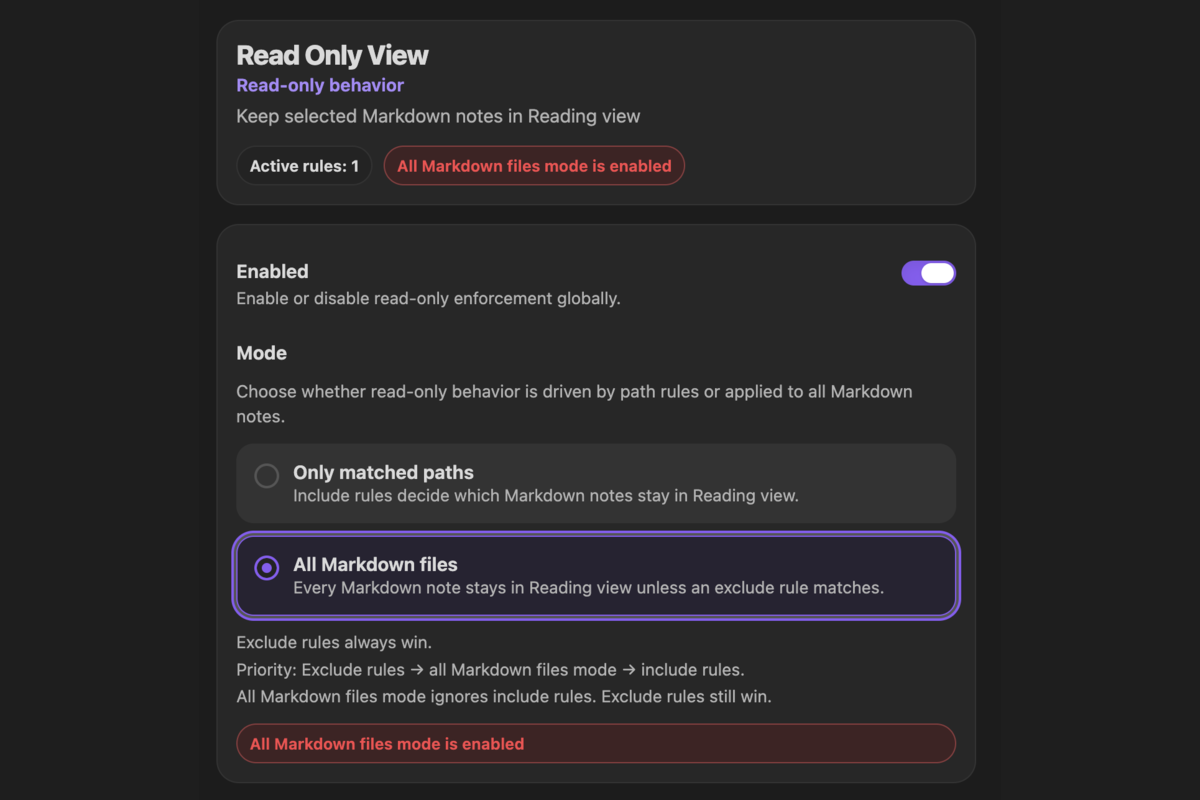
All Markdown files mode protects every Markdown note unless an exclude rule matches.
The welcome window is shown once for the current onboarding version and provides a shortcut to the settings page.
Installation
Community Plugins
Recommended for normal use.
- Open Settings → Community plugins.
- Select Browse.
- Search for
Read Only View. - Select Install.
- Select Enable.
BRAT
Use BRAT to test unreleased builds instead of the Community Plugins release.
- Install Obsidian42 - BRAT from Settings → Community plugins → Browse.
- Open the Command Palette and run BRAT: Add a beta plugin for testing.
- Paste:
https://github.com/mrKazzila/Read-Only-View
- Add the plugin, refresh the plugin list if needed, and enable Read Only View.
Manual installation
Use this as a fallback for local development or manual testing.
- Download or build the plugin files.
- Copy them into:
<Vault>/.obsidian/plugins/read-only-view/
- Include
main.jsandmanifest.json. Includestyles.csswhen it is provided. - Restart Obsidian or reload plugins, then enable Read Only View.
How matching works
Only Markdown files (.md) are affected.
The plugin evaluates a note in this order:
- If an enabled exclude rule matches, the note remains editable.
- Otherwise,
All Markdown filesmode protects the note. - Otherwise, an enabled include rule must match for the note to be protected.
In short: Exclude rules → All Markdown files → Include rules.
Modes
All Markdown files
Every Markdown note stays in Reading view unless an enabled exclude rule matches it.
Saved include rules are retained but inactive in this mode. Their individual enabled states are preserved, so you can switch back to Only matched paths without rebuilding the rule list.
Only matched paths
A Markdown note stays in Reading view only when an enabled include rule matches and no enabled exclude rule matches.
Changing or deleting rules does not change the selected mode. An empty rule list is valid; in Only matched paths mode, it means that no notes are protected.
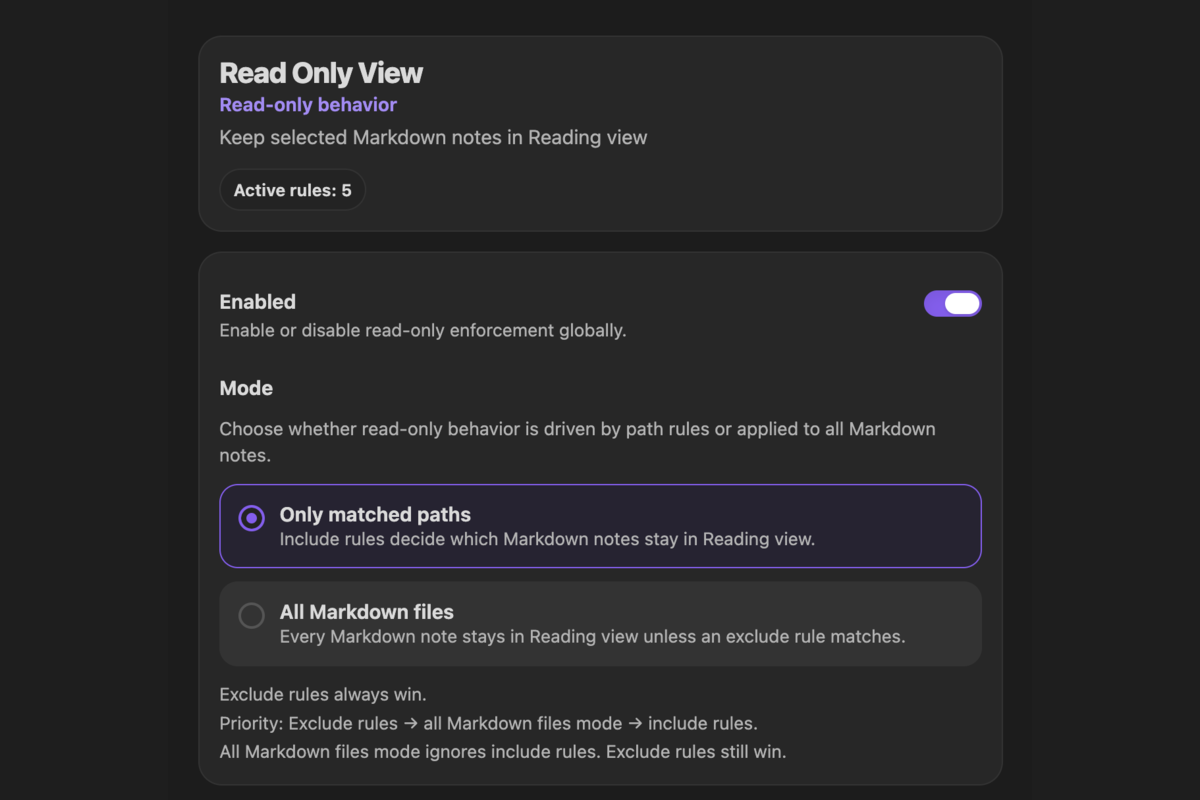
Only matched paths mode uses enabled include rules to decide which notes stay in Reading view.
Ordinary vault paths
With Use glob patterns off, rules are matched as plain path prefixes:
projects/matches notes inside that folder, such asprojects/spec.md.notes/policies/security.mdmatches that note path.
Keep a trailing / when you intend to match a folder. Matching is case-sensitive unless you turn Case sensitive off.
With Use glob patterns on, rules may use *, **, and ?.
Import a note or folder
The Value field accepts three source formats:
Inbox/Quick capture.md
obsidian://open?vault=demo-vault&file=Inbox%2FQuick%20capture
/Users/name/vaults/demo-vault/Inbox/Quick capture.md
/Users/name/vaults/demo-vault/Knowledge Base/Productivity/
- A vault path keeps the normal prefix or glob behavior selected in Advanced → Matching.
- An
obsidian://openURL targets one existing Markdown note. It must reference the current vault. The.mdextension may be omitted, and heading or block locators do not change which note is matched. - An absolute system path can point to an existing Markdown note or folder inside the current vault. Importing system paths is available on desktop.
An imported file becomes an exact rule. An imported folder keeps ordinary folder matching behavior. Once a system path is imported, the saved vault-relative path remains portable to mobile devices and does not expose the original absolute path.
If a URL or system path cannot be resolved, the value stays visible so you can correct it, but it does not participate in matching or the active-rule count.
Rule examples
Protect one folder
Set Mode to Only matched paths and keep Use glob patterns off:
Type: Include
Value: projects/
Protect one exact file
Set Mode to Only matched paths and keep Use glob patterns off:
Type: Include
Value: notes/policies/security.md
You can also paste an Obsidian URL for an existing note to create an exact-file rule.
Protect a folder with an editable exception
Set Mode to Only matched paths and add:
Type: Include
Value: projects/

Type: Exclude
Value: projects/drafts/
Notes under projects/drafts/ remain editable because exclude rules always win.
Keep one folder editable in global mode
Set Mode to All Markdown files and add:
Type: Exclude
Value: workspace/
All other Markdown notes remain protected, while notes under workspace/ stay editable.
Glob mode
Turn Use glob patterns on first:
Type: Include
Value: project_a/**

Type: Include
Value: **/README.md

Type: Exclude
Value: project_a/archive/**
Settings and diagnostics
The settings screen is organized around the main workflow:
- The header shows the current number of active rules and warns when
All Markdown filesmode is enabled. - The mode card contains the global
Enabledtoggle and the two mode choices. - Path rules contains one table for include and exclude rules.
- Path tester explains how a source resolves and whether the resulting note is protected.
- Advanced contains collapsible
MatchingandDebug flagssections.
Path rules
Each row contains:
- an
Enabledcheckbox - an
IncludeorExcludetype selector - one Value field that detects vault paths, Obsidian URLs, and system paths
- a Delete button
Disable a row when you want to keep it without applying it. Disabled rules do not participate in matching, diagnostics, or active-rule counts. In All Markdown files mode, include rows are shown as inactive while exclude rows continue to work.
Resolved Obsidian URLs and system paths show the corresponding vault path below the Value field. Invalid values show an inline explanation. The rules summary and diagnostics reflect the rows that can actually participate in matching.
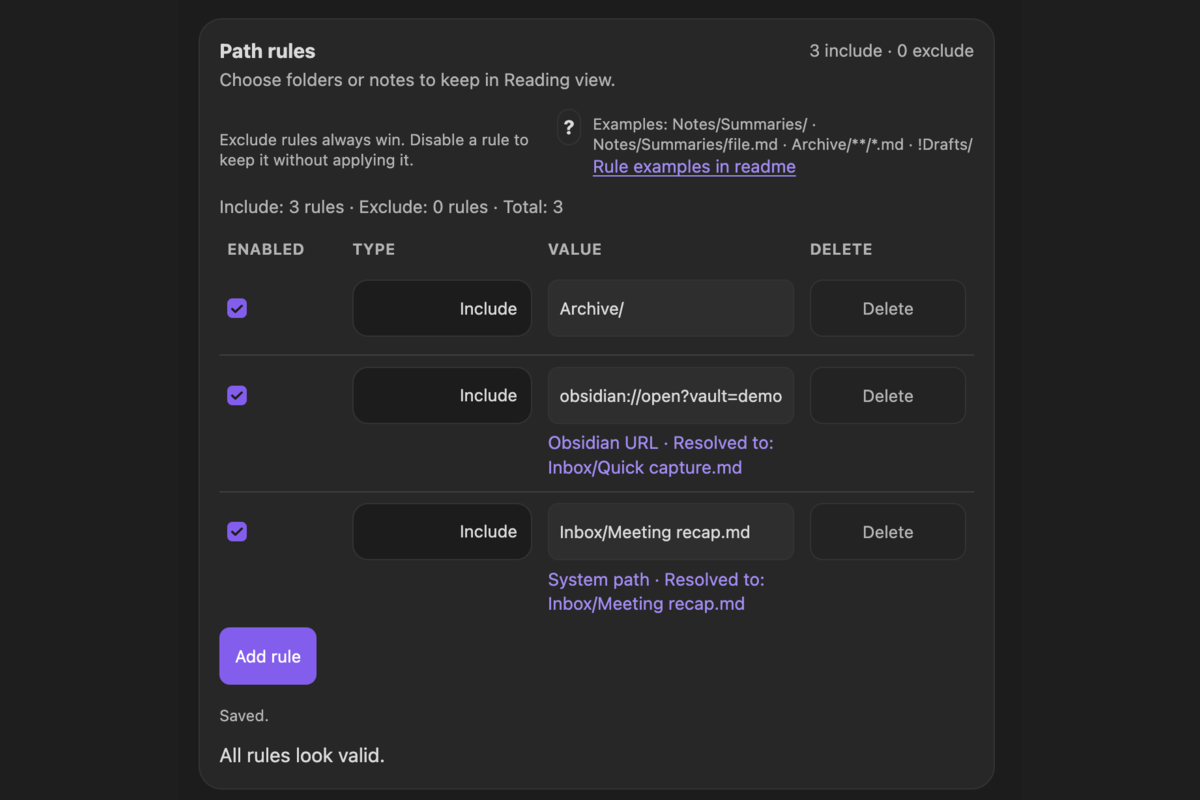
The unified rule editor resolves advanced sources to portable paths inside the vault.
Path tester
Paste a vault path, Obsidian URL, or system path into Path tester. It shows:
- the detected source type
- the resolved vault path
- matching include and exclude rules
- whether the all-Markdown preset determines the result
- the final
Read-onlyorEditablestatus
For a system folder, the tester shows the resolved folder and asks for a specific Markdown note before evaluating rule matches.
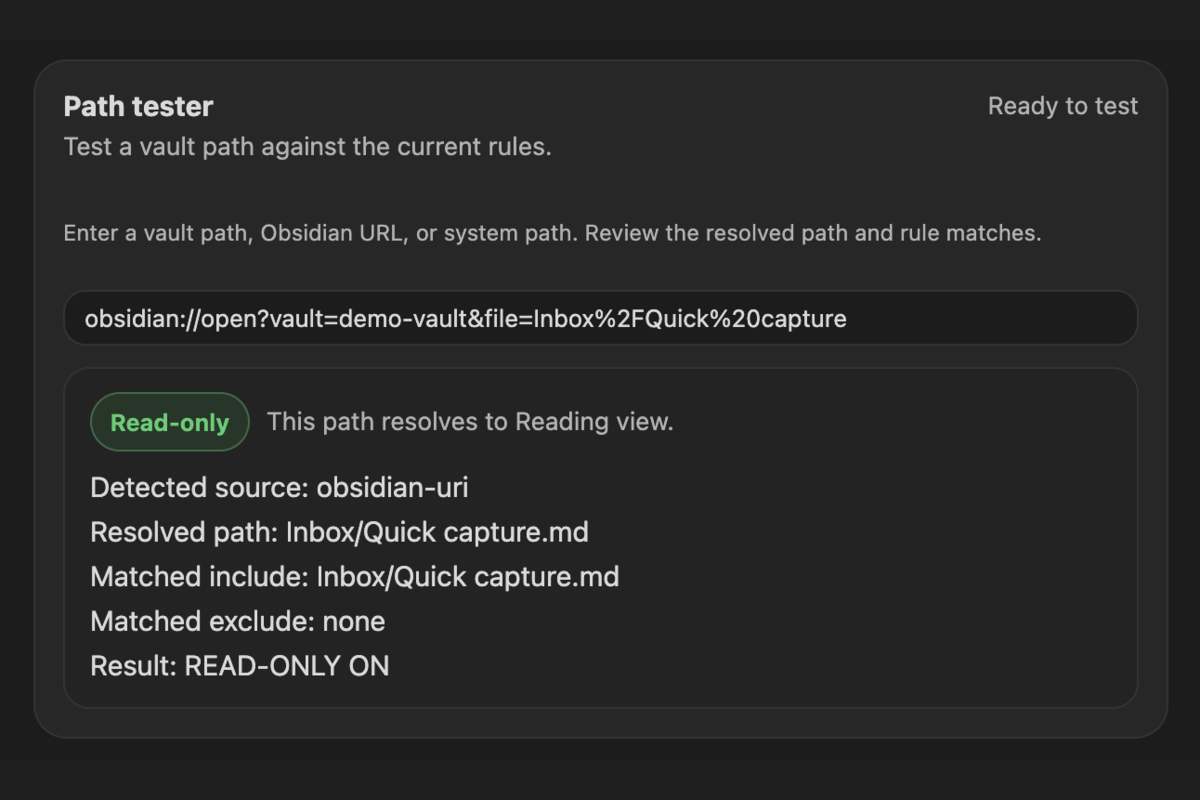
A resolved Obsidian URL matches an include rule and is reported as read-only.
Mobile and tablet layout
On narrow phone and tablet settings panes, the interface switches to a stacked layout so rule controls, descriptions, resolved paths, and errors remain readable. Rules created from a system path on desktop continue to work from their saved vault-relative paths on mobile.
Advanced
The Matching and Debug flags sections are collapsed by default. Open Matching to switch between prefix and glob matching or to change case sensitivity. Debug options are intended only for diagnosing rule behavior.
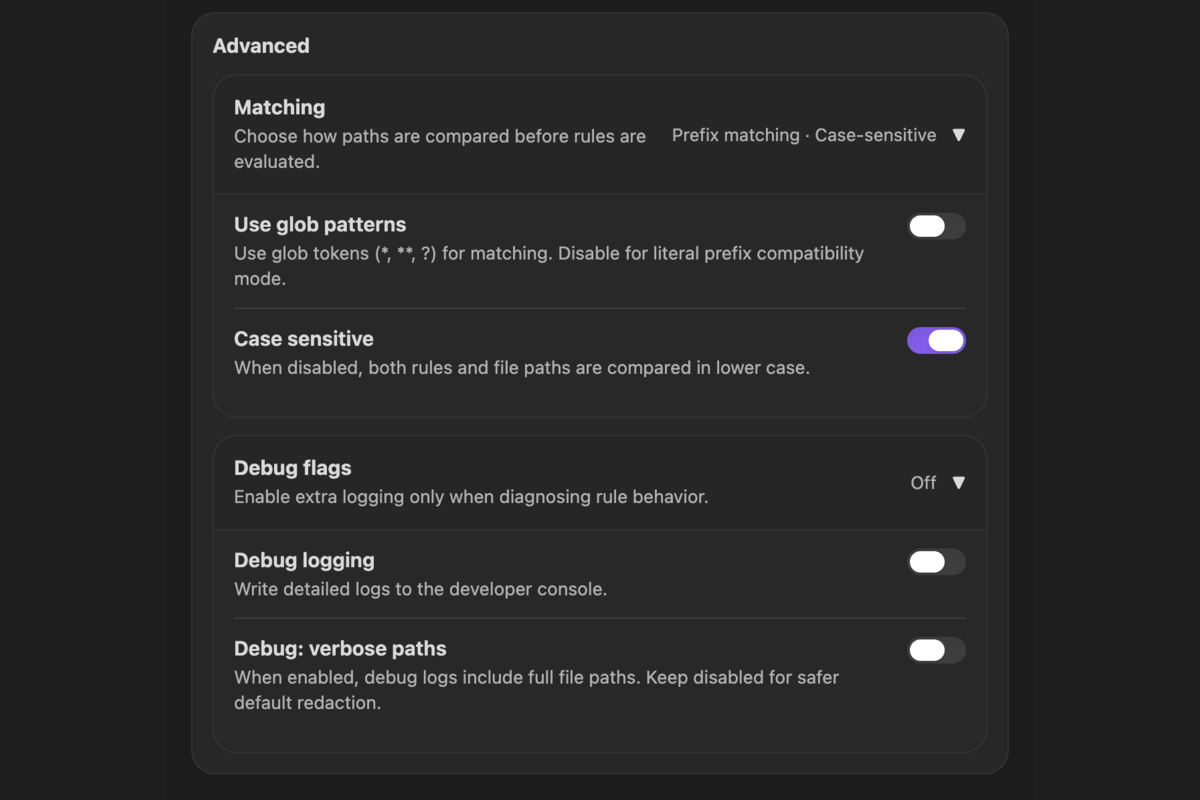
Advanced keeps matching and diagnostic controls out of the primary workflow until they are needed.
Commands
Available from the Command Palette:
Enable read-only modeDisable read-only modeToggle read-only modeRe-apply rules now
Enable read-only mode appears only when the plugin is disabled. Disable read-only mode appears only when it is enabled.
Use Re-apply rules now when you want to enforce the current configuration immediately across open Markdown notes.
Troubleshooting
- A note is not switching to Reading view:
- confirm that
Enabledis on - confirm that the file is a Markdown note
- in
Only matched pathsmode, confirm that an enabled include rule matches - confirm that no enabled exclude rule matches
- confirm that
- A note should remain editable in
All Markdown filesmode:- add an enabled exclude rule for the note or its folder
- verify the exact path with Path tester
- A saved include rule is not active:
- include rules are ignored while
All Markdown filesmode is selected - confirm that the row's
Enabledcheckbox is selected
- include rules are ignored while
- A vault path rule looks right but does not match:
- check path casing if
Case sensitiveis on - check whether wildcard characters are being treated literally because
Use glob patternsis off - keep a trailing
/when the rule is intended for a folder
- check path casing if
- An Obsidian URL cannot be resolved:
- use an
obsidian://openURL - confirm that it names the current vault and an existing Markdown note
- use an
- A system path cannot be imported:
- import it from the desktop app
- confirm that it points to an existing Markdown note or folder inside the current vault
- Recent changes do not seem to apply:
- wait until the settings show
Saved. - run
Re-apply rules now - reopen the note if needed
- wait until the settings show
Limitations
- Read Only View is not an OS-level read-only lock.
- It affects only Markdown files opened in Obsidian.
- It does not protect non-Markdown files.
- It is not a security boundary against other plugins, applications, editors, or external tools.
- Advanced sources must resolve to existing items in the current vault; the plugin does not automatically follow later file renames.
Development
For local development:
npm install
npm run lint
npm test
npm run build
Equivalent just recipes are available. Use just link-plugin to link a local build into the repo's demo vault by default, and just unlink-plugin to remove that local install.
Repository guidance and contributor workflow live in CONTRIBUTING.md.
License
Licensed under 0BSD. See LICENSE.
For plugin developers
Search results and similarity scores are powered by semantic analysis of your plugin's README. If your plugin isn't appearing for searches you'd expect, try updating your README to clearly describe your plugin's purpose, features, and use cases.