Regex Mark
approvedby Mara
Forked from rien7/obsidian-regex-mark
Add custom CSS classes to text based on regular expressions.
Obsidian Regex Mark is a plugin for Obsidian that allows to add custom CSS classes to text based on regular expressions.
Usage
Add a regular expression and a CSS class to the plugin settings. The plugin will then add the CSS class to any text that matches the regular expression.
The contents of the regex will be added to the span tag with the data-content attributes for a more granular styling.
How it works
The following regular expression will add the CSS class comment to any text that matches the regular expression.
regex: //.*$
class: comment
And the following text:
This is a normal line of text. //This is a comment.
will be converted to:
<p>This is a normal line of text. <span data-contents="//This is a comment." class="comment">//This is a comment.</span></p>
It is also possible to create "custom" Markdown tags using the {{open:regex}} and {{close:regex}} syntax. You need to toggle the option hide to enable it.
[!NOTE] The usage of
__for underline (ie__text__) is not supported in reading mode, but works well in Live Preview!
The plugin will mimic the behavior of Obsidian with transforming:
__text__
to:
<span class="underline" contenteditable="false">
  <span>
    <span class="cm-hide">__</span>
    <span class="underline">this is a normal text with underline (in LP)</span>
    <span class="cm-hide">__</span>
  </span>
</span>
The css will after hide the .cm-hide class, unless you select it (only in livePreview for the selection).
Selecting the text will show everything, like with other markup.
Named group
You can also encapsulate a sub-css into a regex mark, using named group. The group name will be used as the CSS class. For example :
- Regex :
{{open:^-# }}((@(?<bold>.*)@)?(?<other>.*)) - Text :
^-# @bold@ hello world - Result :
<span class="small" data-contents="^-# @bold@ hello world">
  <span class="bold">bold</span>
  <span class="other"> hello world</span>
</span>
[!important] If you want to keep the rest of the text, you need to add another named group at the end of the regex, like
(?<other>.*)in the example above. This mean that is not possible to match multiple time the same group in the same text:-# @bold@ hello world @bold@will not work as expected.
[!WARNING] The named group is only displayed when not in
sourcemode or when the cursor is not on the text.
Class Substitution
To the class string substitution will be applied. Explaination taken from
| Pattern | Inserts |
|---|---|
$$ | Becomes "$" |
$& | Becomes the full matched string. |
$n | Becomes the capturing group n |
$<Name> | Becomes the named capturing group "Name" |
For example :
- Regex :
\color\[(r|b|g)] - Class :
color-$1 - Text :
\color[r] - Result :
<span class="color-r" data-contents="\color[r]">
  \color[r]
</span>
Settings
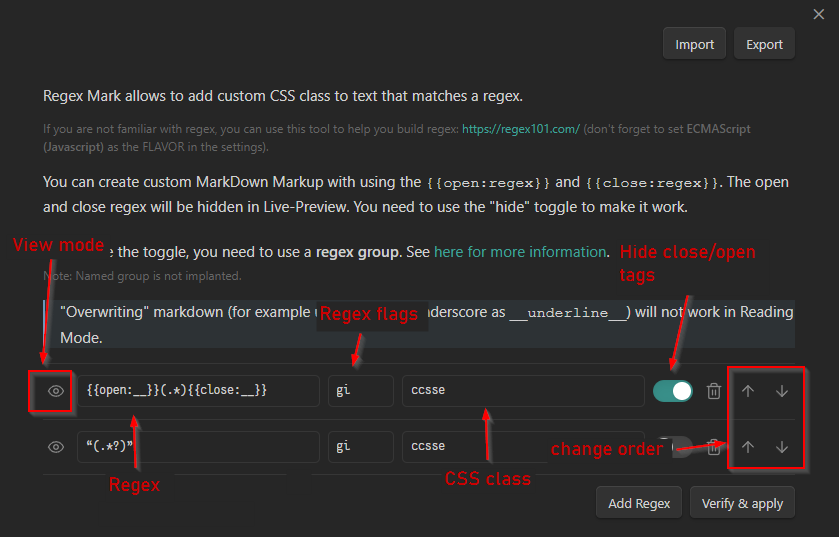
View mode
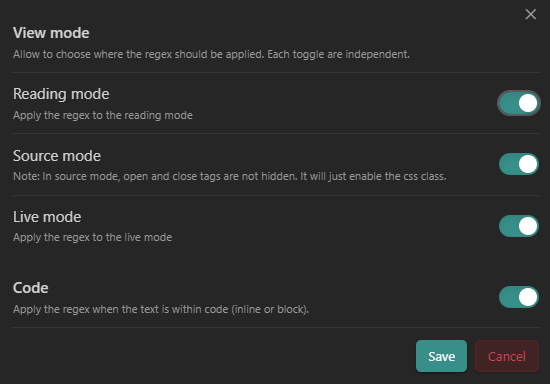 You can disable "per view" the regex, aka, disabling for:
- Reading mode
- Live Preview mode
- Source mode
Each toggle is independent, so you can disable for reading mode, but enable for live preview mode.
You can also disable/enable a snippet within code (code-block or inline, between backticks), with toggle "Code".
Auto rules
You can enable (or disable) a regex for a specific files, using either :
- The file path
- Properties (YAML frontmatter) based on the values of a configurable frontmatter key (
regex_markby default)1.
You can choose to NOT or EQUAL :
NOT: The regex will not be applied to all files that not match the rule.EQUAL: The regex will be applied to all files that match the rule.
In auto-rules, regex are supported, so you can use them too.
Change open/close tags (advanced user only!)
This setting allow to change the default {{open:}} and {{close:}} tags to something else, allowing to use the } (for example) as an opening/closing (ie {regex} can be recognized and stylized). When the tags are changed, the regex are automatically updated to use the new tags. If a regex is broken, it will be disabled in all view, and a warning will be displayed in a Notice.
Import / export
You can share your regexes with other people without manually sharing the data.json using the import / export feature. You can also use it to back up your regexes.
The settings also port the open/close tags, so you can share the settings with the tags you use. Manual regex in object format can also be imported, and they will be added to the list.
Next steps
You can then use the CSS class to style the text in your CSS snippet or any other usages. You can even import or export settings from others!
Examples
- Underline :
{{open:__}}(.*){{close:__}}Note: To make it works in Reading mode, read this - SuperScript :
{{open:\^}}(.)(Note: It works for "one" character only here, but you can use^x^syntax if you want to use for more text:{{open:\^}}(.*){{close:\^}}) - SubScript :
{{open:_}}([a-zA-Z\d]\b))(As before, it works for only one element)
The CSS for the above example is:
.superscript {
    vertical-align: super;
    font-size: 90%;
}

.subscript {
    vertical-align: sub;
    font-size: 90%;
}
Additional notes
In reading mode the plugin can't override the default mark behavior. For example, ** and __ will be always bold, and render without the tag. The plugin won't recognize the opening and closing pattern, and ignore it.
To prevent this, you can escape the pattern using a backslash (\):
\__hello world\__
lorem ipsum (won't be in italic)
In reading view, it will render as:
__hello world__
And the regex should be: {{open:\\?_\\?_}}(.*){{close:\\?_\\?_}}
You need to make the backslash optional, because they don't render in the reading view.
[!WARNING] If your Obsidian refuse to open a file, and you get this error in the console:
RangeError: Decorations that replace line breaks may not be specified via pluginsThat's mean that one of your regex doesn't work inside Obsidian. You need to check every regex you have added to find the one that cause the issue and delete it, and reload Obsidian to make it work again. I tried to find a way to catch the error and display it in the console, but I didn't find a way to do it... So, if you have any idea, I'm open to suggestions!
Credits
- rien7: Original work
Transparency
I use some IA (with Copilot in Agent) on some part of the code, mainly for the experimental features like the named group. I already standed against the use of AI for code generation, but I think that using it for some parts of the code is not a problem, as long as I don't use it for the main part of the plugin, and I uderstand the results. I also, sometimes, ask question to ChatGPT to help me to "think" (as a duckduck debugging) about the code, but I don't use it to write the code (or only some little snippets).
If you like, you can help me, correct the code generation, or even help me with pair programming! My discord is mara__li (yes, simple likes that, with two underscore). You can also find me on the official Obsidian Discord Server.
I'm (mostly) chill >:)
Footnotes
-
You need to reload the file (open it again) to apply/disable the regex when the frontmatter is changed in the reading mode. ↩
For plugin developers
Search results and similarity scores are powered by semantic analysis of your plugin's README. If your plugin isn't appearing for searches you'd expect, try updating your README to clearly describe your plugin's purpose, features, and use cases.