Open Ribbon Groups
approvedby aione314159
Group the buttons in the left ribbon into labeled, color-coded sections, and reorder them by dragging. - This plugin has not been manually reviewed by Obsidian staff.
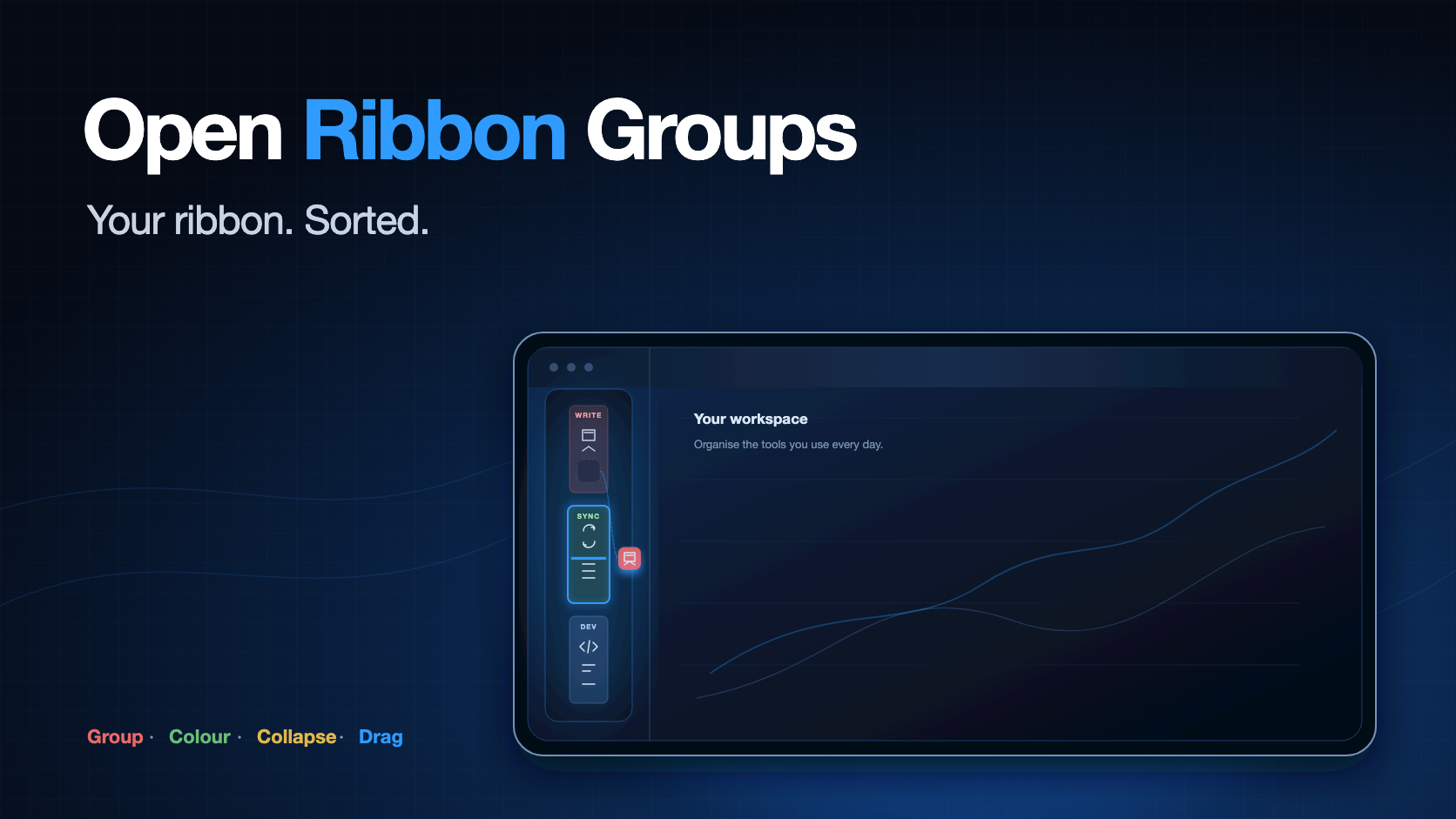
Open Ribbon Groups
An Obsidian plugin that splits the left ribbon into labeled, color-coded groups — and lets you drag buttons between them on the ribbon itself.






Once you have a dozen plugins installed, the ribbon turns into one long column of unrelated icons. This plugin lets you split it into blocks such as "Writing", "Sync" and "Dev", separated by color.
📥 Download · 💡 Features · ⚙️ Usage · 🔄 Drag on the ribbon · 🐞 Report an issue
Requirements
Obsidian 1.8.7 or later, on desktop or mobile.
Features
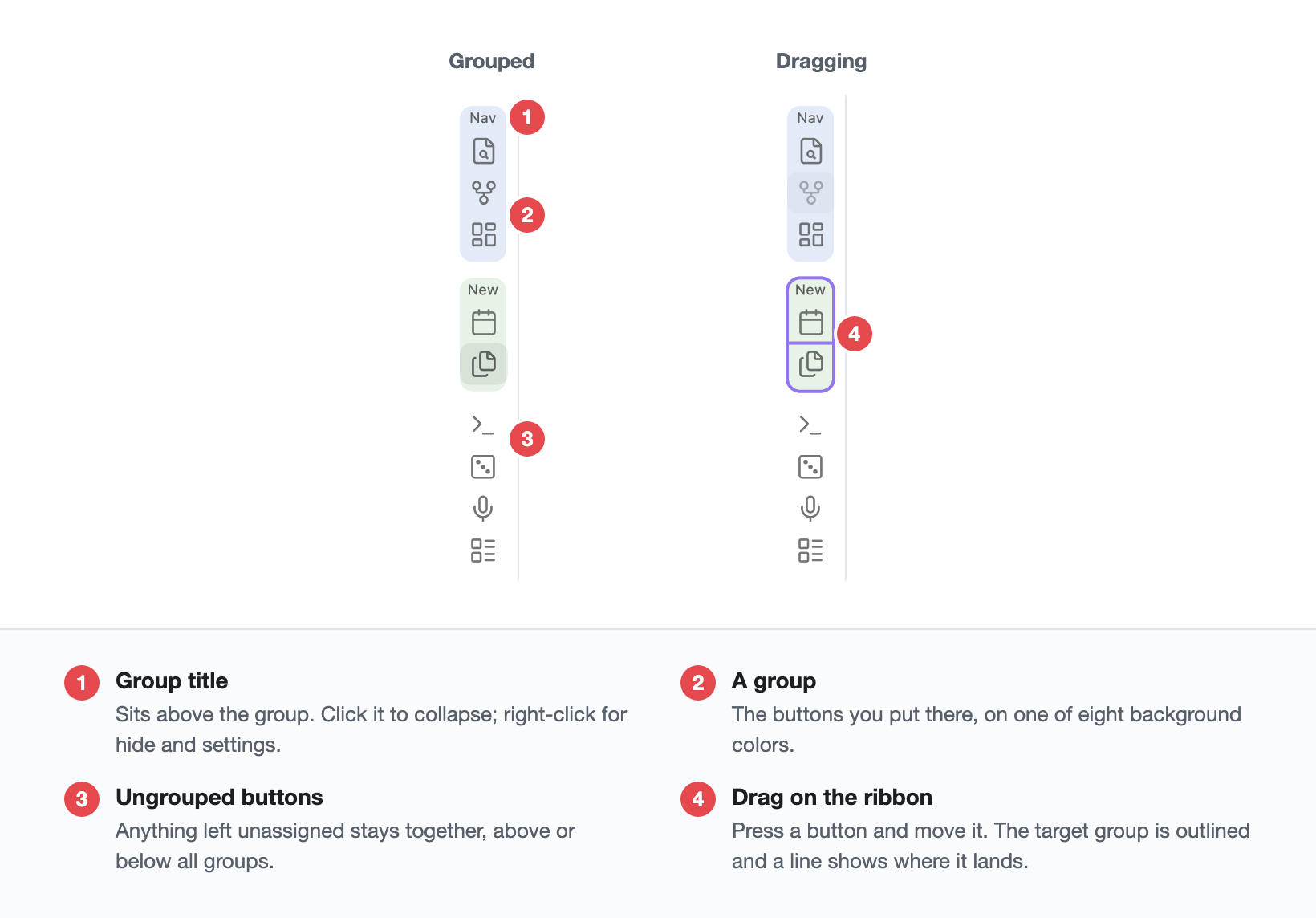
- Groups, each with a background color (eight built-in swatches), a title and an optional icon
- Group titles shrink to fit — the ribbon is only 44px wide, so the label steps down from 9px until five characters fit instead of being cut off after three
- Click a title or icon to collapse the whole group; commands collapse or expand every group at once
- Right-click a group on the ribbon to collapse it, hide it, or jump straight to these settings
- Switch a whole group off with one checkbox — it leaves the ribbon without being broken up
- Hide every ungrouped button, so the ribbon shows only the groups you built
- Drag buttons between groups on the ribbon itself, with the target group outlined and an insertion line where the button will land
- The settings tab also lists every button on your ribbon, for arranging several at a time
- Groups themselves can be dragged to change their order
- Dragging works with a mouse, a pen or a finger, and scrolls the settings pane when you reach its edge
- Filter the ungrouped list by name when a vault has more buttons than fit on screen
- Compact spacing, for when a short window cannot fit every group
- Copy your groups out as JSON and paste them into another vault
- Ungrouped buttons stay together, either above or below all groups
- English, Traditional Chinese, Simplified Chinese, Japanese and Korean, following the language set in Obsidian
Hiding
A group can be switched off without being deleted: uncheck the box next to its name in settings, or right-click it on the ribbon and choose "Hide group". Its buttons keep their places, and turning it back on restores the group exactly as it was.
"Hide ungrouped buttons" does the same for everything you have not sorted yet. Together they turn the ribbon into a list of only what you chose to put there.
Hidden buttons are not removed from Obsidian — they still work from the command palette, and they come back the moment you switch the group on again.
Drag on the ribbon
Press a ribbon button and move it. Past a few pixels the button fades, the group under the pointer is outlined, and a line shows where it will be inserted. Release to drop it there.
Dragging a button out of every group drops it back into the ungrouped area. When all of your buttons are grouped there is no ungrouped block on screen to aim at, so one appears for the duration of the gesture and goes away afterwards.
A press that never moves is still a plain click, so buttons keep doing what they always did.
Press Esc during a drag to cancel it.
Obsidian has its own ribbon drag, which reparents the button the moment the pointer moves. That fights with the grouping, so this plugin suppresses it while it is loaded and handles the gesture instead.
Please read this first
Obsidian has no public API for listing or reordering ribbon buttons. addRibbonIcon()
only adds your own button; it cannot touch anyone else's. This plugin reads the private
app.workspace.leftRibbon object plus the ribbon's own DOM.
That means: if Obsidian changes that internal structure, this plugin will break and will need a fix to follow along.
It will not fail silently. The settings tab shows "Ribbon not found" together with the structure it actually detected, and a button to copy that diagnostic text so you can file an issue.
Disabling the plugin restores the ribbon to its original state — no restart needed.
Privacy
This plugin makes no network requests, collects no telemetry, and requires no account.
All settings live in data.json inside the plugin's own folder in your vault.
Settings you paste into the import box are validated before they are used: group colors are
restricted to literal color syntax, so an imported file cannot smuggle in a url() that
would make your ribbon fetch something.
The settings tab has an "Open" button that reveals that folder in your system file manager. It only ever points at the plugin's own folder inside the vault, and it is hidden when the vault is not backed by a local file system (for example on mobile).
Install
From the community directory
Settings → Community plugins → Browse → search for "Open Ribbon Groups".
Manually
Copy main.js, styles.css and manifest.json from the latest
release into
<vault>/.obsidian/plugins/ribbon-groups/, then enable it under
Settings → Community plugins.
Usage
Settings → Open Ribbon Groups:
- Click "Add group", give it a name and pick a background color
- Optionally type a Lucide icon name, such as
folder-open - Drag buttons from the "Ungrouped" list below into it
- Use the
⠿handle on the left to reorder groups
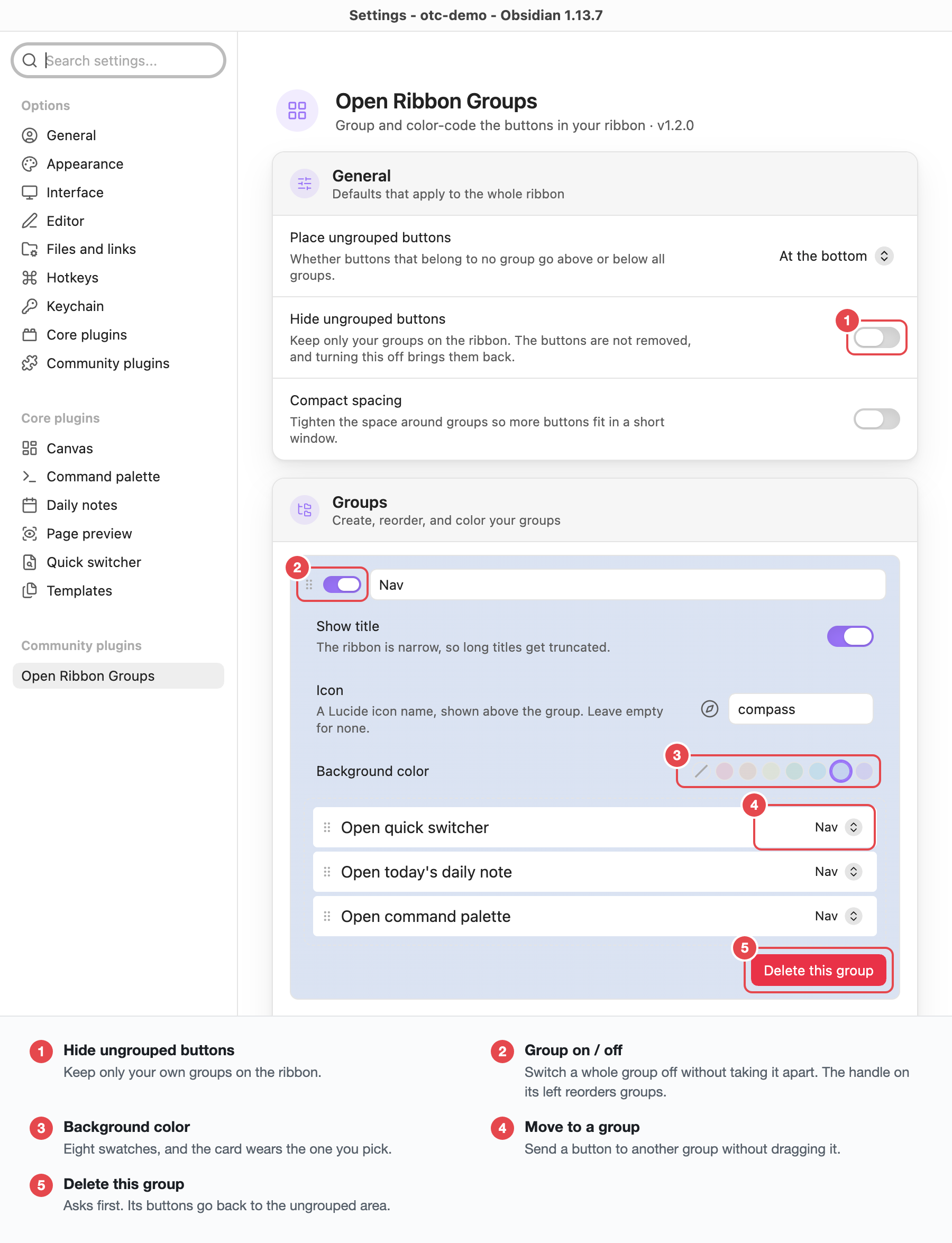
Changes apply immediately; there is nothing to save.
Clicking a group title in the ribbon collapses it, and the collapsed state is remembered.
When a plugin gets disabled
Its button disappears from the ribbon, but its position is kept in the settings. Re-enable that plugin and the button returns to its original group — no need to rearrange anything.
If you are sure you are done with it, the settings tab shows "N buttons are no longer on the ribbon" at the top; click "Clear" to drop them.
Development
npm install
npm run build       # produces dist/{main.js, styles.css, manifest.json}
npm run dev         # watch mode
npm test            # vitest
npm run typecheck
Tests cover the group data operations (deduplication, where buttons go when a group is
deleted, what an import is allowed to contain) and the whole drop decision — which zone a
release lands in and at which index, on the ribbon as well as in the settings pane. DOM
manipulation and the settings UI are out of scope; those are verified through the diagnostic
output in ribbonDom.ts.
License
For plugin developers
Search results and similarity scores are powered by semantic analysis of your plugin's README. If your plugin isn't appearing for searches you'd expect, try updating your README to clearly describe your plugin's purpose, features, and use cases.