by Alex Totolici
Right-click any tag to color it: in notes, reading view, Tasks and Dataview results, and Properties. Pick from your palette or any custom color.
Right-Click Tag Colors
Color any tag in Obsidian with a right-click. No settings page, no CSS snippets: right-click the tag where you see it, pick a color, done.
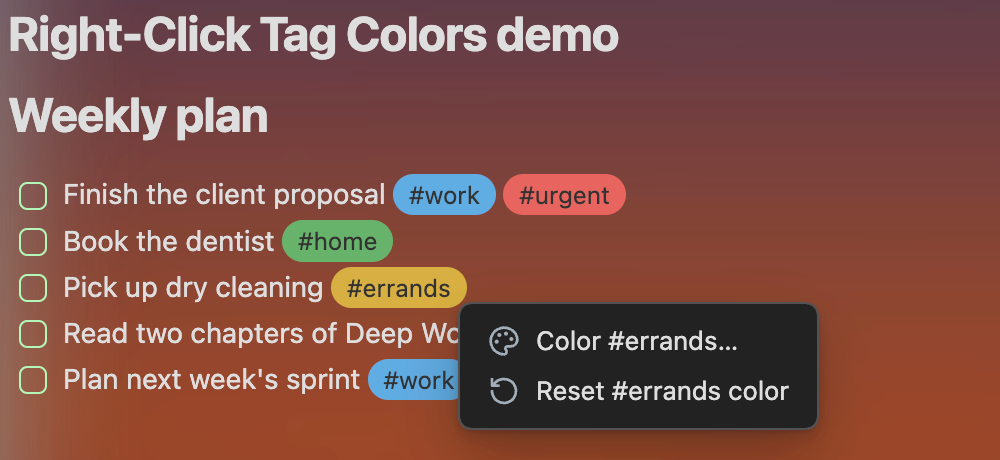
Right-click works everywhere tags show up
- Notes you are editing (Live Preview and source mode). "Color #tag…" is added to Obsidian's own right-click menu.
- Reading view.
- Tasks plugin query results (
taskscode blocks). - Dataview and DataviewJS output.
- Tag pills in Properties and Bases.
Nested tags like #people/anna work too, and each one gets its own color.
Pick a palette color, or any color
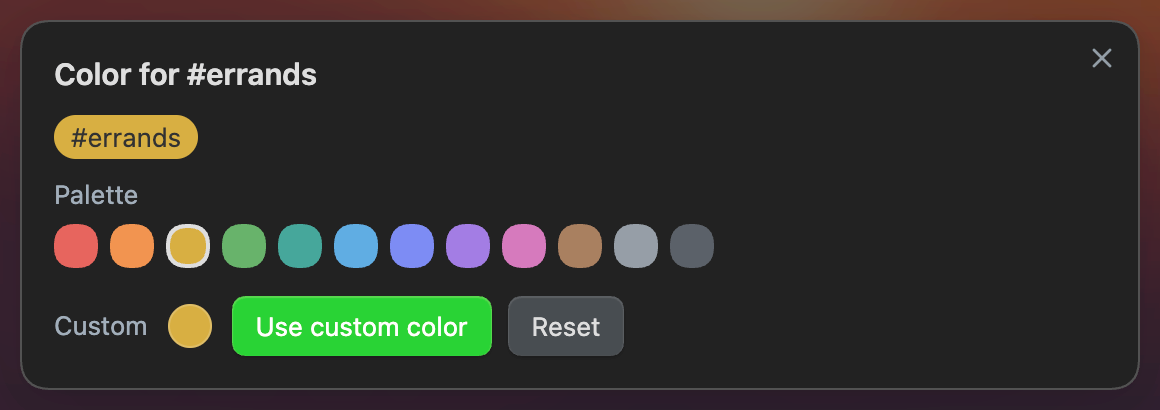
The color window shows your palette for one-click picks. If no palette color fits, use the custom picker to choose any color. Reset gives the tag back its default look. Text on a colored tag automatically turns dark or light, so it stays readable.
Edit everything in settings
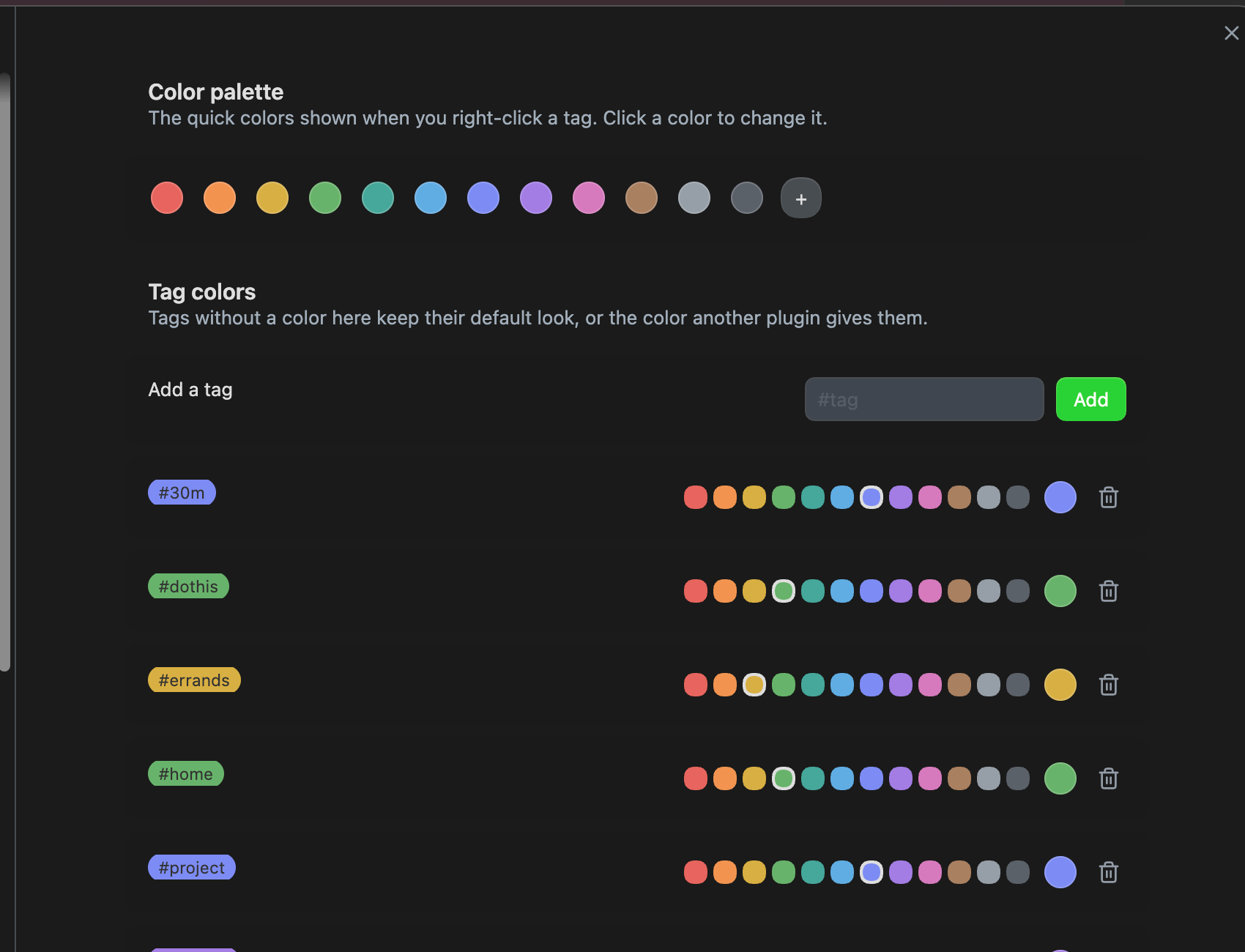
- Color palette: change, add or remove the quick colors.
- Tag colors: every colored tag in one list. Recolor it from the palette or with the color picker, or remove its color. You can also add a tag by name (press Enter or click Add). A search box appears once the list grows.
Works with Colored Tags
Using an automatic tag-coloring plugin such as Colored Tags? Keep it. Tags you color with this plugin use your color, and every other tag keeps its automatic color.
Installation
From Obsidian: Settings → Community plugins → Browse → search for "Right-Click Tag Colors" → Install → Enable.
Manually: download main.js, manifest.json and styles.css from the latest release, put them in <your vault>/.obsidian/plugins/right-click-tag-colors/, then enable the plugin in Settings → Community plugins.
Phone and tablet
The plugin works on mobile. Long-press a tag instead of right-clicking.
License
For plugin developers
Search results and similarity scores are powered by semantic analysis of your plugin's README. If your plugin isn't appearing for searches you'd expect, try updating your README to clearly describe your plugin's purpose, features, and use cases.