by leyem
Preview and embed local Xmind files, switch sheets, and open originals in Xmind.
SeeXmind
简体中文 · Download · Report an issue
Preview local .xmind files inside Obsidian on macOS, Windows, iPhone, iPad and Android. Embed maps in your notes, switch sheets, and open or share a file with Xmind when you want to edit.
SeeXmind is an independent, unofficial plugin. It is not affiliated with, endorsed by, or sponsored by Xmind or Obsidian. Xmind remains the editor; SeeXmind does not include Xmind or unlock its paid features.
Features
- Show
.xmindfiles in the vault file explorer. Click or tap to preview; on desktop, double-click to open the original in Xmind. - Embed interactive previews in Markdown with
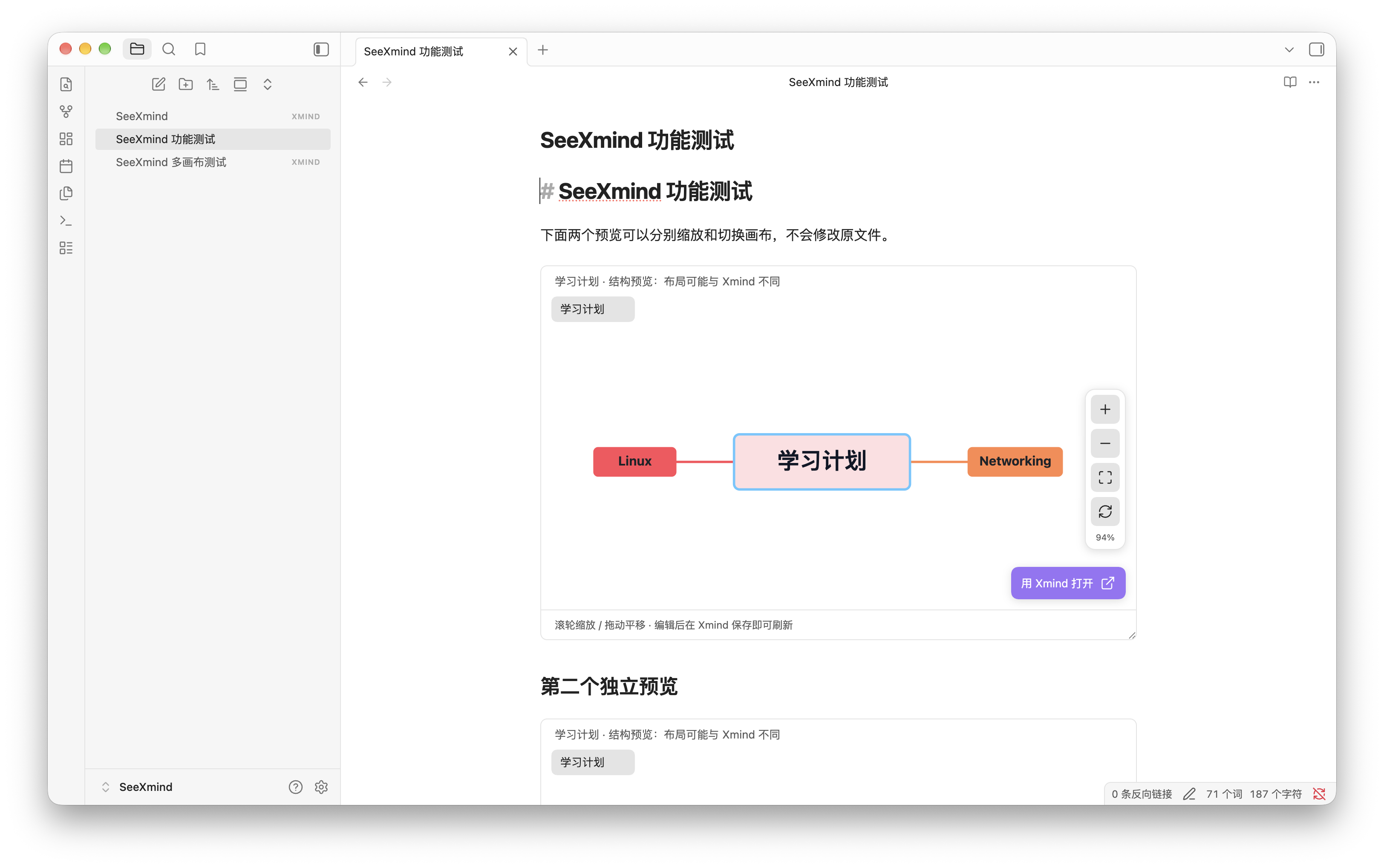
![[Mind map.xmind]]. - Switch between sheets from the preview's sheet selector.
- Zoom, pan, fit, and refresh using the floating icon toolbar. On phones and tablets, drag with one finger and pinch with two fingers; touch buttons are at least 44 px. Desktop icons show labels on hover.
- Use the bottom-right Open in Xmind button on desktop, or Open / share on mobile to choose Xmind through the system.
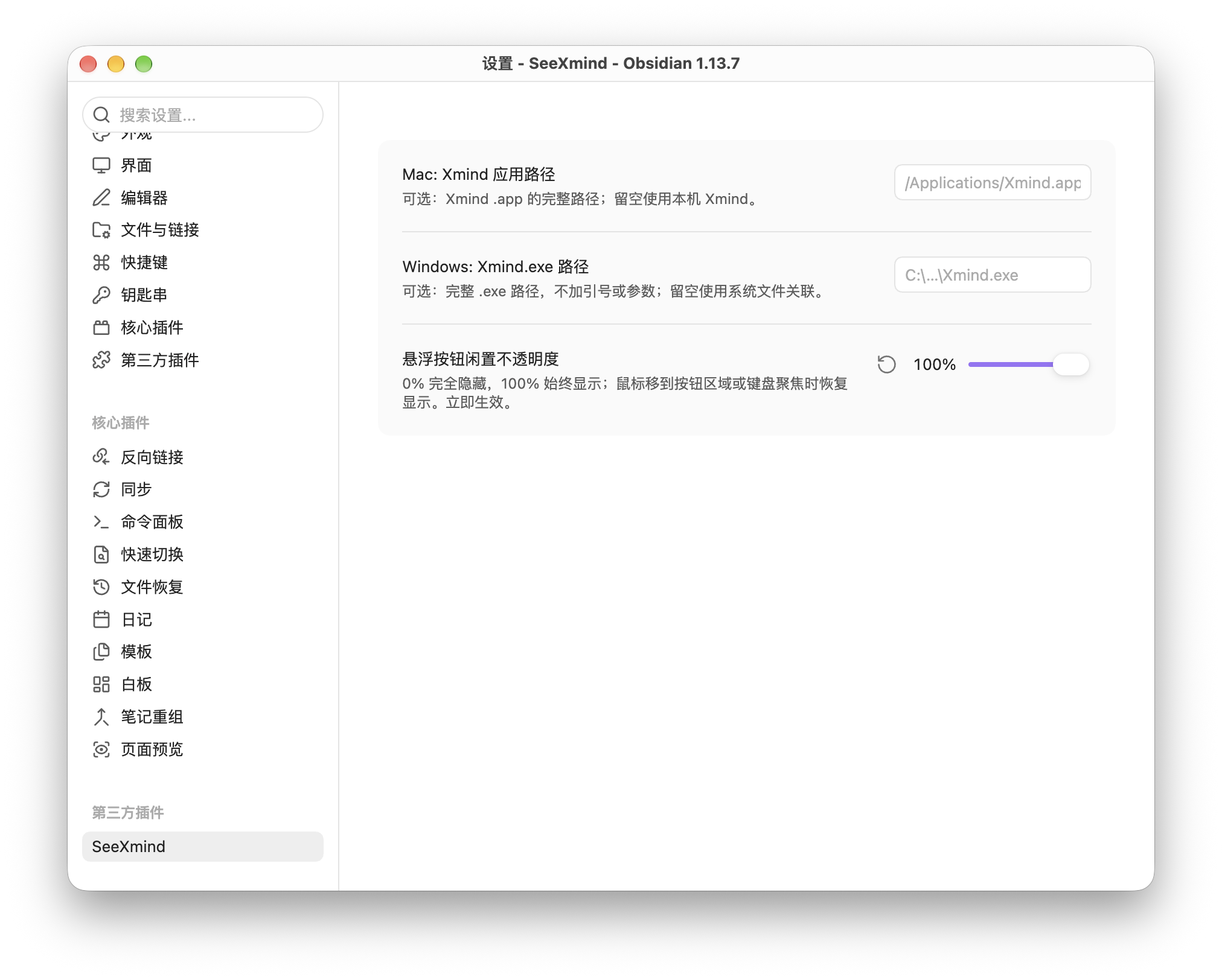
- Set idle control opacity from 0% to 100%. Hover or keyboard focus reveals controls on desktop. On touch devices, tap the canvas to reveal them for 3.5 seconds, even at 0% opacity.
- English and Simplified Chinese interface, following Obsidian's current language where available; other languages fall back to English.
- Optional macOS
.appand Windows.exepaths remain available in desktop settings.
Screenshots
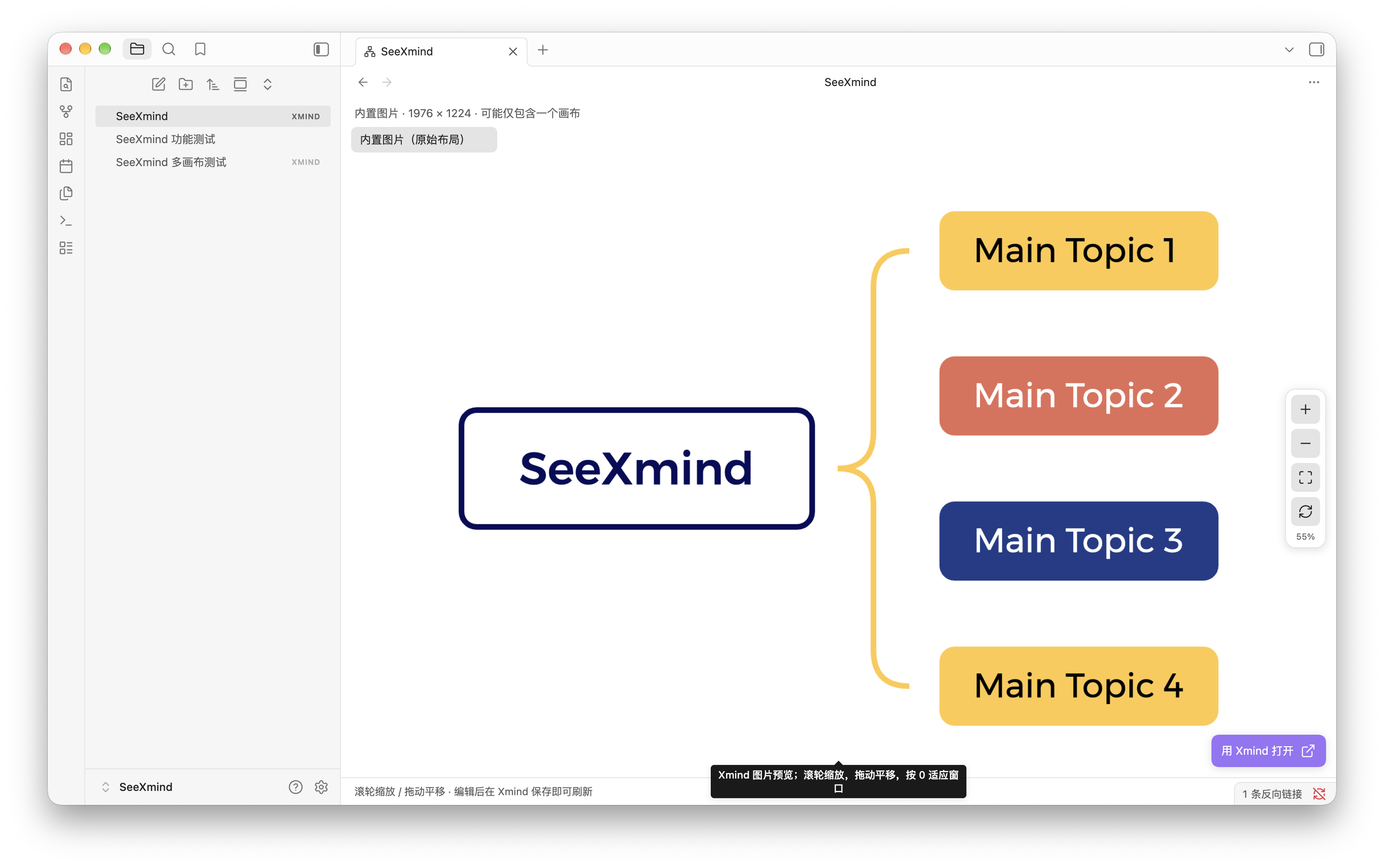
Screenshots supplied by the maintainer, showing the macOS interface in Simplified Chinese. Mobile uses touch controls and an Open / share button; custom application paths appear only on desktop.
Original image preview and floating controls
Interactive Markdown embeds
Custom application paths and idle opacity
Installation
Requires Obsidian 1.8.7 or later. Supports macOS, Windows, iPhone, iPad and Android. We recommend installing Xmind separately for editing. Previewing supported files does not require an Xmind account or a running Xmind app.
Install SeeXmind from Settings → Community plugins → Browse: search for SeeXmind, install it, and enable it. You can also open its official listing and select Add to Obsidian.
For manual installation:
- Download
main.js,manifest.json, andstyles.cssfrom the same public release. - Put all three in
<your-vault>/.obsidian/plugins/seexmind/. - Reload Obsidian, then enable SeeXmind in Community plugins.
There is no need to access or download the private source repository. When updating, replace the three installation files and preserve data.json if you want to keep your settings. Disable other plugins that claim the .xmind extension.
Usage
Put an .xmind file inside your vault. Click or tap it in the file explorer to open the preview. Previews, Markdown embeds and sheet selection work on desktop, phones and tablets.
Desktop: Double-click the explorer entry, use the preview's Open in Xmind button, or choose Open in Xmind from its file menu. Save the original in Xmind and return to Obsidian; SeeXmind refreshes when the vault reports a file change. The refresh icon also reloads the file.
iPhone, iPad and Android: Tap Open / share, or use the file menu or command to open or share the current Xmind file. Obsidian and the operating system handle the available apps; choose Xmind when prompted. If nothing opens or Xmind is absent from the list, locate the vault's .xmind file in the system Files app and open it with Xmind, or use Open from Files in Xmind. Android also offers Local File → Import.
Mobile opening or sharing may create an imported copy. After editing, save back to the same vault location or replace the vault file, then return to Obsidian and refresh. SeeXmind cannot guarantee automatic writeback from another app.
Embed in a note
![[Mind map.xmind]]
A vault-relative path also works, for example ![[Maps/Study plan.xmind]]. Use Reading view or Live Preview with the cursor outside the embed. Each embedded preview has its own sheet selection, zoom, and pan. On desktop, drag the bottom-right resize handle to change its height.
For versions or themes where the native embed hook is unavailable, use this code block:
```xmind
Maps/Study plan.xmind
```
Choose a preview mode or sheet
- Embedded image (original layout) shows the PNG stored by Xmind inside the file, preserving that image's appearance. It may represent only one sheet, may be outdated until the file is saved again in Xmind, and has a fixed resolution.
- Named sheets are local structure previews reconstructed from
content.jsonor supportedcontent.xmldata. You can inspect each sheet, but the layout, fonts, spacing, and advanced elements may differ from Xmind. Resource images and some advanced sheet features are not reconstructed.
SeeXmind never relabels one embedded image as another sheet. If exact appearance matters, use the embedded image or open the original in Xmind. Unsupported, encrypted, damaged, or overly complex files may not render. Archives above 128 MB are rejected; decompression and document complexity are also bounded.
Controls and settings
- Floating toolbar: Zoom in, Zoom out, Fit to window, Refresh preview. It sits on the right and can move to the top on short touch screens.
- Desktop: scroll over the map to zoom and drag to pan. With the canvas focused,
+/-zoom and0fits the map. - Phones and tablets: drag with one finger to pan and pinch with two fingers to zoom. Tap the canvas to reveal the tools; this works in standalone previews and embeds.
- Floating controls idle opacity applies immediately to open previews. At 0%, controls remain in their usual positions. Hover or keyboard focus reveals them on desktop; a canvas tap reveals them for 3.5 seconds on touch devices before they return to the selected opacity.
- Mac application path (desktop only): leave blank to use the installed Xmind, or enter a full path such as
/Applications/Xmind.app. - Windows executable path (desktop only): leave blank to use the
.xmindfile association, or enter the full path toXmind.exe. Do not add quotes or command-line arguments. - After changing Obsidian's language, reopen the preview or reload the plugin to refresh existing interface labels.
Desktop external application capability warning
The directory may show “Shell Execution / child_process” for the desktop opening capability. Mobile uses Obsidian's system opening/sharing flow. On desktop, SeeXmind uses Node.js process-launching APIs to open Xmind on macOS (including a custom .app) or a user-selected .exe on Windows. Windows with no custom path uses the system file association.
- Launching happens only after you double-click a file or choose an Open in Xmind button, command, or menu item. Loading the plugin and displaying previews do not launch the application.
- Local
.xmindpaths and custom application paths are validated. The executable and arguments are passed separately, without concatenated shell command strings or a shell interpreter. - SeeXmind does not request administrator elevation. This warning describes a powerful API available to the plugin; it is not a request for administrator or Full Disk Access permission.
- This is not a sandbox or a guarantee of safety. The selected program runs with the current user's permissions and receives the file path. A malicious executable can cause harm: choose only a trusted local Xmind installation. File-extension checks do not verify the publisher or contents of that program.
We retain and disclose this capability to support custom application paths; we do not hide it or claim the warning has been eliminated. The plugin does not initiate network requests or collect telemetry; external applications have their own behavior. See PRIVACY.md.
Privacy and scope
The plugin processes previews locally in memory and does not initiate network requests, load remote resources, upload documents, collect analytics, or run telemetry. It reads the selected vault file through Obsidian's API and saves application paths and opacity in local plugin settings. External opening happens only on a user action. Desktop passes the selected local file path to the installed app; mobile asks Obsidian to open or share the selected vault file with an app you choose.
Xmind, Obsidian, GitHub, and any vault synchronization or network storage services have their own network behavior and privacy policies. Obsidian plugins are not security-sandboxed. See PRIVACY.md.
Upgrading to 0.3.0: existing custom paths and idle opacity are preserved; custom paths remain desktop-only. Paths were restored in 0.2.3. If you saved settings in 0.2.2, those paths may have been removed; enter them again.
Supported platforms
SeeXmind supports Obsidian on macOS, Windows, iPhone, iPad and Android. Previewing, Markdown embedding and sheet selection are available on all these platforms. External editing uses the desktop launcher or the mobile system opening/sharing flow described above.
SeeXmind is a viewer and launcher, not a mind-map editor. Saving, exporting, account features, and any paid Xmind functionality remain the responsibility of Xmind.
Distribution and license
This public repository contains user documentation and installable distribution files. The development source, build configuration, and tests remain in a private repository for maintenance and authorized source review. Distributed main.js is readable JavaScript; keeping the development repository private does not conceal its runtime logic or override its license.
Licensed under Apache-2.0. Selected structure parsing and rendering components are adapted from yuanzhixiang/obsidian-xmind, with attribution and modification details in THIRD_PARTY_NOTICES.md. No Xmind proprietary engine is included.
Provided as-is, subject to the license and applicable law. These scope statements do not exclude liabilities that cannot lawfully be excluded or guarantee freedom from infringement or legal risk.
Support and thanks
Thank you for using SeeXmind, sharing feedback, and helping test it! If it makes your workflow a little easier, you are welcome to buy the maintainer a coffee using the QR code below. Your encouragement helps support continued maintenance.
Support is completely voluntary. No payment is required to install or use any current feature, and donating does not unlock extra features. The QR code is provided here on GitHub only; the plugin does not display payment prompts or process payments.

For plugin developers
Search results and similarity scores are powered by semantic analysis of your plugin's README. If your plugin isn't appearing for searches you'd expect, try updating your README to clearly describe your plugin's purpose, features, and use cases.