by shouyu2008
supports functions such as creating, viewing, editing XMind files, and embedding them into Markdown.
XMinder




Edit .xmind mind maps directly inside Obsidian — and embed them in your notes.
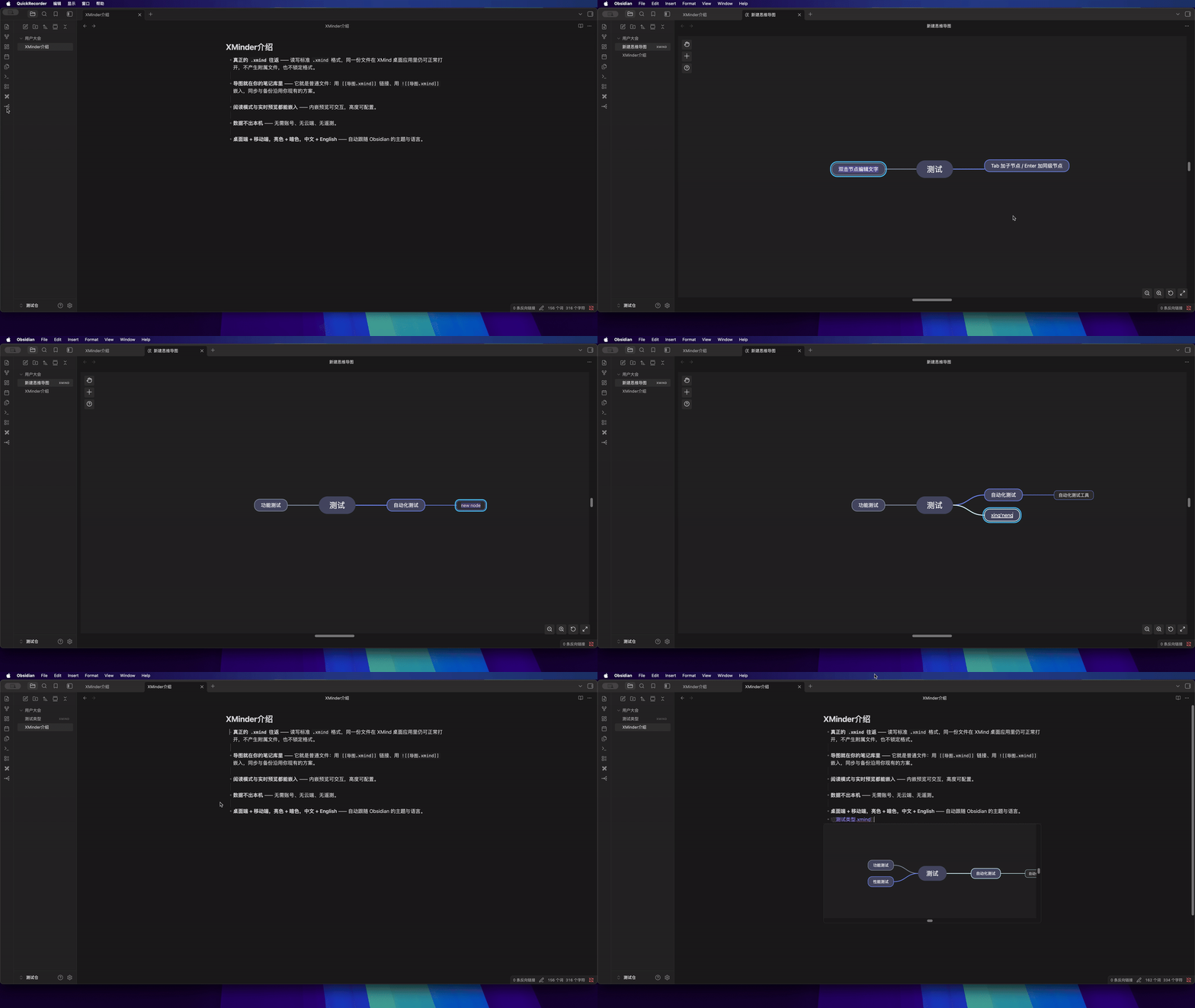
Why XMinder
- Real
.xmindround-trip — maps are read from and written back to the standard.xmindformat, so the same file still opens in the XMind desktop app. No side-car files, no lock-in. - Mind maps live in your vault — they are ordinary vault files: link them with
[[map.xmind]], embed them with![[map.xmind]], sync and back them up like any other note. - Embeds in Reading view and Live Preview — the inline preview stays interactive, with a configurable height.
- Nothing leaves your machine — no account, no cloud, no telemetry.
- Desktop and mobile, light and dark, English and 中文 — follows your Obsidian theme and language.
Installation
From the community plugins list
- Open Settings → Community plugins → Browse.
- Search for XMinder.
- Choose Install, then Enable.
Via BRAT (tracks the latest build)
- Install the BRAT plugin.
- BRAT → Add beta plugin →
shouyu2008/obsidian-xminder.
Manually
Download main.js, manifest.json and styles.css from the
latest release into
<vault>/.obsidian/plugins/xminder/, then enable XMinder in
Settings → Community plugins.
Requires Obsidian 1.13.0 or later.
Quick start
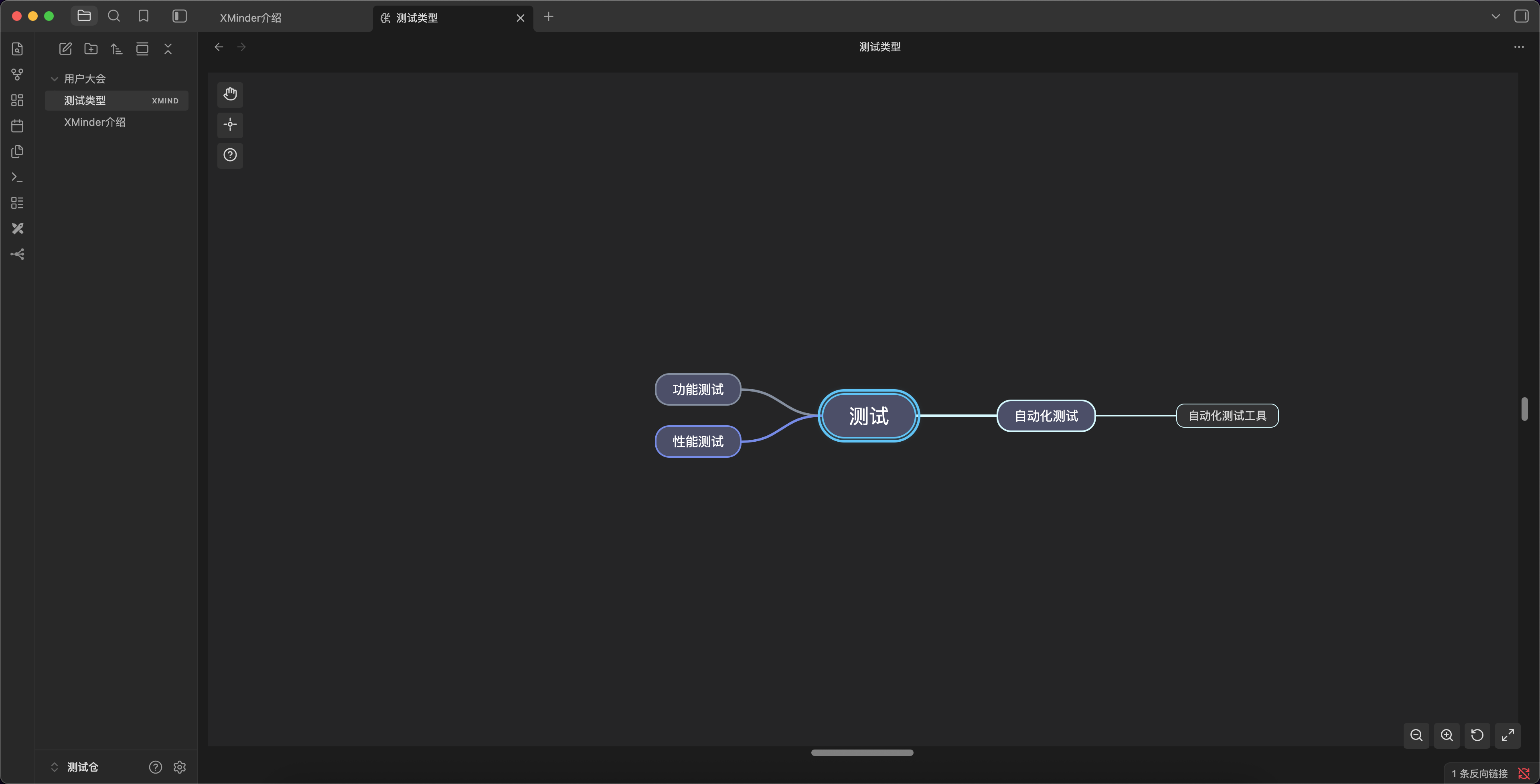
1. Create or open a mind map
| How | What happens |
|---|---|
Click a .xmind file in the file explorer | Opens in the XMinder editor |
| Right-click a folder → Create new XMind mindmap | Creates a blank map in that folder |
| Command palette → XMinder: Create new XMind file | Creates a blank map at the vault root |
Right-click a .xmind file → Open with XMind App | Hands the file to the XMind desktop app |
Edits are auto-saved back to the .xmind file after a short debounce (default
500 ms); Ctrl/Cmd + S saves immediately.
2. Embed a map in a note
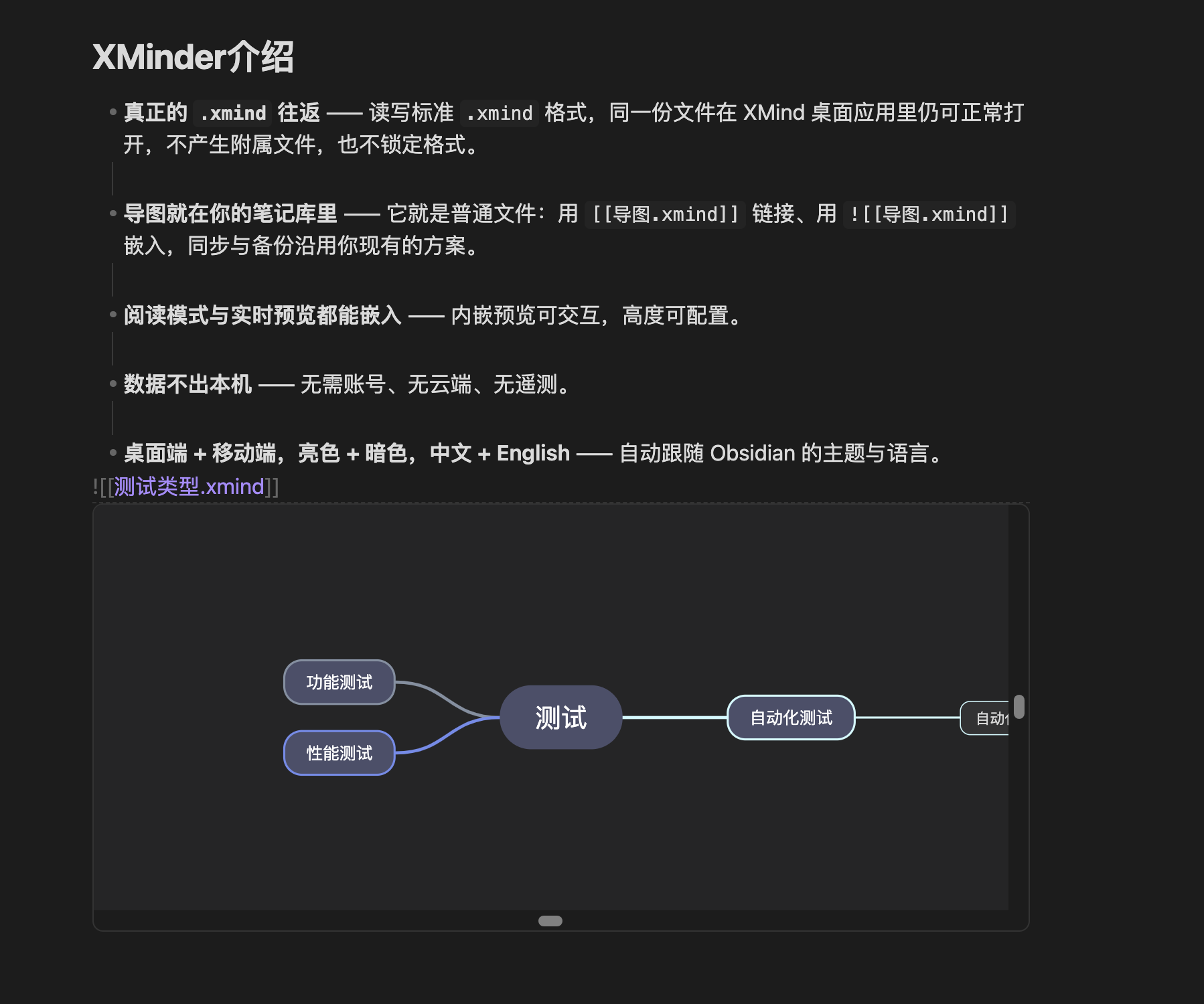
![[my-diagram.xmind]]   # inline interactive preview (Reading view + Live Preview)
[[my-diagram.xmind]]    # a link that opens the full editor
The preview height is configurable in Settings → XMinder.
3. Export
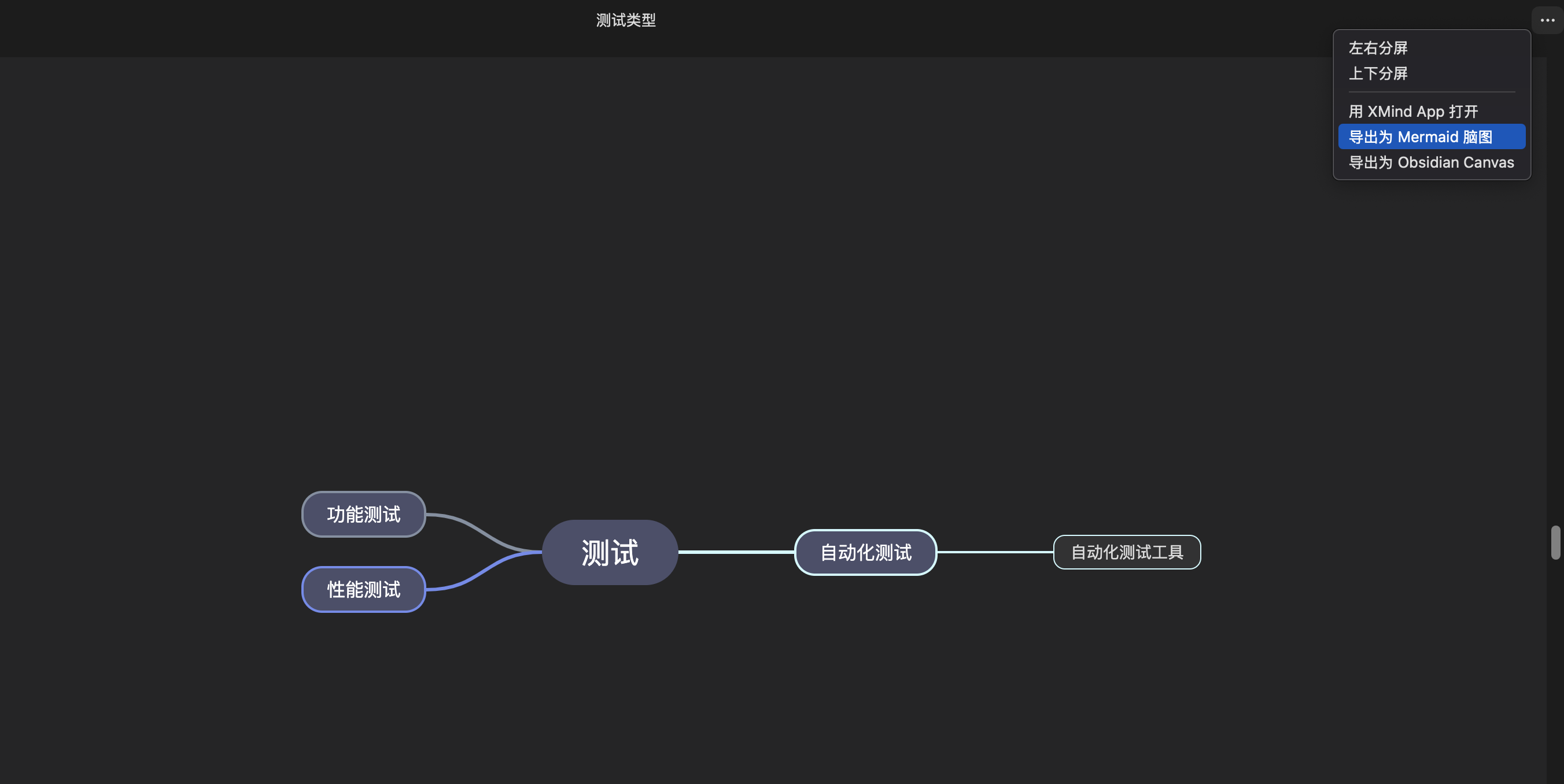
- Mermaid — copies a
mindmapblock to the clipboard, ready to paste into a note where Mermaid renders it. - Obsidian Canvas — writes a
.canvasfile next to the source.xmind.
Features
| Feature | Description |
|---|---|
| File explorer integration | .xmind files appear in Obsidian's file tree — click to open |
| Rename in place | Click the file name in the view header to rename the file (the folder path is hidden while editing) |
| Interactive editor | Add, edit, delete and drag-and-drop nodes, with undo/redo |
| Multi-sheet support | Switch between the canvases inside a single .xmind file |
| Canvas panning | Toggle drag mode from the left toolbar to pan with the left mouse button |
| Auto-save | Written back to the .xmind file after a configurable debounce (default 500 ms) |
| Manual save | Ctrl/Cmd + S |
| Markdown embed | ![[diagram.xmind]] renders a read-only interactive preview (Reading & Live Preview) |
| Markdown link | [[diagram.xmind]] creates a clickable link that opens the editor |
| Export to Mermaid | Copies the map as a Mermaid mindmap block |
| Export to Canvas | Converts the map into an Obsidian .canvas file |
| Open with XMind app | Optional context-menu entry that hands the file to the desktop app |
| Theme following | Switches between light and dark with Obsidian |
| Responsive layout | Re-fits the view when panes are split or resized |
| Internationalization | English and Chinese, detected from your Obsidian language |
| Format support | content.json (XMind 8+ / ZEN) and legacy content.xml |
| Cross-platform | macOS, Windows, Linux and Obsidian Mobile |
Keyboard shortcuts
| Shortcut | Action |
|---|---|
Tab | Add child node |
Enter | Add sibling node |
Ctrl/Cmd + C / Ctrl/Cmd + V | Copy / paste |
Ctrl/Cmd + Z | Undo |
Ctrl/Cmd + S | Save immediately |
Toolbar
| Toolbar | Button | Action |
|---|---|---|
| Left (top-left) | Hand / Pointer | Toggle canvas drag mode |
| Left (top-left) | Crosshair | Focus the root node and center it |
| Left (top-left) | Question mark | Keyboard shortcuts help |
| Bottom-right | Zoom out / Zoom in | Change the zoom level |
| Bottom-right | Reset | Fit the diagram to the view |
| Bottom-right | Fullscreen | Toggle fullscreen |
Commands
| Command | Description |
|---|---|
XMinder: Create New XMind File | Create a blank .xmind file and open it |
XMinder: Export XMind as Mermaid Mindmap | Copy the map as Mermaid text |
XMinder: Fit XMind View | Reset zoom and center the diagram |
XMinder: Save XMind File | Save immediately |
Settings
Settings → Community plugins → XMinder
| Setting | Default | Description |
|---|---|---|
| Auto-save Delay | 500 ms | Time to wait after the last edit before saving. Set to 0 to disable auto-save. |
| Embed Preview Height | 320 px | Height of ![[file.xmind]] previews. |
| Show "Open with XMind App" menu | On | Show the entry in the file context menu. |
| Enable Clipboard Export | On | Allow copying the map as Mermaid. Turn off to remove clipboard access. |
Compatibility
XMinder reads and writes .xmind archives (ZIP + content.json) and can also read
legacy content.xml, which is upgraded to content.json on first save.
Editing in XMinder does not strip the rest of the file. Every topic keeps the original entry it was read from, so only the fields the editor can actually change are rewritten — the topic text, the child order/nesting, and the folded state. What XMind stores but XMinder does not display stays in the file:
| Preserved as-is | Rewritten only when you edit it |
|---|---|
| Notes (plain and rich text), labels, markers, hyperlinks | Topic text |
| Relationships, boundaries, summaries and summary topics | Parent/child structure (add, delete, drag) |
Attachments and images (resources/…) | Collapsed / expanded state |
| Floating (detached) topics | |
| Sheet theme, structure class and extensions | |
Everything else in the archive: thumbnails, revisions, XMind's own manifest.json, other metadata |
Only content.json is regenerated, and metadata.json is merged rather than
replaced; every other archive entry is carried over untouched. This round trip is
covered by a test that parses a map containing all of the above, edits it, saves
and parses it again — see docs/DEVELOPMENT.md.
Platform support
| Platform | Status |
|---|---|
| macOS / Windows / Linux | ✅ Fully supported |
| Obsidian Mobile (iOS / Android) | ✅ Supported |
FAQ
Do I need the XMind desktop app? No. XMinder renders and edits maps on its own; the Open with XMind App entry is optional and only useful if you also have XMind installed.
Will my files still open in XMind?
Yes — XMinder writes the standard .xmind format, and everything XMind stores but
XMinder does not display (notes, labels, markers, relationships, boundaries,
summaries, attachments, floating topics, themes) is carried over untouched. Only
the topics you actually edit are changed.
Where are my maps stored? Exactly where you put them, inside your vault. They are plain files, so your normal sync and backup setup applies.
Is anything uploaded? No. There is no account, no network call and no telemetry.
Does it work on mobile? Yes, on both iOS and Android.
Can I use it together with other mind map plugins?
Yes. XMinder only claims the .xmind extension and its own view type.
Troubleshooting
- An embed stays on "Loading XMind…" — the file may be corrupt or use a format XMinder cannot read. Open it once in the XMinder editor to see the error notice.
- Clicking a
.xmindfile opens nothing — make sure the plugin is enabled in Settings → Community plugins for that vault. - The diagram looks different from XMind — XMinder uses its own renderer, so themes, marker icons and custom structures can render differently.
- An edit didn't reach the file — check the Auto-save Delay setting (
0disables auto-save) and pressCtrl/Cmd + S.
Still stuck? Open an
issue with your Obsidian
version and, if possible, a sample .xmind file.
Development
Build instructions, architecture notes, the XMind format details and the release process live in docs/DEVELOPMENT.md. Assets used by this README are documented in assets/README.md.
License
MIT
For plugin developers
Search results and similarity scores are powered by semantic analysis of your plugin's README. If your plugin isn't appearing for searches you'd expect, try updating your README to clearly describe your plugin's purpose, features, and use cases.