Edit mode switch
approvedby Mara
Add a button in the file header, in edit mode, to switch between source and live-preview.
Edit mode switch
Add a button to the file header in edit mode to switch between Source and Live Preview.
Doesn't work if Live Preview or the file header is disabled.
There are three settings:
- Reverse button icons — Display the next mode button instead of the current one. For example, if you are in Live Preview, it will display the Source icon instead of the Live Preview icon.
- Include reading mode — Include Reading mode in the switch. One button will cycle through a configurable order.
- "All button" mode — Each mode (Source, Live Preview, and Reading) is separated. This mode is not compatible with the two other options.
All button mode
All icons will be displayed for each mode in the file header, like this:

The active mode will be highlighted, and the highlight will move when switching modes:
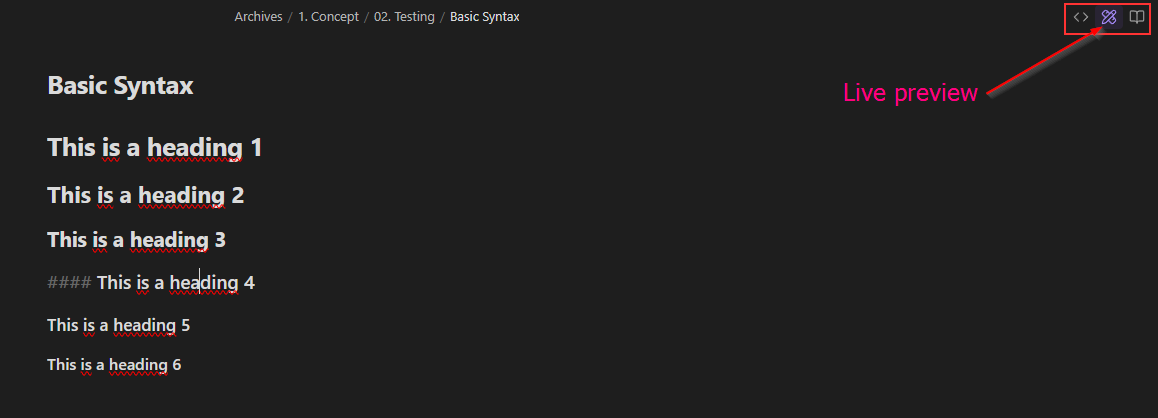
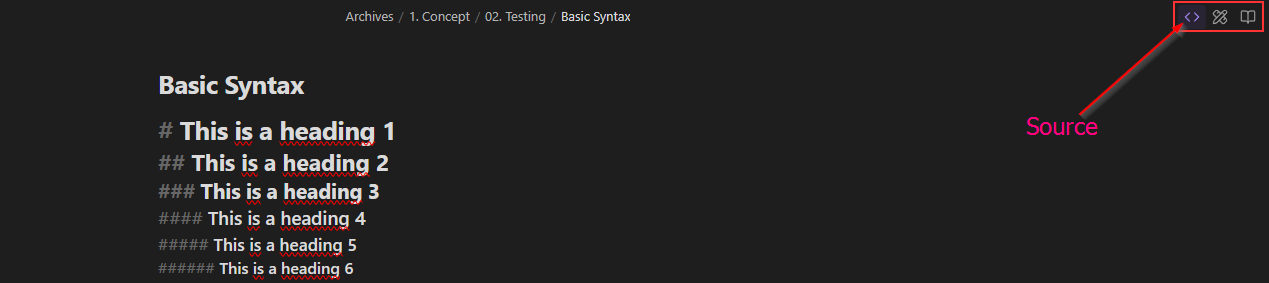
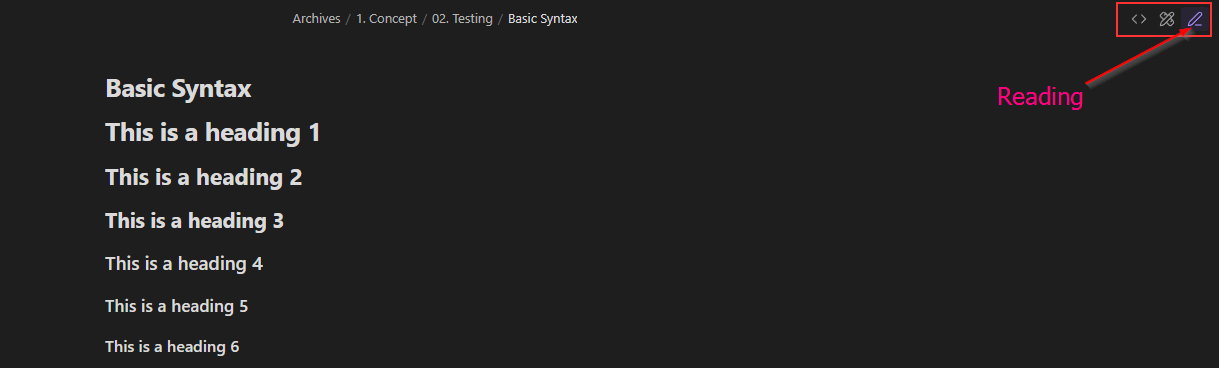
[!note] The Reading button is the default button. Its icon will change when switching to one of the edit modes.
Styling
The plugin uses the following CSS classes:
.edit-mode-button: Button added in the file header.edit-mode-hide: Class used to hide the Reading button.edit-mode-default-button: Reading button in the three-mode behavior
Buttons in the three-mode layout will get the is-active class when necessary.
📥 Installation
- From Obsidian's community plugins
- Using BRAT with
https://github.com/Mara-Li/obsidian-shortcuts-LP_Source - From the release page:
- Download the latest release
- Unzip
shortcuts-edit-mode.zipinto the.obsidian/plugins/path - In Obsidian settings, reload the plugin
- Enable the plugin
For plugin developers
Search results and similarity scores are powered by semantic analysis of your plugin's README. If your plugin isn't appearing for searches you'd expect, try updating your README to clearly describe your plugin's purpose, features, and use cases.