Smart Context
approvedby 🌴 Brian
Instantly copy folder contents or open notes—excluding specified headings—into your clipboard.
Smart Context
Copy the right Obsidian notes into AI without rebuilding context by hand.
Smart Context helps you send AI the notes, links, and source material the work actually needs.
Use it when an answer is weak because the AI did not have the right context, had too much context, or could not tell which notes mattered.
[!NOTE] Best first move Start with the current note at Depth 0. Use Depth 1 only when directly linked notes contain details the AI needs.
Why this works:
| Common problem | Smart Context move | What improves |
|---|---|---|
| The answer is generic. | Copy the note that already contains the task. | AI starts from your real work. |
| Important facts are one note away. | Add directly linked notes with Depth 1. | Supporting sources travel with the request. |
| You keep rebuilding the same setup. | Save the set as a named context. | Repeated work starts faster. |
| The copied text is hard to inspect. | Use templates with source paths and file trees. | You can see where the context came from. |
- Works out of the box
- Clipboard-first: paste into ChatGPT, Claude, Gemini, Smart Chat, or another AI tool
- Starts small, then expands when the task needs more support
- Uses templates so copied context can include source paths, depth, modified times, and a file tree
- Built for local-first Obsidian workflows
Learn the workflows in depth:
- Getting started guide - copy the current note first, then branch when the work needs it.
- Copy current note - use Depth 0 first and Depth 1 for directly linked support.
- Clipboard workflows - understand modal copy, direct copy, link depth, and export behavior.
- Builder guide - review, trim, save, and reopen context sets.
- Named contexts - save repeated sets.
- Codeblocks - keep a visible context list attached to a note.
- Settings reference - adjust templates and output controls.

Quick start: copy the current note first
Use this when one note already owns the work.
- Open the note that contains the task, question, draft, decision, meeting, or project brief.
- Run the current-note copy command.
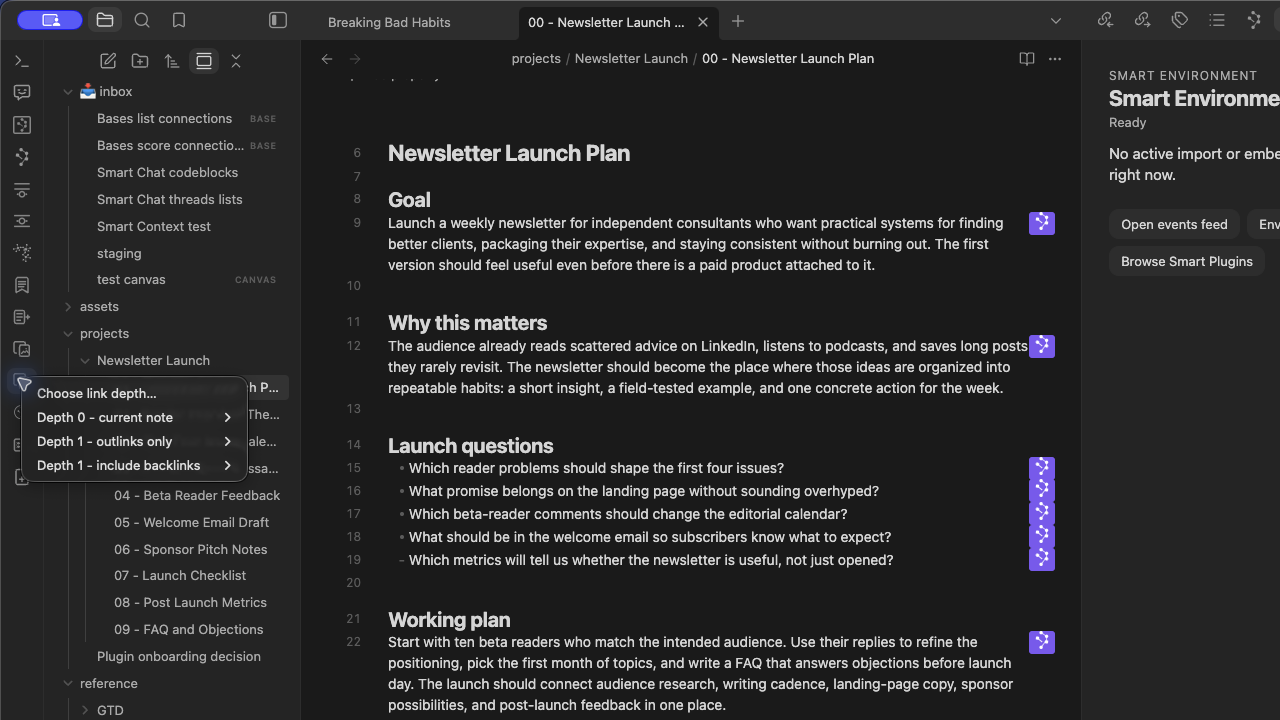
- Choose Depth 0 first.
- Paste into your AI tool.
- Ask the model to use only the provided context.
Prompt starter:
Use only this context.
First extract the constraints.
Then answer the request.
If something important is missing, list the exact missing note, section, or source instead of guessing.
You know it worked when:
- the copied context is small enough to inspect after paste
- the answer uses details from your note
- or the answer clearly names what is missing
When to use Depth 1
Depth means how many link steps Smart Context includes.
| Depth | Plain meaning | Use when |
|---|---|---|
| Depth 0 | Copy just this note. | The note is enough to start. |
| Depth 1 | Copy this note plus notes it directly links to. | Linked notes contain facts, examples, decisions, or requirements. |
| Depth 2+ | Copy links beyond the first step. | The starting set is small and you know those extra links matter. |
If the answer is generic, do not immediately copy more notes.
First improve the starting note:
- add the actual question
- add What done looks like
- add constraints
- add or fix links to supporting notes
- remove stale or noisy sources
Then copy again at the smallest useful depth.
Learn more in Copy current note as context.
Choose the right way to copy
| What is true? | Use this | Why |
|---|---|---|
| One note owns the task. | Current-note copy | Best first move. |
| You already selected the right notes or folder. | File navigator actions | Fast direct export. |
| Notes are scattered or noisy. | Builder | Review and trim before copying. |
| The same set keeps coming back. | Named context | Save it for reuse. |
| Context should stay visible inside one note. | Codeblock | Keep a readable manifest attached to the note. |
| The work needs images, PDFs, Bases, repos, external files, dynamic groups, or heading filters. | Pro | Add richer sources or finer control. |
Copy selected notes or folders
Use file navigator actions when you already know the right scope.
Copy selected notes
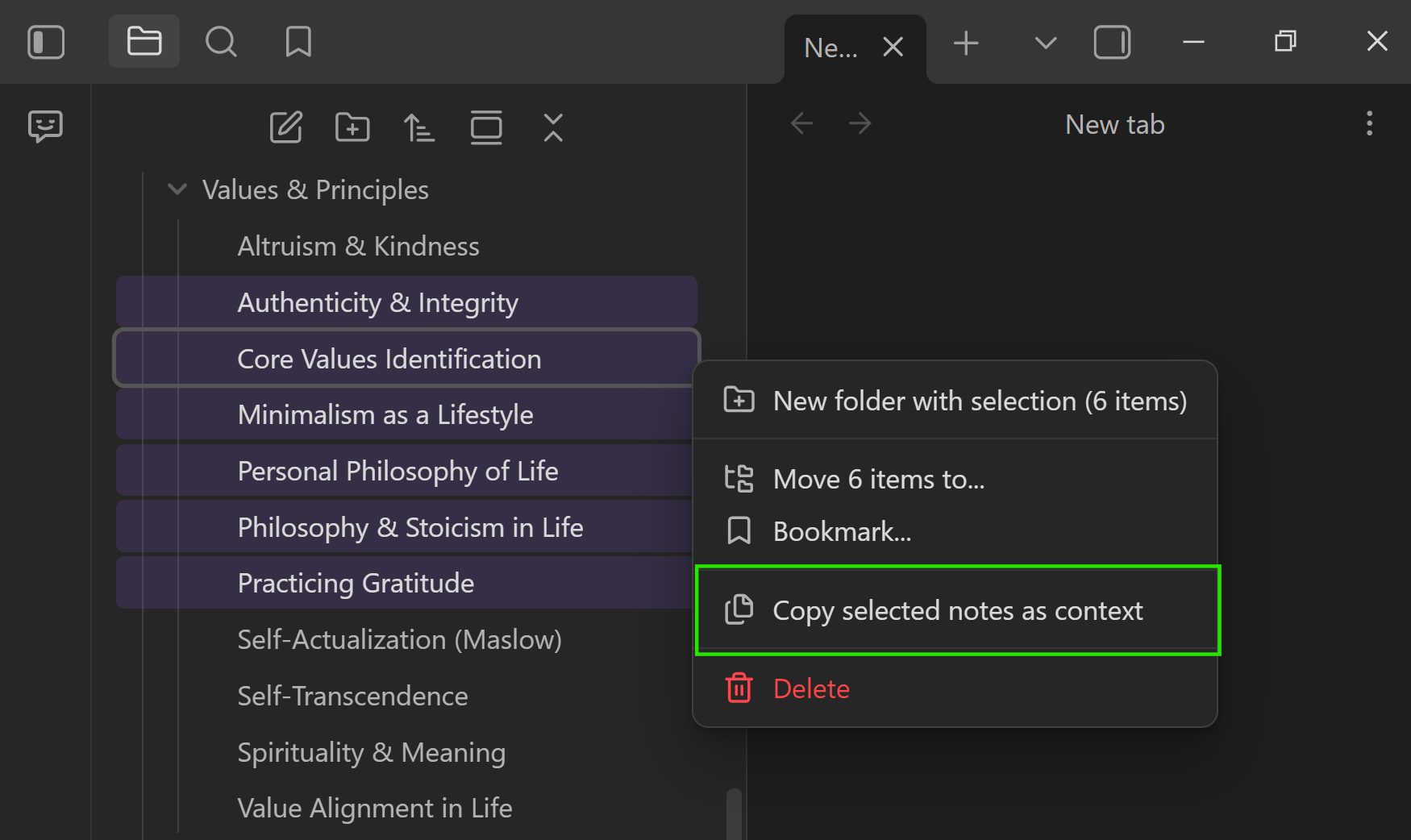
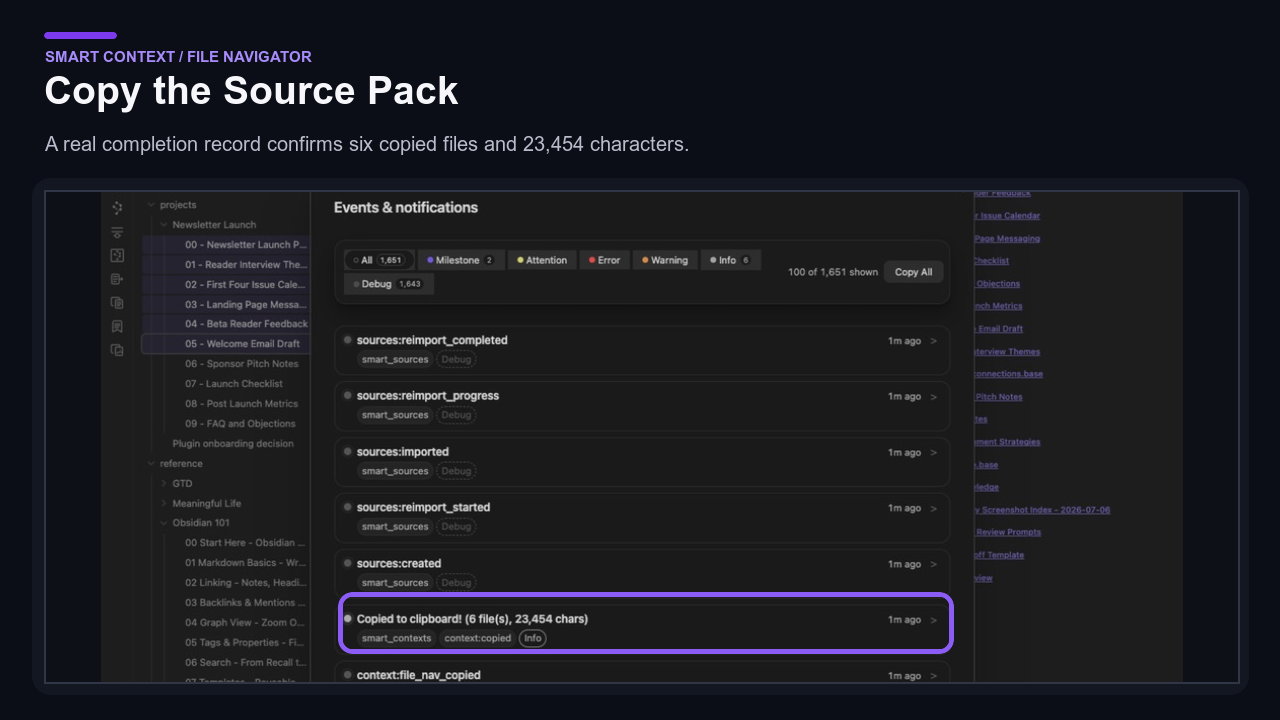
Select multiple notes, then right-click and choose Copy selected notes as context.
Copy a folder
Use this when the project already lives in one folder.
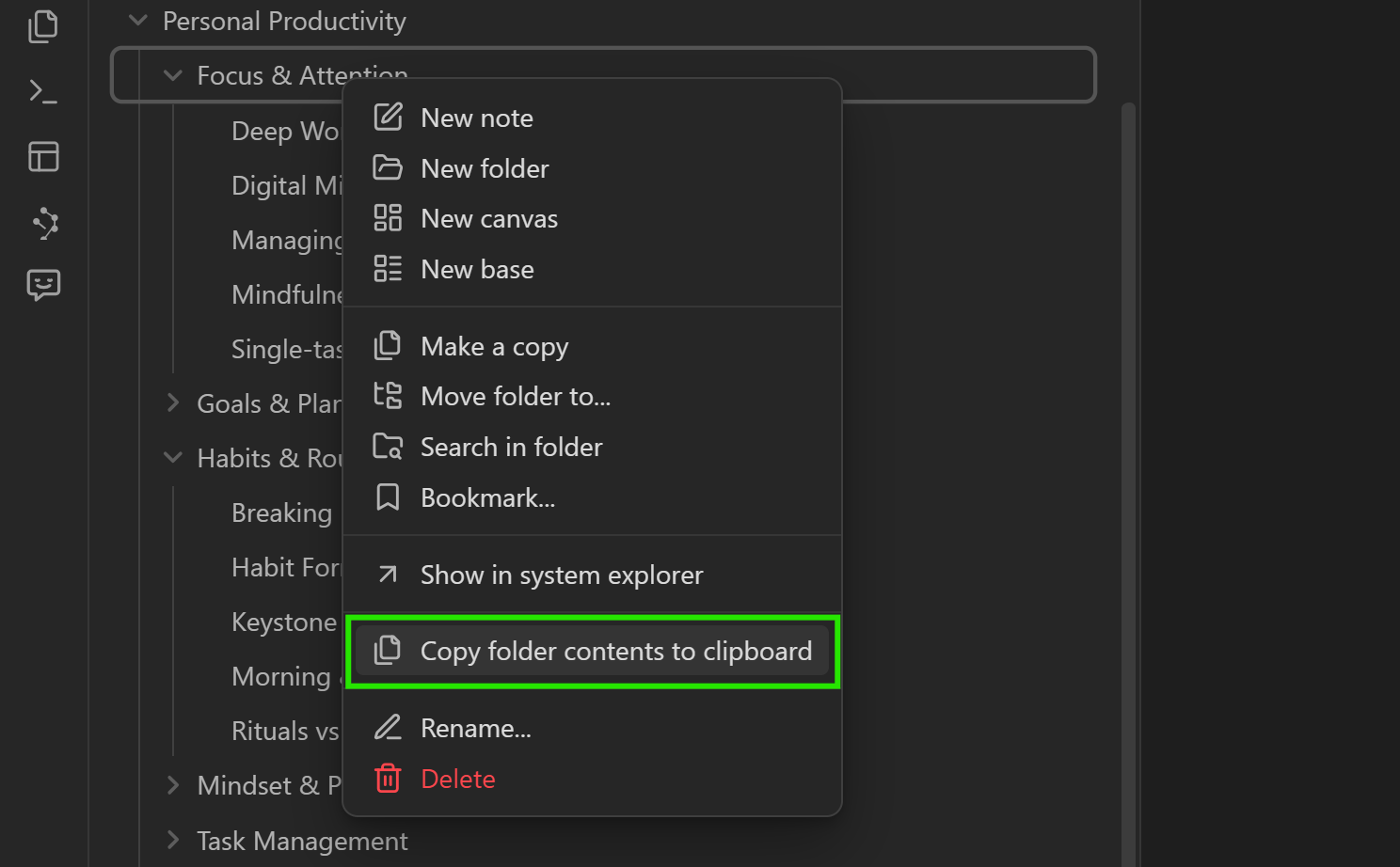
Right-click a folder, then choose Copy contents.
Copy folder command
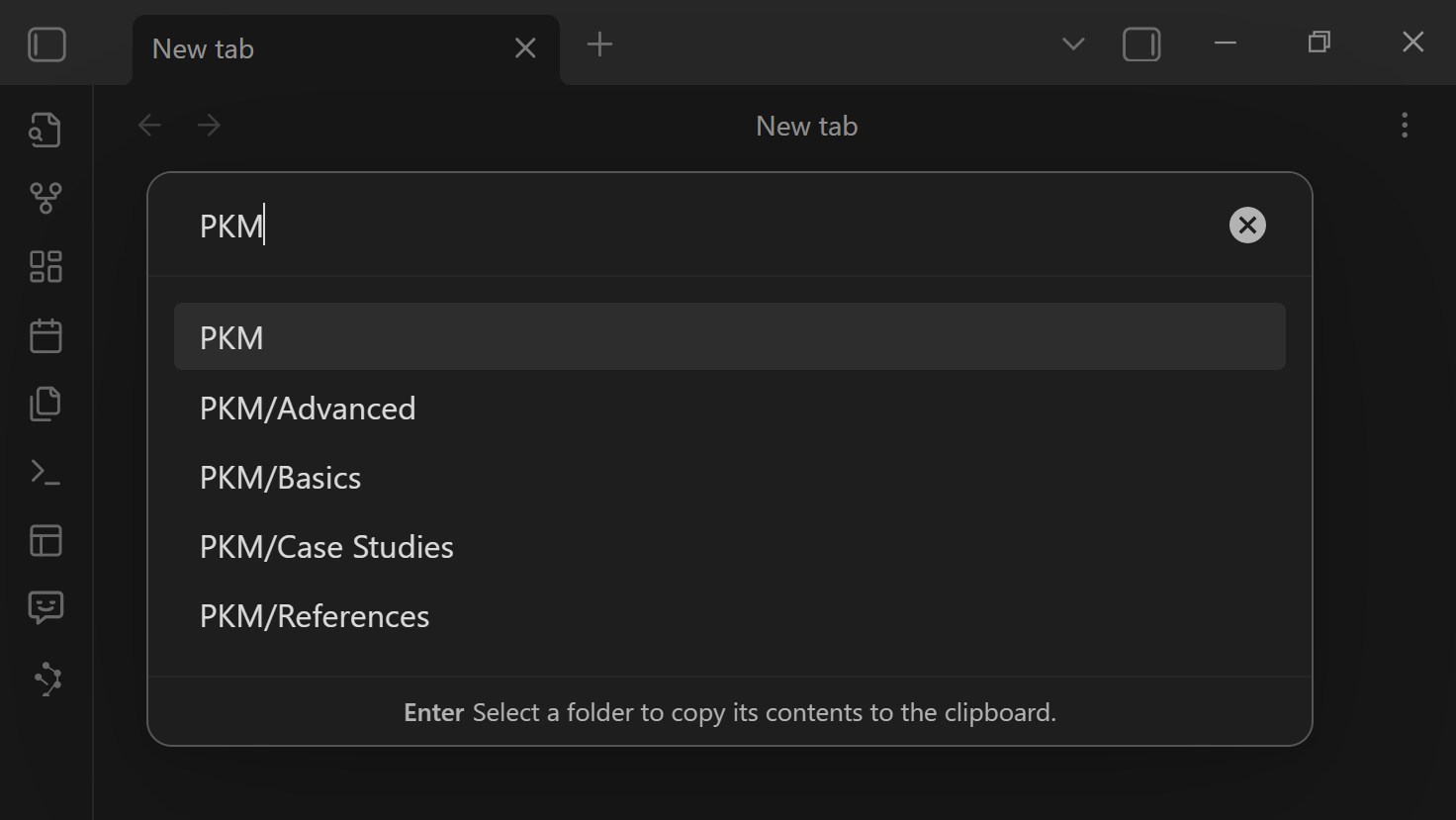
You can also run the folder-copy command from the command palette and assign a hotkey.
[!TIP] Selected-note and folder-copy actions are fast direct-copy flows. They do not open the same link-depth chooser as current-note copy. If the copied context feels too broad, use a smaller selection or open the set in Builder.
Learn more about file nav actions.
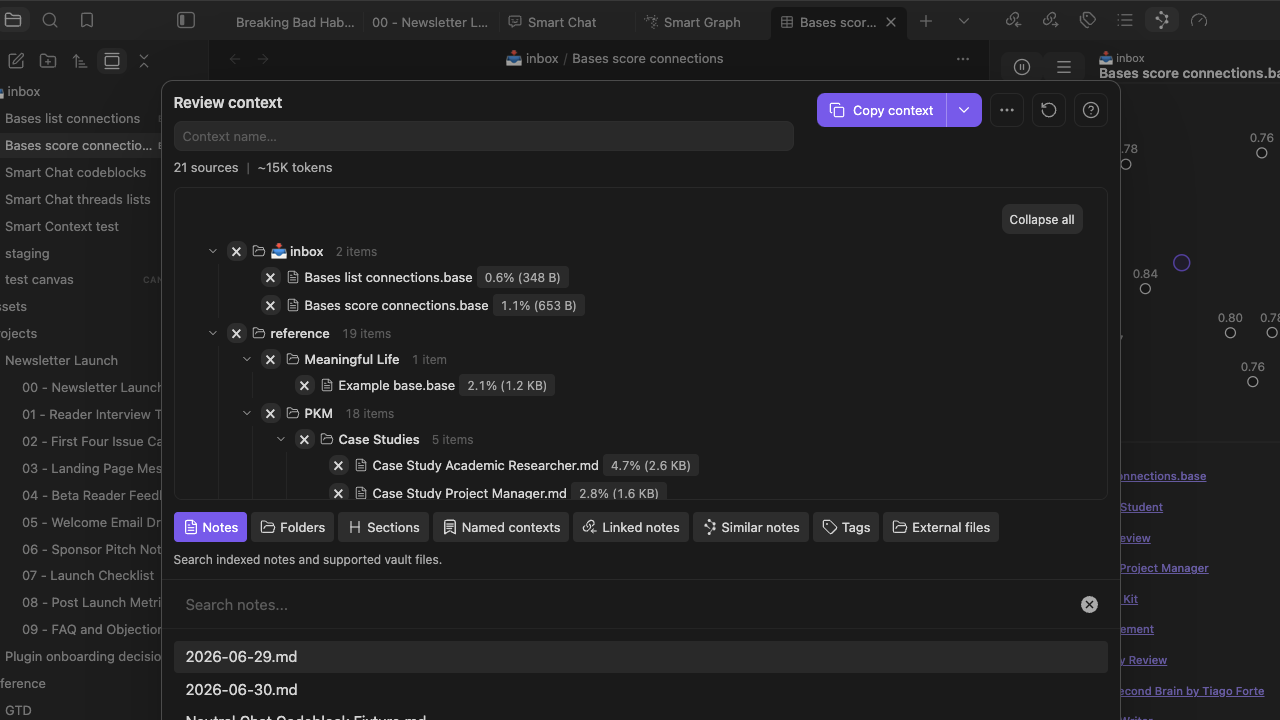
Use Builder when the set needs cleanup
Builder is for reviewing, trimming, and saving context before copying.
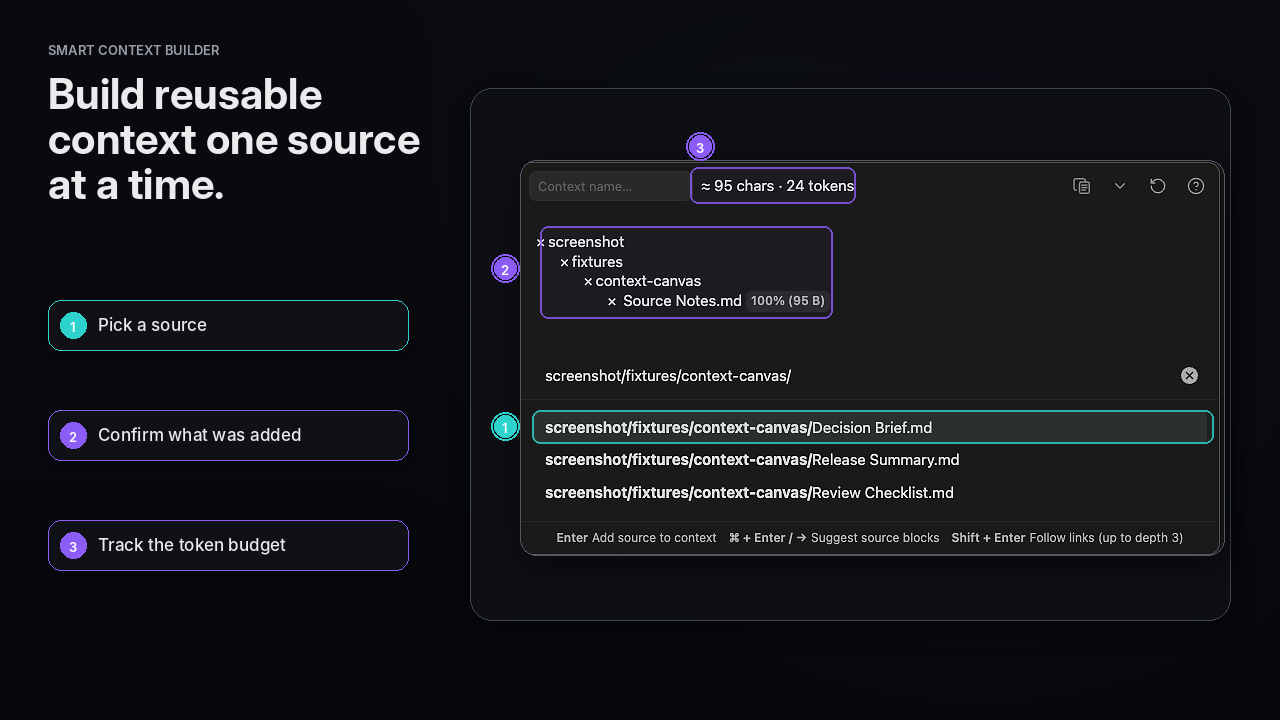
Use Builder when:
- the right notes are scattered
- one long note only needs a few sections
- the first copy was too large
- you want to save the set for later
How it works:
- Run Smart Context: Open new context in builder.
- Search for notes or use the available suggestions.
- Press Enter to add a note.
- Press Right Arrow to choose blocks or sections when a full note is too much.
- Remove anything that does not help the task.
- Copy the set.
- Add a name only when you expect to reuse it.
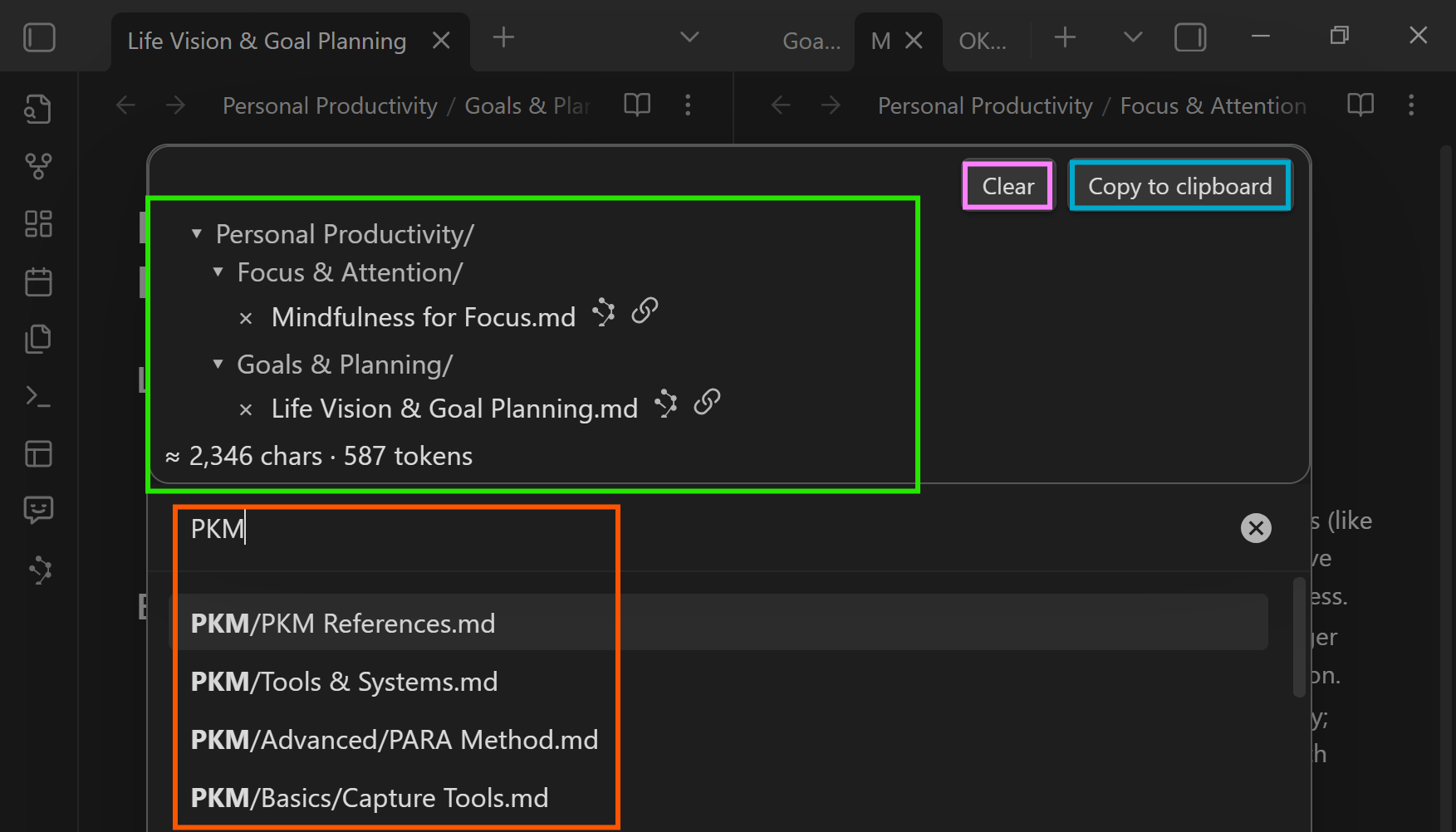
Learn more about the Context Builder.
Block selection
Use blocks when one note has useful source material mixed with unrelated text.

Turn Connections results into context
Smart Connections can help you find related notes. Smart Context packages the useful ones.
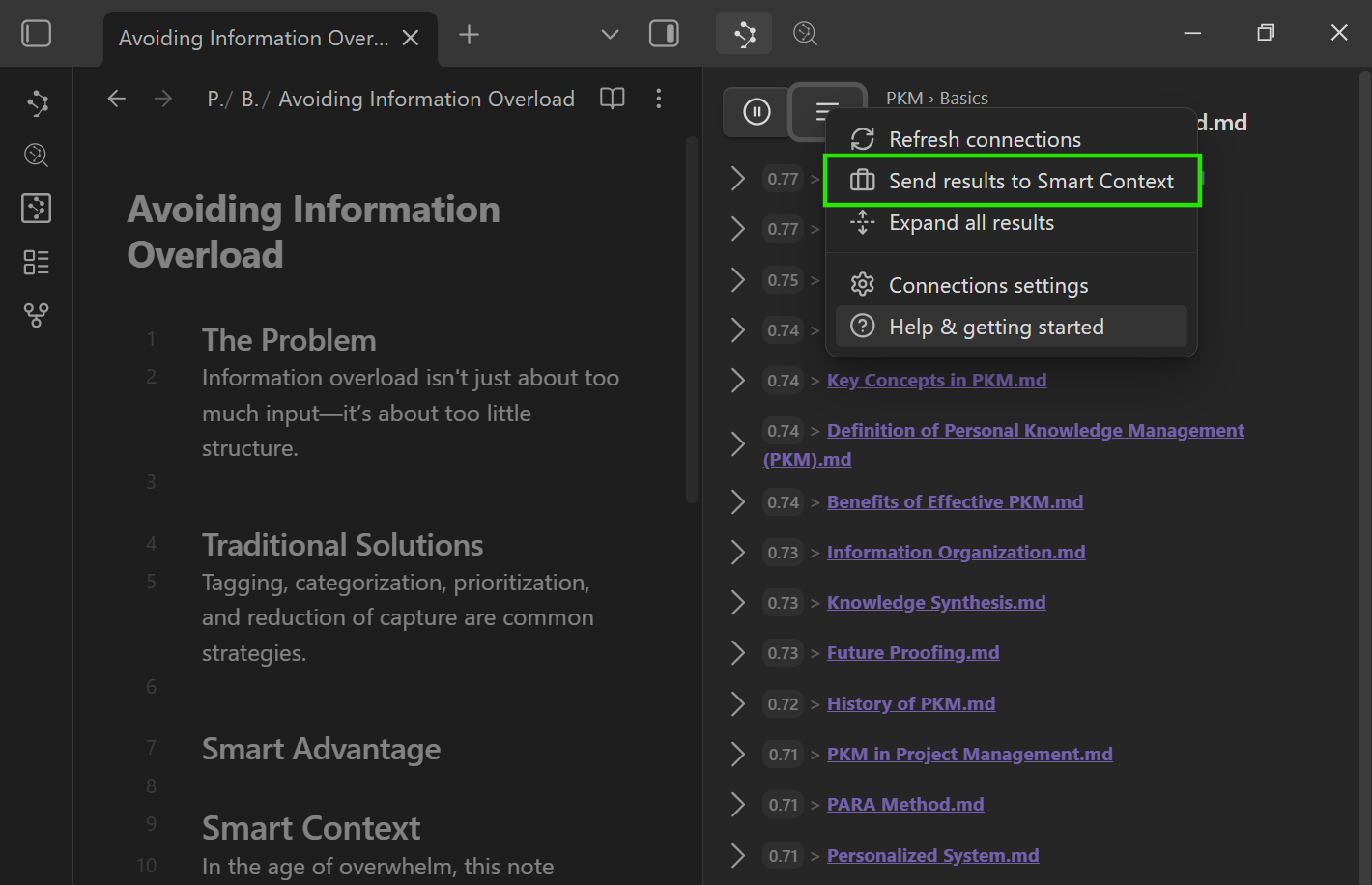
Workflow:
- Open the Connections view while working in a note.
- Send useful results to Smart Context when your version supports it.
- Remove noise in Builder.
- Copy the final set.
Save repeated sets as named contexts
Named contexts are saved Smart Context sets you can reopen, copy, and refine later.
Use this rule:
If you rebuild the same set twice, save it as a named context.
Good named context examples:
- project working set
- meeting prep pack
- writing voice pack
- bug triage set
- client handoff pack
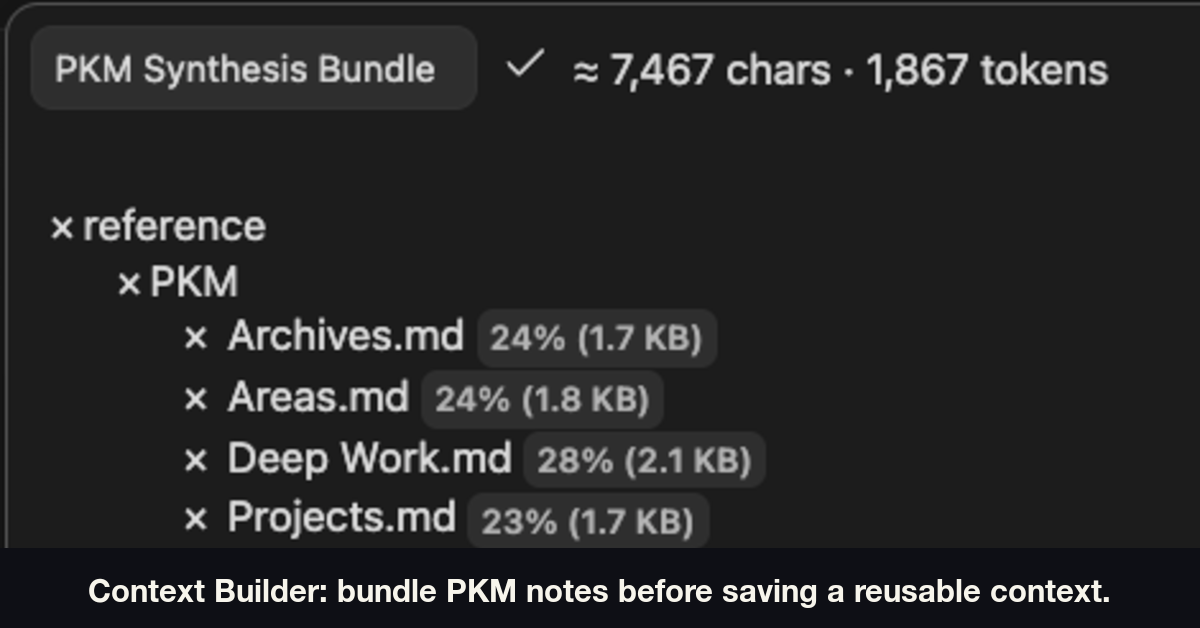
Learn more in Named contexts.
Keep context attached to one note with codeblocks
Use a Smart Context codeblock when the note should carry a visible context list.
| Use | Best object |
|---|---|
| Reuse the same set across many notes. | Named context |
| Keep context attached to one note. | Codeblock |
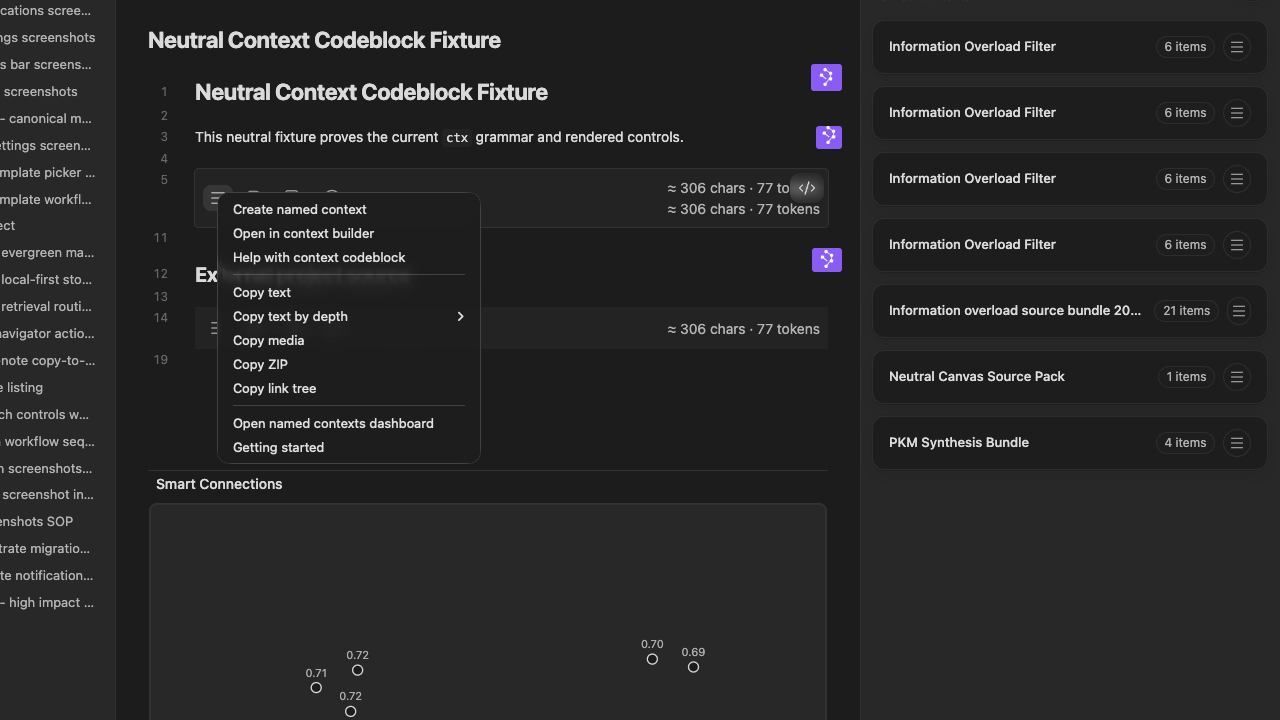
Learn more in Smart Context codeblocks.
Commands worth hotkeying
Use Obsidian Settings -> Hotkeys -> search Smart Context.
Recommended command families:
- Copy current note with link-depth control - best first workflow.
- Open Selector for New Context - open Builder for a curated set.
- Copy selected notes as context - fast direct export from the file navigator.
- Copy folder contents - fast project-folder snapshot.
- Show named contexts - browse and reopen saved sets.
- Help: Show getting started - open a quick reference inside Obsidian.
Templates
Open Settings -> Community plugins -> Smart Context.

Context templates wrap the full export. The default XML template includes {{FILE_TREE}} so the copied text can show a file tree.

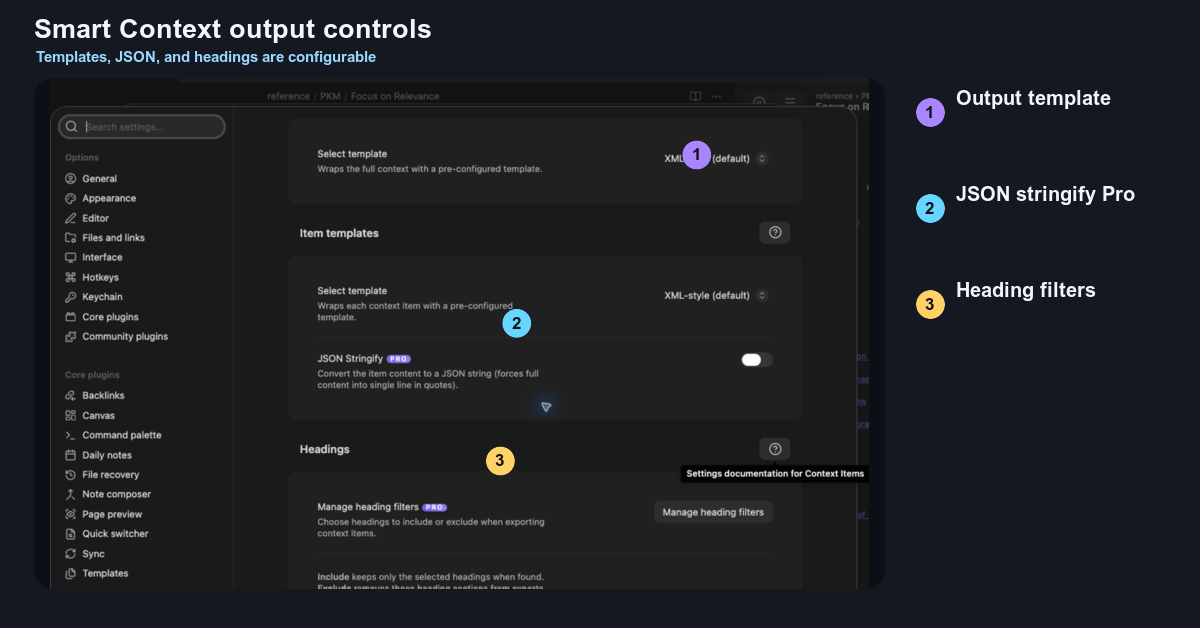
Item templates wrap each note or item. Useful variables include {{KEY}}, {{TIME_AGO}}, and {{LINK_DEPTH}}.
Templates only change copied/exported text. They do not change your vault files.
Learn more in the context settings reference.
Pro: richer sources and finer control
Core Smart Context is for trusted note-based context.
Context Pro helps when the work needs more than plain notes.
- Richer sources: media, PDFs, Bases, repos, and external files on supported Pro workflows.
- Finer control: dynamic groups, exclusions, heading filters, and advanced context workflows on supported Pro workflows.

Use Pro when the assignment needs those sources or controls. Pro is not required for the first win.
Mission-driven
The Obsidian community proved user-aligned software can out-innovate closed platforms. Smart Context follows that spirit: source-available tools that empower individuals, not gatekeepers.
Read about the Smart Principles that guide development.
Private by Design
Smart Context prepares clipboard exports inside Obsidian.
Copied content can leave Obsidian when you paste or send it into another tool, chat provider, or enabled provider workflow. Review the pasted context before sending when your target tool allows.
FAQs
What should I copy first?
Start with the current note at Depth 0. Use Depth 1 only when directly linked notes contain details the AI needs.Do file or folder copy actions open the depth chooser?
No. Selected-note and folder-copy actions are fast direct-copy flows. Use current-note copy when you need link-depth control.Can I change how copied context is formatted?
Yes. Adjust the Context and Item templates in **Settings -> Community plugins -> Smart Context**. Edit variables like `{{FILE_TREE}}`, `{{KEY}}`, and `{{TIME_AGO}}` to match your workflow.Does it work on mobile?
Yes, the Core Smart Context plugin is mobile friendly. Context Pro has desktop-oriented features that may not be compatible with mobile.What is the Smart Ecosystem?
Smart Context is one piece of a larger ecosystem of local-first, user-aligned tools. Smart Plugins help turn notes into the shared workspace between you and AI.Thanks to the Community
Your feedback and support keep the project alive. Thank you!
For plugin developers
Search results and similarity scores are powered by semantic analysis of your plugin's README. If your plugin isn't appearing for searches you'd expect, try updating your README to clearly describe your plugin's purpose, features, and use cases.