Smart Templates
approvedby 🌴 Brian
AI powered templates for generating structured content. Works with Local Models, Anthropic Claude, Gemini, OpenAI & more.
Turn your existing Markdown templates into reusable AI workflows. Smart Templates pairs your vault context with the templates you already trust so you can build better prompts in one guided flow.
Build your AI workflow with Obsidian.
[!NOTE] Why Smart Templates? Every AI prompt is a mini project: gather the right notes, explain the task, paste the structure, and remind the model how to answer. Smart Templates turns that repeated setup into one command path inside Obsidian.
✔️ Works with your existing templates
🔐 Local-first and privacy-preserving by default
🤖 Compatible with any AI chat
⚔️ Mission-driven, community-supported
Smart Templates v2
[!QUESTION] Is this you? You already have useful structures in your vault: meeting notes, research outlines, recommendation tables, writing briefs, summaries, postmortems. But when you use AI, you still rebuild the same prompt by hand.
[!WARNING] The Problem Good outputs need both context and structure. Most AI workflows make you gather the notes, restate the instructions, and paste the format every single time.
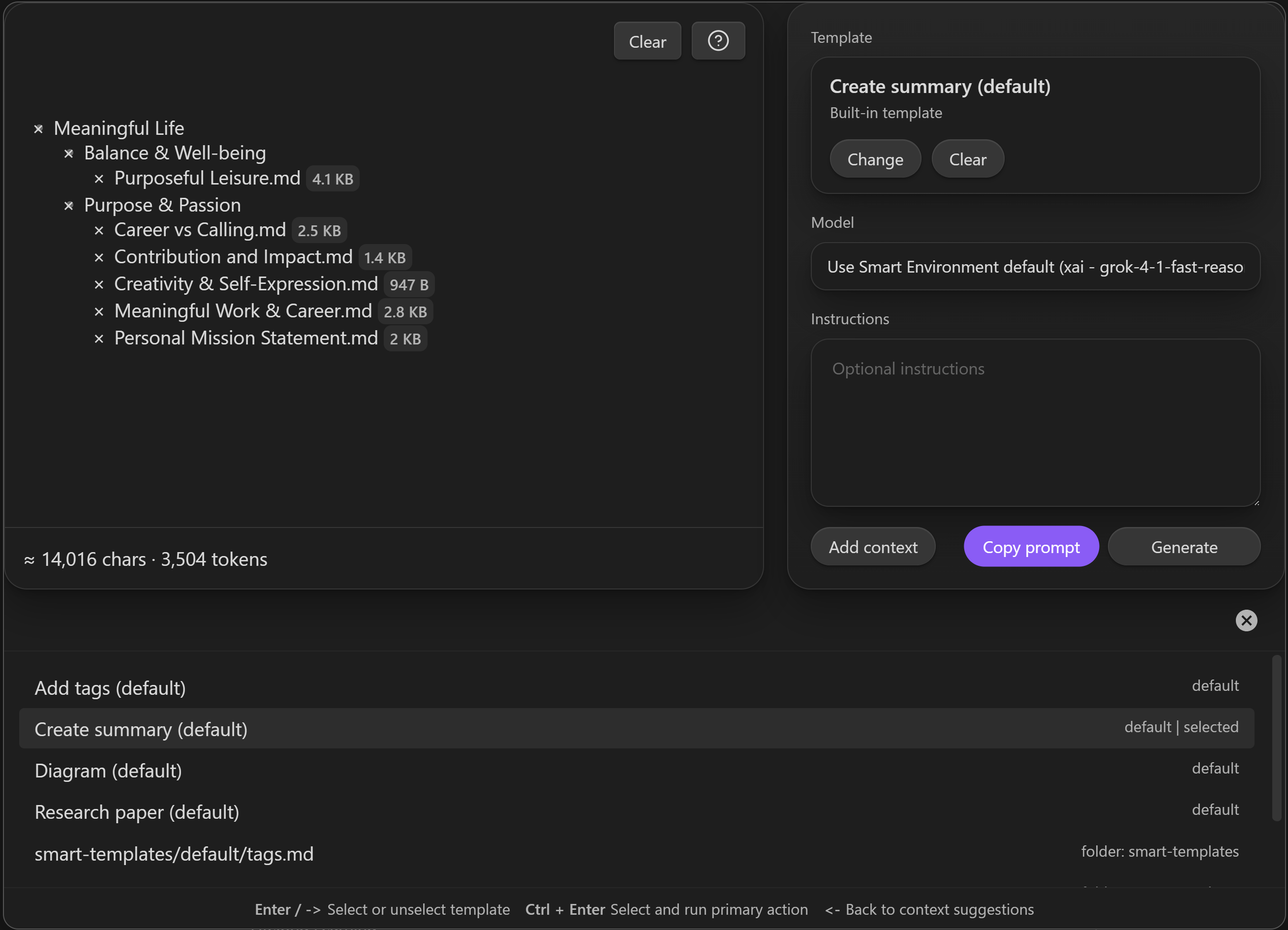
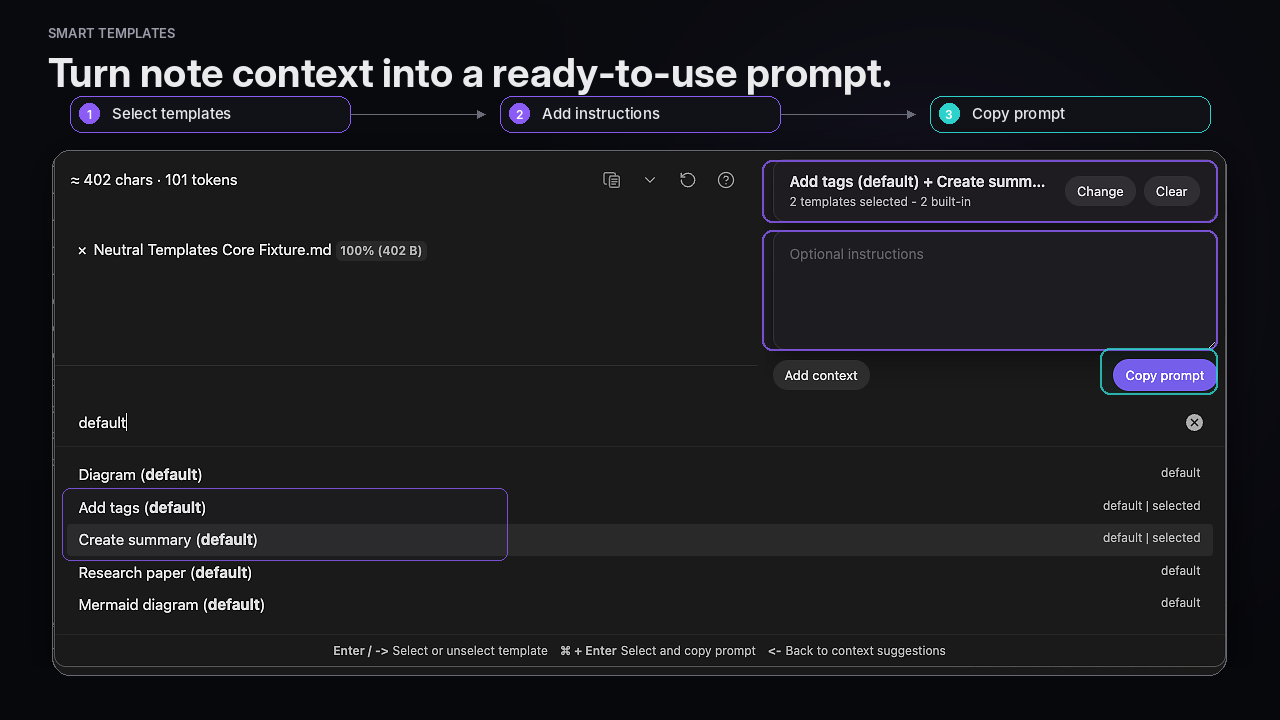
[!NOTE] What Smart Templates does Smart Templates helps you start from your current note or selection, refine the context, choose one or more templates, and copy a ready-to-run prompt for any AI chat. Core and Pro both build context-aware prompts and end at Copy prompt in current Smart Templates 2.3; paste the reviewed prompt into the AI tool you choose.
[!SUCCESS] What success looks like You stop rebuilding prompts from scratch. Your best note structures become reusable AI workflows. The template and the context travel together, so outputs are more consistent and easier to trust.
[!FAILURE] The Cost of Doing Nothing Keep hand-assembling the same prompt scaffolding over and over. Lose flow. Get outputs that drift from your format. Let your best templates stay trapped inside notes instead of becoming reusable workflows.
Quick start flows
- Copy a prompt from the current note - Open Smart Templates and use the active note as context.
- Start from a selection - Highlight text first to use only the section you care about.
- Reuse the templates you already trust - Choose one or more templates and copy the final prompt into any AI chat.
Getting started
- Install and enable Smart Templates from Community plugins.
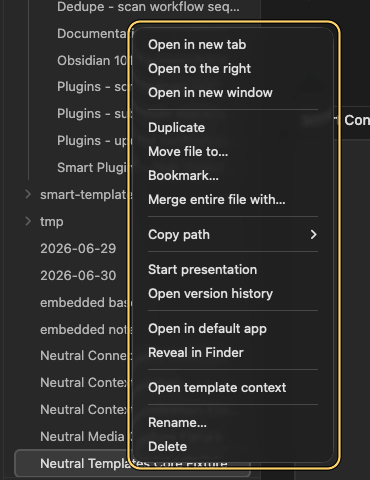
- Run Smart Templates: Open template context from the command palette, or click the ribbon icon.
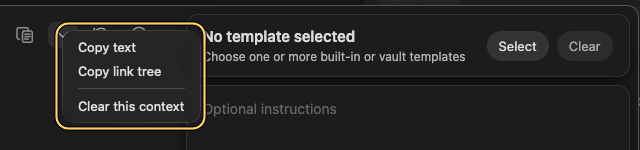
- Your current note becomes the starting context. If you had text selected, the selection is used instead.
- Add more context if needed.
- Choose one or more templates.
- Add optional instructions, then click Copy prompt.
- Paste the result into ChatGPT, Claude, Gemini, or any other chat interface.
Works with your existing templates
Smart Templates does not ask you to replace the template system you already like. It helps you reuse those templates with AI.
Templates can be discovered from:
- configured template folders
- the Obsidian Templates folder as a fallback
- notes flagged with
smart template: true - a configured template filename
- matching block headings
Built-in defaults are also available:
- Add tags
- Create summary
- Research paper
- Diagram
Context first, not template first
Most template workflows start with a template. Smart Templates starts with the work in front of you.
Open it from the note you are writing, or from a selection inside that note. Then refine the context, choose the template, and copy the final prompt.
Multiple templates when one structure is not enough
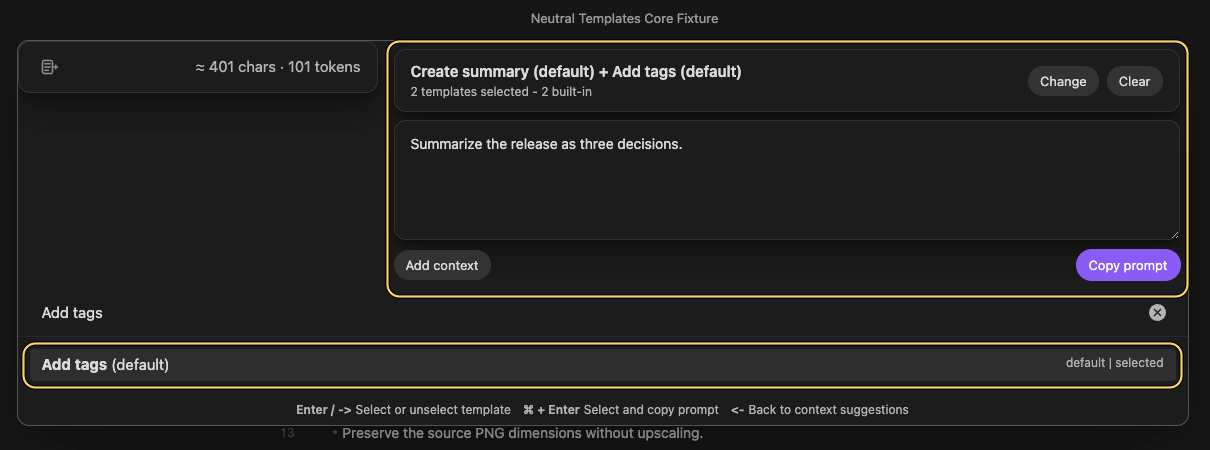
Some jobs need more than one constraint. Smart Templates can merge multiple templates in the order you select them, so one output can follow several reusable structures at once.
Key commands
- Smart Templates: Open template context - open the shared context-first workflow
Core and Pro
Core
- Discover templates in your vault
- Build prompts from context plus templates
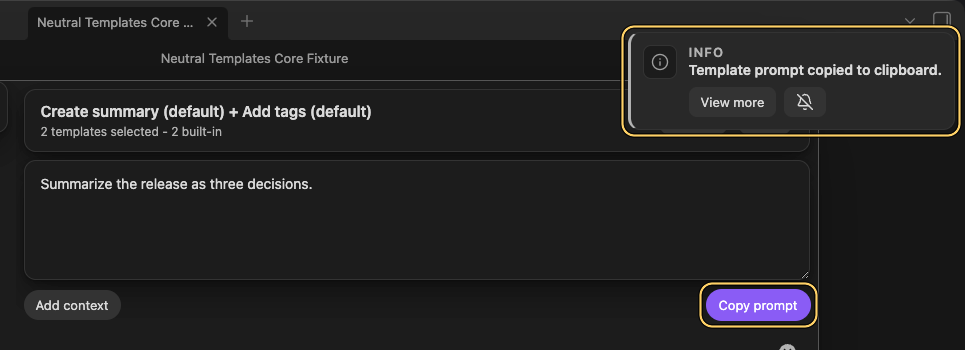
- Copy prompts to the clipboard
- Use them with any external AI chat
Pro
- Generate inside Obsidian
- Review streamed output
- Copy, insert, or create a note
- Choose the generate model in Smart Templates settings
Private by Design
Core uses a clipboard-first workflow. Your notes stay local unless you choose to paste the copied prompt into an external AI tool.
Mission-driven
Smart Templates is part of the Smart Plugins ecosystem: local-first, user-aligned tools for thinking and creating inside Obsidian.
[!INFO] Your guide Built by Brian Petro, a fellow Obsidian user building Smart Plugins for real vault workflows.
FAQ
Do I need an API key?
No for Core. Core builds and copies prompts so you can use any chat interface you already prefer. Pro adds in-Obsidian generation.Does this replace Obsidian Templates?
No. Obsidian Templates inserts predefined content into notes. Smart Templates helps package your templates with note context so you can use them as AI workflows.Can I generate inside Obsidian?
Yes, in Pro. Core is intentionally focused on prompt building and prompt copy.More Smart Plugins
Quickly gather the right notes with Smart Context. Find relevant notes with Smart Connections. Manage AI conversations in notes with Smart Chat.
License
Source available under the Smart Plugins License.
For plugin developers
Search results and similarity scores are powered by semantic analysis of your plugin's README. If your plugin isn't appearing for searches you'd expect, try updating your README to clearly describe your plugin's purpose, features, and use cases.