by Ramaputhra
Map themes and setup/payoff threads on a two-ring story clock, link every segment to a note, and open notes in a side panel.
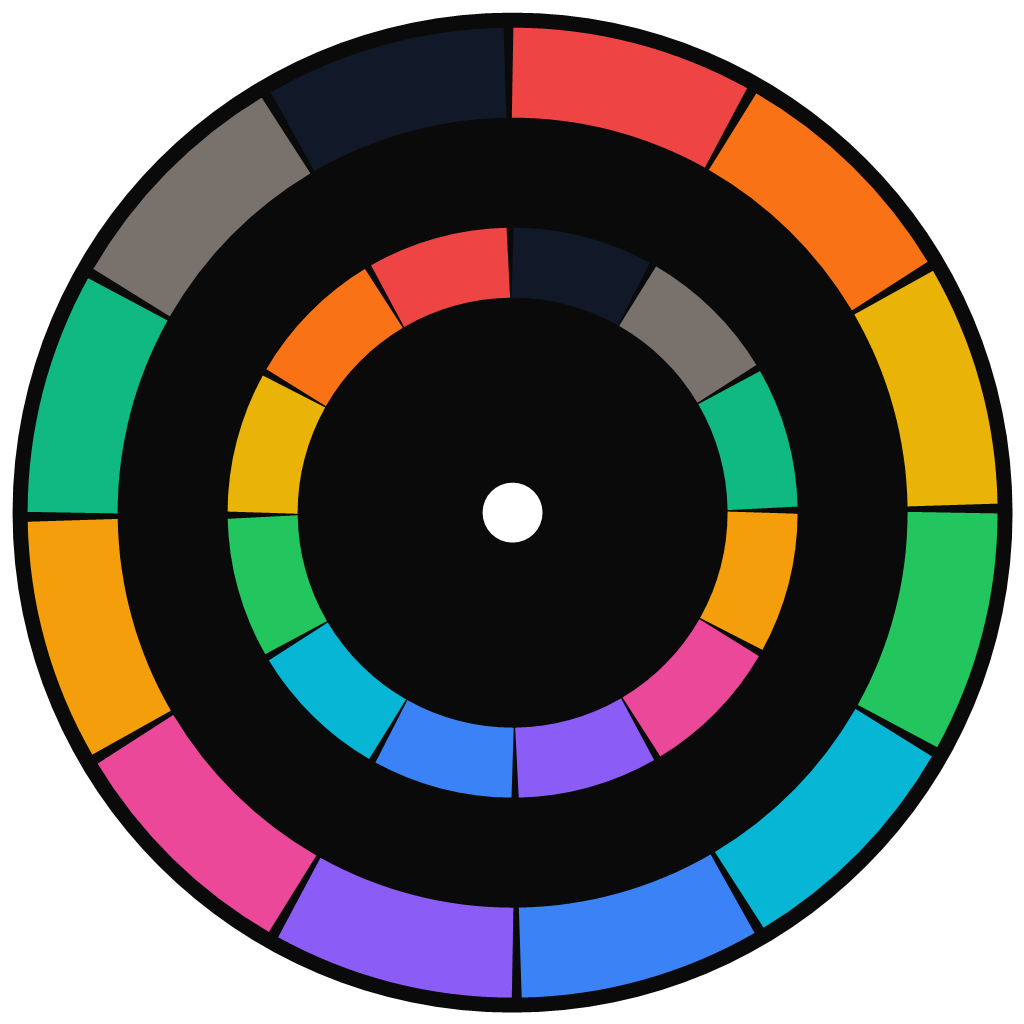
Story Circle
Circle Map for Obsidian — map your story's themes and setup → payoff threads onto a two-ring story circle, link every segment to a note, and open notes in a side panel.
A visual screenwriting / plotting tool that lives inside your vault, so your story structure sits right next to your notes.

✨ Features
🕰️ The two-ring story clock
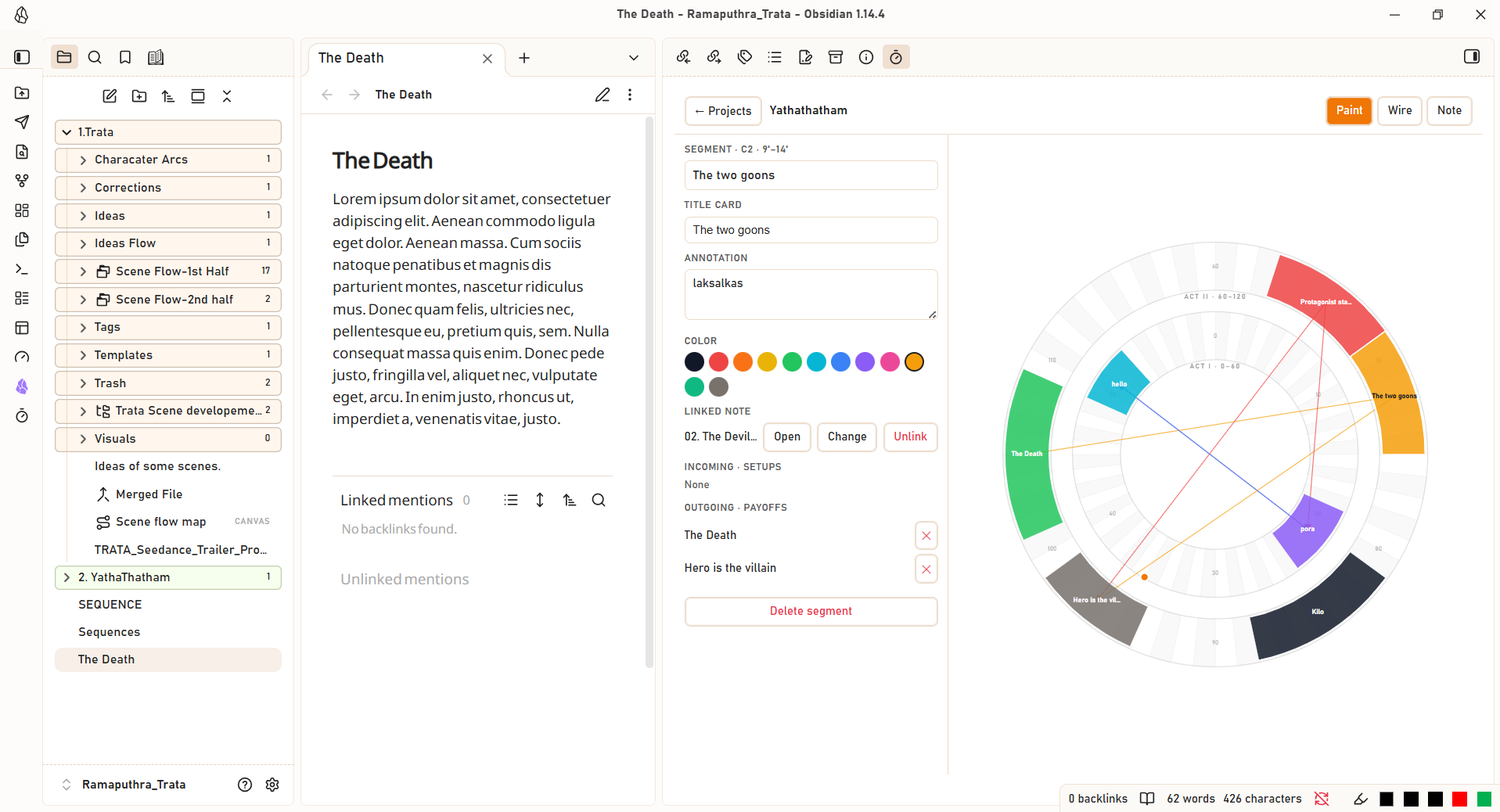
- 120 minutes, two acts — an inner ring for Act I · 0–60 and an outer ring for Act II · 60–120, each divided into 60 one-minute segments.
- Paint themes as colored arcs and connect them with setup → payoff wires (one-to-many, cross-circle).
🎨 Three modes
| Mode | What it does |
|---|---|
| Paint | Drag a ring to select minutes, then name the theme |
| Wire | Drag one block to another to connect setup → payoff |
| Note | Click a segment or a minute to link it to a note |
📝 Full segment creation & editing
- Create & name in one flow — while painting a new segment, set its Theme name, Title card, Annotation, and Color directly in the left panel.
- 12 palette swatches + custom color picker — click the compact rainbow color-wheel circle (
+) at the end of the swatches row to choose any custom color with live arc preview. - One-click Title-Card Note creation — click
+ Create New Title-Card Notewhile creating (or editing) a segment to automatically create a formatted Markdown note in your vault (with YAML frontmatter +# Title Cardheading), link it to the segment, and open it in the side panel. - Incoming (setups) and outgoing (payoffs) wire lists with one-tap delete.
📊 Created Segments tray below the clock
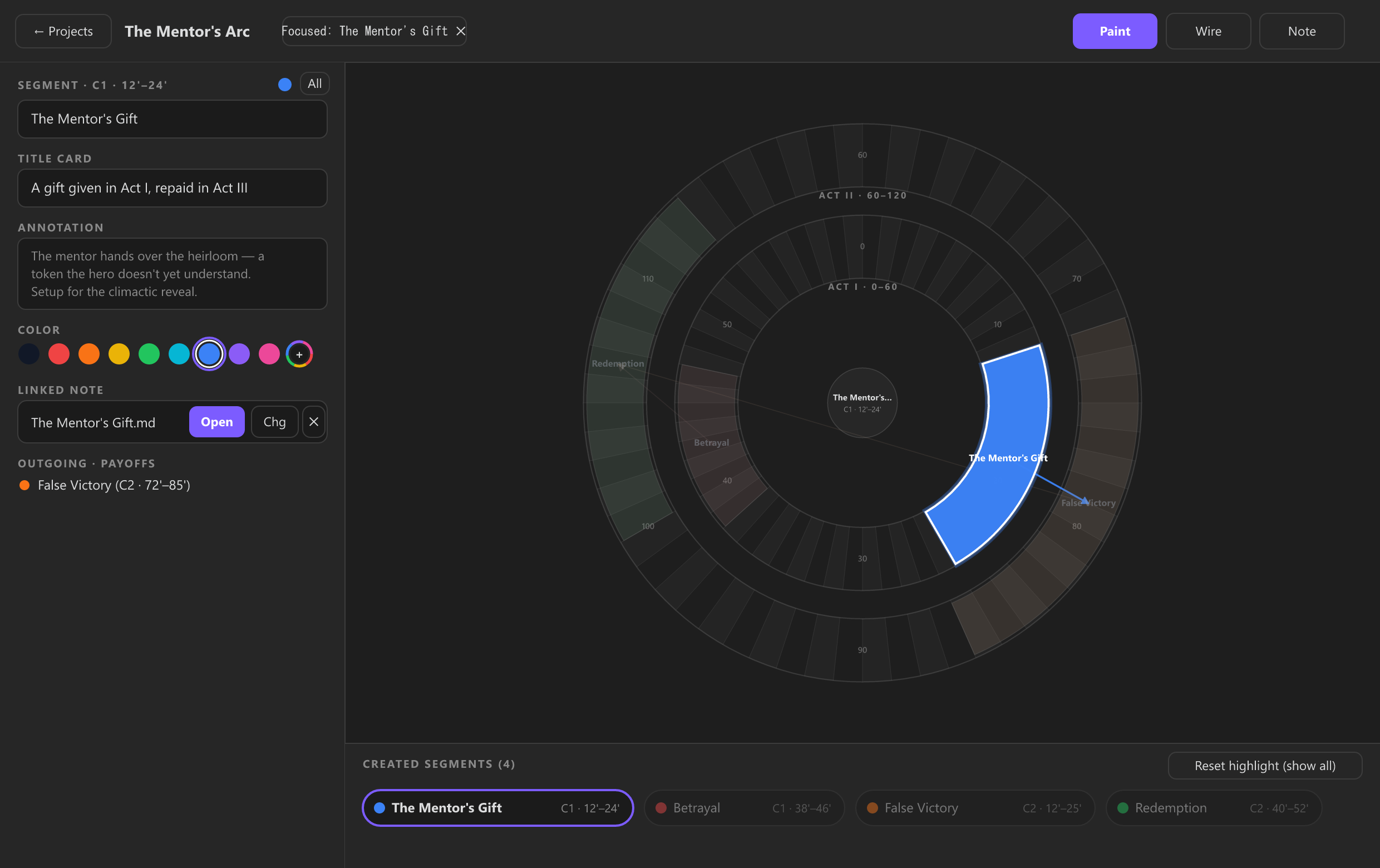
- Directly below the Story Clock visualization, a live Created Segments bar displays every segment in timeline order (
Act I→Act II), plus a pulsing Creating now… badge while painting a new arc.
🎯 Segment focus & side-panel note opening
- Click any segment on the circle or in the Created Segments tray below:
- Highlights that segment (and its connected setup/payoff wires) in full vibrant color on the clock while graying out all other segments.
- Opens its linked note in a side panel (split leaf), new tab, or current pane.
- Click Reset highlight (show all) (or click the center hub) at any time to restore all segments to full color.
🗂️ Multiple projects
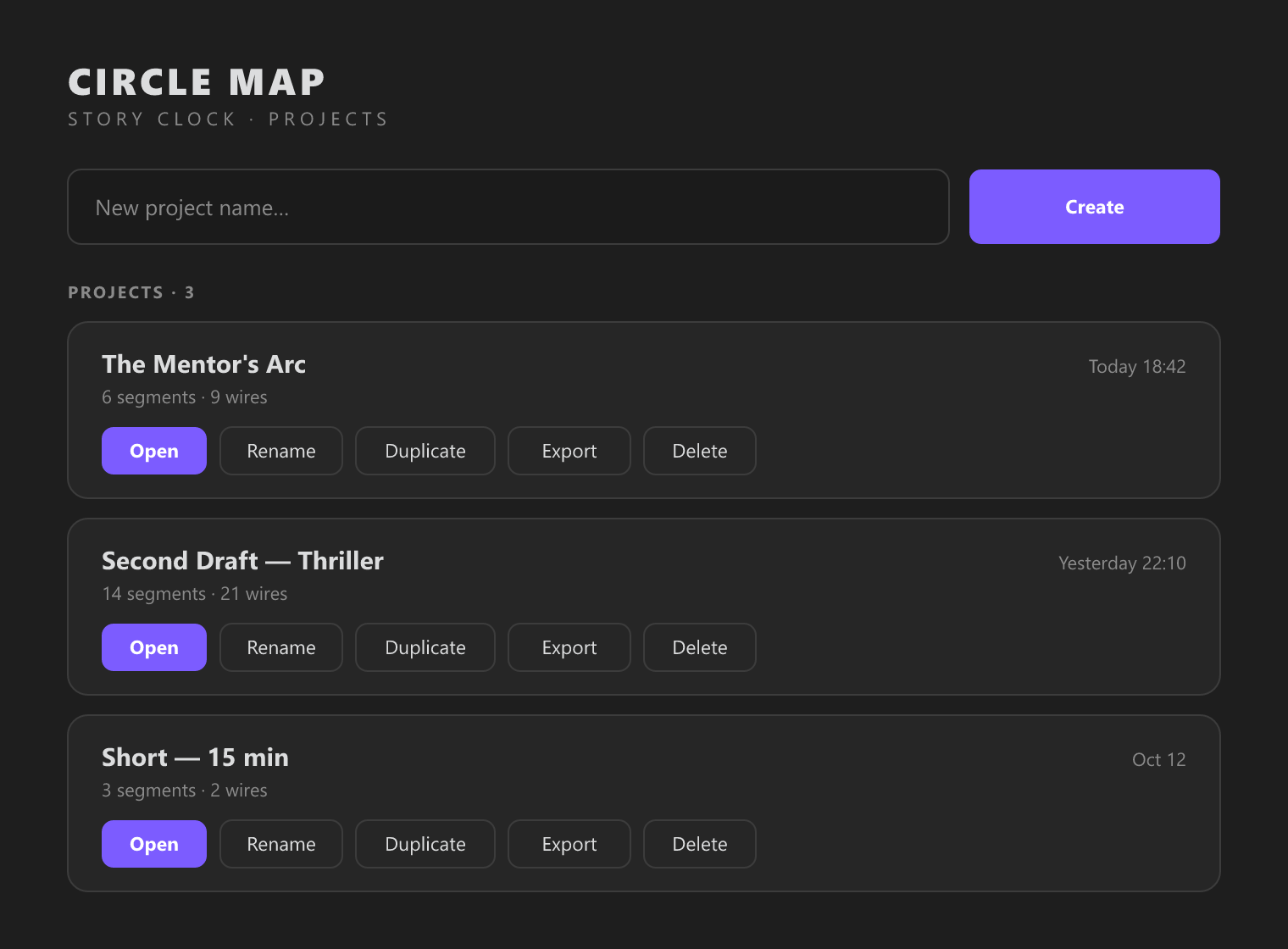
- Create, rename, duplicate, and delete projects — each stored as its own file inside the vault.
📦 Installation
From a release
- Download the latest
main.js,manifest.json, andstyles.css. - Copy them into
<your-vault>/.obsidian/plugins/story-clock/. - In Obsidian: Settings → Community plugins → Installed → enable Story Clock.
- Click the timer ribbon icon or run the "Open Story Clock" command.
Build from source
git clone https://github.com/Ramaputhra/storyclock.git
cd storyclock
npm install
npm run build
Then copy main.js, manifest.json, and styles.css into your vault's plugin folder as above.
🧭 Usage
- Open the plugin (ribbon icon or command).
- Create a project or open an existing one.
- Paint — drag on a ring to select minutes, then name the theme in the side panel.
- Wire — switch to Wire mode and drag one block to another to connect setup → payoff.
- Link notes — switch to Note mode and click a segment (or a minute) to link an existing note, or use Create title-card note in the side panel.
- Open — click a mapped segment to open its note in the side panel.
⚙️ Settings
| Setting | Description |
|---|---|
| Title-card folder | Where new title-card notes are created (e.g. Story Clock). |
| Open linked notes | Side panel (split), New tab, or Current pane. |
🗄️ Data & portability
Projects are stored as JSON in .obsidian/plugins/story-clock/projects/:
project
├── id, name
├── segments[]      # theme blocks (text, start, end, circle, color, note, titleCard, noteLink)
├── wires[]         # setup → payoff links
├── minuteNotes[]   # per-minute note links
└── createdAt, updatedAt
The schema matches the standalone Circle Map — Story Clock desktop app, so a project can move freely between the two.
🧰 Development
npm run dev     # watch build
npm run build   # type-check + production bundle
Documentation images are generated from SVG with:
node scripts/render-docs-images.mjs
☕ Support
If Story Clock helps you structure your screenplays, stories, or narrative notes, consider supporting its development:
- Buy Me a Coffee: https://buymeacoffee.com/ramaputhra

Scan the QR code or click here to support on Buy Me a Coffee
📄 License
MIT
For plugin developers
Search results and similarity scores are powered by semantic analysis of your plugin's README. If your plugin isn't appearing for searches you'd expect, try updating your README to clearly describe your plugin's purpose, features, and use cases.