by Marcus Wu
Turn your vault into a tree of nested pages: create, rename, move and reorder pages in a sidebar, and list sub-pages inside any note.
Sub Page
Browse and organize your Obsidian notes as nested pages in a sidebar. Add the same child pages to a note as a list or a card grid. Sub Page can show your existing vault as a tree as soon as you open it.
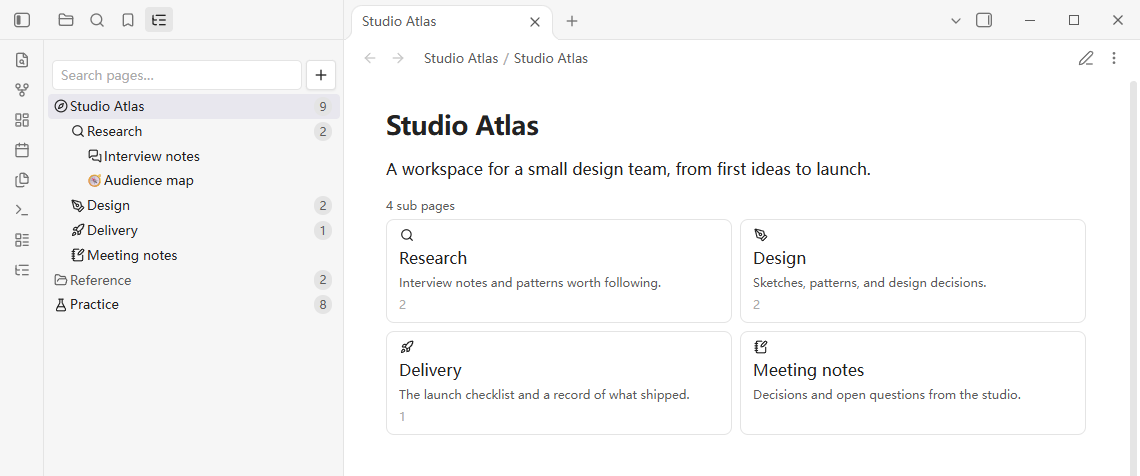
Try it with the Studio Atlas example vault.
What you can do
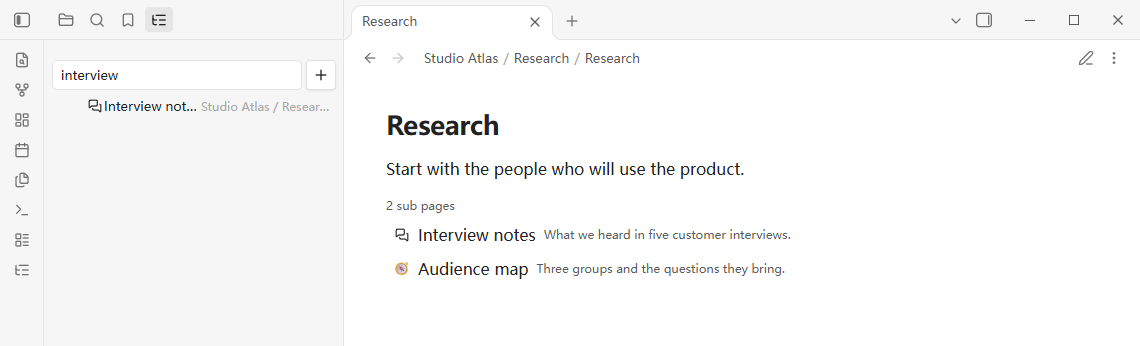
- Browse and search your page tree alongside Obsidian’s file explorer. Click a parent page’s title to open the note and show its children. Click the title again to collapse them. The icon toggles the list on its own.
- Create and organize pages from the sidebar. Use + to create a page, or right-click a page and choose New sub page. On desktop, drag to the center of a row to make a page its child, or to the top or bottom edge to reorder it. On mobile, long-press a page to open its menu and use Move up or Move down. The context menu can also copy a page link, its vault-relative path, or its absolute path.
- Show child pages inside a note as a list or card grid, with optional icons and descriptions.
Get started
-
Open the page tree from the Sub Page icon in the left ribbon or run Sub Page: Open sub page panel from the command palette. The panel first opens in the left sidebar. Run Sub Page: Collapse native file explorer if you want more room for the page tree.
-
Leave Page root blank to show the whole vault, or choose a folder in the plugin settings. Enable Show empty folders to see folders without pages.
-
Add this block to a note and switch to Reading view to see that note’s child pages.
```subpages
view: list
sort: manual
```
How notes become parent pages
A note with the same name as its containing folder represents that folder in the tree. For example, Java/JVM/JVM.md is the JVM parent page, and Java/JVM/Garbage collection.md is one of its children. A folder without a matching note groups the pages it contains.
A new page starts as a regular note. When it receives its first child, Sub Page moves the original note into a matching folder. With Restore pages that have no children enabled by default, Sub Page moves the original note back up one level when it is the only item left and sends the empty folder to the vault trash. The folder stays in place if a note with the same name already exists at the destination. Turn this setting off to keep parent folders.
Customize the child-page list
| Option | Values | Default |
|---|---|---|
view | list or card | Plugin setting |
sort | name, created, modified, or manual | Plugin setting |
show-icon | true or false | true |
show-description | true or false | false |
columns | Number of columns in card view | 2 |
limit | Maximum number of pages, or 0 for all | 0 |
To customize a page’s icon and description, add icon and description in its Obsidian Properties. The icon can be an emoji like 📁 or a value like lucide:folder.
Work with an agent
In Sub Page settings, choose Install Agent Skill to preview and install a note organization guide in this vault. You can choose the skills folder and add an editable instruction to the vault’s AGENTS.md. Existing rules outside the Sub Page section are preserved.
Install
Sub Page supports Obsidian 1.15.0 or newer on desktop and mobile.
For manual installation, place the release files main.js, manifest.json, and styles.css in your vault’s .obsidian/plugins/sub-page/ folder. Restart Obsidian and enable Sub Page under Settings → Community plugins. GitHub Releases
For plugin developers
Search results and similarity scores are powered by semantic analysis of your plugin's README. If your plugin isn't appearing for searches you'd expect, try updating your README to clearly describe your plugin's purpose, features, and use cases.