SupSub
approvedby wjgoarxiv
Easily format superscripts and subscripts in your notes.
SupSub

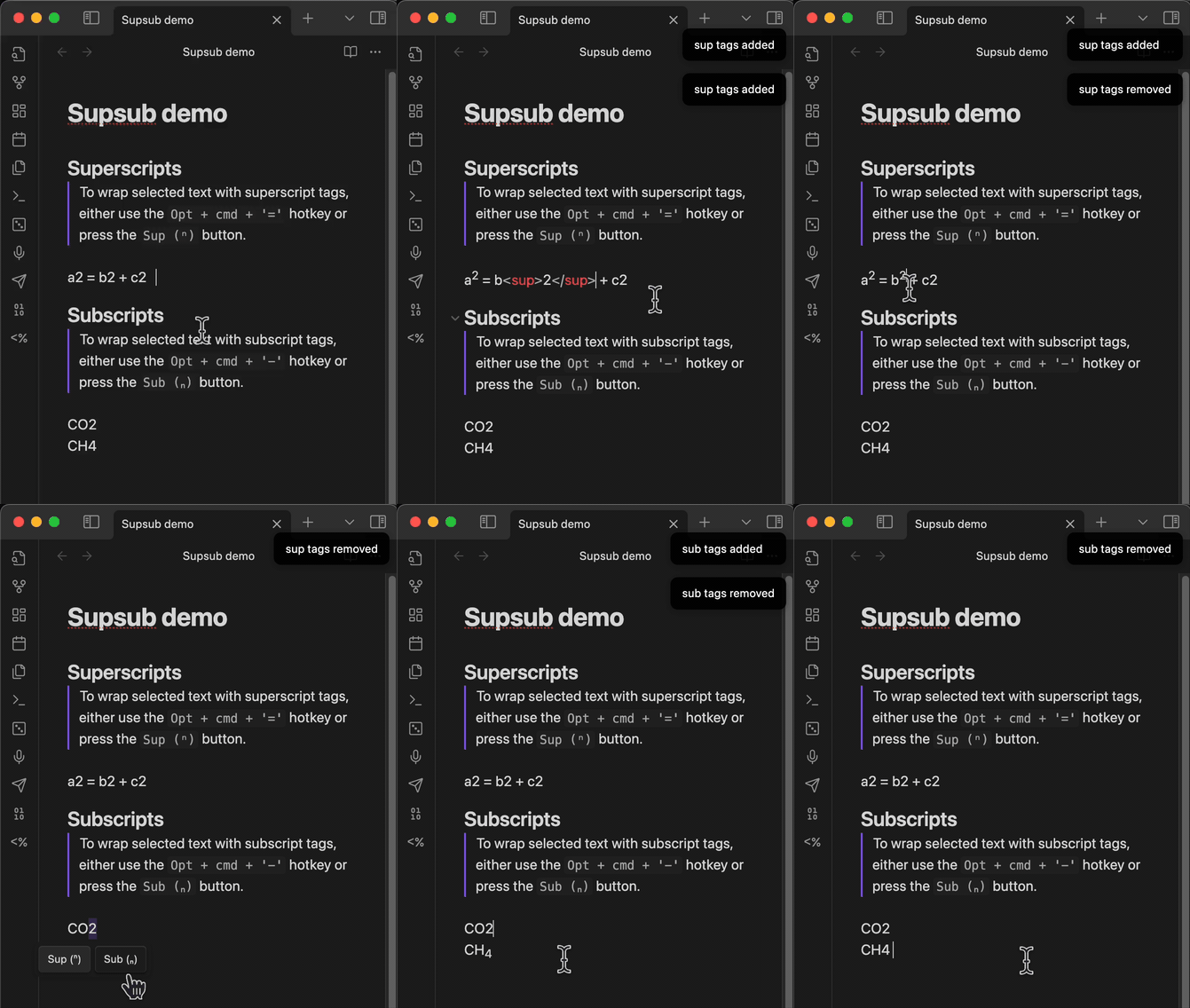
SupSub is an Obsidian plugin that allows you to easily format selected text with <sup> and <sub> tags, enabling quick superscript and subscript formatting in your notes.
Usage
-
Superscript:
- Hotkey:
Option + Command + '='on macOS orCtrl + Alt + '='on Windows. - With selection: Wraps the selected text with
<sup>tags. - Without selection: Activates superscript typing mode — a status bar indicator ("SUP") appears and everything you type is formatted as superscript. Press Escape to exit.
- Button: Sup (ⁿ)
- Hotkey:
-
Subscript:
- Hotkey:
Option + Command + '-'on macOS orCtrl + Alt + '-'on Windows. - With selection: Wraps the selected text with
<sub>tags. - Without selection: Activates subscript typing mode — a status bar indicator ("SUB") appears and everything you type is formatted as subscript. Press Escape to exit.
- Button: Sub (ₙ)
- Hotkey:
-
Remove Formatting:
- Action: Removes existing
<sup>or<sub>tags from the selected text. - Button: Normal (n)
- With hidden tags: When the "Hide Tags" setting is enabled, simply select the visible superscripted/subscripted text and hold the modifier key — the "Normal (n)" button appears automatically, even if your selection doesn't perfectly match the raw tag boundaries.
- Action: Removes existing
-
Toggling:
- If the selected text is already wrapped in
<sup>or<sub>, using the respective button or hotkey will remove the tags. - The plugin uses position-aware detection: as long as your cursor or selection overlaps any part of a tag, it will correctly unwrap instead of double-wrapping.
- If the selected text is already wrapped in
-
Popup Modifier Key:
- By default, the popup buttons only appear when holding Cmd (macOS) or Ctrl (Windows/Linux) while selecting text.
- Change the modifier key in Settings > SupSub > Popup Modifier Key.
- Set to None to restore the previous always-show behavior.
Example Workflow
-
Add Superscript/Subscript:
- Select the text you want to format.
- Click the Sup (ⁿ) or Sub (ₙ) button in the popup, or use the designated hotkeys.
- The selected text will be wrapped with the corresponding tags, and the popup will disappear.
-
Remove Superscript/Subscript:
- Select the text that is already formatted with
<sup>or<sub>tags. - Click the Normal (n) button in the popup.
- The tags will be removed, the text will be reverted to normal formatting, and the popup will disappear.
- Select the text that is already formatted with
-
Remove Formatting with Hidden Tags:
- With Hide Tags enabled, tags are invisible — you only see the styled content.
- Select the visible superscripted/subscripted text and hold the modifier key (Cmd/Ctrl).
- The popup shows Normal (n) — click it to remove the tags.
- No need to select the exact raw tag boundaries; any overlapping selection works.
Contributing
Contributions are welcome! If you encounter any issues or have suggestions for improvements, please open a new issue or submit a pull request in the GitHub repository.
License
This plugin is licensed under the MIT License.
Changelog
Version 1.1.1 (@2026-02-18)
-
Bug Fixes:
- Fixed Decoration Ordering Crash: Replaced
RangeSetBuilderwithDecoration.set(ranges, true)to eliminate "Ranges must be added sorted" console errors on edge cases. - Fixed Cursor Placement After Wrapping: After wrapping text with sup/sub, the cursor now correctly lands inside the tags (before the closing tag) instead of at the end of the line. Uses
requestAnimationFrameto ensure stable positioning after decoration reflow. - Fixed Normal Button Not Appearing: When tags are hidden by decorations, selecting superscripted/subscripted content now reliably shows the "Normal (n)" button. Uses overlap detection instead of strict containment, so imprecise selections still work.
- Fixed Double-Wrapping: Selecting text that partially overlaps existing tags no longer produces malformed output like
<sup><sup>2</sup></sup>. The plugin detects overlapping tags and unwraps instead of double-wrapping.
- Fixed Decoration Ordering Crash: Replaced
-
Improvements:
- Position-Aware Unwrapping: The unwrap logic now scans the raw line for tags at the cursor position rather than relying on exact selection text. This handles all cases where hidden decorations cause visual-to-raw coordinate mismatches.
- Cursor Line Tag Visibility: Tags are now shown on the line where the cursor is (matching Obsidian's native behavior for bold/italic), allowing direct editing when needed.
Version 1.1.0 (@2026-02-17)
-
Bug Fixes:
- Fixed Tag Hiding Rendering: Switched from
Decoration.mark()withdisplay: nonetoDecoration.replace()for hiding<sup>/<sub>tags. This eliminates cursor position mismatches that caused letters to disappear when typing near formatted text. - Fixed Text Shifting: Removed
display: inline-blockandposition: relativeCSS properties from superscript/subscript elements that were causing text to shift positions during editing. - Fixed Hide Tags Toggle: The "Hide Tags" setting now properly toggles on and off without requiring a restart.
- Performance Optimization: Decoration computation now only processes visible ranges instead of the entire document.
- Fixed Tag Hiding Rendering: Switched from
-
New Features:
- Modifier Key for Popup: The popup buttons now require holding a modifier key (Cmd/Ctrl by default) while selecting text. This prevents accidental popup appearances during normal text navigation. Configurable in Settings with options: Cmd/Ctrl, Ctrl, Shift, Alt, or None (legacy behavior).
- Toggle Typing Mode: Activate superscript or subscript mode without selecting text first. Place your cursor and press the hotkey — a status bar indicator appears and everything you type is automatically formatted. Press Escape to exit. Supports toggling between modes and auto-exits on line change.
Version 1.0.5 (@2025-05-19)
- Bug Fixes:
- Fixed Text Shifting Issue: Resolved an issue where superscript and subscript text would shift positions when editing text in rows above.
- Fixed Disappearing Text: Fixed a problem where letters would disappear when typing near superscript or subscript content.
- Improved Decoration Handling: Enhanced the way hidden tags are managed to ensure consistent editing experience.
Version 1.0.4 (@2024-12-03)
-
Bug Fixes:
- Resolved Selection Error: Fixed an issue where enabling the popup buttons and using the Sup or Sub buttons could cause a
TypeErrorrelated to invalid selection points. The plugin now correctly validates selection ranges to prevent errors.
- Resolved Selection Error: Fixed an issue where enabling the popup buttons and using the Sup or Sub buttons could cause a
-
Improved Stability:
- Enhanced compatibility with the latest Obsidian updates by refining editor integrations and ensuring seamless functionality.
Version 1.0.3 (@2024-12-01)
- Enhanced Button Labels: Updated the popup buttons to be more user-friendly:
- Sup (ⁿ): Wraps the selected text with
<sup>tags. - Sub (ₙ): Wraps the selected text with
<sub>tags. - Normal (n): Removes existing
<sup>or<sub>tags from the selected text.
- Sup (ⁿ): Wraps the selected text with
- Conditional Button Display:
- When the selected text is already wrapped in
<sup>or<sub>, only the Normal (n) button is displayed to allow easy removal of the tags. - When the selected text is not wrapped, both Sup (ⁿ) and Sub (ₙ) buttons are available for formatting.
- When the selected text is already wrapped in
For plugin developers
Search results and similarity scores are powered by semantic analysis of your plugin's README. If your plugin isn't appearing for searches you'd expect, try updating your README to clearly describe your plugin's purpose, features, and use cases.