SwiftSwitch
approvedby swiSwift
Auto-switch CSS snippets, themes— or toggle manually via status bar/floating button. Supports local image backgrounds, font switching with color/opacity/margin - This plugin has not been manually reviewed by Obsidian staff.
★ 2 stars↓ 715 downloadsUpdated 11d agoMIT
SwiftSwitch
Quickly toggle Obsidian CSS Snippets from a status bar popup.
Features
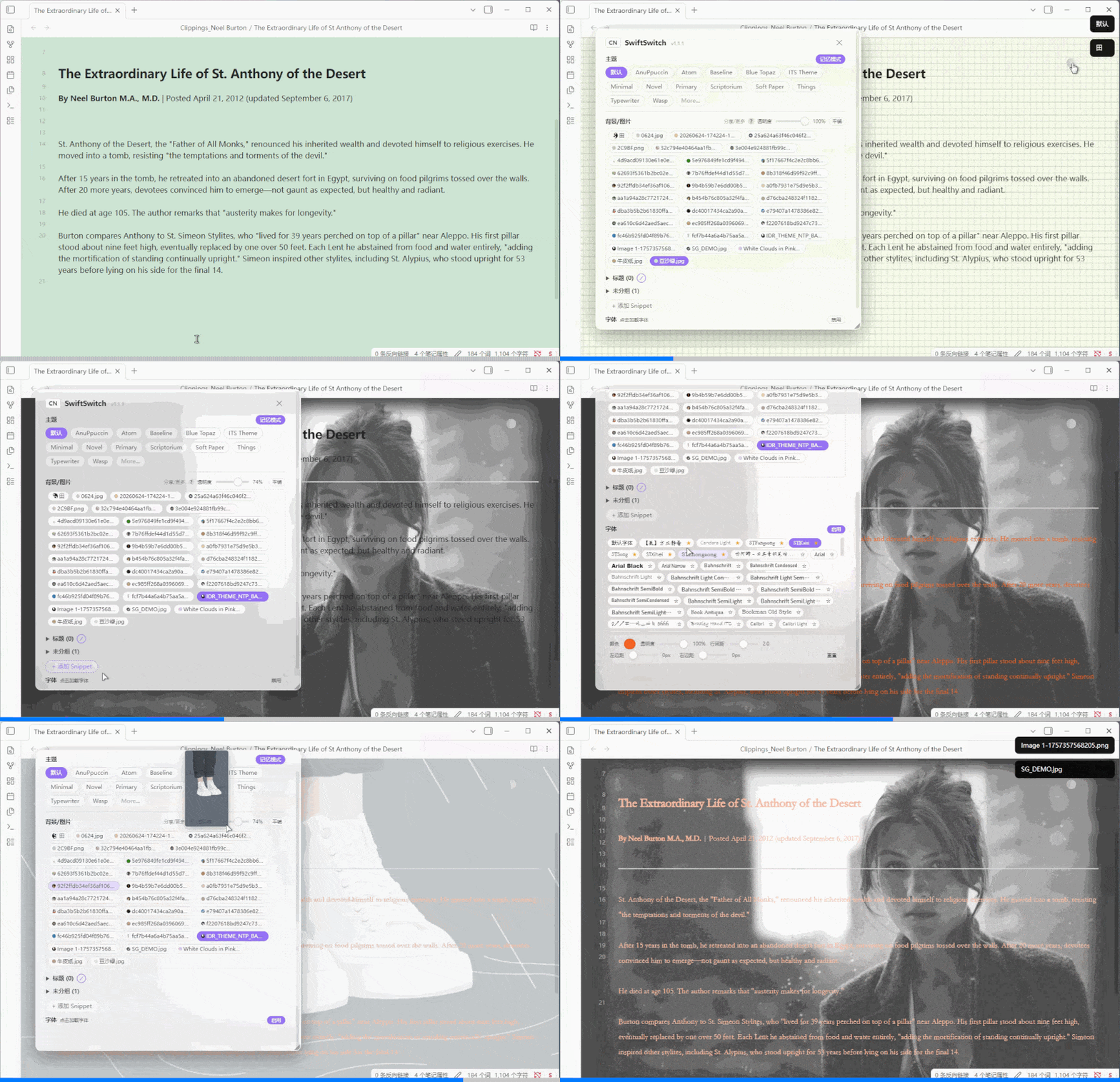
- Status Bar Button — Click the SwiftSwitch button in the status bar to open the management popup
- Toggle Snippets — Click any snippet chip to enable/disable it instantly
- Custom Groups — Right-click empty space to add groups, then drag snippets into them
- Drag & Drop — Drag snippet chips between groups or back to "Ungrouped"
- Fold/Expand Groups — Click group header to collapse/expand, state is persisted
- i18n — Switch between Chinese and English via the CN/EN toggle in the popup header
- Right-click Menu — Copy content, edit, edit (open externally), delete, move to group
- Add New Snippet — Create new CSS snippets directly from the popup
- Eye Care Colors& Patterns — Textured backgrounds: linen, dots, grid, stripe, aurora, breathe
- Dark/Light Mode Auto-Switch — Eye care colors and floating button auto-adapt when switching modes
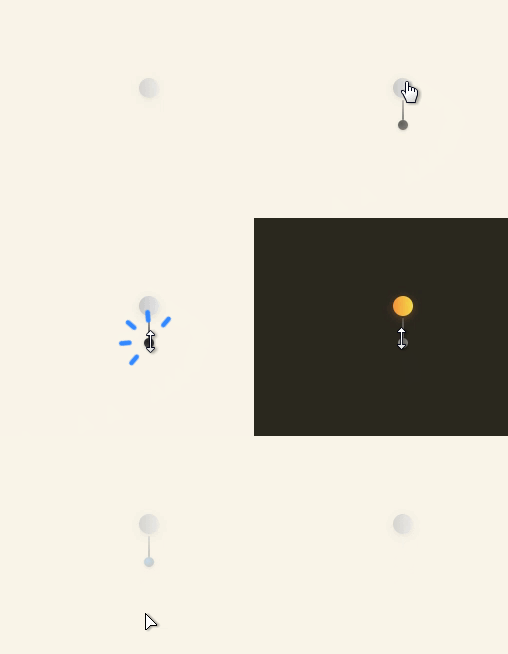
- Floating Button — Pin a draggable floating button with tangerine (dark) / grey (light) gradient style
Installation
From GitHub
- Download
main.jsandmanifest.jsonfrom the latest release - Create a folder named
SwiftSnippetsin your vault's.obsidian/plugins/directory - Place the downloaded files inside that folder
- Enable the plugin in Obsidian Settings → Community Plugins
From Obsidian Community Plugins (pending review)
- Open Settings → Community Plugins
- Search for "SwiftSwitch"
- Click Install, then Enable
Usage
- After enabling the plugin, a "SwiftSwitch" button appears in the status bar
- Click it to open the snippet management popup
- Click a snippet chip to toggle it on/off
- Right-click a chip for more options (edit, delete, copy, move to group)
- Right-click empty space in the popup to add a new group
- Drag snippets between groups to organize them
Changelog
Changelog
v1.2.0 (2026-09-08)
- Background Persistence Fix — When style memory is off, switching pages no longer clears the current background; the applied background now persists across page switches. Added a delayed re-apply fallback to prevent Obsidian's re-render from stripping injected CSS
- Set/Clear Default Mutual Exclusion — "Set as default for new pages" and "Clear default background" no longer appear simultaneously; only the relevant action shows based on current state
- Dark/Light Mode Setting Relocated — Moved the "default dark/light mode for new pages" option out of image chip context menus into the bottom settings popup (hover the gear icon); replaced the binary toggle with a three-way selector (No switch / Dark / Light)
v1.1.9 (2026-08-13)
- Chip Hover Tooltip — Hover any chip (theme, background, snippet, etc.) to instantly see its right-click options as an interactive tooltip; click an option to execute it directly without right-clicking
- Background Leak Fix — Fixed background leaking to new pages when switching documents with style memory enabled; "Set as default for new pages" now works independently even when style memory is off; same-name image background no longer leaks to pages without a matching image
v1.1.8 (2026-07-06)
- Custom Background Color — Add "+ Add" chip at the end of background/image chips; click to open a color picker with manual hex input; custom colors auto-invert when switching dark/light mode
- Default Mode Toggle — Right-click theme or background chip to set "Default mode for new pages: dark/light" toggle below "Set as default for new pages"
- Cyclic Background Scroll — Floating button scroll wheel now cycles through backgrounds (wraps from last to first and vice versa)
- Independent Font Style Settings — Color, opacity, line height, and margin settings moved from under "Font" to a separate "Font Style" section at the same level; works regardless of font toggle state
- Settings Panel — ⚙️ icon in footer opens a settings popup; includes "Use same-name image as background on document open" option
- Fixed Footer — Settings icon and plugin links are now pinned to the bottom of the management panel
v1.1.7 (2026-07-05)
- Theme Delete — Right-click theme chip to delete theme; auto-switches to default if deleting active theme; confirmation dialog with hint
- Default Theme for New Pages — Right-click theme chip to set as default for new pages; when memory mode is on and a page has no saved style, the default theme is applied automatically
- Default Background for New Pages — Right-click background/image chip to set as default for new pages; supports preset snippets and custom images; auto-applied to pages without saved style
v1.1.6 (2026-07-02)
- Mobile Support — Support background/image switching on mobile; add ribbon icon entry; mobile font color/opacity/line-height/margin settings
v1.1.5 (2026-07-01)
- Mac Edit Crash Fix — Fixed
Cannot read properties of nullerror when editing snippets via right-click menu on macOS; click event no longer bubbles to overlay and closes popup prematurely
v1.1.4 (2026-07-01)
- Font Preload — System font list is preloaded in background after startup; first hover on font button no longer has long delay
- Startup Speed — Non-essential init tasks (pic folder scan, eye care snippet export) deferred to idle callback; no longer blocks Obsidian startup
- Dark/Light Font Color Inversion — Font color auto-inverts (RGB 255-x) when switching to dark mode; reverts to original in light mode
- Font Color for Side Panels — Font color now also applies to side panels (file explorer, search, outline, tags, backlinks)
- Style Memory Fix — Scroll-wheel background changes on floating button now properly saved to page style memory; no longer lost on restart
- Startup Memory Restore — Current page's remembered style is now restored on plugin startup, not only on tab switch
- Floating Button Edge — Dragging floating button to right/bottom edge no longer blocked by hardcoded 80px/40px margin
v1.1.3 (2026-06-26)
- Font Memory — Style memory mode now also remembers font settings (active font, enable/disable, color, opacity, line height, margins)
- Font Toggle Reversed — Font enable/disable button now shows the opposite action: "Disable" when enabled, "Enable" when disabled
- Font Section Collapse — Added ▶/▼ collapse toggle before font section header; collapse state is persisted
- Font Collapse on Close — If font section is expanded when closing the management popup, it starts collapsed on next open
- Font Applied to Side Panels — Font settings now also apply to side panels (file explorer, search, outline, tags, backlinks)
- Image Stretch Mode — Added "Stretch" chip option for background images (100%×100% fill), mutually exclusive with "Tile"
- Status Bar Font Button — New "f" chip in font section header adds a font button to the status bar; scroll wheel cycles through favorite fonts; hover to open standalone font manager panel
- Standalone Font Manager — Hovering the status bar font button opens a font management panel in the bottom-right corner; mouse-leave auto-closes; dragging the panel pins it (no auto-close)
v1.1.2 (2026-06-26)
- Hover Preview — Hover on snippet/theme/font chips to instantly preview the effect; mouse leave restores previous state; click to apply
- Font Management — New "Font" section with system font chips, ⭐ favorites, and settings (color, opacity, line height, left/right margin); lazy-loaded on click
- Font Enable/Disable — Toggle button in font section header to quickly disable/enable all font customizations
- Default Font Chip — First chip in font list resets to system default font
- Theme Hover Preview — Hover theme chips to preview theme in real-time without applying
- Image Chip Preview — Hover image background chips to preview the image effect on the editor
- Exclusive Group Preview — Hover preview on exclusive group chips temporarily disables other group members
- Drag Refresh Fix — Dragging snippets out of Background/Image group now properly refreshes both areas
- Image Click Fix — Clicking image chips now correctly applies instead of toggling off due to preview state
v1.1.1 (2026-06-25)
- Dark/Light Image Auto-Switch — Background images with
-light/-darksuffix (e.g.田-light.png+田-dark.png) auto-switch when toggling dark/light mode - Paired Image Chips — Paired light/dark images merge into a single chip with a rotating yin-yang icon and base name only
- Floating Button Wheel — Scroll wheel on floating button now cycles through both CSS snippets and background images
- Delete Preset Persistence — Deleted
ss-preset snippets are remembered; no longer recreated on plugin reload - No Delete Confirmation — Removed confirm dialog when deleting snippet chips
- Default Panel Width — Management popup starts at 480px width instead of full viewport; still resizable via drag handle
v1.1.0 (2026-06-25)
- Eye Care Presets as CSS Snippets — Exported all 22 eye care presets (colors + patterns) to
.obsidian/snippets/ss-*.cssfiles with.theme-dark/.theme-lightselectors for automatic dark/light mode adaptation - Background/Image Unified Group — Merged background colors and image backgrounds into a single "Background/Image" group with mutual exclusion; drag snippets in from other groups
- Mode Switch Visibility — Dark/light mode toggle in popup header now hides when floating button is active, reappears when floating button is closed
- Exclusive Background Group — Background/Image group is exclusive by default; enabling one snippet disables others; selecting an image disables all snippets and vice versa
- Language-Safe Group Key — Background group uses fixed
__bg__key instead of localized name, preventing duplicate groups on language switch; auto-migrates old "背景"/"Background" groups - Delete from Background Group — Deleting a snippet from the Background/Image group now removes the file entirely instead of moving it to "Ungrouped"
- Share/More Link — Added a "Share/More" link in the Background/Image section header linking to GitHub Discussions
v1.0.9 (2026-06-25)
- Open Folder Fix — Fixed "open background image folder" button not working; switched from
electron.shelltochild_process.execfor reliable folder opening - Header Bar Redesign — Removed standalone white header bar; header now flows naturally with popup content, no more floating white strip or content clipping
- Horizontal Scrollbar Fix — Removed unwanted horizontal scrollbar in the management popup by adding
overflow-x: hidden - Resize Handle Repositioned — Resize handle now sits at the true bottom-right corner of the popup (matching SwiftGloss style), using
position: fixedwith dynamic position tracking - Wheel Event Violation Fix — Added
{ passive: false }to wheel event listener to eliminate Chrome violation warning - Click Handler Performance — Deferred popup opening with
setTimeoutto avoid blocking the click handler and eliminate long-task violation
v1.0.8 (2026-06-22)
- Status Bar Editable — Right-click status bar button to edit text and CSS style, with live preview
- Context Menu Overflow Fix — Status bar right-click menu auto-adjusts position to stay within screen
- Version Auto-Read — Popup version tag now reads from manifest instead of hardcoded value
- Snippet Edit Error Handling — Failed to read snippet file now shows Notice with details instead of silent empty form
- Debug Console Logs — Added console logging for snippet edit file read operations
v1.0.7 (2026-06-22)
- Image Background — Support local image backgrounds from
picfolder; auto-detected and displayed as pill-shaped chips - Tile Mode — Added "Tile" option for image backgrounds to repeat small images instead of cover
- Opacity Control — Inline opacity slider in title row when an image is selected
- Minimap Fix — Fixed SwiftMatch minimap being displaced by image background CSS
- Plugin Dir Helper — Added
_getPluginDir()with fallback chain to fix image loading path issues - Image Section Redesign — New "背景-图片" title with "?" help tooltip; controls in title row, no duplicate display
v1.0.6 (2026-06-20)
- Silent Page Switch — No more notification popups when switching between pages with style memory
- Popup Scroll-through Fix — Mouse wheel properly passes through popup overlay to scroll the page beneath
- Pull Cord Fix — Pull cord no longer stretches the popup layout; positioned absolutely below the indicator button
- Indicator Button Redesign — Compact circular gradient button matching floating button style; click toggles floating button, pull cord switches dark/light mode
- Stable Scrollbar —
scrollbar-gutter: stableprevents chip reflow when scrollbar appears - Dialog Protection — Adding/deleting groups no longer accidentally closes the management popup
v1.0.5 (2026-06-20)
- Page Style Memory — Remember each page's theme, dark/light mode, eye care color, and enabled snippets; auto-restore on page switch
- Exclusive Groups — Snippets in exclusive groups (e.g. "标题") cannot be enabled simultaneously; toggle via group header ⊘ button or right-click menu
- Floating Button Toggle — Dark/light indicator button in popup now toggles floating button visibility; pull cord switches dark/light mode
- Popup Scroll-through — Mouse wheel events pass through the popup overlay to the page beneath
- Stable Scrollbar — Popup uses
scrollbar-gutter: stableto prevent chip reflow when scrollbar appears - Snippet Cache — In-memory cache for snippet enabled state, fixing stale chip status after toggling
v1.0.4 (2026-06-19)
- Meditation Breathing Presets — Added 4-7-8 breathing (inhale 4s-hold 7s-exhale 8s) and Box breathing (4-4-4-4) guided visual animations
- Edge Glow — Screen edge glow breathing effect via box-shadow overlay
- Cursor Glow — Mouse-following radial glow with breathing animation
- Scroll Wheel Swap — Scroll now cycles eye care colors; Ctrl/Shift+scroll switches themes
- Breathing Chip Hints — Hover on breathing chips to see rhythm description
v1.0.3 (2026-06-19)
- Pull Cord Fix — Fixed pull cord not hiding after drag, stale event listeners causing ghost pull cord on screen
- Floating Button Cleanup — Properly cleanup global event listeners when recreating floating button on mode switch
v1.0.2 (2026-06-19)
- Rename to SwiftSwitch — Plugin renamed from SwiftSnippets to SwiftSwitch (id unchanged)
- Eye Care Patterns — Added 6 textured eye care presets: linen, dots, grid, stripe, aurora, breathe
- Dark Mode Eye Care — All eye care presets now have dark mode counterparts with auto-switching
- Floating Button Redesign — New default gradient style: tangerine (dark mode) / grey (light mode)
- Popup Position Memory — Popup remembers its position after being dragged
- Feedback Chip — Added a "Feedback" link to GitHub in the popup footer
Development
This plugin is desktop-only because it uses Node.js APIs for file operations.
License
MIT
Sponsor / 赞助
If you find this plugin helpful, consider buying me a coffee! / 如果这个插件对你有帮助,请考虑支持我!

For plugin developers
Search results and similarity scores are powered by semantic analysis of your plugin's README. If your plugin isn't appearing for searches you'd expect, try updating your README to clearly describe your plugin's purpose, features, and use cases.