by theluckystrike
Find the files and settings that your vault rewrites most often, so you can see what fills your sync history.
Sync Churn Watch
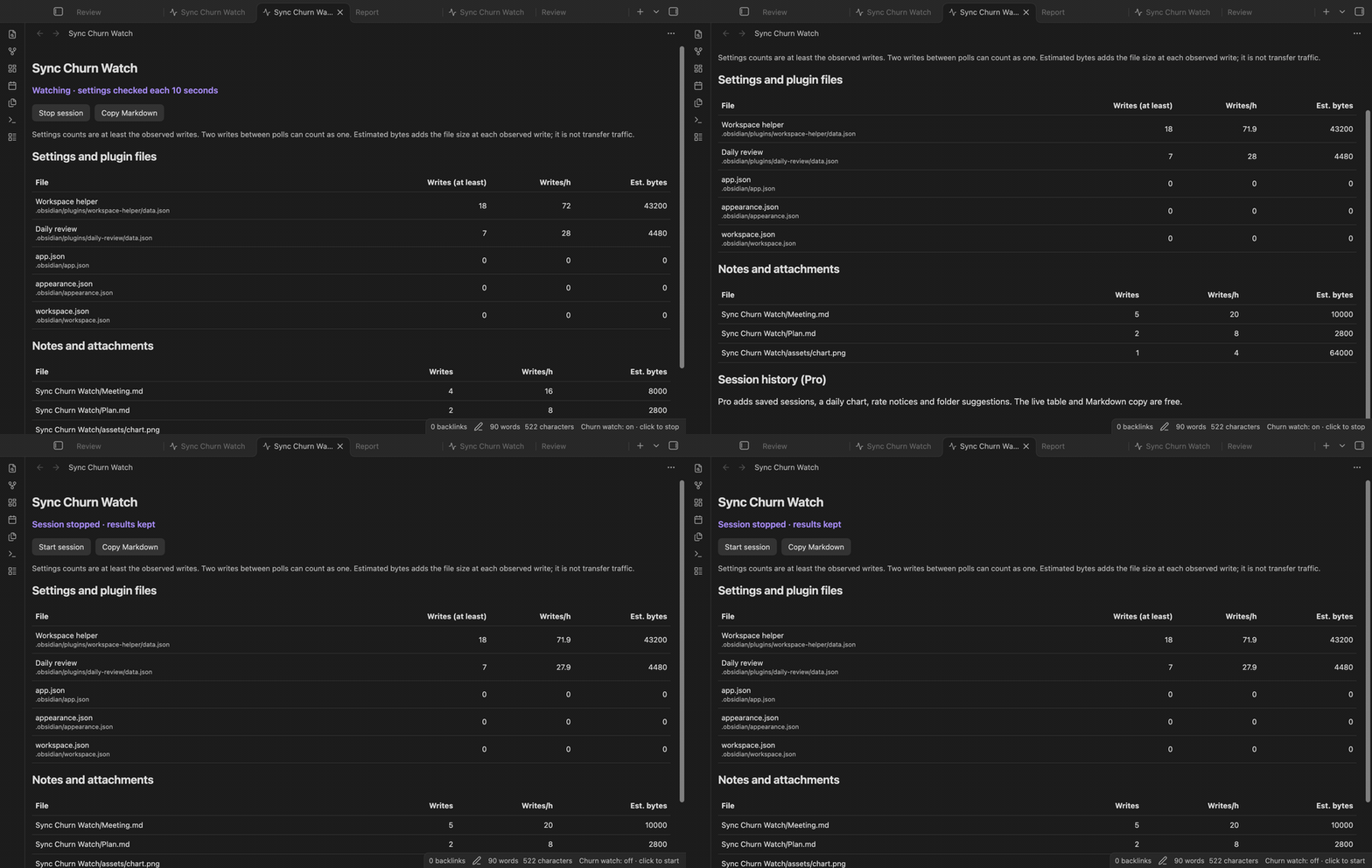
Find the files and settings that your vault rewrites most often, so you can see what fills your sync history. Start a watch session, use your vault, then stop and read the table. The watcher gives you a local record of observed writes. It does not read the Sync history service.
A settings file can change while you read a note. A workspace helper can save its state after a tab changes. A large attachment can add a large byte estimate with a small write count. Use the two sections to compare these patterns before you change your Sync or Git setup.
Features
Start and stop a watch session
Use the commands, the view button, or the desktop status bar item. The view shows “No session” before the first session. Start sets a baseline for the settings files. Stop keeps the results and ends the settings poll. Starting again clears the live table and sets a new baseline.
The watcher keeps running when you close its view. Stop it with the command or status bar when your work period ends. There is no background watch after you unload the plugin.
Find settings and plugin writes
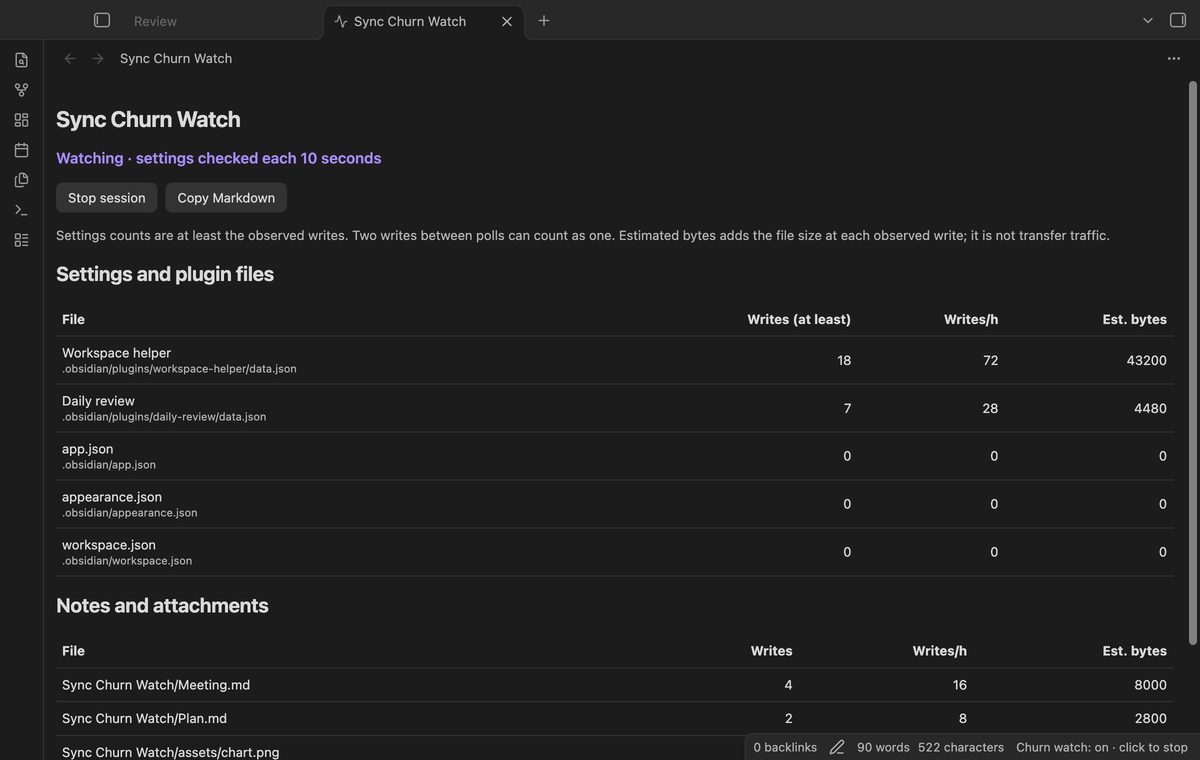
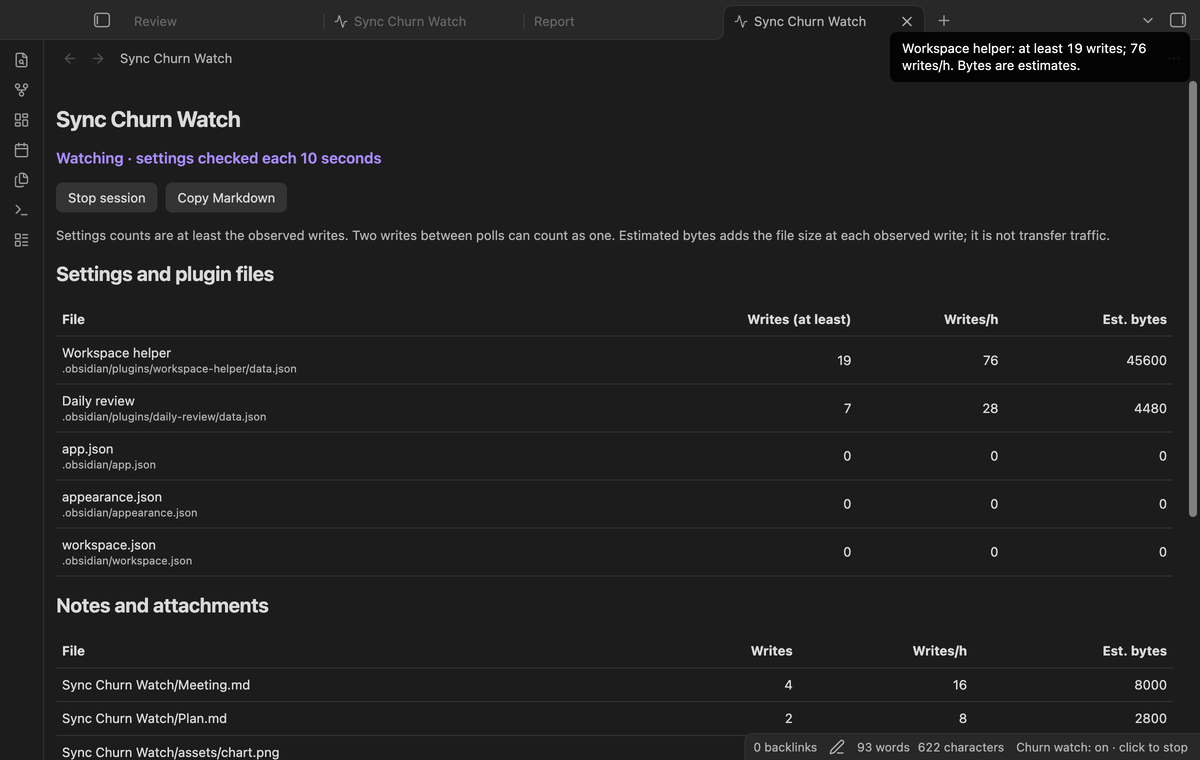
“Settings and plugin files” checks workspace.json, workspace-mobile.json, app.json, appearance.json and plugin data.json files under the vault config folder. It uses your configured folder name. Each poll runs after ten seconds and compares modification times. A plugin row gets its name from the manifest in that folder. If that file is missing or invalid, the row uses the folder name.
“Writes (at least)” means a lower bound. Two writes between checks can appear as one. A write with the same modification time can be missed. The watcher leaves out its own data file. Existing settings files can show zero writes; missing core files appear if a later check finds them.
Compare notes and attachments
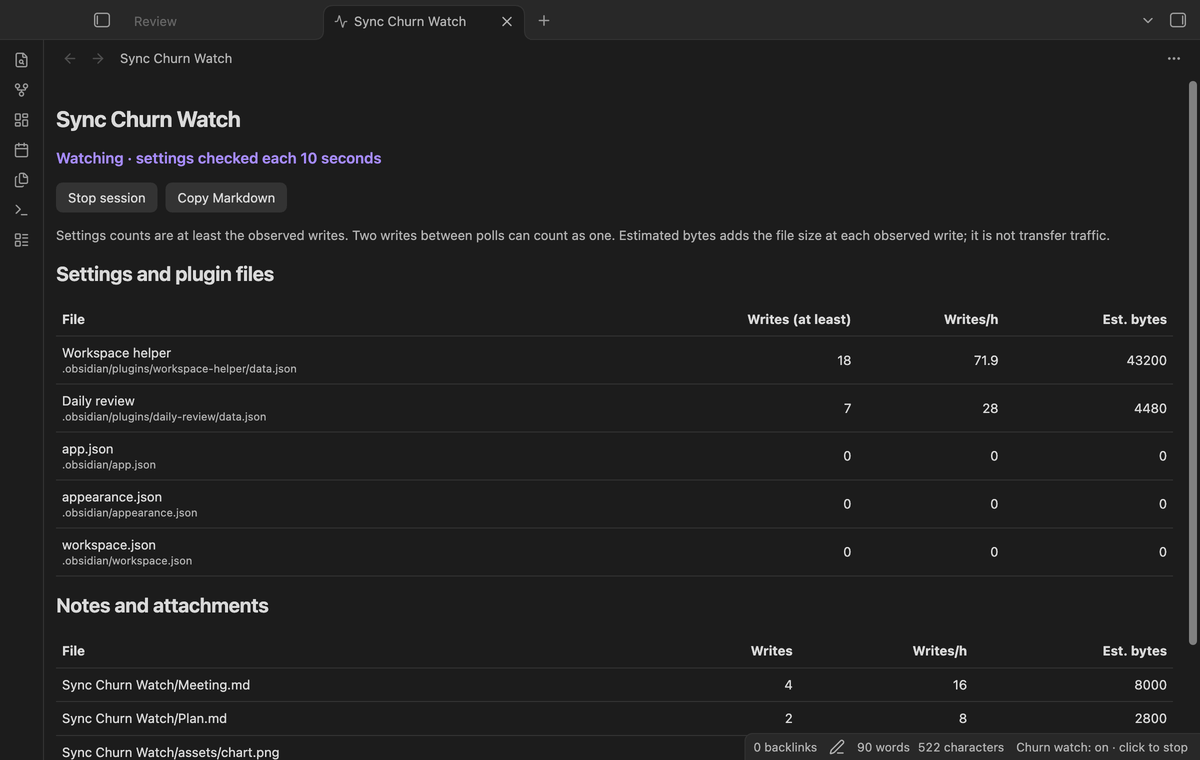
“Notes and attachments” counts Vault modify events while the session runs. Each row shows the path, writes, writes per hour and estimated bytes. Rows within each section sort from the most writes to the least writes. A changed name can create a separate row because the path is the row key.
Estimated bytes adds the file size at each observed write. Four events for a 2,000 byte note give an 8,000 byte estimate. This number is not a measurement of Sync transfer, compressed storage or changed text. Writes per hour uses the session duration; a short session can show a large rate. Stopping freezes that rate.
Copy a Markdown report
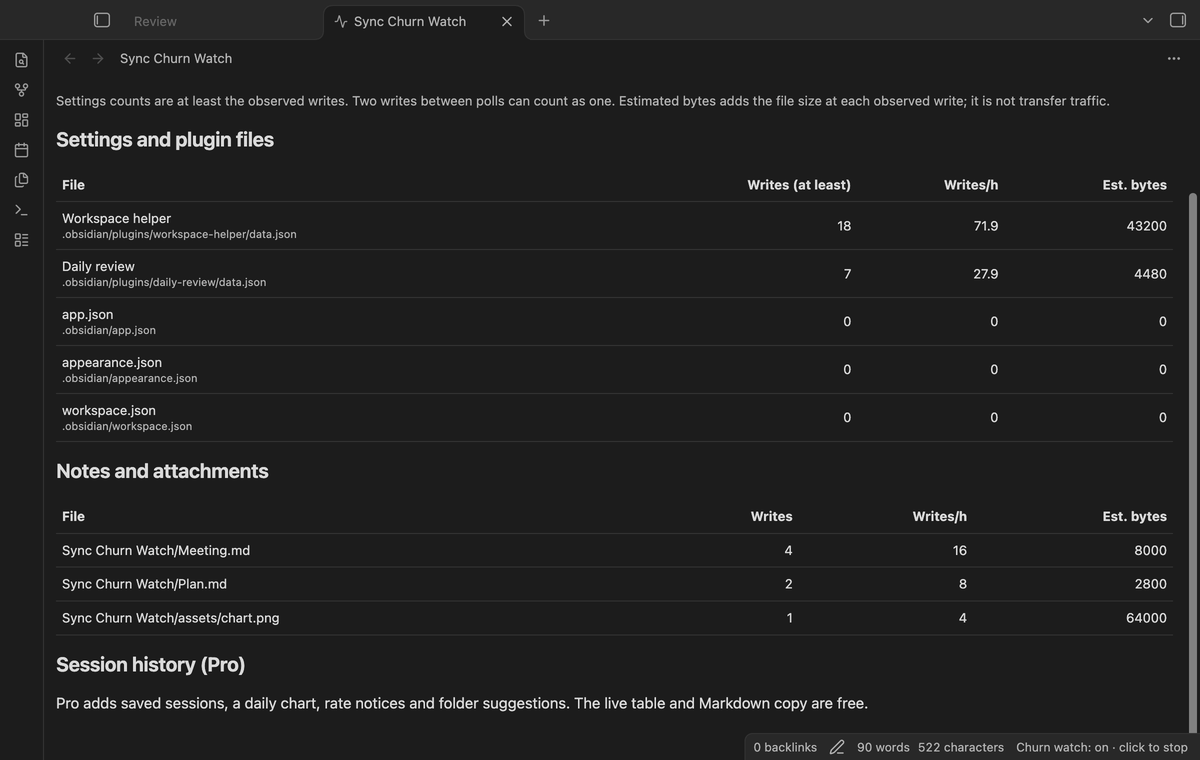
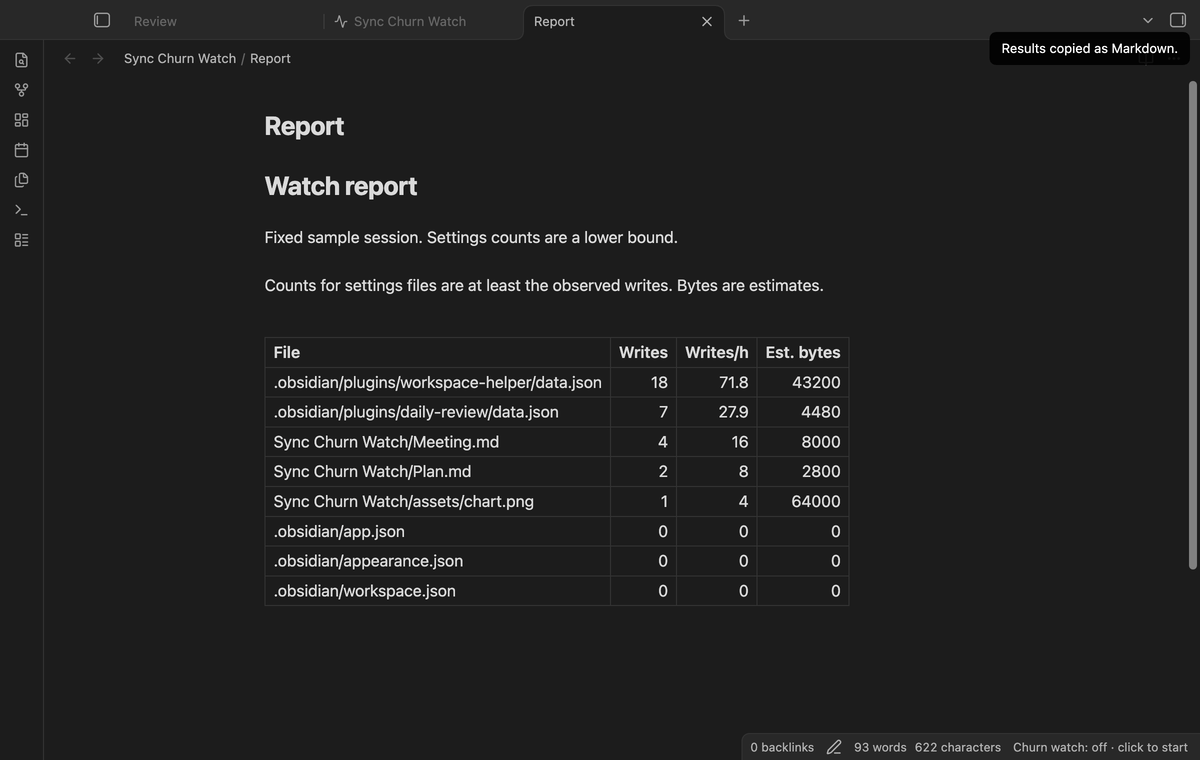
Run “Copy results as Markdown” or select “Copy Markdown” in the view. The clipboard gets a table with File, Writes, Writes/h and Est. bytes. The combined table sorts by writes and includes a reminder about lower bounds and estimates. Paste it into a review note or a local issue draft. The report contains vault paths, so read it before you share it.
Clipboard access can fail if the app denies it. The view keeps the table and shows a notice in that case. Report copy is part of the free version.
Keep session history (Pro)
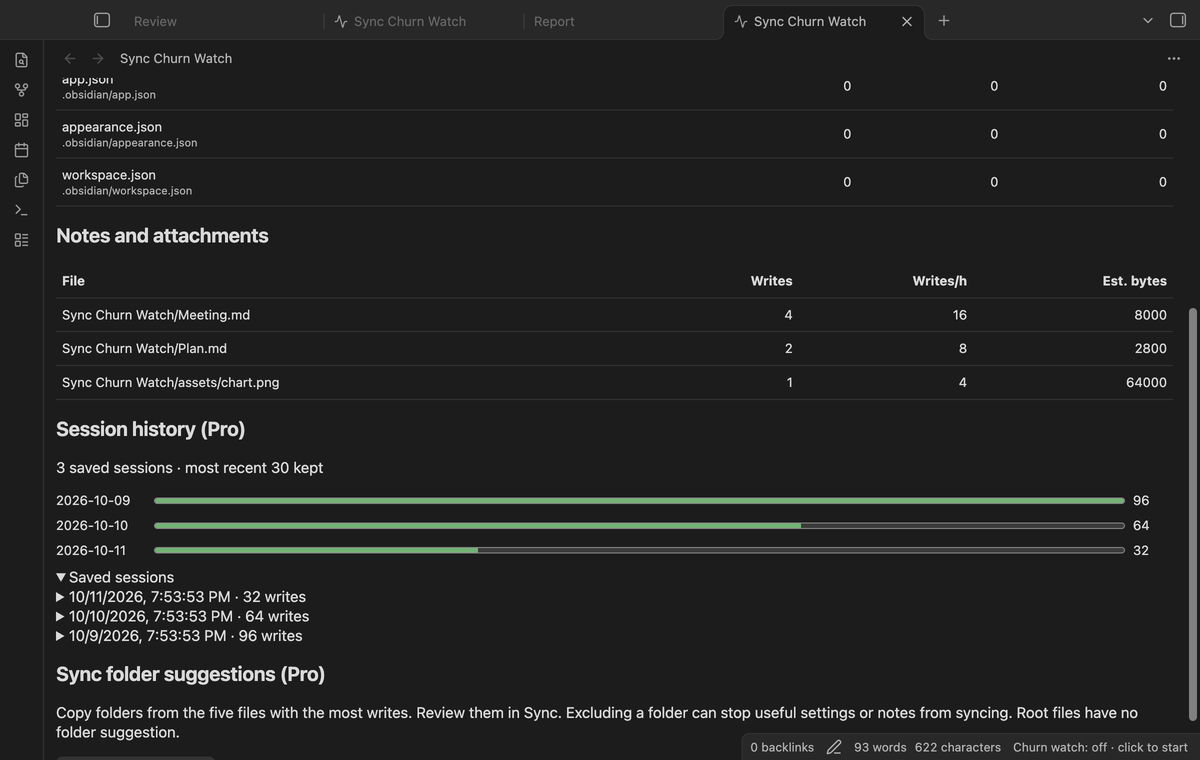
Pro keeps the most recent 30 stopped sessions in plugin data. Expand “Saved sessions” to see their paths, counts and byte estimates. The daily chart adds observed writes by local date across the saved sessions. A session that crosses midnight puts each observed write on the date when it was counted. Older sessions leave the chart when the history limit removes them.
See write rate notices (Pro)
Enable write rate notices and set a writes per hour threshold. A file above that threshold gets one notice in the session. The alert calculation uses at least one minute of duration to limit a short start spike. The live table uses the elapsed session duration, so its early rate can differ from the notice rate. Notices stop when Pro is off.
Review Sync folder suggestions (Pro)
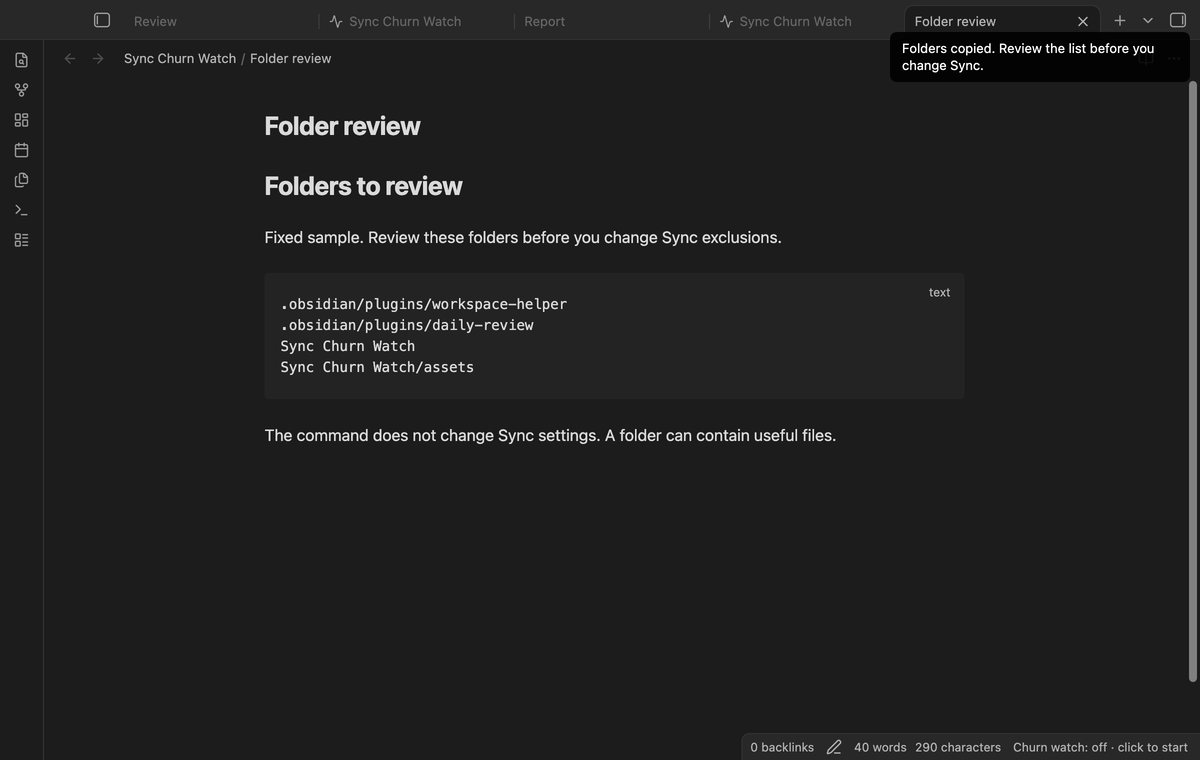
Copy parent folders from the five files with the most writes. Duplicate folders appear once. A file at the vault root has no folder suggestion. The command does not edit Sync settings. Review the list in Sync before you exclude a folder; a folder can contain useful notes or plugin settings that you need on another device.
Install
Install Sync Churn Watch from Community plugins when its listing is available, then enable it. This source build needs Obsidian 1.13.4 or later. For a manual test, put manifest.json, main.js and styles.css from a build in the vault plugin folder named sync-churn-watch. Reload Community plugins and enable it. The free watch commands need no account.
Usage
Open the command palette and run “Open the watch view”. Start a session before the activity you want to compare. Edit notes, switch tabs, or use the plugin you suspect. Leave the session running long enough for settings checks. Stop before you compare rates from different work periods. Copy the report and record what you did during that period so you can repeat the comparison.
Settings
The polling interval is fixed at ten seconds. Rate notices start off. Their threshold defaults to 120 writes per hour and accepts values from 1 to 100,000. These Pro controls keep their changes in memory until you stop a session. The same save stores the last stopped table and, with Pro on, its history entry. Repeated stop calls for that stopped session do not save again.
FAQ
What happens after a restart?
The last stopped table loads from plugin data. An unfinished session is lost on unload or app shutdown. Stop the session before you close the app if you need its report.
What was not tested?
Linux and Windows app runs, Android and iOS devices, real Sync traffic, large production vaults, live GitHub payments and a live device sign-in were not tested. App tests ran on macOS with Obsidian 1.13.4 and 1.14.4. The sponsorship response was mocked. Screenshots use fixed sample sessions. No claim about Sync storage savings follows from the byte estimate.
What if a file cannot be read?
The next check tries it again. The view shows the number of stat failures from the last check. A missing community plugin folder is a valid case.
Payment, account and network
The core features are free. Pro features need a GitHub Sponsors sponsorship of theluckystrike: $5 a month or more, or $15 once. A total payment of $15 meets the payment requirement for Pro without further payment. Sign-in and the checks below still apply. Your notes stay readable and editable with or without Pro.
GitHub handles the payment. Sponsor at https://github.com/sponsors/theluckystrike. You need no account for the free features. Pro needs the GitHub account that sponsors.
Until you select "Sign in with GitHub" in the settings, Sync Churn Watch makes no network requests. Sign in uses the GitHub device flow. Sync Churn Watch sends its public client ID and the scope read:user to https://github.com/login/device/code and shows you a code. While you enter the code at https://github.com/login/device, it asks https://github.com/login/oauth/access_token every few seconds to check the sign-in status. The scope permits profile reads only. GitHub needs this access to show the sponsorship tier. It grants no repository scope and no write access.
After sign in, Sync Churn Watch sends one query to https://api.github.com/graphql. It checks if the signed-in account sponsors theluckystrike. It asks for the tier and the total payment to theluckystrike. The plugin reuses a successful check for 7 days. Failed checks can retry after 6 hours. Select Refresh to request an earlier check. It sends no note content, file names or other vault data, and it has no telemetry.
After a successful check, Pro can work offline for up to 14 days. Sign out or a negative sponsorship answer turns Pro off. The plugin stores the GitHub token through the secret storage API of Obsidian. It does not put the token in its saved settings or its local sponsorship data. The local storage of this device keeps your GitHub login, the tier and the time of the last check. Sign out clears the token. You can also revoke the access in your GitHub settings, under Applications.
Support
Publisher: theluckystrike at notemods.com. This plugin uses the MIT license. For a report, include the plugin version, Obsidian version, session duration and steps to repeat the problem. Remove private paths and note names from copied tables. Check the local README and changelog for the build you use. Leave the watch stopped while you compare a previous report.
For plugin developers
Search results and similarity scores are powered by semantic analysis of your plugin's README. If your plugin isn't appearing for searches you'd expect, try updating your README to clearly describe your plugin's purpose, features, and use cases.