Tag Visibility
approvedby Prisant Labs
Control which tags are visible across Obsidian's UI: hide, flag, or always-show any tag. Display-only, file-safe, fully reversible. - This plugin has not been manually reviewed by Obsidian staff.
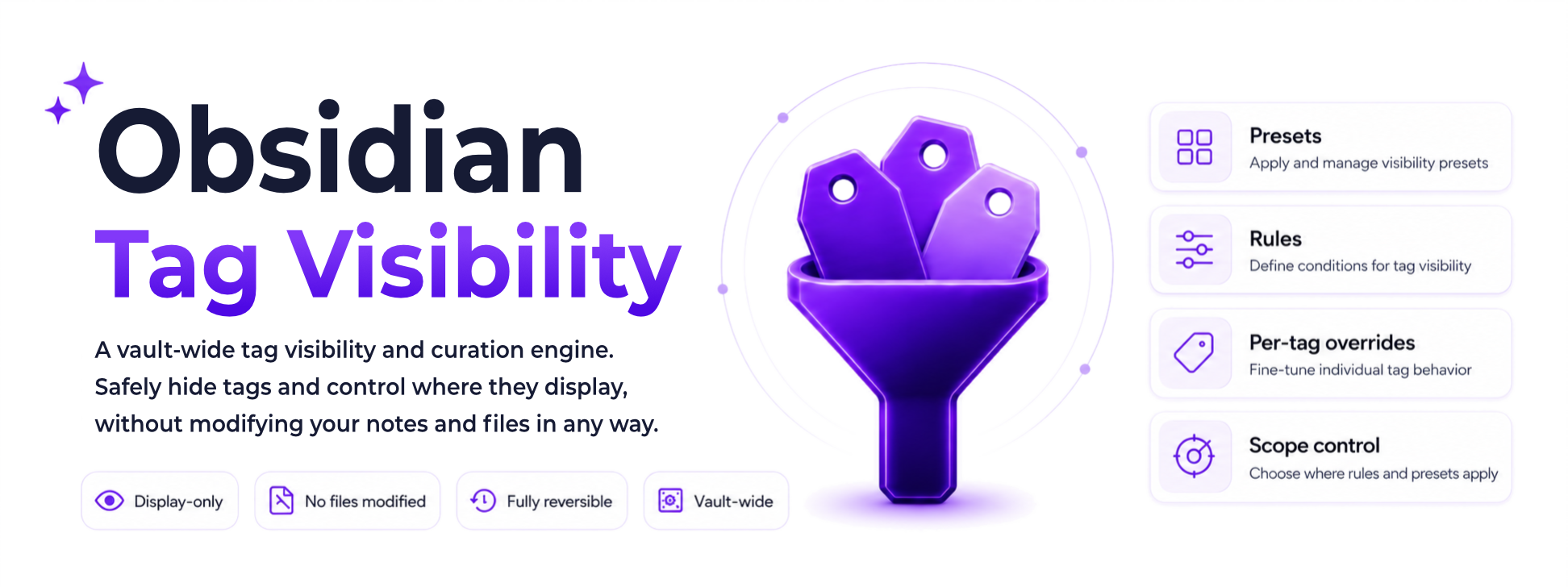
Tag Visibility
A vault-wide tag visibility engine for Obsidian. Hide, flag, and surface noisy tags across the places they actually appear, without modifying a single note.
Display-only. File-safe. Fully reversible.
Report a bug · Request a feature · Ask a question








About · Install · Usage · Scopes · Safety · Compatibility · Roadmap · License
Table of contents
About
Tag Visibility gives you a rule engine that controls which tags appear across Obsidian's UI. Your notes are never touched. Disabling or uninstalling the plugin restores every tag immediately, because nothing was ever written to your files.
How does it work? How Tag Visibility Works is a plain-language explainer with an FAQ, written for both everyday users and engineers.
The heart of v1.0 is the Tag Visibility panel: a real, dockable workspace leaf (not a settings screen) that shows every tag and its live visibility state. Open it beside the native tag pane and your whole tag inventory sits a glance away from Obsidian's own list, updating the moment a rule or override changes. Rules are authored in Settings > Custom rules, which carries its own live preview.
Key features
- Display-only and reversible. Tags are hidden or flagged in the UI only; note content is never modified, and turning the plugin off restores everything instantly.
- The Tag Visibility panel. A dockable leaf with a virtualized tag table, filter chips, View/Manage modes, bulk actions, per-tag overrides, and per-row "why is this affected?" diagnostics.
- Side-by-side view. One command docks the panel beside the native tag pane, so your full tag inventory and Obsidian's own list sit a single glance apart.
- Four scopes, independently switchable. Tag pane, Notebook Navigator, Properties, and Autocomplete, each with its own kill switch.
- Per-tag overrides. Pin any single tag to always-show (the safety net) or always-hide, ahead of every rule.
- Five presets plus custom rules. Regex, frequency, or list rules, with a live preview as you type.
- Plays well with others. Dataview, Tasks, and Bases see the real tag set; Tag Wrangler, Style Settings, and Notebook Navigator are optional enhancements.
Getting started
Prerequisites
- Obsidian 1.9.10 or newer.
- Optional companions that unlock extra integration when present: Tag Wrangler (rename delegation), Style Settings (GUI styling), and Notebook Navigator (tag-tree scope). None is required.
Installation
BRAT (until the directory listing is live):
- Install the BRAT plugin from the Obsidian Community Plugins directory.
- In BRAT settings, click Add Beta Plugin and add
https://github.com/prisant-labs/obsidian-tag-visibility. - Pick the latest release tag when prompted.
- Enable Tag Visibility under Community Plugins.
BRAT offers updates automatically whenever a new release is published.
Manual:
- Download
main.js,manifest.json, andstyles.cssfrom the latest release. - Copy them to
<your-vault>/.obsidian/plugins/tag-visibility/. - Reload Obsidian and enable Tag Visibility under Community Plugins.
Usage
Quick start
- Enable Tag Visibility. The welcome modal opens once: it states the file-safe contract, then offers Start hiding tags (apply rules normally) or Start in preview mode (flag matched tags instead of hiding them).
- Run Tag Visibility: Open beside the tag pane from the command palette (Cmd/Ctrl+P). The Tag Visibility panel and the native tag pane sit side by side.
- Open Settings > Custom rules, click
+ New rule, give it a name, and pick a Type (Pattern match / Count threshold / Specific tags). The editor's live preview lists the affected tags as you type; the panel and tag pane update when you save. - If a rule catches one tag too many, find its row and pin it to always-show. It pops back and is safe from every rule.
- The status bar shows the current state. Click it to open the panel filtered to hidden tags.
- If anything looks wrong: Settings > General > Run panic disable, or run Tag Visibility: Panic disable from the command palette. Every effect across every scope is removed instantly; nothing in your notes changes.
The Tag Visibility panel
The Tag Visibility panel is where you browse and triage tags. It holds:
- The tag table. Every tag in your vault with its count, when it was last indexed, source (frontmatter or inline), a visibility indicator, and the rule (if any) affecting it. Sortable, searchable, virtualized for large vaults.
- Filter chips. One-click filters: All, Visible, Hidden, Orphans, Flagged, Frontmatter, Inline, Unreviewed. (A by-rule filter is additionally available in the Settings > All tags grid.)
- View and Manage modes. View browses tags (tap a tag to search for it); Manage is the full grid with selection, bulk actions, and overrides.
- Bulk actions. Select several tags, then hide, unhide, or mark them reviewed in one action. (Renaming is per-tag, on the row menu: Tag Wrangler renames one tag at a time through its own dialog.)
- Per-tag overrides. Pin any row to always-show (the safety net) or always-hide, ahead of every rule.
- Per-row diagnostics. On any row, ask "why is this affected?" and Tag Visibility names the exact preset, rule, or override responsible. A tag is never hidden without a traceable reason.
Rules themselves are authored in Settings > Custom rules, reachable from the panel's header gear; the editor shows a live preview of affected tags as you type.
Two commands open it:
- Tag Visibility: Open the panel opens it on its own.
- Tag Visibility: Open beside the tag pane opens the panel and the native tag pane side by side, arranged for you in one move. This is the side-by-side loop that is the whole point of v1.0.
You can also open it from the ribbon icon or the status bar.
Scopes
A scope is a place in Obsidian where tags appear and where Tag Visibility can act. v1.0 covers the four surfaces where tags actually render:
- Tag pane - Obsidian's native tag list.
- Notebook Navigator - the tag tree in the Notebook Navigator plugin, when present. Hidden tags are dimmed and struck through there (its virtualized list reserves each row's space, so removing rows would leave permanent gaps). Runtime interop only; a silent no-op when Notebook Navigator is absent.
- Properties - frontmatter tags rendered in the Properties panel.
- Autocomplete - the tag suggestions you get while typing, so you are not offered a tag you just hid.
By default, hiding a tag hides it consistently across all four places. Each scope is independent and reversible on its own: go to Settings > Scopes & integrations, and toggle any scope off with its per-scope kill switch. If a single surface ever misbehaves, switch off just that scope; the others keep working and the plugin stays on.
Per-tag overrides
Sometimes you do not want a whole rule, just one specific tag handled a certain way. That is an override, a per-tag decision that beats every rule:
- Always show pins a tag visible no matter what any rule says. If a rule hides one tag too many, pin that tag to always-show and move on. Always-show wins over everything, so a pinned tag can never be hidden by accident.
- Always hide pins a single tag out of sight without writing a rule for it.
Set an override from a tag's row in the Tag Visibility panel. Overrides persist and resolve ahead of rules.
Putting overrides, rules, and the default together, here is how Tag Visibility decides whether any given tag is shown:
flowchart TD
    T["A tag"] --> O1{"always-show override?"}
    O1 -->|yes| SHOW["Shown (safety net)"]
    O1 -->|no| O2{"always-hide override?"}
    O2 -->|yes| HIDE["Hidden / flagged"]
    O2 -->|no| R{"matches an enabled rule?"}
    R -->|yes| RH["Highest-priority rule applies"] --> HIDE
    R -->|no| DEF["Default: shown"]
Presets
Five built-in presets ship enabled or disabled to taste:
- Hide hex color codes such as
#FFAA00or#abcdef(often imported from web clippings). On by default. - Hide URL anchor fragments such as
#top,#section-3, or#sidebar. On by default. - Hide single-character tags such as
#aor#x. - Hide purely numeric tags.
- Hide orphan tags (used in one or fewer notes).
You can also write your own rules: regex patterns, frequency thresholds, or explicit tag lists, with a live preview as you type.
Commands
Obsidian lists these under the Tag Visibility prefix in the command palette:
- Tag Visibility: Toggle enable
- Tag Visibility: Panic disable (remove all DOM effects now)
- Tag Visibility: Toggle preview mode
- Tag Visibility: Open the panel
- Tag Visibility: Open beside the tag pane
- Tag Visibility: Rescan vault tags
Modes
- Default: rules hide matching tags.
- Preview mode: rules visibly flag matching tags instead of hiding them, so you can see a rule's impact before committing.
Settings
Settings is set-once config, not a workbench. The work happens in the Tag Visibility panel. Settings holds:
- General: master enable, preview mode, the panel toggle (on by default; turn it off to remove the ribbon icon and pane), and the safety row (panic disable).
- All tags: the full Manage grid, available directly in Settings without opening the panel.
- Scopes & integrations: a per-scope kill switch for each of the four scopes, plus Tag Wrangler, Style Settings, and Notebook Navigator status.
- Presets and Custom rules: manage the rule set (the rule editor with its live preview lives here).
- Advanced: index maintenance and sidecar debounce.
- Help: the command reference and quick guidance.
Files and storage
What lives in .obsidian/plugins/tag-visibility/:
data.json: settings, presets, custom rules, and per-tag overrides.tags.json: per-tag metadata (count, first seen, last seen, source).
Both are pretty-printed JSON for easy git diffing.
Safety contract
Tag Visibility never modifies note content. It does not patch metadataCache.getTags() or any other internal Obsidian API. Dataview, Tasks, and Bases see the real, unfiltered tag data. This is architecture, not a promise: the plugin contains no note-writing code. Every write it makes targets its own two files (data.json and tags.json); it never calls a note-mutating API such as vault.modify, fileManager.renameFile, or processFrontMatter. The one note-changing action, renaming a tag, is delegated to Tag Wrangler on your explicit request.
What it reads: building the tag index lists the vault's files and reads each file's entry in Obsidian's metadata cache (the same tag data Obsidian itself maintains). Note contents are never read; the only file the plugin reads is its own tags.json sidecar.
flowchart LR
    Notes["Your notes<br/>(never written)"] --> Cache["Obsidian metadata cache<br/>(unmodified)"]
    Cache --> Q["Dataview / Tasks / Bases<br/>(see the real, full tag set)"]
    Cache --> TC["Tag Visibility<br/>(reads only)"]
    TC -. "decorates the display only" .-> UI["Tag pane, Notebook Navigator,<br/>Properties, Autocomplete"]
Tag Visibility makes no network requests of any kind: nothing is fetched, nothing is sent, and there is no telemetry.
If the plugin behaves unexpectedly, run Tag Visibility: Panic disable from the command palette. This is a one-shot action that produces the "off" state: every Tag Visibility display effect is removed immediately across all scopes, the plugin disables itself, and a persistent banner shows "Tag Visibility is off" at the top of every Tag Visibility surface until you re-enable. The same banner shows "Preview mode is on" whenever preview mode is active, so you always know the plugin's current state.
Compatibility
Tag Visibility works on Obsidian Mobile (iOS and Android): all four display scopes behave as on desktop. The status bar item is desktop-only because Obsidian does not render a status bar on mobile.
Tag Visibility is display-only and file-safe, so it plays well with the rest of your tag ecosystem.
- Dataview, Tasks, and Bases: unaffected. Because Tag Visibility only changes how tags render and never patches the metadata cache or note content, every metadata-cache consumer sees the full, unfiltered tag set. Your queries, indexes, and results are exactly what they would be without Tag Visibility installed.
- Tag Wrangler (the rename surface): Tag Visibility delegates renaming to Tag Wrangler and never writes note content itself. When Tag Wrangler is enabled, the Tag Visibility panel adds a per-row "Rename with Tag Wrangler" menu item that opens Tag Wrangler's own rename dialog, one tag at a time. When it is not installed, the menu item is simply absent and everything else still works.
- Style Settings (optional): install it to customize Tag Visibility's hidden- and flagged-tag styling through a GUI. Tag Visibility ships built-in defaults for every themeable value, so styling works fully without Style Settings.
- Notebook Navigator (optional): when present, Tag Visibility decorates Notebook Navigator's tag tree through runtime interop only. There is no source coupling between the two (Notebook Navigator is GPL-3.0, Tag Visibility is Apache-2.0); Tag Visibility targets the rendered rows from the outside and is a no-op when Notebook Navigator is absent.
None of these plugins is required. Tag Visibility works fully standalone; each integration is an optional enhancement that activates only when the partner plugin is enabled.
Performance
For typical vaults (under 10k notes, under 1,500 unique tags), Tag Visibility's overhead is imperceptible. Each scope observer is scoped to its container, coalesced through requestAnimationFrame, and applies class-based hiding rather than DOM removal.
Roadmap
- v1.0 (current): the Tag Visibility panel, the open-beside-the-tag-pane command, four scopes (tag pane, Notebook Navigator, Properties, Autocomplete) with per-scope kill switches, per-tag overrides, five presets, custom rules, thin Settings, Tag Wrangler delegation, Style Settings registration, and the trust layer (welcome modal, state banner, panic disable, status bar).
- v1.1 (planned): aliases / display-merge, stale and near-duplicate detection, suggested-merges panel, inbox mode, graph view scope.
- v1.2 (planned): profiles, export / import, community rule packs, compound criteria (AND/OR/NOT), drag-to-reorder rules.
- v2.0+: Bases scope, larger-vault storage, localization.
See the open issues for the live list.
Non-goals
- Modifying note content (use Tag Wrangler).
- Coloring tags (use Colored Tags Wrangler).
- Replacing the file explorer (Notebook Navigator's role).
- Filtering query results in Dataview, Tasks, or Bases.
- Telemetry of any kind.
Contributing
Tag Visibility is open source under Apache 2.0, and issues and pull requests are welcome.
- Found a bug? Open a bug report.
- Have an idea? Request a feature or start a discussion.
- Sending a PR? Fork the repo, branch from
main, keepnpm run lint && npm run typecheck && npm test && npm run buildgreen, and use Conventional Commits for your messages.
License
Distributed under the Apache License 2.0. See LICENSE for details.
Support
- Issues: https://github.com/prisant-labs/obsidian-tag-visibility/issues
- Discussions: https://github.com/prisant-labs/obsidian-tag-visibility/discussions
- Repository: https://github.com/prisant-labs/obsidian-tag-visibility
Acknowledgments
- The Obsidian team and the plugin developer community.
- Tag Wrangler, Notebook Navigator, and Style Settings, the companions Tag Visibility composes with.
- BRAT for beta distribution.
- README structure inspired by Best-README-Template and amazing-github-template.
For plugin developers
Search results and similarity scores are powered by semantic analysis of your plugin's README. If your plugin isn't appearing for searches you'd expect, try updating your README to clearly describe your plugin's purpose, features, and use cases.