by Jordn Bastian
Turn your notes into a timeline. No lists, no manual code blocks, no hand-written YAML.
Tagline - Timelines
Turn the notes you already have into a timeline. No lists, no manual code blocks, no handwritten YAML.
Tagline - Timelines reads frontmatter from notes already in your vault and renders them as a timeline. If you can write a note, you can build a timeline: there's nothing new to learn and nothing to maintain by hand.
Why Tagline - Timelines
Most timeline plugins ask you to keep a separate list of events, or write timeline data into a code block yourself. Tagline - Timelines skips all of that:
- No manual lists. Your notes are the timeline data. Add a date to a note's frontmatter and it shows up.
- No handwritten YAML. Two commands and a popup window handle the frontmatter for you. You never have to remember field names or get the syntax right.
- Always up to date. Timelines are rendered from your notes directly, so as your notes change, the timeline does too. Nothing to resync.
Getting started
Tagline - Timelines works with two commands. Run them from the command palette (Ctrl/Cmd + P).
1. Add a note to a timeline
Open the note you want on the timeline, then run:
Add timeline entry to current note

This opens a window where you fill in the event's details, no manual frontmatter editing required. If another note already has been given a timeline ID, Tagline - Timelines finds it and suggests it automatically, so you can quickly add events to an existing timeline.
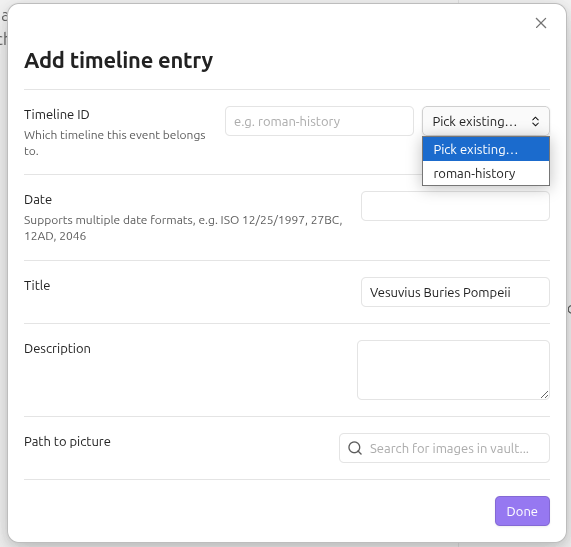
Need to edit a timeline entry?
Open the relevant note, then run:
Edit timeline entry on current note

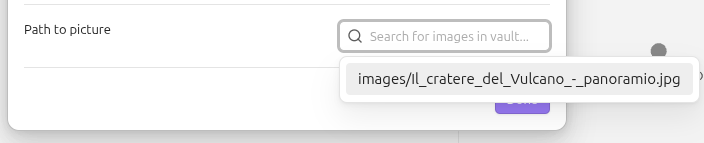
Adding images to your timeline entry?
Tagline - Timelines autosuggests images within your vault, just start typing to search.
2. Add a timeline to a note
Open the note where you want the timeline to appear, then run:
Add timeline renderer to current note
This inserts a timeline that automatically gathers every matching entry from across your vault. The window displays a list of existing timeline IDs , so pulling in the right set of notes takes seconds.
That's it! Two commands, two modals, and a live timeline.
Customizing your timeline
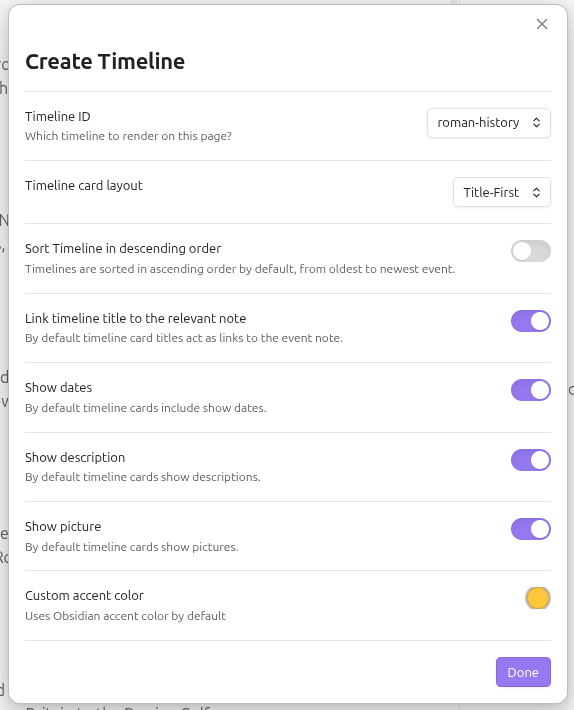
Each timeline can be tuned to fit the note it lives in:
- Linked titles - toggle whether an event's title links back to its source note
- Accent color - match the timeline to your note or theme
- Order - ascending or descending
- Date visibility - show or hide dates on entries
- Images - pull in images already in your vault
- Descriptions - toggle entry descriptions on or off
All of this is set through the same modal windows, there's no separate settings file to edit and no raw frontmatter to touch.
Need to edit a timeline?
Open the relevant note, enter edit view and hover over the relevant timeline, click the edit icon and a window will open.
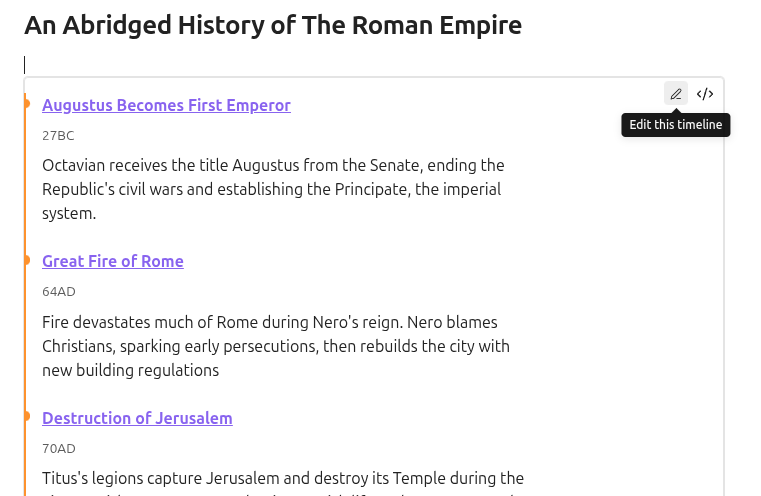
Need multiple timelines in one note? Just add them and customize them as you please!
Installation
Install via Community Plugins.
License
MIT No Attribution
For plugin developers
Search results and similarity scores are powered by semantic analysis of your plugin's README. If your plugin isn't appearing for searches you'd expect, try updating your README to clearly describe your plugin's purpose, features, and use cases.