Markdown Timeline
approvedby recklyss
Convert markdown into timeline visualization
★ 27 stars↓ 3,746 downloadsUpdated 1y agoMIT
Obsidian Timeline
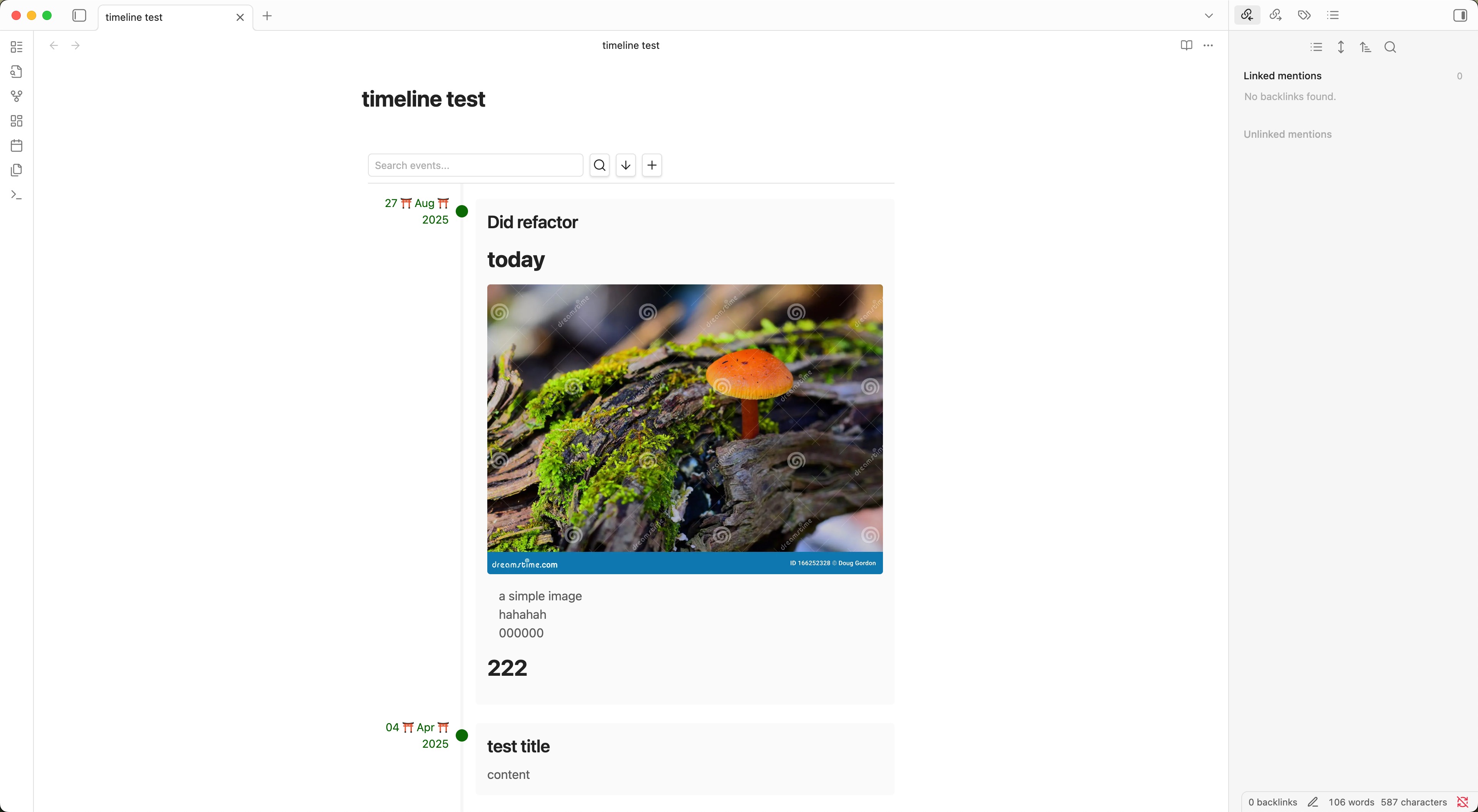
A plugin for Obsidian that creates a timeline view of your notes.
Features
- Create beautiful timelines from your markdown notes
- Support for both positive and negative years (BCE/CE dates)
- Customizable date formats
- Ascending or descending timeline order
- Search and filter timeline events
- Add new events directly from the timeline view
Usage
Create a timeline by using the timeline code block:
```timeline
# 2024-03-21
## Launch of Timeline Plugin
First release of the Timeline plugin for Obsidian.

---

# -500-03-15
## Ancient Event
This event happened in 500 BCE.
### Date Format Options

You can customize how dates are displayed in the timeline through the plugin settings. The following format tokens are supported:

- `YYYY`: Year (supports both positive and negative years)
  - Examples: "2024", "-500", "-50"
- `MM`: Month as a zero-padded number (01-12)
- `MMM`: Month as a short name (Jan, Feb, Mar...)
- `MMMM`: Month as a full name (January, February, March...)
- `DD`: Day of the month as a zero-padded number (01-31)

You can combine these tokens with any separator. Some examples:

- `YYYY-MM-DD` → "2024-03-21" or "-500-03-15"
- `DD MMM YYYY` → "21 Mar 2024" or "15 Mar -500"
- `MMMM DD, YYYY` → "March 21, 2024" or "March 15, -500"
- `YYYY/MM/DD` → "2024/03/21" or "-500/03/15"

The format will automatically adapt to handle missing month or day values:
- Year only: "-500" (regardless of format)
- Year and month: "Mar -500" (for format "MMM YYYY")
- Complete date: "March 15, -500" (for format "MMMM DD, YYYY")

### Timeline Entry Format

Each timeline entry should follow this format:

```markdown
# YYYY[-MM[-DD]]
## Title
Content (in markdown)
- The date line starts with a single
#and can include:- Year (required): Any number, including negative years for BCE
- Month (optional): 1-12
- Day (optional): 1-31
- The title line starts with
## - The content can include any valid markdown
- Entries are separated by
---
Installation
- Open Obsidian Settings
- Go to Community Plugins and disable Safe Mode
- Click Browse and search for "Timeline"
- Install the plugin and enable it
Settings
- Date Format: Choose how dates are displayed in the timeline
- Default Sort Order: Choose whether to show oldest or newest events first
- Show Header Buttons: Toggle visibility of timeline operation buttons
License
For plugin developers
Search results and similarity scores are powered by semantic analysis of your plugin's README. If your plugin isn't appearing for searches you'd expect, try updating your README to clearly describe your plugin's purpose, features, and use cases.