by Josh
Study flashcards written in your notes, with FSRS scheduling, swipe grading, image occlusion and voices that read cards aloud.
Talking Cards
Flashcards written inline in your notes, scheduled with FSRS, and read aloud. Works on desktop and mobile, with no other plugins needed.
- Cards live in your notes. Write them in plain Markdown, RemNote or Anki style. Decks are folders.
- Spaced repetition with FSRS, the scheduler modern Anki uses.
- Read aloud. Natural voices run on your device and work offline once downloaded. Hands-free audio mode for walks and commutes.
- Swipe to grade on phones, or use buttons and keyboard shortcuts.
- Dashboard with decks, a card browser, and stats (heatmap, forecast, retention).
- Your notes are never changed unless you opt in to card IDs. Edited cards keep their progress.
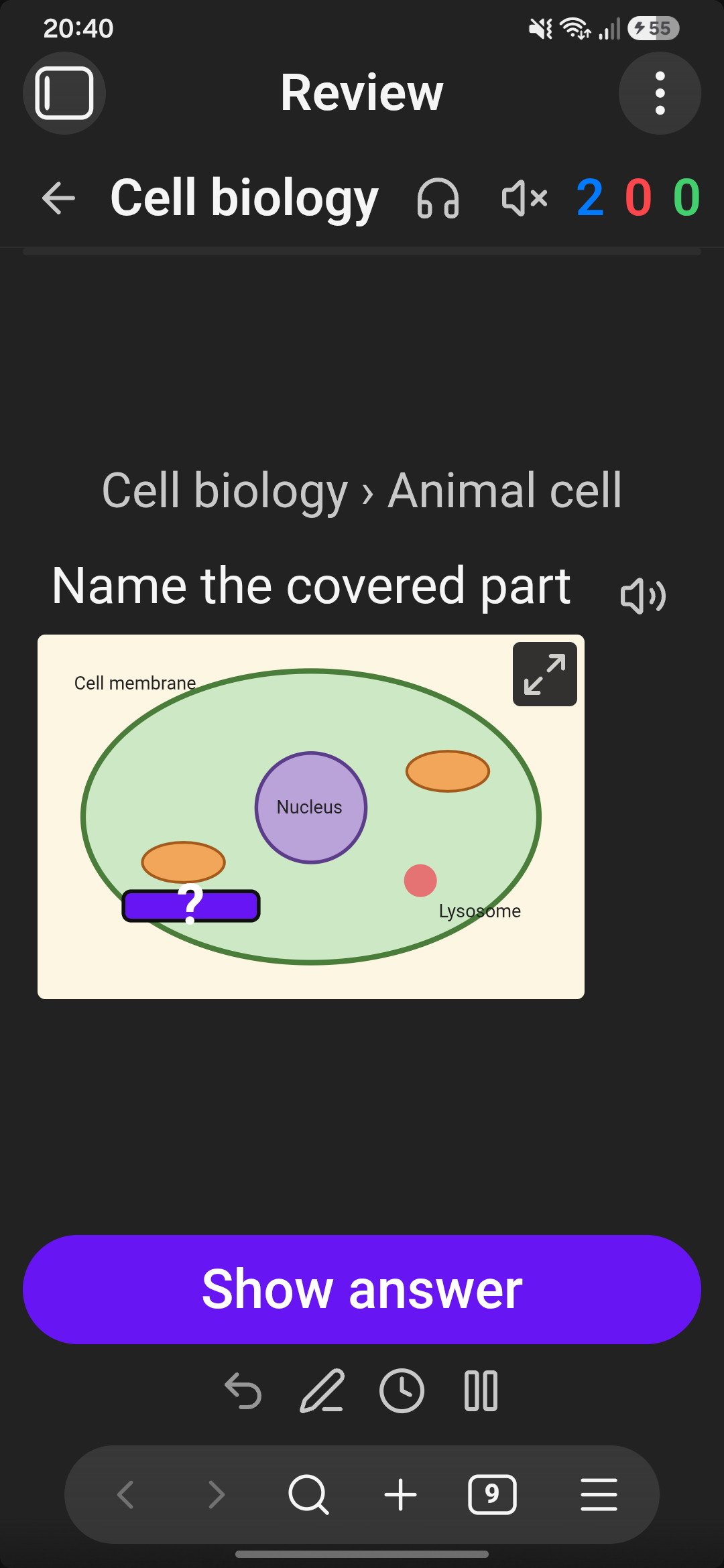
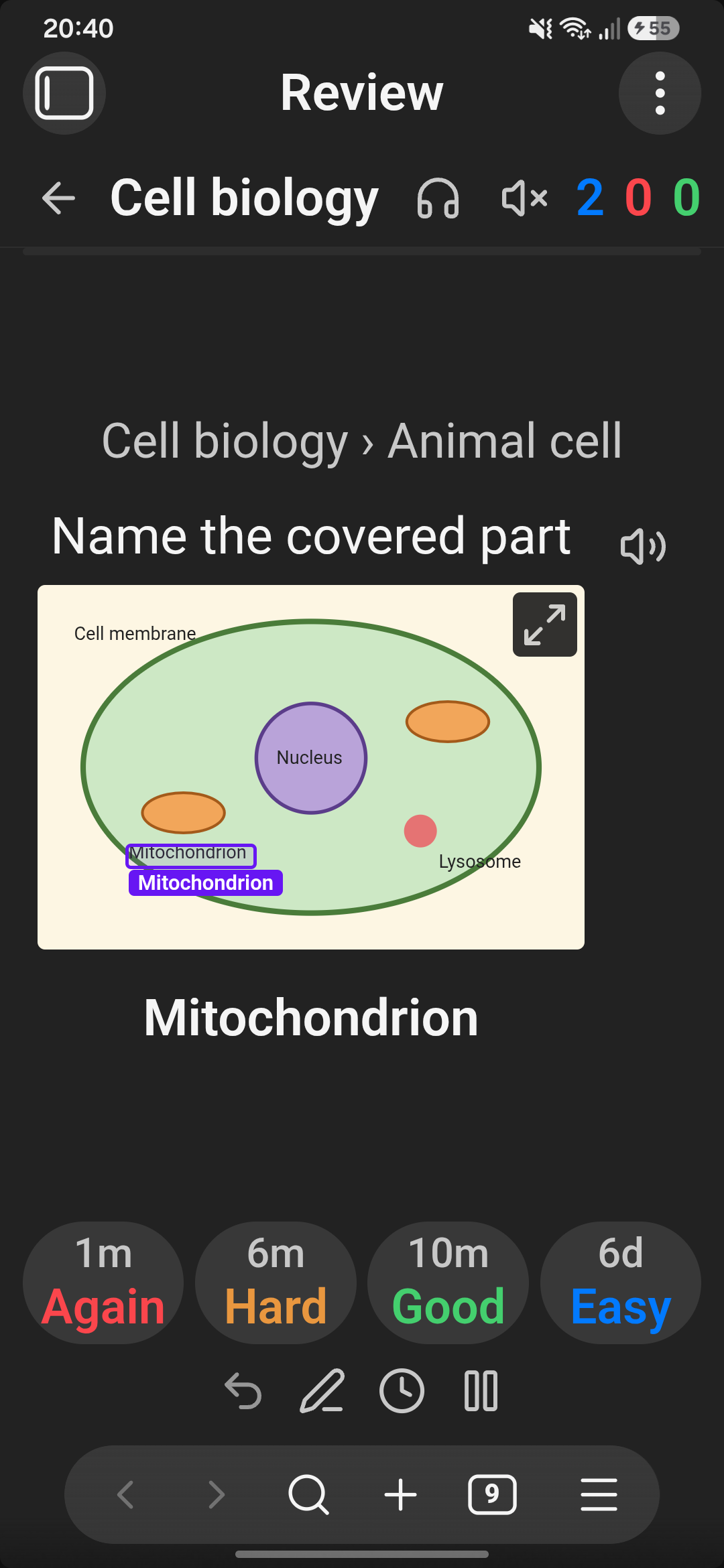
- Images and image occlusion. Put pictures on cards, or cover parts of a diagram and learn them one by one.
Writing cards
| Card | Write | Reviews |
|---|---|---|
| Basic | Question ;; Answer or Question :: Answer | Q → A |
| Both ways | Term ::: Definition | Q → A and A → Q |
| Multi-line | question lines, a line with just ?, answer lines | Q → A |
| Multi-line, both ways | the same with ?? | both ways |
| List answer | Question ;; then tab-indented lines, or Question >>> then a bullet list | Q → list |
| Cloze | The {{mitochondria}} makes ATP or {{c1::…::hint}} | one card per gap |
| Highlight cloze (off by default) | The ==mitochondria== makes ATP | one card per highlight |
| Image occlusion | right-click an image → Add image occlusion, then draw boxes | one card per box |
Images work anywhere in a card (What is this? ;; ![[heart.png]]); a ⤢ button opens them full screen.
Image occlusion: put the cursor on a line with an image embed and run Add image occlusion (or right-click → Add image occlusion). Drag boxes over the parts to hide and type what's under each. Choose whether a card covers only the asked part or every part. The boxes are saved in the note as a small ```occlusion block under the image — plain text, synced like everything else — and the note shows the image with its boxes and an Edit boxes button.
- Code blocks with a language and
%% comments %%are skipped.;;cards inside plain```blocks are read; you can turn this off. - Frontmatter
cards: falseskips a note. deck: Some/Deckoverrides the folder deck.tts-front: es/tts-back: en-GBpicks a voice language per note.%%say: …%%on a card line changes how it is read aloud.- The same card in several notes is studied once. This is a setting.
Editing cards
By default a card is recognised by its text, so nothing is written into your notes. When you edit a card, Talking Cards matches it to the card it was, and its progress carries over. A matched edit can be:
- a fixed typo,
- a reworded answer,
- a changed question with the same answer.
A card rewritten from scratch starts over. Removing ;; or :: removes the card. If a match
is missed, use Browse → select the card → Take progress from….
If you prefer exact IDs, turn on Settings → Write card IDs into notes. A ^tc-… ID is then
added to each card the first time you study it.
Voices
The first time you ask for speech, open Settings → Voice store and download a voice:
- Voices come from Piper, with 40+ languages.
- Each is 20–60 MB.
- They run on your device, offline once downloaded.
On desktop, your system voices are offered too, where the platform provides them.
Android: Obsidian's Android app has no speech engine a plugin can reach. To use the phone's own voices (Google, Samsung…), a companion app can share them over a local voice server; see docs/voice-server.md. This is optional: the downloaded voices work without it.
Your data
Talking Cards reads every Markdown note in your vault, because cards can be written in any note; folders you list under Settings → Ignore are skipped. It writes only its own review logs (and, if you turn it on, card IDs into notes). It doesn't access files outside the vault.
- Review history goes in
Talking Cards/reviews-<device>-<year>.mdinside your vault, one file per device. Logs from several devices merge cleanly when synced, with no conflicts. You can move the folder in settings.- Tip: add that folder to Settings → Files and links → Excluded files.
- Settings are stored in the plugin's
data.json. - On each device only:
- downloaded voices and spoken-audio cache in IndexedDB,
edit-snapshot.jsonin the plugin folder, used to follow edits made while Obsidian was closed.
Network use
Talking Cards only goes online when you download a voice or open the voice store. It sends no
telemetry and has no accounts. Everything it downloads is data, not code: the speech engine
(onnxruntime-web 1.22.0) ships inside main.js. It downloads:
| What | From | When |
|---|---|---|
| Voice list and voice models | huggingface.co/rhasspy/piper-voices | Voice store, when you install a voice |
| Pronunciation data (espeak-ng) | huggingface.co/csukuangfj/vits-piper-en_GB-alba-medium | When you install a voice for a new language |
Phone voices: the optional companion-app connection only talks to 127.0.0.1 on your
phone.
Licence
GPL-3.0-or-later. The phonemizer bundled in main.js includes espeak-ng (GPL-3.0), so the
plugin as a whole is GPL. Bundled components keep their own licences:
- piper-phonemize: MIT
- sherpa-onnx: Apache-2.0
- onnxruntime-web: MIT
- ts-fsrs: MIT
Each Piper voice has its own licence, listed on its model card. Some are for non-commercial use only.
Development
npm install
npm run build   # main.js
npm test        # unit tests (node --test)
- The UI harness runs the plugin in a browser against a fake Obsidian API; see
test/harness/README.md. - Obsidian's review lint rules run from
lint/(it needs TypeScript 6):
(cd lint && npm i) && lint/node_modules/.bin/eslint -c lint/eslint.config.mjs src
For plugin developers
Search results and similarity scores are powered by semantic analysis of your plugin's README. If your plugin isn't appearing for searches you'd expect, try updating your README to clearly describe your plugin's purpose, features, and use cases.