Task Calendar Bridge
approvedby saiken
Export Obsidian tasks with due dates to calendar-friendly ICS files. Pro unlocks full-vault auto export, reminders, durations, and advanced filters. - This plugin has not been manually reviewed by Obsidian staff.
Task Calendar Bridge
Turn dated Markdown tasks into a calendar you can actually use outside Obsidian.
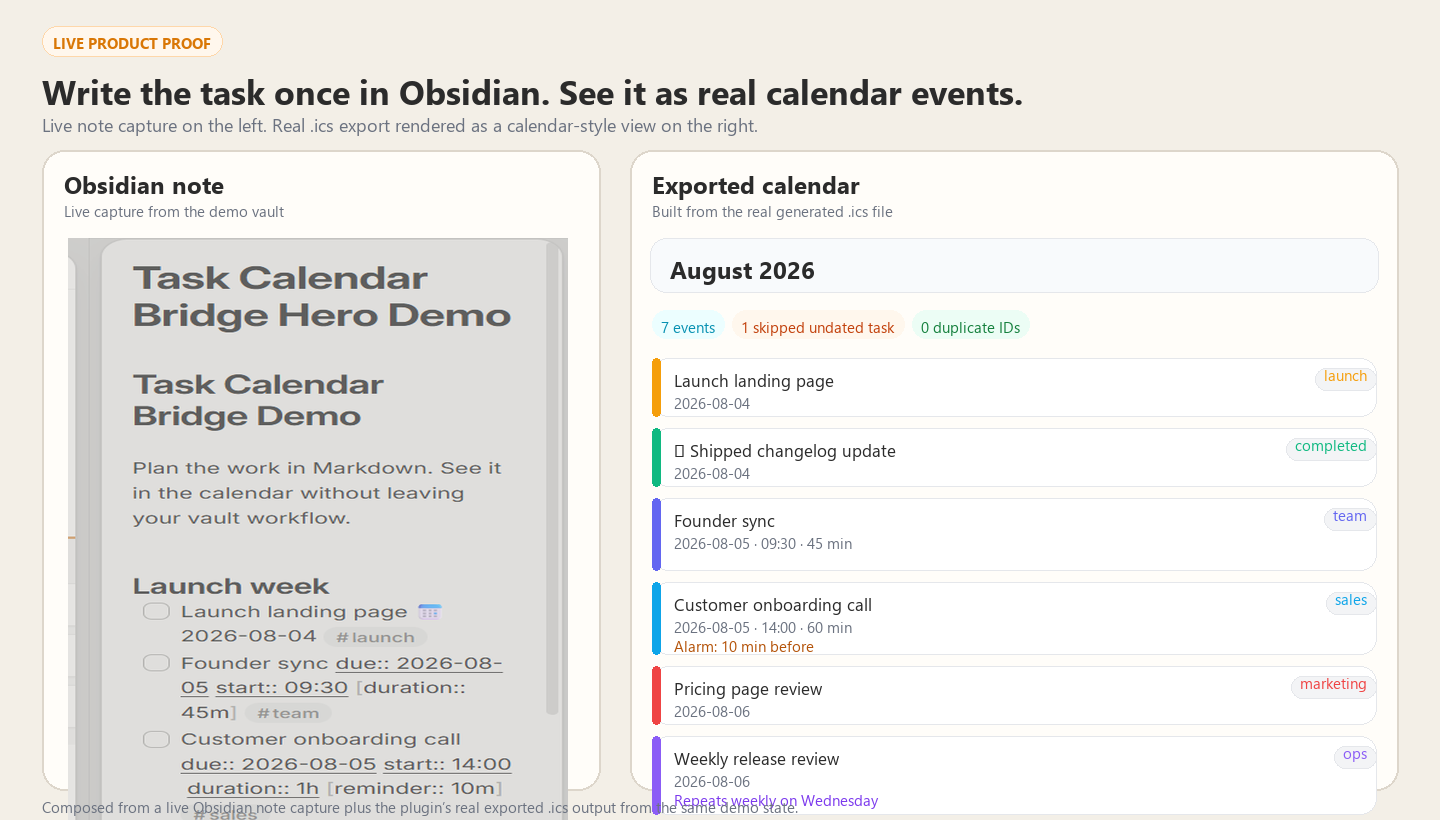
Hero image uses a live Obsidian note capture plus the plugin's real exported
.icsoutput from the same demo state.
Works offline · One-time payment · Unlimited future updates · No account
Task Calendar Bridge turns the dated tasks you already track in Markdown into a standards-based .ics calendar for Google Calendar, Apple Calendar, Outlook, TickTick, and anything else that speaks ICS. Write the task once in Obsidian, export it, and see it where you actually plan time.
Best fit if you:
- plan work in Markdown but still live out of a calendar
- want a local/offline workflow instead of another sync service or account
- need task dates to show up in Google Calendar, Apple Calendar, Outlook, TickTick, or mobile widgets
Free vs Pro at a glance
| Free | Pro ($9 one-time) | |
|---|---|---|
| Current note export | Unlimited | Unlimited |
| Whole-vault export | Next 25 upcoming tasks | Full vault, no cap |
| Timed events, durations, multi-day events | Yes | Yes |
| Obsidian Tasks + Dataview syntax | Yes | Yes |
| Stable event identity | Yes | Yes |
| Repeating events | No | Yes |
| Reminder alarms | No | Yes |
| Auto-export when notes change | No | Yes |
| Publish outside the vault for calendar subscription workflows | No | Yes |
| Completed/cancelled task export | No | Yes |
| Folder filters | No | Yes |
- Free: prove the workflow on a real note, export the current note with no cap, and test a small whole-vault feed.
- Pro: make it practical for daily use — full-vault export, auto-refresh, recurring events, reminders, publish/subscription workflows, and filtering.
- Buy once, unlock in seconds: Buy Task Calendar Bridge Pro — instant checkout, automatic key delivery, offline activation.
Why Pro is worth paying for
Free proves the bridge works. Pro makes it stop behaving like a manual export toy.
The paid value is not "more settings." It is the difference between:
- exporting one note to test the idea
- keeping a real calendar workflow alive across your vault without babysitting it
If you live out of your calendar, the practical Pro win is:
- your full vault exports instead of only the next 25 upcoming tasks
- the file refreshes itself when notes change
- repeating tasks become real recurring events
- reminders survive the jump into calendar apps
- you can publish the calendar into a cloud folder and subscribe once instead of re-importing forever (see the link forms that actually work, below — iCloud Drive is not one of them)
That is the upgrade story: not "more features," but "this now runs like a real bridge instead of a demo."
Premium proof to look for
The strongest Pro workflow is:
- create or edit a dated task in Obsidian
- export or auto-export the
.ics - subscribe once from your calendar app
- watch later edits show up without another manual import
If you only need occasional one-off exports, Free is enough. If you want your Markdown task system and your calendar to stay in sync like adults, Pro is the point.
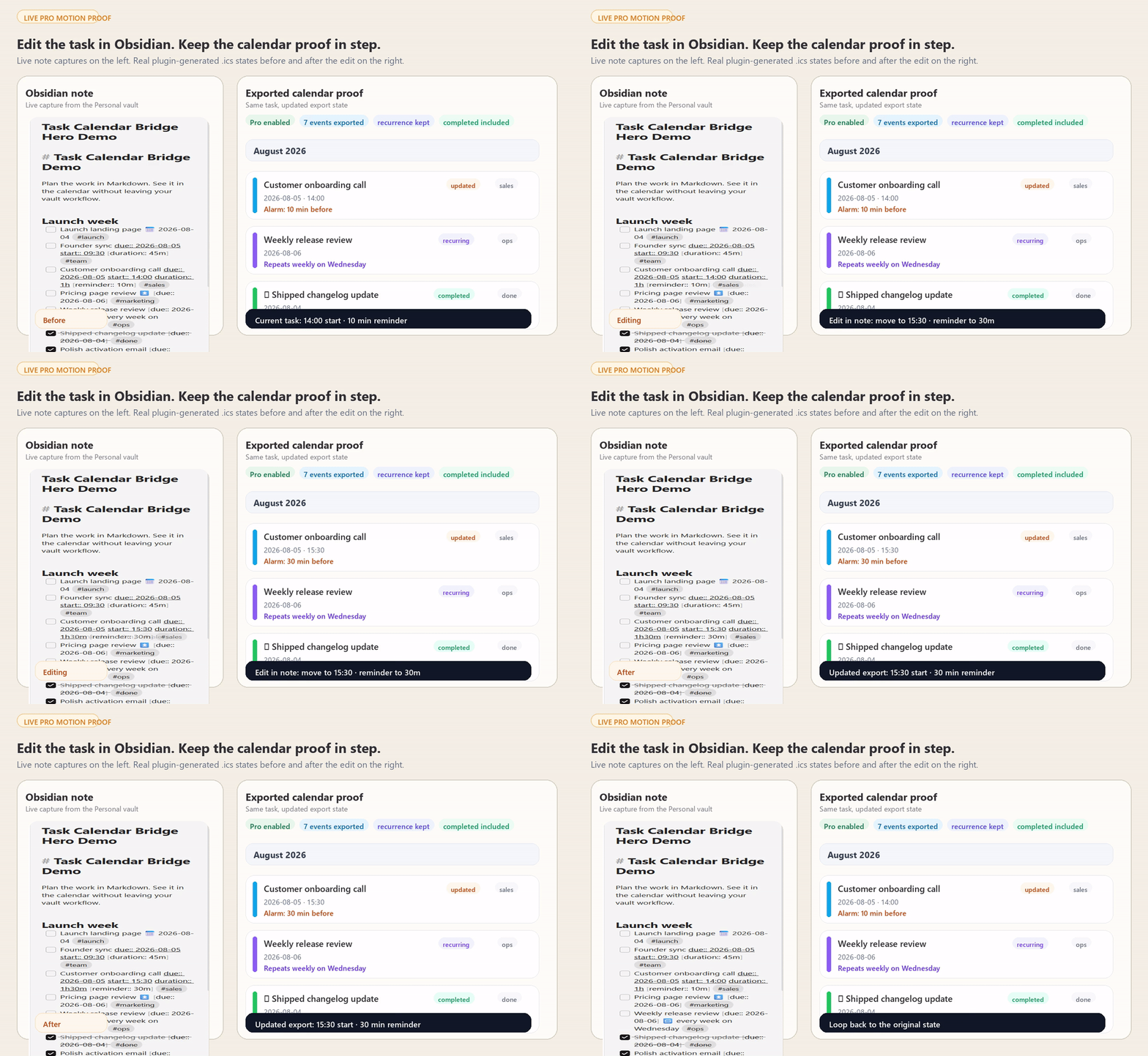
Motion proof from the same demo note before and after an edit: the customer onboarding call moves from
14:00with a10mreminder to15:30with a30mreminder, while recurring-event and completed-task proof stays visible on the same export surface.
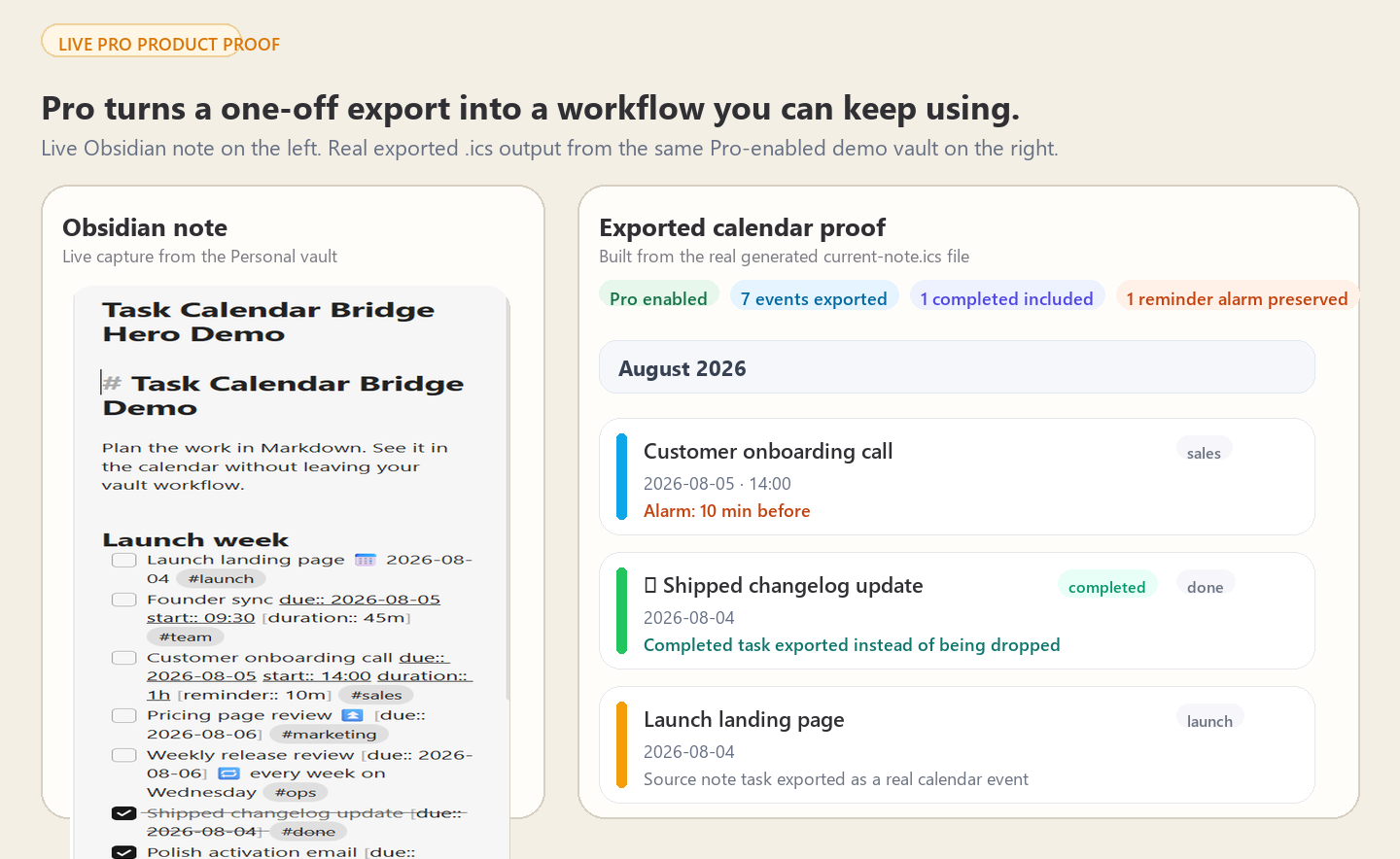
Static proof from the live Pro demo state: note capture from the Personal vault on the left, and real
current-note.icsoutput from the installed Pro-enabled plugin state on the right. This still shows reminder preservation and completed-task export without faking a SaaS sync layer.
Why people use it
Obsidian users often plan work in Markdown but still need calendar visibility in Google Calendar, Apple Calendar, Outlook, TickTick, or mobile widgets. The usual alternatives are ugly: copy tasks by hand, maintain a brittle script, or accept some app-specific workflow that breaks the moment you switch tools.
Task Calendar Bridge keeps the workflow simple:
- write dated tasks in normal Markdown
- export a standards-based
.icscalendar file - import it once or subscribe to it from the calendar app you already use
No hosted sync layer. No account. No "please trust our server with your planning system."
What it is good for
- Planning launches, meetings, reviews, and deadlines in Markdown while still living out of Google Calendar, Outlook, or Apple Calendar
- Giving dated tasks a real place on a calendar without rebuilding your workflow around another app
- Publishing a calendar feed from your vault for a subscribe-once workflow instead of endless manual re-imports
- Keeping reminders, recurrence, tags, and completed-task context when the calendar file is generated
First win in 2 minutes
- Install the plugin.
- Run
Create sample task notefrom the command palette. - Run Export current note tasks to ICS, then import the generated
.icsfile into your calendar.
If that clicks, Pro unlocks the live version of the workflow: full-vault export, auto-export, recurring events, reminders, publish-outside-the-vault, and folder filtering.
Write tasks the way you already write them
Both the Obsidian Tasks emoji vocabulary and Dataview-style inline fields work, and you can mix them:
- [ ] Simple all-day task 📅 2026-08-01 #work
- [ ] Explicit due date [due:: 2026-08-02]
- [ ] Scheduled beats due for placement ⏳ 2026-08-04 📅 2026-08-06
- [ ] Timed call [due:: 2026-08-02] [start:: 14:15] [duration:: 1h]
- [ ] Multi-day workshop [due:: 2026-08-03] [end:: 2026-08-05]
- [ ] High-priority review ⏫ [due:: 2026-08-07]
- [ ] Weekly one-to-one [due:: 2026-08-03] 🔁 every week on Monday   (Pro)
- [ ] Reminder alarm [due:: 2026-08-02] [start:: 09:00] [reminder:: 10m]   (Pro)
- Dates:
📅 📆 🗓due,⏳scheduled,🛫start, or[due:: …],[scheduled:: …]. A scheduled date places the event on the calendar; the due date travels with it as the deadline. Dataview date links ([due:: [[Daily/2026-08-02]]]) work too. - Times:
[start:: 14:15],9:30, or7:00 pm.[duration:: 1h30m],45, or1.5h. - Checkbox states:
[ ]open,[/]in progress,[x]done,[-]cancelled. Done and cancelled tasks are excluded unless you turn them on (Pro). - Repeat rules (Pro):
every other week,every Monday and Friday,every month on the first Monday,every weekday, and more. A rule that cannot be translated exactly is reported rather than guessed at. - Tags on the task line become calendar categories you can colour and filter by, in any language —
#work,#café,#仕事. - Priority —
🔺 ⏫ 🔼 🔽 ⏬or[priority:: high]— becomes calendar priority. - Tasks inside code fences are ignored; tasks in callouts, blockquotes, and numbered lists are exported.
Wondering why a task is missing? Run Show last export report. It lists every skipped task and the reason.
Free gets you to the first real win
- Export every dated task from the current note, with no cap
- Whole-vault export of the next 25 upcoming tasks
- Full Obsidian Tasks and Dataview syntax, tags as categories, priority
- Timed events, durations, and multi-day events
- Time zone handling: keep local wall time, or pin events to a fixed zone with a real
VTIMEZONE, so times stay right across DST and while you travel - Stable event identity, so re-importing updates events instead of duplicating them
- Export report that separates what was lost from what was excluded on purpose, with a link to each line
- Optional
obsidian://links back to the source note, which you can turn off before publishing - Built-in calendar import and subscription guide, sample note generator
- Offline-first; no account or server
Pro makes it usable as an ongoing workflow
- Full-vault ICS export with no cap
- Auto-export when notes change
- Repeating events —
🔁 every 2 weeks on Mondaybecomes a real recurring event - Publish outside the vault — write the calendar into a cloud-synced folder so your calendar app can subscribe instead of you re-importing (desktop)
- Reminder alarms via
[reminder:: 10m] - Include completed and cancelled tasks
- Include/exclude folder filters
- Offline Ed25519 license verification; no subscription server needed
- One purchase, no expiry, unlimited future updates
Activate Pro
- Purchase on Buy Me a Coffee.
- Your license key arrives automatically within seconds — no waiting, no manual delivery.
- Obsidian → Settings → Task Calendar Bridge → License key → paste the key and press Activate. Pro unlocks immediately (offline verification).
Import once, or subscribe?
This matters more than any other setting.
Importing an .ics file copies the events in once and never looks at the file again — you have to re-import after every change. Subscribing points your calendar at a URL and refreshes on its own.
To subscribe, the file has to be reachable over HTTP(S) and it has to come back as the file itself, not as a web page. This is where most setups fail: an ordinary cloud "share" link opens a preview page, and a calendar app fed that link reports that it cannot read the calendar.
The Pro Publish outside the vault setting writes a copy into any folder you choose. To turn that copy into a link you can subscribe to:
- Dropbox — share the file, then change
?dl=0at the end of the link to?raw=1. - OneDrive — share the file, then add
?download=1to the end of the link. - A static host or a GitHub Gist raw URL — use the direct file URL as-is.
- iCloud Drive cannot do this. Its share links are web viewer pages with no direct file URL.
Turn on auto-export and the published copy keeps itself current.
The exported file carries each task's title, its tags, and — unless you turn off Link events back to their note — the note path, line number, and your vault's name. Publish it to an unguessable or access-controlled link rather than a listed one.
| Calendar | Import once | Subscribe |
|---|---|---|
| Google Calendar | Settings → Import & export → Import | Other calendars → + → From URL |
| Apple Calendar | File → Import | File → New Calendar Subscription |
| Outlook (new / web) | Add calendar → Upload from file | Add calendar → Subscribe from web |
| Outlook (classic Windows) | File → Open & Export → Import/Export | Add calendar → Subscribe from web |
| TickTick | Calendar import | Calendar subscription settings |
Refresh intervals are set by the calendar provider, not by this plugin. Google refreshes on its own schedule — often only every several hours, sometimes longer — and Apple Calendar lets you choose. Neither refreshes on demand, so a subscribed calendar always lags the file a little.
Practical trust notes
- The plugin works offline. There is no account and no hosted sync service.
- License verification is offline too. Pro does not depend on a subscription backend staying alive.
- Before you publish a calendar file, decide whether you want note links and source paths embedded in it. You can turn note-linking off before sharing the feed.
- A subscribed calendar is not instant sync. It is still better than repeated imports, but the calendar provider controls refresh timing.
Install
Community plugins (recommended): open Settings → Community plugins, search Task Calendar Bridge, and install it — one click, auto-updates.
Manual install
- Download or build the release package.
- Copy these files into
.obsidian/plugins/task-calendar-bridge/inside your vault:main.jsmanifest.jsonstyles.css
- Enable Task Calendar Bridge in Obsidian Settings → Community plugins.
- Run
Create sample task notefrom the command palette to test it.
Release and upgrade notes
Upgrading to 1.2.0
For almost everyone: nothing to do. Event identity is unchanged, so a calendar you have already imported or subscribed to keeps updating in place.
Two exceptions:
- If you tag tasks in a non-ASCII script —
#cafewith the accent,#仕事,#работа— those tags used to be half-read, and the leftover characters were part of the event title. Fixing that changes the title, and the title is part of how an event is identified, so those specific events arrive as new ones. A calendar you subscribe to sorts itself out on the next refresh. If you imported the file by hand, delete the old copies of those events once. - If you use Fixed time zone, timed events now carry a proper
TZIDand the file carries a realVTIMEZONE, instead of being converted to UTC. That is what makes a repeating 09:00 meeting stay at 09:00 after a DST change rather than sliding to 08:00. Your calendar app re-renders those events at the correct local time on its next refresh; the events themselves are the same events.
Upgrading from 1.0.x
1.1.0 changes how events are identified so that editing a note stops creating duplicate calendar entries. Because the identity scheme itself changed, the first export after upgrading looks like a new set of events to a calendar you previously imported into. The cleanest path is to delete the calendar you had imported and import (or subscribe to) the new file once. After that, edits update events in place.
Your configured output path is kept as the whole-vault calendar; current-note exports move to their own file so the two can no longer overwrite each other.
Feedback and support
Bug reports, feature requests, and questions all go to the GitHub issue tracker. It is the only place I track them, so an issue will always get further than a review comment.
- Report a bug — please include your Obsidian version, your operating system, and the steps that reproduce it.
- Request a feature — describe the workflow you are trying to make faster; that is more useful than a proposed solution.
- Browse open issues — worth a look first, in case it is already tracked.
More plugins by the same author
Small, local-first Obsidian plugins that each do one job and keep your data in your vault. All of them are in the community directory — search the name under Settings → Community plugins.
Search and views
- Vault Spotlight — keyboard-first command center — fuzzy search, saved workflows, and result actions.
- Bases Power Pack — kanban, calendar, Gantt, and outline views over your notes or a
.basefile.
Vault health
- Vault Triage — find stale, orphaned, unfinished, and metadata-broken notes, then work through them.
- Attachment Audit — find orphaned, duplicate, oversized, and misplaced attachments, then clean them up safely.
- Patina — score every note's staleness from edits, opens, and inbound links.
- Vault Router — move new notes out of Inbox with fast local routing rules.
- FlowKit Health Dashboard — find which add-on is breaking your vault, and score every one installed.
Writing and research
- Prose Lens — live writing feedback — passive voice, adverbs, hedges, cliches, and a reading grade.
- Prior Art — show similar existing notes while you write, and merge duplicates without losing links.
- Standing Questions — track the open questions in your vault and surface new notes that may answer them.
- Unwritten — report the notes you never wrote — unexplained link pairs, stub hubs, unreasoned decisions.
- Effort Index — measure the editing time behind every note and resurface the expensive ones.
Time and billing
- Invoice Forge — turn
#billablenotes into numbered invoices, so nothing is missed or billed twice. - Time Tracker and Invoicing — track billable time against notes and projects, then invoice by client.
Developer notes
Development
npm install
npm test
npm run build
Pro license generation
The private signing key lives at scripts/.license-private.key and is ignored by git. Keep it backed up and private.
npm run license:generate -- customer@email.com
The generated key can be pasted into Settings → Task Calendar Bridge → License key.
For plugin developers
Search results and similarity scores are powered by semantic analysis of your plugin's README. If your plugin isn't appearing for searches you'd expect, try updating your README to clearly describe your plugin's purpose, features, and use cases.