Task Overview
approvedby carlesba
Lists the tasks of the note in focus, filtered by open or completed, and optionally grouped under their headings. - This plugin has not been manually reviewed by Obsidian staff.
Task Overview
An Obsidian sidebar panel that lists the tasks of the note you have in focus, so you can see and tick off a note's checkboxes without scrolling through it.
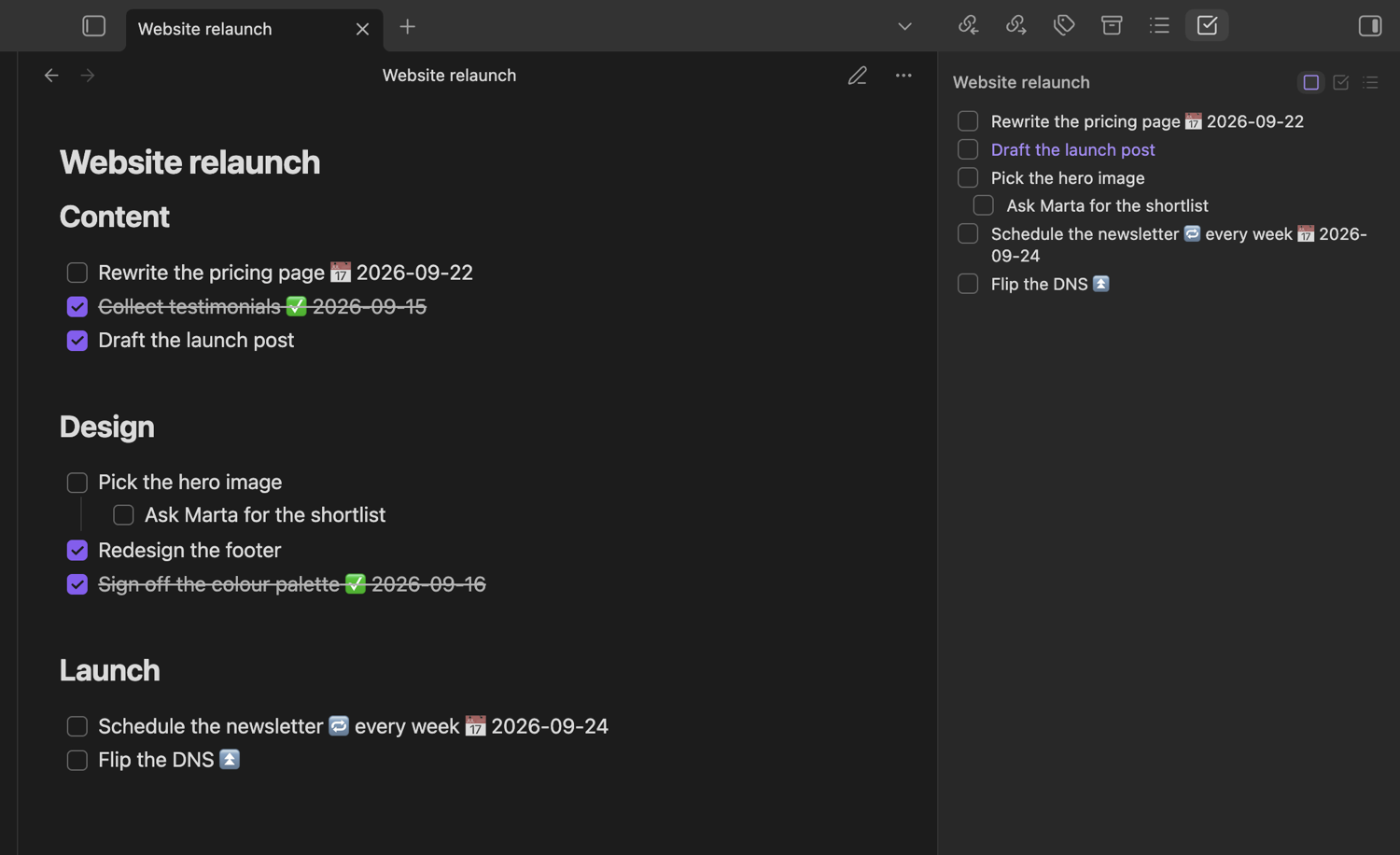
What it does
The panel follows the note in focus the way the Calendar plugin follows the active date, so switching notes swaps the list and editing the note refreshes it. With no note in focus it says so instead of leaving the last note's tasks on screen.
Three filters sit above the list — open, completed or cancelled, and all — and each filter button reports through its accessible label how many tasks in the current note it matches, so a screen reader announces how much is left without walking the list.
Clicking a row opens the note and puts the cursor on that task's line, which makes the panel a table of contents for the work in a long note. Ticking a checkbox in the panel writes the change back to the file, so the note stays the single source of truth.
Turning on "Group tasks under their headings" splits the list by the nearest heading above each task, which keeps a note with several sections readable.
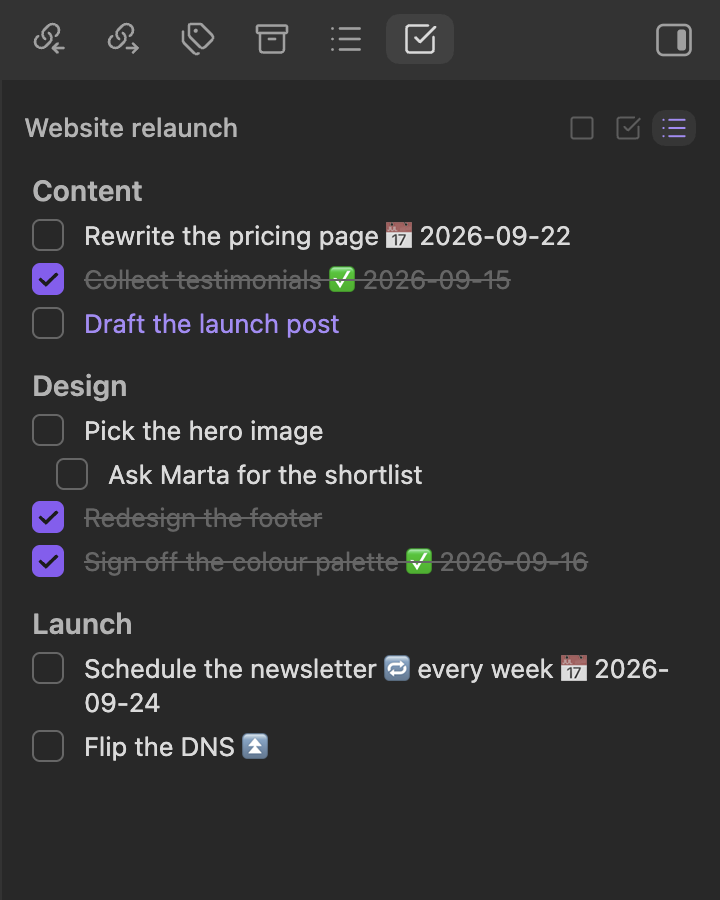

Working alongside the Tasks plugin
Task Overview reads and writes plain Markdown checkboxes, and it recognises the statuses the Tasks plugin writes. A task marked [/] is styled as in progress and one marked [-] as cancelled, and cancelled tasks sit with the completed ones rather than the open ones.
When Tasks is installed, ticking a checkbox in the panel hands the toggle to that plugin, so its own rules for done dates and recurring tasks apply exactly as they would in the editor. When it is not installed, the panel flips [ ] to [x] itself. Nothing here depends on Tasks being present; the panel looks for it at runtime and falls back on its own.
Installation
Once the plugin is listed in the community browser, open Settings → Community plugins → Browse, search for Task Overview, then install and enable it.
To install it by hand, download main.js, manifest.json and styles.css from a release, put them in <vault>/.obsidian/plugins/task-overview/, and enable Task Overview under Settings → Community plugins. It needs Obsidian 1.6.0 or later and runs on both desktop and mobile.
Development
npm install
npm run dev     # watch build
npm run build   # typecheck + production bundle
npm test        # unit tests
Install into a test vault by symlinking the repository itself, so the build output the
plugin loads is always the one npm run dev just wrote:
ln -s "$PWD" "<vault>/.obsidian/plugins/task-overview"
Copying main.js, manifest.json and styles.css instead works once and then silently
freezes: the vault keeps serving that copy, and the Hot
Reload plugin only watches plugin folders that are a
symlink or contain .git or .hotreload, so a copied folder never reloads either. With
the symlink in place, every npm run dev rebuild reloads the plugin in Obsidian.
License
MIT.
For plugin developers
Search results and similarity scores are powered by semantic analysis of your plugin's README. If your plugin isn't appearing for searches you'd expect, try updating your README to clearly describe your plugin's purpose, features, and use cases.