Todo Sidebar
approvedby Andrii Oriekhov
Lists every checkbox from the currently open note in a sidebar panel. Toggle tasks or jump to their line. - This plugin has not been manually reviewed by Obsidian staff.
Todo Sidebar

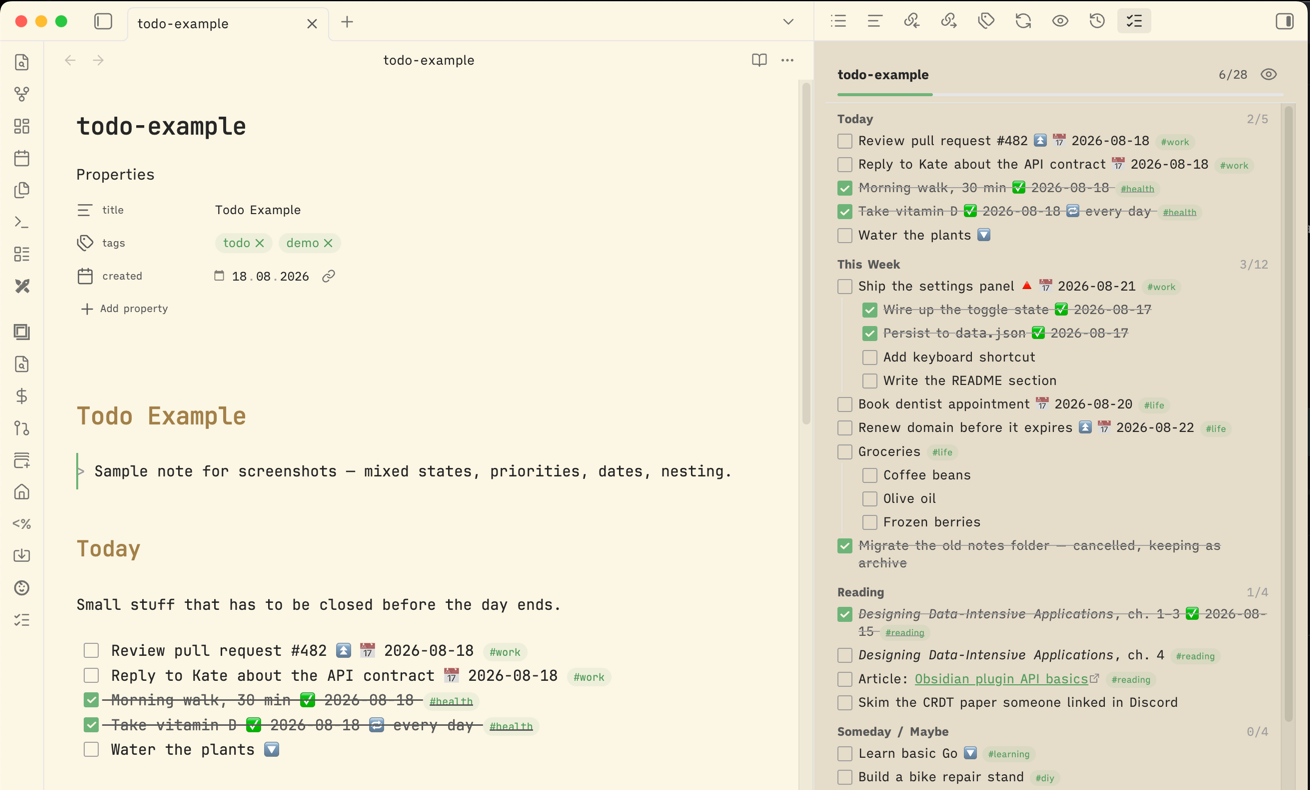
An Obsidian plugin that shows every checkbox from the currently open note in a sidebar panel.
Requires Obsidian 1.7.2 or newer (for the awaitable revealLeaf).
What it does
- Lists all
- [ ]/- [x]items of the active note in the right sidebar, nested the way they are in the note. - Groups tasks under the heading they sit below, with a per-section
done/total. Headings that contain no checkboxes are skipped, and clicking a heading jumps to it. Can be turned off in settings. - Refreshes on note switch, rename, and when Obsidian re-indexes the note — i.e. shortly after a save, since tasks come from the metadata cache, which describes the file on disk (Obsidian's own save is debounced ~2s while you type).
- Click a checkbox in the panel to toggle it in the note (through the editor, so undo works). The panel updates immediately and the file is saved right away.
- Click a task row to jump the cursor to that line; links inside the text still open normally.
- Header shows a
done/totalcount and a progress bar. - Eye button in the header (or the command palette) toggles completed tasks in and out of view.
- Task text is rendered as markdown, so links,
**bold**, and tags look right. - Ignores checkboxes inside fenced code blocks and frontmatter, because Obsidian's metadata cache already does.
Usage
Open the panel with the ribbon icon (checklist) or the command palette: Show note tasks in sidebar.
Commands:
Todo Sidebar: Show note tasks in sidebarTodo Sidebar: Toggle completed tasks visibility
Settings: group by heading (on by default), hide completed tasks, open the panel automatically on startup.
Install
Settings → Community plugins → Browse → search Todo Sidebar → Install → Enable. Or open the directory listing.
Install a pre-release with BRAT
BRAT installs plugins straight from a GitHub release and keeps them updated, so testers do not have to copy files by hand.
- Install and enable BRAT from Settings → Community plugins → Browse.
- Run the command Add a beta plugin for testing.
- Enter the repository path:
andriyor/obsidian-todo-sidebar. - Enable Todo Sidebar in Settings → Community plugins.
Install manually
Download main.js, manifest.json, and styles.css from the
latest release into
<vault>/.obsidian/plugins/todo-sidebar/:
VAULT="/path/to/vault"
DEST="$VAULT/.obsidian/plugins/todo-sidebar"
mkdir -p "$DEST"
gh release download --repo andriyor/obsidian-todo-sidebar \
	-p main.js -p manifest.json -p styles.css -D "$DEST"
Then enable Todo Sidebar in Settings → Community plugins (Restricted mode off).
Development
Node version in .nvmrc, pnpm pinned via packageManager in package.json.
pnpm install
pnpm dev     # esbuild watch mode → main.js
pnpm build   # typecheck + minified production bundle
pnpm test    # parser unit tests (node --test, no framework)
pnpm lint    # @e18e/eslint-plugin recommended (modernization + perf + banned deps)
esbuild is allowed to run its postinstall script via allowBuilds in
pnpm-workspace.yaml — pnpm blocks postinstall by default, and esbuild needs its to fetch
the platform binary.
Source lives in src/; main.js at the repo root is the generated bundle and is gitignored.
Symlink the repo into a vault so pnpm dev rebuilds land there directly:
ln -s "$PWD" "$VAULT/.obsidian/plugins/todo-sidebar"
Reload the plugin after a rebuild with the Reload app without saving command, or install the Hot Reload plugin.
Releasing
Releases install from the assets, so attach main.js, manifest.json, and styles.css. Tag,
release name, and the version in the released manifest.json must be identical — BRAT treats
the tag as the source of truth and warns if the manifest disagrees.
# bump version in manifest.json and package.json first
pnpm build   # main.js is gitignored, so build before attaching it
gh release create 1.0.0 main.js manifest.json styles.css --title 1.0.0
Add a versions.json entry only when minAppVersion changes. For a pre-release, use a matching
tag/name/version such as 1.0.1-beta.1 and mark the release as a pre-release.
For plugin developers
Search results and similarity scores are powered by semantic analysis of your plugin's README. If your plugin isn't appearing for searches you'd expect, try updating your README to clearly describe your plugin's purpose, features, and use cases.