by rexxall
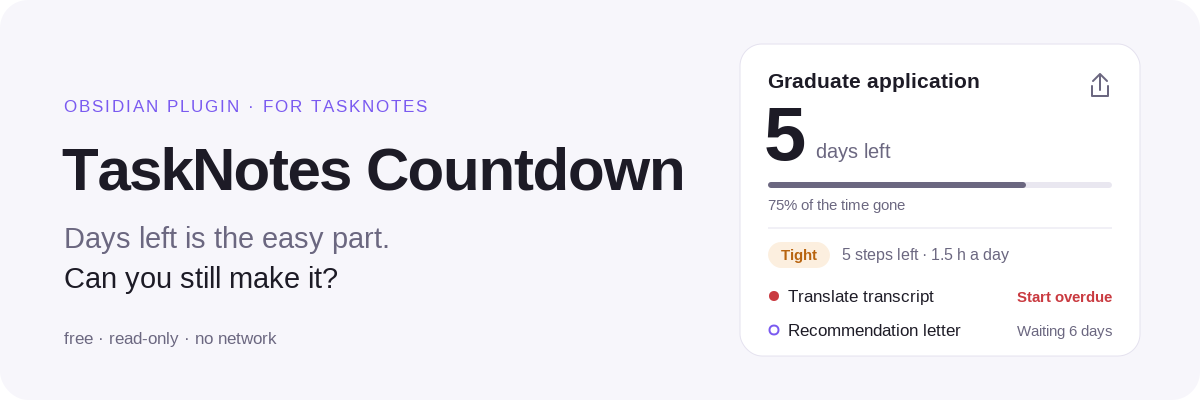
Count down to TaskNotes due dates and see whether you can still make it, with steps left, the pace you need, when to start, and who you are waiting on.

Start in three steps
- Install TaskNotes Countdown from Settings → Community plugins → Browse and enable it.
- Turn on the core Bases plugin and run Create or open countdown base.
- Give a deadline's steps a
projectslink to it and a time estimate in TaskNotes.
Needs TaskNotes 4 and Obsidian 1.12.2+, desktop or mobile. Costs nothing: no account, no network, and it never changes a task.
Everything else
Every feature
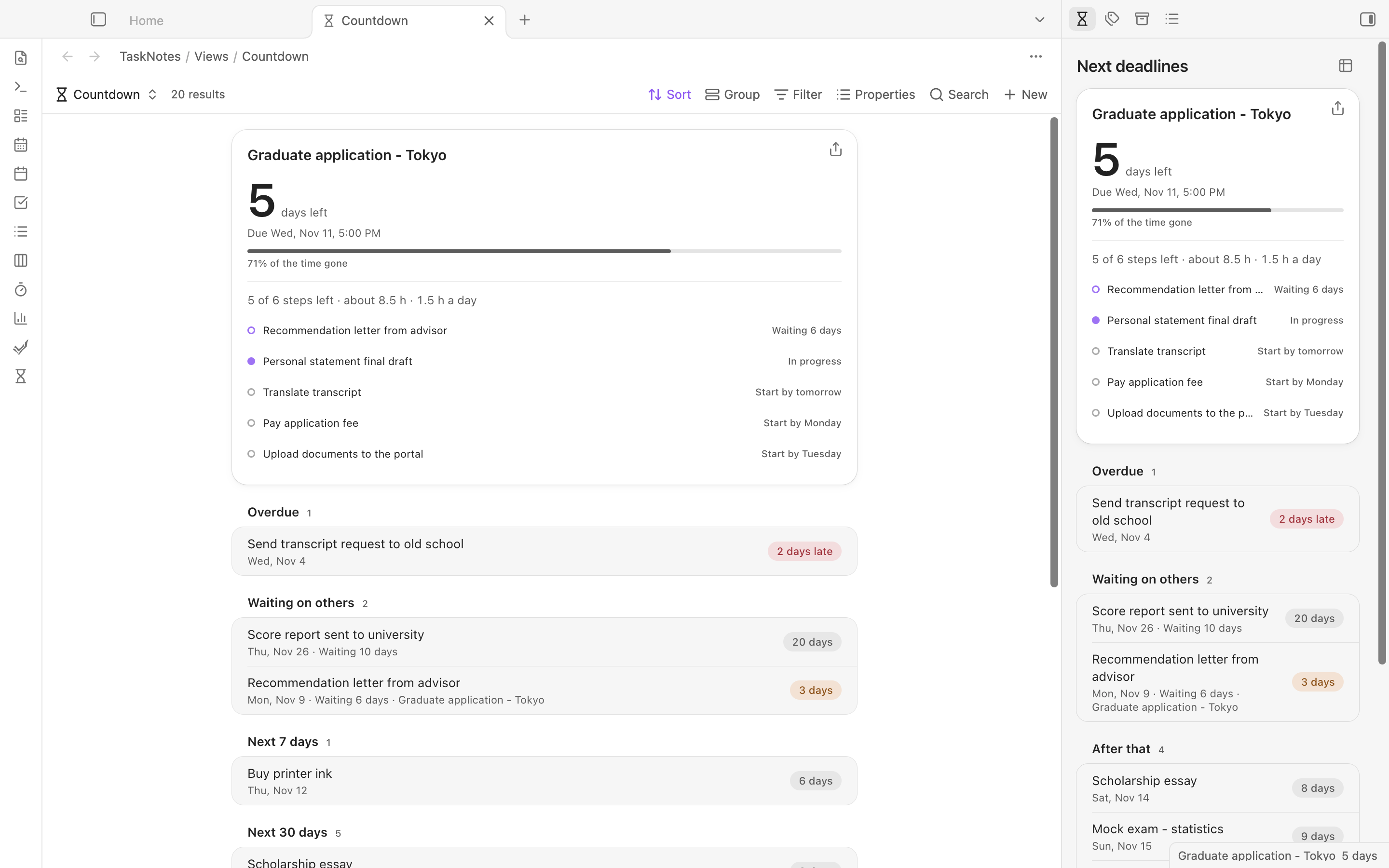
- Work left and the pace it needs. Under the nearest deadline: steps left, hours left and how much a day that means. It turns orange (Tight) when the pace is more than the hours you said you can give.
- When each step must start. Every open subtask gets a latest start day: its due date, minus a buffer, minus the days its remaining work needs. Steps that should start today, or should already have started, are marked.
- Waiting on others. Steps marked as waiting (a context, tag or status;
waitingby default), such as a recommendation letter, get their own list with how many days you have been waiting, so you know whom to chase. - How much time is gone. A thin bar from the start (the scheduled date, or the day the task was created) to the deadline: 71% of the time gone.
- Finished early. Deadlines you closed in the last three days stay in the sidebar for a moment: 3 days early, On the day, or 2 days late.
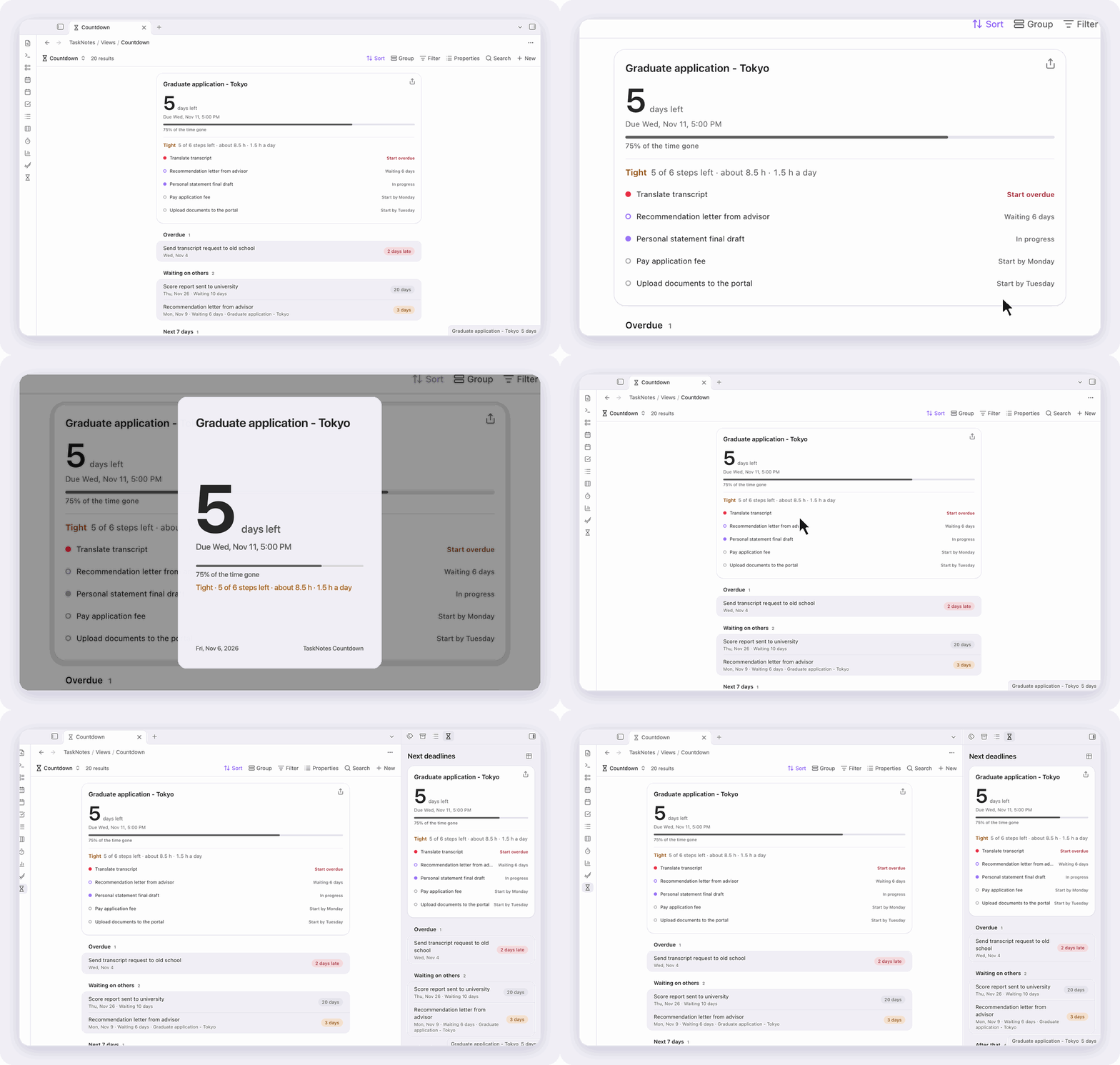
- Share as an image. The share button on the nearest deadline (or the command Share next deadline as image) draws a 3:4 card in your theme's colours and copies it, ready for a chat or a post. Where the clipboard takes no images, as on phones, it is saved as an attachment instead.
- Visible without opening anything. The next deadline sits in the status bar. Put a
tasknotes-countdownblock in your daily note template and every daily note shows the nearest few. - Countdown view for Bases. In any
.base, switch the view to Countdown. The nearest deadline is large with its plan; subtasks fold into their deadline; the rest is grouped into Overdue, Waiting on others, Today, Next 7 days, Next 30 days and Later. A base's own Group by is kept. - Next deadlines in the sidebar. Open it from the hourglass in the ribbon or the command Open next deadlines. Limit it to tags such as
examandapplication; subtasks come along with their deadline. - Read-only, and nothing to lose. The plugin never changes a task and stores nothing of its own beyond settings. Clicking opens the task note.
- Follows TaskNotes. Completed statuses, the default status, the archive tag, the task tag or property, and renamed fields come from your TaskNotes settings.
- Light at startup. Nothing is read while Obsidian starts. Tasks are read once after TaskNotes reports its cache is ready, then once per change, and every view draws from that one read.
Getting started in detail
- Install and enable TaskNotes 4 and turn on the core Bases plugin.
- Run Create or open countdown base. It writes
Countdown.baseinto the folder TaskNotes keeps its views in (by defaultTaskNotes/Views) and opens it. An existing file is opened, never overwritten. - Or add a Countdown view to any base you already have. View options: date property, status property, how many days count as close, and whether to show completed tasks.
How subtasks are found. A task is a step of a deadline when its projects link to that deadline's note, which is how TaskNotes records subtasks. Give steps a time estimate in TaskNotes to get hours and start days; without estimates you still see the steps and the countdown.
In a daily note:
```tasknotes-countdown
limit: 3
tags: exam, application
```
Both lines are optional; without them the block uses the sidebar's tags and shows three deadlines.
Settings
| Setting | Default | |
|---|---|---|
| Only these tags | empty (every task) | Sidebar only. Comma-separated; nested tags match (exam matches exam/toefl). |
| Tasks in the sidebar | 6 | |
| Highlight within days | 3 | Closer deadlines turn orange. Bases views have their own option. |
| Show the next deadline in the status bar | on | Click it to open the sidebar. |
| Hours a day for deadlines | 3 | Used for the pace and the start days. |
| Buffer days | 1 | Each step is planned to finish this many days early. |
| Waiting marker | waiting | A context, tag or status that means you are waiting on someone. |
Privacy and what the plugin touches
No network requests. Nothing leaves your vault. The plugin writes only two kinds of file, and only when you ask: Countdown.base when you run that command, and a share image when the clipboard cannot take it.
Clipboard: only written, never read, and only when you press share.
How it reads TaskNotes
The sidebar, status bar, note blocks and plans use the TaskNotes runtime API (apiVersion 1): tasks.list (one call per change, shared by every view), catalog.statuses, settings.snapshot, and the task and lifecycle events. Subtask links are resolved with Obsidian's link resolver. It checks the version and capabilities first and shows a notice instead of failing when TaskNotes is off or too old. The Bases view reads note properties through Bases itself, so its countdown keeps working while TaskNotes is disabled; plans and waiting lists need TaskNotes.
Language and themes
English, Chinese and Japanese, following Obsidian's language. Colours, radii and spacing come from your theme's variables; light and dark mode both work, and the share image uses your theme's colours.
Development and verifying a release
npm install
npm run build   # styles + type check + bundle
npm test        # dates, plans, start days, waiting, time gone, finished early, card text, labels, note block, starter base
npm run lint    # Obsidian community directory rules, warnings fail
A demo vault with only TaskNotes and this plugin, and made-up tasks dated relative to today:
demo/reset.sh            # rebuild ~/Obsidian/TaskNotes-Countdown-Demo from scratch
demo/open.sh --lang en   # open it in a separate Obsidian instance (en, zh or ja)
demo/shots.sh docs/screenshots
assets/readme/source/record.sh   # the README art and demo GIFs
reset.sh downloads TaskNotes 4.16.1 from its GitHub release on first run and only deletes a folder that carries its .tnc-demo marker.
Releases are built by GitHub Actions from a version tag, with build provenance attested. To check a download:
gh attestation verify main.js --owner Rexxall
Changes are listed in CHANGELOG.md.
MIT License
For plugin developers
Search results and similarity scores are powered by semantic analysis of your plugin's README. If your plugin isn't appearing for searches you'd expect, try updating your README to clearly describe your plugin's purpose, features, and use cases.