by tlwt
Pack notes and folders into searchable .textpack archives (TextBundle format) and read, search, edit and manage them in their own view. Convert to and from .textbundle folders.
TextPack
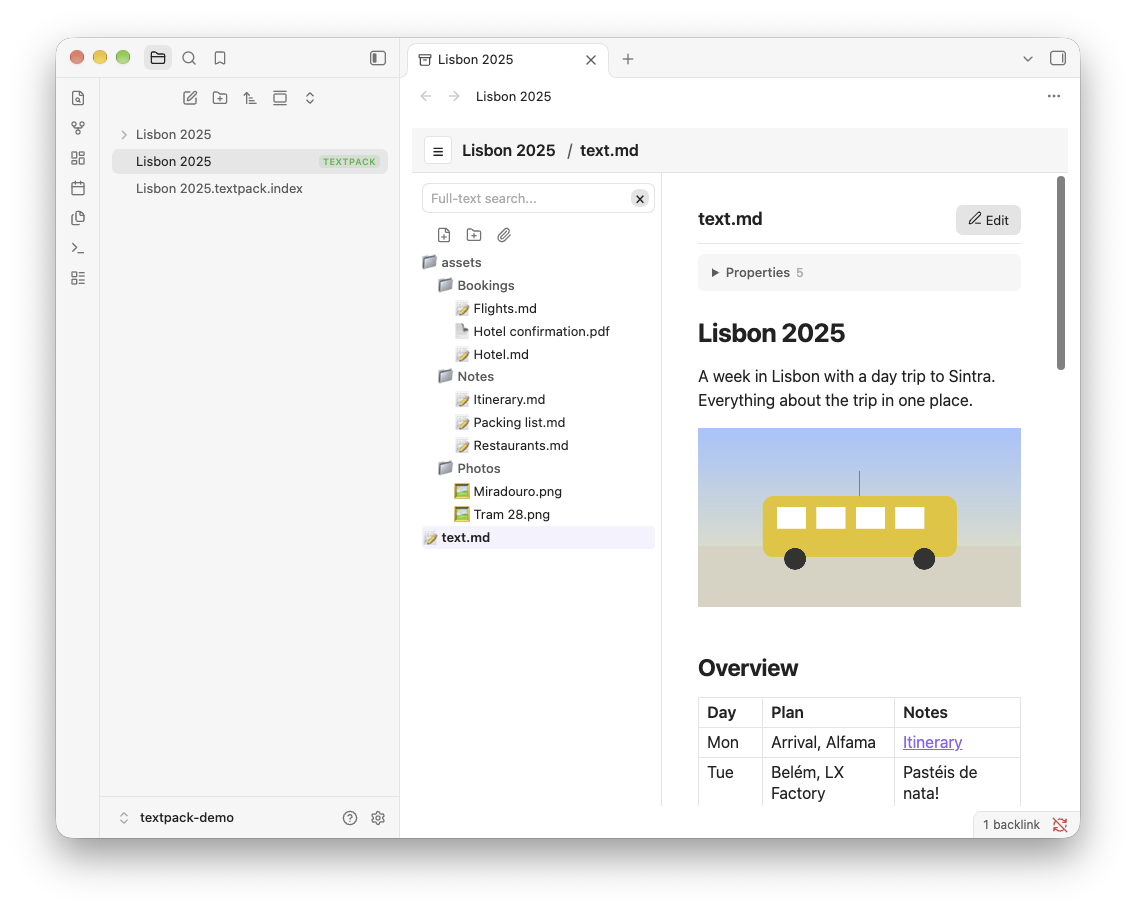
Pack notes and folders into searchable .textpack archives and keep working with them: read, search, edit and reorganize the archive's content in its own view — on desktop and mobile, fully offline.
A .textpack is a zip file in the open TextBundle format, so archives stay readable by other apps (Bear, iA Writer, Ulysses, …). You can also convert archives to plain .textbundle folders and back.
Why
Old trips, finished projects or meeting notes clutter the vault, the graph and every search — but you don't want to delete them. TextPack turns a note or a whole folder into one file. Its content is no longer indexed by Obsidian, yet you can still open, search and edit it at any time.
Features
Archive and restore
- Right-click a note → Archive to .textpack, or a folder → Archive folder to .textpack.
- Embedded images and attachments are packed with the note; links inside an archived folder are rewritten to point into the archive.
- Restore archive unpacks everything again, asks before overwriting and points links back to the restored files.
Archive view
- File list with folders, resizable and collapsible (remembered per device); the path of the open file is shown in the header, folders in it are clickable.
- Markdown rendered like Obsidian's reading view (follows Readable line length, theme and tables), collapsible properties.
- Images and PDFs inline; PDF text can be selected and copied.
- Back/forward navigation between files inside the archive.
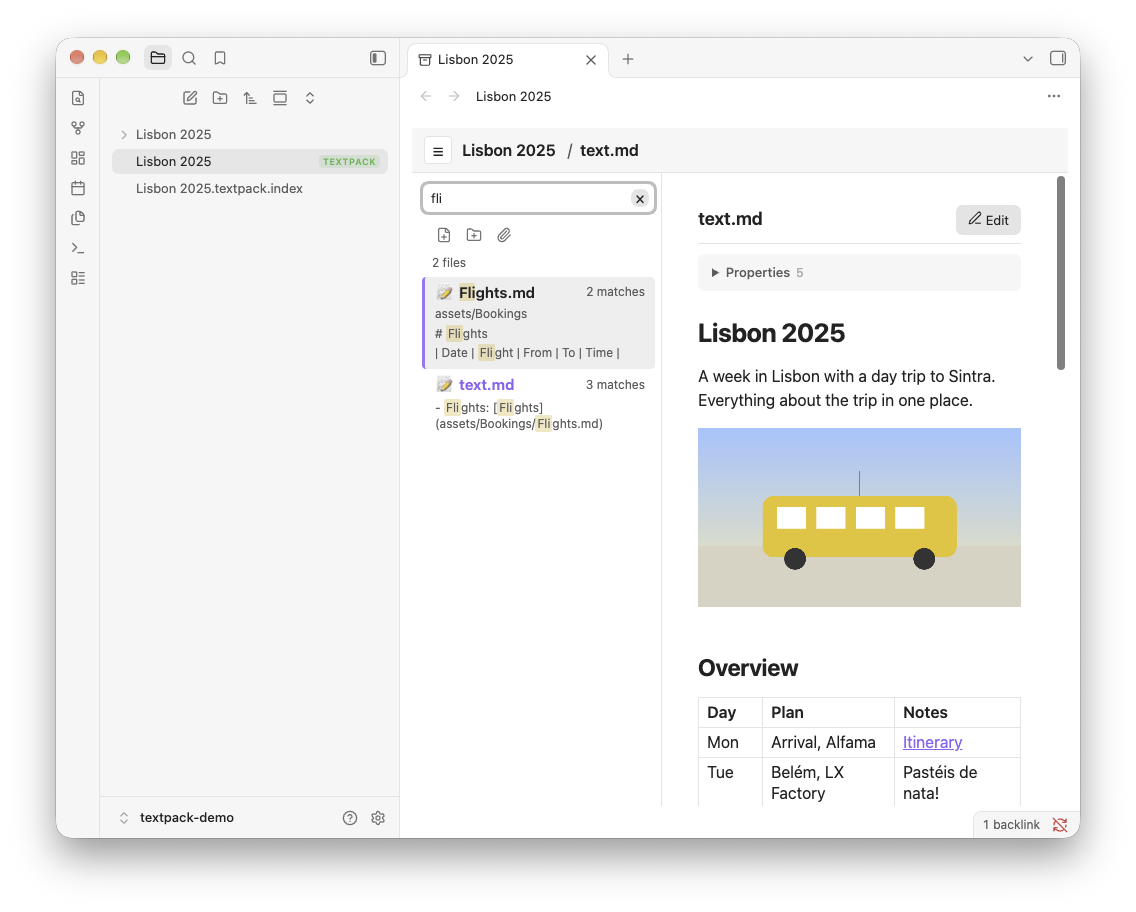
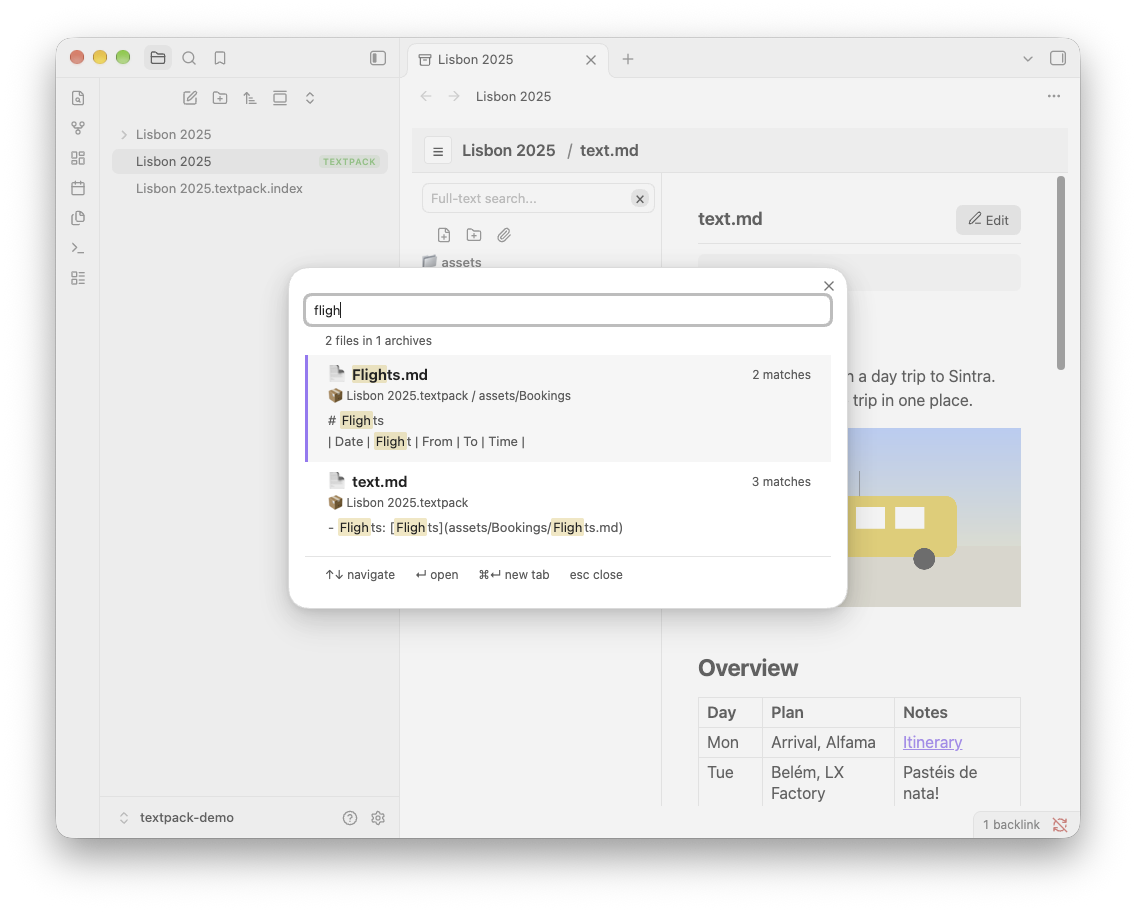
- Omnisearch-like search inside the archive: all words in any order (case and accents ignored), best matches first with highlighted passages; the words are marked in the opened file,
Enterjumps to the next match. Search in TextPack archives searches all archives the same way, including PDF text; archive and folder names count too, results appear while searching,Cmd/Ctrl+Enteropens in a new tab. - Archive info: size, file count, standard format, search index and the archive's
info.json.
Edit and organize
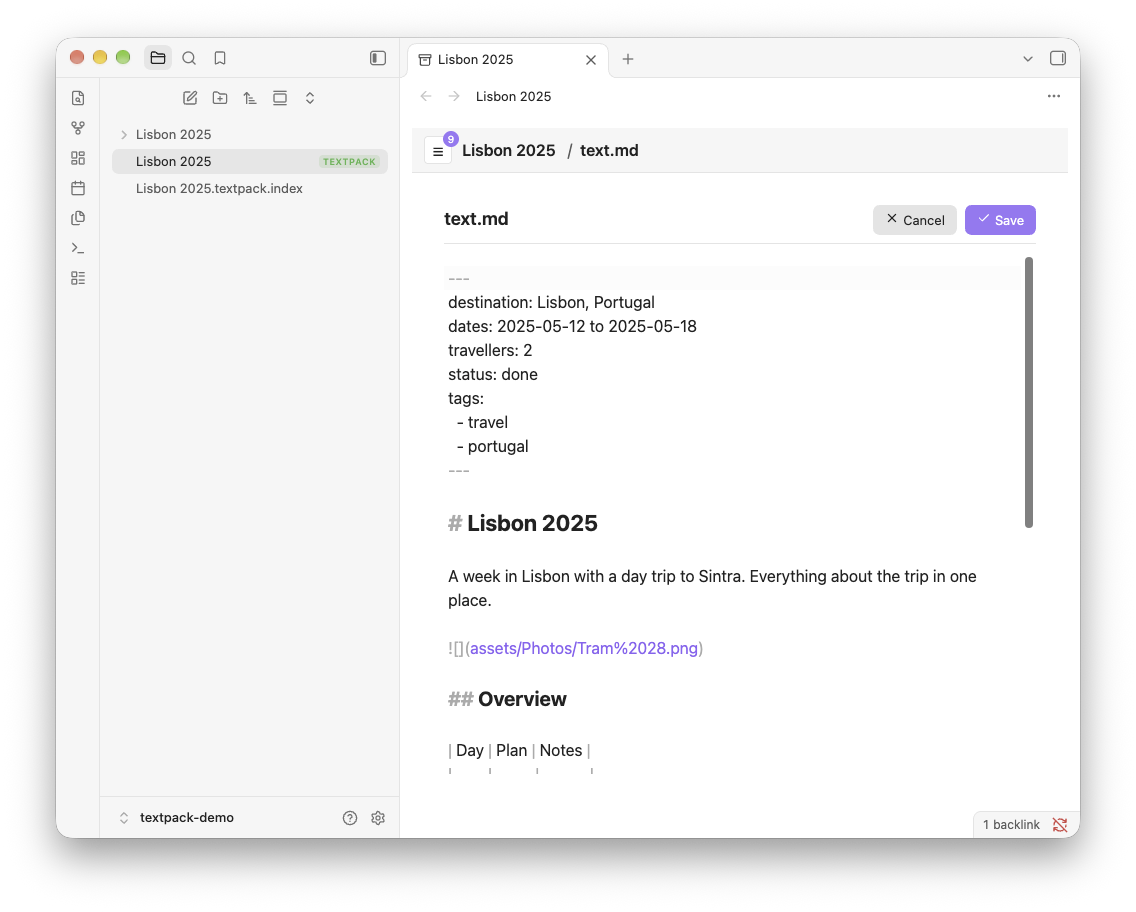
- Edit Markdown files inside the archive (syntax highlighting, autosave,
Cmd/Ctrl+S, cancel restores the previous state). - Drop or paste attachments into the editor; they are stored in the archive and linked.
- New note, new folder, add files (file picker, drag from Finder/Explorer or from Obsidian's file explorer).
- Rename, move (drag & drop or Move to …) and delete files and folders — links are updated.
- Copy a file into the vault, copy its text, export it or open it with the default app (desktop).
- Safe with sync: before saving, TextPack checks whether the archive changed on another device and only asks if the same file was edited there.
TextBundle standard and .textbundle folders
- Folder archives can be converted to the TextBundle standard (
text.md+assets/) with one click; files not linked fromtext.mdare listed at its end. - The file explorer tag shows green for standard archives and yellow for the others.
- Setting Archive format: create
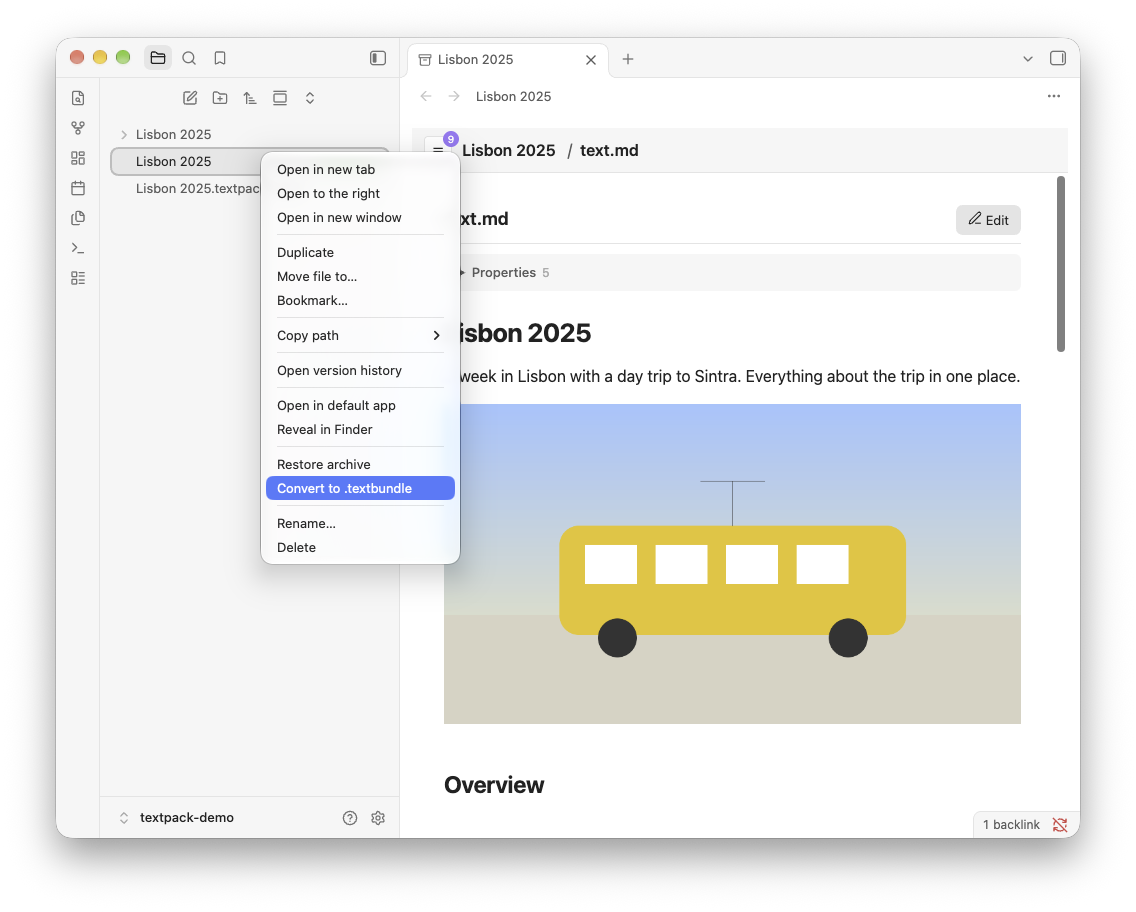
.textpackfiles (zip, archive view) or.textbundlefolders (plain notes that Obsidian, search and other plugins see directly). - Right-click to convert between
.textpackand.textbundle.
Search plugins (optional)
Obsidian and Omnisearch can't look into zip files. With Create index file enabled, TextPack writes a <name>.textpack.index.md next to each archive with the archived text in code blocks (found by search, ignored by links, tags, tasks and Dataview) and links that open each file directly in the archive view.
Usage
- Right-click a note or folder → Archive to .textpack.
- Click the
.textpackfile to open the archive view. - Use the file list, the header path and the right-click menus to work with the content.
- Right-click the archive → Restore archive to unpack it again.
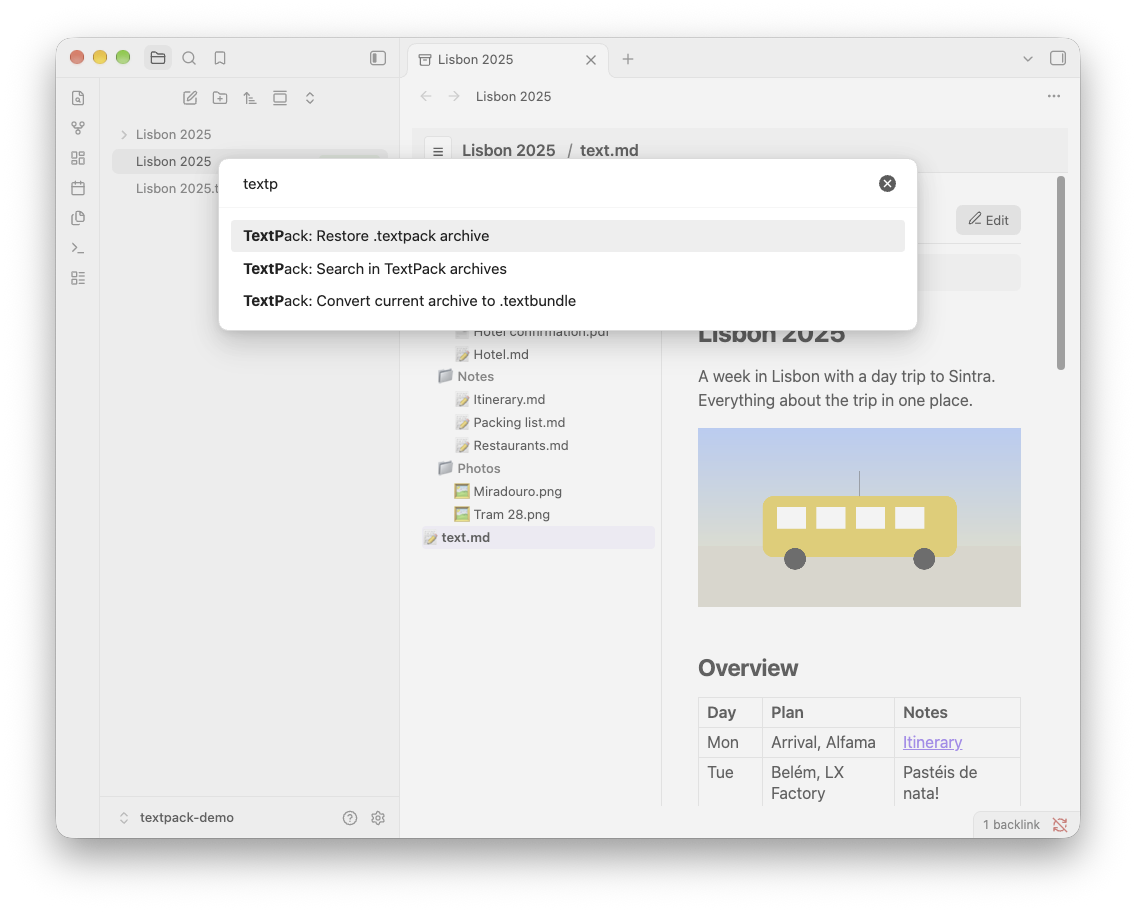
All commands are also available in the command palette:
Settings
| Setting | Description |
|---|---|
| Archive format | .textpack (zip) or .textbundle (folder) when archiving |
| Delete original after archiving | Move the original note/folder to the trash |
| Delete archive after restoring | Move the archive to the trash after restoring |
| Include attachments | Pack embedded images and files |
| Create index file | Write .textpack.index.md files for search plugins |
| Archive folder | Optionally store archives in a separate folder |
Compatibility and privacy
- Desktop and mobile (iOS, Android). Uses Obsidian's built-in PDF.js — no downloads, no network access.
- No telemetry, no ads, no account or payment.
- Vault access: TextPack reads and writes vault files only through Obsidian's API. Search in TextPack archives lists the vault's files to find all
.textpackarchives; archiving reads the notes and attachments you selected. - Clipboard: only written when you choose Copy text or copy a selection; pasting into the archive editor uses the content you paste.
- Files outside the vault (desktop only, only when you choose these menu items): Export (Downloads) writes a copy of the file to your
Downloadsfolder; Open with default app writes a temporary copy to the system's temp folder (<tmp>/textpack/) so the operating system can open it. Both use Node/Electron APIs and are hidden on mobile. Nothing else is read or written outside the vault. - Not supported inside archives: Dataview queries, Meta Bind fields and other plugins that read Obsidian's index of real files.
- The interface is available in English and German (follows Obsidian's language).
File format
archive.textpack (zip)
├── info.json            # TextBundle metadata (plugin data under "com.obsidian.textpack")
├── _search_index.json   # full text per file for fast search (TextPack only)
├── text.md              # main document (TextBundle standard)
└── assets/              # attachments and further notes
Folder archives keep their folder structure until they are converted to the standard layout.
Development
npm install
npm test        # unit tests (Jest)
npm run build   # type check + production build (main.js)
npm run dev     # watch mode
Copy main.js, manifest.json and styles.css into <vault>/.obsidian/plugins/textpack/ to test.
Releases: npm version patch|minor|major updates manifest.json and versions.json; pushing the tag (without v) runs the GitHub workflow that builds and attaches main.js, manifest.json and styles.css to a draft release.
License
Bundled third-party code: JSZip (MIT) and @lezer/markdown (MIT).
For plugin developers
Search results and similarity scores are powered by semantic analysis of your plugin's README. If your plugin isn't appearing for searches you'd expect, try updating your README to clearly describe your plugin's purpose, features, and use cases.