by Riccardo Bartoli
Keep installed community themes up to date in the background, with a backup before every update and one-click rollback.
Theme Autoupdater
Keeps every community theme you have installed up to date, in the background. Every update is backed up first and can be rolled back with one click.
Why
Obsidian doesn't update themes on its own. A fix reaches you only when you open Settings → Appearance and click Check for updates, so people often run a theme months behind, and theme authors answer bug reports with "update the theme". Theme Autoupdater installs the update when Obsidian starts, the same version Obsidian's own updater would, and keeps the previous one in case you want it back.
Themes are CSS, so an update can't run code. That is what makes them safe to update automatically; plugins are left alone.
What it does
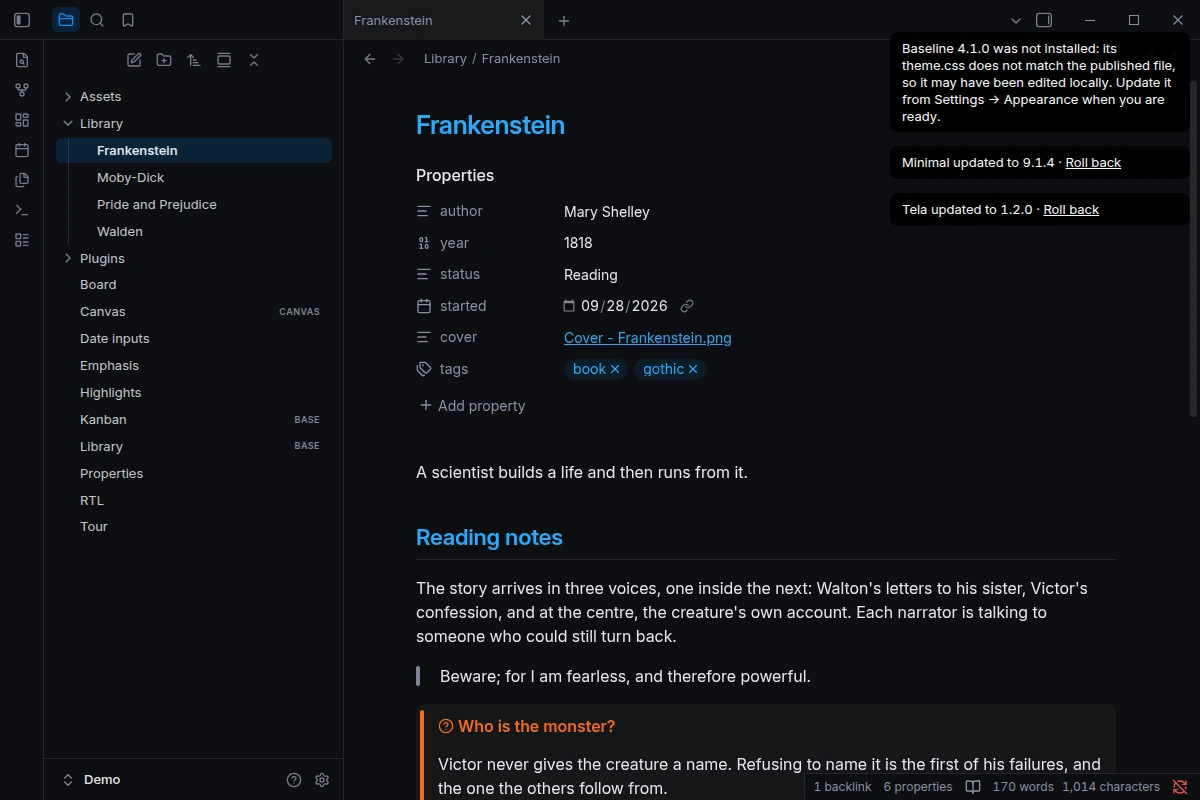
On every start, the plugin checks each installed community theme against the community directory and installs the version Obsidian itself would install. You only hear about it when something changed:
Tela updated to 1.2.0 · Roll back
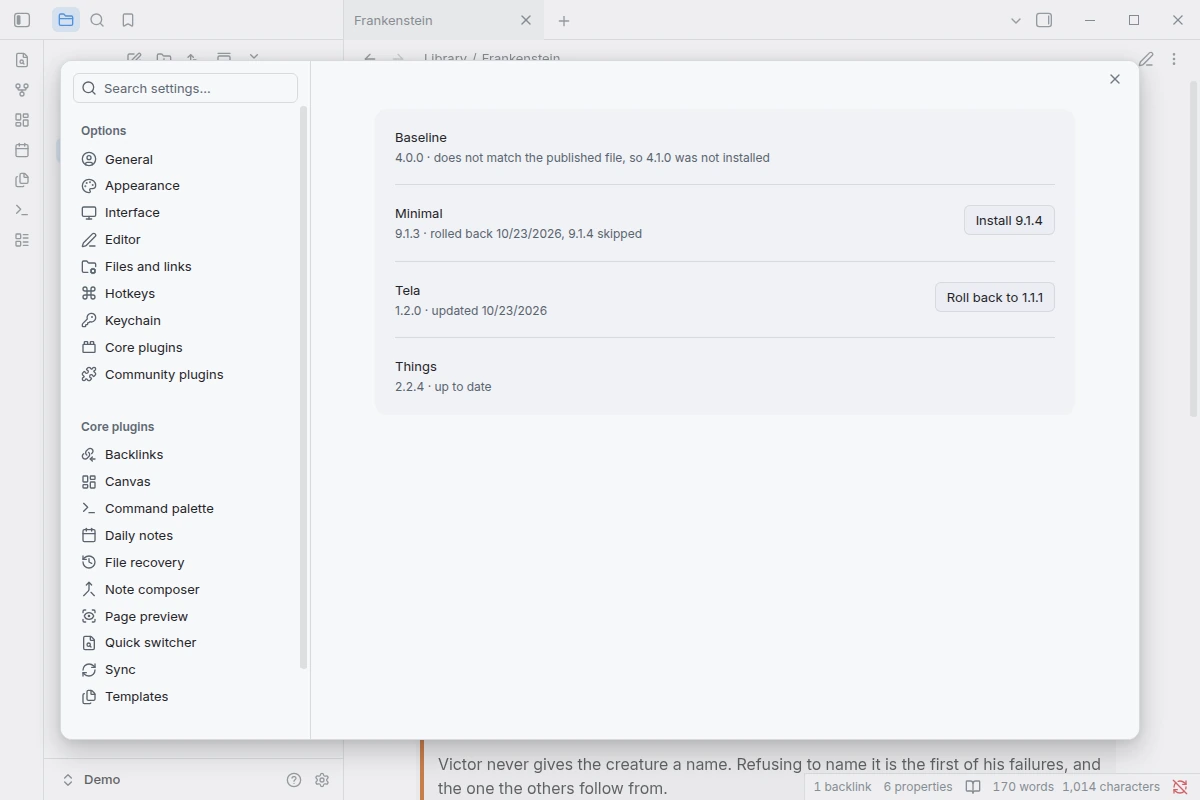
The settings tab lists your themes with the installed version and what the plugin last did, a Roll back button while a backup exists, and an Install button for a version you rolled back from.
Safety
It writes to your vault unattended, so safety is the feature.
- Backup before every write. The previous
theme.cssandmanifest.jsonare copied into the plugin's folder before a theme is touched, and the backup is read back before the update starts. If writing the update fails, the previous files are put back. - Local edits are never overwritten. Before updating a theme, the plugin checks that its
theme.cssis the file the author published: either the one the plugin wrote last time (it records a fingerprint of every file it writes), or the one attached to the GitHub release of the installed version. A theme that doesn't match is skipped, and you are told once per version. Update it yourself from Settings → Appearance when you are ready; from then on it is handled automatically. - One-click rollback. Rolling back restores the backup and marks the version it replaces as skipped, so the next start does not reinstall it. The version after that installs normally, and Install in the settings tab brings the skipped one back.
- Fails safe. Obsidian's theme registry is not part of its public API. If the running Obsidian doesn't expose it in the expected shape, the plugin never writes: it only tells you when a theme has an update.
- Quiet. No notices when nothing changed, and nothing to configure.
For theme authors
There is nothing to set up. Your users get each release the next time they start Obsidian, as long as the release is tagged with the version in your manifest.json (1.2.0, not v1.2.0) and carries theme.css and manifest.json.
How updates are chosen
The rules are the same as Obsidian's built-in theme updater, read from Obsidian 1.14.4:
- The theme is listed in the community directory and its repository's
manifest.json(default branch) carries the theme's name. - The version to install is the manifest's, unless its
minAppVersionis newer than your Obsidian; then the newest entry inversions.jsonyour Obsidian can run. - Files come from the GitHub release tagged with that version, or from the default branch when the release has no assets.
Checks run at startup only. Legacy single-file themes (themes/Name.css) are not updated.
Network use
The plugin fetches, from GitHub only: the community directory (obsidianmd/obsidian-releases), each installed theme's manifest.json, versions.json and theme.css, and release assets. Nothing is sent anywhere, and there is no telemetry.
Known limits
- A theme whose release tag differs from its manifest version (for example
v1.2.0), or whose releases carry no files, cannot be matched to a published file until you update it once by hand or the plugin has installed it. - If you use several devices, the rollback's "skip this version" lives in the plugin's settings; sync them (Obsidian Sync: Installed community plugins) or the other device may reinstall the version you rolled back.
Install
From the community directory, search for "Theme Autoupdater". To install by hand, copy main.js, manifest.json and styles.css from a release into <vault>/.obsidian/plugins/theme-autoupdater/ and enable the plugin under Settings → Community plugins.
Develop
npm install
npm run build   # type-check and bundle main.js
npm test        # unit tests for the update logic
npm run lint    # eslint with eslint-plugin-obsidianmd
The update logic lives in src/updater.ts and talks to the vault and GitHub through a small interface, so the tests run against an in-memory vault.
License
MIT
For plugin developers
Search results and similarity scores are powered by semantic analysis of your plugin's README. If your plugin isn't appearing for searches you'd expect, try updating your README to clearly describe your plugin's purpose, features, and use cases.