TimeSaver
approvedby odayou
Drag and resize the images to change their size, and easily track the time spent on each task.通过拖拽调整图片大小,并轻松追踪每个任务所花费的时间。
TimeSaver
An Obsidian plugin for processing tasks.
Developed based on the needs of my own work flow and the demand of a friend on website. Any suggestions are welcome.
Repository
odayou/obsidian-task-processing-extension
✨ 0.0.7 Highlights
- Four-corner image resizing: hover
![[image]],, or an HTML<img>and drag any corner to resize proportionally. Images can be resized repeatedly; standard Markdown images are converted to HTML images with a width attribute. - Three-layer non-intrusive stats UI: status bar shows current note duration and counted notes live; a right-side panel shows total / by task / by #tag / note count; auto-compute on note open / save / editor blur.
- Very forgiving time formats: Chinese
2026年8月28日10:53, concatenated date-time2026-08-2810:53, en-dash / hyphen mix, seconds precision, dated timestamps — written any reasonable way, it parses. - Cross-note aggregation & Dataview/Bases integration: one command sums task time across all notes or a chosen folder, grouped by
#tag, and can write results into each note's frontmatter for database queries. - Grouped settings with per-item toggles: insert task / time / copy link, the stats context-menu entry, and auto-compute are all independently controllable — on by default only where you need them.
Features
- Calculate the time spent on each task from the recorded details (extract tasks from the current document) and show the total.
- Quick commands: insert pending / completed tasks, insert the current time, copy link.
- All commands are available from the command palette or the editor right-click menu (each can be toggled).
- Status bar live summary (v0.0.6): current note duration and counted notes stay on the status bar (no date-less "all notes" grand total).
- Right-side stats panel (v0.0.6): total time, per-task breakdown, by #tag, and note count — see your global time distribution at a glance.
- Cross-note aggregation & Dataview integration (v0.0.6):
Compute total time in all notesaggregates task time across all notes (or a folder) and groups by#tag— the cross-note view shows the #tag breakdown and note count, not a date-less grand total; optionally writes into each note's YAML frontmatter. - Very forgiving time formats (v0.0.6): Chinese dates, concatenated date-time, en-dash / hyphen, seconds and dated timestamps — see Time format support.
- Four-corner image resizing (v0.0.7): supports both Obsidian and standard Markdown images, preserving aspect ratio and saving the resized width.
Usage
In the edit view, in a document that has tasks (standard task format) and time moments, call the command total time (or trigger it via the right-click menu / panel), and the time spent on each task will be listed with the total.
- For the global view: open the right-side panel via the left ribbon or the
Toggle TimeSaver panelcommand; the status bar shows current-note duration and the count of notes computed. - To aggregate all notes: run
Compute total time in all notes(hidden from the right-click menu by default — enableShow stats entry in context menuin settings). - Auto-compute is always on (no toggle): on note open, editor blur, or file save — silent recompute, no config needed.
- To resize an image, hover
![[image]],, or an HTML<img>in Live Preview and drag any corner handle. The aspect ratio stays fixed, and the width is saved when you release the pointer; you can resize it again later. Standard Markdown images are converted to HTML images with a width attribute. Adjust the corner-handle inset (0–120 px) under Settings → Image resizing.
Build and install locally
Run these commands from the plugin project root:
npm install
npm run build
The bundled JavaScript output is main.js in the project root. The build does not create a ZIP. To install manually, put main.js, manifest.json, and styles.css together in your vault's .obsidian/plugins/time-saver/ folder, then enable TimeSaver under Settings → Community plugins. On Windows, the vault folder is commonly under %APPDATA%\obsidian\<vault name>\.obsidian\plugins\time-saver\; create the plugin folder if needed.
main.js is generated and Git-ignored, so it is not included in normal source commits. For a GitHub Release, attach it together with manifest.json and styles.css. During development, run npm run dev to watch source changes and rebuild main.js automatically.
Preview
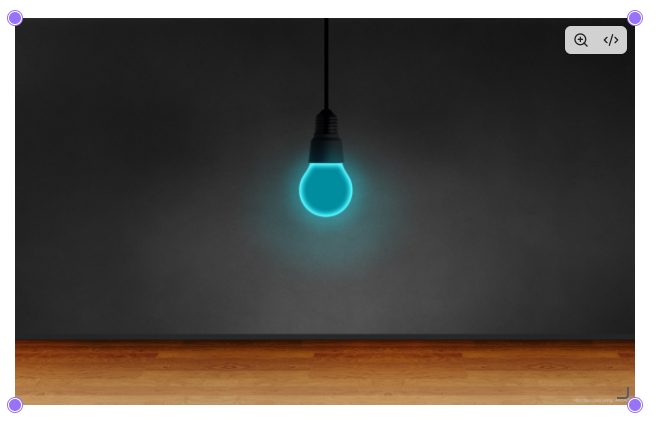
- Four-corner image resizing
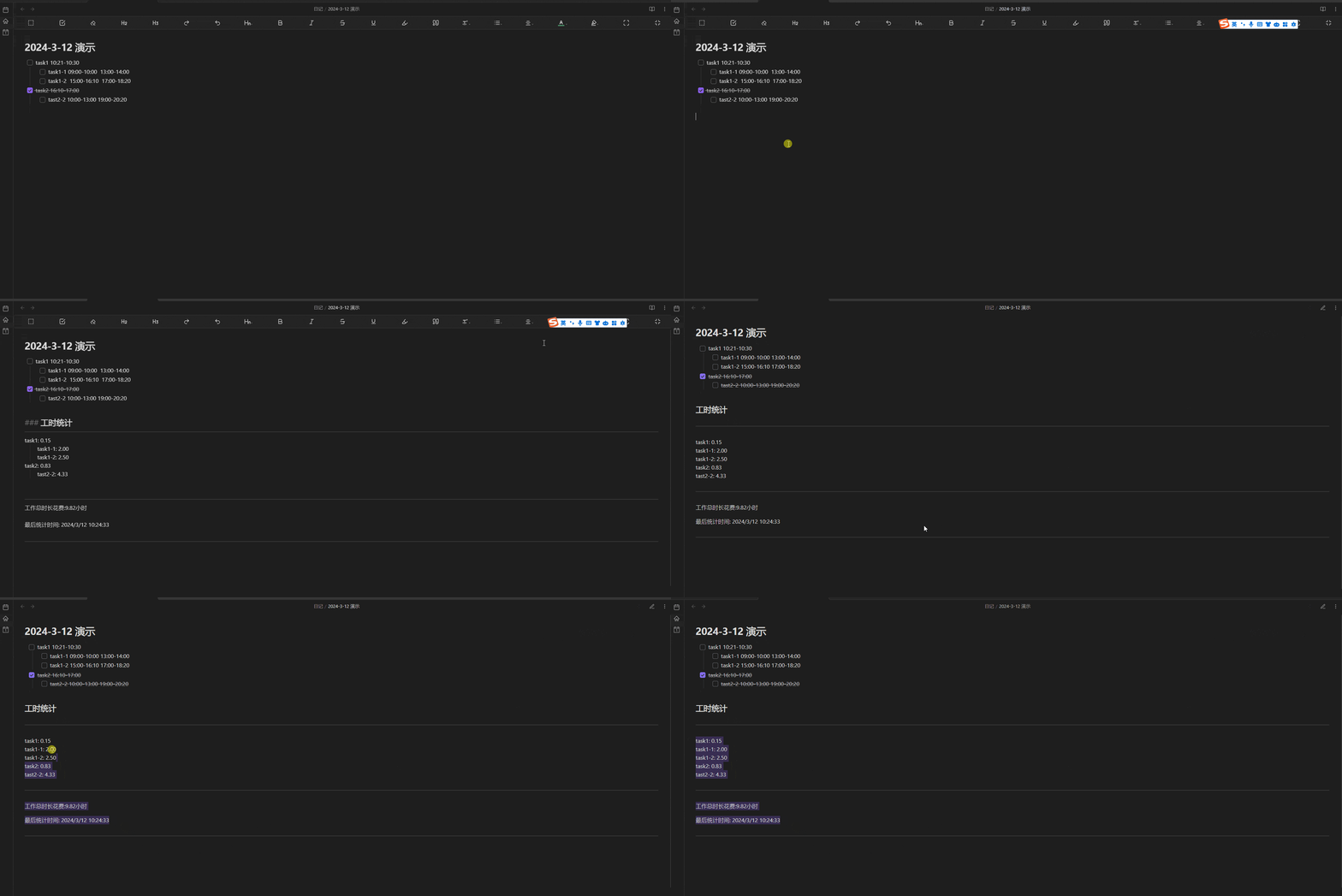
- Time statistics effect display

- Comprehensive demo
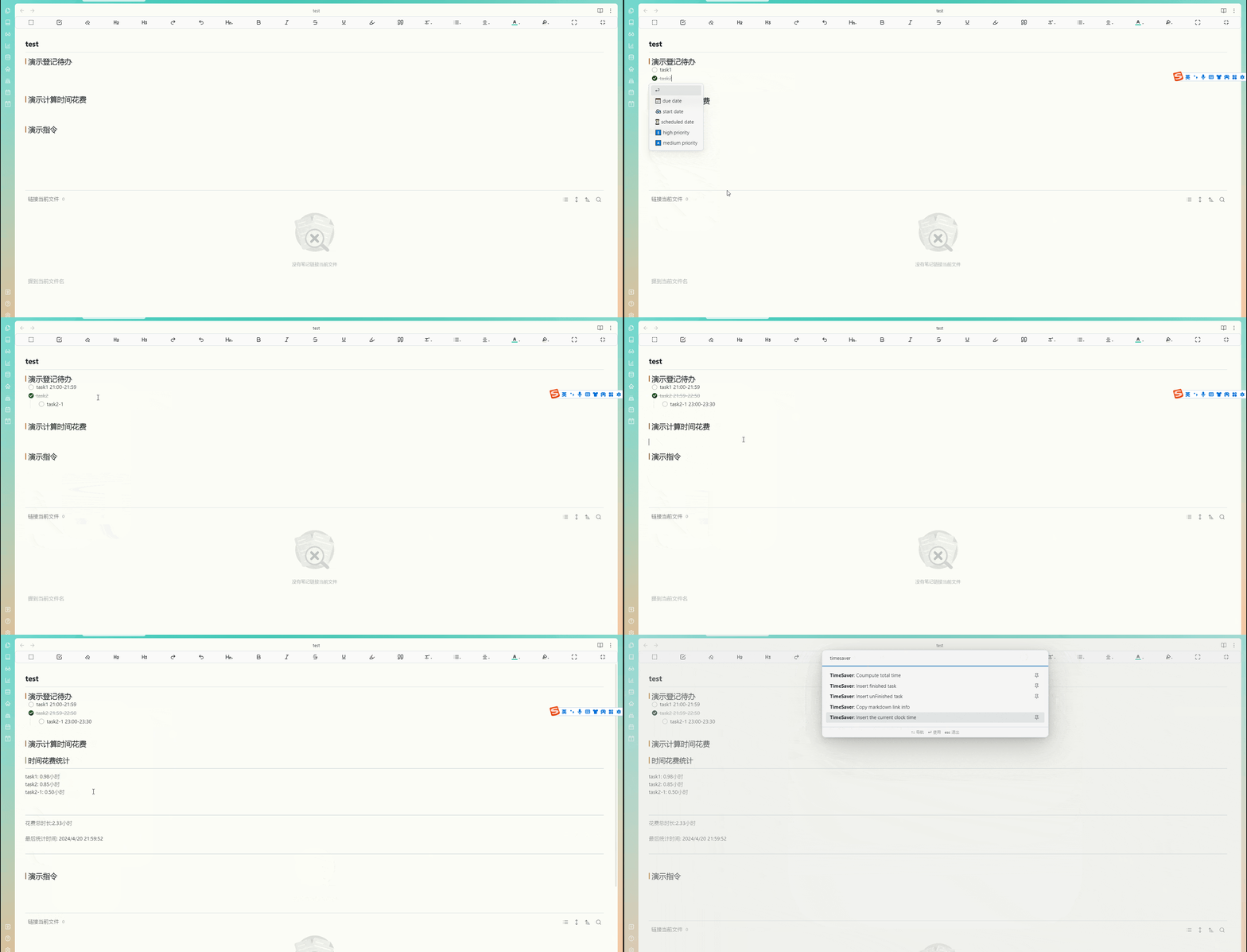
- Task time statistics demo
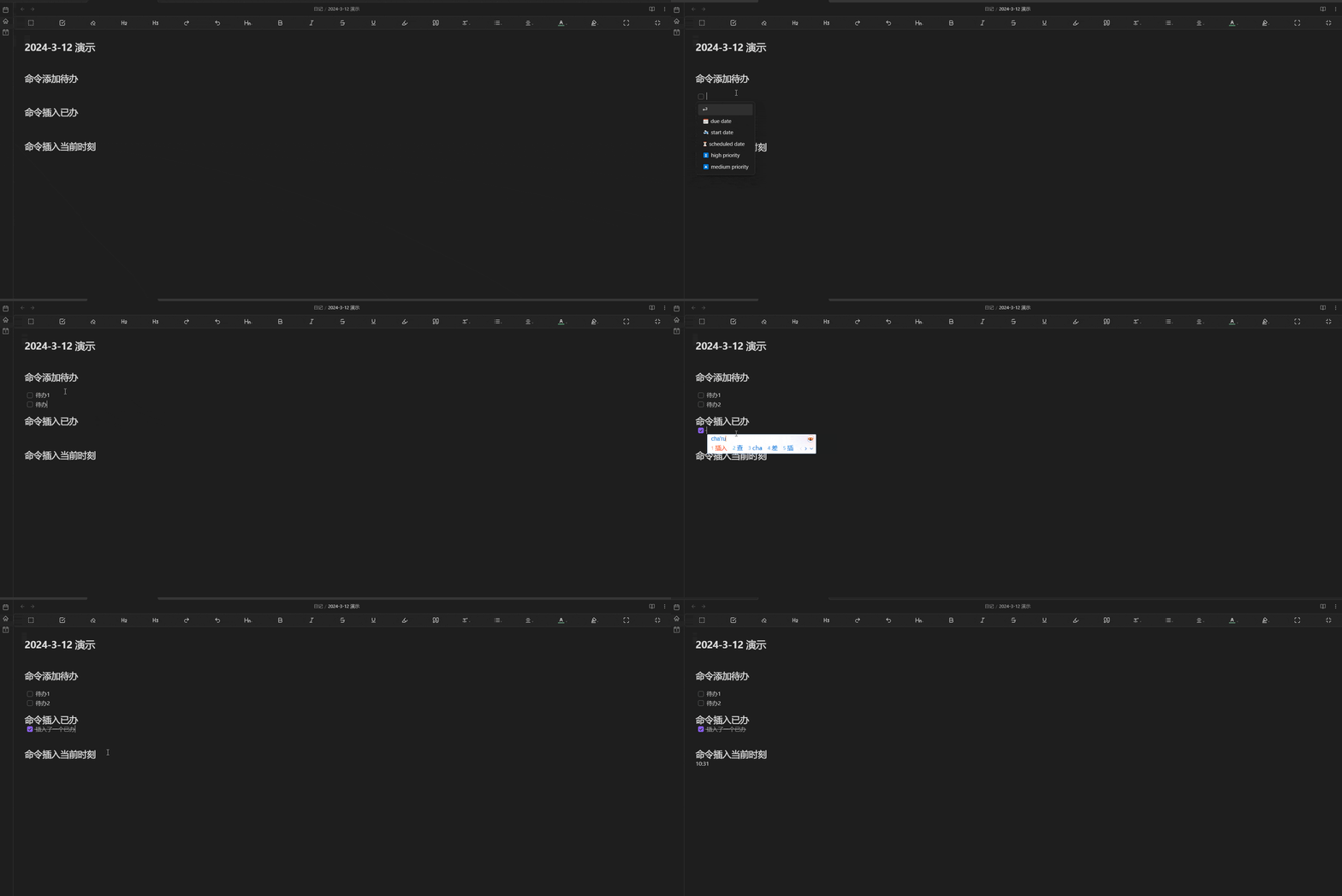
- Quick commands demo
- All features are integrated into the right-click menu

Demo
Tasks
- [ ] 10:21-10:30 task1
    - [ ] 09:00-10:00 13:00-14:00 task1-1 #tag
    - [ ] 15:00-16:10 17:00-18:20 task1-2 some English words and more
- [x] 16:10-17:00 task2 #tag
    - [ ] 10:00-13:00 19:00-20:20 tast2-2
Time statistics
### 时间花费统计
---
task1: 0h 9m (0.15小时)
    task1-1 #tag: 2h 0m (2.00小时)
    task1-2 some English words and more: 2h 30m (2.50小时)
task2 #tag: 0h 50m (0.83小时)
    tast2-2: 4h 20m (4.33小时)

---
总时长: 9h 49m (9.82小时)
最后统计时间: 2025/2/27 22:15:22
Panel, status bar & one-click stats (v0.0.6)
- Status bar: with
Show status baron, the bottom bar shows the current note duration and the count of notes computed, updating as you edit or switch notes; click the status bar to open a quick menu: compute current note, compute all notes, export stats, toggle panel. Computing the current note no longer requires the edit mode — reading view, a note open in another pane, or even a note restored by Obsidian at startup are all auto-computed; non-Markdown files (e.g. Canvas) show a gentle hint instead of a false "please open a Markdown note" error. - Right-side panel: open via the left ribbon icon or the
Toggle TimeSaver panelcommand; when no stats yet, the panel showsCompute current note/By date/Compute all notestrigger buttons; once computed it shows total, per-task detail, by #tag, and note count, with built-inRefresh,Copy all, andExport to current notebuttons; date aggregation is additionally labeled "only daily notes" and listed per day. - Auto compute (always on): no toggle — it silently recomputes on note open (incl. files restored when Obsidian starts), editor blur, and file save; read-only scan, never rewrites your note.
Time format support
TimeSaver is very lenient about how you write a time span. All of the following are recognized (each near the same 09:00–11:30 span):
| Format | Note |
|---|---|
09:00 - 11:30 | basic (space + hyphen) |
09:00 – 11:30 | en-dash (–) as separator |
09:00:00 - 11:30:00 | with seconds |
2026-08-28 09:00 - 11:30 | dated moment (western-) |
2026/08/28 9:00 - 11:00 | slash date + single-digit hour |
2026年8月28日10:53 | Chinese year/month/day, dateconcatenated with time |
2026/8/2810:53 | slash date concatenated with time |
2026/08/2810:53 | zero-padded date concatenated with time |
2026-08-2810:53 | hyphen date concatenated with time |
Notes:
- 0 or more spaces are allowed between date and time (they may be concatenated).
- Western date separators
-//and Chinese年 月 日are both supported. - When the end moment omits the date, it inherits the start moment's date to avoid false midnight wrap-around.
Note: these mixed formats have no universal standard (ISO 8601 is
2026-08-28T10:53, different from everyday notes; JSDate.parse/ dayjs can't parse Chinese year/month/day either), so common writings are covered explicitly via regex and can be extended as needed.
Cross-note aggregation & Dataview integration (v0.0.6)
Settings
Three new options in the plugin settings:
- Scope:
All notesorSpecific folder. WhenSpecific folderis selected, provide a vault-relative path such astasks/daily. - Folder: only used when Scope = Specific folder.
- Sync to frontmatter: when enabled, running the aggregation command writes each task-bearing note's result into its YAML.
Usage
From the editor right-click menu, or the command palette, run Compute total time in all notes. The plugin scans the target notes and shows a notice with:
- The #tag breakdown across all notes (no date-less grand total shown)
- Number of notes that contain tasks
- A
#tag-sorted breakdown (e.g.#writing 2h 30m)
Frontmatter structure
With "Sync to frontmatter" on, each task-bearing note gets:
---
time-saver:
  total_minutes: 589
  by_tag:
    writing: 270
    meeting: 90
    ops: 229
---
Query with Dataview
With Dataview installed, treat TimeSaver's output as a database.
List each note's time (DQL):
TABLE `time-saver`.total_minutes AS Minutes, `time-saver`.by_tag AS ByTag
FROM "tasks"
WHERE `time-saver`
Cross-note tag summary (DataviewJS):
const pages = dv.pages('"tasks"').where(p => p["time-saver"]);
const byTag = {};
let total = 0;
for (const p of pages) {
  total += (p["time-saver"].total_minutes || 0);
  const tags = p["time-saver"].by_tag || {};
  for (const [t, m] of Object.entries(tags)) byTag[t] = (byTag[t] || 0) + m;
}
dv.paragraph("Total: " + (total / 60).toFixed(1) + " hours");
dv.table(["Tag", "Minutes"], Object.entries(byTag).sort((a, b) => b[1] - a[1]).map(([t, m]) => [t, m]));
Tip:
time-savercontains a hyphen, so in DataviewJS access it with bracket notationp["time-saver"].
Aggregate by date (daily notes)
The command Aggregate by date (daily notes) (or the status-bar menu "Aggregate by date", or the panel "By date" button) groups all date-named daily notes by day, answering "how much did I spend this day / week".
Important and explicit expectation: this view only covers daily notes — notes whose filename looks like
2026-08-28/2026.08.28/2026/08/28. Ordinary notes (e.g.ProjectA.md) have no reliable date anchor, are not counted and never appear in the result. This is a deliberate boundary, so we don't force date-less notes into a timeline.
- The panel tops with a grey note: "Only daily notes (filename like 2026-08-28 …)".
- Results are sorted descending by date (most recent on top); each day shows its total and #tag breakdown.
- Time source: frontmatter first (when sync is on), otherwise a body scan; notes marked
disabledvia "Remove stats" count as 0 and are excluded. - Honors the
Scope/Foldersettings: if scoped to a folder, only daily notes inside it are picked.
Export as CSV
The command Export stats as CSV (or the status-bar menu "Export stats as CSV") scans all notes in the current scope and produces a per-note CSV:
| Column | Meaning |
|---|---|
note / path | filename / vault path |
is_daily / date | whether it's a daily note / the daily date (blank for non-dailies) |
total_minutes | total minutes for the note |
total_human | human-readable, e.g.2h30m |
by_tag | per-#tag split, e.g. #writing:150; #meeting:90 |
- Written to the vault root as
time-saver-export-YYYY-MM-DD.csv(UTF-8 BOM, opens cleanly in Excel), and copied to the clipboard for pasting into a sheet / invoice / other tool. - CSV hands your data back to you — chart it, bill it, or migrate to Toggl etc.
Mobile
- Commands (
Compute current/all notes,Aggregate by date,Export CSV, …) and the right-side panel are also available on Obsidian mobile, triggered via:- the left ribbon icon opens the TimeSaver panel (which has
Compute / By date / Refresh / Exportbuttons); - the command palette (Ctrl/Cmd+P) to invoke any command directly.
- the left ribbon icon opens the TimeSaver panel (which has
- Mobile has no status-bar menu entry (Obsidian mobile doesn't render plugin status-bar items); auto-compute (open / blur / save) still works silently on mobile.
Settings overview (v0.0.6)
Settings are grouped by type. Key toggles:
- General: UI language.
- Insert features:
Insert task,Insert time,Copy link(on by default; turn off to hide from the context menu). - Stats & panel:
Status bar,Open panel on startup,Show stats entry in context menu(off by default). (Auto-compute is always on — no toggle.) - Cross-note aggregation:
Scope,Folder,Sync to frontmatter.
Changelog
See CHANGELOG.md.
For plugin developers
Search results and similarity scores are powered by semantic analysis of your plugin's README. If your plugin isn't appearing for searches you'd expect, try updating your README to clearly describe your plugin's purpose, features, and use cases.