Time Manager
approvedby Najeong Kim
Visualize your Daily Note tasks as a timeline and track completion by category. - This plugin has not been manually reviewed by Obsidian staff.
Time Manager
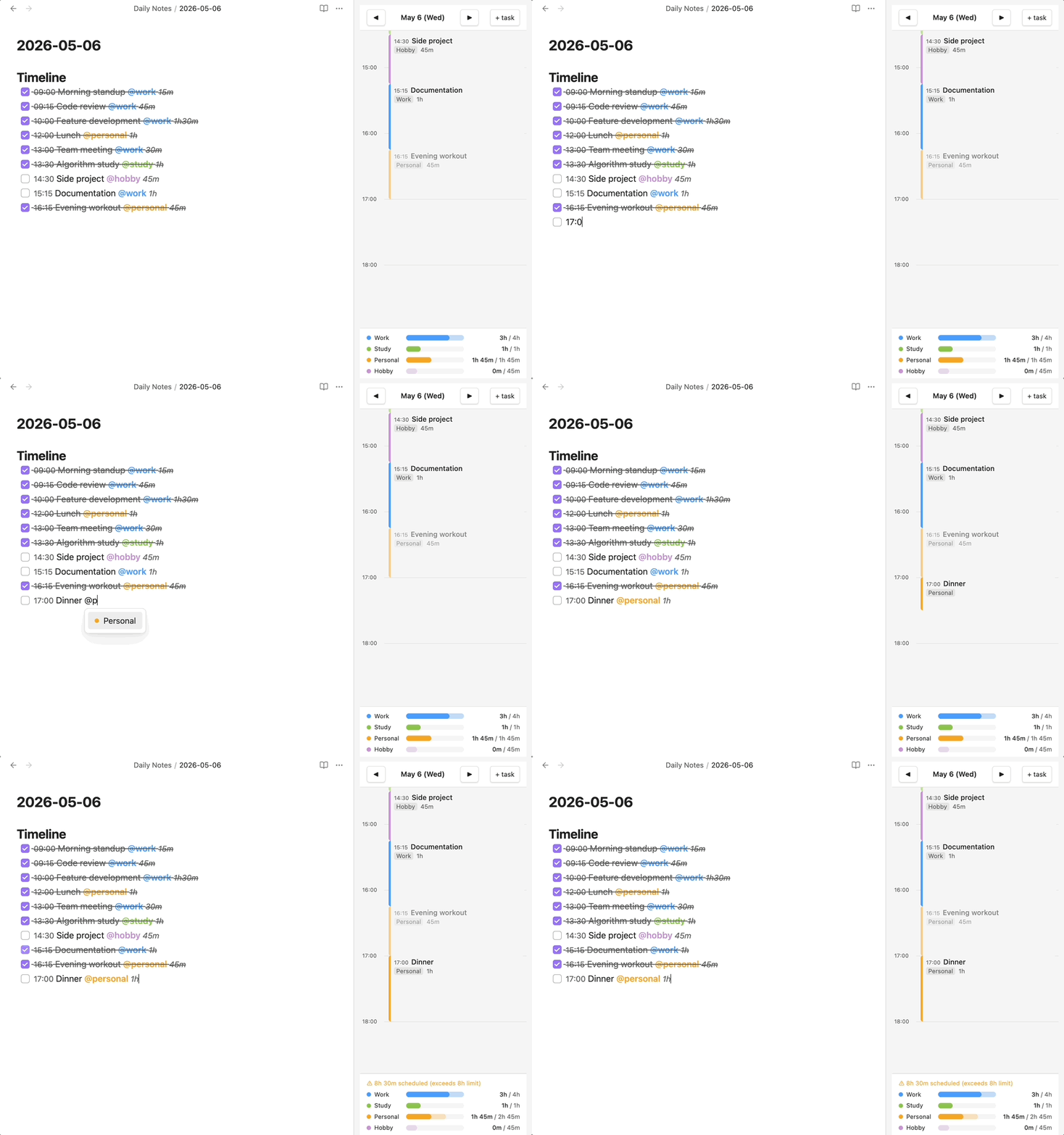
Visualize your Daily Note tasks as a timeline and track time spent by category — all inside Obsidian's sidebar.
Installation
- Open Settings → Community plugins → Browse
- Search for Time Manager and click Install
- Click Enable, then click the 🕐 clock icon in the ribbon
Quick start
Add a ## Timeline section to today's Daily Note and paste this:
## Timeline

- [ ] 09:00 Morning routine @personal 30m
- [ ] 09:30 Deep work @work 2h
- [ ] 12:00 Lunch @personal 1h
- [ ] 13:00 Meetings @work 1h30m
- [ ] 23:00 end
The timeline renders instantly on the right. Edit the note and it updates live.
How it works
Timeline view
Tasks appear as time blocks on a vertical axis. The red line shows the current time.
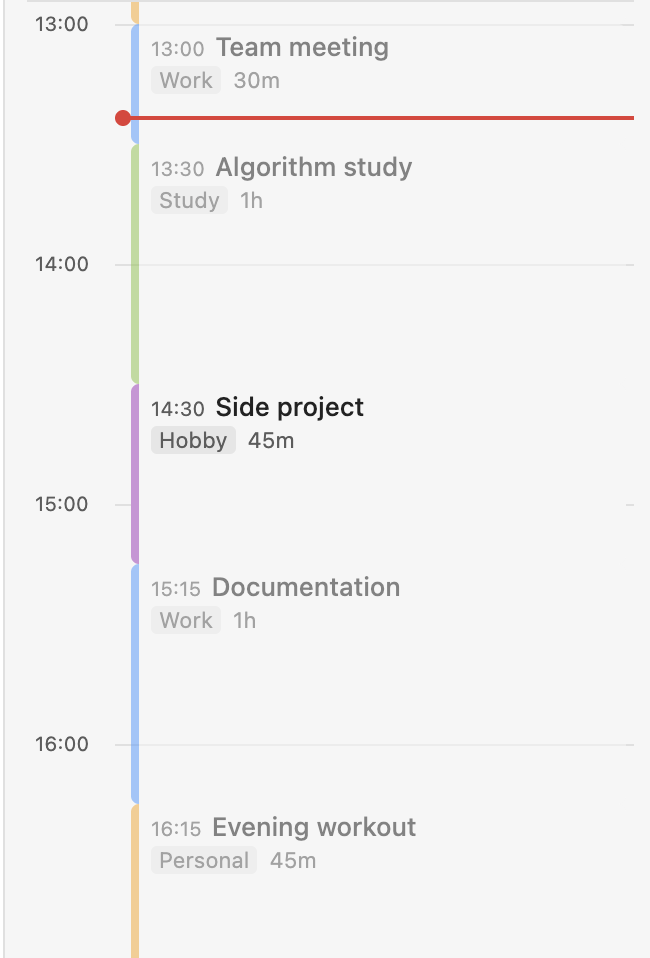
- Click ◀ / ▶ to navigate between days
- Click a Daily Note in the file explorer to jump to that date
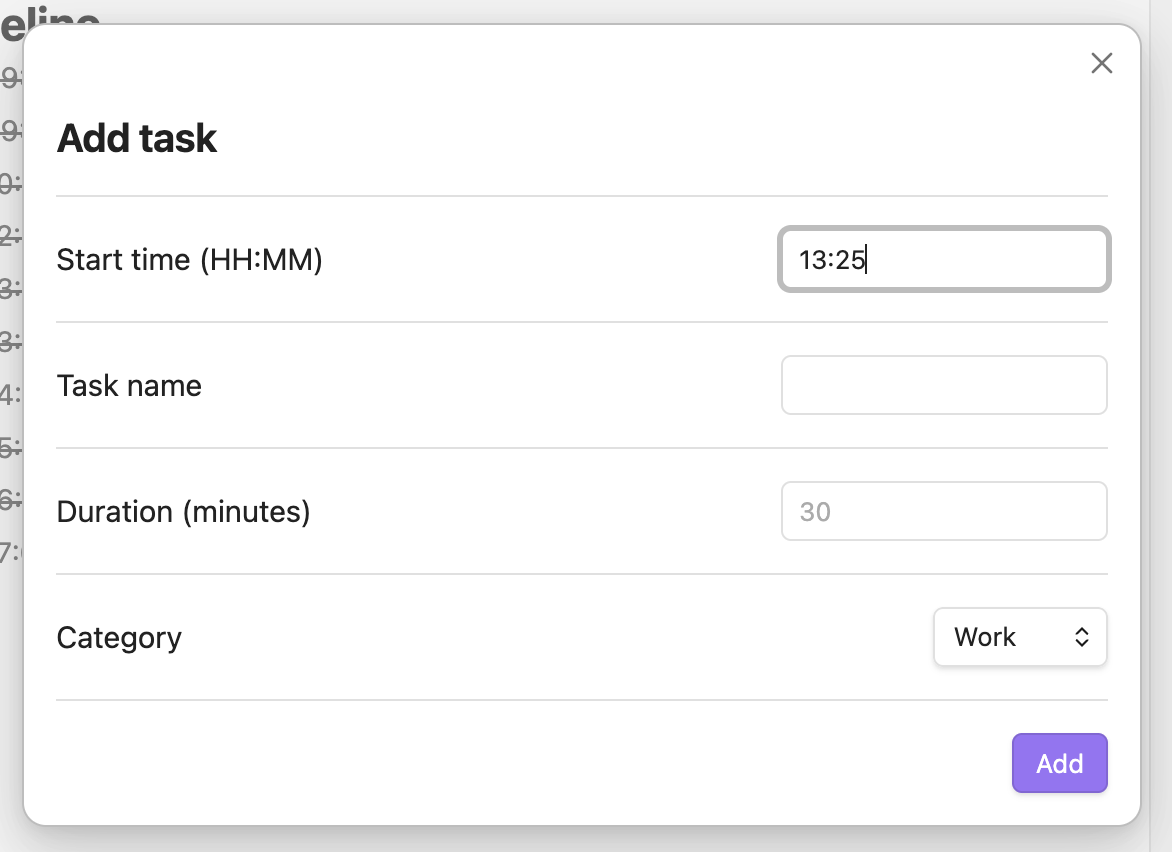
- Click + task to add a task via modal
Daily stats
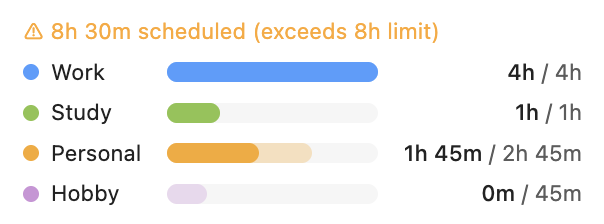
A bar chart at the bottom shows scheduled vs. completed time per category.
Editor highlights
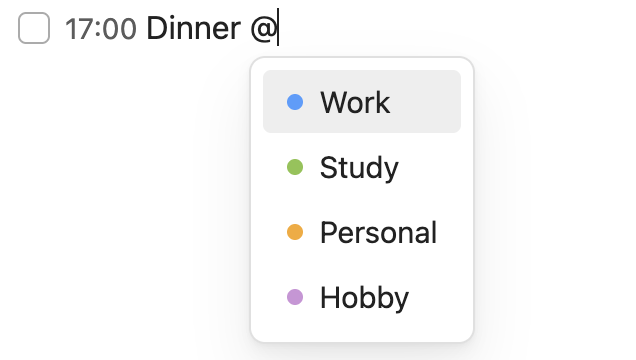
Category tags and durations are highlighted as you type. Type @ to get autocomplete.
Task format
- [ ] HH:MM Task name @category duration
| Field | Options | Example |
|---|---|---|
| Status | [ ] todo · [x] done | [x] |
| Time | HH:MM | 09:30 |
| Category | @work · @study · @personal · @hobby | @work |
| Duration | 30m · 1h · 1h30m | 1h30m |
Duration is required for the stats to be accurate. If omitted, the gap to the next task is used.
Settings
Settings → Time Manager
| Setting | Default | Description |
|---|---|---|
| Daily Note folder | Daily Notes | Folder where your Daily Notes live |
| Section heading | Timeline | The ## heading to parse as the timeline |
| Daily work hour limit | 8h | Overload warning threshold (4–16h) |
License
MIT License — © 2026 Najeong Kim
For plugin developers
Search results and similarity scores are powered by semantic analysis of your plugin's README. If your plugin isn't appearing for searches you'd expect, try updating your README to clearly describe your plugin's purpose, features, and use cases.