by The Plato
Sync your Tiro meeting notes into your vault, search them, and link to them.
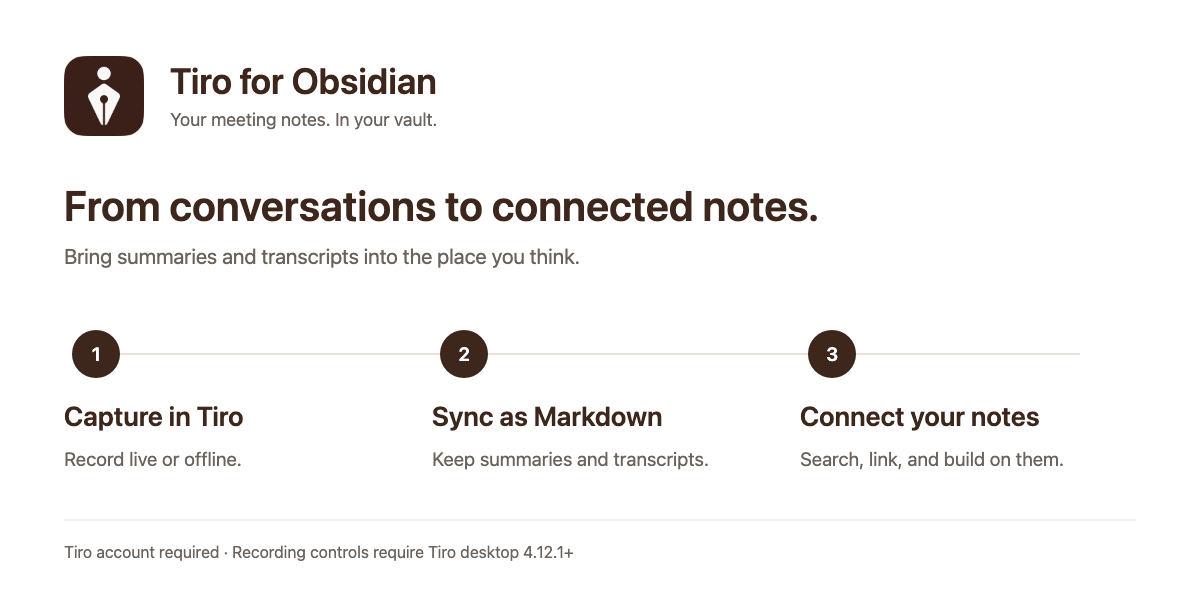
Meeting notes, ready for your vault
Bring your Tiro meeting summaries and transcripts into Obsidian as Markdown. Find a past conversation, save it beside your own notes, and keep writing around it.
What you can do
- Sync meeting notes. Save summaries and, optionally, transcripts into a folder you choose.
- Find and connect ideas. Search your Tiro notes from the side panel, open them in your vault, or insert a link into the note you are writing.
- Keep your own writing. Re-syncing updates the managed Tiro block. Text you add outside it stays in place, and synced notes can be renamed or moved.
- Request desktop recordings. Start live or offline recording in Tiro, then finish a live note to create its document or finish an offline recording to upload it.
The illustration above explains the workflow; it is not an app screenshot.
Get started
- Install Tiro from Community plugins and enable it.
- Open its settings and choose Sign in on desktop. On mobile, enter a Tiro API key instead.
- Choose a sync folder (default:
Tiro). Enable Include transcript if you want the full conversation as well as the summary. - Open the Tiro side panel and choose Sync now, or use Search notes to save a particular note.
Create an API key at Tiro API keys. On desktop, an API key can also be used instead of signing in. The interface follows Obsidian's language and supports English, Korean, and Japanese.
Before you use it
A Tiro account and internet connection are required. Available features and usage limits depend on your Tiro plan. The plugin is free; Tiro service plans are separate.
Search and sync work on desktop and mobile. Recording controls require the Tiro desktop app 4.12.1 or later, installed and signed in. They send a request to that app; check Tiro to confirm recording, document creation, or upload. The desktop app's account may differ from the plugin's account.
Privacy and credentials
- The plugin reads notes from Tiro. It does not upload your vault contents and includes no telemetry.
- Sign-in uses
https://api.tiro.ooo; note access useshttps://mcp.tiro.ooo. Desktop sign-in briefly opens a callback listener on127.0.0.1that is not reachable from other computers. - API keys and OAuth tokens stay in memory for the current plugin session. They are not written to
data.jsonor synced to other devices. Sign in or enter your key again after an app restart or plugin reload. - Upgrading removes credentials stored by older versions from the active settings file. Existing backups or version history are not erased.
How sync works
A sync checks your 100 most recent notes. Notes are matched by tiro_guid, so moving or renaming a synced file does not break the match. The plugin updates its managed block and owned metadata; writing outside that block is preserved. Unchanged notes are skipped. Selecting a note in Search notes refreshes that note. Transcripts are optional, and locked paragraphs are skipped.
More help
See the full reference for settings, commands, manual installation, managed-block format, and development. Report a problem or request a feature in GitHub Issues. Include your OS, Obsidian/plugin versions, and steps to reproduce; do not include credentials or private meeting content.
For plugin developers
Search results and similarity scores are powered by semantic analysis of your plugin's README. If your plugin isn't appearing for searches you'd expect, try updating your README to clearly describe your plugin's purpose, features, and use cases.