by msdp
Personal stream + AI co-pilot for Obsidian — jot, confirm suggestions, files stay yours.
Topmind Stream for Obsidian
English (default) | 简体中文
Repository: topmindspace/topmind-obsidian — community plugin home. Kernel engine is inlined at build time from topmindspace/topmind (
TOPMIND_SRC/ sibling../topmind/ CI.topmind-src).




Main-area Stream + Background AI Copilot for Obsidian
Capture thoughts instantly, let AI propose organized updates in the background, review & confirm before saving — your Markdown files always remain yours.
Release notes: CHANGELOG.md.
Screenshots
| Stream timeline | My Profile |
|---|---|
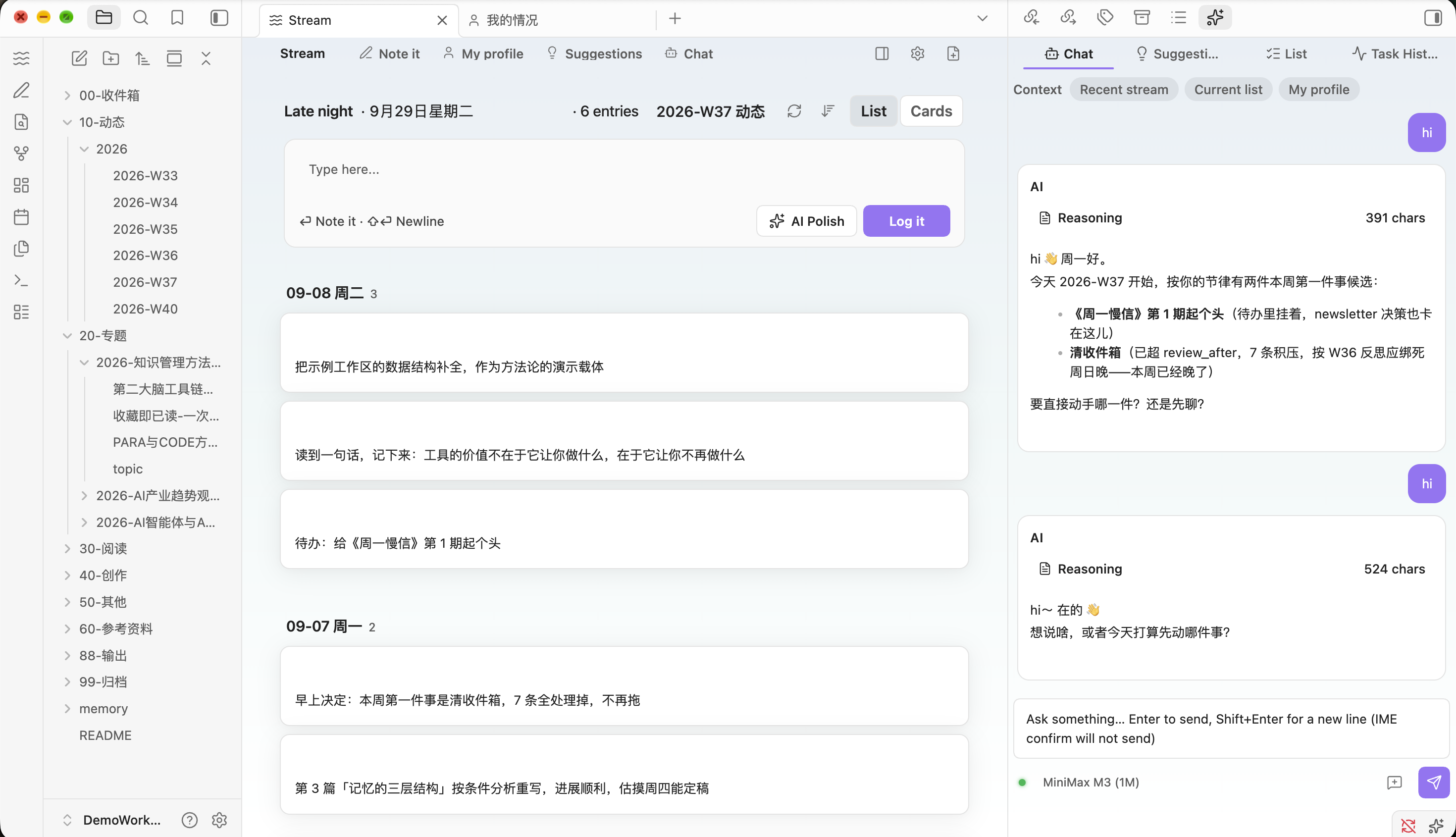 | 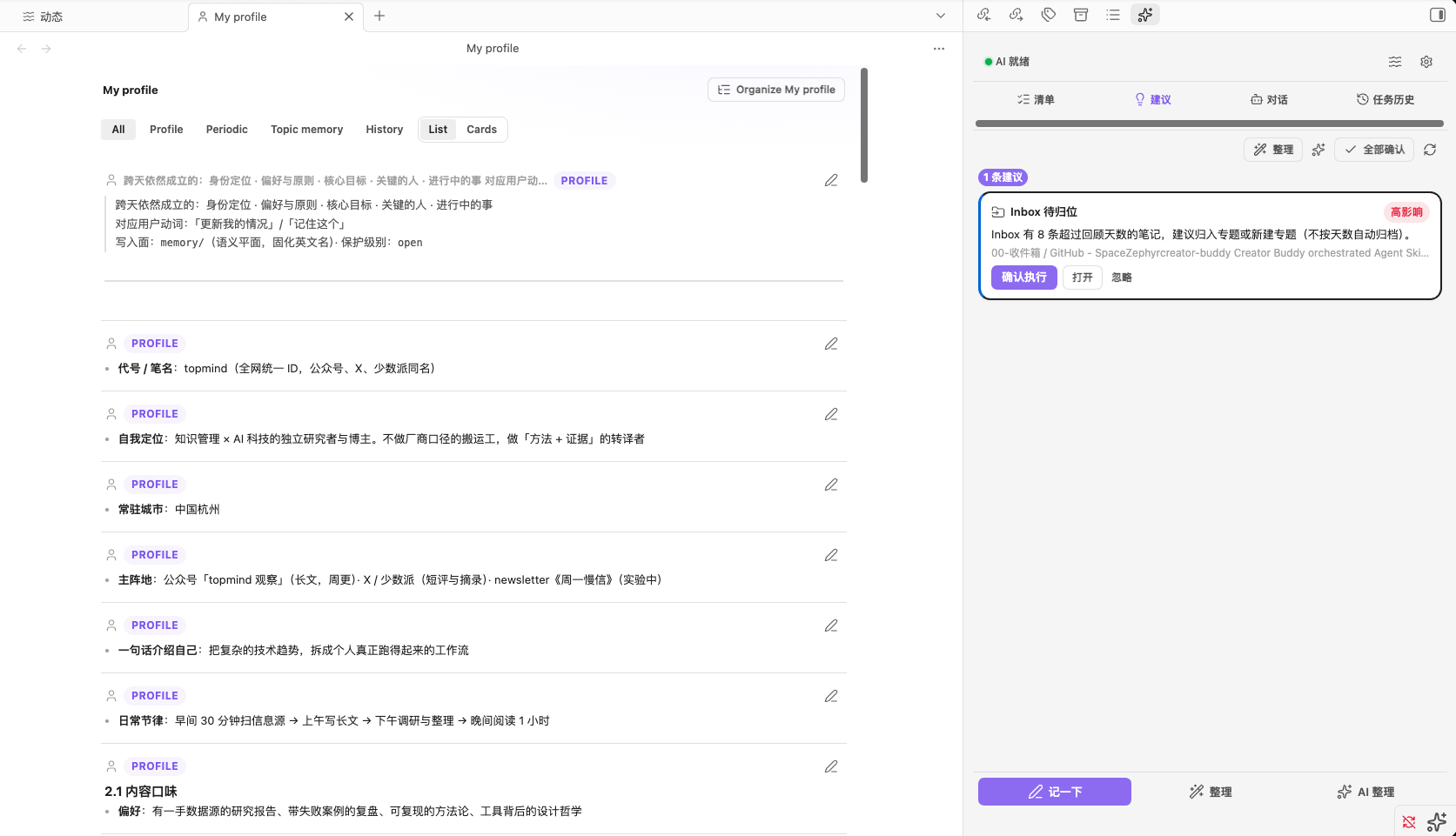 |
| AI Suggestions | Todos |
|---|---|
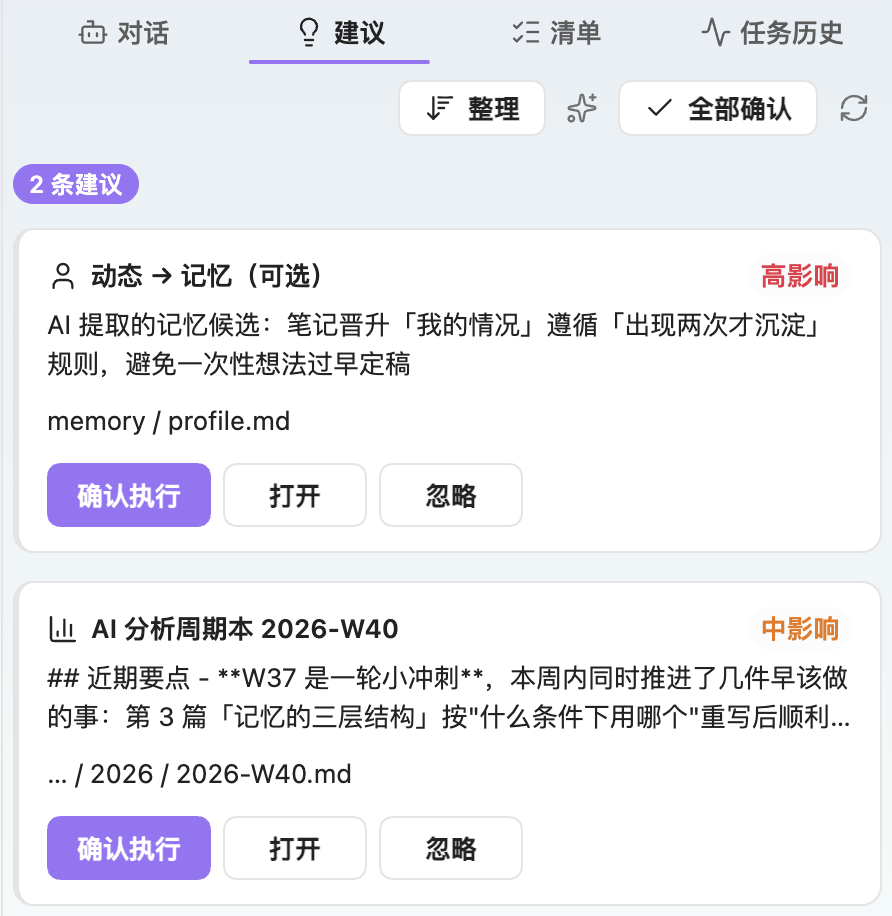 | 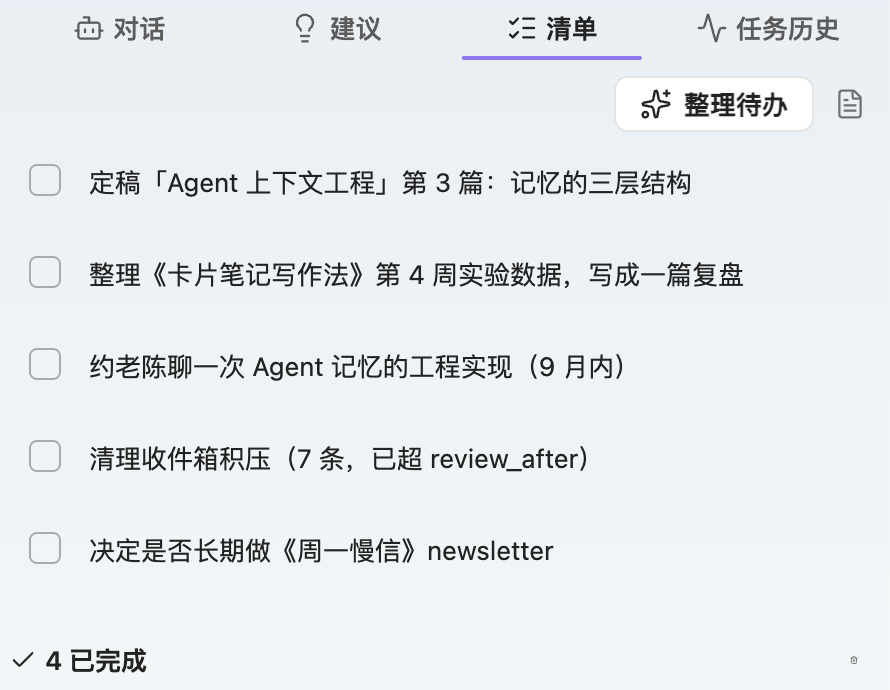 |
| AI settings | Chinese UI |
|---|---|
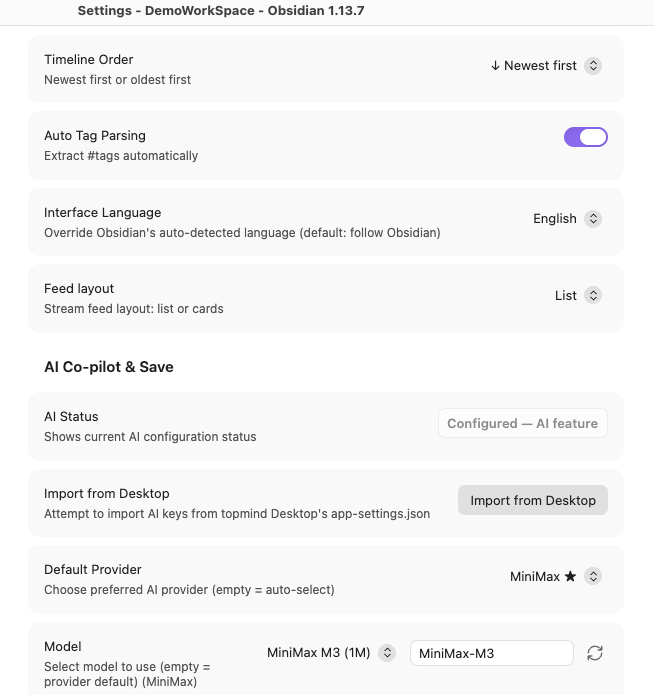 | 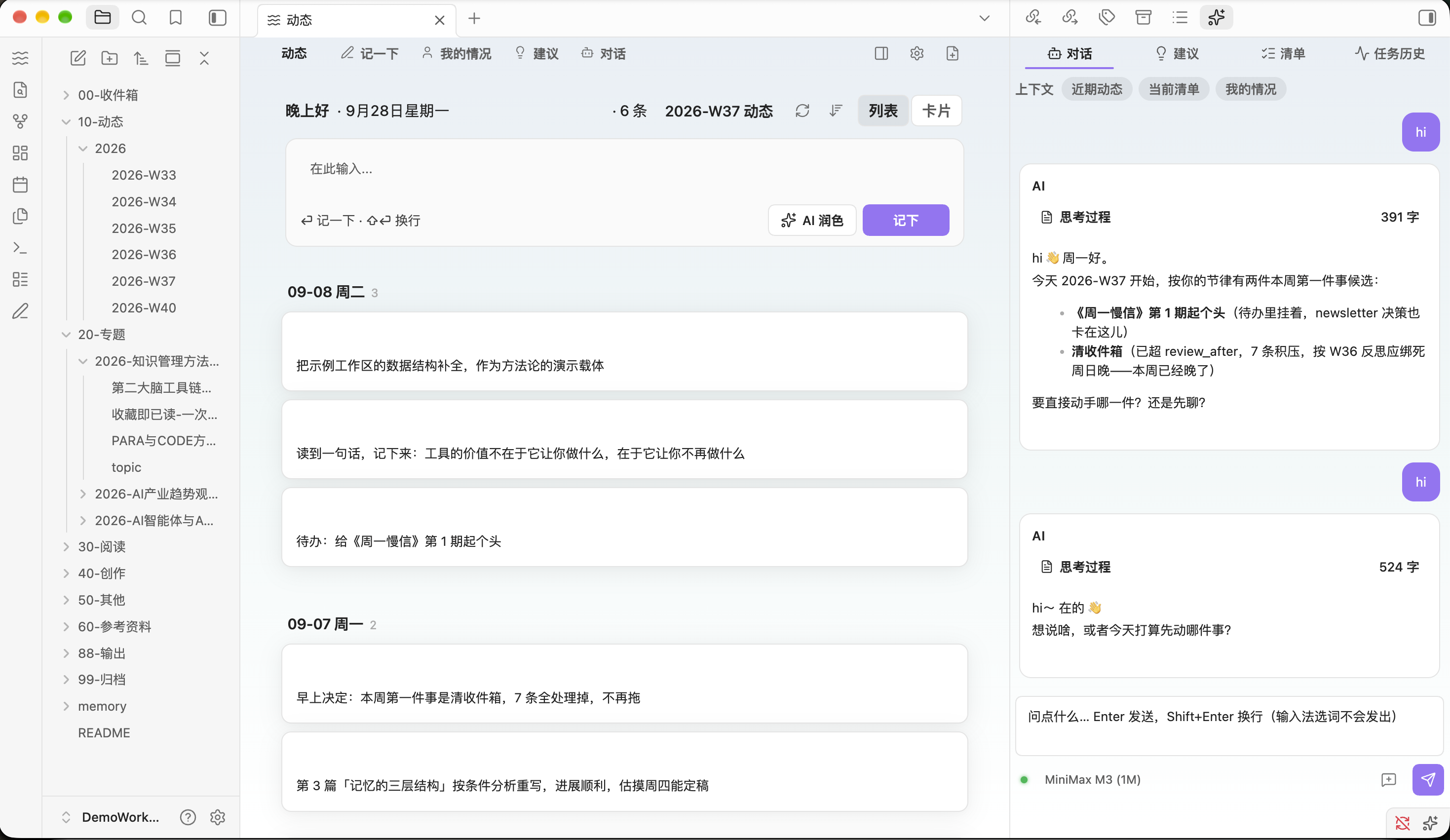 |
More: profile (Chinese).
What is Topmind Stream?
Topmind Stream brings the core low-friction Personal Stream Workflow of the Topmind engine directly into your Obsidian Vault.
Traditional note-taking often forces you to make frustrating upfront decisions about folders, tags, and structure before writing. Topmind Stream replaces that friction with a seamless capture-and-settle workflow:
收进来 -> 继续做 -> 交付/沉淀 -> 找回/调整
Capture Instantly  ->  AI Proposes in Background  ->  You Review & Confirm  ->  Markdown Files Stay Yours
- Zero Friction Capture: Jot down ideas, links, or quick snippets without worrying about placement.
- Local-First & Standard Markdown: No custom databases or proprietary locking. Everything is stored as plain Markdown in your Vault (
topmind.yaml+ folder categories). - Proactive Yet Unobtrusive AI: AI extracts action items, suggests topic emergence, and organizes memory, but never mutates your vault without your confirmation.
Key Features
- Note it: Open the capture modal (bind a hotkey in Obsidian Settings → Hotkeys). Destinations: this week's stream or Inbox.
- Stream view: A tab in the Obsidian main area with a compose box (Log it into the period note), a timeline of cards, and AI suggestions.
- AI Copilot Panel (Sidebar): A tabbed right sidebar unifying all AI capabilities — Chat, Suggestions, Todos, and History (Chat is the agent spine, default tab). Model switching lives only in Chat and Settings. Suggestions tab shows a count badge.
- AI Chat: Converse with AI about your notes, todos, and stream entries. Context-aware (recent stream, todos, profile). Goal protocol (plan + acceptance criteria + task ledger) · Pause (Esc) mid-turn (finished edits + goal ledger kept; Resume / Abandon), expandable reasoning, clickable path receipts, an honest Verified / Assumed / Could not result footer, and a Task incomplete close (never fake success). IME-safe Enter, and Desktop-parity session compact (60 messages / 24 recent kept full).
- Weekly Reconciliation: Reconcile your weekly logs, extract pending action items, and refresh suggestions with one click.
- Background AI Copilot: Extract todos (
memory/todo.md), suggest emergent topics, and maintainmemory/profile.md. Profile writes fuse near-duplicates (keep the newest wording — never a second live copy) and can compact history — confirm-gated via Suggestions. - Quick Settings Access: One-click access to plugin settings from both the sidebar header and the workbench toolbar. Toolbar buttons are icon-only (
titletooltips); sidebar header is icon-first. Refresh and Organize use distinct icons. Model switching lives only in Chat and Settings — no model badge on toolbar/sidebar chrome. - Writeback Protection: Every AI modification goes through the Kernel
writeback-engine(open/locked). Backups and receipts are high-impact only (locked overwrite; delete/archive of locked/core notes). Ordinary open updates do not create Archive copies.
User Core Concepts (≤ 5)
Topmind Stream reduces mental overhead by focusing on 5 plain-language concepts:
| Concept | Meaning | Vault Location |
|---|---|---|
| Capture (记一下) | Save a quick thought / snippet | Weekly Stream Log / 00-Inbox/ |
| Stream (动态) | Daily activity & timeline | 10-动态/ (weekly file per log) |
| Topic (专题) | Long-term subject folder | {Category}/{YYYY-Topic}/ |
| My Profile (我的情况) | Memory-plane browse (profile / periodic / topic memory) | Files under memory/ (default portrait memory/profile.md) |
| Delivery (交付) | Final delivery items & published work | 88-交付/ |
Quick Start
1. Installation
Option A: Obsidian Community Plugins (Recommended once listed)
- Open Obsidian Settings -> Community plugins.
- Turn off Safe Mode and click Browse.
- Search for Topmind Stream.
- Click Install and then Enable.
Option B: Obsidian BRAT (Beta Builds)
- Install the Obsidian BRAT plugin.
- Go to BRAT Settings -> Add Plugin.
- Enter repository:
topmindspace/topmind-obsidian - Enable Topmind Stream.
Option C: Manual Installation
- Download
main.js,manifest.json, andstyles.cssfrom Releases. Those are the only files on the Release. - Put them in
<your-vault>/.obsidian/plugins/topmind-stream/. - Reload Obsidian, navigate to Settings -> Community plugins, and enable Topmind Stream.
Upgrade
| Method | How |
|---|---|
| Community / BRAT | Update from the plugin list / BRAT "Check for updates" |
| Manual | Replace main.js, manifest.json, and styles.css under plugins/topmind-stream/, then reload Obsidian |
| From source | npm run pack writes a local zip (it is not uploaded to the GitHub Release). Unzip it into plugins/topmind-stream/ |
Your vault files (topmind.yaml, 10-动态/, memory/) are not replaced by the plugin upgrade. Version truth: manifest.json .
2. Workspace Initialization
When first enabled, Topmind Stream checks if your vault already contains a Topmind workspace structure (topmind.yaml and standard numbered folders).
- Existing Workspace: Automatically detected; no setup needed.
- New Vault: Go to Settings -> Topmind Stream, select a template (
stream,balanced,research, orperiodic), and click Initialize Workspace.
3. Configure AI Copilot (Optional)
Navigate to Settings -> Topmind Stream -> AI provider and model (writeback policy is the next group, AI Co-pilot & Save):
- Shown before any key is saved: On a fresh enable (no saved keys, empty provider preference) the settings page still shows an AI provider chooser, a model chooser (preset / default plus a custom model id), and a credential field. A normal provider asks for an API key, Ollama asks for a base URL, and Custom asks for a base URL plus an API key. The choice is what the plugin treats as configured, and it is still there after you reopen settings.
- Upgrades keep the saved setup: A legacy single-provider install or an existing multi-provider key set loads into the same controls with the saved provider, model, and key.
- Model: dropdown + custom model ID + refresh. Official
list-modelswhen keyed, then the models.dev community catalog via ObsidianrequestUrl, then curated defaults. The model control is on screen even when no provider has been configured yet. - Import from Desktop: Click the button and choose an export file. Only that file is read. The plugin does not scan your home directory. Encrypted exports are refused — export a plaintext file from Desktop first.
- Choose Writeback Mode:
confirm(Ask before saving — Recommended): Preview changes in the Suggestion Popover before writing.auto(Auto Save): Automatically apply AI suggestions with automatic background backups.
Note: AI is completely optional! Quick capture, timeline browsing, and manual weekly reconciliation work seamlessly without an API key.
4. Daily Usage
- Command palette -> Topmind: Note it (bind a hotkey in Obsidian Settings -> Hotkeys).
Cmd/Ctrl + P-> Topmind: Open Stream to open the timeline tab.- Left ribbon (Activity Bar): Pencil opens Note it; Waves opens the Stream workbench.
Product vocabulary (aligned with Desktop): Note it / 记一下 · Log it / 记下 · stream · topic · My profile · delivery.
Command Palette Reference
| Command Name | Description |
|---|---|
Topmind: Note it | Capture a note or snippet (default: this week's stream) |
Topmind: Open Stream | Open the Stream timeline tab |
Topmind: Open Sidebar | Open the sidebar dock widget |
Topmind: Organize This Week | Reconcile weekly log & refresh suggestions |
Topmind: Refresh AI Suggestions | Regenerate AI suggestion cards |
Topmind: AI Maintain Todos | Run AI todo extraction on recent activities |
Topmind: Classify Topics | Run AI topic classification |
Topmind: Organize My Profile | Run AI organization of My profile (profile + periodic) |
Topmind: Open My Profile | Open the memory-plane browse (rows still open vault files) |
Topmind: Open Inbox | Open the inbox category directory |
Architecture & Ecosystem
Topmind Stream is an optional surface of the Topmind Monorepo Ecosystem. It shares the exact same core Kernel engine and directory contract with Topmind Desktop, UTR CLI, and Portable AI Skills.
Obsidian Surface (TypeScript + esbuild)
  ├── ItemView & Sidebar Widgets
  ├── Settings Tab (PluginSettingTab)
  └── Vault Bridge & AI Provider Layer
        │
        ▼
Kernel engine (bundled lib/*.mjs)
  contract · workspace-model · stream · memory
  writeback · lifecycle · derived · ingest
  + todo / ai-operation / suggest / activity-window
        │
        ▼
Obsidian Vault (Plain Filesystem = Single Source of Truth)
  topmind.yaml + {NN-Category}/ + memory/ + .topmind/
Comparison: Desktop App vs. Obsidian Plugin
| Feature / Aspect | Topmind Desktop | Topmind Obsidian Plugin |
|---|---|---|
| Primary Focus | Standalone rich desktop app | Native embedded view inside Obsidian |
| Editor Type | Tiptap rich text & WYSIWYG | Obsidian native Markdown editor |
| AI Runtime | Vercel AI SDK v7 | Obsidian requestUrl (OpenAI / Anthropic / Gemini compat) |
| Shared Engine | Kernel lib/ (shared engines) | Kernel lib/ (bundled at build) |
| Data Format | Standard Markdown | Standard Markdown (Same Vault) |
You can open the exact same Vault in both Topmind Desktop and Obsidian simultaneously without conflicts.
Security, Privacy & Data Safety
- Local-First Storage: All notes and metadata reside in standard Markdown files on your disk.
- Zero Telemetry: Topmind does not track, collect, or send your usage data to external servers.
- API Key Security: Keys live in the plugin's local
data.json. A vault backup (.topmind/ai-keys-backup.json, plaintext) is written only if you opt in under Settings → Security. Avoid shared vaults when keys are configured. - Writeback Protection: All AI-driven file changes pass through
writeback-engine(open/locked). Backups/receipts only for locked overwrite and locked/core delete-archive — not every write.
Community scorecard disclosures (intentional)
These capabilities are required by the product and scoped as tightly as we can:
| Capability | Why | Scope |
|---|---|---|
Node fs outside the vault API | Desktop-only plugin: Kernel workspace I/O, backups/receipts; import reads only the file you choose | Every write path resolves through resolveInsideVault() (throws on ../ escape); scope = vault workspace root or the plugin directory; no home-directory scan; isDesktopOnly: true |
| Clipboard write | Copy button on chat answers / stream cards | writeText only, on explicit user click — no clipboard read, no background access |
| Network (AI providers) | Chat / suggestions / model list | requestUrl only (CSP-safe); provider endpoints you configure; no analytics |
| Base64 encode/decode | Kernel payload plumbing | Local runtime only |
styles.css has no !important (leaf layout is held by selector specificity). main.js is a lockfile-vendored reproducible build: npm run build with TOPMIND_SRC unset bundles the committed lib/ and two consecutive builds are byte-identical. Release assets ship with GitHub artifact attestations.
Development & Building
# Install dependencies
npm install

# Start esbuild watch mode
npm run dev

# Production build
npm run build

# Run TypeScript type check
npm run typecheck

# Run unit tests
npm test

# Verify package integrity
npm run pack:verify

# Create release ZIP package
npm run pack
Requirements
- Obsidian Version: Desktop ≥
v1.13.0(Mobile currently unsupported; desktop-first design). - Node.js: ≥
v20.11(for building from source).
License
For plugin developers
Search results and similarity scores are powered by semantic analysis of your plugin's README. If your plugin isn't appearing for searches you'd expect, try updating your README to clearly describe your plugin's purpose, features, and use cases.