
A futures trading journal for Obsidian.
What you can do · Installation · Getting started · What's next
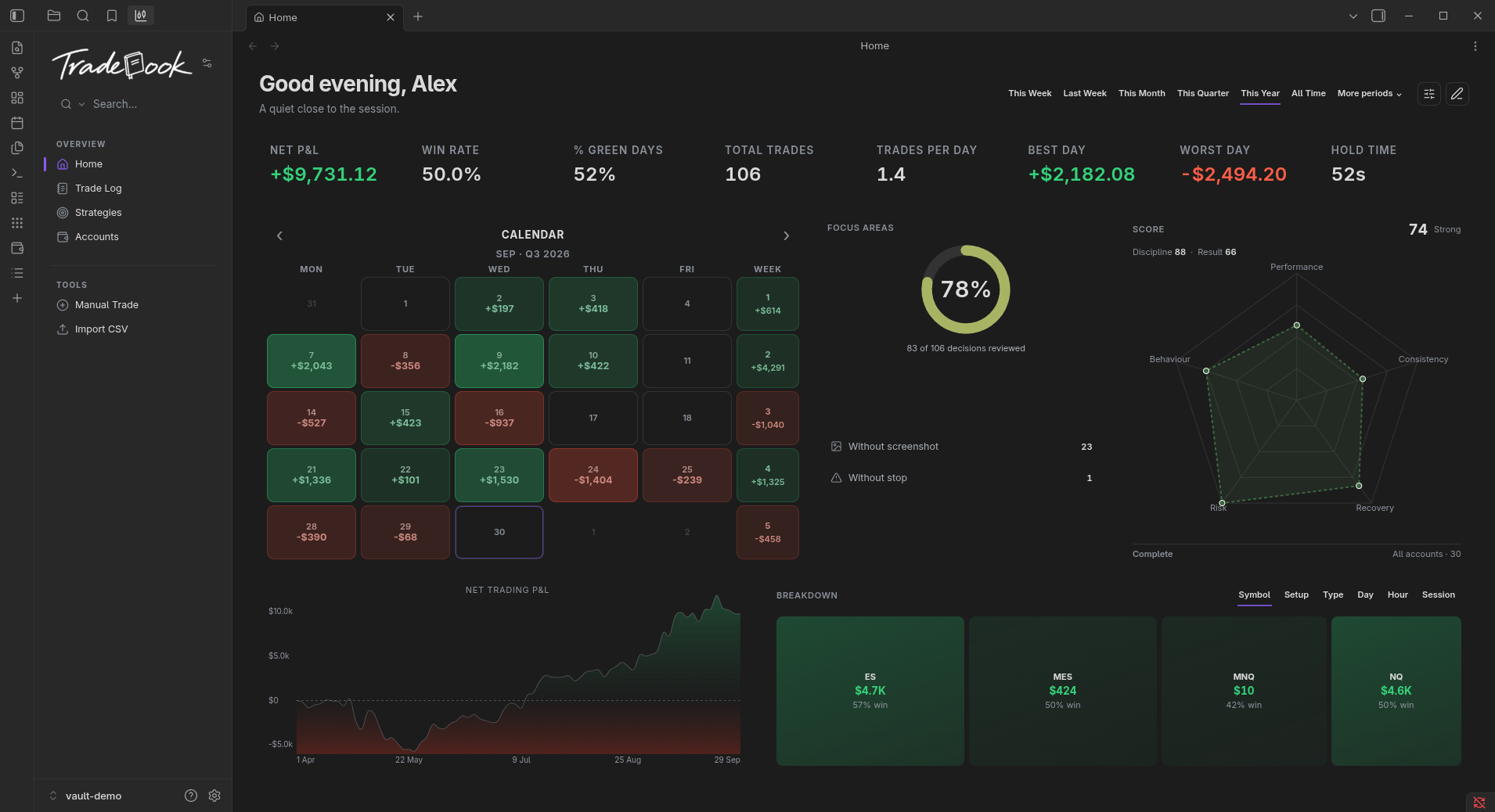
I'm building Tradebook to keep trades, screenshots and reviews together in Obsidian. You can bring in your trades, add the context behind them and come back later to understand what happened.
If you're new to Obsidian, a vault is simply the folder where it keeps your notes. Tradebook saves trade records as Markdown files in that folder, with screenshots as image attachments. The plugin gives you an interface for working with those files.
What you can do
- Import supported trade exports, check the preview and bring the same file in again without creating duplicate trades.
- Add a trade manually, including several actual partial exits with their own quantities, prices and times.
- Capture chart screenshots in Print Queue, keep them together in a group and attach them when the trade record exists.
- Browse and filter your Trade Log, search your strategies and review notes, and keep track of which reviews are finished.
- Manage evaluation, funded and demo accounts, including their firms, rules and limits. Deposits, payouts and account corrections stay separate from trading results.
- Use Home to explore your recorded results: period filters, Net Trading P&L, an equity curve, a performance calendar and breakdowns by strategy, session, symbol and day. It also includes a Trading Score.
- Model copy trades with a leader, followers, a ratio and a start date, then match a follower's actual fills against the generated records.
The sections below explain the parts that need a little more care, especially imports, reviews and costs.
Installation
You'll need Obsidian 1.7.2 or newer. If you haven't used Obsidian before, download it from obsidian.md and open a vault. You can start with a new, empty folder.
- Open Settings in Obsidian.
- Go to Community plugins → Browse.
- Search for Tradebook.
- Select Install, then Enable.
Tradebook opens in the left sidebar. From there you can visit Home, Accounts and Trade Log, or add and import trades. Print Queue has its own ribbon shortcut and opens in the right sidebar.
Updating
For the normal Community plugin installation, go to Settings → Community plugins → Check for updates in Obsidian.
For a manual installation, replace only main.js, manifest.json and styles.css in the plugin folder. Keep your existing data.json; it holds your settings and account configuration.
Getting started
There's a short walkthrough video here: Tradebook walkthrough 👉 https://www.youtube.com/watch?v=4stW4AuxoLQ&t=274s
1. Add an account
Open Accounts, then Add account. Choose the account type, firm, rules and limits that apply to it.
You can keep evaluation, funded and demo accounts separate. Account deposits, payouts and corrections are also separate from the P&L of your trades.
2. Bring in your trades
Open Import CSV, choose a supported export and check the preview before importing.
Tradebook currently supports:
- Tradovate Orders and Fills, with Cash History when you have it available for matching recorded costs.
- The TradeSea orders export, one checked export per import batch. Its P&L is before costs: the importer does not apply the file's per-order commission.
You can reimport a supported file without creating duplicate trades. Not every file or timestamp format is supported, so check Known limitations if an export is refused.
For trades you want to enter yourself, choose Manual Trade. If you closed a position in several steps, record each actual exit with its quantity, price and time. Tradebook calculates the weighted totals from those fills. On imported trades, the execution totals come from the imported records rather than a separate summary you can overwrite.
3. Keep your chart context
Use Print Queue to collect screenshots in a group while you're working. Once the trade exists, open it in Trade Detail and attach the group there.
This lets you capture the context first without needing the final trade record to be ready at the same moment.
4. Review the trade
Open a trade from the Trade Log to add your review. The automatic review checklist looks for:
- One selected strategy.
- A rating from 1 to 5.
- Psychology tags, or an explicit acknowledgement that none apply.
- Execution or mistake tags, or an explicit acknowledgement that none apply.
- Your answer to What happened.
- Your answer to Repeat or change.
When that checklist is complete, Tradebook can mark the review finished automatically. You can also mark a trade reviewed yourself or explicitly reopen its review. That manual choice stays separate from the checklist; a review you explicitly reopen is not silently marked finished again.
Older trades with several strategy assignments keep them visible until you choose one. They are not silently reduced to a single strategy for you.
The execution labels are automatic too. TP means a profitable close, SL a losing close and BE a flat close, all before costs. They describe the result of the execution, not why you placed the order. A flat close can still have a cost after fees.
5. Look back at your results
Use Home to review a period and explore the trades behind the figures. You can look at the overall results or narrow them down by strategy, session, symbol or day.
A note about costs and copied trades
Some exports don't provide enough information to assign costs to every individual fill. Tradebook keeps the recorded trade totals separate from an unknown split instead of inventing an allocation. Missing cost information should not be read as confirmation that the broker charged nothing.
Correct fees on an account is a balance-reconciliation tool. It does not rewrite the broker-recorded costs of your trades.
Generated copy trades are models, not a substitute for the follower's actual executions. You can match the actual follower fills against those generated records. The limitations page explains how copied trades, missing data and reported costs are handled.
Your files and backups
Your trade notes and image attachments are stored in your vault. They remain there if you disable or uninstall Tradebook. Obsidian handles Community plugin update checks separately.
Settings and account configuration live in the plugin's data.json. Disabling the plugin keeps that file. Uninstalling removes the plugin folder, including data.json, so export a settings backup before uninstalling.
You can do that in Settings → Tradebook → Advanced → Export. Use Import backup in the same section to restore those settings. Keep a separate backup of your vault for the trade notes and screenshots; the settings backup does not replace it.
Limits and help
Only the export formats listed above are currently supported. Mobile loading is enabled, but phone and tablet layouts still need work. The recorded host checks for this update covered desktop, not a complete mobile test pass.
If Tradebook doesn't appear in the Community plugin list, check that Restricted mode is off and search again. If it won't load, check your Obsidian version and make sure the plugin is enabled. If the menu is missing, expand the left sidebar and select the Tradebook tab.
For a problem you can't resolve, open an issue with what happened and the steps to reproduce it. Please remove personal and account information from screenshots or sample files before sharing them.
What's next
My priority is making Tradebook reliable and comfortable to use every day. That includes navigation, light mode, help, general polish and better phone and tablet layouts. Further strategy-review tools are also planned, but I haven't set delivery dates or a fixed order.
The roadmap explains the direction. The changelog records the changes for each version.
License

MIT — see LICENSE.
Prop-firm and broker names and logos belong to their owners and are used to identify accounts. Their inclusion does not imply affiliation or endorsement.
For plugin developers
Search results and similarity scores are powered by semantic analysis of your plugin's README. If your plugin isn't appearing for searches you'd expect, try updating your README to clearly describe your plugin's purpose, features, and use cases.