by Gustavo
View and edit tasks and subtasks in Table and Kanban views using Markdown or JSON boards.
Trama - Tasks and Kanban Boards
Trama is an Obsidian plugin for managing tasks and subtasks in Table and Kanban views. Each board is a single Markdown or JSON file in your vault, and task descriptions open in Obsidian’s native Markdown editor.
Installation · Quick start · Working with a board · Board files · Development
Installation
Trama requires Obsidian 1.8.7 or later.
When Trama appears in the community directory, open Settings → Community plugins → Browse and search for Trama - Tasks and Kanban Boards. Select Install, then Enable.
To install from a GitHub release:
- Download the three release assets
main.js,manifest.json, andstyles.css. To build them locally instead, runnpm ciandnpm run buildwith Node.js 22.13 or later, then collect the files fromdist/. - Create
trama-tasks-boards-kanbaninside your vault’s.obsidian/plugins/directory. If your vault uses a custom configuration folder, use that folder in place of.obsidian. - Copy all three files into that plugin folder.
- In Obsidian, open Settings → Community plugins and enable Trama - Tasks and Kanban Boards. If Restricted Mode is on, turn it off first.
Quick start
- Open the command palette and search for Trama. Run Create board, enter a title, and choose Markdown (.md) or JSON (.json).
- Click New task to add your first task. Open it and use Add subtask to break the work down.
- Switch between Table and Kanban at the top of the board. Use New column in Kanban to add a status, or open Status to rename, reorder, or remove statuses and choose which ones count as completed.
Click a board file to open it directly, or use the Trama icon in the left ribbon to search for boards. You can access the Markdown document with Open original Markdown and the JSON file with Open source.
To try populated boards, copy the entire examples folder into your vault so the sample notes and image stay beside the board files. The Markdown and JSON examples can coexist in the same vault. Examples folder · Markdown board · JSON board
Working with a board
Table and Kanban
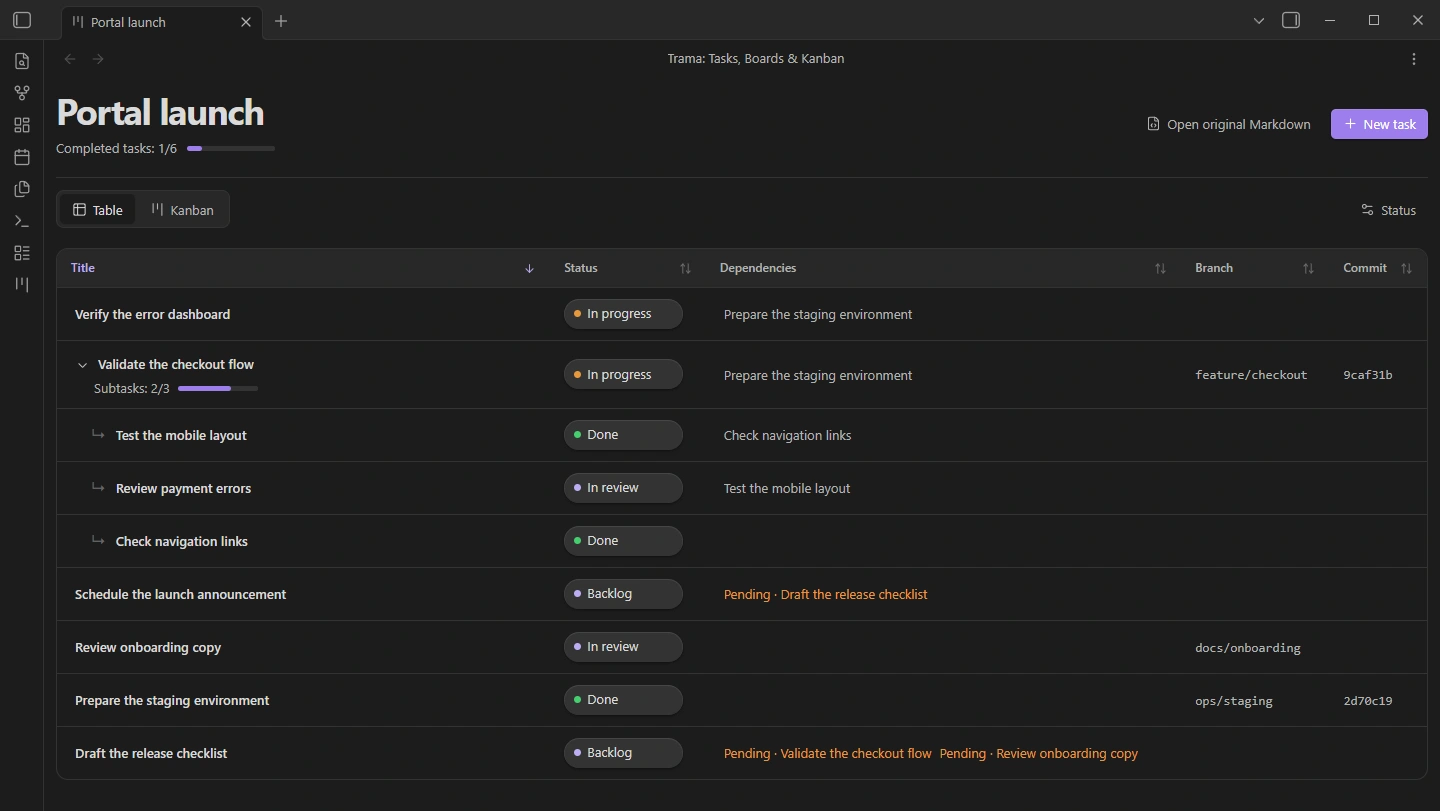
In Table, click a column header to cycle through ascending order, descending order, and the order stored in the board. Expand a task to see its subtasks. The progress bar shows how many of its subtasks are in a completed status.
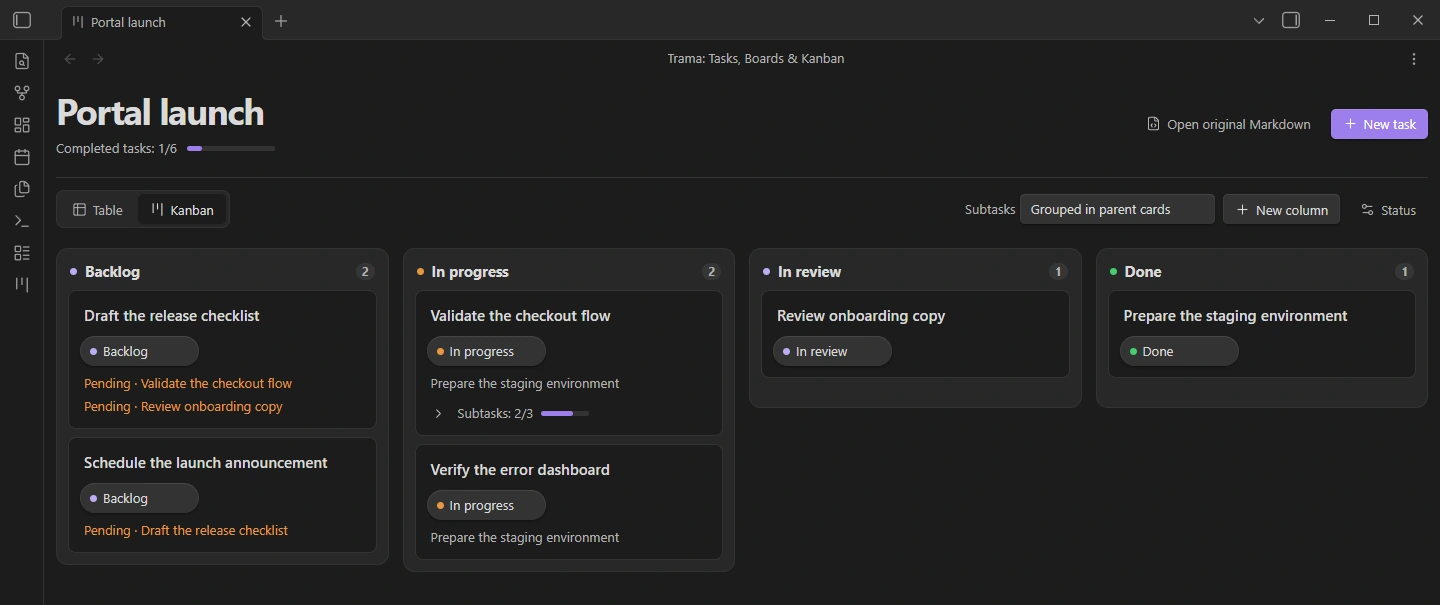
In Kanban, drag a card by its heading to move it to another status. Subtasks can stay grouped beneath their parent or appear in their own status columns.
Markdown descriptions
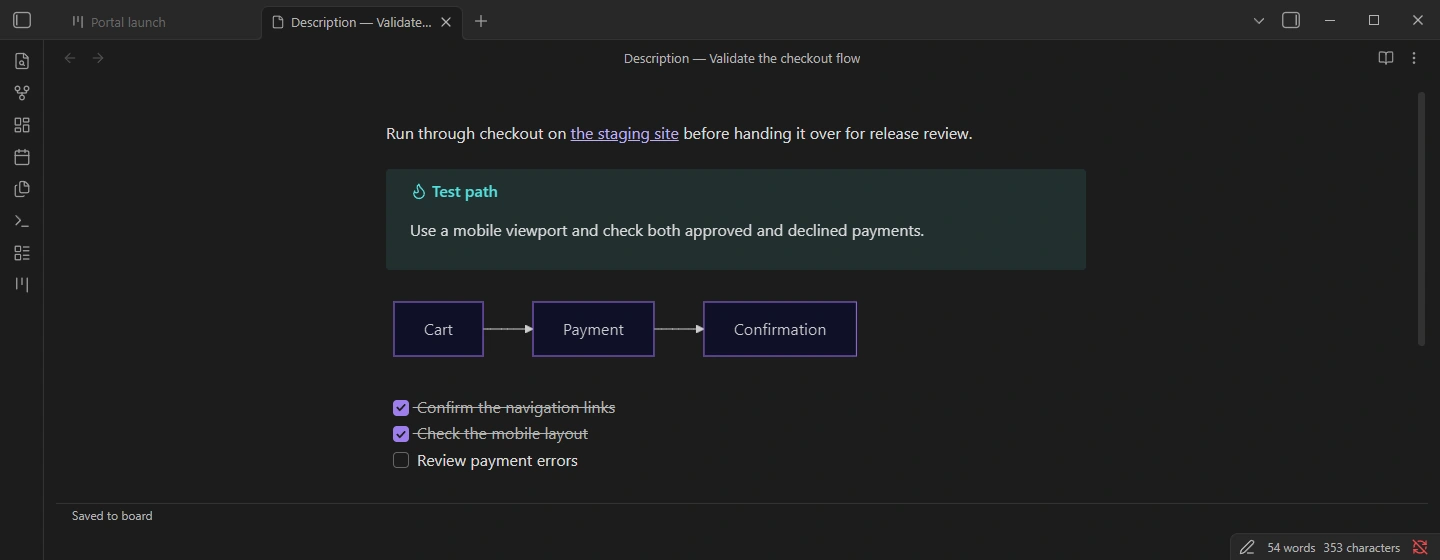
Open a task or subtask, then click Open description to edit it in an Obsidian tab. Use Live Preview, Source mode, or Reading view with Obsidian Markdown features such as wikilinks, image embeds, callouts, and Mermaid diagrams. Edits save automatically to the board file. Relative links and images resolve from the board’s folder.
Dependencies, Git, and archiving
- In Edit details, open Select dependencies to browse a searchable tree of tasks and subtasks. Search by title, parent task, or status. Use Selected only to review existing links. Arrow keys navigate and Space toggles the focused item.
- Record a Git branch and commit on any task or subtask. Use Back to parent task in a subtask’s details to jump back to its parent.
- Archive hides a task and its subtasks from the board while preserving the data and existing links. Copy link creates a link to an item in the vault. Delete removes the item, its subtasks if applicable, and dependency references to the deleted items.
Board files
Both formats use the same versioned board model. Markdown stores the board structure in YAML frontmatter and descriptions in the note body. JSON stores the entire board as structured data with descriptions as Markdown strings.
| Resource | Purpose |
|---|---|
| Board format specification | Field definitions, ID and dependency rules, and instructions for generating or editing boards with scripts or AI tools |
| JSON Schema | Machine-readable schema for the JSON format |
Data and network access
Trama reads and writes boards locally in your vault and has no telemetry. When Obsidian renders a description that references an external image or web embed, it may contact the host specified in that Markdown to display the content.
Board discovery uses Obsidian’s vault index to find boards in any folder. Trama checks Markdown metadata and reads candidate Markdown and JSON files locally. The board picker and task links use this lookup, including when a board has moved.
Copy link writes the selected task’s Obsidian link to the system clipboard when you click it. The link includes the vault name and the board and task IDs.
If you used a development build that stored descriptions in separate draft notes, review any remaining draft notes in your vault. You can copy edits from those notes into the matching task description.
Language
Trama follows the Obsidian display language and includes 51 language options. New boards get localized default statuses. Titles, descriptions, and custom status names are displayed as written in the board file. Translation catalogs
Development
Run these commands from the plugin directory.
| Command | Purpose |
|---|---|
npm ci | Install the locked dependencies |
npm run lint | Check the source, manifest, and license with the official Obsidian ESLint plugin |
npm run check | Type-check the plugin |
npm test | Verify board formats, editing rules, and translation coverage |
npm run build | Type-check and write the installable plugin files to dist/ |
For each version tag, GitHub Actions builds and attests the three release assets. Verify a downloaded asset with gh attestation verify main.js --repo LeGustaVinho/trama-obsidian.
License
Trama is distributed under the MIT License. The build includes the copyright and license notices for Ajv, fast-deep-equal, and YAML in main.js.
For plugin developers
Search results and similarity scores are powered by semantic analysis of your plugin's README. If your plugin isn't appearing for searches you'd expect, try updating your README to clearly describe your plugin's purpose, features, and use cases.