by xmisio72
Listen to notes like an audiobook: every heading is a chapter, and only chapters you edit are recorded again. Free natural voice that runs on your computer, or your own server or API key.
TTS Chapter Reader
Listen to your Obsidian notes like an audiobook. Every heading becomes a chapter you can jump to, and only the chapters you edit are recorded again.
It comes with a free natural voice that runs on your own computer: no account, no API key, and your notes never leave your machine.
Quick start
- Install TTS Chapter Reader from Settings → Community plugins and enable it.
- Open a note and click the Read note aloud icon in the left ribbon.
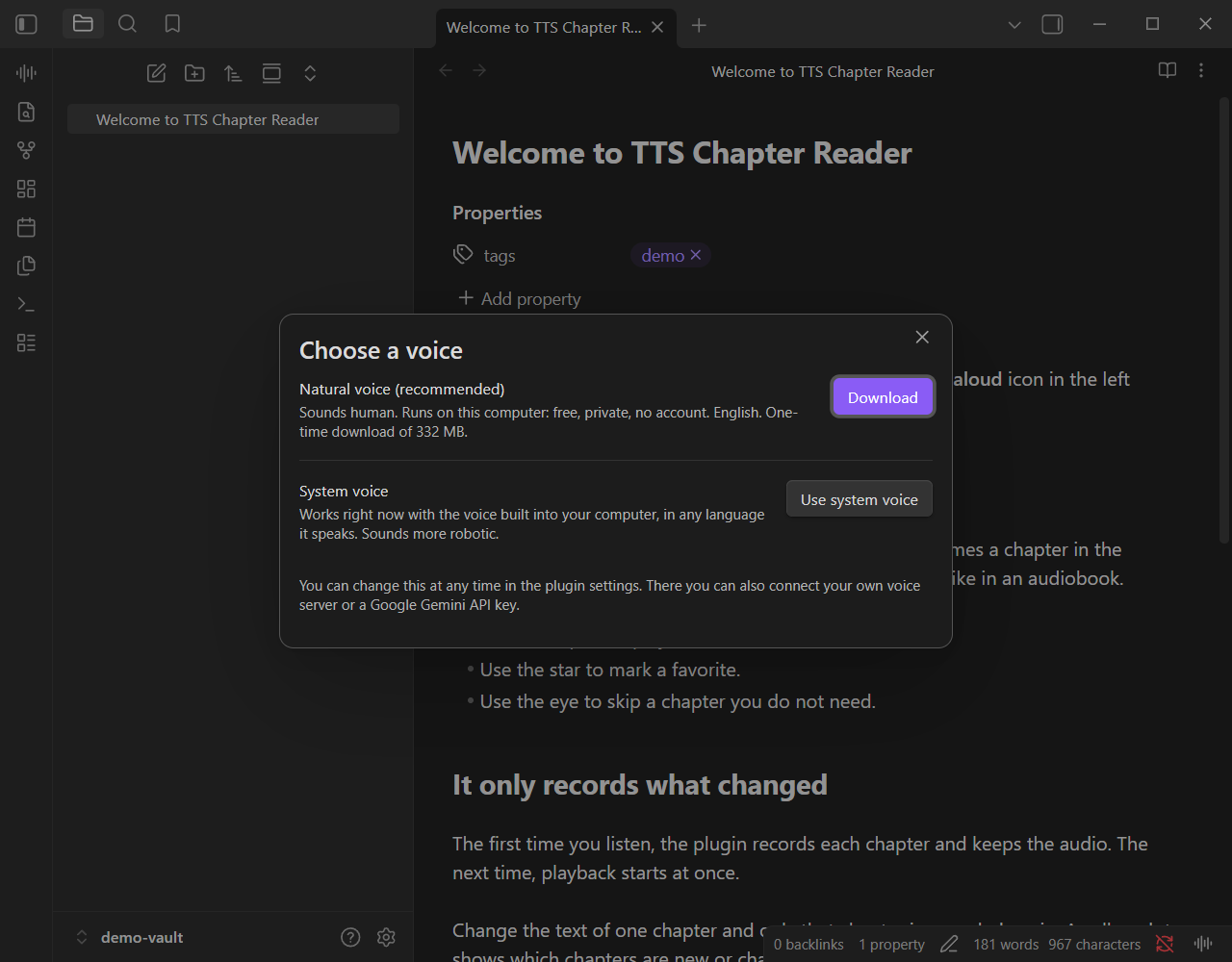
- The first time, choose a voice:
- Natural voice (recommended): sounds human, one-time download of about 330 MB, then works offline.
- System voice: works immediately with the voice built into your computer.
Reading starts by itself once the voice is ready.
What it does
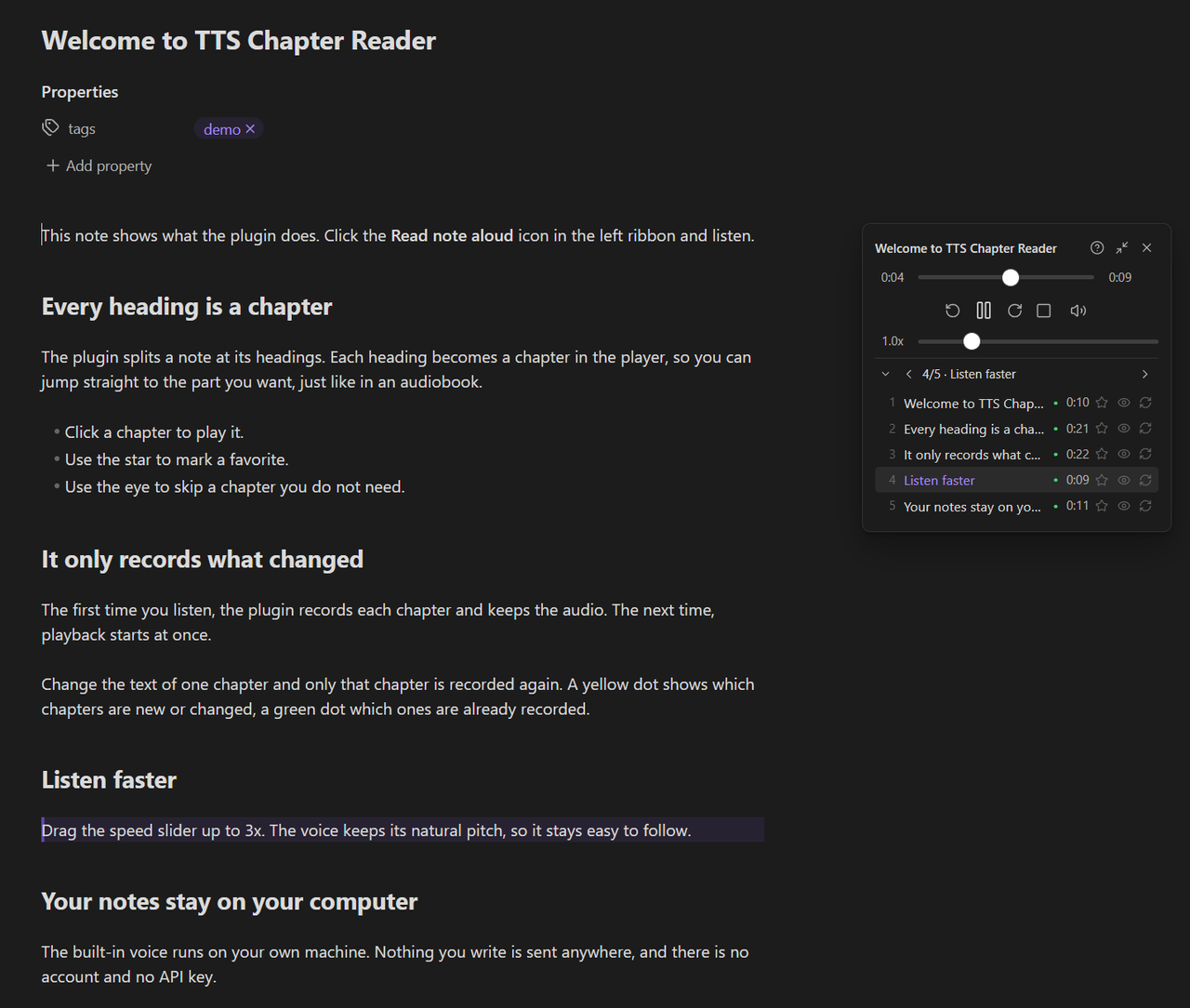
- Chapters from headings. The player lists every heading of the note. Click one to jump there. The chapter bar shows where you are ("3/51 · Detail 1") with ‹ › to the previous and next chapter that plays (hidden chapters and, with favorites only on, non-favorites are skipped). Notes with more than 12 chapters start with the list folded and get a filter box; deeper headings are indented.
- Records once, plays instantly. Each chapter is recorded the first time you listen and saved. Next time it starts at once.
- Only re-records what changed. Edit a chapter and only that chapter gets a yellow dot and is recorded again. The others keep their audio and show a green dot.
- Starts fast. Playback begins after the first sentence while the rest of the chapter is still being recorded. Later chapters are recorded in the background.
- Speed from 0.5x to 3x with natural pitch. A speaker icon in the controls holds the plugin's own volume: click for the slider, scroll on it to nudge, click the percentage to mute and unmute (back to the level you had), so notes can play quietly next to music or a call.
- Favorites and hidden chapters. Star the chapters you like; hide the ones playback should skip.
- Follows along. The paragraph being read is marked in the note and kept in view (Settings → Player → Follow the reading in the note).
- Start where you click. Ctrl+Alt+click a paragraph (Cmd+Alt on Mac), or use "Read aloud from here", and the note starts at that paragraph's chapter, right at the paragraph when it is already recorded.
- Picks up where you stopped. Open a note you listened to before and it continues at the chapter and second where you left off. Reading a note to the end starts it from the top next time.
- Reading list. Right-click a note or folder → "Add to the reading list"; the player shows what is up next and goes on with it when the current note ends. "Read the notes this note links to" turns a note of links (your daily list) into a reading list in one go.
- Read a selection or read from the cursor when you do not want the whole note. Headings inside the selection still become chapters; only favorites and hidden marks need the whole note.
- Favorites only. When a note has favorite chapters, a star in the chapter list plays only those.
- Export as MP3. "Export this note as an MP3 file" saves all chapters as one file beside the note.
- Per-note voice and speed. Add
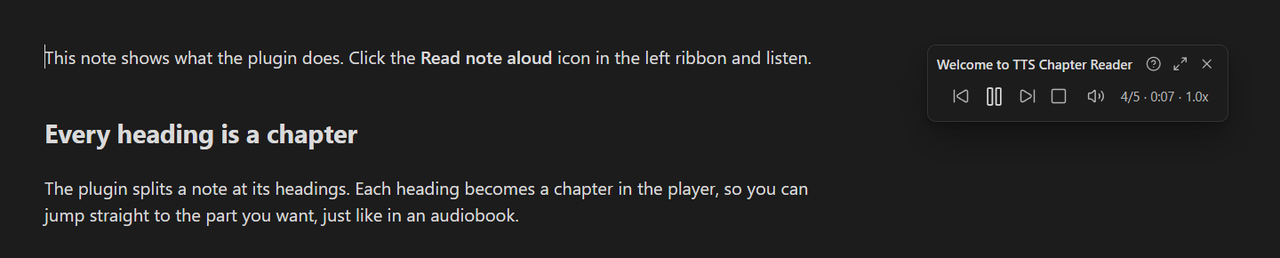
tts-speed: 1.3ortts-voice: bm_georgeto a note's properties and that note is read that way. - Compact player. The arrows in the player's header fold it to a header and one row of controls; the "?" lists all commands with their hotkeys and copies the spoken text.
- Clean text. Properties, code blocks, tables, images, link addresses and Markdown symbols are not read aloud. You choose what to skip in the settings.
Voices
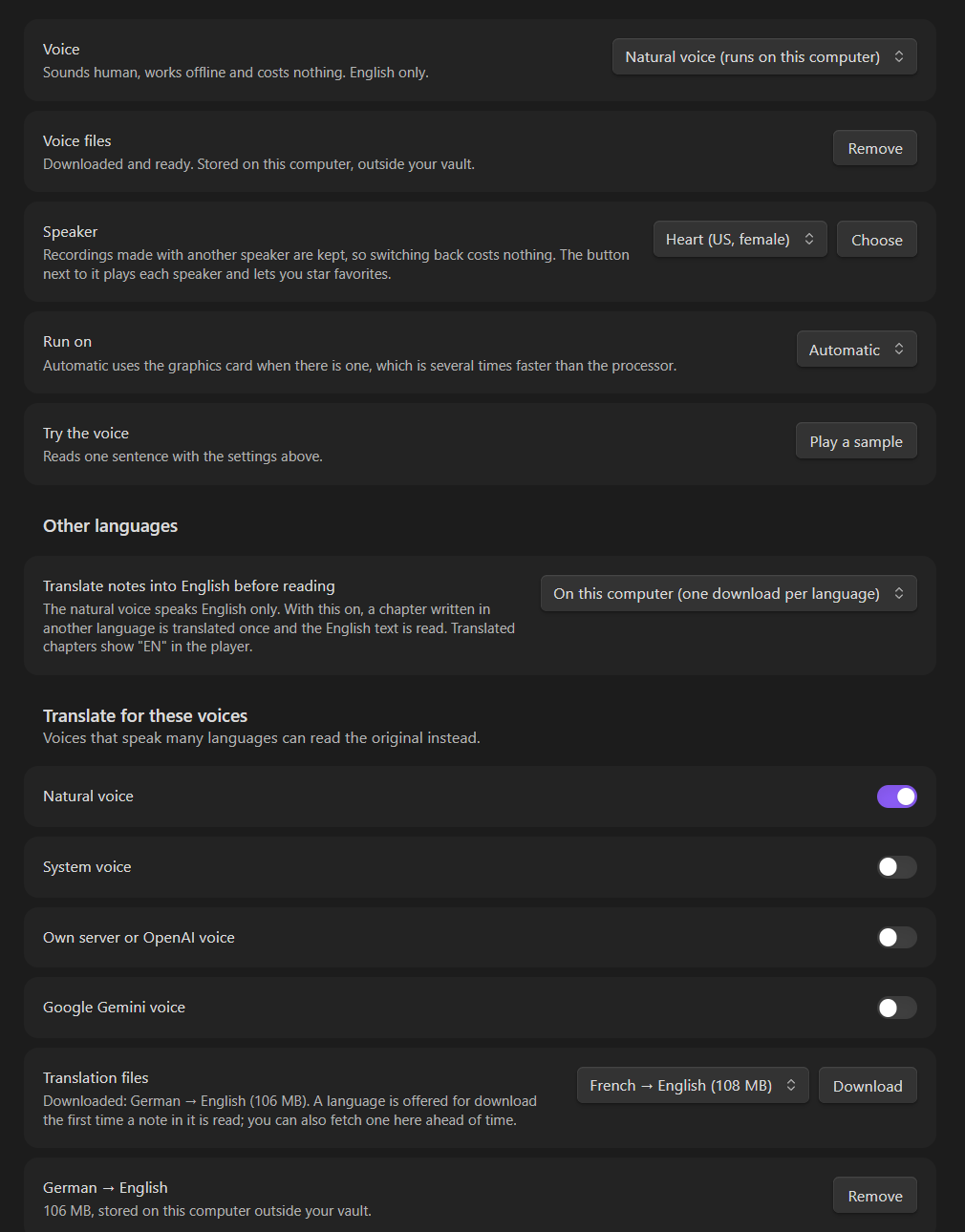
Pick one under Settings → TTS Chapter Reader → Voice.
| Voice | Good for | Needs | Languages |
|---|---|---|---|
| Natural voice | The best sound for free, offline | One-time download (about 330 MB). Fastest with a graphics card, works without one | English (US and UK), 27 speakers |
| System voice | Zero setup, any language your computer speaks | Nothing | Whatever your operating system has installed |
| Own server or OpenAI | Your own voice server, or OpenAI's voices | A server address, and an API key if the server asks for one | Depends on the server |
| Google Gemini | Natural voices in over 100 languages | Your own Gemini API key | Over 100 |
The system voice speaks directly, so it has no timeline, no seeking and no saved chapters. All other voices have the full feature set.
Finding your speaker. For the natural voice, the system voice and Gemini, Choose next to the Speaker dropdown opens a list of all speakers of that voice. Play the same sentence with each one, star the ones you like, and pick one. Starred speakers are listed first in the dropdown and in the picker, so trying ten voices on the first day and settling on two takes a minute.
Using your own voice server
Any server with the OpenAI speech API (POST /v1/audio/speech) works. One that runs on your own computer is free to use. Example with Kokoro-FastAPI:
- Start the server:
docker run -p 8880:8880 ghcr.io/remsky/kokoro-fastapi-cpu:latest(with an NVIDIA graphics card:docker run --gpus all -p 8880:8880 ghcr.io/remsky/kokoro-fastapi-gpu:latest). - In the plugin settings choose Own server or OpenAI, then Quick setup → Kokoro-FastAPI on this computer.
- Click Play a sample.
For OpenAI itself choose Quick setup → OpenAI and add your API key.
Using Google Gemini
- Create an API key in Google AI Studio.
- In the plugin settings choose Google Gemini and add the key.
- Pick a speaker and click Play a sample.
Notes in other languages
The natural voice speaks English only. The first time you read a note in another language with it, the plugin notices and asks:
- Translate to English. One download per language (about 110–140 MB: German, French, Spanish, Italian, Dutch, Russian, Polish, plus a many-languages model for the rest). Translation runs on your computer, offline. Each chapter is translated once and kept; the player marks translated chapters with EN.
- Read it as it is. The voice reads the original with an English accent, and the plugin stops asking for that language.
Under Settings → Other languages you can instead translate with Google Gemini (the key from the voice section is reused) or any OpenAI-compatible chat API (OpenAI, or a local model server), which translate better than the downloaded models. There you also choose which voices get translated text; voices that speak many languages (system voice, Gemini, your own server) read the original by default.
Privacy, network use and costs
- Natural voice: your text stays on your computer. The only network use is the download of the voice files: the one-time download you start with Download, plus about 0.5 MB the first time you pick a speaker you have not used before. They come from Hugging Face (the Kokoro voice model and speakers) and jsDelivr (the ONNX speech runtime). Every file is pinned to an exact version and checked against a known checksum before it is used.
- System voice: the voice is the operating system's. Most are on the device; a few are fetched from the maker's service, and those are marked "online" in the speaker list, because your text goes to that service then.
- Translation on this computer: the same applies as for the natural voice; the translation models (Helsinki-NLP Opus-MT, converted by Xenova) come from Hugging Face, pinned and checksummed, only when you click Download. Translation with Gemini or an OpenAI-compatible API sends the text of the chapters it prepares to that service, which bills your account. With a billed translator only the chapter you play and the next one are prepared ahead, like with a billed voice, so the next chapter may be translated even if you stop before it.
- Own chapter server (hidden option, off by default): people who run the author's own server setup can switch it on in the settings file. Then note paths, chapter text and favorite marks go to the addresses they enter. Nobody else has this on.
- Own server or OpenAI: the text you listen to is sent to the server address you entered. With OpenAI, OpenAI bills your account.
- Google Gemini: the text you listen to is sent to Google. Google bills your account according to your plan.
- With a billed voice, only the chapter you play and the next one are recorded, so you do not pay for chapters you never hear. You can change this under Record ahead.
- API keys are kept in Obsidian's secret storage, not in the plugin's settings file.
- No telemetry, no analytics, no ads, no account with the plugin author.
Where things are stored
- Voice files, translation models, translations and recordings live in Obsidian's own app storage on your computer, outside your vault. They are not synced, do not bloat your vault, and are shared by all your vaults on that computer. Recordings are limited to 1 GB by default; the ones you have not played for the longest time are removed first. Saved translations are kept until you delete them. The settings have a delete button for each: voice files, translation models, recordings, translations.
- Settings and favorite/hidden marks are in the plugin's
data.jsoninside your vault, so they sync with your vault.
Commands
All commands are in the command palette; none has a default hotkey, so you can assign your own.
- Read note aloud
- Read selected text aloud
- Read aloud from here
- Pause or resume reading
- Stop reading
- Next chapter / Previous chapter
- Jump forward 10 seconds / Jump backward 10 seconds
- Show the player
- Move the player back to its corner
- Switch between the small and the full player
- Copy the spoken text of the note being read
- Add this note to the reading list / Add the notes this note links to to the reading list
- Read the notes this note links to, one after another
- Read the reading list / Clear the reading list
- Export this note as an MP3 file
Good to know
- Desktop only for now (Windows, macOS, Linux).
- The natural voice speaks English. Notes in other languages can be translated (see above), or use the system voice, your own server or Google Gemini, which speak them directly.
- The first sentence after starting Obsidian takes a few seconds while the natural voice loads. After that, new text starts within a second or two on a graphics card. Without a graphics card it is slower; a fast processor still keeps up with playback at normal speed.
- If the natural voice sounds wrong on your graphics card, set Run on to Processor.
- Every chapter starts with 0.7 s of silence so its first words are easy to catch at high speeds. If you would rather not have it, turn off Pause at the start of each chapter under Player.
Credits and licenses
TTS Chapter Reader is licensed under the GNU AGPL v3.0.
Thanks. The idea of reading Obsidian notes aloud with a floating player came from Obsidian Edge TTS by Travis Van Nimwegen. TTS Chapter Reader is its own code base and shares no code with it.
It builds on these projects:
- Kokoro-82M voice model, Apache-2.0 (ONNX export by onnx-community)
- kokoro-js and Transformers.js, Apache-2.0
- ONNX Runtime Web, MIT
- phonemizer.js, Apache-2.0, which includes eSpeak NG, GPL-3.0
- lamejs MP3 encoder, LGPL-3.0
- Preact, MIT
Development
npm install
npm run build     # type-check and bundle main.js
npm test          # unit tests
npm run lint      # Obsidian's plugin lint rules
node scripts/deploy.mjs "path/to/your vault"   # copy main.js, manifest.json, styles.css into a vault
npm run e2e drives the plugin inside a running Obsidian through the Obsidian command-line tool; see the header of tests/e2e/obsidian_e2e.py.
The natural voice runs in a web worker that is bundled into main.js (src/worker/). The speech runtime's WebAssembly file is too large to ship inside main.js, so the plugin downloads the exact build the worker was compiled against and verifies its checksum (scripts/worker-build.mjs, src/modules/builtin-voice.ts).
For plugin developers
Search results and similarity scores are powered by semantic analysis of your plugin's README. If your plugin isn't appearing for searches you'd expect, try updating your README to clearly describe your plugin's purpose, features, and use cases.