by siulved54
Converts quotes to curly quotes, dashes to en and em dashes, and periods to an ellipsis as you type. Substitutions keep out of code, math, wikilinks, frontmatter and URLs, and Backspace right afterwards restores exactly what you typed.
Typography as You Type


Straight quotes become curly ones, -- becomes an en dash, ... becomes an
ellipsis and -> becomes an arrow, as you type. Nothing is substituted
inside code, formulas or link targets, and Backspace puts back exactly what
you typed.
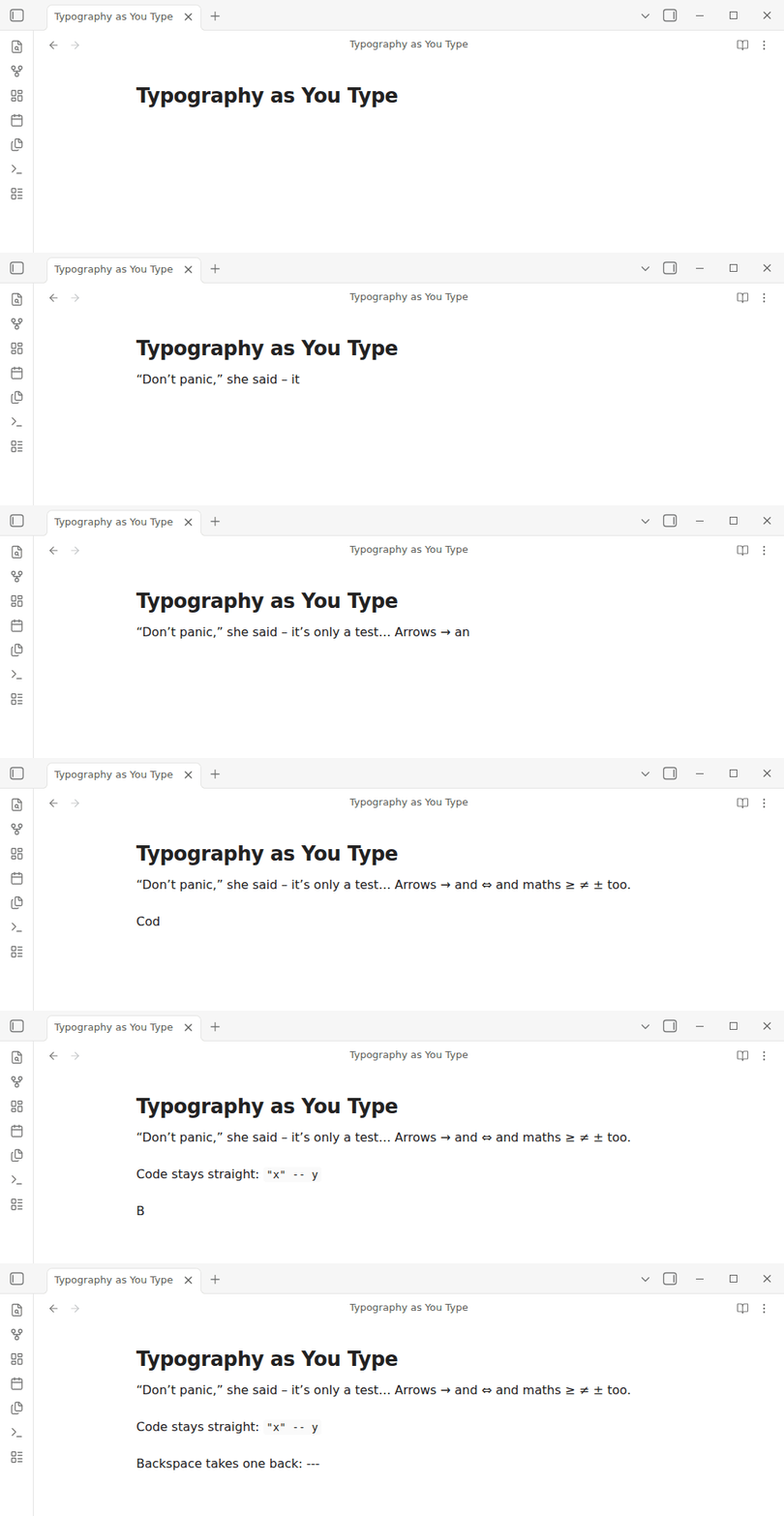
This is a rebuild rather than a fork. The plugin it replaces, mgmeyers/obsidian-smart-typography, has about 170,000 downloads and has had no release since June 2022. Its open issues are the specification for this one: the notes below say which issue each behaviour answers.
What it substitutes
| You type | You get | Group |
|---|---|---|
" | “ or ”, by position | Quotation marks |
' | ‘ or ’, or an apostrophe | Quotation marks, apostrophes |
-- | – | Dashes |
--- | — | Dashes |
... | … | Ellipsis |
-> --> | → | Arrows |
<- | ← | Arrows |
<-> | ↔ | Arrows |
=> | ⇒ | Arrows |
<== | ⇐ | Arrows |
<=> | ⇔ | Arrows |
>= | ≥ | Mathematical symbols |
<= | ≤ | Mathematical symbols |
!= /= | ≠ | Mathematical symbols |
+- +/- | ± | Mathematical symbols |
Each group has its own switch in settings.
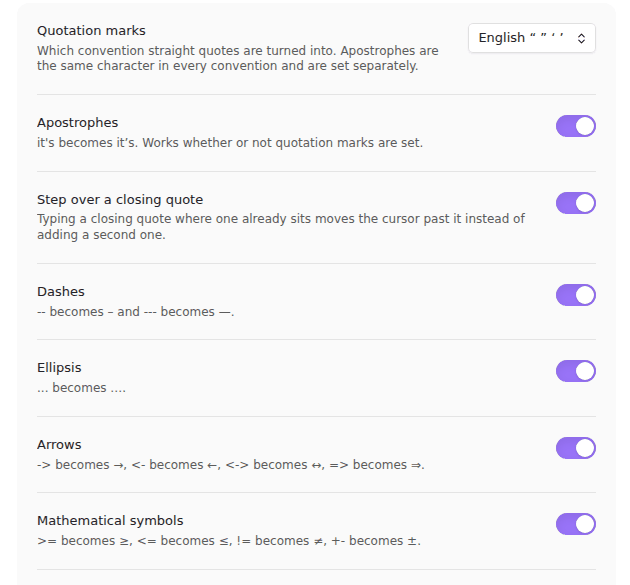
<= is the one real collision: it is both "less than or equal" and a
leftwards double arrow. With mathematical symbols on it gives ≤, and
<== still reaches ⇐. With them off, <= gives ⇐.
Capitals, Tab and wrapping
Three more helpers, all in settings and all safe to ignore:
- Capitalize sentences (off by default) types a capital for the first
letter of a line (after a list marker, task box,
>or#) and after.!?, closing quotes or brackets included. It stays out of code, math, links, tags, paths and addresses, and after abbreviations (e.g.,i.e.,etc.,vs.,Mr.,Dr.,No.), initials (J.) and numbers. Backspace right after puts back the lowercase letter. Words that start lowercase on purpose, such asiPhone, need that Backspace. - Tab to jump out (on by default): with the cursor right before a
closing quote or
) ] } », Tab steps past it. In lists, tables, code, math, links and with a selection, Tab keeps its usual job. - Wrap a selection in quotes (on by default): with text selected, typing
"or'wraps it in the convention's curly quotes instead of replacing it, and one undo takes them off. Obsidian already wraps a selection in brackets and Markdown marks; this adds the curly quotes.
The first time the plugin loads with no saved settings it offers four style presets, Default, Writer, Academic and Developer (quiet), and asks once. They are also in the settings tab, so you can switch later.
Your own replacements
Your own replacements in the settings takes one rule per line: the
characters you type, ->, and what they become.
(c) -> ©
(tm) -> ™
:check: -> ✓
A rule fires as you type the last character of its sequence, and it goes
through the same engine as the table above: nothing is replaced in code,
formulas, links, front matter, excluded folders or notes with
typography: off, and Backspace straight afterwards puts back what you
typed. Apply typography to the selection or the whole note uses your rules
too.
- The built-in rules go first. A sequence the table above already
handles, such as
+-, only uses your rule while that group is switched off. A sequence the table rewrites halfway through never appears as typed: in--xthe--has become–before thexarrives, so write the rule as–x, or switch dashes off. - When two of your sequences end at the cursor, the longer one wins, so
ba>beatsa>after ab. A sequence that extends another one chains off it, the way---chains off--: with<< -> «and<<< -> ⋘, typing<<<gives⋘, and Backspace gives back all three<. - Lines that are not rules are listed under the box, with the reason:
no
->, a sequence shorter than two characters, only spaces, a sequence already on an earlier line. A sequence cannot contain->itself.
Two presets add rules in one click; neither is on until you click it:
| Preset | Rules |
|---|---|
| Guillemets | << → «, >> → » |
| Symbols | (c) → ©, (r) → ®, (tm) → ™ |
>> at the start of a line, after optional spaces or other >, opens a
nested blockquote, so none of your rules fires on a > typed while the line
so far is only spaces and >. +- is not in the
symbols preset because the mathematical symbols group already turns it
into ±.
Quotation marks in your language
The convention is a dropdown, not a fixed set of curly quotes: English, German, French, Spanish, Swedish, Polish and Russian, or off. French adds the no-break space its typography asks for inside the guillemets. This is what issues #47, #64 and #51 ask for.
The apostrophe is ’ in every convention, which is a separate switch from
the quotation marks. German is the case that makes the difference visible:
it closes a single quotation with ‘, but geht's still takes ’ (#70).
A quotation mark opens or closes depending on what precedes it, and the start of a note counts as an opening position, so a note that begins with a quotation gets the opening mark (#65).
Typing a closing quote where one already sits steps over it rather than adding a second one, which is what Obsidian's own auto-pairing leaves behind (#56, #57, #59).
Where it keeps out
A curly quote in a query is a syntax error, and this is where most of the original's bug reports come from. Nothing is substituted inside:
- fenced code blocks, which covers Dataview and every other query language written in one (#46);
- inline code, which covers inline Dataview;
$...$and$$...$$formulas, though a lone$before a digit or a space is read as money and not as an unclosed formula;[[wikilink]]targets and the(target)of a markdown link (#62);- YAML frontmatter;
<% ... %>Templater expressions and<%* ... %>scripts, including ones that run over many lines (#39);<!-- HTML comments -->, on one line or several, where--is usually on its way to-->;- HTML tags such as
<span style="color: red">or<img src="a.png" width="300">, up to their>, where a curled quote breaks the attribute; - bare URLs.
--- alone on a line is left alone too, in a quote or callout as well: it is
a horizontal rule, a setext underline and the frontmatter fence, and none of
those is an em dash. So is the delimiter row of a table, | --- | :-: |,
which would stop being one with a dash in it.
Text that is already there
Substitutions happen as you type, so a paragraph pasted from elsewhere, or a note written before you installed the plugin, keeps its straight quotes and double hyphens. The command Apply typography to the selection or the whole note fixes that: it works on the selection, or on the whole note when nothing is selected.
It feeds the text through the same rules as typing, one character at a time, so the result is exactly what you would have got by typing it: code, maths, links, front matter and HTML tags are left alone, your quotation style and the groups you switched off are respected, and text that is already typeset is not touched again. The change is one step in the undo history.
Different quotation marks for different notes
If you write in more than one language, the quotation marks can follow the note instead of one global setting. Each note gets the first of these that applies:
- The note's
typography-quotesproperty, for exampletypography-quotes: german. It takes the convention names (english,german,french,spanish,swedish,polish,russian), readable names such asDeutsch, language codes such asdeorfr-CA, andofffor straight quotes. The command Set quotation marks for this note… offers the list and writes the property for you. - The note's
langproperty, if you turn on Use the note's lang property (off by default, since your notes may already carry alang). - Quotes per folder in the settings: one
folder -> conventionper line, such asDeutsch -> german. The most specific folder wins. - The quotation marks setting, as before.
A value that names no convention is skipped, so a typo never changes your quotes. Typing, stepping over a closing quote, wrapping a selection, taking a substitution back with Backspace and Apply typography to the selection or the whole note all use the note's own convention.
Turning it off for a folder or a note
- Excluded folders in the settings takes one folder per line. Nothing is substituted in any note inside them, at any depth: a folder of code snippets, raw imports, or templates that must stay plain (#41).
- One note opts out with the property
typography: off. The command Turn substitutions off or on in this note adds or removes it for you.
Everything else about the note (its quotes, dashes and ellipses already in place) is left as it is; only new typing stops being converted. The Apply typography command still works there when you run it on purpose.
Undo, and taking a substitution back
Each substitution is one editor transaction covering both the character you typed and the replacement, so one undo removes the whole thing rather than leaving half of it behind.
Backspace pressed straight afterwards restores the characters you typed: an
em dash goes back to ---, not to --. That is the escape hatch that makes
the rules safe to leave on.
It only applies at the cursor position the substitution left, and any other editor transaction, a bare cursor move included, drops the record. The original reverts on any Backspace, so moving the cursor and then pressing it rewrites text somewhere else in the note (#58).
Input methods, dead keys and phones
Nothing is substituted while an input method or a dead key is composing. The characters that arrive mid-composition are half-finished and the keyboard revises them afterwards, and rewriting them is what produces the doubled quotes reported on GNOME (#44, #63).
Once the composition is over, the quotes it produced are curled, each one
where it stands. This matters most on Android, where keyboards such as
Gboard compose every word as you type it, apostrophe included: without
this step it's would never become it’s there. Only quotes get this
treatment: a keyboard that composes -- or ... as part of a word leaves
them as typed.
On iPhone and iPad, iOS has its own Smart Punctuation (Settings →
General → Keyboard), on by default, which curls quotes and turns -- into
an em dash before the plugin sees them. The two work side by side, but iOS
always uses English quotation marks and its own dash rule. For the
convention you picked here, the -- en dash and Backspace putting back
what you typed, turn Smart Punctuation off.
How it is put together
main.tsis the only file that touches Obsidian or CodeMirror. It holds the input handler, the Backspace binding, the state field that remembers the last substitution, and the settings tab.src/is pure logic with no imports from either:context.tsdecides what is protected,rules.tsis the table of character substitutions,custom.tscompiles your own replacements into the same shape,substitute.tsturns a keystroke into an editor change,compose.tscurls the quotes a composition left behind,revert.tsdecides whether Backspace should put something back, andsettings.tsholds the conventions.tests/runs undernode --testwith no test framework and no browser.
npm install
npm test
npm run build
What is tested, and where
The 130 tests cover the engine, not the editor. They type through
substitutionFor one character at a time, which is how the chained rules
get exercised.
The editor side has been checked inside the Obsidian desktop app (1.13.7, Linux), with keystrokes sent through Chromium's input pipeline rather than by calling the plugin directly:
- with Obsidian's "Auto-pair brackets" on, the default, quotation marks are curled and not doubled (0.1.1 and earlier lost this to auto-pairing);
- a substitution is one undo step, and Backspace straight afterwards puts back what was typed;
- input-method composition, sent through Chromium's own composition API,
is left alone while it lasts, and its quotes are curled once it is
committed (
it'scomposed as one word, a dead-key"); - the settings tab renders, saves, and applies to open notes at once.
Still not checked: a physical dead-key layout on GNOME and a real Android or iOS keyboard, which may reach the editor differently from the simulated composition, and other plugins that also handle typing, Easy Typing among them (#66).
What it deliberately does not do
- Reading-view-only substitution (#40, #67). That is a different plugin: it would render substitutions without changing the note, and mixing the two in one settings tab makes both confusing.
- Superscripts and subscripts (#69), and unit symbols (#73).
Both are substitutions of a different kind, and
^2is live markdown in too many vaults to convert by default. - Right-to-left quotation order (#68), which needs more than a rule table.
Installing
In Obsidian, open Settings -> Community plugins -> Browse, search for Typography as You Type, then install and enable it.
To install it by hand instead, download main.js and manifest.json from
the latest release into
<your vault>/.obsidian/plugins/typography-as-you-type/ and enable the plugin in
Settings -> Community plugins.
It needs Obsidian 1.3.5 or newer.
More plugins by Siulved54
| Plugin | What it does | Source |
|---|---|---|
| Shared Blocks | Write a block of text once and reuse it in any note. Edit the source and every reference re-renders live. | shared-blocks |
| Text Case and Cleanup | Change case, make camelCase or slugs, sort lines and remove duplicates, and repair text pasted out of a PDF, without touching code or URLs. | text-format |
| Section Numbering | Number headings as an outline (1, 1.1, 1.2) and keep every link to them working when they renumber. | section-numbering |
| Spreadsheet to Table | Paste cells from Excel or Google Sheets as a Markdown table with a real header, insert CSV files, and copy tables back out. | spreadsheet-to-table |
| Hybrid Line Numbers | Relative and hybrid line numbers for Vim-style jumps, where a folded section counts as one line. | hybrid-line-numbers |
| List Item Callouts | Colour a single list item as a callout by starting it with a character such as &, ! or ?. | list-item-callouts |
| Folder Counts | See how many notes or files each folder holds, right in the file explorer, with a vault total and folder exclusions. | folder-counts |
| Note Reading Time | Reading time of the current note or your selection in the status bar, optionally saved to a property. | note-reading-time |
| Task Rollover | Roll unfinished tasks from your last daily note into today's when it is created, with a real undo. | task-rollover |
| Zoom Into Section | Zoom into a heading or list item to see only it and its contents, with a breadcrumb bar to climb back out. | zoom-into-section |
| Link Title on Paste | Paste a web address and get a Markdown link with the page's title, fetched in the background and undone in one step. | link-title-on-paste |
| Update Radar | Checks your installed community plugins for updates in the background, shows what changed, and flags the ones that look abandoned. | community-update-checker |
| Dataview to Bases | Convert Dataview queries into Bases blocks, and see which queries in your vault can be converted. | dataview-to-bases |
| Line Editing Commands | Duplicate, join, sort and reverse lines, insert blank lines and jump to a line number, with multi-cursor support. | line-editing-commands |
| Note Mover Rules | Move notes into folders by ordered rules on tags, properties, titles and paths, with a preview before any bulk move. | note-mover-rules |
| Tab History | Keeps each tab's back and forward history across restarts, and adds commands to move, maximize and close tabs. | tab-history |
| URL Cards | Shows web addresses as cards with title, description and image, and reads existing cardlink blocks. | url-cards |
| Vim Config | Loads a vimrc-style file from your vault so your key mappings and editor commands are ready when vim mode starts. | vim-config |
| Task Archive | Moves completed tasks, with their sub-items, into an archive section or note. | task-archive |
All of them are in the community directory: Settings -> Community plugins -> Browse, then search for the name.
Licence
MIT, (c) Siulved54.
For plugin developers
Search results and similarity scores are powered by semantic analysis of your plugin's README. If your plugin isn't appearing for searches you'd expect, try updating your README to clearly describe your plugin's purpose, features, and use cases.