by Ahmed Hassan
Turn bank SMS messages into structured transaction notes, then track spending, budgets, merchants and account balances in a built-in budget view. Runs entirely offline on desktop and mobile.
Ultra Budget Tracker
Turn bank SMS messages into transaction notes, then read your spending, budgets and balances in a budget view inside Obsidian. Everything is parsed on the device — no network requests, no telemetry, nothing leaves the vault.
Your data stays plain Markdown in a Budget/ folder: greppable, syncable, and still yours
after the plugin is gone.
What it does
- Captures a bank SMS dropped into
Budget/Inboxby an iPhone automation. - Ignores what is not a transaction — statement reminders, due dates, one-time codes and offers carry amounts and card numbers too.
- Parses English and Arabic wordings out of the box: amount, currency, account, date, and the name of the other side.
- Files it into a category, learning from the names you categorise by hand.
- Shows it in a five-tab Budget view with balances, budgets and charts.
Works the same on desktop and mobile.
Screenshots
Sample data — the figures and names are invented.
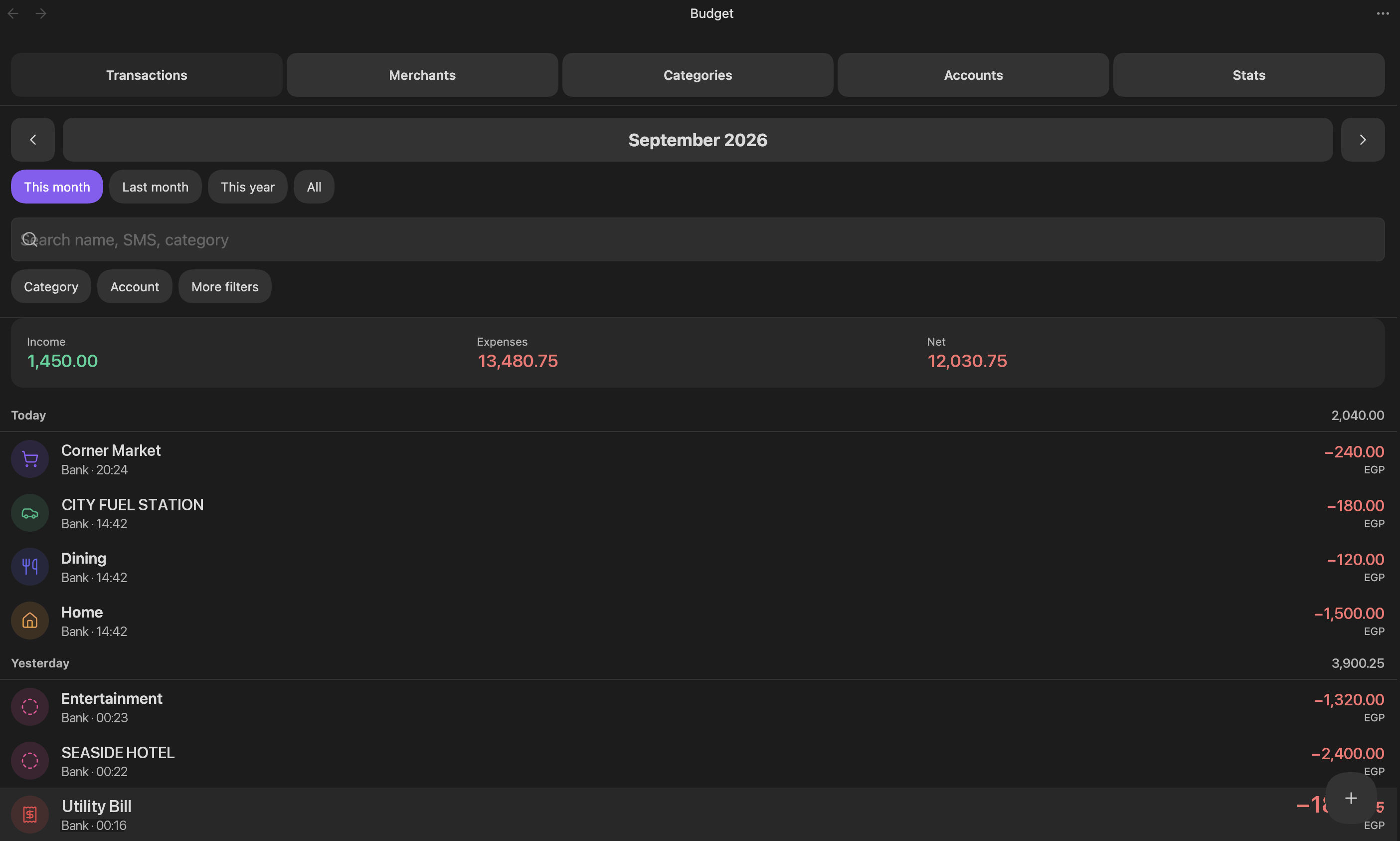 | 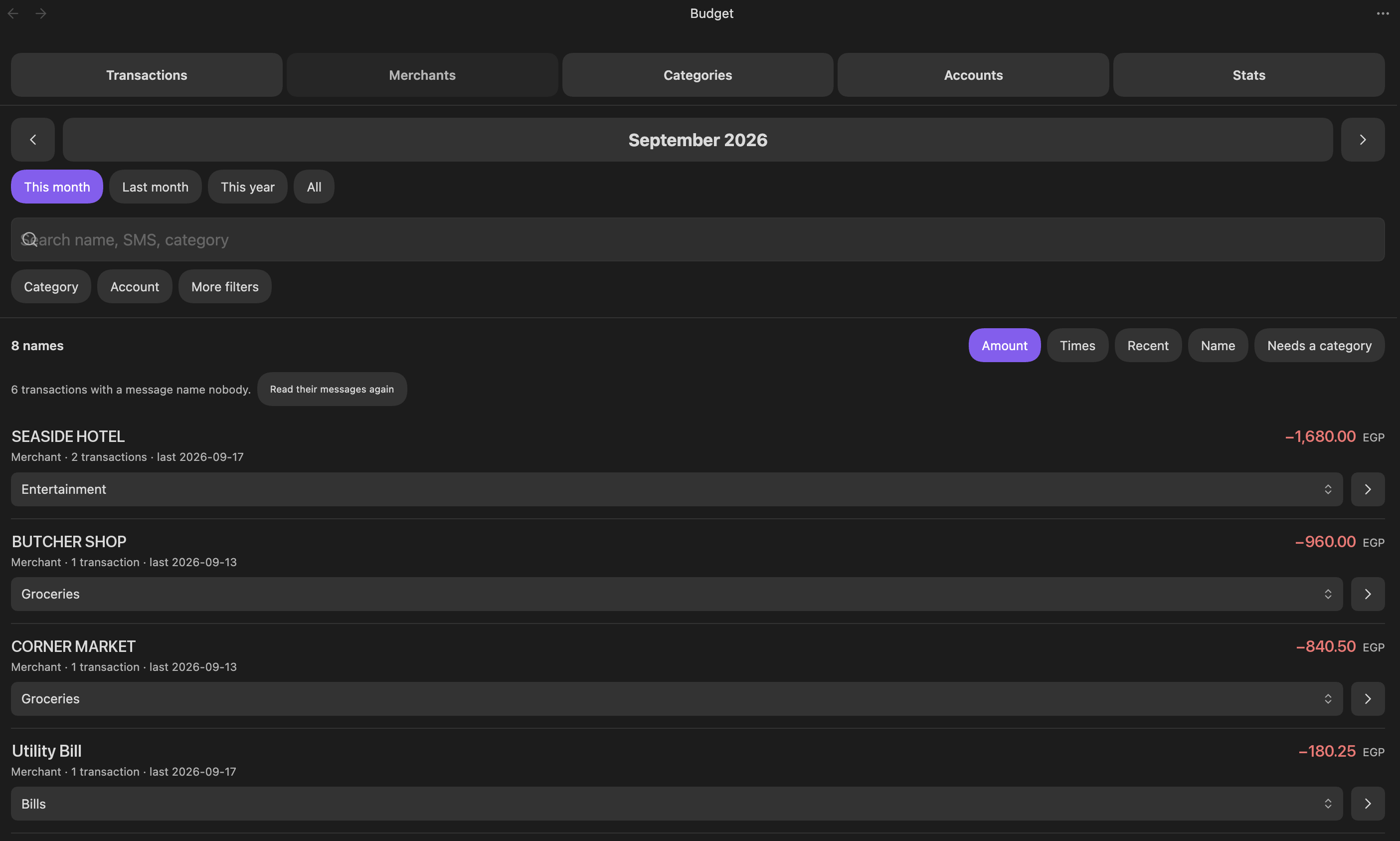 |
| Transactions, grouped by day | Merchants, largest first |
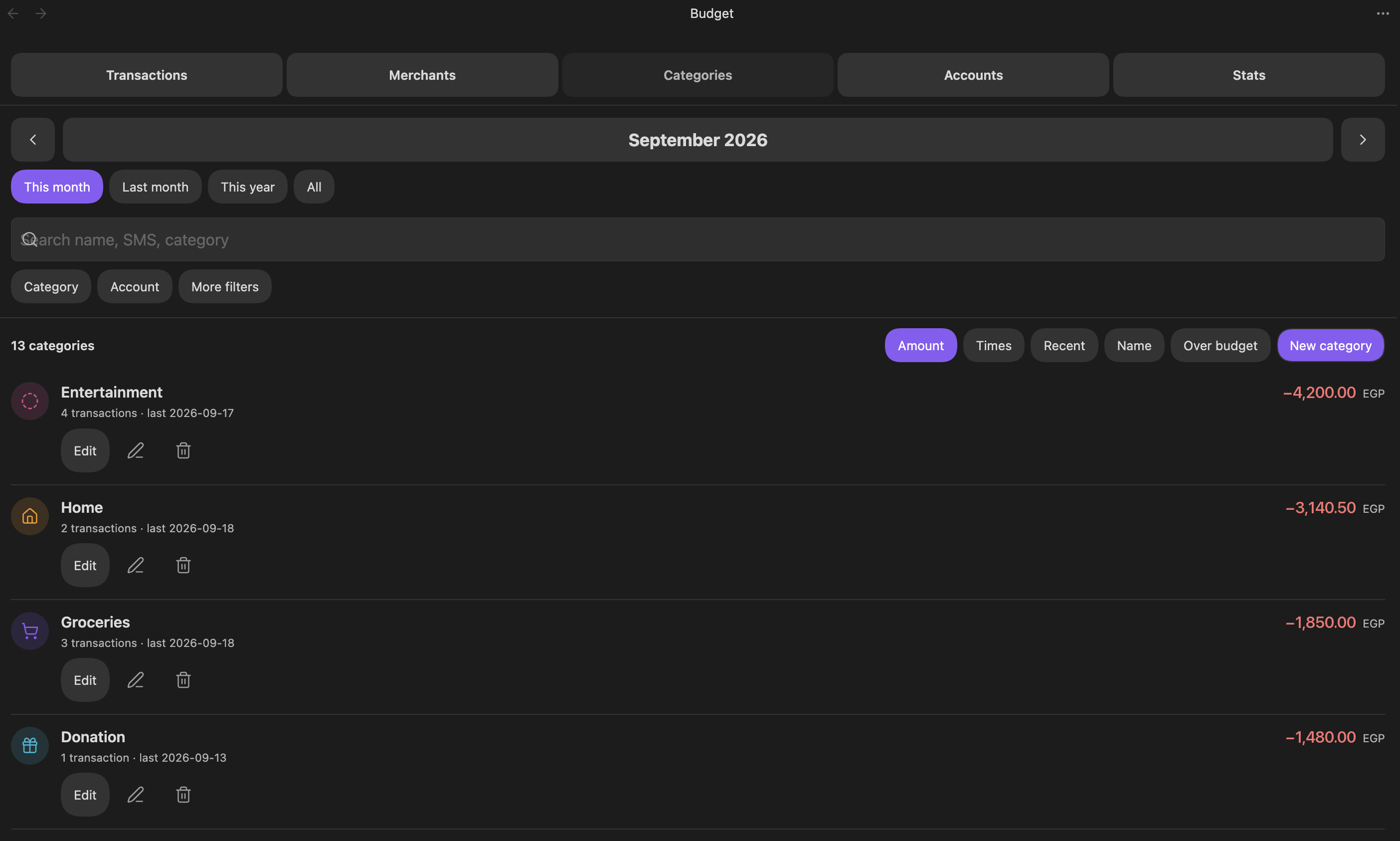 | 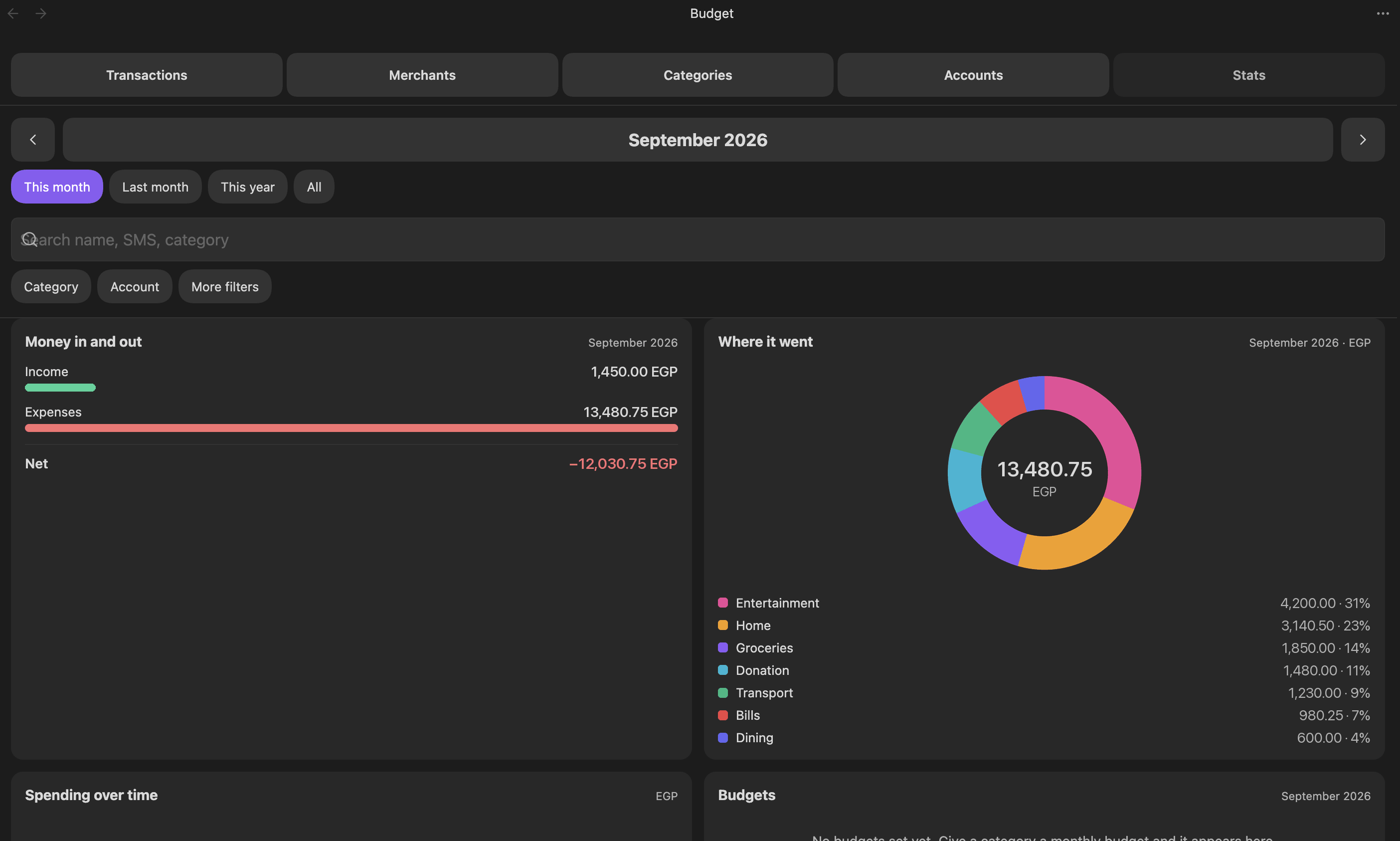 |
| Categories, spend against budget | Stats, charts and CSV export |
Install
Community plugins → Browse → search Ultra Budget Tracker → Install → Enable.
To install it by hand instead, download main.js, manifest.json and styles.css from a
release into
<vault>/.obsidian/plugins/ultra-budget-tracker/, then restart Obsidian.
Quick start
- Run Create budget folders from the command palette — or press Create folders in the plugin's settings.
- Open the Budget view from the wallet icon in the ribbon.
- Rename the
Bank1account to your own and put your real card digits in it.
Step 1 writes the whole tree, already filled in.
It is also a reset. Every file the command writes — the settings notes,
Cash,Bank1and the eight category notes — goes back to its default each time you run it, so a budget, a colour, a card ending or a learned keyword on one of those notes is replaced. When that would overwrite anything, it lists the files by name and asks first; a fresh vault, or a run that only fills in what is missing, is never asked. Your transactions and any account or category you added yourself are never touched.
<vault>/Budget/
├── Inbox/                      ← the Shortcut drops messages here
├── Transactions/               ← one note per transaction, by year and month
├── Accounts/
│   ├── Cash.md
│   └── Bank1.md                ← rename it; card_endings is what files a message
└── Settings/
    ├── config.md               ← default currency
    ├── accounts.md             ← accounts without a note of their own
    ├── sms_patterns.md         ← extra parser patterns, if your bank needs any
    ├── exclusion_rules.md      ← rules that keep a transaction out of the totals
    ├── type_rules.md           ← rules that decide what counts as spending or income
    └── Categories/
        ├── rules.md            ← keyword → category
        └── Groceries.md …      ← one note per category, with colour and budget
Every file under Settings/ is a note you can open and read: a paragraph saying what it
is, then one json block holding the data. Edit the block by hand or change it in the
Budget view — both write the same file, and the prose around the block is kept.
Capturing messages
Set up an iPhone automation once: Shortcuts → Automation → Message, trigger on your
bank's sender, then Text holding the Shortcut Input and Save File into
Obsidian/⟨vault⟩/Budget/Inbox with Ask Where to Save off and Overwrite off.
Obsidian reads the inbox at startup and on every pass. Each file becomes one transaction, and the file is deleted only once its note is on disk. Messages that are not about money moving are discarded and counted in the notice, so forwarding a whole bank thread is safe.
The full walkthrough, plus a tap-to-add Shortcut for cash, is in docs/iphone-shortcuts.md.
A note becomes status: parsed once it has an amount, a currency, a type and an account.
Anything less stays pending — never dropped — and is retried on every pass, so adding a
card ending or a pattern later is enough to finish it.
The Budget view
| Tab | What it gives you |
|---|---|
| Transactions | Grouped by day, current month by default. Tap a row to edit; long-press or right-click for quick category and exclude actions. + adds one by hand. |
| Merchants | Every merchant, recipient and sender, one row each. Choosing a category files every transaction of that name and writes the keyword, so the next message files itself. |
| Categories | Spend against budget per category. Edit colour, icon, budget and keywords in place. Renaming re-files every transaction. |
| Accounts | A card per account: derived balance, what the period moved through it, and the drift from the statement figure. |
| Stats | Charts and totals for the filtered period, plus a CSV export. |
Excluding a transaction keeps it in the list but removes it from every total — for a reversal, a duplicate message, or anything that did not really happen. A transaction you excluded by hand is never overridden by a rule.
Commands
| Command | Does |
|---|---|
| Open budget | Opens the Budget view |
| Create budget folders | Writes the whole Budget/ tree, resetting the files it owns to their defaults |
| Process pending SMS transactions | Parses everything still status: pending |
| Import messages from the SMS inbox | Pulls Budget/Inbox in right now |
| Add transaction | Adds one by hand |
| Edit categories and budgets / List merchants… | Opens that tab |
| Edit exclusion rules | Opens the rules editor |
| Edit spending and income rules | Opens the editor for rules that set a transaction's type |
| Apply exclusion rules to all transactions | Re-runs every rule, exclusion and type, over everything |
| Fill in missing merchants from stored messages | Re-reads stored messages and fills only the blanks |
| Export filtered transactions as CSV | Writes the current filter to a CSV in the vault |
Embedding a summary in a note
```finance-summary
period: 2026-09
categories: Groceries, Transport
accounts: CIB
limit: 8
```
period takes YYYY-MM, YYYY or all, and defaults to this month. The rest are
optional.
Configuration
Most people never edit a settings file: the Budget view writes all of them. When you do want to — a bank wording the parser misses, a bulk edit, an exclusion rule by hand — every file, key and pattern is documented in docs/configuration.md.
A vault set up by an older release has the same settings as .json files. They keep
working where they are; nothing is migrated behind your back.
Privacy
Every message is parsed on the device, by this plugin, inside your vault. No SMS text, no transaction and no setting is sent anywhere. The plugin makes no network requests and collects no telemetry.
Support
If this saves you time, you can say thanks:

Bugs and feature requests: GitHub issues.
Development
TypeScript under src/, bundled to a single main.js by esbuild. main.js is a build
artifact — edit the sources, never the bundle.
Clone outside your vault. node_modules alone is around a thousand files and 43 MB;
inside a vault, Obsidian indexes all of it at every launch and a sync plugin tries to push
it, which on a phone means a long hang on a black screen at startup.
npm install
npm run dev        # rebuild on change
npm test           # node --test
npm run build      # typecheck, then bundle
To have a build install itself, point it at your vault: export OBSIDIAN_VAULT=/path/to/vault,
or one line in a gitignored .vaultpath file at the repo root. Without it the bundle is
still built, just not copied. Reload Obsidian after a build.
Releases go through scripts/release.sh patch "what changed", which bumps the three
version files, commits, tags and pushes; the tag starts
the release workflow. It refuses to run on a dirty tree, a
stale branch, or a failing npm test / npm run build.
MIT licensed.
For plugin developers
Search results and similarity scores are powered by semantic analysis of your plugin's README. If your plugin isn't appearing for searches you'd expect, try updating your README to clearly describe your plugin's purpose, features, and use cases.