Vault Graph Wallpaper
unlistedby Apollo
Show your live graph view as the desktop wallpaper on Linux (X11) and Windows.
Vault Graph Wallpaper
Show your live Obsidian graph view as the desktop wallpaper, on Linux (X11) and Windows.
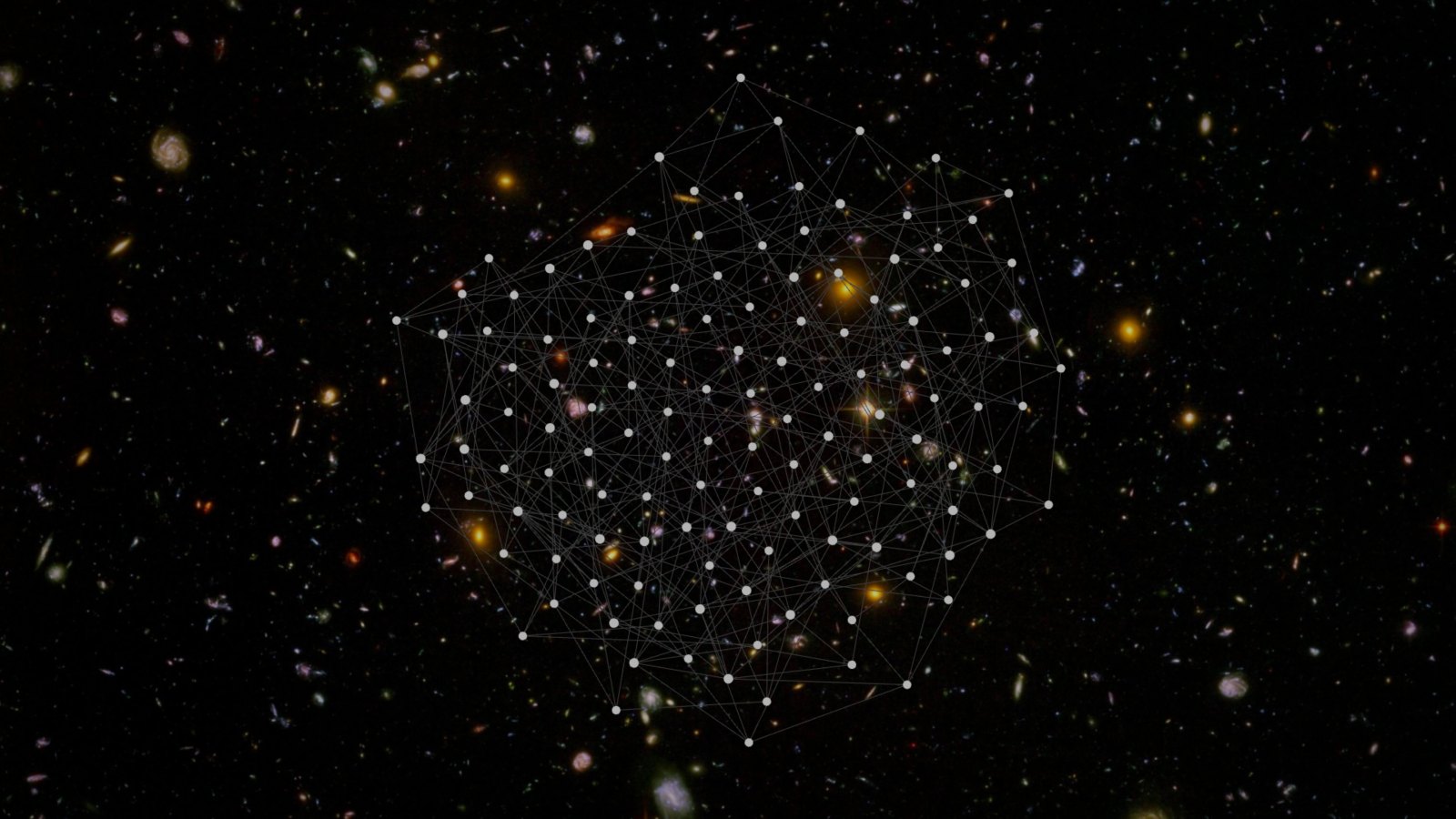
The wallpaper is a real Obsidian popout window showing the real graph view, so it has the same filters, colour groups, theme, CSS snippets and plugins as any other graph tab, and it updates as the vault changes. The plugin strips the window chrome and places the window on the desktop layer — under every other window, out of the taskbar and Alt+Tab.
Platform support
| Platform | Status |
|---|---|
| Linux, X11 | Full. Interactive: cursor gravity, zoom, drag, click a node to open it. Needs python3 with libX11 (present on any X11 desktop). |
| Windows | The live graph appears over the existing wallpaper on the selected display. Cursor gravity, node hover, click-to-open, wheel zoom and pan work behind the desktop icons. Verified on Windows 10 with the built-in Windows PowerShell. |
| Linux, Wayland | Not supported — Wayland does not let apps place a window on the desktop layer. |
| macOS | Not supported — it would need a native module. |
No build step and no bundled dependencies: on Linux the plugin shells out to python3/libX11, on Windows to PowerShell. The core Graph view plugin must be enabled.
Install
Use Obsidian 1.15.1 or later. Download main.js, manifest.json and styles.css from the latest release, copy them into <vault>/.obsidian/plugins/vault-graph-wallpaper/, then enable Vault Graph Wallpaper under Settings → Community plugins.
On Windows the live overlay starts on the primary display when enabled. Select a different monitor under Display, or use the mouse gesture below.
Use
Command palette: Vault Graph Wallpaper: Toggle graph wallpaper and Fit graph to screen.
On Windows, scroll to zoom and drag with the middle mouse button to pan the graph. Hold Shift while middle-dragging to another display, then release to move the wallpaper there. The plugin remembers the selected monitor.
Settings → Vault Graph Wallpaper (only the controls that apply to your setup are shown):
- Show the graph wallpaper — put your live graph on the desktop, now and whenever this vault opens.
- Interactive (X11) — respond to the mouse for zoom, drag, click-to-open and cursor gravity.
- Graph node interaction (Windows) — highlight a node on hover and open its note on click. Enabled by default.
- Appearance — on Windows, Desktop wallpaper is the default. Choose the theme colour or your own image to give the graph a solid backdrop. Adjust node size and how much of the screen the graph fills on either platform.
- Motion — adjust cursor gravity and reach, and choose how long a zoomed view waits before easing back to the whole graph.
- Startup — launch Obsidian at login (minimised), and keep a snapshot of the graph as your system wallpaper so the desktop shows it before Obsidian loads and while it is closed.
- Display (multi-monitor only) — which screen the graph covers.
On Windows the window-placement helper and optional scaled background images live in %LOCALAPPDATA%\obsidian-vault-graph-wallpaper\. On X11 the snapshot, scaled background image and login launcher live in ~/.local/share/obsidian-vault-graph-wallpaper/, with a login entry in ~/.config/autostart/ if enabled.
Performance
Obsidian stops painting the graph after it settles.
- Idle, or the cursor away from the graph: cursor gravity skips repainting when no node moves visibly.
- Cursor moving through the node cluster: on X11 the graph redraws at the display refresh rate. On a large vault this uses the GPU while nodes move. Lower Gravity reach or set Cursor gravity to 0 to reduce that work.
- Windows draws the graph directly in a transparent window. Gravity and graph painting run at up to 30 updates per second while active. The graph stops painting after the nodes settle, including when the cursor rests over it. Desktop pointer events pass through to Windows and your wallpaper.
Limits
- Obsidian has to be running for the wallpaper to be live. On Linux, without it you see the snapshot, or your normal wallpaper if snapshots are off.
- Login autostart and the system-wallpaper snapshot are Linux-only.
- Native Wayland sessions and macOS are not supported.
- Fitting the graph and opening notes straight from a node click use undocumented internals of the graph renderer. If a future Obsidian changes them, fitting stops and clicks fall back to a slower path; the wallpaper itself keeps working.
- The wallpaper leaf is pinned; a popout that contains only a pinned graph is treated as the wallpaper when Obsidian restores its windows.
- On X11, interactive mode places the graph above the desktop icons and their context menu.
For plugin developers
Search results and similarity scores are powered by semantic analysis of your plugin's README. If your plugin isn't appearing for searches you'd expect, try updating your README to clearly describe your plugin's purpose, features, and use cases.