FoveaFocus
unlistedby Alireza-RS
Focus-first RSVP speed reader for notes and PDF articles, with strong navigation.
FoveaFocus




FoveaFocus is a focus-first RSVP modal reader for Obsidian, with strong navigation, for notes and for PDFs of journal articles. It grew out of an earlier RSVP plugin; where it came from and what has been built since is told under History and credit.
What FoveaFocus does
FoveaFocus is an RSVP (Rapid Serial Visual Presentation) speed-reader for Obsidian.
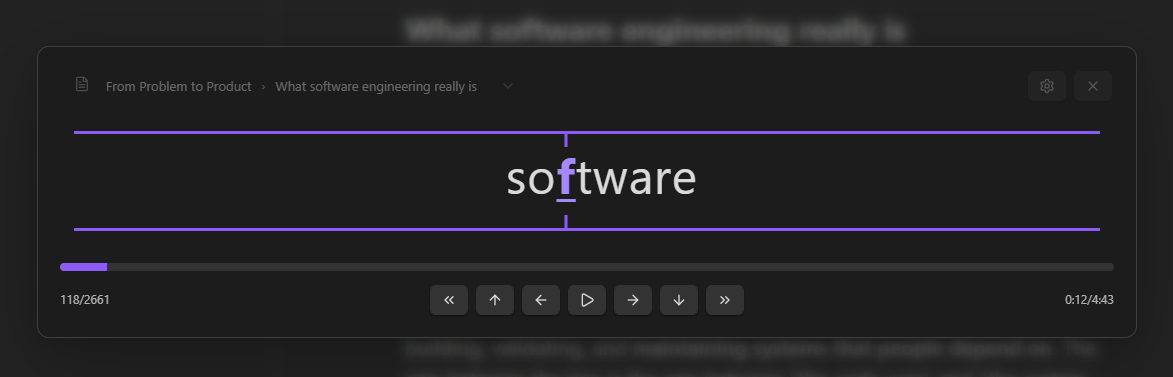
Instead of scanning lines, FoveaFocus shows a focus band (center row) and presents text in word chunks at a controlled speed (WPM). It puts first:
- A distraction-free modal “reading page”
- Reliable navigation (seek, headings, time-based rewind/forward)
- Context windows that match what you actually see on screen (line-wrapped context)
- Timing consistency: time estimates and playback share the same model
UI overview
FoveaFocus opens as a modal overlay with a blurred backdrop (theme-dependent).
Top
- The outline: the headings the word being read stands under, each a jump to its place, and a menu of all the headings of the text
- A button for the reader's own settings and, beside it, one that closes the reader
Middle
- The RSVP focus band with ORP anchoring + focus overlay lines
- The band is fitted to the font and its size and stands still from word to word; no word is cut off at the top or bottom, or runs over the band's lines
- The letter the eye rests on lies a little under a third of the way into the word, however long the word is
- A word too long for the area is made smaller until all of it fits; a link keeps its size. What still does not fit starts at the edge of the area and runs out at its end, with a letter on the mark
- In a window too low for the reader, the band and its text are made smaller, so that the controls stay in view
- Words are set as ordinary text: accents stay on their letters, and scripts written from right to left (Persian, Arabic, Hebrew) are set that way, with the focus mark on the other side
- Headings and callout titles are shown in bold, the higher levels larger; a callout's title opens with the icon and colour Obsidian gives its type
Context
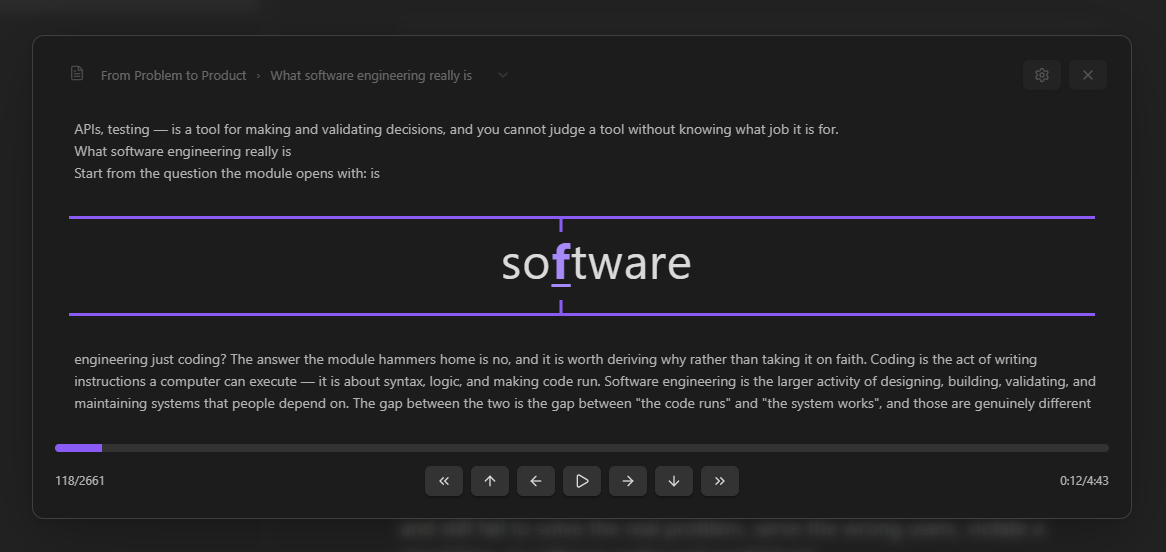
- Optional context panels:
- “Before” context above the focus band
- “After” context below the focus band
- Context is line-based and uses your window’s real wrapping
- As many lines are shown as the window has room for, and the control for them stops there
Bottom
- Progress bar (seekable)
- Progress info (index + time)
- On-screen navigation buttons (mobile-friendly)
Navigation & interaction (important)
1) Tap/click the reading area = play/pause
- Tap/click on the reading area toggles playback.
- Designed for mobile first: you don’t need precise button taps.
2) Scroll wheel / trackpad while paused = step words
When playback is paused, scrolling steps through text word-by-word.
- Scroll down: step forward
- Scroll up: step backward This is for precise “scrubbing” without starting playback.
3) Progress bar click-to-seek
Click anywhere on the progress bar to jump to that point in the text.
- If you were playing, playback continues from the new position.
- If you were paused, it stays paused (seeking won’t force playback).
4) Progress bar hover tooltip (“where am I / where will I land?”)
Hovering the progress bar shows:
- Current heading path
- Word position (e.g., 1200/5600)
- Virtual-time position (elapsed/total), using the same timing model as playback
5) Heading navigation (previous/next heading)
FoveaFocus supports heading jumps:
- Previous heading / Next heading actions jump across headings
- Repeating the action quickly cycles headings (useful for scanning structure)
- Callouts can be treated as “pseudo-headings” (depending on parsing rules)
6) Outline
- The outline at the top shows the headings you are under (H1 › H2 › H3…)
- Outline menu shows the document structure for quick jumps, indented by how deeply each heading is nested (an H3 straight under an H1 is one step in), with callouts under their heading, marked by the icon and colour Obsidian gives their type
- Dropdown menu supports sibling navigation
- Jumping via these menus respects your play/pause state (no unexpected autoplay)
7) Time-based rewind/forward (virtual timeline)
Rewind/forward actions move by seconds, not word counts. A virtual timeline keeps rewind/forward consistent even when:
- pauses are on
- the reading eases in or speeds up as it goes
- you seek using the progress bar
8) Jump to start/end
On-screen controls include jump-to-start and jump-to-end actions.
Timing model (why time feels consistent here)
FoveaFocus’s playback and time estimates use a virtual timeline:
- The same rules used to delay words during playback are also used to compute elapsed/total times
- This keeps progress/time/rewind/forward consistent with:
- pauses
- easing in
- speeding up while reading
Settings (high level)
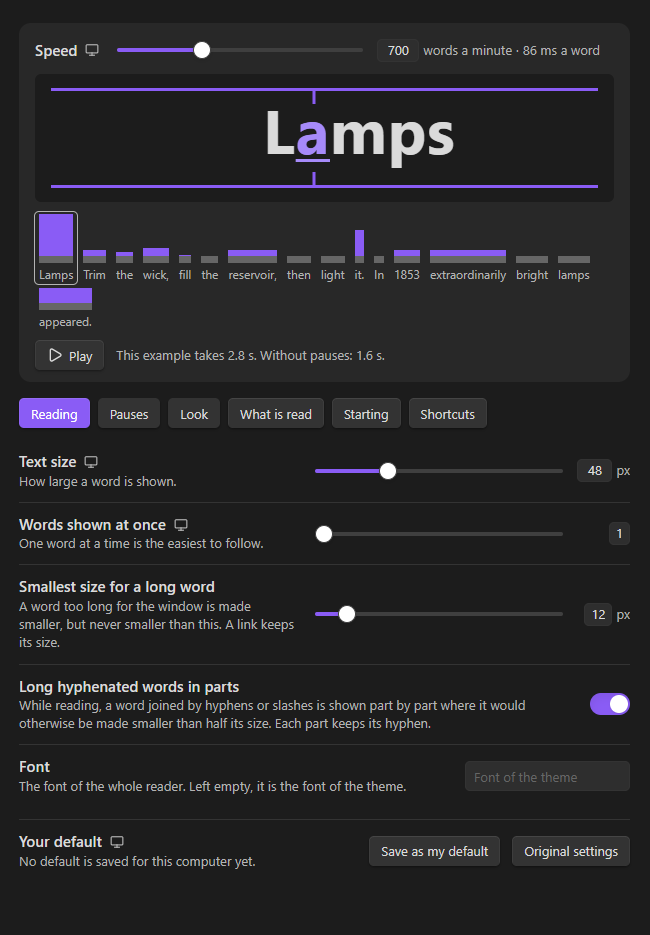
The settings open with the speed and a live example: the reader's own word area on a few words, with a bar under every word for how long it is held. A change shows in the example at once. Under it the settings stand in groups. A number is set with its slider or typed where it is shown; what is typed is set to the nearest step of the slider.
Reading
- Text size, words shown at once, the smallest size for a long word, font
- Long hyphenated words in parts: while reading, a word joined by hyphens or slashes that would have to be made smaller than half its size is shown part by part instead, each part with its hyphen
Pauses
- One choice for all the pauses: off, light, standard or strong
- How long each pause is: the time it adds to its word, typed in milliseconds at the speed that is set or set with its slider. A pause is kept as a length in words, so it keeps pace with the speed. The pauses: end of a sentence; comma, colon, semicolon; end of a paragraph; long words, longer still for longer ones; numbers; headings, callouts, list bullets and section numbers
- Whether two pauses on one word are added or multiplied, with what either way comes to
Look
- Colours of the marked letter, the text and the background: the theme's, unless one is chosen
- Lines round the word: how many stand above the word and below it, and how large
- Progress bar, outline, larger headings
What is read
- Notes: code blocks, tables, inline maths, tag lines, link-only lines, reference section, sections to skip
- PDFs: title, captions, title-page details, footnotes, what follows the reference list, sections to skip
Starting
- Start by itself, after a wait
- Ease in over the first words; speed up while reading
- The length from which a selection is read on its own
Your default
- The setup can be saved as a default, restored, and set back to the settings the plugin starts with
- A computer and a phone each save a default of their own. The buttons act for the device they are pressed on: what the other device keeps for itself is not touched. The settings both devices share have one default
A computer and a phone each keep their own speed, text size, words at once, lines round the word, outline, ease-in and switch for the pauses. The settings show those of the device they are open on, and such a setting says so beside its name with a small picture of the device. The reader's own panel shows the same settings under the same names; a change in one place shows in the other.
Keyboard shortcuts (inside the FoveaFocus modal)
These apply when the FoveaFocus modal is open and no input field is focused.
Playback / navigation
Space: Play/Pause←: Back 10 seconds→: Forward 10 secondsCtrl/Cmd + ←: Jump to startCtrl/Cmd + →: Jump to end↑: Previous heading↓: Next headingShift + ↑: FasterShift + ↓: SlowerEsc: Close the reader
Panels
s: Open or shut the reader's own settings panel. The speed and the text size can be typed there, where they are shown
How to open FoveaFocus
Common entry points:
- Ribbon icon
- Command palette
- Editor context menu (“Read with speed reader”) when text is selected
FoveaFocus will load from the active markdown note or PDF and can start from your selection/cursor depending on how you invoke it.
Commands
| Command | In a note | In a PDF |
|---|---|---|
| Launch (cursor / selected word) | Reads the note from the word the cursor is in. With up to 30 characters selected, from the first selected word; a longer selection is read on its own | Reads the PDF from the word that was clicked or selected; from the beginning when nothing is selected |
| Read selected text | Reads the selection | Reads the text between the first and the last selected word, in reading order |
| Read entire note (or PDF) | Reads the whole note | Reads the whole PDF |
The start position is found from where the cursor or the selection is, never by searching for the word. A word that occurs fifty times has fifty distinct start positions.
What is read, and what is left out
Notes
Read: headings, paragraphs, lists, callouts (title and body), captions, inline maths as symbols, the display text of links.
Left out: front matter, comments, block IDs, display maths, diagram and query blocks (Mermaid, Dataview), footnote definitions, and, each switchable in the settings: code blocks, tables, tag lines (Tags: #a #b), link-only lines (Related: [[A]] [[B]]), the reference section, and any section whose heading is on the note skip list.
PDFs
The PDF reader is built for journal articles. It works out the layout of each page from the positions of the text (columns, headings, captions, footnotes) and reads the article in reading order: across columns and pages, with hyphenated words rejoined.
Read: the title, the abstract, headings, body text, figure and table captions.
Left out: running headers and footers, page and line numbers, authors and affiliations, footnotes, the contents of figures and tables, displayed equations, code listings, the reference list, and sections whose heading is on the PDF skip list (acknowledgements, funding, author contributions, competing interests, data availability and the like). The skip list is compared with whole headings only; the same words inside a sentence or a longer heading are read.
Text printed after the reference list (methods, appendices) is read unless "Stop at the reference list" is switched on.
The full rules are in docs/pdf_rsvp_behaviour_specification.md.
Development
npm install
npm run build          # type-check and bundle to main.js
npm run build:vault    # the same, written into the vault's plugin folder with styles.css and manifest.json (see below)
How the code is organised is described in docs/DEVELOPMENT.md.
npm run build:vault and npm run dev:vault write main.js, styles.css and manifest.json into the vault's plugin folder, and need to know where that is. Write its path on the first line of a file named .vault-plugin-dir in this folder (git ignores it), or set the environment variable FOVEAFOCUS_PLUGIN_DIR:
/path/to/vault/.obsidian/plugins/foveafocus
Install
FoveaFocus is not in the Obsidian community plugin directory.
Install options:
- Manual install (copy the built plugin into
.obsidian/plugins/) - BRAT (if you use it)
History and credit
FoveaFocus began as a fork of DashReader by inattendu, taken at its version 1.4.2 of 4 November 2025 (commit 0cd0b49). That version read Markdown notes in a sidebar panel: one word, or a chunk of up to five, at a fixed spot with its centre letter highlighted, at 50 to 5000 words a minute; a slow start, gradual acceleration and longer pauses after punctuation, numbers, long words, headings and callouts; the path of headings at the top, a minimap and an outline menu; a start at the cursor; a progress bar with statistics.
What has been built on it since:
- 2.0.0 (20 December 2025), released from the fork. The reader moved into a modal of its own, with a focus band and ORP anchoring. Context is shown in lines as they wrap on screen. Tap to play and pause, step word by word with the wheel while paused, click the progress bar to seek, jump between headings, and rewind or go forward by seconds on a virtual timeline that the time estimates share. Desktop and mobile have profiles of their own. The minimap went.
- 2.0.1 (27 December 2025). A picker for installed fonts.
- Since then, under its own name. PDFs of journal articles are read in reading order, worked out from the layout of each page. Settings choose what is read from notes and from PDFs. Reading starts on the exact word under the cursor or selection. The plugin has its own name and identifier, and its version count starts again.
About two fifths of the code lines of 1.4.2 are still in place unchanged, most of them in the supporting modules and the style sheet, and they make up about 15% of the present source. The copyright notice of the original is kept in LICENSE. FoveaFocus is developed on its own and has taken nothing from the original after 1.4.2.
License
MIT. LICENSE carries the copyright notice of the original plugin beside that of FoveaFocus.
For plugin developers
Search results and similarity scores are powered by semantic analysis of your plugin's README. If your plugin isn't appearing for searches you'd expect, try updating your README to clearly describe your plugin's purpose, features, and use cases.