Recurra
unlistedby Amin Tehrani
Goals timeline, task views with Google-Calendar-style recurring tasks, and one-way sync to Google Calendar and Microsoft To Do.
Recurra for Obsidian


Plan goals on a timeline, keep tasks as plain notes, and see them in Google Calendar and Microsoft To Do. Recurring tasks work the way Google Calendar events do.
- Goal timeline: each goal is a bar across its date range. Sub-goals sit under their parent, and a red line marks today.
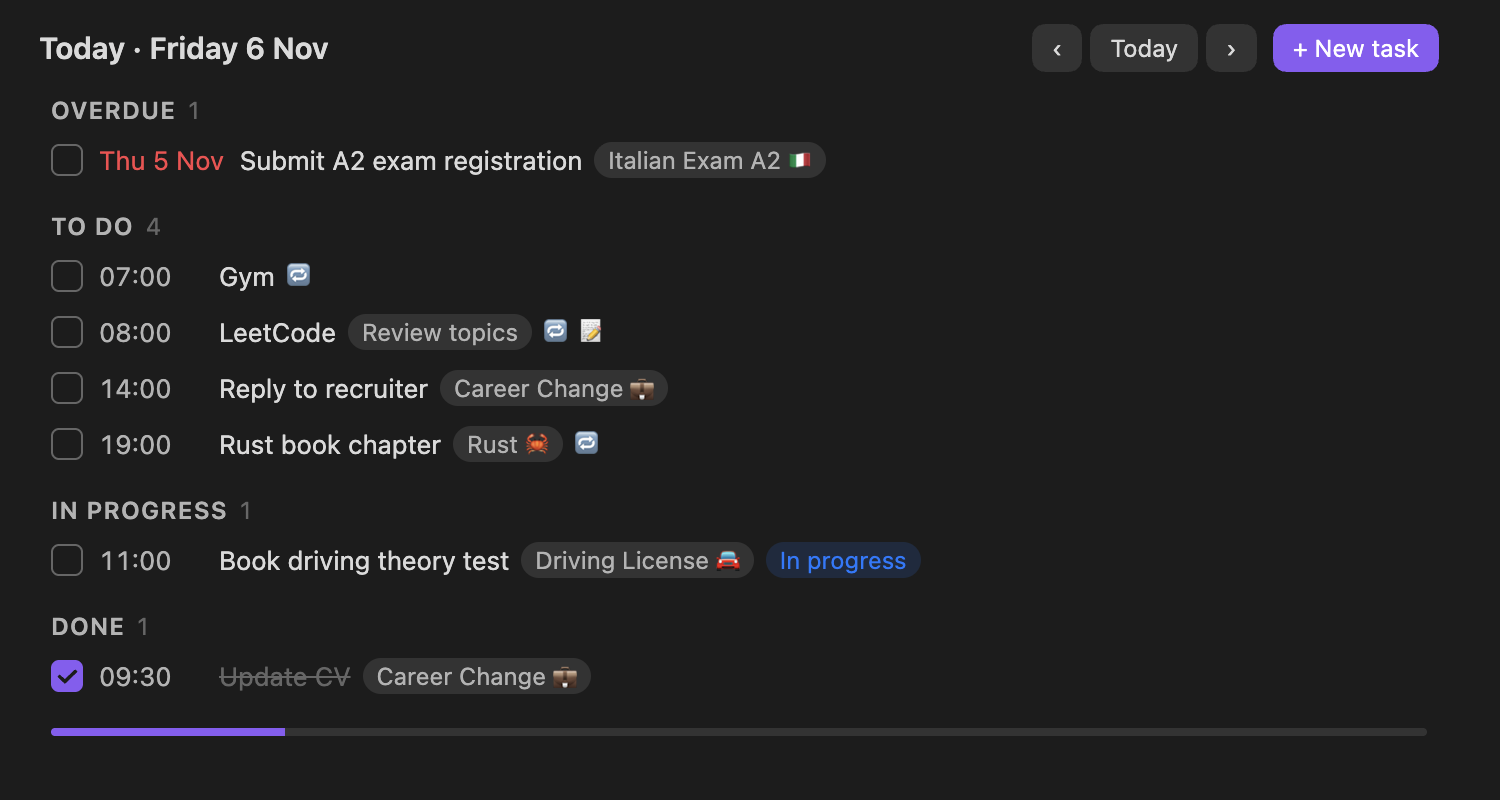
- Task views: Today (with overdue and upcoming tasks), Week (Monday to Sunday), and Upcoming. You can tick, skip or move a task right in the view.
- Recurring tasks like calendar events: one note holds the whole series. You can mark a single occurrence done, skip it, or move it to another time without touching the rest.
- One-way sync from Obsidian to Google Calendar and Microsoft To Do:
- Google gets a real repeating event: the rule becomes an RRULE, skipped days are removed, and moved days appear at their new time.
- To Do gets a repeating task with a due date and a reminder.
- Reminders sync to both services.
- Works on mobile for viewing, adding and editing tasks. A desktop does the syncing.
Recurra uses no build step and has no dependencies, and it never touches your existing calendars or lists.
Why
Your tasks stay plain Markdown files on your own devices, so you can link them, search them, and let scripts or AI agents read them. Your phone still gets real calendar events and reminders. Through Microsoft To Do, apps such as Samsung Reminder can ring a full-screen alarm for each task.
Screenshots
| Week: tick, skip or move any occurrence | 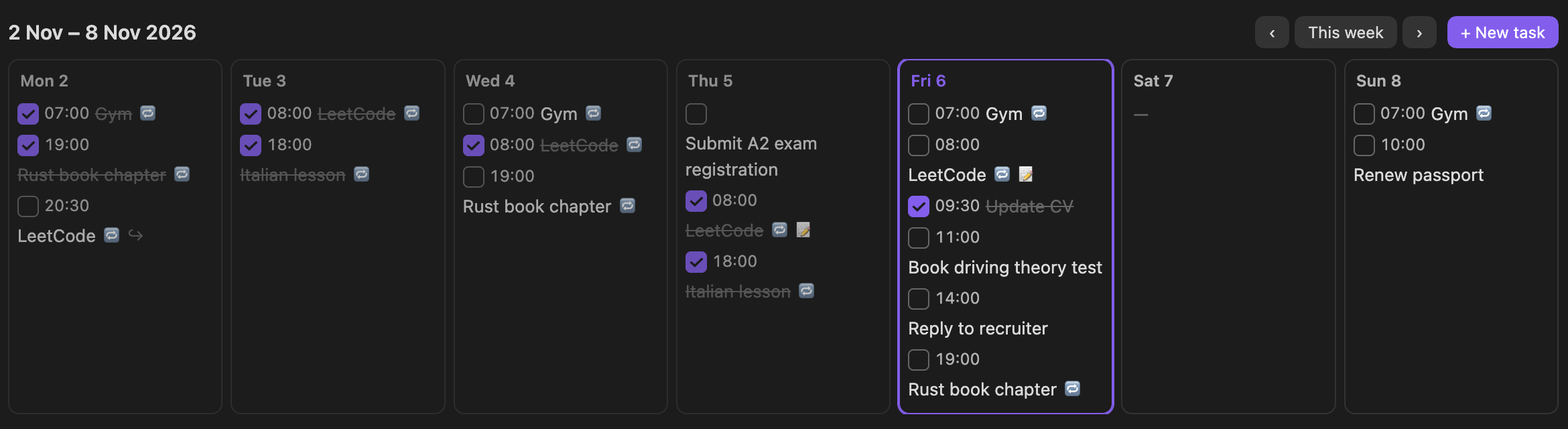 |
| Goal timeline: goals and sub-goals across their date ranges | 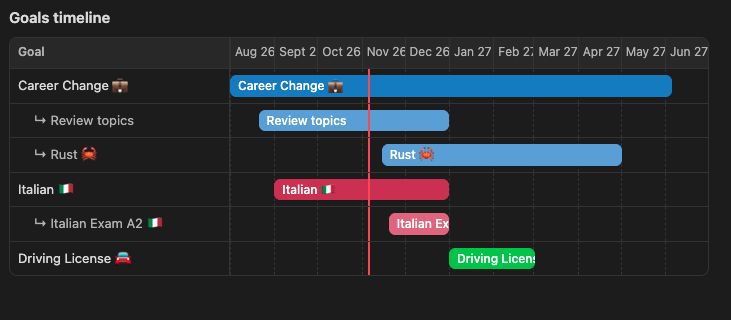 |
| Occurrence list in a recurring task's note | 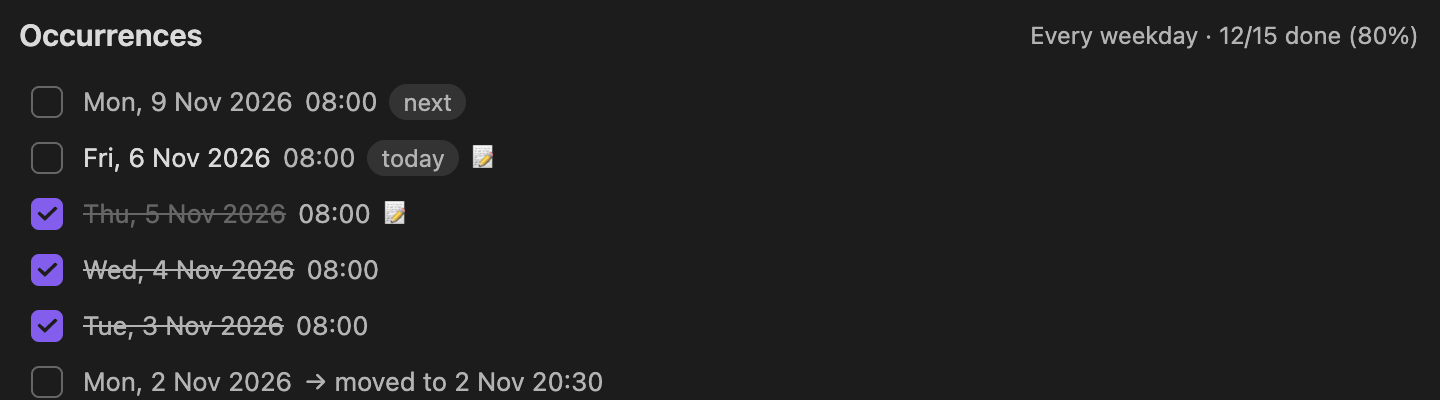 |
| A page for one occurrence, with its status at the top | 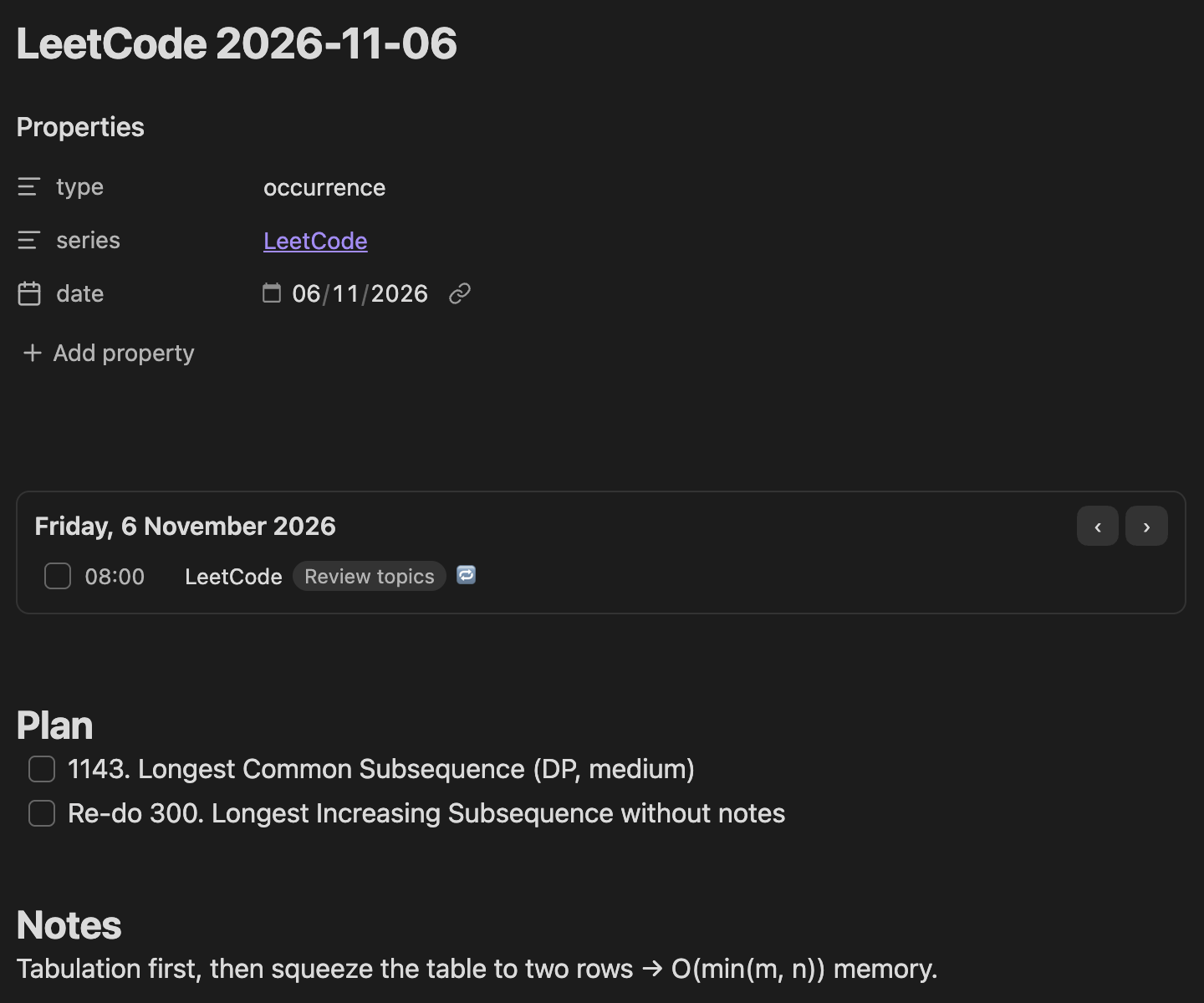 |
Install
Manually: download main.js, manifest.json and styles.css from the latest release. Put them in <your vault>/.obsidian/plugins/recurra/, then go to Settings → Community plugins and enable Recurra.
With BRAT: choose Add beta plugin and enter amin-tehrani/obsidian-recurra.
The examples/ folder has sample tasks, goals and view notes you can copy into your vault.
Tasks
A task is a note in the tasks folder (default Tasks/; you can change it in settings). Everything is in the frontmatter:
---
type: task                  # optional
goal: "[[Get fit]]"         # optional link to a goal note
time: 2026-01-05T07:00      # or just 2026-01-05 for an all-day task
duration: 45                # minutes, or "1h30m"
status: Not started         # one-off tasks: Not started | In progress | Done (labels are configurable)
recurring: every weekday    # leave empty for a one-off task
until: 2026-06-30           # optional end of the series
reminder: [1h, 10m]         # optional, see Reminders below
done_dates: []              # managed by the views (recurring tasks)
skipped_dates: []
moved: []
---
To create a task quickly, use New task. It's in the ribbon, the command palette, and the + New task button in the Today view. On mobile you can set Obsidian's pull-down quick action to Recurra: New task.
Repeat rules
Recurra accepts only rules that both Google Calendar and Microsoft To Do can represent exactly. That way a series always looks the same in all three places.
| You write | Means |
|---|---|
every day, daily, every 3 days | every N days |
every weekday, every weekend | Mon–Fri / Sat–Sun |
every week, every Mon, Thu, every 2 weeks on Tue and Fri, every other week | weekly on the given days, or on the start date's weekday if none are given |
every month, every month on the 15th | monthly by day of the month. Months without that day are skipped, as in Google Calendar |
every month on the last Fri, monthly on the 2nd Tue | monthly by weekday position |
every year | yearly on the start date |
One occurrence vs. the whole series
| You want to | Do this | Stored in the note |
|---|---|---|
| Mark one day done | tick it in Today or Week | done_dates: [2026-01-07] |
| Skip one day | the ⤼ button | skipped_dates: [2026-01-08] |
| Move one day | the 🕑 button | moved: ["2026-01-09 -> 2026-01-09T19:00"] |
| Change every occurrence | edit time, duration or recurring | n/a |
| End the series | set until | n/a |
Occurrences are identified by their original date, the same way calendar apps track exceptions.
A page for each occurrence
Add an occurrence list to a recurring task's note. New task does this automatically, and for an existing note you can run the command Add occurrence list to this recurring task:
```task-occurrences
```
The list shows every occurrence so far, newest first, plus the next one. It includes the done ratio, and each row has a checkbox and skip/move buttons. Click a date to open that day's own page. The first click creates it:
Tasks/Morning run.md                          ← the series
Tasks/Morning run/Morning run 2026-01-07.md   ← one page per occurrence
---
type: occurrence
series: "[[Morning run]]"
date: 2026-01-07        # the occurrence's original date
---
Each occurrence page is yours for notes, links or a log of that day. At the top it shows the day's status with the same controls, plus ‹ › buttons to step to the previous or next occurrence. The 📝 button in Today and Week opens or creates the page for that day.
Done, skipped and moved still live in the series note, so sync is unaffected and you never have to update two places. Occurrence pages are never synced as tasks of their own. If you rename the series, its occurrence folder is renamed with it.
Reminders
reminder counts back from the task's start time. It accepts 10m, 1h, 1h30m, 1d, 1w, at start and none. To set several, use a list like [1d, 10m].
- If the field is empty, a timed task gets the default reminder from settings, which is at start until you change it. An all-day task gets no reminder.
- For an all-day task, reminders count back from 00:00 on that day. For example,
3hrings at 21:00 the evening before. - Google Calendar gets every reminder as a pop-up, up to 5 per task and at most 4 weeks before. To Do can hold only one reminder, so it uses the first one in the list.
Goals
A goal is a note in the goals folder (default Goals/):
---
type: goal
target_start: 2026-03-01
target_end: 2026-05-15
parent_goal: "[[Get fit]]"   # optional; sub-goals appear under their parent
---
You can rename the three properties in settings, for example if your notes came from Notion and use different names.
Views
Put any of these code blocks in a note:
```task-today
```

```task-upcoming
```

```task-week
```

```goal-timeline
```

```task-occurrences
```
task-occurrences belongs inside a recurring task's own note.
Setting up sync
Sync is one-way: Obsidian → Google Calendar / Microsoft To Do. Make your edits in Obsidian. A change made in Google or To Do is overwritten the next time that task syncs.
Recurra syncs about 10 seconds after you edit a task, every 10 minutes, and when you click the status-bar item. Sync only runs while Obsidian is open on the sync device (see Multiple devices).
Each person uses their own free API credentials, so your data goes only between your computer, Google and Microsoft.
Google Calendar
- Open the Google Cloud console and create a project.
- Go to APIs & Services → Library, search for Google Calendar API, and click Enable.
- Go to Google Auth Platform → Branding and set an app name and your email. Choose External as the audience.
- Go to Audience → Test users and add your own Google account.
- Go to Clients → Create client, choose application type Desktop app, and copy the client ID and secret.
- In Obsidian, open Settings → Recurra → Google Calendar, paste both values, and click Connect.
- Google will warn that it "hasn't verified this app". That's expected, because the app is your own. Click Continue.
Recurra asks only for calendar.app.created. This scope lets it create its own calendar ("Obsidian Tasks") and manage events in that calendar only. It cannot read your other calendars.
While the Google app is in Testing mode, Google signs you out every 7 days. Recurra then shows a notice, and you click Reconnect. To avoid this, publish the app under Audience → Publish app. Google may ask for a home page and a privacy policy link first. Any page you control, such as a GitHub page, works.
Microsoft To Do
- Open Microsoft Entra, go to App registrations → New registration, and fill in:
- Supported account types: Accounts in any organizational directory and personal Microsoft accounts.
- Redirect URI: platform Public client/native (mobile & desktop), value
http://localhost.
- Copy the Application (client) ID.
- In Obsidian, open Settings → Recurra → Microsoft To Do, paste the ID, and click Connect.
- If the registration allows personal accounts only, set Tenant to
consumers.
- If the registration allows personal accounts only, set Tenant to
Recurra asks for Tasks.ReadWrite and creates its own list ("Obsidian").
Links back to Obsidian (desktop and phone)
Every synced event and To Do task has a 📝 Open in Obsidian link:
- One-off task: the link opens the task's note.
- Recurring task in Google Calendar: each day from 3 days ago to 2 weeks ahead links to that exact day's page. The page is created the first time you open it. As days go by, new ones get their link. Days further out link to the task note.
- Moved day: the link opens the page for that day.
- To Do: the link opens the page for the next pending day.
The links run a Recurra action (obsidian://recurra?task=…&date=…). Recurra is installed on all your devices, so the same link works on a computer and on a phone.
Phone calendar and To Do apps don't open obsidian:// links, so by default each link goes through a small forwarding page hosted on GitHub Pages. The page hands the link to the Obsidian app; on Android it uses an app link. Your link is the part after #, which browsers never send to any server.
Under Settings → Recurra → Links back to Obsidian you can:
- switch to direct
obsidian://links, or turn links off; - host your own copy of the forwarding page;
- include the vault name in links. By default it's left out, so links open in whichever vault is open. That still works if the vault has a different name on your phone.
Multiple devices
Vaults are often shared between devices through Obsidian Sync, iCloud, Syncthing or git, and the plugin's data.json is shared with them. If two devices both synced, every event would be created twice. So only one desktop syncs:
- The first desktop that connects or syncs becomes the sync device.
- Other desktops and phones still show and edit tasks normally. Their changes are synced once they reach the sync device.
- To move syncing to another computer, open Settings → Recurra on it and click Sync from this device. Connecting an account from a computer also makes it the sync device.
Phones and tablets never sync, because the sign-in flow needs a desktop.
Privacy and security
- Sign-in tokens and the client secret are stored in the plugin's
data.jsoninside your vault. If you put your vault in a public git repository, add.obsidian/plugins/recurra/data.jsonto.gitignore. - Network requests go only to
accounts.google.com,oauth2.googleapis.com,www.googleapis.com,login.microsoftonline.comandgraph.microsoft.com. The forwarding page for links is a static page: opening it sends nothing about your task, because the link is after the#. - Sign-in uses OAuth with PKCE and a temporary server on 127.0.0.1/localhost that exists only while you sign in.
Disclosures
- Accounts: syncing needs a Google account and/or a Microsoft account. You set up your own free OAuth app for each; see Setting up sync. Without them, the views, recurring tasks and occurrence pages all work offline.
- Network use: only when sync is connected, and only to Google's and Microsoft's sign-in and API servers listed above. Links in synced events point to a static forwarding page on GitHub Pages; you can turn that off in settings.
- No telemetry, no ads, no payments. Nothing is sent to the author.
- Files: Recurra reads and writes notes only in the tasks and goals folders you configure, and in the occurrence-page folders it creates there.
Limitations
- Sync is one-way, and only the sync device sends changes to Google and Microsoft.
- Tick tasks in Obsidian. If you complete a task in To Do (or in an app synced with it), the next sync makes it pending again, because Obsidian is the source of truth. Copies that To Do creates on its own are removed.
- To Do keeps one task per series, holding the next pending occurrence and the repeat rule. It doesn't keep past skipped or moved days, which only Google Calendar shows.
- Repeat rules are limited to what both services support. For example, "every 2nd and 4th Thursday" isn't possible.
Development
The plugin is plain CommonJS with no build step: main.js is the plugin itself.
npm test            # node --test, no dependencies
npm run demo        # writes ./demo-vault: goals, tasks with history, occurrence pages
npm run demo builds a vault dated relative to today, with Recurra installed and no sync connected. Open the folder as a vault in Obsidian to try the plugin or take screenshots. To add only the demo tasks to an existing vault (marked demo: true so you can delete them later):
node scripts/demo-vault.js <vault> --tasks-only --tasks Tasks --goals Goals
See CONTRIBUTING.md and the changelog.
To release, bump version in manifest.json and package.json, add the version to versions.json, commit, then push a tag with the same version (for example git tag 1.0.1 && git push --tags). GitHub Actions runs the tests and attaches main.js, manifest.json and styles.css to a new release.
License
For plugin developers
Search results and similarity scores are powered by semantic analysis of your plugin's README. If your plugin isn't appearing for searches you'd expect, try updating your README to clearly describe your plugin's purpose, features, and use cases.