Tables
unlistedby aztekgold
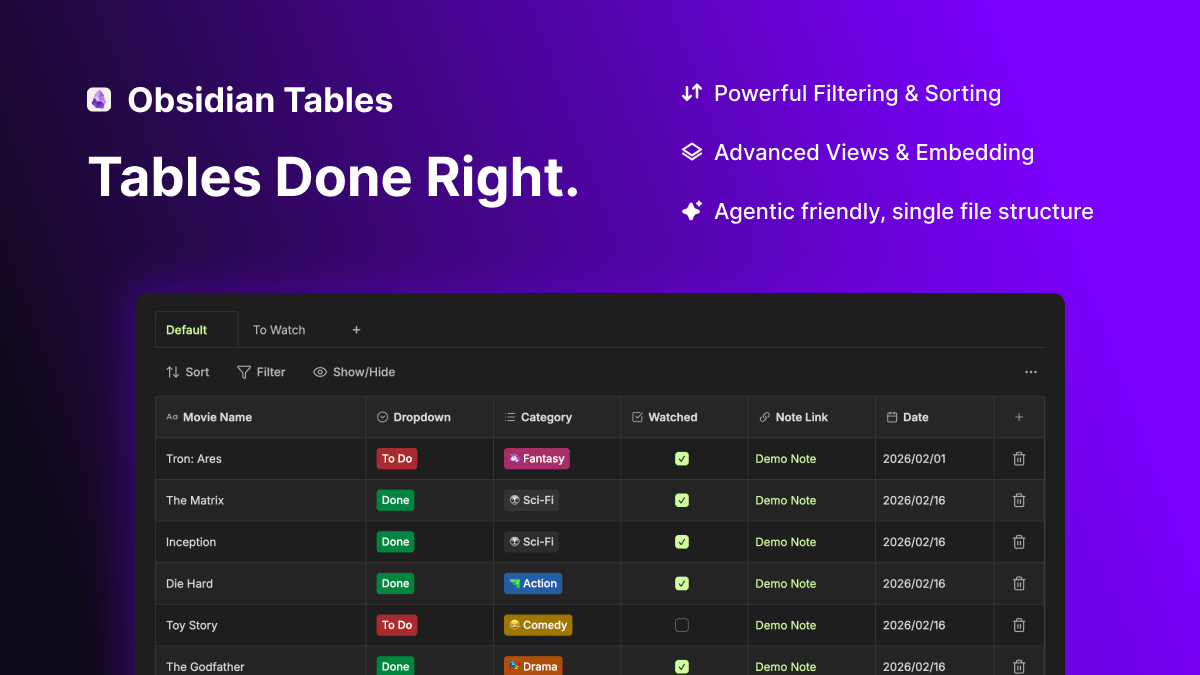
Create and manage interactive, single-file tables with rich column types, sorting, filtering, and embeds - agent-friendly by design!
Tables for Obsidian
Obsidian Tables fills the gap between spreadsheets and Obsidian Bases: portable, single-file tables without a Markdown file for every row — perfect for book lists, project trackers, contacts, and content calendars.
Data lives in a single JSON file, so it's readable in any text editor without being dependant on Obsidian, exportable to CSV in one click, and easy for AI agents to read, update, and reason over without traversing linked notes.
Support
If you enjoy using Obsidian Tables consider Buy me a coffee

✨ Features
Multiple Column Types
- Text - Simple text input
- Number - Numeric values with keyboard and clipboard validation
- Checkbox - Boolean toggle
- Select - Single selection from predefined options with custom colours
- Multi-select - Multiple selections from predefined options with custom colours
- URL - Renders as a clickable external link when the value matches a URL pattern
- Email - Renders as a
mailto:link when the value matches an email address - Note Link - Link to other notes in your vault
- Date - Date picker with customisable format
- Formula - Compute a value from other columns in the same row, live
📊 Views, Sorting & Filtering
- Multiple Views: Create different perspectives of your data (e.g., "Active Tasks", "Completed Items") within the same table file.
- Advanced Sorting - Multi-level sorting with ascending/descending order
- Powerful Filtering - Complex filter rules with multiple conditions, including "greater than"/"less than" for numbers and dates
- Search - Free-text search box filters rows by any visible column, case-insensitively
🔌 Embeds
- Inline Tables: Tables render directly in Live Preview for seamless editing.
- Linked Embeds: Embed your table in any other note using standard Obsidian embed syntax
![[MyTable.table.md]]. The embedded table is fully interactive. - Embed View Pinning: Use the alias slot to target a specific view — or create a new one automatically:
![[MyTable.table.md|Sprint Board]]— pins the embed to the "Sprint Board" view, creating it if it doesn't exist.![[MyTable.table.md]]— renders the default (first) view.
🎯 Table Management
- Add/Delete Rows & Columns - Flexible data structure management
- Drag to Reorder Rows - Intuitive drag-and-drop row reordering
- Drag to Reorder Columns - Rearrange columns by dragging the header
- Resize Columns - Adjust column widths to fit your content
- Inline Renaming - Rename tables directly in the view
- Smart Linking - Automatic backlink updates when notes are renamed or deleted
- Real-time Updates - Changes save automatically as you type
- Mobile Friendly - Popups go full-screen and the toolbar adapts to fit smaller screens on phone
🧮 Formulas
Add a Formula column and reference any other column with {{ Column Name }} syntax:
{{ Price }} * {{ Quantity }}
{{ Due Date }} < today()
if({{ Status }} == "Done", "✅", "⏳")
- Operators:
+ - * /(number columns only),== > <(comparisons —>/<work on number and date columns) - Functions:
if(condition, valueIfTrue, valueIfFalse?)— the false branch is optional and defaults to emptycontains(column, value)— exact match against the options for a multi-select column, substring match for everything elsetoday()— today's date, comparable with>/<against a date column (e.g.{{ Due Date }} < today()for "overdue")date(text, format?)— parses a literal date for comparison; format defaults toYYYY-MM-DDand also accepts customYYYY/YY/MM/DDpatterns, e.g.date("01/10/26", "DD/MM/YY")
- A formula that resolves to a date is shown as a proper formatted date automatically, no configuration needed
- Formulas reference columns by name as you type, but are stored internally in a way that survives renaming that column later
- Sort and the "Greater than"/"Less than" filter both work on Formula columns when the result is numeric or date-shaped
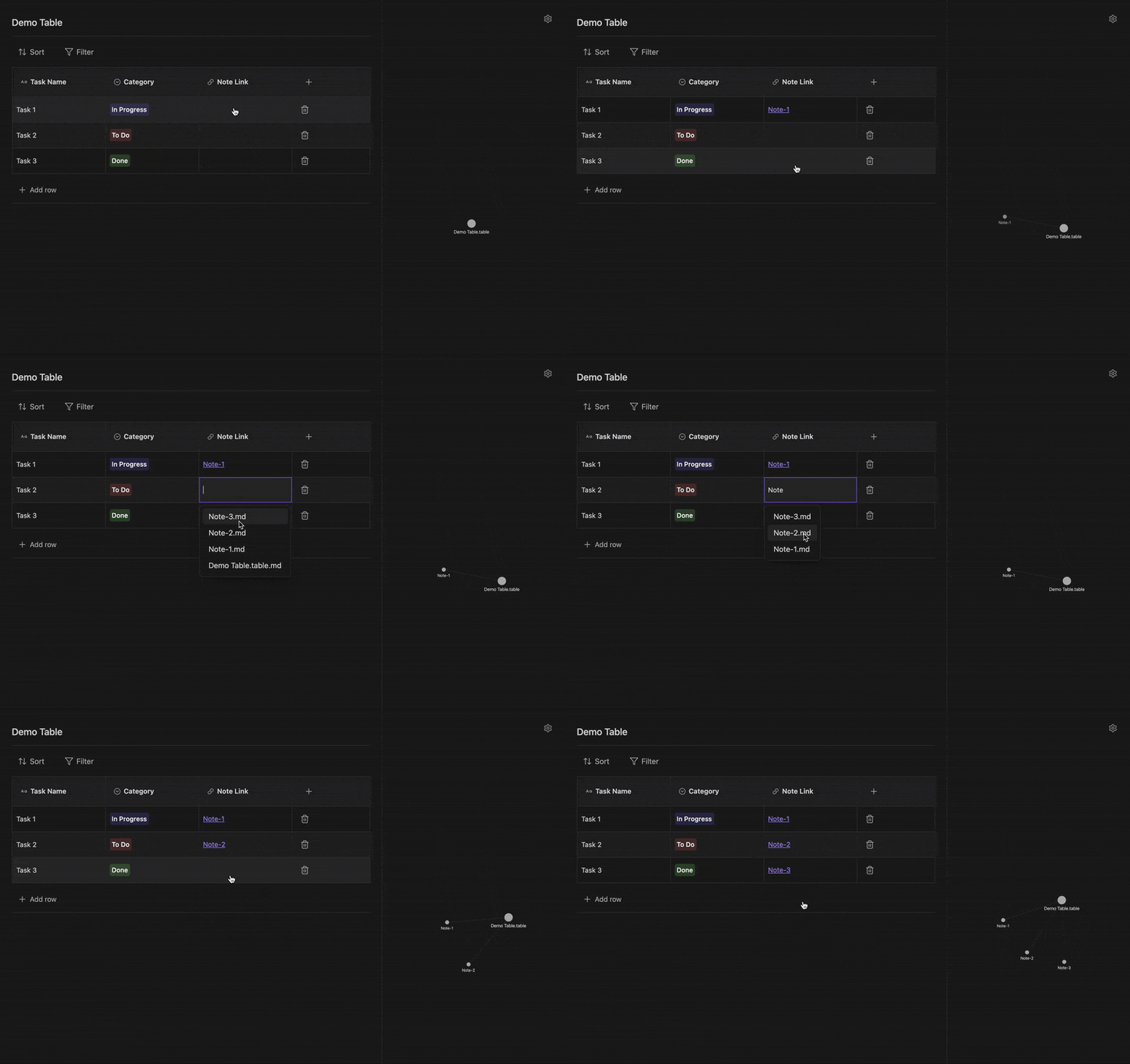
🔗 Graph View Integration
Tables integrate with Obsidian's graph view through note link columns:
🚀 Quick Start
Creating Your First Table
- Right-click in your file explorer or use the command palette
- Select "New table"
- Start adding columns with different data types
- Add rows and populate your data
📚 Usage Guide
Working with Columns
Add a Column
- Click the "+" button in the table header
- Choose from 10 column types: Text, Number, Checkbox, Select, Multi-select, URL, Email, Note Link, Date, or Formula
- Customise options and colours for Select and Multi-select columns
Edit a Column
- Click the column name to rename or modify column properties
- Delete columns when no longer needed
Managing Data
Rows
- Add: Click "Add row" at the bottom
- Delete: Click the trash icon on any row
- Reorder: Drag rows using the handle on the left (enable in settings)
Filtering & Sorting
- Filter: Build complex queries with multiple conditions (equals, contains, greater than, etc.)
- Sort: Multi-level sorting by any column
- Combine multiple filters for precise data views
📦 Installation
Community Plugins (Coming Soon)
- Open Settings → Community plugins
- Click "Browse" and search for "Tables"
- Click "Install" then "Enable"
Manual Installation
- Download the latest release from GitHub Releases
- Extract
main.js,manifest.json, andstyles.cssto<vault>/.obsidian/plugins/tables/ - Reload Obsidian
- Enable the plugin in Settings → Community plugins
💬 Support & Feedback
Found a bug or have a feature request?
- Open an issue on GitHub
- Discussions for questions and ideas
📝 License
MIT License - see LICENSE file for details.
👤 Author
Created with ❤️ by Aztekgold
⚠️ Important: This plugin stores table data within your vault files. Always back up your vault regularly!
For plugin developers
Search results and similarity scores are powered by semantic analysis of your plugin's README. If your plugin isn't appearing for searches you'd expect, try updating your README to clearly describe your plugin's purpose, features, and use cases.