Speech Kit
unlistedby Alexander Brittain
Local speech and language toolkit for notes. Dictate, transcribe meetings, translate text, and read notes aloud with on-device models.
Dictate live. Transcribe meetings. Translate text. Listen to notes. One plugin inside the editor where your notes already live.
Local Dictation is now Speech Kit. It is the same plugin with the same local-first foundation, now with a name that fits what it has become. Existing installs, settings, and hotkeys carry over automatically.
Install Speech Kit from Obsidian Community Plugins
What it does
- 🎤 Speech: Dictate with live streaming text, or capture higher-accuracy transcripts from meetings, calls, and other audio.
- 🔊 Voice: Listen to your notes with natural voices.
- 🌍 Language: Translate notes locally across eight languages.
- 🧠 Models: Choose from a managed catalog of speech, voice, and translation models, with optional LLM text tools.
Why Speech Kit?
Speech and language tools are usually fragmented. One tool handles dictation. Another transcribes meetings. Another reads text aloud. Another translates. Each brings its own settings, models, and hotkeys, and often its own cloud account, subscription, and privacy policy.
Speech Kit replaces that stack with one consistent workflow inside Obsidian: one model manager, one settings surface, and one set of commands.
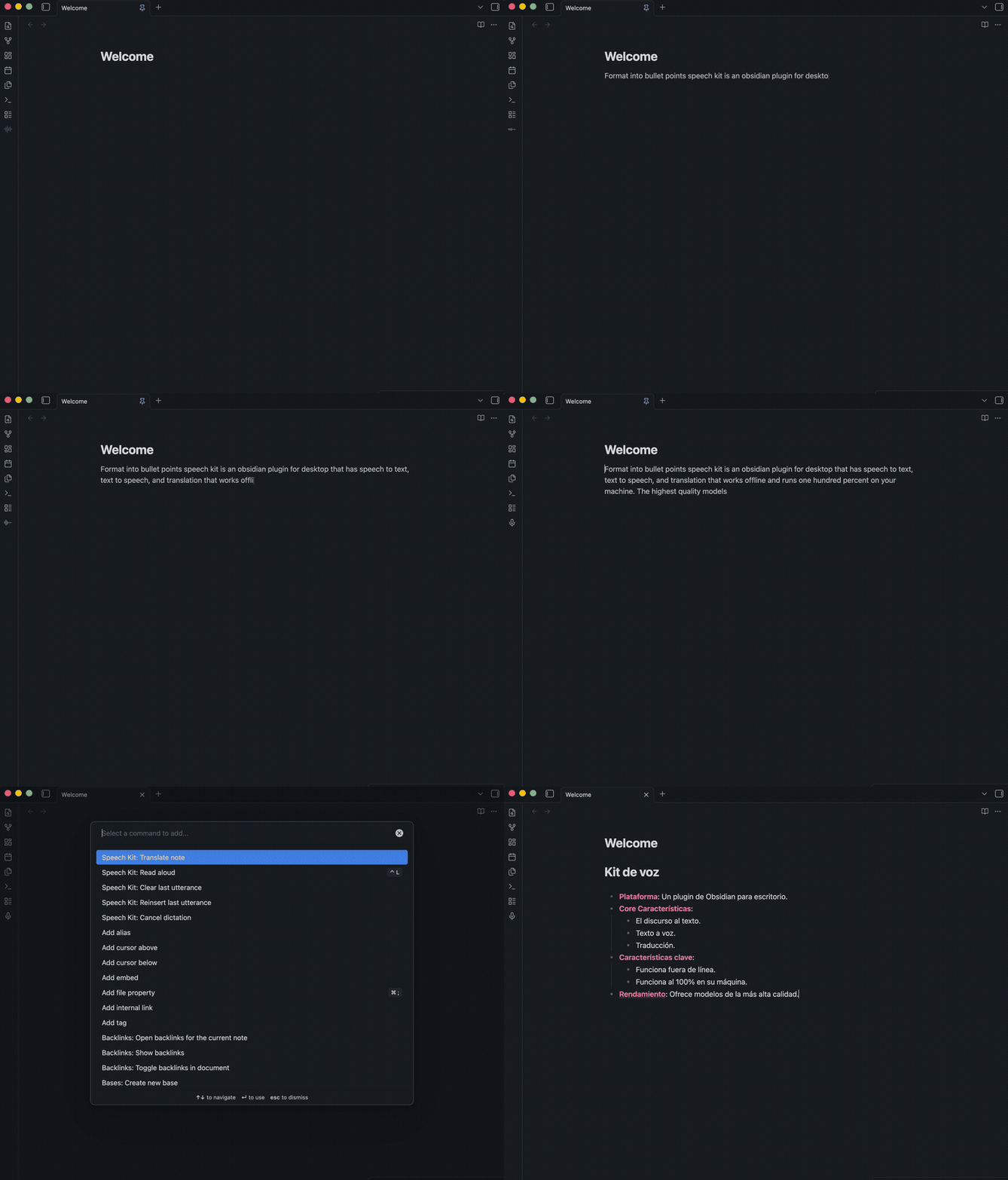
Dictate an idea. Capture a meeting. Translate a passage. Listen to a note. Refine the result. It all happens inside the editor where your notes already live.
Choose the models that fit your workflow
Speech Kit is not tied to one speech engine or hosted API. It manages a growing catalog of models. Install only what you need, mix and match, and change models as your language, hardware, or priorities change.
| You want | Choose |
|---|---|
| Words on screen while you speak | Moonshine streaming models |
| Multilingual live transcription | Nemotron 3.5 ASR |
| The most accurate transcripts | Whisper Large V3 Turbo, Cohere Transcribe, and other batch models |
| Natural local voices | Pocket TTS or Supertonic 3 |
| Fast offline translation | Firefox Translations |
The setup wizard installs the native engine and your first speech model. From there, Speech Kit manages the downloads and you choose how you work.
Dictate, transcribe, translate, listen, and refine
Dictate. Streaming words appear and revise in place while you speak. Finished text lands as Markdown at your cursor. Switch to a batch model when accuracy after each pause matters more than immediacy.
Transcribe. Combine your microphone with system audio to capture meetings, calls, interviews, and videos. Add timestamps and optional on-device speaker labels.
Translate. Translate a selection or a whole note between English and seven other languages. Preview the result before replacing your text, inserting it into the note, or copying it. One local model pack covers every supported direction.
Listen. Read any note aloud with natural local voices. Control the voice, speed, and playback without leaving Obsidian.
Refine. Optional LLM tools can clean up, summarize, restructure, or transform text with your own prompts.
One toolkit across platforms
Many speech apps are limited to one operating system, one model, or one part of the workflow. Speech Kit brings the same toolkit to macOS, Windows, and Linux, with hardware acceleration and system-audio capture where available.
| Platform | Architecture | Acceleration | System audio |
|---|---|---|---|
| macOS | Apple silicon | Metal for Whisper | macOS 14.2 or later |
| Windows | x86-64 | Optional NVIDIA CUDA | Supported |
| Linux | x86-64 glibc | Optional NVIDIA CUDA | PulseAudio or PipeWire |
Choose your platform. Choose your models. Keep one workflow inside Obsidian.
Getting started
- Install Speech Kit from Community Plugins.
- Follow the setup wizard to install the native engine and a speech model.
- Select Try dictation now, or start from the ribbon, command palette, or a hotkey.
Dictation, transcription, translation, and read aloud require no account, API key, usage credits, or cloud service. Once their models are installed, they continue working offline.
Optional LLM text tools are separate. You can connect a local or remote provider when you choose to use them.
Language support
The complete interface is available in English, Spanish, German, French, Portuguese, Italian, Dutch, and Japanese.
Local translation supports English in either direction with each of the other seven languages. Transcription language support depends on the selected model. Multilingual models cover the full verified set, while some smaller or specialized models are English-only.
Local-first, private by default
Speech Kit works without accounts, subscriptions, or required cloud services.
- Your work stays on your machine. Dictation, transcription, read aloud, and translation run locally and continue working offline once their models are installed.
- No account, telemetry, or metered usage. No API key, credit card, subscription, or usage credits to monitor.
- LLM tools are optional. Add flexible language processing to your workflow using a local model or a remote provider you choose. Text leaves your device only when you explicitly use a remote provider, and audio is never uploaded.
- Choose what works for you. Install high-quality models suited to your language, hardware, and workflow.
- Transparent and open. Downloads are explicit, third-party licenses are documented, and Speech Kit is open source.
Support development
If Speech Kit is useful to you, please support development:

Development and project links
Speech Kit pairs a TypeScript plugin with a Rust native sidecar. See CONTRIBUTING.md for its architecture, setup, and development workflow.
Community Plugin · Latest release
Third-party component and model licenses are documented in THIRD_PARTY_NOTICES.md and shown before model download.
For plugin developers
Search results and similarity scores are powered by semantic analysis of your plugin's README. If your plugin isn't appearing for searches you'd expect, try updating your README to clearly describe your plugin's purpose, features, and use cases.