Graph Project Buttons
unlistedby Daniel Kremen
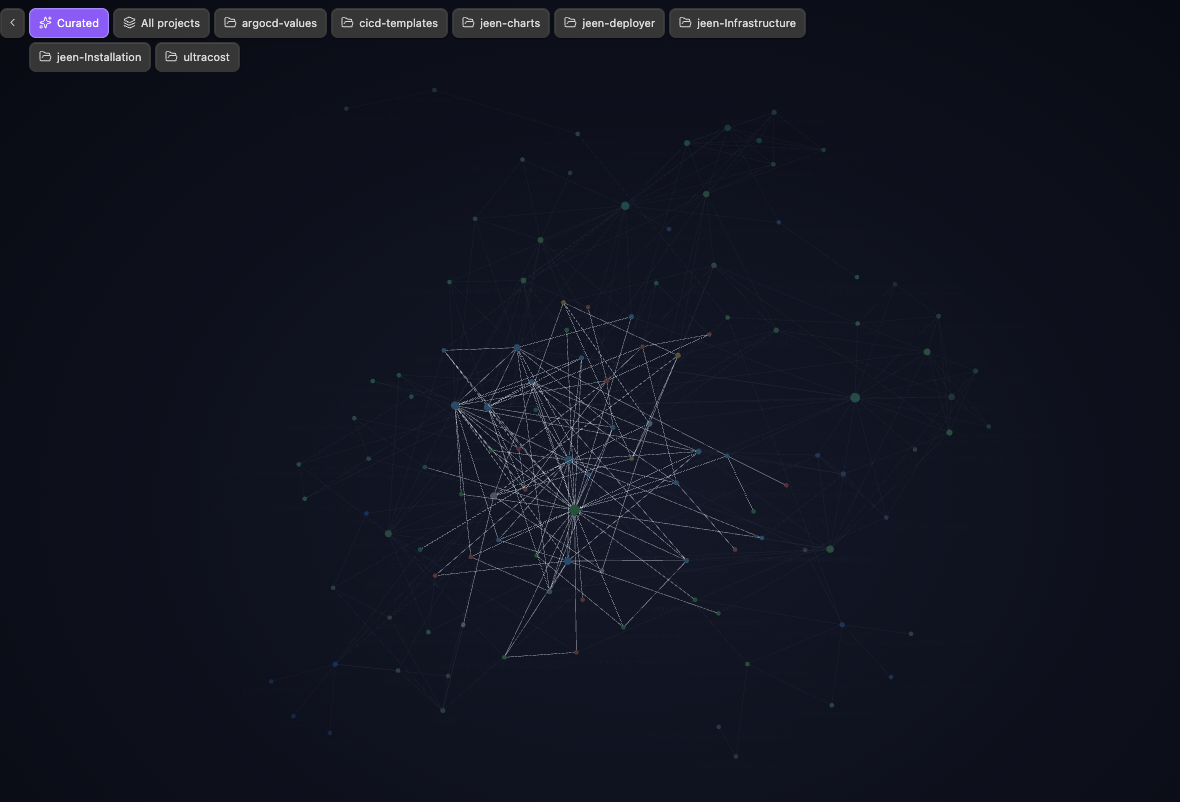
Adds one-click project filter buttons to the graph view so you never type path queries by hand.
Graph Project Buttons
One-click project filter buttons for the Obsidian graph view, so you never have
to type path: queries by hand.
The plugin injects one compact filter button into every graph view. It opens a
menu with a Curated reset entry, an All projects entry, and one entry per
subfolder of a configurable root folder (default projects). Pick an entry and
the graph's search is set for you.
Features
- A menu entry per immediate subfolder of your projects root, auto-discovered from the vault. Loose files under the root and dot-folders are ignored.
- A Curated entry that applies a configurable reset query (default
-path:projects/) and an All projects entry (path:<root>/). - The button shows the active filter's name and the menu checks its entry.
- Per-entry lucide icons and a left/right dock position.
- Re-injects itself when the graph re-renders, using a
MutationObserver— no polling. - The project list is cached and only recomputed when files are created, deleted, or renamed.
- Zero runtime dependencies. Desktop and mobile.
Privacy
To build the project buttons, the plugin reads only the vault's file list
(file paths via getFiles) so it can find the subfolders under your projects
root. It never opens or reads file contents, makes no network requests, and
writes nothing outside its own plugin settings.
Install
Manually
- Download
main.js,manifest.json, andstyles.cssfrom the latest release. - Copy them into your vault at
<vault>/.obsidian/plugins/graph-project-buttons/. - Reload Obsidian (or toggle community plugins off and on) and enable Graph Project Buttons under Settings → Community plugins.
From the community directory (once published)
Open Settings → Community plugins → Browse, search for Graph Project Buttons, install, and enable it.
Usage
Open any graph view. The filter button appears in the top corner, labelled with the active filter (or Filter when none matches). Click it and pick a project to filter the graph to that subfolder, or Curated to apply your reset query.
Settings
| Setting | Default | Description |
|---|---|---|
| Projects root folder | projects | Top-level folder whose subfolders become menu entries. |
| Curated query | -path:projects/ | Graph search applied by the curated reset button. |
| Curated button label | Curated | Label shown on the curated reset button. |
| Show curated button | on | Show the curated reset button. |
| Show all-projects button | on | Show the All projects button. |
| Show icons | on | Show per-button lucide icons. |
| Bar position | Top left | Dock the bar to the top left or top right. |
Development
npm install      # install dev dependencies (zero runtime deps)
npm run dev      # esbuild watch -> main.js
npm run build    # type-check (tsc --noEmit) + production bundle
npm test         # node:test unit tests for the pure helpers
npm run lint     # eslint (eslint-plugin-obsidianmd + typescript-eslint)
To develop against a real vault, symlink or copy this folder into
<vault>/.obsidian/plugins/graph-project-buttons/ and run npm run dev.
See docs/architecture.md for how the injection,
MutationObserver, and search dispatch fit together, and
docs/publishing.md for the community-directory submission
steps. Contributor guidelines live in CONTRIBUTING.md.
Support
If this plugin is useful to you, you can sponsor its development through GitHub Sponsors. Sponsorship is entirely optional — the plugin stays free and open source either way.
License
MIT © 2026 Daniel Kremen
For plugin developers
Search results and similarity scores are powered by semantic analysis of your plugin's README. If your plugin isn't appearing for searches you'd expect, try updating your README to clearly describe your plugin's purpose, features, and use cases.