List Vibes
unlistedby dkthecoder
Turn a folder of markdown files into to-do lists, with a task list, a completed section, and a detail panel for steps and dates.
List Vibes
A Microsoft To Do–style task app built on a folder of markdown files.
One file is a list. One line is a task. There is no database, no index and no cache — open any of these files in the editor and you are looking at exactly what the plugin is looking at.
Desktop, tablet and phone. One view, one codebase: the layout collapses from two panes to one as the space runs out, and the task detail docks in Obsidian's right panel or opens as a drawer, whichever the device has.
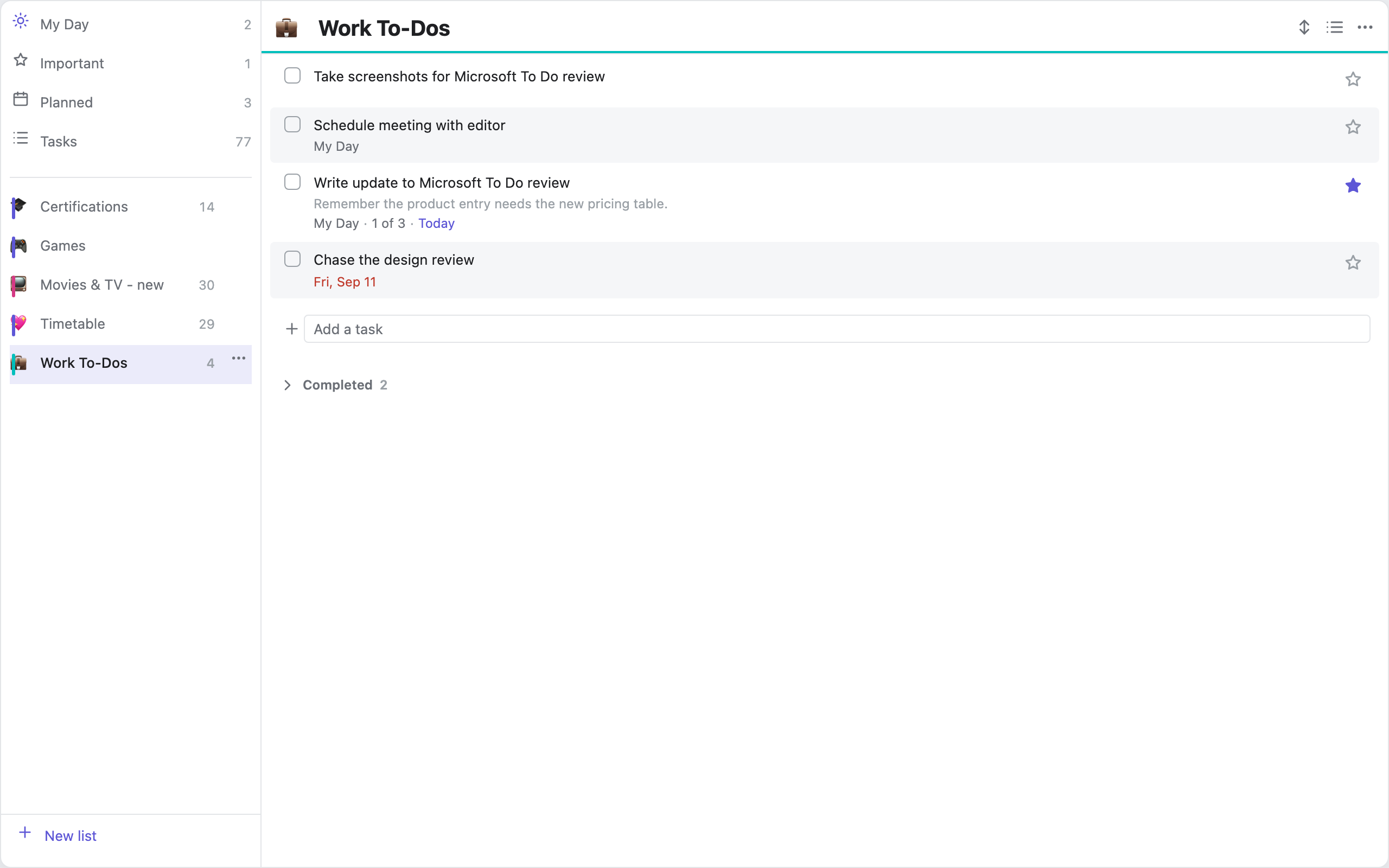
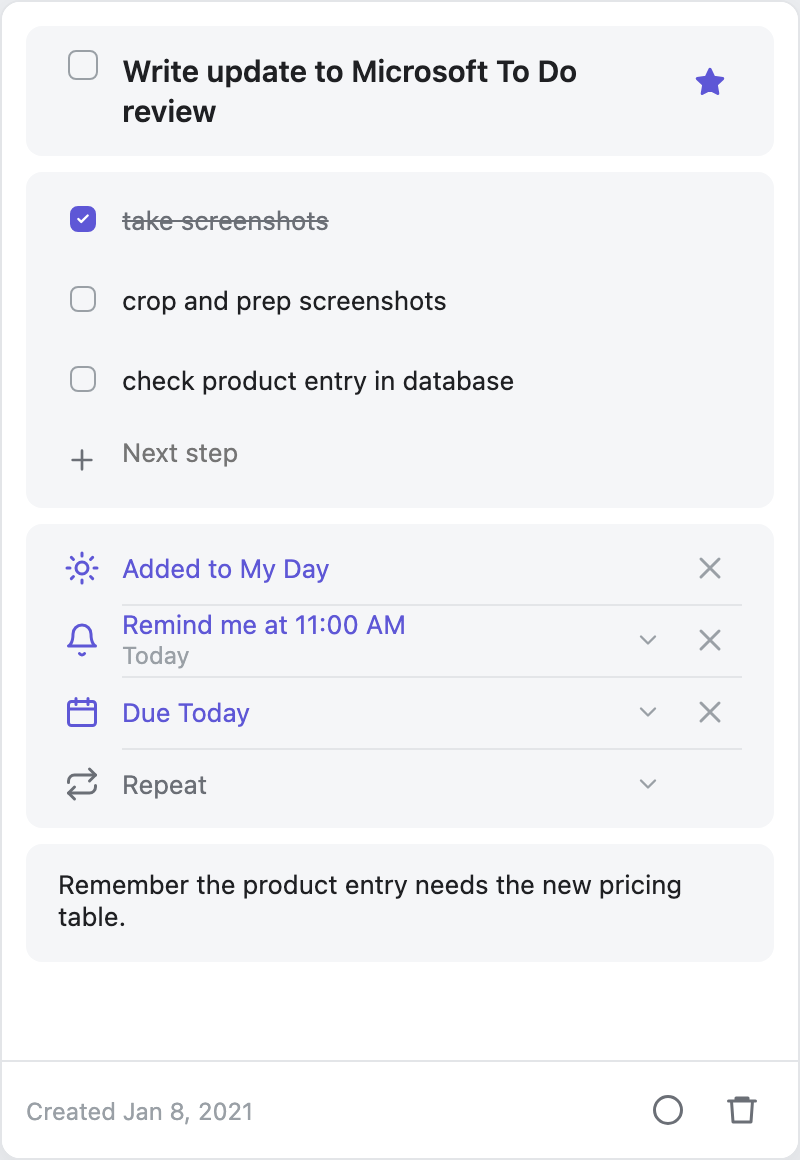
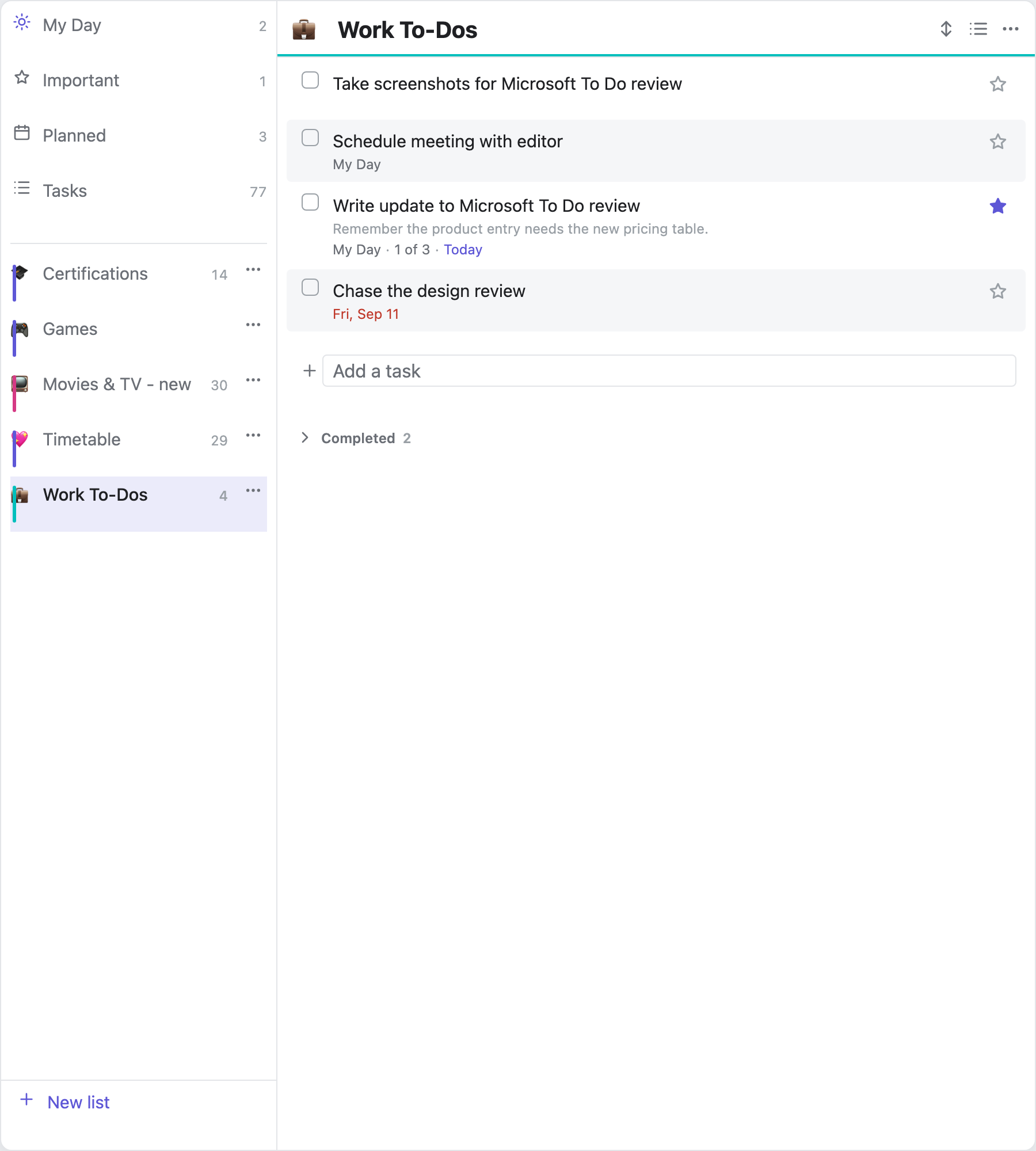
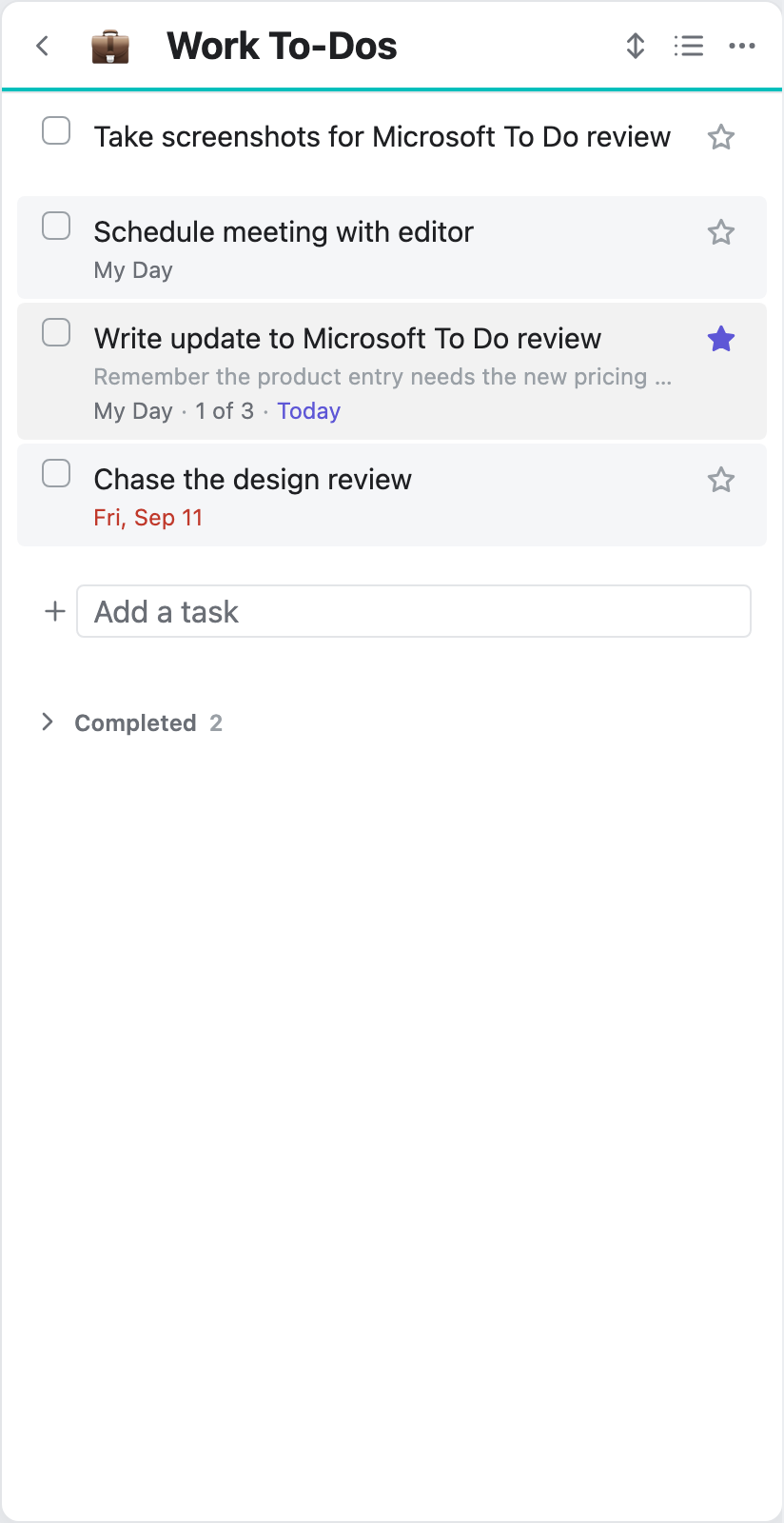
Features
Lists
- A folder of
.mdfiles is your lists. Add a file, get a list. - Each list gets an icon and a colour. The icon can be a leading emoji in
the filename (
💼Work.md) or set from the list menu; both are stored in the file's frontmatter. - Rename in place — double-click a list's name. It renames the file, and every open tab follows.
- Tidy titles turn
my-work-list.mdinto "My work list" for display, without touching the filename. Toggleable if you want the true name. - Open a list in the sidebar or as a tab. In tab mode the sidebar stays a picker, the way the file explorer works.
Tasks
- Tick, add, rename, delete, and drag to reorder.
- Steps — nested subtasks with an "n of m" counter. Can be switched off.
- Notes — a description under any task, with the first line shown faintly beneath the title in the list.
- Importance — a single star, or a 1–5 star rating if you prefer more room.
- Due dates, scheduled dates, reminders, and My Day.
- Repeating tasks —
🔁 every week. Ticking one writes the next occurrence. - Completed section — collapsed, expanded, or hidden, per your setting.
- Completion and creation stamps, optionally with the time:
✅ 2026-08-26T14:32.
Views
- My Day, Important, Planned and Tasks — cross-list views that read every list in the folder.
- Rows or post-its — a list layout or a card wall, chosen per list or as a default.
- Sorting — custom order, importance, due date, date created (newest or oldest), or alphabetical. Remembered per list.
- Striped rows — shade every other row so a long one is easier to follow across. On by default; a list can opt out from its own menu.
- Confetti and glints — a short burst in the list's own colour when a task is completed, and a sparkle from the star when you mark one important. Each has its own switch, and both are off automatically if your system asks for reduced motion.
The detail panel
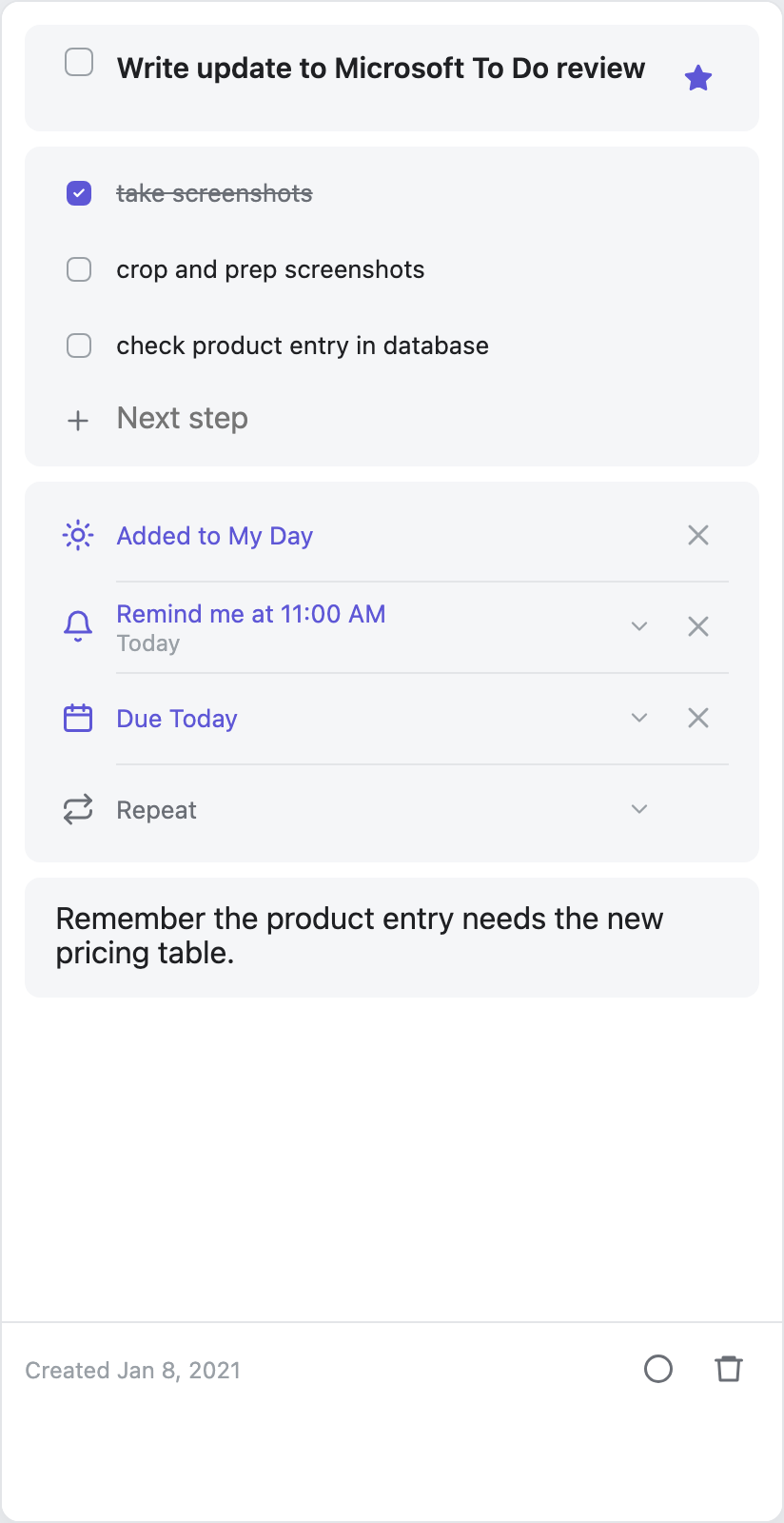
- Tapping a task opens it in Obsidian's own right panel — the same one Backlinks and Outline use. It docks, collapses, resizes and, on a phone, swipes away, because it is a real Obsidian view rather than an overlay pretending to be one.
- Opened from anywhere else, it offers a fuzzy task search across every list.
- Fields grow as you type rather than sitting at a fixed size.
It stays markdown
- Reads both the Obsidian Tasks emoji dialect and Dataview inline fields. Writes whichever you choose.
- Files are edited one line at a time — never re-serialised from a parsed model — so nothing the plugin does not understand is ever rewritten or lost.
- Promote any task to its own note when a single line stops being enough. The line becomes a link; the list still shows it inline.
Everywhere
- One view on desktop, tablet and phone. The layout collapses from three panes to two to one as the space runs out.
- No colours of its own. Every colour comes from an Obsidian token, so the plugin follows your theme — including ones it has never seen. There is a test suite that repaints the whole palette and fails if a single colour ignores it.
Commands
Open List Vibes · Open My Day · Open a list in a new tab · Add a task ·
Add a task to My Day
Storage format
List settings live in YAML frontmatter. Task metadata lives inline, because it has to fit on one line.
---
icon: 💼
sort: manual
showCompleted: collapsed
---

- [ ] Take screenshots for review
- [ ] Write update to review ☀️ ⏰ 11:00 📅 2026-08-24 ➕ 2021-01-08 ⏫
	- [x] take screenshots
	- [ ] crop and prep screenshots
	Remember the product entry needs the new pricing table.
- [x] Draft the outline ✅ 2026-08-20
| Field | Written as | Standard |
|---|---|---|
| Due | 📅 2026-08-24 | Obsidian Tasks |
| Scheduled | ⏳ 2026-08-24 | Obsidian Tasks |
| Repeat | 🔁 every week | Obsidian Tasks |
| Important | ⏫ / 🔺 | Obsidian Tasks |
| Created | ➕ 2021-01-08 | Obsidian Tasks |
| Completed | [x] + ✅ 2026-08-20 | Obsidian Tasks |
| Steps | nested - [ ] | plain markdown |
| Note | indented text under the task | plain markdown |
| My Day | ☀️ | this plugin |
| Reminder | ⏰ 11:00 | this plugin |
Most of that is the Obsidian Tasks emoji dialect, so existing vaults parse with
no migration and the files stay readable by the Tasks plugin, TaskForge and
Finalist. Dataview inline fields ([due:: 2026-08-24]) are always parsed too;
the setting only controls which format gets written, so switching it never breaks
anything already on disk.
An emoji at the start of a filename (📺Movies & TV.md) is used as the list icon
and removed from the display name.
Colour and layout are written to the list's frontmatter. That write goes through
our own single-key editor rather than Obsidian's processFrontMatter, which
round-trips the whole block through a YAML parser and can reorder keys — these
files are yours, and one of them is a Kanban board whose plugin reads its own
frontmatter back. Only the line being set is ever touched.
Importance and sorting
Importance has two modes, set in settings:
- Star — on or off, the Microsoft To Do behaviour.
- Rating — 0 to 5 stars, where 5 is most important. Tapping the star you are already on clears it back to zero, so every value is reachable without a separate clear button.
Both write the same priority field. The five Obsidian Tasks glyphs map straight
onto the rating (5★ 🔺, 4★ ⏫, 3★ 🔼, 2★ 🔽, 1★ ⏬), so switching the
setting never rewrites a file, and a task rated four stars shows as a filled star
in star mode.
Each list can be sorted independently: custom (the file's own order), importance,
due date, date created newest or oldest, and alphabetical either way. Sorting is
view-only — it is stored in plugin settings, never written to your markdown, so
changing it cannot touch a byte of the file. Custom order is the only mode that
shows the file's ## headings as section dividers, since the others break that
grouping by definition.
Dragging is only offered under custom sort, and never in a smart view. Custom sort is the file's order, so moving a row is a real edit and the new position is what you see next time. Under a computed sort, dropping a task between two others would write a change the sort immediately undoes — which reads as the drag having failed. A smart view has no single order to rewrite at all: its rows come from several files at once.
There is deliberately no "last modified" sort for tasks. A markdown line has no modified timestamp — only the file does — so every task in a list would share one value. Date created is the honest version of that, and needs the creation-date setting switched on.
Safety
The plugin never rebuilds a file from its parsed model. Every task carries the exact original line it came from, and every edit is a surgical splice into that string. A line the plugin didn't mean to change cannot drift.
Writes take one of two paths, which is not optional:
- File open in an editor → the Editor API, so cursor, selection and folds survive.
- File not open →
Vault.process, the atomic read-modify-write.
Line numbers are re-verified against the file immediately before every write; if the line has changed underneath us the edit is abandoned rather than applied to the wrong place.
Repainting
A repaint names what it affects, and anything it does not name is left on screen untouched. A file change rebuilds the task list; expanding a date row rebuilds the detail panel and nothing else. Only a genuine change of layout shape — the pane switching, the width crossing the breakpoint — rebuilds the tree.
Without that, editing a task made the whole view flash: a click wrote the file, the vault event came back about 30ms later, and everything was destroyed and rebuilt underneath the pointer.
Fonts
The plugin reads --font-interface, not --font-interface-theme. The latter is
an input hook for themes, and Obsidian defaults it to a font registered over
unicode-range: U+0 — it renders no glyphs. Read it directly and the text falls
back to the browser's default serif, worst of all when a theme is well behaved
and sets no font of its own.
Folder
Default lists/, configurable.
Do not use a dot-prefixed folder like .lists/.
Development
npm install
npm run dev      # watch build
npm run build    # typecheck + production build
npm test         # 294 tests: parsing, sorting, frontmatter, view state, writes
npm run test:ui  # drives drags, renames, titles and mobile typing in a browser
npm run shot     # renders every pane to harness/shot-{light,dark}.png
Running it in Obsidian
One-off install into a vault:
./install.sh "/path/to/your/vault"
Then in Obsidian: Settings → Community plugins → enable List Vibes. On a fresh vault you have to turn off Restricted mode first.
For an actual dev loop, build straight into the vault instead:
npm run dev:vault -- "/path/to/your/vault"
esbuild watches src/ and writes main.js, manifest.json and styles.css
into <vault>/.obsidian/plugins/list-vibes/ on every save. Only those three
files land in the vault; the repo stays outside it so node_modules is never
somewhere Obsidian would try to index.
It also drops a .hotreload marker in the plugin folder. Install the
Hot Reload community plugin (pjeby/hot-reload) and Obsidian will pick up
each rebuild without a restart. Without it, toggle the plugin off and on in
settings after a change.
For mobile, app.emulateMobile(true) in the desktop console (Ctrl/Cmd+Shift+I)
renders the real WorkspaceMobileDrawer, which exercises the same code path the
phone uses. To get it onto an actual phone you need the built files inside the
vault's .obsidian/plugins/list-vibes/ and that folder syncing to the device —
note that Obsidian Sync excludes plugin files unless you explicitly enable it.
AI
This app is co-created with AI and has been vibe coded.
Licence
MIT
For plugin developers
Search results and similarity scores are powered by semantic analysis of your plugin's README. If your plugin isn't appearing for searches you'd expect, try updating your README to clearly describe your plugin's purpose, features, and use cases.