WhisperCal
unlistedby Dan Loomis
Calendar sidebar (Microsoft 365 or Google Calendar) with one-click meeting notes, MacWhisper transcript linking, LLM-powered speaker tagging, and meeting summarization.
WhisperCal
A desktop-only Obsidian plugin that puts your calendar in a sidebar (Microsoft 365 or Google Calendar), creates templated meeting notes with one click, records meetings and links transcripts to notes, and drives an LLM-powered pipeline to tag speakers, research context, and summarize meetings.
Desktop only — works on macOS and Windows. Some features are macOS-only (see Platform Support below). Will not load on Obsidian mobile.
Noncommercial license — WhisperCal is released under the PolyForm Noncommercial License 1.0.0. You may use, modify, and share it for personal, hobby, research, nonprofit, educational, and government purposes. Commercial use requires a separate license from the author. See License.
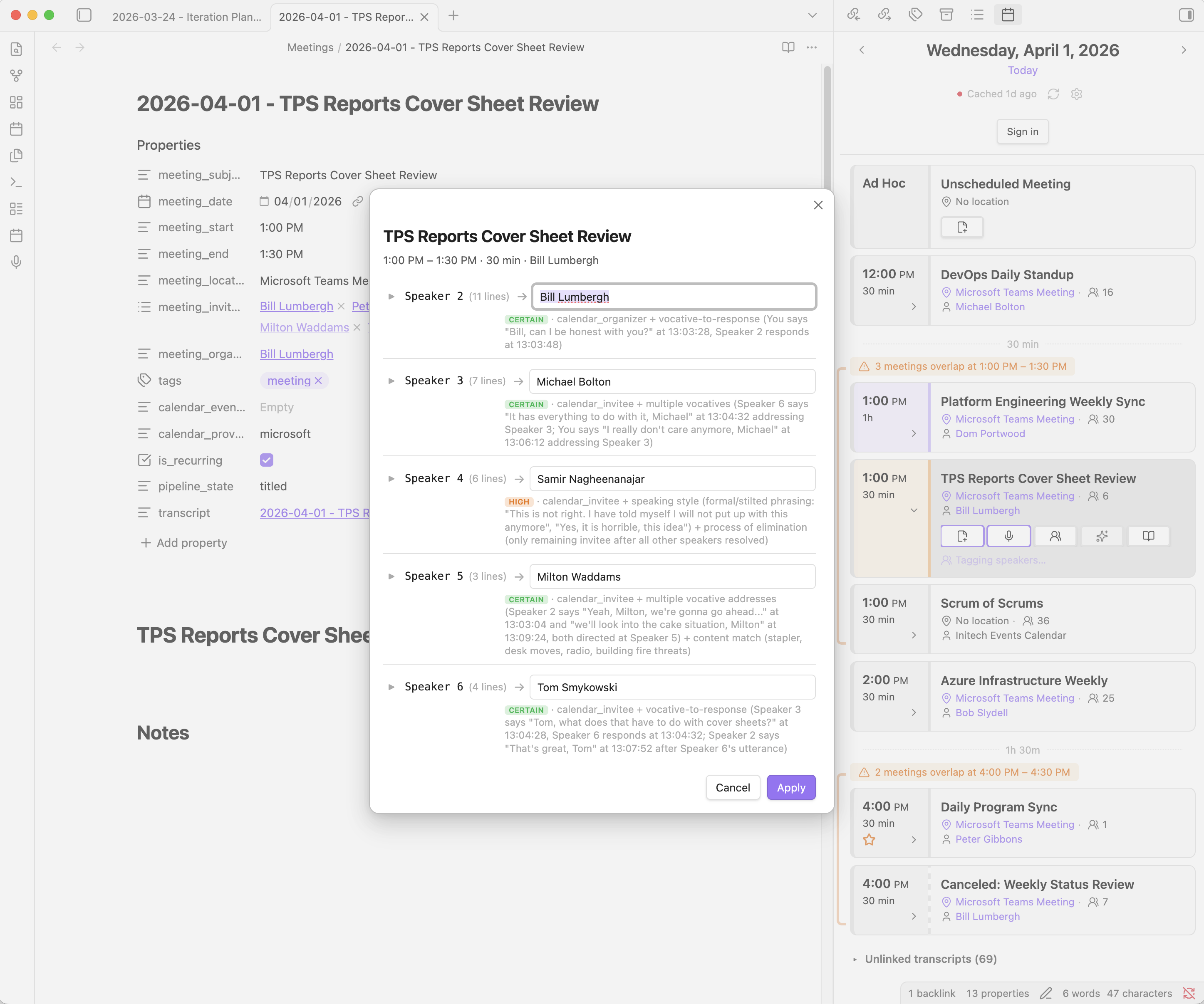
Speaker tagging modal with per-speaker transcript excerpts:
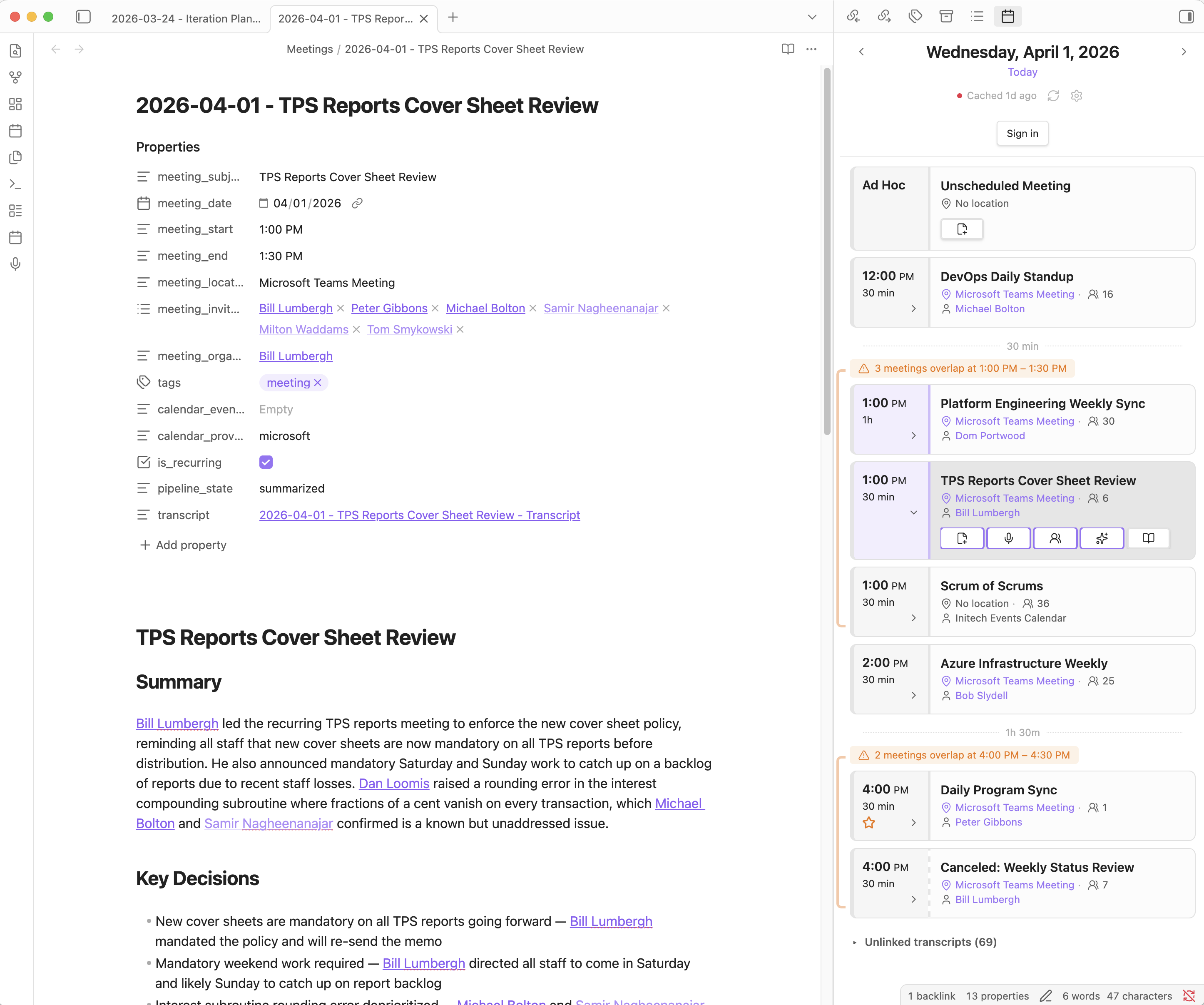
LLM-generated meeting summary with key decisions and action items:
Project Status & Tested Configurations
WhisperCal is built and used daily by a single developer, so some integrations are far better exercised than others. Read these caveats before relying on a path that hasn't been heavily tested:
- MacWhisper integration may be stale. Development started with MacWhisper as the recording source, but mid-project the recording flow was rewritten around a localhost Recording API (a fork of Tome). The Recording API path is the actively maintained one — MacWhisper code still ships and was working when last touched, but it has not been smoke-tested recently and may have regressed. If you depend on MacWhisper, please file issues; PRs welcome.
- Google Calendar is loosely tested. The developer uses Microsoft 365, so Microsoft Graph is the well-trodden path. Google Calendar support is implemented and has been smoke-tested but does not get the daily exercise that the Microsoft path does. Edge cases (recurring events, tentative responses, secondary calendars, all-day events spanning timezones, etc.) are likely to surface bugs before they're caught in development.
- Only Claude has been tested as the LLM CLI. The
llmClisetting accepts any command that reads a prompt from stdin and writes the response to stdout, but only Anthropic'sclaudeCLI has been used in practice. Other CLIs (e.g.codex, OpenAI-style wrappers) may need adjustments to flags, prompt format, or output parsing before they work. The "Per-prompt model selection" feature additionally assumes Claude model IDs and queries the Anthropic API to populate the model dropdown; with a non-Claude CLI those dropdowns will be empty and you'll need to type model IDs by hand.
Table of Contents
- Project Status & Tested Configurations
- Features at a Glance
- Platform Support
- Prerequisites
- Installation
- Setup
- The Calendar View
- Navigation
- Status Indicator
- Meeting Cards
- The Card Actions Menu
- Exporting a Meeting Bundle
- Importing a Meeting Bundle
- All-Day Events
- Unscheduled Meetings
- Merging Meetings
- Splitting a Meeting
- Active Event Highlighting
- Conflict Detection
- Gap Markers
- Gutter Icons
- Gutter Colors
- The Kanban Review Mark
- The Activity Badge
- Category Bar
- The Status Rail
- Non-Accepted Meeting Indicator
- Note-Open Highlighting
- Unlinked Recordings
- The Five-Stage Pipeline
- Teams Meeting Chat
- Meeting Note Templates
- Recording Sources
- People Matching
- LLM Integration
- Calendar Caching
- Commands
- Settings Reference
- Disclosures
- Troubleshooting
- Migrating Legacy Notes
- License
Features at a Glance
- Calendar sidebar — Browse your Microsoft 365 or Google Calendar day by day inside Obsidian, with automatic refresh, offline caching, and conflict detection.
- One-click meeting notes — Create a pre-filled note from any calendar event using a customizable template with wiki-linked attendees.
- Dual recording sources — Link MacWhisper recordings by timestamp match, or record directly via a REST-based Recording API with a live timer on the card.
- Automated recording — Optionally tie recording to the meeting's lifecycle: clicking a meeting's join link on its card auto-starts recording, and pressing Stop closes the meeting app (Teams, Zoom) to leave the call. See Automate Meeting Recording.
- Transcript post-processing — embeddings-first — Known people are tagged by acoustic voiceprint (matched against your enrolled library), locally, before any LLM runs; unknowns are confirmed by ear in the modal. An optional LLM pass (enabled by setting a post-processing prompt) fixes transcription and diarization errors in the transcript itself and proposes names for speakers voiceprints didn't match. Review proposals with per-speaker excerpts and click-to-play before approving.
- Acoustic voiceprints — When Tome exports per-speaker voice embeddings, applying speaker tags enrolls each confirmed person into
Caches/Voiceprints/. Returning speakers then match automatically, the library self-improves as you tag, and a corrected false match self-heals. Optionally auto-tag recordings where every speaker is a high-confidence match — these silent auto-tags skip the modal but never write back to a library, guarding against voiceprint drift. - Teams meeting chat — When a recording finishes, the meeting's Teams chat is pulled into the note under a
## Meeting Chatheading — links, corrections, and side conversation the transcript never captured. Verbatim, LLM-free, authors linked to People notes, and re-pullable from the ⋯ menu to catch what gets posted after the call. See Teams Meeting Chat. - Meeting summarization — Run an LLM in the background to produce an executive summary, with a progress banner in the note editor.
- Per-run custom instructions — The card's smart action button (and the matching ⋯ menu items) for speaker tagging and summarization open an instructions dialog where you can add one-off instructions for that LLM run (e.g., "focus on action items"); leave it empty to run normally.
- Meeting export — Bundle a meeting's note, transcript, and source audio into a single
.zipoutside the vault (⋯ menu > Export meeting bundle), ready to email or hand to someone who doesn't use Obsidian. - Meeting import — Take a bundle someone sent you and file it into your own vault (calendar ⋯ menu > Import meeting bundle), so a meeting you never attended reads like one you recorded yourself.
- Meeting merging — Select two or more meeting cards and merge their notes and transcripts into one, with speaker labels renumbered, durations summed, and the original parts archived. Built for back-to-back recordings of a single long meeting.
- Meeting splitting — The inverse of merging: when one recording covers two unrelated meetings, place a marker in the transcript where the second one begins and split it into two meetings — each with its own note, transcript, attendees, and voiceprints — ready to tag and summarize independently.
- Meeting research — Select vault notes as context and run an LLM to generate pre-meeting research, independent of the transcript pipeline. Recurring meetings can carry reusable prep in a per-series note that pre-fills the research modal.
- People matching — Attendees and organizers are matched to notes in a People folder and rendered as
[[wiki links]]. Unmatched organizers can be auto-created. - Per-prompt model selection — Choose a different Claude model for each LLM prompt (speaker tagging, summarization, research).
Platform Support
| Feature | macOS | Windows |
|---|---|---|
| Calendar sidebar | Yes | Yes |
| One-click meeting notes | Yes | Yes |
| People matching | Yes | Yes |
| LLM speaker tagging | Yes | Yes |
| LLM summarization | Yes | Yes |
| LLM meeting research | Yes | Yes |
| MacWhisper recording | Yes | No |
| Recording API | Yes | Yes |
| LLM debug mode (terminal window) | Yes | Yes |
| Acoustic voiceprints | Yes (needs Tome sidecars) | Yes (needs Tome sidecars) |
| Automate meeting recording | Yes | Yes |
| Teams meeting chat | Microsoft 365 only | Microsoft 365 only |
| Meeting bundle export / import | Yes | Yes |
MacWhisper is a macOS-only app. On Windows, the MacWhisper option is hidden and the plugin defaults to the Recording API for transcript capture. LLM debug mode opens the LLM command in a visible terminal window on both platforms (Terminal.app on macOS, a console window on Windows).
Prerequisites
- Obsidian 1.13.0 or later (desktop only — macOS or Windows)
- A Microsoft 365 account with calendar access, or a Google account with Google Calendar
- For Microsoft: an Azure AD app registration (see Microsoft 365 Setup)
- For Google: a Google Cloud Console OAuth credential (see Google Calendar Setup)
- MacWhisper (macOS only) or a Recording API-compatible app (optional — needed for transcript features; see Recording Sources)
- An LLM CLI tool (optional — needed for speaker tagging, summarization, and research; default: Claude Code
claudeCLI)
Obsidian plugins
WhisperCal uses only Obsidian's native APIs, so no community plugin is required for it to run — the calendar sidebar, meeting notes, the full pipeline, and the speaker-tagging clip player all work out of the box. A few plugins make WhisperCal's outputs nicer to live with, but each is optional:
| Plugin | What it adds | Do you need it? |
|---|---|---|
| BRAT | One-click install and automatic updates (see Installation) | Recommended for installing — skip it if you install manually |
| Media Extended | Waveform, scrubbing, and speed controls when a meeting recording is embedded in a note body | Optional — Obsidian's native player already plays .m4a, and WhisperCal's own speaker-tag clip player is native, so nothing breaks without it |
| JSON Viewer | Pretty-prints .json files opened in the vault | Optional — only for eyeballing WhisperCal's data files: voiceprint libraries in Caches/Voiceprints/*.json and Tome's *.voiceprints.json sidecars |
| Dataview | Renders a "related meetings" query inside People notes | Optional — needed only if your People-note template includes such a query; WhisperCal emits no Dataview itself |
None of these touch the core pipeline. MacWhisper (macOS only) and the Recording API app (Tome) are external apps, not Obsidian plugins — see Recording Sources.
Installation
Note: WhisperCal is not yet available in the Obsidian community plugin directory. Install using BRAT or manually from GitHub releases.
Using BRAT (recommended)
- Install the BRAT plugin from Community plugins.
- Open Settings > BRAT > Add Beta plugin.
- Enter
dloomis/WhisperCaland click Add Plugin. - Enable WhisperCal in Settings > Community plugins.
BRAT automatically downloads new releases and keeps the plugin up to date.
Manual Installation
- Download
main.js,manifest.json, andstyles.cssfrom the latest release. - Create a folder at
<your-vault>/.obsidian/plugins/whisper-cal/. - Copy the three files into that folder.
- Open Settings > Community plugins and enable WhisperCal.
Upgrading from 0.8.x (WhisperCore no longer required)
WhisperCal 0.8.x kept your calendar sign-in and LLM engine settings in a separate WhisperCore plugin. WhisperCal now holds them itself again, so new installs need only this one plugin.
If you are upgrading, update WhisperCal before you uninstall WhisperCore. On its first load, the new version copies your provider credentials, sign-in tokens, and LLM engine settings out of WhisperCore's data file (.obsidian/plugins/whispercore/data.json), so there is nothing to re-enter and no need to sign in again. It never changes WhisperCore's file. If that file can't be read on the first try (for example it is still syncing), WhisperCal shows a notice and retries the next time Obsidian starts; anything you set up in WhisperCal in the meantime is kept rather than overwritten. If you remove WhisperCore first, that file is gone and you will need to re-enter your provider credentials and sign in again.
Once WhisperCal shows your calendar, you can uninstall WhisperCore — unless you also use WhisperOrg, which still needs it for now.
Setup
Choosing a Calendar Provider
WhisperCal supports two calendar providers. In Settings > WhisperCal > Calendar, select your provider from the Calendar provider dropdown:
- Microsoft 365 — Connects via Microsoft Graph API using OAuth2 Authorization Code with PKCE.
- Google Calendar — Connects via Google Calendar API using OAuth2 Authorization Code with PKCE.
The rest of the settings UI adapts to show only the fields relevant to your chosen provider. You can switch providers at any time — each provider's auth tokens are stored separately, so switching back preserves your sign-in.
Microsoft 365 Setup
WhisperCal connects to your calendar through the Microsoft Graph API. You need to register an app in Azure AD:
- Go to the Azure Portal > Azure Active Directory > App registrations > New registration.
- Set a name (e.g., "WhisperCal").
- Under Supported account types, choose the option that matches your organization.
- Under Redirect URI, select Public client/native (mobile & desktop) and set the URI to
http://localhost. - Click Register.
- On the app's Overview page, copy the Application (client) ID. The Directory (tenant) ID is optional — leave it empty to auto-detect from your account at sign-in.
- Go to API permissions > Add a permission > Microsoft Graph > Delegated permissions.
- Add Calendars.Read, People.Read, User.ReadBasic.All, and offline_access. WhisperCal requests all of them at sign-in: the calendar scope reads your events, and the two people scopes back the people search (for example the Important organizers autocomplete). If you want Teams Meeting Chat, add Chat.Read as well.
- Click Grant admin consent (if required by your organization).
Then in WhisperCal settings:
- Paste the Client ID into the corresponding field. Tenant ID is optional — leave it empty to auto-detect from your account at sign-in, or paste a specific tenant ID to restrict sign-in to one organization.
- Select your Cloud instance (most users should leave this on "Public").
Google Calendar Setup
⚠️ Caveat: The developer uses Microsoft 365, so the Google Calendar path is loosely tested. Sign-in, basic event fetching, and people search work, but edge cases (recurring exceptions, secondary calendars, response statuses, timezone-spanning events) are likely to surface bugs. See Project Status & Tested Configurations.
WhisperCal connects to Google Calendar through the Google Calendar API. You need to create OAuth credentials in the Google Cloud Console:
- Go to the Google Cloud Console.
- Create a new project (or select an existing one).
- Navigate to APIs & Services > Library and enable the Google Calendar API and the People API.
- Go to APIs & Services > Credentials > Create credentials > OAuth client ID.
- Set the application type to Desktop app and give it a name (e.g., "WhisperCal").
- Click Create and copy the Client ID and Client secret.
- If your app will be used by more than 100 users, complete the OAuth consent screen verification. For personal use this is not required.
Then in WhisperCal settings:
- Paste the Client ID and Client secret into the corresponding fields under "Google account".
Signing In
Both providers use an OAuth2 Authorization Code flow with PKCE. The experience is the same:
- Click Sign in in the WhisperCal settings panel (or in the calendar sidebar's inline sign-in banner).
- Your default browser opens to the provider's sign-in page.
- Sign in and grant WhisperCal access to your calendar.
- The browser redirects to a localhost page confirming success. You can close the tab and return to Obsidian.
If you don't complete sign-in within 5 minutes, the flow times out and you can try again.
For both providers, tokens are stored locally in the plugin's data.json file within your vault. Access tokens refresh automatically; you should rarely need to sign in again. To sign out, click Sign out in settings.
Cloud Instances (Microsoft)
If your organization uses a government or sovereign cloud, select the appropriate instance in settings:
| Instance | Authority | Graph API | Who uses it |
|---|---|---|---|
| Public | login.microsoftonline.com | graph.microsoft.com | Most organizations |
| USGov | login.microsoftonline.com | graph.microsoft.com | US Government (GCC) |
| USGovHigh | login.microsoftonline.us | graph.microsoft.us | US Government (GCC High) |
| USGovDoD | login.microsoftonline.us | dod-graph.microsoft.us | US Department of Defense |
| China | login.chinacloudapi.cn | microsoftgraph.chinacloudapi.cn | 21Vianet (China) |
The Calendar View
Open the calendar sidebar by clicking the calendar ribbon icon or running the "Open calendar view" command.
Navigation
- Left / right chevron — Move one day backward or forward.
- Date label — Click the date between the chevrons to open a date picker and jump straight to any day.
- Today button — Jump to the current date (hidden when already viewing today).
- Refresh button — Manually refresh calendar data from your calendar provider.
- Settings gear — Opens WhisperCal settings directly from the calendar header.
- ⋯ menu — Calendar-level actions, currently Import meeting bundle….
- Sign in — When signed out, an inline banner appears at the top of the calendar with a sign-in button, so you don't need to visit settings to authenticate.
The calendar auto-refreshes on a configurable interval (default: every 5 minutes). At midnight, the view automatically advances to the new day.
Status Indicator
A small dot below the header shows connection status:
- Green dot + "Updated X min ago" — Live data from your calendar provider.
- Gray dot + "Cached X min ago" — Showing previously fetched data (offline or between refreshes).
- Gray dot + "Offline" — No cached data available for this day.
Meeting Cards
Each calendar event is displayed as a two-column card:
- Time gutter (left) — Start/end times, duration, "All day", or "Ad hoc" for unscheduled meetings. Below the time, an inline row of icons provides at-a-glance context (see Gutter Icons). Beneath that sit the card's two fixed controls: the capture button (Record / Re-record / Stop — Recording API source only) and the ⋯ menu button. While a job runs, a compact activity badge shows what's happening and on which model. A category color bar runs along the left edge and the gutter takes a wash of the same color (see Gutter Colors); meetings you haven't accepted get a dashed bar.
- Content (right):
- Subject — The meeting title. Clicking it opens the meeting note (creating it first if it doesn't exist yet; unscheduled cards prompt for a name). A dotted underline appears on hover.
- Organizer row — Organizer name with People note link (if matched). The person icon reflects their
personnel_type(see Personnel Type Icons). - Meta row — Location (clickable for online meeting URLs), total attendee count, RSVP breakdown (accepted in green, tentative in yellow, declined in red, no response in gray), and duration, separated by middle dots. Hover the attendee count or any RSVP icon to see the names in that group.
- Status rail — Four labeled segments (Note · Transcript · Speakers · Summary) tracking pipeline progress. Each is clickable and acts on its stage (see The Status Rail).
- Smart action button — One button showing the pipeline's next step after capture (Link recording / Review speakers / Tag speakers… / Summarize meeting…). There is no button while a job is running or once the pipeline is complete.
Cards are always shown in full — the rail labels and the action row don't depend on hovering. All-day events (if enabled in settings) appear at the top, followed by timed events sorted by start time.
The Card Actions Menu
The ⋯ button in the card's gutter — or right-clicking anywhere on the card (except links) — opens a menu of the card's secondary actions. The menu is always available, and its items adapt to the pipeline state:
| Item | Shown when | What it does |
|---|---|---|
| Open note / Create note | Always | Opens the meeting note, or creates it first if it doesn't exist (same as clicking the title) |
| Open transcript | A transcript is linked | Opens the transcript file (same as the transcript rail segment) |
| Review speaker candidates | Cached speaker proposals await review | Opens the confirmation modal (same as the Review speakers button) |
| Tag speakers… | Transcript linked, speakers not yet tagged | Opens the instructions dialog, then runs LLM speaker tagging |
| Edit speaker tags | Speaker tags applied | Re-opens the confirmation modal pre-filled with the current assignments — no LLM re-run |
| Summarize meeting… / Regenerate summary… | Speakers tagged / summary complete | Opens the instructions dialog, then runs summarization |
| Research meeting… | Always (LLM on) | Opens the research modal — creates the meeting note first if needed; shows a disabled "Researching…" while a run is in progress |
| Split transcript… | Transcript linked, meeting not yet summarized, nothing mid-run | Opens the transcript in split mode to divide it into two meetings (see Splitting a Meeting) |
| Pull Teams meeting chat | Online meeting, note exists, Microsoft calendar | Re-reads the meeting's Teams chat into the note (see Teams Meeting Chat) |
| Skip kanban processing / Unmark kanban reviewed | A meeting note exists | Sets or clears the note's kanban-reviewed mark (see The Kanban Review Mark) |
| Export meeting bundle… | A meeting note exists | Bundles the meeting's artifacts into a .zip outside the vault (see below) |
| Rename note… | A meeting note exists | Renames the note, optionally renaming its transcript, audio, and voiceprint sidecar with it; links are rewritten |
| Delete note… | A meeting note exists, no live recording | Confirms, then moves the note (and, optionally, its related files) to the trash |
Recording has no menu item: the gutter's capture button covers Record, Stop, and Re-record at every stage.
The everyday next step stays one click on the smart button; the menu keeps everything else reachable without growing the action row.
Exporting a Meeting Bundle
Export meeting bundle… (in the ⋯ menu) packages a meeting's artifacts into a single .zip outside your vault, ready to attach to an email:
- The meeting note — which carries the summary and any research section
- The linked transcript
- The transcript's source audio (
.m4a), when present
A system folder picker asks where to put the .zip (falling back to ~/Downloads if the picker is unavailable). The archive is named after the meeting note and, once written, revealed in Finder/Explorer. Inside, the files sit in a single flat folder named for the meeting, so the wiki links between them still resolve by basename if the folder is extracted and opened as an Obsidian vault.
Importing a Meeting Bundle
Import meeting bundle… — in the ⋯ menu in the calendar sidebar's header, next to Refresh and Settings — is the other end of export: it takes a bundle someone sent you and files it into your vault. It's meant for a meeting you weren't part of, so nothing has to exist locally beforehand.
The files cross over verbatim — a bundle is written by another WhisperCal vault, so its frontmatter already has the right shape and its links already point at each other:
- The meeting note goes to your note folder and the transcript and audio to your transcript folder, all under the names the sender used.
- The meeting lands as an ad-hoc meeting, since it has no event on your calendar. Its card shows up on the meeting's date, and you can summarize, re-tag speakers, export, rename, or delete it like any other.
- The one field rewritten is
calendar_provider, which the calendar filters cards on — without it a bundle from a Google vault would import invisibly into a Microsoft 365 one.
Nothing already in your vault is overwritten. If a name is taken — you already imported this bundle, say — the note, transcript, and audio all shift to a free suffix together (… 2), and the links between them are rewired to match.
All-Day Events
When "Show all-day events" is enabled in settings, all-day events appear at the top of the calendar as compact, read-only cards. They show the event subject and category color bar but have no action button — they are informational only.
Unscheduled Meetings
An "Unscheduled Meeting" card always appears at the top of the calendar view. Use it to create notes for ad-hoc meetings that aren't on your calendar. The subject is configurable in settings (default: "Unscheduled Meeting").
Unscheduled notes use the current timestamp as their meeting time and get a wider recording-matching window (720 minutes instead of the usual 15).
Merging Meetings
When one long meeting ends up as several back-to-back recordings (e.g., "Planning part 1", "Planning part 2"), you can merge the parts into a single meeting note and transcript:
- Hover a meeting card's time gutter — cards with an existing note show a merge checkbox.
- Check two or more cards. A merge bar appears in the header showing the selection count with Merge and Clear buttons.
- Click Merge. A confirmation modal lists the parts in chronological order with each one's pipeline state, and prompts for the merged meeting name. The default name strips trailing "part N" suffixes and picks the most common base title.
What merging does:
- Builds one merged transcript with a
### Part Nheading per recording (original timestamps and recording embeds preserved), a combined Context section, and the total duration summed across parts. - Renumbers raw "Speaker N" stubs so they stay unique across parts ("You" and already-tagged names pass through unchanged). Attendees, confirmed speakers, and tags are unioned.
- Keeps the calendar-linked part (or the earliest part) as the merged note, renames it to the merged name, and appends the other parts' note bodies as
## Part — …sections so per-part summaries aren't lost. - Leaves the original part notes and transcripts in place — each part note just gains a
merged_intobacklink, which hides its calendar card in favor of the merged one. - Records every source MacWhisper session in
macwhisper_session_idsand links the originals inmerged_fromfrontmatter. - Sets
pipeline_state: taggedif every part was already tagged, otherwisetitled— so you can run Speakers and Summary on the merged transcript as usual.
Parts can be in any pipeline state — calendar-linked, ad hoc, tagged, or raw — and can be mixed freely in one merge.
Splitting a Meeting
The inverse of merging: sometimes one recording covers two meetings — a scheduled tag-up dovetails into an unrelated discussion that deserves its own note, tags, and summary. Split transcript… (in the card's ⋯ menu) divides the transcript into two meetings at a point you choose:
- Pick Split transcript… on the card. The transcript opens with a banner across the top of the editor.
- Click in the transcript where the second meeting begins and press Place marker — a
--- ✂ SPLIT … ✂ ---line appears at the cursor. You can move it by placing again (or cutting and pasting the line). Cancel removes it and changes nothing. - Press Split…. A confirmation modal shows where the cut lands — the split snaps forward to the next speaker line — with each half's start time, duration, and speaker-line count, and asks for the new meeting's title.
What splitting does:
- Everything from the split point onward moves to a new transcript and a new meeting note, named and timestamped as if the second meeting had always been its own: the new
meeting_startis the original start plus the split point's timestamp offset. - Attendees, confirmed speakers, and the voiceprint sidecar are filtered per half — each meeting lists only the people who actually speak in it. Applied speaker tags carry over; each half can then be tagged and summarized independently.
- Both halves share the original audio file, and transcript timestamps stay recording-relative, so click-to-play keeps working in each. Deleting one half leaves the shared audio in place for the other.
- The original meeting keeps its calendar link and is trimmed to end at the split time; the new meeting appears as its own card at the split time (a local card with a synthetic
split-id, like a merged meeting). The two are cross-linked viasplit_from/split_intofrontmatter. - The new files are fully created before the original transcript is touched, so an interrupted split never loses text.
Splitting is offered only before the meeting is summarized — an existing summary would describe both halves — and while no recording or LLM job is running on the card.
Active Event Highlighting
When viewing today's calendar:
- Currently ongoing events (between start and end time) are highlighted.
- If no event is ongoing, the next upcoming event is highlighted instead.
Conflict Detection
When multiple events overlap in time, they are grouped together and preceded by a banner showing the overlap window (e.g., "3 meetings overlap at 2:30 PM – 3:00 PM"). This makes scheduling conflicts immediately visible.
Gap Markers
Between non-overlapping event groups, a gap indicator shows how much free time you have (e.g., "45m" or "1h 15m").
Gutter Icons
Below the time and duration, the gutter displays a row of inline icons:
| Icon | Meaning |
|---|---|
| ☆ Star | You are the organizer of this meeting. Determined by comparing the event's organizer email against your calendar account email. |
| ⛔ Octagon-alert | The organizer is in your important organizers list (configured in settings with people autocomplete from your calendar provider). |
| ⊞ Grid-2x2 | The meeting has a category assigned (Outlook categories for Microsoft, color labels for Google). The icon color matches the category color. Hover for the category name tooltip. |
| Kanban board | The meeting note carries a kanban-reviewed mark (see The Kanban Review Mark). |
Gutter Colors
The gutter takes a light wash of the meeting's category color (Outlook categories for Microsoft, color labels for Google) — the same color as the category bar on the card's left edge — and its divider a stronger dose of the same hue. Uncategorized meetings keep a muted default.
The gutter does not show pipeline progress; the status rail reports that, segment by segment.
The Kanban Review Mark
A meeting note can carry a kanban-reviewed frontmatter key, meaning its action items have been triaged onto a kanban board. WhisperCal does not do that triage itself — the mark is written by separate vault automation — but it shows and toggles the mark:
- A kanban icon appears in the gutter's icon row once the mark is present.
- Skip kanban processing in the ⋯ menu stamps the mark by hand (with a "manually skipped" note), taking the meeting out of that automation's queue.
- Unmark kanban reviewed clears the mark, whoever wrote it.
If you don't run such automation you can ignore this entirely.
The Activity Badge
While anything is happening on a meeting — an LLM job, voiceprint matching, transcript linking — a compact activity badge appears in the time gutter, level with the action row:
- Line 1 — a one-word verb for the work in flight: Processing (transcript post-processing + speaker tagging), Summarizing, Researching, Matching (voiceprint), Transcribing, Linking, Waiting, Enriching.
- Line 2 (LLM jobs only) — the model running the job, e.g. Opus 4.8 or Sonnet 5.
When the work finishes, the badge briefly shows the outcome — Linked, Tagged, Summarized, Researched, or a warning like Failed / Not ready — then clears. Hovering the badge shows the full status message as a tooltip. The badge replaces the older verbose status line under the rail.
Category Bar
The vertical bar on the left edge of the card indicates the event category color (Outlook categories for Microsoft, color labels for Google). When no category is assigned, it uses a subtle default.
The Status Rail
Under the meta rows, a four-segment rail tracks pipeline progress: Note · Transcript · Speakers · Summary. Each segment is a labeled, clickable bar:
- Note — opens the meeting note, creating it first if it doesn't exist.
- Transcript — opens the transcript.
- Speakers — opens the speaker confirmation modal when candidates await review or tags are already applied (the same as Edit speaker tags); otherwise opens the transcript.
- Summary — opens the meeting note.
Segment colors:
| State | Appearance |
|---|---|
| Pending | Neutral border color; disabled if its artifact doesn't exist yet. |
| Done | Green fill (--text-success). |
| Running | Accent fill (--interactive-accent), pulsing (a background LLM job for that stage). A running research job pulses the Note segment. |
| Needs you | Warning fill (--text-warning) — the pipeline is mid-flight and waiting on you: Speakers once a transcript is in (candidates to review or manual tagging), Summary once speakers are tagged. |
| Recording | Red fill (--text-error), pulsing — Transcript, while a live recording is running. |
All segment colors are Obsidian semantic theme variables, so they follow your theme and light/dark mode. A stage that has just completed plays a brief fill animation, and finishing the whole pipeline plays one across the full rail.
Below the rail sits the smart action button — the pipeline's next step after capture, fully labeled: Link recording (MacWhisper source), Review speakers · N (accent-tinted, with a count of the speakers awaiting confirmation), Tag speakers…, or Summarize meeting…. While an LLM job runs there is no button — the activity badge and the pulsing segment say what's happening — and when the pipeline is complete there is none either.
Recording is deliberately separate: the capture button in the gutter (Recording API source) reads Record, then turns into a red Stop button with a live timer beneath it, and reads Re-record once a transcript is linked.
Non-Accepted Meeting Indicator
Meetings you haven't accepted (tentative, not responded, or declined) show a dashed category bar on the time gutter, alternating between the category color and the primary background color, making them visually distinct from accepted meetings.
Note-Open Highlighting
When you open a meeting note in any editor tab, the corresponding card in the calendar sidebar is highlighted with a light wash of your theme's accent color and scrolled into view. If the note belongs to a different day, the calendar automatically navigates to that day.
The same highlight applies to transcripts: opening a transcript file highlights its meeting card, and opening an unlinked transcript highlights its card in the Unlinked Recordings section.
Unlinked Recordings
A collapsible "Unlinked recordings" section appears at the bottom of the calendar view when there are recordings that haven't been linked to any note in your vault. This helps you catch recordings you forgot to process. The source depends on your recording setting — MacWhisper sessions or Recording API transcript files.
How it works:
- MacWhisper: Scans the MacWhisper database for sessions within a configurable lookback window (default: 30 days). Skips recent recordings within a grace period (default: 48 hours).
- Recording API: Scans the transcripts folder for transcript files not linked to any meeting note.
- Cross-references against vault notes. Any recording not found linked to a note is shown as unlinked.
Linking an unlinked recording:
- Use the buttons on an unlinked recording card — View (first, since reviewing before linking is the common flow) opens the transcript directly, and Link starts the linking flow.
- WhisperCal checks the calendar cache for events near the recording's start time (using the same recording match window).
- If matching calendar events are found, a picker shows them along with a "Create unscheduled note" fallback. Events whose notes already have a recording linked are filtered out.
- If no matches are found, an unscheduled note is created directly, dated to the recording's actual start time.
- The recording is linked and a transcript is generated, just like the normal flow.
The section is collapsed by default and only appears when the count is greater than zero.
The Five-Stage Pipeline
Each meeting card tracks your progress through the meeting workflow with three separated controls: the title opens the note, the status rail shows each stage's state, and one smart action button offers the pipeline's next step (with the rest of the actions in the ⋯ menu). Recording has its own capture button in the gutter. The rail fills green as stages complete and greys out stages whose prerequisites aren't met.
Note  -->  Record/Transcript  -->  Speakers  -->  Summary
                                                     Research (independent)
Stage 1 — Note
Click the meeting title to create a meeting note from the calendar event.
- A new Markdown file is created in your configured notes folder using your template.
- The filename follows your configured pattern (default:
YYYY-MM-DD - Subject.md). - Frontmatter is populated with meeting metadata (subject, date, time, location, attendees, etc.).
- Attendees are matched against your People folder and rendered as
[[wiki links]]. - The organizer is shown with a People note link if matched.
- The note opens in a new tab with the cursor placed after the
# Notesheading.
Once the note exists, clicking the title opens it.
Stage 2 — Record / Transcript
How you capture depends on your configured recording source:
MacWhisper mode — The smart action button is labeled "Link recording". Click it to link an existing MacWhisper recording:
- A picker modal shows MacWhisper recordings that started near the meeting time.
- Select a recording, and WhisperCal writes the session ID to frontmatter, sets the recording title in MacWhisper, waits for transcription, creates a transcript file, and links everything together.
Recording API mode — The capture button in the card's gutter (a microphone icon) starts a live recording:
- The recording starts via the configured API. The button turns into a red Stop button with a live elapsed timer beneath it, and the Transcript rail segment pulses red.
- Click Stop to end the recording. WhisperCal polls for transcription completion, then links the transcript file to the meeting note. (The button returns to Record immediately — recording again during transcription is allowed.)
Once the transcript exists, open it from the Transcript rail segment (or Open transcript in the ⋯ menu). To capture a fresh take, click the capture button again — it now reads Re-record and asks for confirmation first (see Re-Recording).
Stage 3 — Speakers
Once a transcript exists, the smart action button becomes Tag speakers… — click it to run LLM speaker tagging in the background. (The same action is in the ⋯ menu. Once tags are applied, the menu offers Edit speaker tags instead — see Reviewing or Editing Tags Later.)
- The button opens an instructions dialog — leave it empty and hit Run for a normal run, or add one-off hints. Single-mic recordings get a tailored prompt asking who's who.
- The LLM reads your post-processing prompt and the transcript, fixes transcription and diarization errors in place (confirmed voiceprint matches are passed in as fixed anchors), then outputs proposed identities for the remaining speakers.
- A confirmation modal appears inside Obsidian showing each speaker with the LLM's proposed name, confidence level, evidence, and transcript excerpts.
- Review the proposals, edit names as needed, and click Apply to commit.
- WhisperCal replaces speaker labels throughout the transcript and sets
pipeline_state: tagged.
While the LLM is running there is no smart button: the gutter's activity badge names the job and its model, the Speakers rail segment pulses, and the transcript stays openable from the rail. If you dismiss the confirmation modal without applying, the proposals stay cached and the button becomes an accent-tinted "Review speakers · N" (N = speakers awaiting confirmation) with the Speakers segment turning warning-colored — clicking it resumes the review directly. Once tags are applied, the button advances to Summarize and the ⋯ menu offers Edit speaker tags.
Automatic mode: When the "Automatic mode" setting is on, WhisperCal runs this LLM step automatically in the background as soon as a transcript is linked to its meeting note — no clicks needed. The run stops after caching the proposals: tags are not applied without your review (unless you also enable auto-tagging for confident matches — see below). The smart button becomes Review speakers · N when candidates are ready; click it to review and apply as usual, after which summarization starts automatically. Single-mic recordings (voice memos, single-speaker diarization) are skipped since they benefit from per-run hints. On startup, a catch-up scan also auto-tags eligible transcripts created within a configurable window (default 48 hours).
Skip the modal for confident matches: Turn on "Auto-tag when all speakers match" to let WhisperCal apply tags without the confirmation modal — but only when every speaker in a recording is a voiceprint match at or above the "Auto-tag confidence floor" (default 0.80, deliberately high). A single unmatched or below-floor speaker falls through to the normal review — with one exception: diarizers often emit a junk speaker for crosstalk or stray utterances that never matches anything and you'd always leave blank anyway. The "Ignore minor speakers" setting (default 0.05) lets an unmatched speaker holding at most that share of the transcript's lines pass the gate untagged instead of blocking it; set it to 0 to require every speaker to match. Crucially, a silent auto-tag never enrolls or corrects any voiceprint library — only confirming a recording in the modal updates your libraries. This is the drift guard: it stops an unattended run from gradually teaching a person's voiceprint a misattributed or noisy centroid (cross-talk, stray utterances). The toggle works together with Automatic mode to decide the trigger:
- Automatic mode off — the background tagger doesn't run; clicking the Review speakers button applies the matches and skips the modal (when all speakers clear the floor), otherwise the modal opens as usual.
- Automatic mode on — the background run itself applies the matches with no click at all. The card briefly shows "Auto-tagging speakers by voiceprint…", then "N speaker(s) auto-tagged by voiceprint", then summarization starts. If not all speakers clear the floor, it falls back to caching candidates and turning the smart button into Review speakers for review.
Stage 4 — Summary
Once speakers are tagged, the smart action button becomes Summarize meeting… — click it to run LLM summarization in the background. (The same action is in the ⋯ menu.)
- Clicking it opens a small instructions dialog — leave it empty and hit Run for a normal run, or type one-off instructions (e.g., "focus on the budget discussion").
- While running, the activity badge reads Summarizing, the Summary rail segment pulses, and a "Summarizing…" banner appears at the top of the meeting note editor.
- The LLM reads your summarizer prompt along with the meeting note and transcript, then writes the summary.
- When finished, the plugin sets
pipeline_state: summarizedand the banner disappears.
Once the summary is complete, the menu item becomes Regenerate summary…, with the same optional instructions dialog.
Stage 5 — Research
Choose "Research meeting…" from the card's ⋯ menu to run LLM-powered meeting research. This stage is independent of the transcript pipeline — you can run it anytime, even before a recording exists (the meeting note is created first if it doesn't exist yet).
- For a recurring meeting with a series note, the modal opens clean: a tag links to the series note whose prompt and default context notes are already pulled in, and you just click Research.
- For everything else, expand "Add context notes or customize the prompt" to search and select vault notes as context (project plans, policies, prior meeting notes, etc.), add instructions, or override the prompt entirely.
- The LLM reads your research prompt along with the selected notes and meeting context, then writes its findings into the meeting note.
- When complete, the plugin sets
research_state: research-donein the meeting note's frontmatter (the context notes you selected are recorded inresearch_notes). The menu item stays available to re-run research.
This is useful for pre-meeting preparation or post-meeting fact-checking against organizational documents.
Pipeline State Tracking
Pipeline state is stored in frontmatter as pipeline_state with these values:
| Value | Meaning |
|---|---|
titled | Transcript created, ready for speaker tagging |
tagged | Speakers identified, ready for summarization |
summarized | Summary complete, pipeline finished |
The state lives on the transcript file as its source of truth. WhisperCal automatically mirrors it to the meeting note's frontmatter whenever the transcript changes, so both files stay in sync.
Teams Meeting Chat
What gets typed into the Teams chat during a call — the link someone pastes, the correction nobody says out loud, the "+1" that settles a decision — never reaches the transcript. WhisperCal pulls that chat into the meeting note under a ## Meeting Chat heading once the recording's transcript is linked.
The log is verbatim and LLM-free: each message shows its author, local time, and body, with attachments as links and an (edited) marker where Teams reports one. Authors resolve to [[People note]] links when a matching note exists, so meeting chat joins the same backlink graph as invitees and confirmed speakers. Teams system messages ("X joined the meeting", "recording started") and deleted messages are dropped.
Enable it in Settings > WhisperCal > Recording > Pull Teams meeting chat (on by default). Microsoft calendars only.
Granting the permission
Reading chat needs the delegated Chat.Read Graph scope, which WhisperCal requests as part of its Microsoft sign-in. Two one-time steps:
- In the Azure portal, open your app registration → API permissions → Add a permission → Microsoft Graph → Delegated permissions → Chat.Read, then grant consent.
- In WhisperCal's settings (Calendar page), sign out and sign back in to Microsoft. WhisperCal sends its full scope set on every token refresh, so an existing session keeps refreshing against the old consent until it is re-established. (If your tenant grants admin consent for
Chat.Read, the next refresh picks it up silently and you can skip this step — but signing out and back in is the reliable path either way.)
Until both are done, the automatic pull stays quiet and the card shows "Meeting chat unavailable — check the Chat.Read permission" after a recording; the manual pull explains the same thing in a notice.
Which messages land in the note
Only the chat from during the meeting — 5 minutes either side of it, to catch a "joining now" a minute early and a reply that lands just after someone hangs up.
The end of that window is whichever is later, the scheduled end or how long the recording actually ran (read from the transcript's duration). A meeting that goes 25 minutes over keeps chatting for those 25 minutes, and the scheduled end would cut the log off mid-conversation.
The window matters more than it looks, for two reasons. A recurring series shares one chat thread across every occurrence — the thread id is identical week to week — so an unwindowed pull would drop the entire series history into every occurrence's note. And the thread stays live all day after the call; everything posted to it later is a different conversation that happens to share an address.
The trade-off: messages posted well after the meeting never reach the note, including on a re-pull, which applies the same window. If you want a wider net, raise GRACE_MS in src/services/MeetingChat.ts.
Re-pulling
Pull Teams meeting chat in the card's ⋯ menu (or the Pull Teams meeting chat command with the note open) re-reads the thread and rewrites the section in place, so re-pulling is safe and repeatable. A re-pull that finds nothing leaves an existing section untouched rather than emptying it.
Re-pulling uses the same meeting window, so it isn't a way to collect post-meeting chatter — it's for filling in a note whose automatic pull was skipped, or one written before the meeting finished.
Two things worth knowing:
- Notes created before this feature existed have no
meeting_join_urlto read, so WhisperCal falls back to re-fetching the event from Graph — which only works while the meeting is still on your calendar. New notes stamp the URL and keep working indefinitely. - Summarization edits the meeting note, and the chat section sits in that note. If a summarizer prompt rewrites the note wholesale it can disturb the section — re-pull to restore it.
Meeting Note Templates
Template Setup
WhisperCal uses a template file to control the body content of meeting notes. All frontmatter is auto-injected by the plugin from calendar data — you never need to put frontmatter keys in your template.
- Copy
samples/WhisperCal Meeting Template.mdfrom the plugin's GitHub repo into your vault (e.g.,Templates/WhisperCal Meeting.md). - Edit the body to your liking.
- Set the "Note template" path in WhisperCal settings.
If no template is configured, WhisperCal shows a notice and won't create notes.
Template Variables
Use {{variableName}} placeholders in your template body. All available variables:
| Variable | Description | Example |
|---|---|---|
{{subject}} | Meeting subject | Weekly Standup |
{{date}} | Meeting date | 2026-03-07 |
{{startTime}} | Start time | 10:00 AM |
{{endTime}} | End time | 10:30 AM |
{{location}} | Location or "N/A" | Conference Room B |
{{organizer}} | Organizer as wiki link (if matched) or plain name | [[Jane Smith]] |
{{organizerName}} | Organizer display name | Jane Smith |
{{organizerEmail}} | Organizer email address | jane@example.com |
{{attendeeCount}} | Number of attendees | 5 |
{{attendees}} | Comma-separated wiki links | "[[Jane Smith]]", "[[Bob Lee]]" |
{{attendeeList}} | Bullet list of wiki links | - [[Jane Smith]] (one per line) |
{{isOnlineMeeting}} | Whether it has an online link | true |
{{onlineMeetingUrl}} | Online meeting join URL (Teams, Google Meet, Zoom, etc.) | https://teams.microsoft.com/... |
{{isAllDay}} | All-day event flag | false |
{{isRecurring}} | Whether the event belongs to a recurring series | true |
{{invitees}} | Attendees as indented YAML list items of quoted wiki links | - "[[Jane Smith]]" (one per line) |
{{eventId}} | The provider's calendar event id | AAMkAG... |
{{noteCreated}} | ISO timestamp of when the note was created | 2026-03-07T15:00:00.000Z |
{{description}} | Event body (HTML converted to Markdown) | Meeting agenda text |
Reserved Frontmatter Keys
The following keys are auto-injected by the plugin when creating a note. Do not add them to your template — they are managed programmatically:
| Key | Purpose |
|---|---|
meeting_subject | Display title in the calendar view; passed to transcript |
meeting_date | Calendar navigation and recording time matching |
meeting_start | Recording time matching |
meeting_end | Meeting end time |
meeting_location | Meeting location |
meeting_invitees | Attendee list; passed to transcript creation |
meeting_organizer | Meeting organizer as wiki link |
meeting_accepted / meeting_tentative / meeting_declined / meeting_no_response | Each invitee's RSVP, as wiki-link lists (same names as meeting_invitees); every invitee is in exactly one. Re-synced from the calendar on each refresh (see RSVP Tracking) |
tags | Used to distinguish meeting notes from transcript files |
calendar_event_id | Identifies this file as a WhisperCal meeting note |
meeting_join_url | Online meetings only; carries the Teams chat thread id (see Teams Meeting Chat) |
note_created | Fallback timestamp for unscheduled notes |
is_recurring | Passed to transcript creation |
macwhisper_session_id | Links a MacWhisper recording to the note |
macwhisper_session_ids | All source session IDs on a merged note (see Merging Meetings) |
session_guid | Correlation id tying the note to its Recording API session and the resulting transcript |
meeting_series_id | Recurring-series id; matches an occurrence to its series note |
merged_from | Links to the original parts on a merged note |
merged_into | Backlink on each original part; hides that part's card in favor of the merged one |
split_from / split_into | Cross-links between the two halves of a split meeting (see Splitting a Meeting) |
split_offset_seconds | On the second half of a split: where it begins in the shared recording |
research_state | Set to research-done when a research run completes |
research_notes | Context notes selected for research |
kanban-reviewed | External triage mark; WhisperCal only shows and toggles it (see The Kanban Review Mark) |
transcript | Backlink to the transcript file |
pipeline_state | Workflow state; mirrored from transcript automatically |
RSVP Tracking
Each invitee's response to the invite is recorded per person in four list properties, so it can be reported on across meetings:
meeting_accepted:
  - "[[Jane Smith]]"
meeting_tentative: []
meeting_declined:
  - "[[Bob Jones]]"
meeting_no_response:
  - "[[Ann Lee]]"
The lists are written when the note is created and kept up to date whenever the calendar view refreshes a day that has the meeting (a note is only rewritten when a response actually changed). Notes created before this existed pick the lists up the first time their day is viewed. The organizer is recorded in meeting_organizer, and appears in meeting_accepted only when the calendar lists them as an attendee.
For example, a Dataview table of every meeting someone declined:
TABLE meeting_date
WHERE contains(meeting_declined, [[Bob Jones]])
SORT meeting_date DESC
Recording Sources
WhisperCal supports two recording sources, configurable in Settings > WhisperCal > Recording > Source:
MacWhisper
⚠️ Caveat: MacWhisper was the original recording source but the developer has since switched to the Recording API path (Tome fork). The MacWhisper code still ships and was working when last touched, but it is not exercised daily and may have regressed. See Project Status & Tested Configurations.
The default source. WhisperCal reads directly from MacWhisper's local SQLite database to match recordings to meetings and extract transcripts. It does not modify your audio files.
Requirements:
- MacWhisper must be installed (database path:
~/Library/Application Support/MacWhisper/Database/main.sqlite). - Recordings must be transcribed in MacWhisper before a transcript file can be created. WhisperCal will wait up to ~3 minutes for transcription to complete.
How recording matching works: When you click the Link recording button, WhisperCal queries the MacWhisper database for sessions whose recording start time falls within a configurable window of the meeting's scheduled start time.
- Default window: 15 minutes before or after the meeting start.
- Unscheduled meetings: 720-minute window (12 hours).
- Recording start time is determined from the filesystem birthtime of the track-0 audio file, which is more accurate than MacWhisper's database timestamps.
If multiple recordings match, a picker modal lets you choose. The picker shows the recording title, date, time, and duration for each match.
Transcript file format: Transcript files are created in your configured transcripts folder with the naming pattern <Note Name> - Transcript.md. They contain:
- Frontmatter: Recording date,
tags: [transcript],macwhisper_session_id, duration,meeting_notebacklink, speaker metadata, meeting context fields, andpipeline_state: titled. - Body: AI Summary (if MacWhisper generated one) as a blockquote, followed by the Full Transcript section. Diarized recordings show speaker-grouped lines with timestamps (
**Jane Smith** [00:01:23]); non-diarized recordings show timestamped lines without speaker labels.
Linking flow: Match → Select → Title → Link session ID to frontmatter → Wait for transcription → Create transcript file → Backlink to meeting note.
Recording API
An alternative source that records meetings directly via a REST API. The Record button on meeting cards starts and stops recordings without leaving Obsidian. Any app that implements the required endpoints on localhost will work (e.g., Tome fork with REST API support — upstream Tome does not support REST API as of this writing).
Requirements:
- A recording application running a compatible REST API on localhost.
- The API must implement:
GET /health,POST /start,POST /stop,GET /status.
API auto-discovery: If the Recording API base URL is left empty in settings, WhisperCal looks for a port file at ~/Library/Application Support/Tome/api-port (macOS) or %APPDATA%\Tome\api-port (Windows) and constructs the URL automatically. Apps that write a port number to this path will be detected without any configuration.
Recording flow:
- Click the capture button in the card's gutter — WhisperCal checks the API health, then sends a start request with the meeting subject and attendees.
- The button turns into a red Stop button with a live elapsed timer beneath it, and the Transcript rail segment pulses red.
- Click Stop — WhisperCal polls
/statusevery 3 seconds until transcription is complete (up to 5 minutes). - The transcript file is located in the vault's transcripts folder, enriched with pipeline frontmatter (meeting subject, invitees, date, organizer, location), and linked to the meeting note.
Automate Meeting Recording
Enable Automate meeting recording (Recording API source only) to tie the recording to the meeting's lifecycle so you don't have to touch the card:
- Join → record. Clicking a meeting's join link on its calendar card launches the meeting app (Teams, Zoom, etc.) and automatically starts recording once the launch succeeds. If the recording service is already mid-recording, WhisperCal still confirms before starting a new one.
- Stop → leave. When you then press Stop on that card, WhisperCal closes the meeting app it launched, disconnecting you from the call. It quits the whole app (there is no portable way to "leave the meeting" without it), so this only fires for calls WhisperCal launched for you — and only when you stop the recording from WhisperCal. If the call instead ends in the meeting app itself, nothing is force-closed.
The app is terminated with the platform's own process tools (killall on macOS, taskkill on Windows) rather than app scripting, so the behavior is portable across platforms. Recordings you start manually with the Record button never auto-close anything.
Re-Recording
If a meeting already has a linked transcript, the capture button in the card's gutter reads Re-record (Recording API source only). Clicking it shows a confirmation modal with options to View the existing transcript or Re-record. Re-recording clears the transcript link, pipeline state, and any speaker tags or summary.
People Matching
WhisperCal can match meeting attendees to notes in a People folder in your vault, rendering them as [[wiki links]] in meeting notes and providing context for LLM prompts.
Setup
- Create a folder in your vault for people notes (e.g.,
People/). - Set the "People folder" path in WhisperCal settings.
- Each person note should have frontmatter with identifying information.
Matching Fields
WhisperCal matches attendees by checking these frontmatter fields in People notes:
Email fields (matched against the attendee's email address, case-insensitive):
company_emailpersonal_emailsipr_emailnipr_emailpreferred_email
Name field (matched against the attendee's display name, case-insensitive):
full_name- Note filename (e.g.,
Alex Johnson.mdmatches "Alex Johnson") nickname+ last name fromfull_name(e.g., nickname "Alex" + full_name "Alexander Johnson" matches "Alex Johnson")
Exchange/DoD display names in "LAST, FIRST RANK ORG" format are automatically normalized before matching. Email-derived names with trailing digits (e.g., "alex.johnson.2@example.com") are also handled.
Email matching is tried first; if no email match is found, name matching is attempted. Matched attendees appear as [[Note Name]] wiki links in the template output. Unmatched attendees appear as plain text names.
Personnel Type Icons
When a matched organizer is displayed on a meeting card, WhisperCal replaces the default person icon with one that reflects their personnel_type frontmatter field:
personnel_type | Icon | Description |
|---|---|---|
Military | Shield-half | Military personnel |
Civilian | Landmark | Government civilian |
Contractor | Briefcase | Contractor |
FFRDC | Flask | Federally funded research and development center |
SETA | Microscope | Systems engineering and technical assistance |
Foreign National | Globe | Foreign national / coalition partner |
C-Suite | Crown | Executive leadership |
| (empty or missing) | User | Default person icon |
The field is case-insensitive. If personnel_type is not present in the frontmatter, the default person icon is used — no configuration is required for vaults that don't use this field.
Auto-Created People Notes
WhisperCal can automatically create People notes for meeting organizers who don't have a matching note in your vault. When the calendar view refreshes, it scans organizers and silently creates notes for ones that look like real people (filtering out team calendars, room resources, and system accounts).
Auto-created notes include frontmatter with full_name, nickname, organization (derived from email domain), and personnel type. The body comes from your People-note template — so if that template contains a Dataview "related meetings" query, the new note will too (which needs the Dataview plugin to render).
Example People Note
---
full_name: Jane Smith
company_email: jane.smith@example.com
personnel_type: Civilian
---

# Jane Smith

Role: Engineering Manager
LLM Integration
⚠️ Caveat: Only Anthropic's
claudeCLI has been tested. The plugin spawns whatever command is in the CLI command setting and pipes the prompt over stdin, so other CLIs (codex, OpenAI-style wrappers, etc.) may work — but flag handling, prompt format, and output parsing have not been validated against them. Per-prompt model dropdowns are also Claude-specific (they query the Anthropic API to enumerate models); with a non-Claude CLI those will be empty and you'll need to type model IDs manually. See Project Status & Tested Configurations.
WhisperCal invokes an external LLM CLI tool as a background process to tag speakers in transcripts, summarize meetings, and run meeting research. The LLM runs headlessly inside Obsidian — no terminal window is required. Progress and errors are reported via Obsidian notices.
Enable LLM features: LLM features are disabled by default. Toggle "Enable LLM features" in settings. On first enable, a consent modal explains that transcripts and note content may be sent to a cloud LLM provider, and asks you to confirm.
Included Prompts
The plugin ships with ready-to-use prompt files. On load it installs the post-processing, summarizer, and research prompts into your vault's Prompts/ folder if they aren't already there (it never overwrites an existing file). The repo's prompts/ directory holds the bundled copies; the samples/ directory holds copies for manual installation, alongside the meeting note template. They work out of the box as defaults — use them as-is, or copy them into your vault and customize them to fit your workflow.
Each prompt can run on its own model (see Per-Prompt Model Selection) and at its own reasoning effort. Set effort in that prompt's Additional flags setting, e.g. --effort medium — the claude CLI accepts low, medium, high, xhigh, and max. Recommendations:
| Prompt file | What it does | Recommended model | Recommended effort |
|---|---|---|---|
Transcript Post-Processing Prompt.md | Fixes transcription and diarization errors in the transcript in place and proposes identities for the speakers voiceprints didn't match. Runs on every recording, so latency matters. | Sonnet | medium |
Meeting Transcript Summarizer Prompt.md | Writes the structured summary (decisions, action items, discussion points) into the meeting note. | Sonnet — step up to Opus if downstream automation consumes the summaries and quality outweighs speed | medium |
Meeting Research Prompt.md | Pre-meeting research: synthesizes selected context notes and meeting metadata into findings in the meeting note. The most synthesis-heavy prompt of the set. | Opus | high |
Meeting Series Research Prompt.md | Lighter research variant for recurring meetings driven by a series note. Not installed automatically and not in samples/ — copy it from the repo's prompts/ folder and point the Research prompt setting at it if you want it. | Sonnet | medium |
Speaker Auto-Tag Prompt.md | Legacy speaker-tagging prompt, superseded by Transcript Post-Processing. Kept for reference only. | — | — |
The reasoning behind the recommendations: post-processing and summarization are high-volume, well-scoped tasks that are comfortably within Sonnet's range, and they sit in the critical path of every recording — a smaller model returns minutes sooner at no practical quality cost. Going below Sonnet is not recommended for post-processing, where verbatim edit fidelity is the whole job. Research runs are infrequent, user-triggered, and synthesis-heavy, which is exactly where a larger model at higher effort earns its extra latency. A prompt with no model selected uses the CLI's default model, and with no --effort flag the CLI's default effort.
Speaker Tagging
WhisperCal is embeddings-first: when a recording has Tome voiceprints, known people are tagged acoustically before any LLM runs (each speaker's centroid is matched against the enrolled libraries in Caches/Voiceprints/, and confident hits are pre-filled as CERTAIN). Applying the tags enrolls each confirmed speaker, so the library self-improves; overriding a match self-heals the wrongly-matched library. How strict matching is can be tuned with the Voiceprint match floor setting.
Auto-tagging confident recordings (optional). By default every recording is reviewed in the confirmation modal. "Auto-tag when all speakers match" skips the modal when every speaker is a high-confidence voiceprint match; such silent auto-tags never enroll or correct a library, so the self-improving and self-healing behavior above only happens when you confirm in the modal. The full rules — the confidence floor, the minor-speaker exemption, and how it combines with Automatic mode — are in Stage 3 — Speakers.
Voiceprint libraries stay aligned 1:1 with your People notes: a confirmed name (whether proposed by voiceprint, the LLM, or typed by you) is canonicalized to its People-note basename before enrolling — so a library always maps to a real person note, the same target confirmed_speakers wikilinks resolve to. If you enroll someone who has no People note yet, a Notice nudges you to create one. (Email-derived name variants help here: a note emailed douglas.sperber@… still matches the LLM's formal "Douglas Sperber" even when its basename is "Doug Sperber".)
The optional transcript post-processing LLM pass runs whenever LLM features are on and a post-processing prompt is set (the prompt path is the on/off switch). In one pass it fixes the transcript in place — correcting transcription errors and diarization mistakes (mis-attributed lines, echo/overlap duplicates) — and proposes identities only for the speakers voiceprints didn't match (the confident voiceprint hits are passed in as fixed CERTAIN anchors). Word replacements run first as the only deterministic, non-LLM fix. Leave the prompt path empty to stay fully LLM-free: known people are still matched by voiceprint and unknowns confirmed by ear in the modal, and no transcript leaves your machine.
Prerequisite: A transcript file must exist (Stage 2 complete, pipeline_state: titled).
Setup:
- The plugin installs
Prompts/Transcript Post-Processing Prompt.mdinto your vault automatically — customize it if needed. (To install it by hand, copysamples/Transcript Post-Processing Prompt.mdfrom the plugin's GitHub repo into your vault.) - Set the "Transcript post-processing" prompt path in WhisperCal settings (leave it empty to disable the LLM pass).
- Set the "Microphone user" field to your full name as it appears in meetings.
Upgrading? If your speaker-tagging prompt was still set to the previous default (
Prompts/Speaker Auto-Tag Prompt.md), WhisperCal repoints it to the newPrompts/Transcript Post-Processing Prompt.mdautomatically on load. A custom prompt path is left untouched.
Usage:
- Click the Tag speakers… smart button (or choose it from the card's ⋯ menu), or run the "Tag speakers in transcript" command. Either opens an instructions dialog — leave it empty and hit Run for a normal run, or enter one-off custom instructions (e.g., "the unidentified speaker with an accent is probably Priya") before the LLM starts.
- The activity badge reads Processing and the Speakers rail segment pulses while the LLM runs in the background.
- When the LLM finishes, a speaker confirmation modal appears inside Obsidian.
- Review the proposed mappings, edit any names, and click Apply.
- WhisperCal replaces speaker labels in the transcript body and sets
pipeline_state: tagged.
The confirmation modal shows each speaker from the transcript with:
- The original stub name (e.g., "Speaker 1") and how many transcript lines they have.
- A name dropdown pre-filled with the LLM's proposed name. Focus the field or click its caret to pick from the meeting's invitees (the transcript/note
meeting_invitees), which appear first and are tagged invitee. You can still type a one-off name to match anyone in your People folder, or type a new name and choose "+ Create note" to make a person note on the fly. - A confidence badge (CERTAIN, HIGH, or LOW) and the LLM's evidence for its guess.
- Speakers appear in the order they first speak in the transcript.
You can clear a name field to leave that speaker untagged. Click Cancel to discard all changes.
Per-Speaker Transcript Excerpts
Each speaker row in the confirmation modal has an expandable excerpt panel. Click the chevron toggle next to a speaker to see their actual transcript lines — timestamps and spoken text. This lets you read each speaker's words in context, making it easier to confirm or correct the LLM's identification without leaving the modal.
Click-to-Play Audio
When the transcript has a linked recording, the confirmation modal becomes a listening tool — text alone often isn't enough to tell who a generic "Speaker N" is, especially when their first lines are short ("Hm.", "Okay.").
- A compact audio player appears at the top of the modal, loaded with the meeting recording.
- Every timestamp in a speaker's excerpt panel is a click-to-play control: click it to play just that snippet — playback starts at the line and stops automatically at the next speaker's timestamp. Click a later line for the same speaker to hear a clearer sample. Pause and scrub freely with the player's own controls.
- The "Speaker clip length (seconds)" setting caps how long each snippet plays. The default is
5, a fixed five-second clip (never bleeding past the next speaker); set it to0to play the whole snippet.
The recording is discovered automatically from the transcript's recording frontmatter key (a wiki link to the audio file, e.g. recording: "[[My Meeting.m4a]]"). The Recording API source writes this link when it saves the meeting audio into the vault. Timestamps are read straight from the transcript body, so no conversion or extra setup is needed. If a transcript has no linked recording, the modal behaves exactly as before — excerpts with plain-text timestamps and no player.
Required LLM Output Format
The plugin injects the expected output format into the LLM's trigger string at invocation time — your prompt file does not need to specify the format. The LLM's stdout must contain a fenced JSON code block with a speakers array:
```json
{
  "speakers": [
    {
      "index": 0,
      "original_name": "Microphone",
      "proposed_name": "Jane Smith",
      "confidence": "CERTAIN",
      "evidence": "microphone user"
    },
    {
      "index": 1,
      "original_name": "Speaker 1",
      "proposed_name": "Bob Lee",
      "confidence": "HIGH",
      "evidence": "introduced himself at 00:02:15"
    },
    {
      "index": 2,
      "original_name": "Speaker 2",
      "proposed_name": null,
      "confidence": null,
      "evidence": "no matching attendee"
    }
  ]
}
```
| Field | Description |
|---|---|
index | Zero-based index matching the order of speakers in the transcript's frontmatter speakers array. 0 = Microphone, N = Speaker N. |
original_name | The stub name from the transcript (e.g., "Microphone", "Speaker 1"). Must match the frontmatter speaker name exactly. |
proposed_name | The real name the LLM believes this speaker is. Use null if the LLM cannot determine the identity. |
confidence | One of "CERTAIN", "HIGH", or "LOW". Use null for unresolved speakers. |
evidence | Free-text explanation of why the LLM made this identification (e.g., "microphone user", "introduced themselves at 00:05:12"). |
Important notes:
- The parser extracts the first fenced
```jsonblock from the LLM's stdout. Everything outside the block is ignored, so the LLM can include reasoning or other output around it. - If no JSON block is found, the parser falls back to the legacy
Proposed Mapping:text format for backward compatibility. - If parsing fails entirely or the LLM returns empty output, WhisperCal falls back to showing the transcript's frontmatter speakers without AI suggestions. The user can still manually type names in the modal.
What Happens When You Apply
When you click Apply in the modal, WhisperCal:
- Updates each speaker entry in the transcript's frontmatter
speakersarray — setsnameto the confirmed name, saves the original asoriginal_name, and recordsconfidenceandevidence. - Adds a
confirmed_speakersfrontmatter key with wiki links to all confirmed names (e.g.,["[[Jane Smith]]", "[[Bob Lee]]"]). - Sets
pipeline_state: taggedin the transcript frontmatter (and mirrors it to the meeting note). - Replaces all occurrences of
**Original Name**with**Confirmed Name**in the transcript body text. - Applies word replacements from the configured replacement file (see Word Replacements below).
Reviewing or Editing Tags Later
Once a transcript is tagged, "Edit speaker tags" in the card's ⋯ menu re-opens the confirmation modal pre-filled with the current assignments — no LLM re-runs. Correct a name and click Apply to re-label the transcript body and update the tags. The names you already confirmed are kept as the starting point — a fresh voiceprint match won't silently overwrite them — and applying a correction reconciles the voiceprint libraries, so a fixed name teaches the library for next time.
Word Replacements
WhisperCal can fix common transcription errors automatically using a word replacement file — a simple list of search/replace pairs, one per line.
Setup:
- Create a markdown file in your vault (default path:
Prompts/Word Replacements.md). - Add one replacement per line in
search,replaceformat. Lines starting with#are comments.
# Fix common transcription errors
Nipper,NIPR
Kariosoft,Carahsoft
Shine Mountain,Cheyenne Mountain
- Set the "Word replacement file" path in WhisperCal settings, or use the default. Click Open next to the setting to create and edit the file.
How it works:
- Replacements are case-sensitive and use word boundaries to avoid partial matches (e.g.,
ash→ASHwon't affect "crash"). - Longer search terms are matched first, so
Shine Mountainmatches beforeShinewould. - Frontmatter is preserved — only the note body is modified.
- All word-bounded terms are combined into a single regex pass for efficiency, even with 100+ rules.
When replacements run:
- Automatically during transcript post-processing — word replacements run first (before the LLM cleanup pass), and again when you click Apply in the speaker tag modal.
- Manually on any note — use the replace-all icon (⇄) in the note toolbar or the "Run word replacements" command from the command palette. A confirmation modal lets you review the replacement list before running.
Summarization
Prerequisite: Speakers must be tagged (Stage 3 complete, pipeline_state: tagged).
Setup:
- The plugin installs
Prompts/Meeting Transcript Summarizer Prompt.mdinto your vault automatically, and the "Summarizer prompt" setting points at it by default — customize the file if needed. (To install it by hand, copysamples/Meeting Transcript Summarizer Prompt.mdfrom the plugin's GitHub repo.) - To use a different prompt, change the "Summarizer prompt" path in WhisperCal settings.
Usage:
- Choose "Summarize meeting…" from the meeting card's ⋯ menu, or run the "Summarize meeting transcript" command. Either opens an instructions dialog — leave it empty and hit Run for a normal run, or enter one-off custom instructions (e.g., "focus on the budget discussion"). On an already-summarized meeting, the item reads "Regenerate summary…" and regenerates the same way.
- A "Summarizing…" banner appears at the top of the meeting note while the LLM runs.
- When complete, the LLM should write its summary into the meeting note and set
pipeline_state: summarized. - The banner disappears and the Summary rail segment turns green.
The summarizer prompt receives the meeting note path as its target. Your prompt should instruct the LLM to read the linked transcript (available via the transcript frontmatter key) and write the summary into the meeting note.
Auto-summarize: If "Automatic mode" is enabled in settings, summarization starts automatically as soon as you apply speaker tags — no clicks needed. The timeout applies independently to each stage, so a 10-minute timeout gives speaker tagging 10 minutes and summarization another 10 minutes.
Meeting Research
Prerequisite: A meeting note must exist (Stage 1 complete). No transcript is required — research can run before, during, or after a meeting.
Setup:
- The plugin installs
Prompts/Meeting Research Prompt.mdinto your vault automatically, and the "Research prompt" setting points at it by default — customize the file if needed. (To install it by hand, copysamples/Meeting Research Prompt.mdfrom the plugin's GitHub repo.) - To use a different prompt, change the "Research prompt" path in WhisperCal settings.
Usage:
- Choose "Research meeting…" from the meeting card's ⋯ menu, or run the "Research meeting" command.
- The modal adapts to the meeting:
- Recurring meeting with series prep — it opens minimal. A tag at the top links to the series note whose prompt and default context notes are pre-filled; just click Research.
- Everything else — expand "Add context notes or customize the prompt" (shown by default when there's no series prep) to reveal the advanced controls:
- Search and select vault notes to include as context (project plans, policies, prior notes, etc.). Selected notes appear as chips.
- Additional instructions typed in the text area are appended to the research prompt.
- Bypass the prompt file entirely by checking "Use as direct prompt"; the text area then becomes the direct prompt that replaces the prompt file.
- Click Research to run the LLM in the background.
- When complete, the research output is written into the meeting note and
research_state: research-doneis set in frontmatter. The context notes you selected are recorded inresearch_notes.
Recurring Meetings & Series Prep
Recurring meetings often need the same preparation every time — the same standing context notes and the same "what should I look into before this one" instructions. A series note captures that prep once and applies it to every occurrence.
Setup:
- Set the "Meeting series notes folder" path in WhisperCal settings (leave empty to disable the feature).
- The first time you click Research on a recurring meeting, WhisperCal auto-creates a series note in that folder (named after the meeting subject) if one doesn't exist yet.
- Open the series note and fill in its prep:
research_notesin frontmatter — default context notes as wikilinks, e.g.research_notes: "[[Project Plan]], [[Team Roster]]". These are pre-selected in the Research modal.- A
## Research instructionssection — free-text instructions appended to the research prompt for every occurrence (e.g. "List open items from the project board and the action items from the previous occurrence"). Keep it to concise, scannable talking points.
The series note is matched to an occurrence by its series_id (durable), then by subject. On every later Research click, its prompt and notes pre-fill the modal automatically, and the provenance tag links straight back to it so you can tweak the prep in one place.
Per-Prompt Model Selection
Each LLM prompt (Speaker Tagging, Summarizer, Research) has its own model selector dropdown. This lets you use a more capable model for summarization while using a faster model for speaker tagging, for example.
Model options are populated from the Anthropic API using the Anthropic API key setting, or the ANTHROPIC_API_KEY environment variable as a fallback. If no API key is available, only "Default" (whatever the CLI tool defaults to) is shown.
How Invocation Works
WhisperCal spawns the LLM CLI as a child process using your login shell (so your PATH includes tools installed via Homebrew, nvm, etc.). The process runs in the background with no terminal window. The working directory is set to your vault root.
The LLM receives a single prompt string constructed from:
- The path to your prompt file:
Follow the instructions in '<prompt-path>'. - The target file:
Transcript: <path>.(speaker tagging) orMeeting note: <path>.(summarization) - Optional context:
Microphone user: <name>.,Transcripts Folder: <folder>.,People Folder: <folder>. - For speaker tagging: an output format instruction specifying the expected JSON schema (the plugin hardcodes this — your prompt does not need to define it)
Pre-flight checks: Before spawning the LLM, WhisperCal validates that:
- The CLI command exists on your PATH.
- The prompt file exists on disk.
- The concurrency limit hasn't been reached.
If any check fails, an Obsidian notice explains the problem.
Concurrency and Timeouts
- Concurrency limit — A maximum number of LLM processes can run simultaneously (default: 2). If you start a job by hand while at the limit, a notice tells you to try again when a running job finishes. Jobs started by Automatic mode wait instead: the card shows an LLM limit badge with a retry countdown, and the job is dropped (with a warning on the card) if no slot frees up within 30 minutes. This prevents overloading your machine or hitting API rate limits.
- Timeout — Each LLM process is killed if it runs longer than the configured timeout (default: 10 minutes). The process receives SIGTERM, then SIGKILL after 5 seconds if it doesn't exit. A timed-out job shows a notice with the duration.
- Plugin unload — When you disable the plugin or quit Obsidian, all running LLM processes are terminated (SIGTERM) and job tracking is cleared.
Calendar Caching
WhisperCal maintains a local cache of calendar data so you can browse your schedule offline.
Behavior:
- Past days are served from cache and never re-fetched (they won't change).
- Today and future days are fetched live when possible, with cache as a fallback if offline.
- Pre-fetching — After a successful fetch of today's events, the next N days are pre-fetched in the background (configurable, default: 5 days).
- Retention — Cached days older than the retention period are pruned automatically (configurable, default: 30 days).
Commands
All commands are available from the command palette (Cmd+P on macOS, Ctrl+P on Windows):
| Command | Description |
|---|---|
| Open calendar view | Opens the WhisperCal calendar sidebar |
| Link MacWhisper recording | Links a MacWhisper recording to the active meeting note (macOS only; available when a meeting note is open) |
| Tag speakers in transcript | Launches LLM speaker tagging for the active note's transcript (available on meeting notes with a transcript, or directly on transcript files) |
| Summarize meeting transcript | Launches LLM summarization (available when pipeline_state is tagged) |
| Research meeting | Opens the research modal to run LLM-powered meeting research with selected vault notes as context (available on meeting notes) |
| Open meeting series note | Opens (creating if needed) the series note for the active meeting note (available when a Meeting series notes folder is set) |
| Pull Teams meeting chat | Re-reads the meeting's Teams chat into the active meeting note (Microsoft calendars only; see Teams Meeting Chat) |
| Run word replacements | Applies word replacement rules to the active note (available on any open note; also accessible via the ⇄ toolbar icon) |
Link MacWhisper recording is also available in the file context menu (right-click) for meeting notes.
Ribbon icons:
- Calendar icon — Opens the calendar view.
Note toolbar icon:
- Replace-all icon (⇄) — Runs word replacements on the active note (appears on every markdown note).
Settings Reference
Settings are organized into six pages, grouped by pipeline stage: Calendar · LLM engine · Notes & people · Recording · Speakers · Summary & research. Open a page from the WhisperCal settings tab, or jump straight to any setting with Obsidian's settings search.
Calendar
| Setting | Default | Description |
|---|---|---|
| Calendar provider | Microsoft 365 | Which calendar service to connect to (Microsoft 365 or Google Calendar). The matching account section below the dropdown swaps with this choice. |
| Timezone | (system locale) | IANA timezone for displaying meeting times. Defaults to your system's timezone. |
| Time format | Auto | 12-hour, 24-hour, or auto-detect from system locale. |
| Show all-day events | Off | Display all-day events in the calendar view. |
| Important organizers | (empty) | Organizers whose meetings show an alert icon in the gutter. Autocomplete from your calendar provider. |
| Refresh interval | 5 min | Auto-refresh frequency for the calendar view. |
| Cache future days | 5 | Number of upcoming days to pre-fetch. |
| Cache retention | 30 days | How long past calendar data is kept locally. |
Microsoft account (shown when the provider is Microsoft 365):
| Setting | Default | Description |
|---|---|---|
| Tenant ID | (empty) | Directory (tenant) ID from your Azure AD app registration. Leave empty to auto-detect from your account at sign-in. |
| Client ID | (empty) | Application (client) ID from your Azure AD app registration. |
| Cloud instance | Public | Microsoft cloud environment. |
Google account (shown when the provider is Google Calendar):
| Setting | Default | Description |
|---|---|---|
| Client ID | (empty) | OAuth client ID from your Google Cloud Console desktop app credentials. |
| Client secret | (empty) | OAuth client secret from your Google Cloud Console desktop app credentials. |
LLM engine
| Setting | Default | Description |
|---|---|---|
| Enable LLM features | Off | Master toggle. Shows a consent modal on first enable. |
| Automatic mode | Off | Auto-tag new transcripts in the background (candidates cached for review — auto-applied only if Auto-tag when all speakers match is also on and all speakers clear its floor) and auto-summarize after tags are applied. |
| Auto-tag catch-up window | 48 h | Startup scan window for auto-tagging recent transcripts (0 = off). |
| CLI command | claude | LLM CLI executable name or path. |
| Additional flags (all prompts) | --dangerously-skip-permissions | Extra CLI flags appended to every LLM invocation. The default lets Claude Code read and write files without interactive prompts, which a headless run needs; most CLIs need a similar non-interactive flag. See the trust-boundary note in Disclosures. |
| Prompt directory | (empty) | Vault folder holding your LLM prompt files (the field shows Prompts as a placeholder). |
| Anthropic API key | (empty) | Used only to populate the model dropdowns — never sent to the CLI. |
| LLM timeout | 10 min | Kill the LLM process after this duration (0 = no timeout). |
| Max concurrent | 2 | Maximum simultaneous LLM processes. |
| Debug mode | Off | Open LLM commands in a terminal window instead of running them in the background. |
| Debug logging | Off | Log detailed diagnostics — LLM commands and stdout, speaker tagging, and voiceprint enrollment — to the developer console (Cmd+Opt+I on macOS, Ctrl+Shift+I on Windows). Off by default to avoid leaking meeting content. |
Notes & people
| Setting | Default | Description |
|---|---|---|
| Notes folder | Meetings | Where meeting notes are created. |
| Note filename template | {{date}} - {{subject}} | Filename pattern. Available variables: {{date}} (YYYY-MM-DD), {{time}} (HHmm, 24-hour), {{subject}}. Add {{time}} to keep two same-subject meetings on the same day in separate notes. |
| Note template | (empty) | Path to a template file for meeting note body content. Copy the sample from the plugin's samples/ folder to get started. |
| Unscheduled note subject | Unscheduled Meeting | Subject line for ad-hoc meeting notes. |
| Transcripts folder | Transcripts | Where transcript files are created. |
| Word replacement file | Prompts/Word Replacements.md | Path to a file of search/replace pairs applied to transcripts during post-processing (one per line: search,replace). Click Open to create and edit. |
| People folder | (empty) | Vault folder containing people notes. Matched attendees render as [[wiki links]]. |
| Auto-create people notes | Off | Automatically create people notes for meeting organizers and newly tagged speakers without one. |
| People template | (empty) | Template for auto-created people notes. Available: {{full_name}}, {{nickname}}, {{email}}, {{organization}}. |
Recording
| Setting | Default | Description |
|---|---|---|
| Source | MacWhisper | Recording source: MacWhisper (link existing recordings) or Recording API (record directly). |
| Database path | (read-only) | Shows the MacWhisper database location (MacWhisper source only). |
| Recording match window | 15 min | How close a recording start must be to the meeting time to appear in the picker (MacWhisper source only). |
| Unlinked lookback | 30 days | How far back to check for unlinked recordings (MacWhisper source only). |
| Recording API base URL | (empty = auto) | REST API base URL. Leave empty to auto-detect from Tome's port file — ~/Library/Application Support/Tome/api-port on macOS, %APPDATA%\Tome\api-port on Windows (Recording API source only). |
| Test API | — | Button that queries the recording app's status endpoint and reports whether it is reachable (Recording API source only). |
| Automate meeting recording | Off | Clicking a meeting's join link on its card auto-starts recording; stopping that recording from WhisperCal closes the meeting app (Teams, Zoom) to leave the call (Recording API source only). See Automate Meeting Recording. |
| Pull Teams meeting chat | On | When a recording finishes, add the meeting's Teams chat to the note under a ## Meeting Chat heading (Recording API source, Microsoft calendars only; needs Chat.Read). See Teams Meeting Chat. |
Speakers
| Setting | Default | Description |
|---|---|---|
| Speaker voiceprints folder | Caches/Voiceprints | Where per-speaker voice embeddings are stored for acoustic matching. |
| Voiceprint match floor | 0.50 | Minimum cosine similarity (0–1) to accept an acoustic speaker match. Higher = stricter. Solo-library matches use at least 0.55. |
| Auto-tag when all speakers match | Off | Skip the modal and apply tags when every speaker is a voiceprint match at/above the floor below. Never enrolls/heals a library (drift guard). |
| Auto-tag confidence floor | 0.80 | Cosine floor (0–1) every speaker must clear to skip the modal. Only used when the toggle above is on. |
| Ignore minor speakers | 0.05 | An unmatched speaker with at most this share of transcript lines no longer blocks a silent auto-tag — it is left untagged. 0 requires every speaker to match. |
| Transcript post-processing prompt | Prompts/Transcript Post-Processing Prompt.md | Path to the transcript post-processing prompt file. Leave empty to skip the LLM step (voiceprint + by-ear confirmation still work). |
| Transcript post-processing model | (default) | Claude model for transcript post-processing. |
| Additional flags | (empty) | Extra CLI flags for this prompt only, appended after the global flags. |
| Microphone user | (empty) | Your full name, passed to the LLM to identify your voice. |
| Roster enrichment cap | 20 | Max invitees enriched with People note context for speaker tagging. |
| Speaker clip length | 5 s | How long timestamp-click audio playback runs in the tagging modal. |
Summary & research
| Setting | Default | Description |
|---|---|---|
| Summarizer prompt | Prompts/Meeting Transcript Summarizer Prompt.md | Path to your summarization prompt file. |
| Summarizer model | (default) | Claude model for summarization. |
| Additional flags | (empty) | Extra CLI flags for summarization only. |
| Research prompt | Prompts/Meeting Research Prompt.md | Path to your research prompt file. |
| Research model | (default) | Claude model for meeting research. |
| Additional flags | (empty) | Extra CLI flags for research only. |
| Meeting series notes folder | (empty) | Folder of per-series notes whose ## Research instructions sections pre-fill the Research modal for recurring meetings. |
Disclosures
- Remote services: This plugin connects to the Microsoft Graph API or the Google Calendar API (depending on your chosen provider) to fetch calendar events. Both providers use OAuth 2.0 Authorization Code flow with PKCE via a localhost redirect.
- OAuth token storage: Refresh and access tokens for Microsoft 365 and Google are stored in the plugin's
data.jsonfile inside your vault (.obsidian/plugins/whisper-cal/data.json). They are not encrypted at rest. If your vault is synced (Obsidian Sync, iCloud, Dropbox, git, etc.) or backed up, those tokens travel with it — anyone who can read the file can act as you against the calendar provider until the tokens are revoked. To clear them, click Sign out in settings; to invalidate them server-side, revoke access in your provider's account portal (Microsoft 365 or Google account → security → app permissions). - Other secrets in
data.json: the same unencrypteddata.jsonalso holds the optional Anthropic API key (used only to populate model dropdowns) and, for the Google provider, your Google OAuth client secret. Like the tokens above, these are stored in plaintext and travel with a synced or backed-up vault. Treat the file as sensitive. - People search: Looking up people (for example the Important organizers autocomplete) queries your provider's directory — Microsoft Graph (
People.Read,User.ReadBasic.All) or the Google People API (contacts, read-only). - Teams meeting chat: With Pull Teams meeting chat on (the default, Microsoft calendars only), WhisperCal reads the meeting's Teams chat through Microsoft Graph (
Chat.Read) and writes it into the meeting note. See Teams Meeting Chat. - WhisperCore data file: On its first load after upgrading from 0.8.x, WhisperCal reads the WhisperCore plugin's
data.json(.obsidian/plugins/whispercore/data.json) once to import your provider credentials, sign-in tokens, and LLM settings. It never writes to that file. - OS account name: The first time it loads, WhisperCal asks the operating system for your account's full name (
id -Fon macOS, a PowerShell lookup on Windows) to pre-fill the Microphone user setting. The name stays in your settings; it is only passed on as part of LLM prompts. - Closing the meeting app: With Automate meeting recording on, stopping a recording from WhisperCal force-quits the meeting app it launched (
killallon macOS,taskkillon Windows). - External file access: The MacWhisper integration reads and writes to the MacWhisper SQLite database at
~/Library/Application Support/MacWhisper/Database/. This is required to match recordings and extract transcripts. No data leaves your machine during this process. - Recording API: When using the Recording API source, WhisperCal communicates with a localhost REST API to start/stop recordings and poll transcription status; the start request carries the meeting subject and attendee names. All communication is local.
- LLM invocation: When you use the speaker tagging, summarization, or research features, WhisperCal spawns an external CLI tool (default:
claude) as a background process. Your transcript and meeting note content are passed to that tool. The LLM process runs locally but may send data to a remote API depending on the CLI tool's configuration. Review your LLM provider's privacy policy to understand how your data is handled. - LLM trust boundary: The default Additional flags value is
--dangerously-skip-permissions, which lets the CLI read and write files without interactive approval — necessary because the LLM runs headlessly with no terminal to answer prompts. The catch: the content sent to the LLM includes third-party-controlled text — transcribed audio, calendar attendee names, and invite subjects from people outside your control. A crafted meeting name or spoken sentence is a potential prompt-injection vector that, combined with skip-permissions, could drive the CLI to take file or shell actions rooted at your vault. Only run these features against meetings and an LLM CLI you trust. To reduce the blast radius, replace the default flag with a scoped--allowedToolsset (or remove it and approve actions another way) at the cost of headless convenience. - LLM model discovery: If an Anthropic API key is configured (the Anthropic API key setting, or the
ANTHROPIC_API_KEYenvironment variable), WhisperCal fetches available Claude models from the Anthropic API to populate per-prompt model selectors. No other data is sent. - Desktop only: This plugin uses Node.js APIs (
child_process,os) and, on macOS, AppleScript, and is not available on Obsidian Mobile.
Troubleshooting
"Client ID is required" (Microsoft)
The Client ID must be filled in before you can sign in. Tenant ID is optional. See Microsoft 365 Setup.
"Client ID and Client secret are required" (Google)
Both fields must be filled in before you can sign in. See Google Calendar Setup.
Sign-in timed out
The sign-in flow is valid for 5 minutes. If it times out before you complete sign-in in the browser, click Sign in again.
Calendar shows "Offline" with no events
- Check that you're signed in (Settings > WhisperCal > Calendar should show "Signed in" under Connection).
- Try clicking the refresh button in the calendar header.
- Verify your Azure AD app has the Calendars.Read permission.
No MacWhisper recordings found
- Ensure MacWhisper is installed and has recordings in its database.
- Check that the recording happened within the match window (default: 15 minutes of the meeting start time). You can increase this in settings.
- MacWhisper must have completed transcription before a transcript file can be created.
LLM job fails immediately
- Verify the CLI command setting matches an installed CLI tool (e.g.,
claude). WhisperCal checks your login shell's PATH, so tools installed via Homebrew or nvm should be found automatically. - Ensure your Transcript post-processing prompt or Summarizer prompt path points to an existing file. The path can be vault-relative, absolute, or start with
~/. - Check the Obsidian developer console (
Cmd+Option+Ion macOS,Ctrl+Shift+Ion Windows) for[WhisperCal]log entries with more detail. Turn on Debug logging in settings for verbose diagnostics (LLM commands and stdout, speaker tagging, and voiceprint enrollment), filterable by the[WhisperCal:prefix.
Speaker tagging modal shows no AI suggestions
- The LLM's stdout must contain a fenced JSON code block with the expected schema (see Required LLM Output Format). If parsing fails, speakers are shown without proposals.
- Check the developer console for the raw LLM output to debug prompt issues.
Speakers tagged but not matched acoustically next time
- Enrollment needs a Tome voiceprint sidecar alongside the transcript. If a sidecar was expected but couldn't be resolved, WhisperCal shows a Notice ("speakers tagged, but not enrolled") — turn on Debug logging to see which sidecar paths were tried.
- If you see "enrolled … without a people note," create a People note for that person so the voiceprint library stays aligned with your People folder.
- Matching too loose or too strict? Adjust the Voiceprint match floor setting.
Auto-tag never skips the modal
- "Auto-tag when all speakers match" only fires when every speaker is a voiceprint match at/above the Auto-tag confidence floor (default
0.80). One unmatched or below-floor speaker sends the whole recording to the modal — turn on Debug logging to see each speaker's cosine. - It also requires the recording to have a Tome voiceprint sidecar and enrolled libraries to match against; with nothing to match, nothing auto-tags.
- For a fully hands-off background run (no clicks), Automatic mode must also be on. With Automatic mode off, the auto-tag applies when you click the Review speakers button.
- Re-reviewing an already-tagged transcript never auto-skips — confirmed names are treated as ground truth and aren't re-matched.
Auto-tagged speakers aren't improving my voiceprints
- This is by design. Silent auto-tags (skipped modal) never enroll or correct a library, to prevent drift. To intentionally update a library, review that recording in the modal and apply it there.
"LLM concurrency limit reached"
- The default limit is 2 simultaneous LLM processes. Wait for a running job to finish, or increase Max concurrent LLM processes in settings.
LLM process timed out
- The default timeout is 10 minutes. For long transcripts, increase the LLM timeout setting. Set to
0to disable the timeout entirely.
Status rail segments are grayed out
A rail segment stays neutral (and isn't clickable) until its stage's artifact exists — the pipeline advances left to right:
- Transcript requires a meeting note to exist first.
- Speakers requires a linked transcript.
- Summary requires speakers to be tagged (
pipeline_state: tagged).
Once a stage is reached and waiting on you (speakers to tag, summary to run), its segment turns the warning color instead of gray — gray always means "not reached yet".
The smart action button shows the single next step that is available (before a transcript exists on the Recording API source, that step is the capture button in the gutter), so if nothing seems clickable, those two are where to look.
Meeting note attendees aren't wiki-linked
- Set the People folder path in settings.
- Ensure people notes have a
full_nameor email field in frontmatter that matches the attendee's Microsoft 365 display name or email address.
Migrating Legacy Notes
Meeting notes created before WhisperCal (or before the unlinked recordings feature) have no macwhisper_session_id in their frontmatter, so their MacWhisper recordings show up as "unlinked" even though a note exists. docs/migrating-legacy-notes.md explains how to backfill the key, one note at a time or in bulk. It applies to the MacWhisper source on macOS only.
License
WhisperCal is licensed under the PolyForm Noncommercial License 1.0.0.
You are free to use, copy, modify, and share WhisperCal for any noncommercial purpose — personal use, hobby projects, research, and use by nonprofits, educational institutions, and government bodies. Commercial use is not permitted without a separate license from the author.
If you'd like to use WhisperCal commercially, contact @dloomis.
For plugin developers
Search results and similarity scores are powered by semantic analysis of your plugin's README. If your plugin isn't appearing for searches you'd expect, try updating your README to clearly describe your plugin's purpose, features, and use cases.