AI Context Pack
unlistedby dualyzeAI
Turn your notes into AI-ready context packs. Export clean Markdown for ChatGPT, Claude, Gemini, NotebookLM, and more. Built-in freshness tracking keeps AI knowledge up to date.
AI Context Pack
Turn your Obsidian vault into an AI-ready knowledge workspace.
Create AI Briefs, AI MOCs, Context Packs, Knowledge Books, and Notion Workspaces — all from one Workspace View.
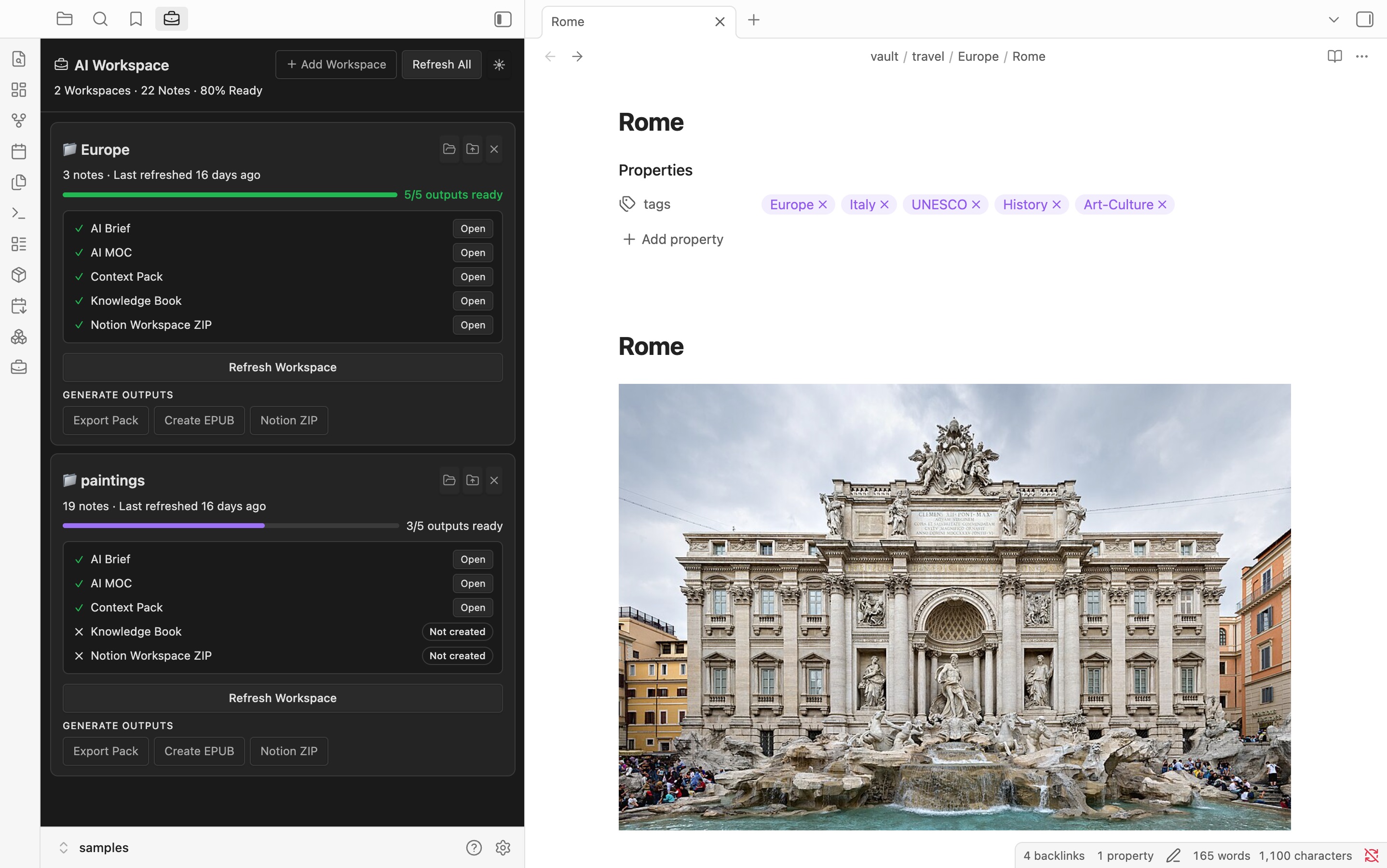
New in v4.0: AI Workspace View
Manage all AI outputs for each folder from a single dashboard.
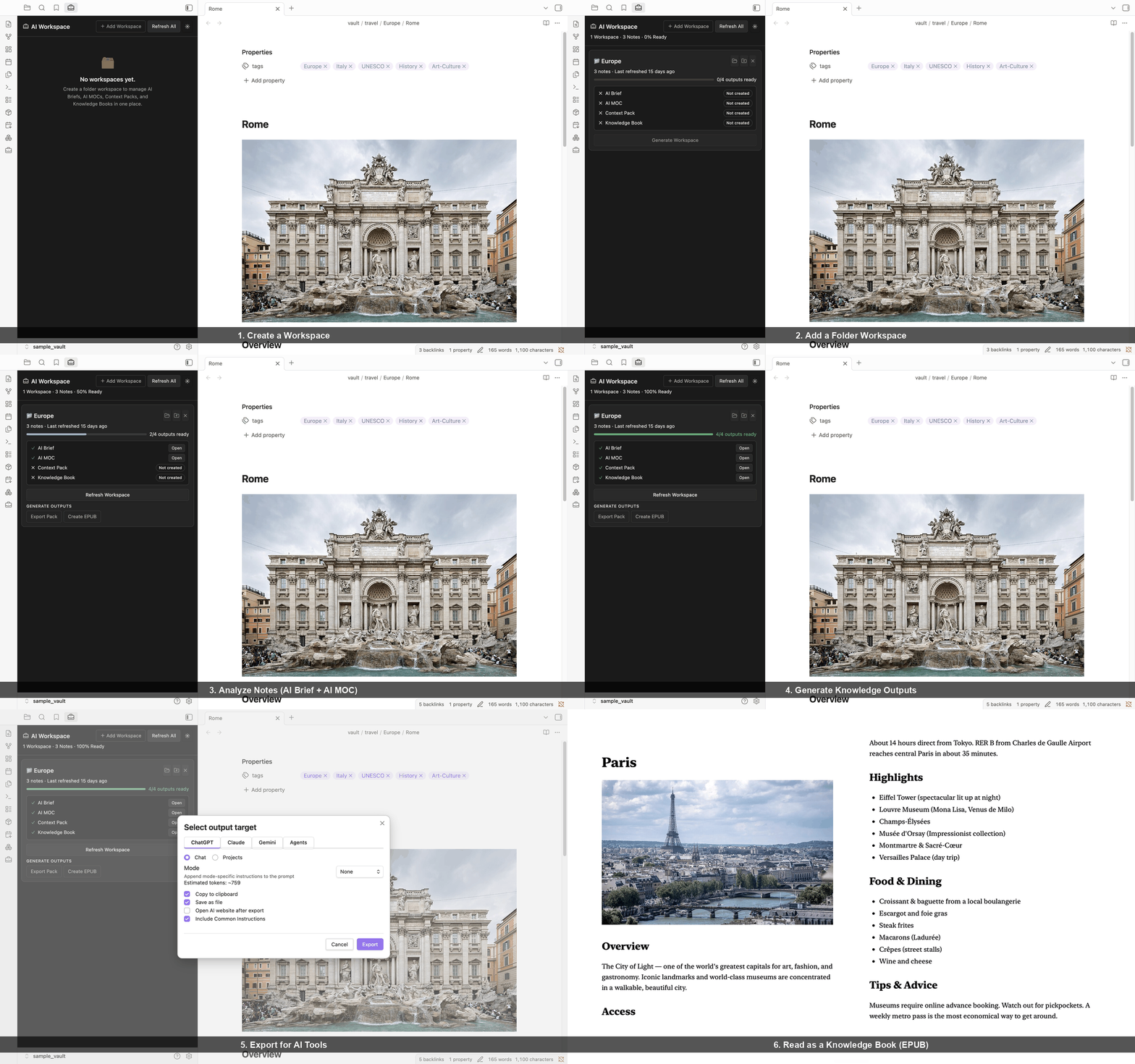
New in v4.1.0: Notion Workspace Export
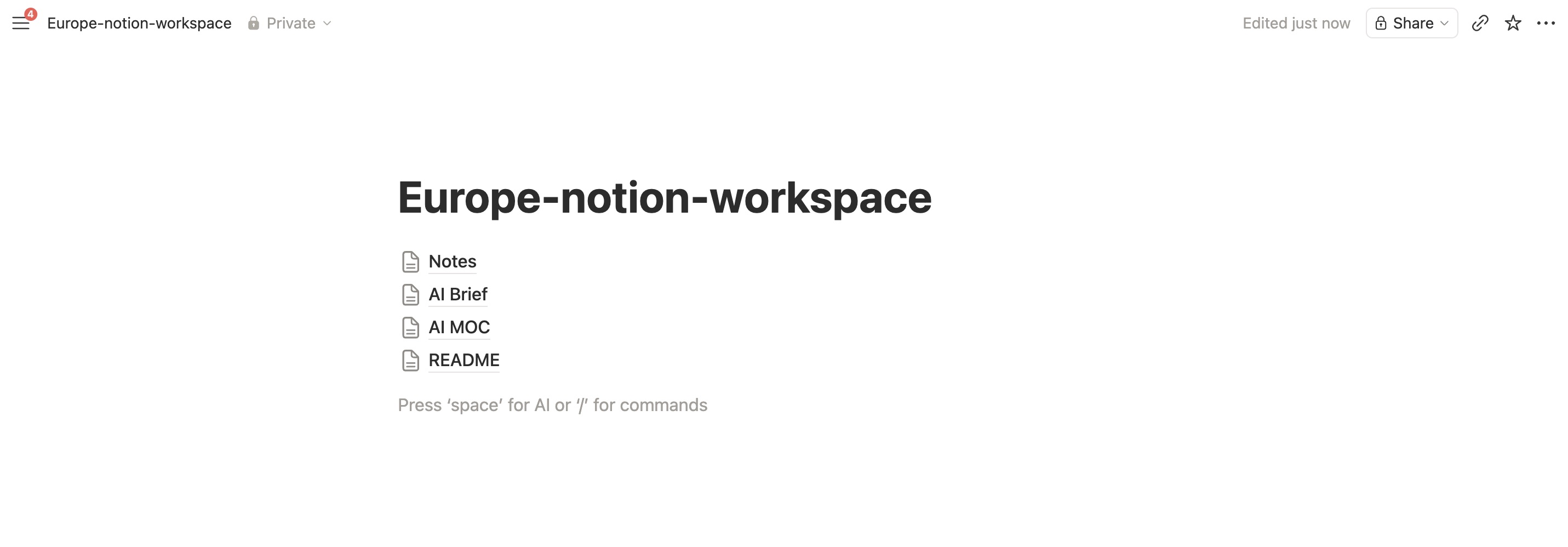
Imported Notion Workspace containing AI Briefs, AI MOCs, notes, and assets.
Export an entire workspace as a Notion-ready ZIP.
Import it into Notion to create a shareable workspace containing:
- AI Briefs
- AI MOCs
- Source Notes
- Images
Build in Obsidian. Share in Notion.
What Can I Do?
✅ Manage AI Workspaces
✅ Generate AI Briefs
✅ Create AI MOCs
✅ Export Context Packs
✅ Generate Knowledge Books (EPUB)
✅ Export entire workspaces to Notion
✅ Share AI-ready knowledge outside Obsidian
✅ Track Workspace Completion
✅ Refresh Outputs When Notes Change
Core Workflow
Obsidian Notes
      ↓
AI Workspace
      ↓
AI Brief + AI MOC
      ↓
Context Pack / Knowledge Book / Notion Workspace ZIP
      ↓
ChatGPT / Claude / Gemini / NotebookLM / Notion
Core Features
AI Workspace View — Track and manage all AI outputs per folder from one panel.
AI Brief — Analyze a folder: topic clusters, knowledge map, and suggested prompts.
AI MOC — Structured Map of Content from your AI Brief, ready to export.
Context Pack — Clean Markdown bundle for ChatGPT, Claude, Gemini, NotebookLM, and Claude Code.
Knowledge Book (EPUB) — Structured EPUB with cover and TOC. Read in Kindle, Apple Books, or Kobo.
Notion Workspace ZIP — Export an entire workspace as a Notion-ready ZIP. Import into Notion to create a shareable workspace with AI Briefs, AI MOCs, source notes, and images. Perfect for team sharing, project documentation, and knowledge publishing.
Quick Start
- Install AI Context Pack
- Open AI Workspace View
- Add a Folder Workspace
- Click Generate Workspace (creates AI Brief + AI MOC)
- Export a Context Pack or create a Knowledge Book
- Click Notion ZIP to export the workspace for Notion
Tutorial
Learn the complete workflow from notes to AI-ready outputs.
👉 Tutorial: Create Your First AI Workspace
Alice: How do I get started?
Bob: Add a folder as a Workspace, then click Generate Workspace. It creates an AI Brief and AI MOC automatically.
Alice: Can I share this workspace with my team?
Bob: Sure. Click Notion ZIP.
Alice: What happens next?
Bob: AI Context Pack creates a Notion-ready workspace ZIP. Import it into Notion and you'll get AI Briefs, AI MOCs, notes, and images as pages.
Screenshots
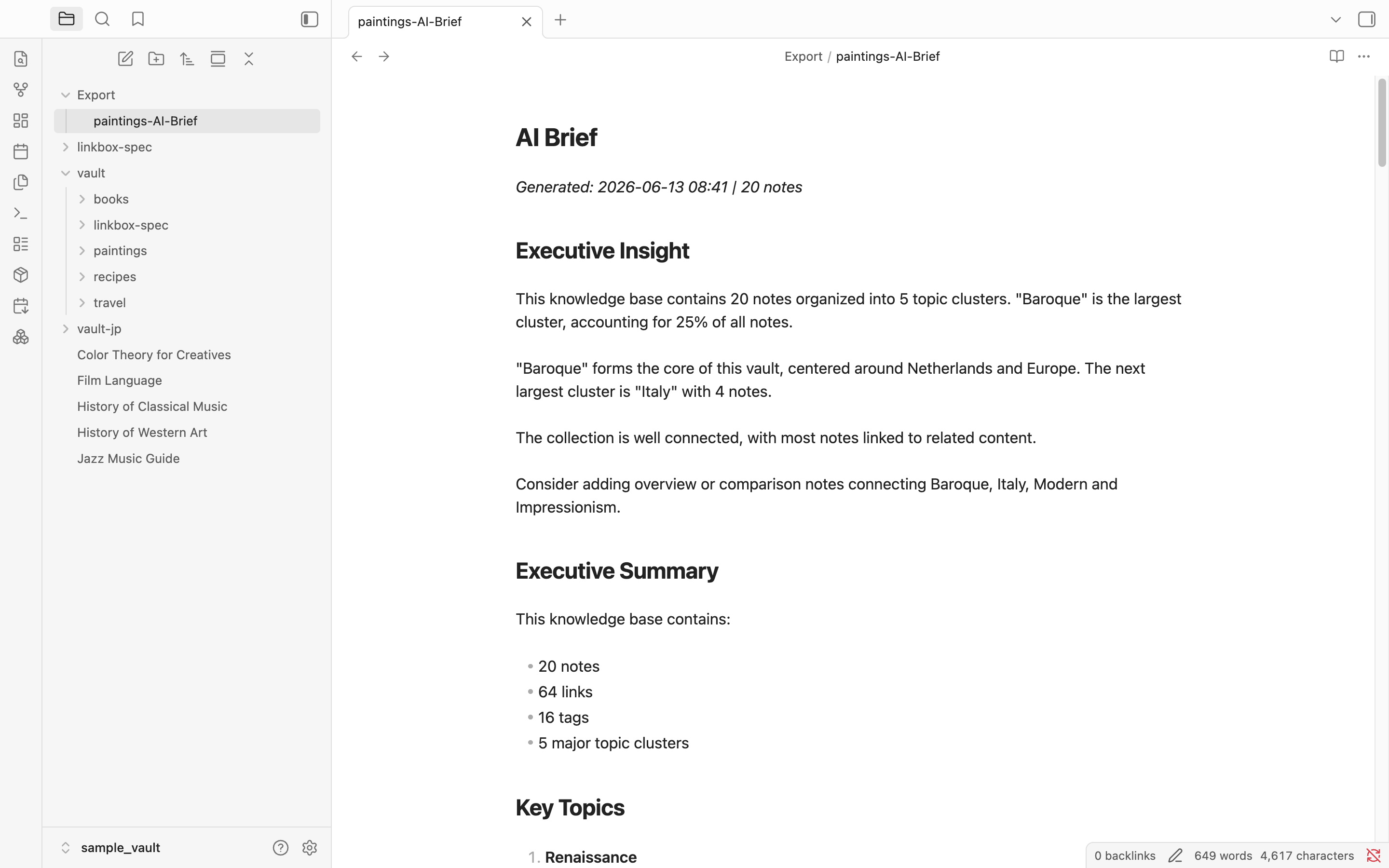
AI Brief — understand your vault before exporting
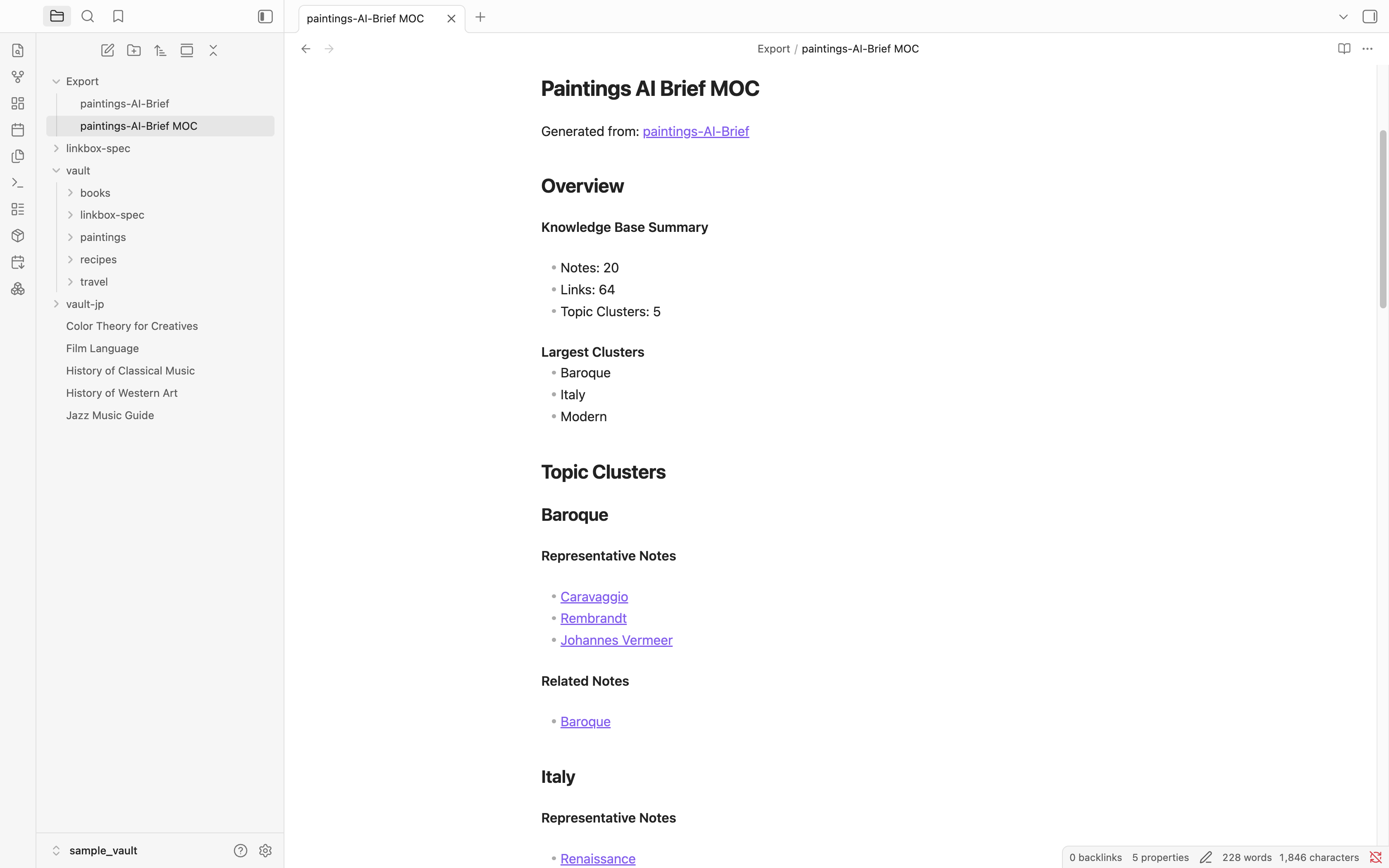
AI MOC — organize insights into a navigable structure
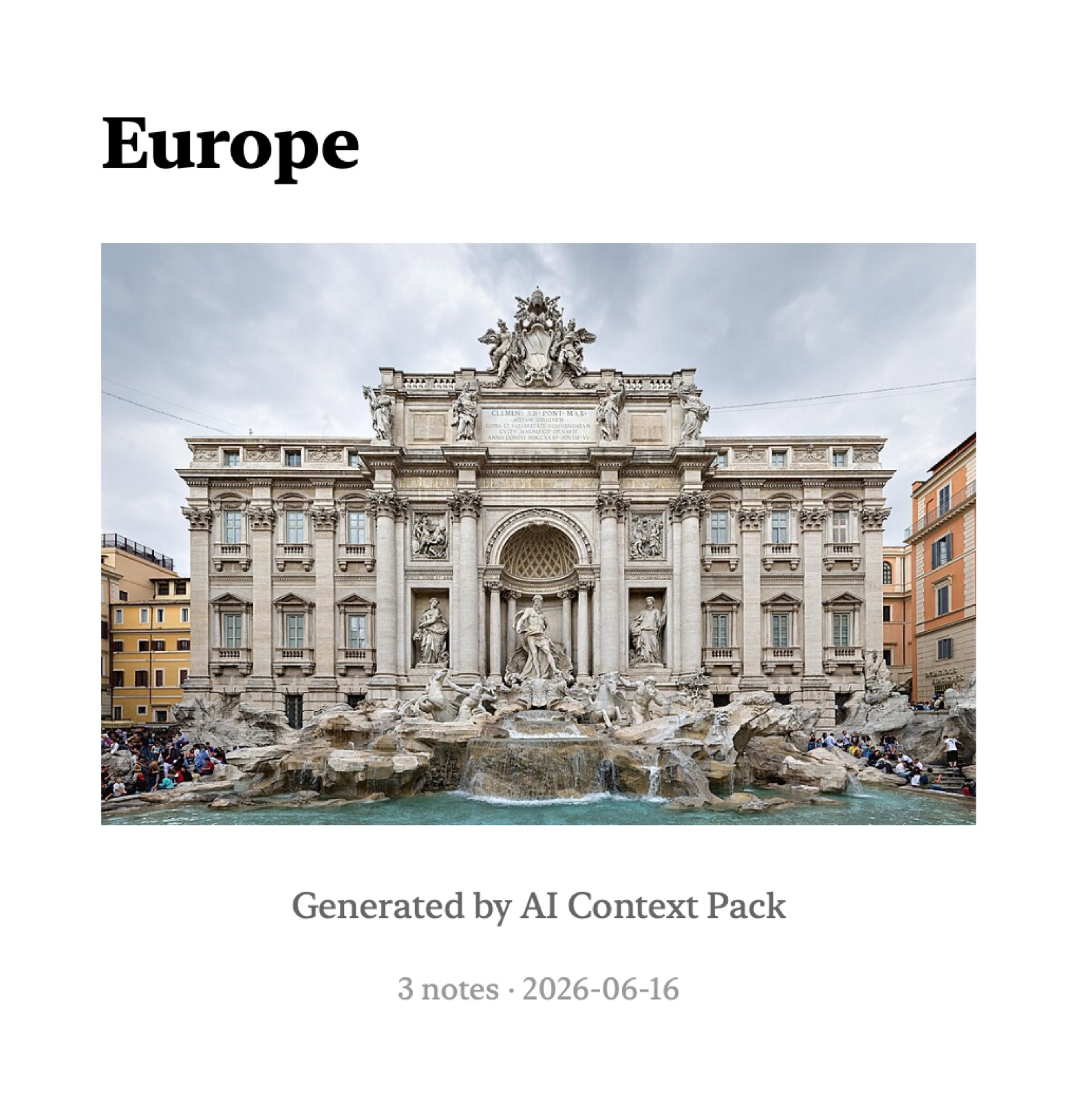
Knowledge Book — read your notes in Kindle, Apple Books, or Kobo
Example Use Cases
Research — Notes → AI Brief → ChatGPT. Ask deep questions about your research.
Learning — Study notes → Knowledge Book → Kindle. Read your notes as a structured book.
Project — Docs → Context Pack → Claude Code. Package specs for AI-assisted development.
Team sharing — Workspace → Notion ZIP → Notion. Share AI-ready knowledge with your team.
Installation
Community Plugins (Recommended)
- Open Settings → Community plugins → Browse
- Search for AI Context Pack
- Install and enable
Manual Installation
Download the latest release and copy main.js, manifest.json, and styles.css to:
.obsidian/plugins/context-pack-for-notebooklm/
Sample Vaults
| Vault | Notes | Download |
|---|---|---|
| 🇺🇸 English | 86 notes | vault-sample-en.zip |
| 🇯🇵 Japanese | 86件 | vault-sample-jp.zip |
Part of the Dualyze Ecosystem
| Tool | Role |
|---|---|
| DualyzeAI | Compare & Analyze |
| Obsidian | Save & Organize |
| AI Context Pack | Package & Prepare |
| Dualyze Notes | Capture & Sync |
| Dualyze Structure | Structure & Visualize |
Details
AI Brief — full details
AI Brief analyzes a folder and generates:
- Executive Insight — one-paragraph knowledge summary
- Topic Clusters — groups of related notes with representative examples
- Knowledge Map — Mermaid diagram showing cluster relationships
- Relationship Map — similarity scores between individual notes
- Knowledge Health — orphan notes, duplicate candidates, connectivity score
- Suggested Prompts — ready-to-use AI prompts for your content
AI Brief is saved as a Markdown file with frontmatter, making it reusable across all workflows.
AI MOC — full details
AI MOC (Map of Content) is generated from an AI Brief or any note.
It follows wikilinks outward to build a structured navigation layer:
Root Note
    │
    ├── Core Concepts
    │       └── Related Notes
    │
    └── Referenced By
AI MOC can be used directly as Context Pack source material.
Notion Workspace Export — full details
Export an entire Obsidian workspace as a Notion-ready ZIP.
What's included:
README.md— import guide and workspace overviewAI Brief.md— workspace analysisAI MOC.md— structured map of contentNotes/— all source notes with Obsidian syntax convertedassets/— local images collected from notes
Obsidian syntax conversions:
![[image.jpg]]→(copied to assets)→ kept as-is (no download needed)[[page]]→[page](page.md)[[page|alias]]→[alias](page.md)- Frontmatter stripped
How to import into Notion:
- Open Notion
- Go to Settings → Import
- Choose ZIP
- Upload the generated ZIP
Knowledge Book (EPUB) — full details
Knowledge Books are generated from an AI Brief and its source notes.
Structure:
- Cover page with title, cover image (if found), note count, and date
- AI Brief as a preface (diagnostic sections removed)
- Hierarchical table of contents from AI Brief clusters
- Source notes as book chapters
- Embedded images from note content
Supported readers: Kindle, Apple Books, Kobo, Calibre, and any EPUB reader.
How to create a Knowledge Book
- Generate an AI Brief from a folder.
- Right-click the generated AI Brief.
- Choose Create Knowledge Book (EPUB).
Context Pack format
Context Packs are single Markdown files that bundle related notes.
Each pack includes:
- A structured header with source, date, and note count
- Clean note content (frontmatter stripped, Obsidian syntax removed)
- AI-specific instructions for the selected output target
- Token count estimate
Source options: folder, tag, MOC, AI MOC, selected notes, daily notes.
Supported AI Assistants
| AI | Chat | Project / Notebook |
|---|---|---|
| ChatGPT | ✓ | ✓ Projects |
| Claude | ✓ | ✓ Project |
| Gemini | ✓ | ✓ Notebook |
| Claude Code | ✓ | — |
| NotebookLM | — | ✓ |
Project Knowledge Packs — freshness tracking
Track which notes were sent to ChatGPT Projects, Claude Projects, Gemini, or NotebookLM.
Know when notes were updated, new notes added, or files renamed. Re-export only when needed.
Daily Notes Pack
Create AI-ready packs from daily notes with date range selection, weekly summaries, and tag exclusion.
Changelog
Contributing
Issues and pull requests welcome on GitHub.
License
MIT
For plugin developers
Search results and similarity scores are powered by semantic analysis of your plugin's README. If your plugin isn't appearing for searches you'd expect, try updating your README to clearly describe your plugin's purpose, features, and use cases.