Book Search Plus
unlistedby DuckTapeKiller
Search for books in Google Books, Goodreads, Open Library and local Calibre libraries to create notes.
Global Book Search
Book notes for Obsidian, built from the best of Goodreads, StoryGraph, Google Books, Open Library, Hardcover, LibraryThing and your own Calibre library.



Search one source or all of them at once, pick the book, and get a note with its title, authors, translator, publisher, pages, ISBNs, genres, description, series and cover, laid out by your own template. When sources disagree, you choose which one wins, field by field.
Contents
- Highlights
- Quick start
- Sources
- How a note is built
- Templates
- Commands
- Settings
- Calibre
- Mobile
- Privacy and your data
- Troubleshooting
- Installation
- Support and credits
Highlights
- Every major book source in one search. Goodreads, StoryGraph, Google Books, Open Library, Hardcover and LibraryThing, with the results grouped by book and labelled by source.
- Fills the gaps for you. Once you pick a book, the plugin looks it up by ISBN in the other sources and fills in whatever the first one was missing.
- Your template, your language. Ready-made frontmatter in 11 languages, or your own template file, with Templater support.
- Series, translators and editions.
{{series}},{{seriesNumber}}and a[[wikilink]]to the series; translators from StoryGraph and Goodreads; an edition picker when a book has several ISBNs. - No duplicates. Before creating a note it checks your notes folder by ISBN and by file name, and offers to open or update the note you already have.
- Covers saved in your vault, or linked from the web if you prefer.
- Scan a barcode with your camera, or bulk import a list of ISBNs.
- Your Calibre library, searched or browsed by author, series and tag.
Quick start
- Install Global Book Search from Settings → Community plugins (see Installation).
- Open Settings → Global Book Search → Notes and choose the folder for book notes and a frontmatter Language.
- Click the book icon in the ribbon, or run Global search (all sources) from the command palette, type a title or ISBN and pick a result.
Goodreads and Open Library work straight away. For the other sources, see Sources: each needs a key or a login that takes a minute or two to set up, and the settings explain every step.
Sources
| Source | Setup | What it is good for |
|---|---|---|
| Goodreads | None | The most complete source: translators, original titles, first publication, series, genres, characters, places, ASINs. |
| Open Library | None | The exact edition an ISBN names, often with its original title and translator; open data and covers. |
| Google Books | None; a free API key is recommended | Descriptions, categories, a wide catalogue in many languages. |
| StoryGraph | Your StoryGraph login | The exact edition you pick, with its series, translators, full description, moods and pace. |
| Hardcover | A personal API token | The exact edition an ISBN names, with its translators, narrators, language and format; editions in your language when you search by title. |
| LibraryThing | A free API token | Common Knowledge: characters, places, first words, dedications and more. |
| Calibre | Calibre's content server | Your own library, searched or browsed. |
Fable and the Library of Congress can also supply a few fields; they are used only for the fields where you choose them under Search & merging.
What each source provides
Every note starts from the same default set of values: title, authors, translator, publisher, dates, pages, ISBNs, description and cover. The sources differ in which of those they have, and some provide more: moods and pace, characters and places, first words and dedications. Each value is a template variable, so a note shows it only when your template has the variable.
| Variable | Goodreads | StoryGraph | Hardcover | Open Library | Google Books | LibraryThing |
|---|---|---|---|---|---|---|
{{title}}, {{author}}, {{publisher}}, {{publishDate}}, {{totalPage}}, {{isbn13}}, {{coverUrl}} | ✓ | ✓ | ✓ | ✓ | ✓ | some |
{{description}} | ✓ | ✓ | ✓ | ✓ | ✓ | – |
{{categories}} | ✓ | ✓ | ✓ | ✓ | ✓ | ✓ |
{{translator}}, {{narrator}} | ✓ | ✓ | ✓ | some | – | – |
{{originalTitle}} | ✓ | – | – | some | – | – |
{{firstPublishDate}} | ✓ | year | ✓ | – | – | – |
{{language}}, {{format}} | ✓ | ✓ | ✓ | ✓ | – | – |
{{series}}, {{seriesNumber}} | ✓ | ✓ | ✓ | – | – | – |
{{asin}} | ✓ | ✓ | ✓ | – | – | – |
{{moods}} | – | ✓ | ✓ | – | – | – |
{{pace}} | – | ✓ | – | – | – | – |
{{characters}} | ✓ | – | ✓ | – | – | ✓ |
{{places}} | ✓ | – | – | – | – | ✓ |
{{firstWords}}, {{lastWords}}, {{quotes}}, {{dedication}}, {{events}}, {{blurbers}}, {{relatedMovies}}, {{originalLanguage}} | – | – | – | – | – | ✓ |
"Some" means the source has the value for some books only. Calibre fills what your own library holds.
How the plugin chooses. A search in one source fills the note from that source alone. A global search asks every source about the edition you chose and takes each value from the first source in its order under Settings → Global Book Search → Search & merging that has it. Values without an order there come from the source you chose, then Goodreads, StoryGraph, Google Books, Open Library and the rest. When sources disagree on the title, author, publisher, date, pages or categories, you see the options side by side and choose.
The Hardcover token, the LibraryThing token and the StoryGraph login are kept in Obsidian's secret storage (Settings → Keychain), not in your vault's files. In Settings → Global Book Search → Sources, every source that needs setting up has a status label, a step-by-step guide and, where possible, a test button.
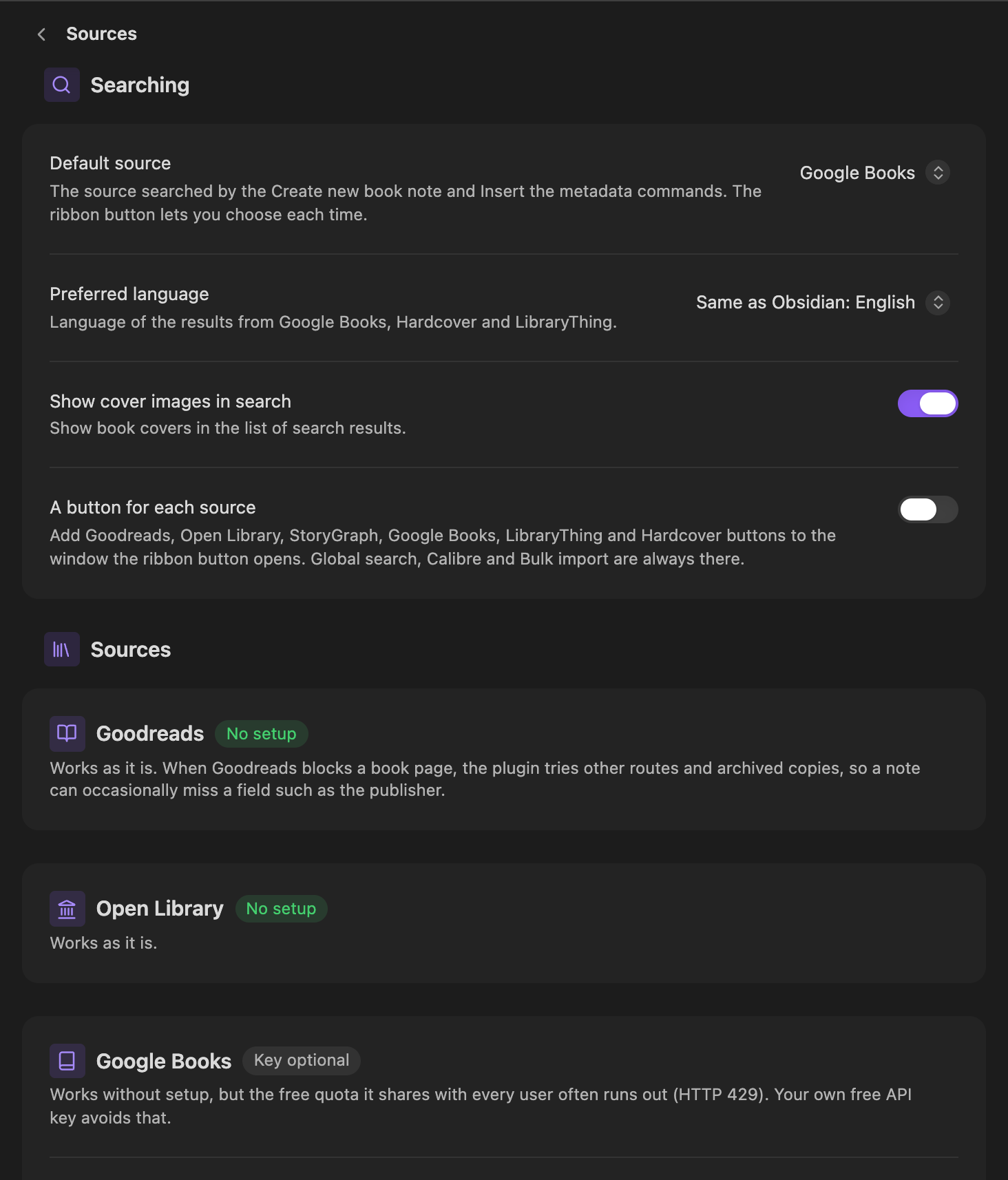
Each source shows whether it is ready, and how to set it up.
StoryGraph: add your login
StoryGraph has no public API and puts a Cloudflare check in front of every request that is not signed in, so anonymous searches fail with HTTP 403. Signed-in requests are answered normally, so the plugin uses your own login: two cookies from your browser.
- Sign in at app.thestorygraph.com with Remember me ticked.
- Open the browser's developer tools and find the cookies:
- Chrome, Edge or Brave: Cmd+Option+I (Mac) or F12, then Application → Cookies → https://app.thestorygraph.com.
- Firefox: Cmd+Option+I (Mac) or F12, then Storage → Cookies → https://app.thestorygraph.com.
- Safari: turn on Settings → Advanced → Show features for web developers, then Develop → Show Web Inspector → Storage → Cookies.
- Copy the values of
_storygraph_sessionandremember_user_token. - In Settings → Global Book Search → Sources → StoryGraph, click Link… beside each cookie, create a secret and paste the value.
- Press Test login. The command Test StoryGraph login does the same.
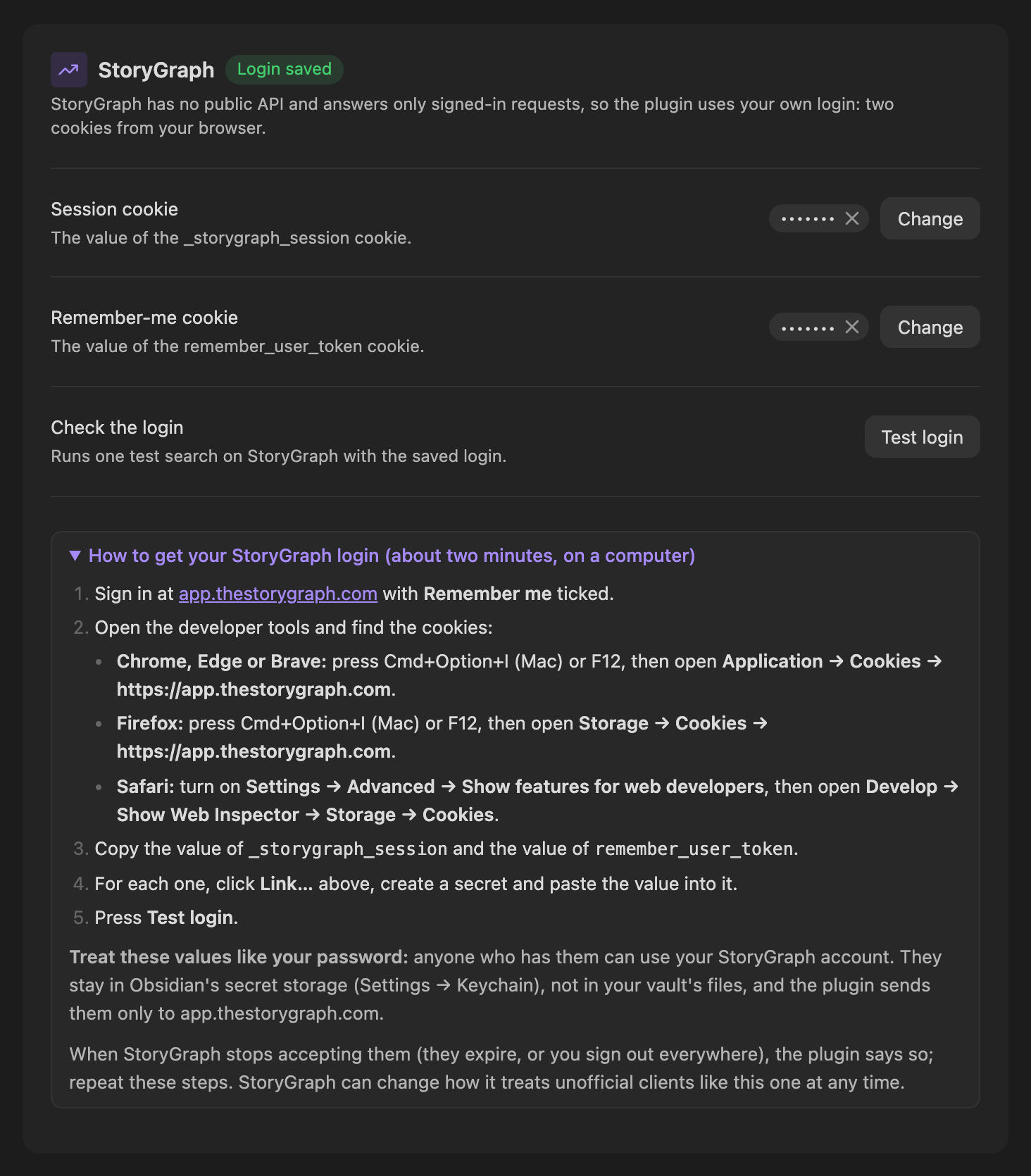
The StoryGraph login, saved and ready, with its guide open.
[!WARNING] These two values work like your password: anyone who has them can use your StoryGraph account. The plugin keeps them in Obsidian's secret storage and sends them only to
app.thestorygraph.com. Never share them.
When they expire, the plugin says StoryGraph did not accept the login; repeat the steps. Without a login, StoryGraph searches tell you a sign-in is needed, and global search simply carries on without StoryGraph. This is an unofficial client acting as you, so StoryGraph can change how it treats it at any time.
Google Books: get a free API key
Google Books works without a key, but the free quota it shares with every user often runs out (HTTP 429). Your own key avoids that.
- Open the Credentials page of Google Cloud Console, and choose or create a project if it asks.
- Choose Create credentials → API key and copy the key.
- Optionally choose Restrict key: if Books API is listed under API restrictions, select it; otherwise leave the key unrestricted.
- Paste the key into Sources → Google Books → API key and press Save key.
You don't need to find the API in the API Library. Google lists it as "Books API", and its documentation says to skip enabling it when it isn't listed.
Hardcover: add your API token
- Sign in at hardcover.app.
- Open hardcover.app/account/api and copy the token. It works with or without the word
Bearerin front. - In Sources → Hardcover, click Link…, create a secret and paste the token, then press Test.
LibraryThing: add your API token
The plugin searches LibraryThing through its Talpa Search API, which needs a free API token.
- Sign in to LibraryThing, or create a free account.
- Open the Developer Hub while signed in and copy your API token.
- In Sources → LibraryThing, click Link…, create a secret and paste the token, then press Test.
The free token allows 50 searches a day, one per second; for more, LibraryThing asks you to write to talpa@librarything.com.
LibraryThing sometimes answers automated requests for its book pages with a "High traffic" page; the Common Knowledge variables can then come out empty.
How a note is built
When you pick a result in Global search (all sources):
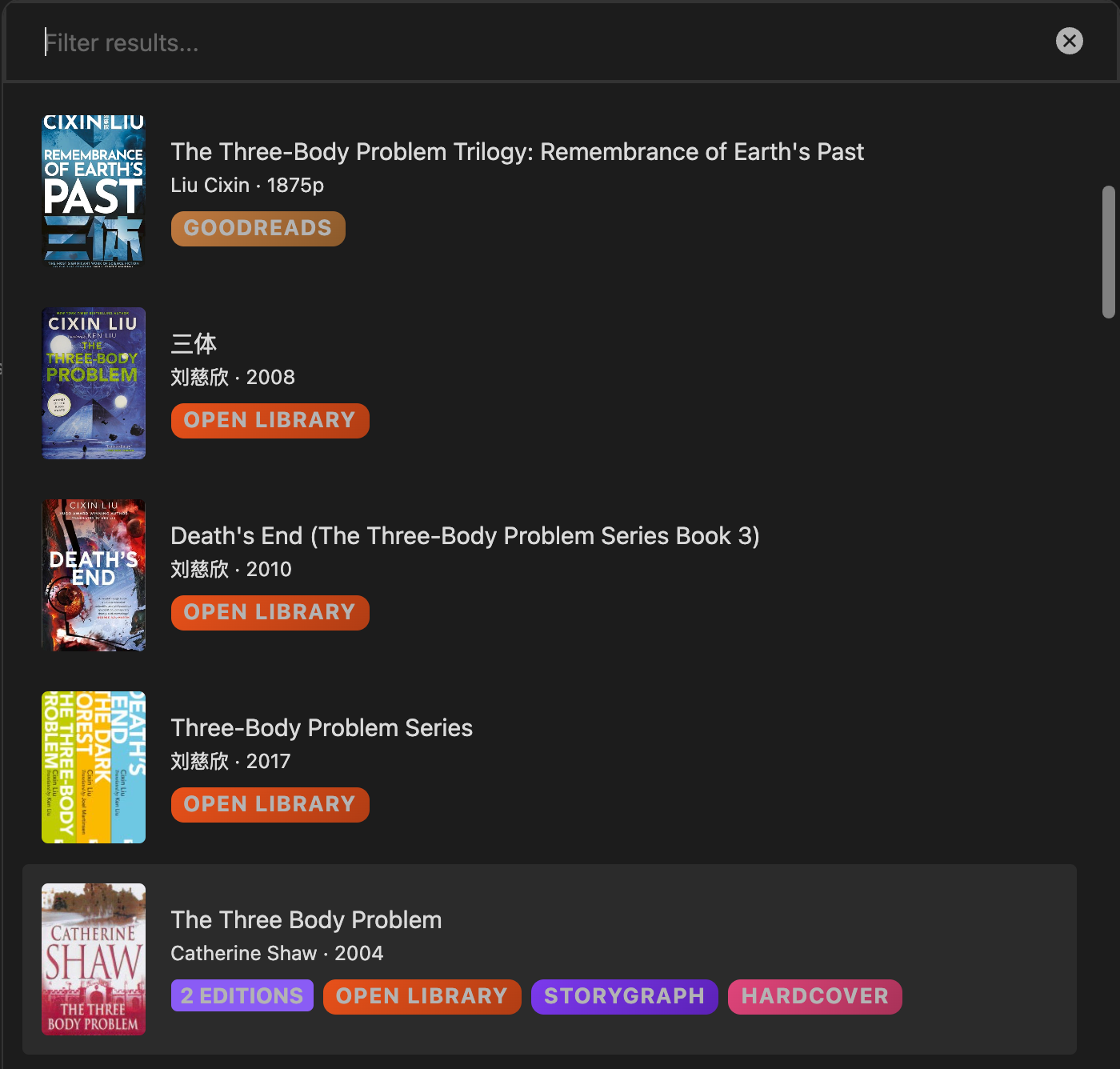
One search, every source: each result is labelled with every source that found it.
- Edition. If the book has several editions with different ISBNs, you choose one.
- ISBN. If the chosen edition has no ISBN (Goodreads keeps some of its best-known editions without one), the plugin looks for its twin: the same title, publisher, page count, binding and language, first in Goodreads' own list of the book's editions, then in Hardcover's and Open Library's (and Google Books' with an API key). It takes the ISBN only when exactly one edition matches; when two printings could be it, the note gets no ISBN rather than another edition's. A result that is a book rather than an edition takes the edition a source knows best.
- Goodreads is fetched by ISBN for its detailed metadata.
- The other sources are asked by ISBN at the same time: Google Books, StoryGraph and Open Library, plus Hardcover and LibraryThing when set up, including those that had found the book in the search. StoryGraph and Hardcover answer only for that exact edition.
- Merging. For each field the plugin takes the value from the source you prefer (Search & merging). If sources disagree on the title, author, publisher, date, pages or categories, you see the options side by side and choose: the value your preferences picked is already selected, and Most frequent marks the one that most sources gave.
- Duplicate check. If a note for the book already exists, you can open it, update its metadata, create another anyway or cancel. Update metadata refreshes only the properties your template fills in from the book: fixed values such as
Read: falseor an emptyDate read:keep what you wrote, and a value the sources leave empty never erases one the note already has. - The note is written from your template, the cover is saved to your vault (in Local cover mode), and Templater runs if you use it.
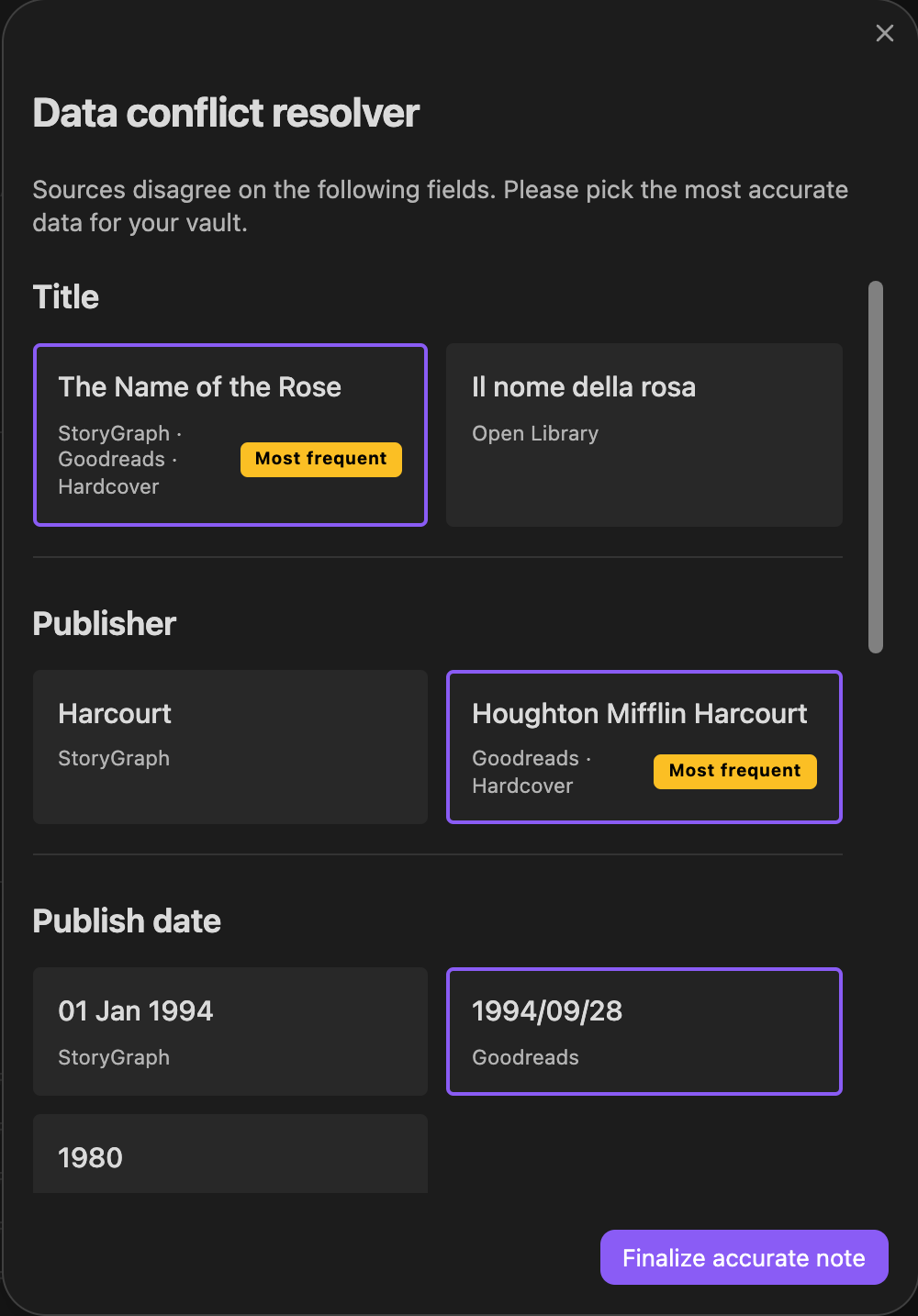 When sources disagree, you pick the value. Sources that agree share one card. |
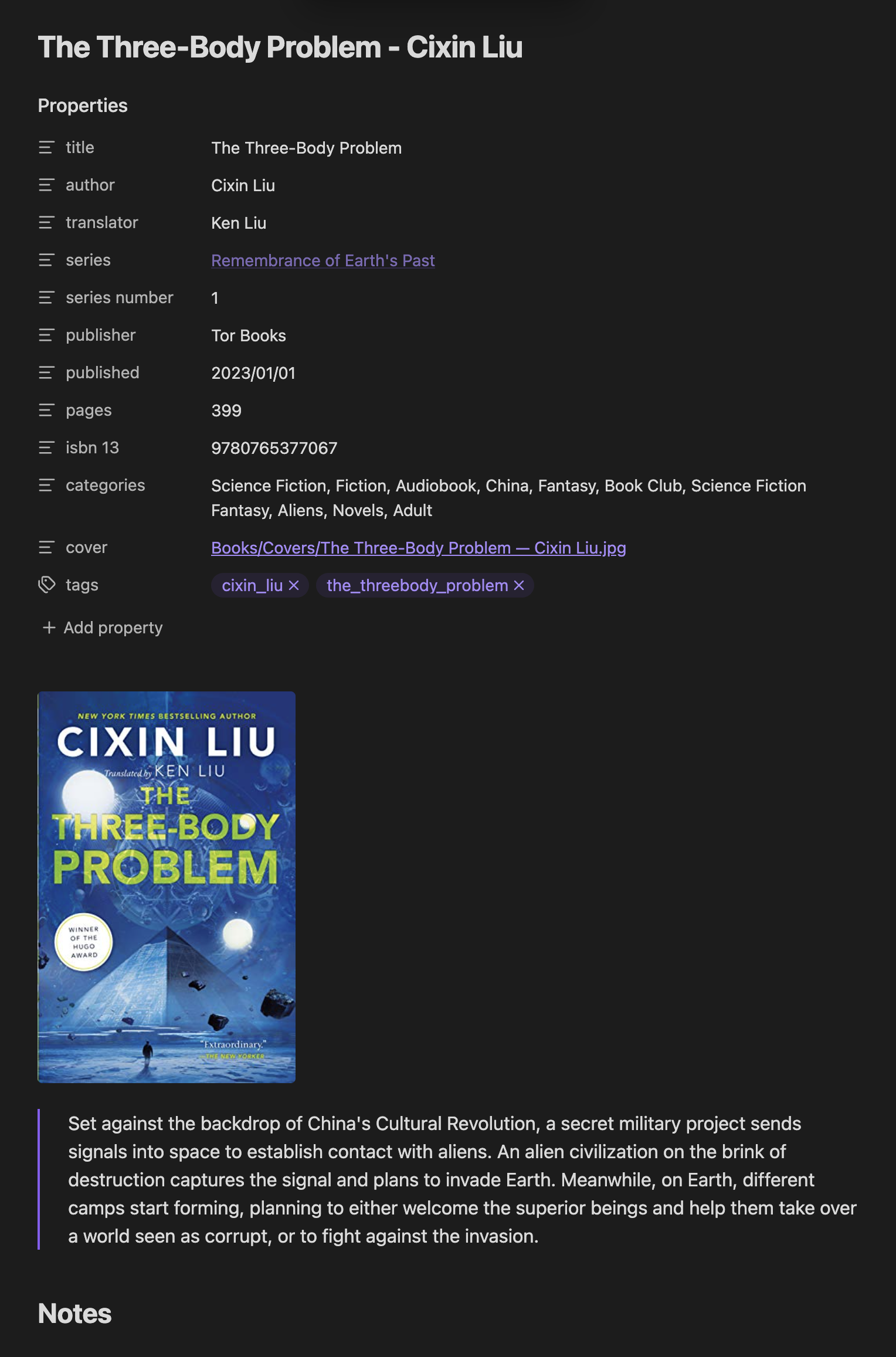 The finished note: translator from StoryGraph, series from Goodreads, cover saved in the vault. |
Searching a single source skips the merging: the note is built from that source alone, after it fetches the book's details.
Templates
The frontmatter comes from Notes → Frontmatter, which offers ready-made templates in 11 languages (Spanish, English, French, German, Italian, Portuguese, Dutch, Russian, Simplified Chinese, Japanese and Korean), or from your own Template file. Spanish is the default. Content sets the body of the note.
The English template
---
Title: {{title}}
Original title: {{originalTitle}}
Author: {{author}}
Translator: {{translator}}
Prologue: ""
Description: "{{description}}"
Total Pages: "{{totalPage}}"
Publisher: {{publisher}}
Categories: {{categories}}
isbn 10: "{{isbn10}}"
isbn 13: "{{isbn13}}"
Asin: {{asin}}
Published: {{publishDate}}
Date read:
Cover: "{{localCoverImage}}"
Link: {{link}}
Tags: {{tags}}
Read: false
---
Variables
| Variable | What it holds |
|---|---|
{{title}}, {{subtitle}}, {{originalTitle}} | The edition's title and subtitle, and the original title of a translated work. |
{{author}}, {{authors}} | The first author, or all of them. |
{{translator}}, {{narrator}} | The translators, however Goodreads, StoryGraph or Hardcover credits them ("Translator", "Traductor", "Translator, Introduction"…), and an audiobook's narrators. A translator that one source lists as an author is kept out of {{authors}} when another source credits them as the translator. |
{{description}} | The summary. |
{{publisher}}, {{publishDate}}, {{totalPage}} | The edition's publisher, publication date and page count. |
{{firstPublishDate}} | When the work first came out, such as 1980/09/01 for The Name of the Rose in any edition (Goodreads, Hardcover; StoryGraph gives the year). |
{{language}}, {{format}} | The edition's language and format, such as Spanish and Paperback or Kindle Edition (Goodreads, StoryGraph, Hardcover). |
{{moods}}, {{pace}} | StoryGraph's moods (adventurous, dark) and pace (fast-paced); Hardcover's readers' moods when StoryGraph has none. |
{{isbn13}}, {{isbn10}}, {{asin}} | Identifiers. |
{{categories}} | Genres and categories, separated by commas. |
{{characters}}, {{places}} | The book's characters, separated by commas, and its settings, separated by semicolons (Goodreads, LibraryThing; Hardcover's characters without spoilers). |
{{series}}, {{seriesNumber}}, {{seriesLink}} | The series, the book's position in it (1, 0.5, 1-3) and a [[wikilink]] to it. |
{{localCoverImage}}, {{coverUrl}} | The cover saved in your vault (a [[wikilink]] in Local mode, the address in Remote mode) and the cover's web address. |
{{link}} | The book's page at the source. |
{{tags}} | An author tag and a title tag, each with the prefix from Notes → Tags. |
LibraryThing Common Knowledge variables
Filled only when LibraryThing has the data, and empty for other sources: {{events}}, {{firstWords}}, {{lastWords}}, {{quotes}}, {{dedication}}, {{blurbers}}, {{relatedMovies}} and {{originalLanguage}}. {{characters}} and {{places}} come from Goodreads as well. In a global search they are kept whichever source is primary.
Characters: "{{characters}}"
Places: "{{places}}"
First words: "{{firstWords}}"
Original language: {{originalLanguage}}
Series
The series variables are not in the ready-made templates; add the ones you want:
Series: "{{seriesLink}}"
Series name: "{{series}}"
Series number: "{{seriesNumber}}"
They come from Goodreads and Calibre. Notes → Enable series linking controls {{seriesLink}}: when it is off, no [[wikilinks]] are created while {{series}} and {{seriesNumber}} keep working. Goodreads lists some books in several series (a main series, a sub-series, foreign-language collections); the plugin uses the main one.
Modifiers
Add :raw or :url to any variable, or both in order:
:rawremoves the[[ ]]round a wikilink, leaving the path.:urlencodes the value for use in a link (spaces become%20).
Cover: "{{localCoverImage:raw:url}}"   →  Cover: "images/foo%20bar.png"
![[{{localCoverImage:raw}}|150]]       →  ![[images/foo bar.png|150]]
Writing templates that stay valid
[!TIP]
- Quote values that can contain a colon, a quote mark or a
#: titles, descriptions and links.Title: "{{title}}".- Leave
{{tags}}unquoted on its own line,tags: {{tags}}, so it becomes a proper list.- Wikilinks such as
{{seriesLink}}and{{localCoverImage}}are quoted for you if you forget.
Dates, Templater and inline values
- In a template file,
{{date}}and{{time}}insert today's date and the time, with an optional format and offset:{{date:YYYY-MM-DD}},{{date+7d}}. - In the file name,
{{DATE}}and{{DATE:YYYY}}do the same. <%= book.title %>reads a field of the book, and<%= book.authors[1] %>reads one item of a list.- If the Templater plugin is installed and is not already set to run on new files, the plugin runs it on each new note, so Templater commands in your template work.
Commands
| Command | What it does |
|---|---|
| Global search (all sources) | Search every source at once and build the note from all of them. |
| Create new book note | Search your default source and create a note. |
| Insert the metadata | Search, then insert the result into the note you are editing. |
| Search Goodreads, Google Books, Open Library, StoryGraph, Hardcover, LibraryThing | Search one source. |
| Search Calibre (multi-select) | Find books in Calibre and import several at once. |
| Browse Calibre library | Browse Calibre by author, series or tag. |
| Bulk import from ISBN list | Paste a list of ISBNs and create a note for each. |
| Test StoryGraph login, Test Hardcover connectivity, Test LibraryThing connectivity | Check a login or token. |
| Clear search history | Forget recent searches. |
The ribbon's book icon opens a window with Global search, Calibre and Bulk import, and a button per source if you turn that on under Sources.
Settings
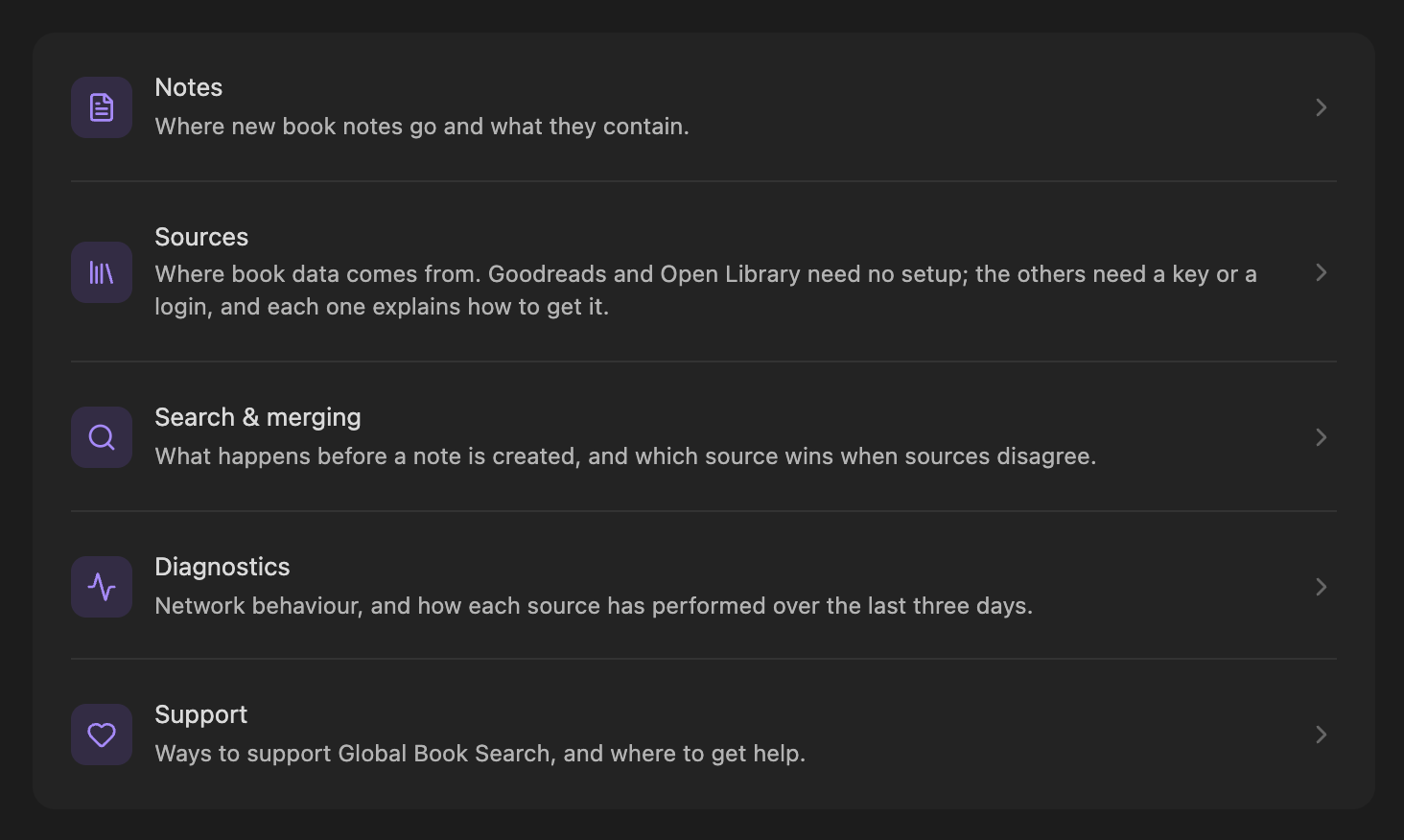
Settings are grouped in five pages.
| Page | What you set there |
|---|---|
| Notes | Where notes go and how they are named, the frontmatter, template file and body, tags, series linking and covers. |
| Sources | The default source, language and search options, and each source's key or login with a guide and a test button. |
| Search & merging | The duplicate warning, search history, and which source wins each field. |
| Diagnostics | Network settings and how each source has performed over the last three days. |
| Support | Ko-fi, bug reports and the installed version. |
On Obsidian 1.13 and later the five pages are Obsidian's own settings pages, so every setting also turns up in Obsidian's settings search (try "cookie" or "series"). Older versions of Obsidian show the same pages as tabs.
Calibre
Turn on Calibre's content server (Connect/share → Start Content server, and Preferences → Sharing over the net to start it with Calibre), then enter its address and library ID under Sources → Calibre.
- Search Calibre (multi-select) imports several books at once. With five or fewer, each is enriched from the online sources; with more, notes use Calibre's data alone, to keep the import quick.
- Browse Calibre library lists your library by author, series or tag and always uses Calibre's own data.
Mobile
The plugin runs on iOS and Android. A few things to know:
- Copying StoryGraph's cookies needs a browser's developer tools, so do that on a computer.
- If a source works on your computer but not on your phone, check its key or login under Sources on the phone.
- To reach Calibre from a phone, use the computer's network address (such as
http://192.168.1.50:8080), notlocalhost.
Privacy and your data
- The plugin talks only to the sources you use and the sites that host their covers, to Fable and the Library of Congress if you choose them, to your Calibre server, and, when a Goodreads or LibraryThing page is blocked, to the public archives
web.archive.organdarchive.ph. There is no analytics or tracking. - The Hardcover token, LibraryThing token and StoryGraph login live in Obsidian's secret storage and are sent only to their own services. The Google Books key is stored in the plugin's settings file (
data.json). - Settings are saved key by key, so the plugin never writes old values over settings changed on another device, and it leaves an unreadable settings file untouched.
Troubleshooting
Diagnostics → Service performance shows how each source has done over the last three days, with the last error, so you can see at a glance which one is failing and why.
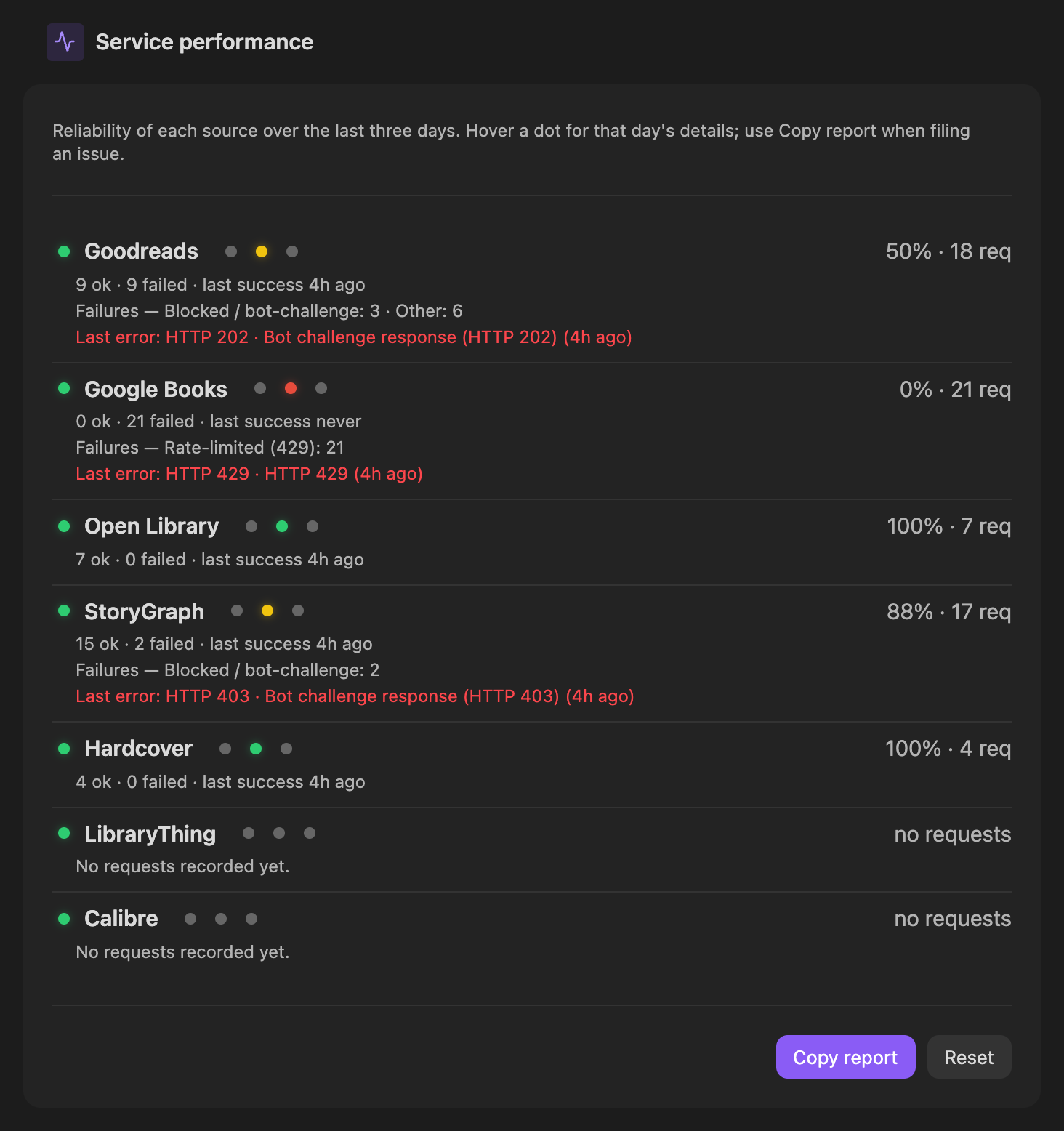
Here Google Books' shared quota had run out (HTTP 429), the usual reason to add your own key.
| What you see | What to do |
|---|---|
| "StoryGraph only answers signed-in requests" | Add your StoryGraph login under Sources → StoryGraph. |
| "StoryGraph did not accept your login" | The cookies have expired. Sign in again and copy fresh values. |
| "Google Books' free shared quota has run out" | Add your own free API key under Sources → Google Books. |
| A Goodreads note misses the publisher or ISBN | Goodreads blocked the book page and the fallbacks could not fill everything. Try again later, or use global search to fill the gaps from other sources. |
| LibraryThing's Common Knowledge fields are empty | LibraryThing showed its "High traffic" page. Try again later. |
| A source keeps failing | Open Diagnostics: the service performance panel shows what went wrong. Use Copy report when you open an issue. |
Installation
From Obsidian: open Settings → Community plugins → Browse, search for Global Book Search, install it and turn it on.
By hand: download main.js, manifest.json and styles.css from the latest release, put them in <your vault>/.obsidian/plugins/global-book-search/, then turn the plugin on under Settings → Community plugins.
Support and credits
If Global Book Search is useful to you, you can support its development on Ko-fi. Bug reports and ideas are welcome in the issues.
Global Book Search is made and maintained by DuckTapeKiller. It builds on obsidian-book-search-plugin by anpigon. Released under the MIT licence.
For plugin developers
Search results and similarity scores are powered by semantic analysis of your plugin's README. If your plugin isn't appearing for searches you'd expect, try updating your README to clearly describe your plugin's purpose, features, and use cases.