by siulved54
Create book notes from Open Library or Google Books, with cover images, ISBN search and Book Search compatible templates.
Book Lookup
Create a note for any book from Open Library or Google Books: search by title, author or ISBN, pick the result, and get a note with properties, a cover and a description.
Book Lookup is a successor to Book Search. It reads the same template variables, imports its settings with one button, and names notes the same way, so you can switch without rewriting your templates.
What it does
- Create book note opens a search window. Type a title, an author or an ISBN (10 or 13 digits, with or without hyphens). Each result shows a cover thumbnail, the title, the authors and the year. Pick one and the note is created in your book folder and opened.
- Insert book metadata into this note searches (starting from the note's name) and fills the properties of the note you are in. Properties that already have a value are never changed, unless you turn on "Overwrite existing properties".
Titleandtitlecount as the same property. - Two providers. Open Library is the default: no key, no quota. Google Books can be used without a key, but Google often refuses keyless requests ("quota exceeded"); a free API key in the settings avoids that.
- ISBN search goes straight to the ISBN endpoint, so it finds that edition rather than a list of guesses.
- Cover images can be saved in your vault (Settings, Covers).
{{localCoverImage}}and thecoverproperty then point to the file. - If the note exists, it is opened, not overwritten.
- Import settings from Book Search copies its folder, file name format, template file, cover settings and "open the note" setting from
.obsidian/plugins/obsidian-book-search-plugin/data.json. Its API key is not copied.
Default note
Without a template file, a note looks like this (empty values are left out):
---
title: "The Hobbit"
author:
- "J.R.R. Tolkien"
publisher: "Houghton Mifflin"
publishDate: "1937"
totalPage: 366
isbn10: "0618260307"
isbn13: "9780618260300"
categories:
- "Fantasy"
- "Dragons"
cover: "https://covers.openlibrary.org/b/id/14627509-M.jpg"
link: "https://openlibrary.org/works/OL262758W"
---
# The Hobbit
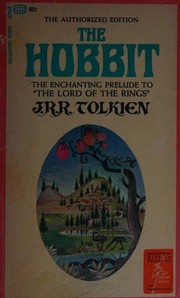
In a hole in the ground there lived a hobbit. ...
Templates
Set a Template file in the settings and write it with variables in double braces. The names are the ones Book Search uses, matched without regard to case. Unknown ones are removed.
| Variable | Value |
|---|---|
{{title}} | Title |
{{subtitle}} | Subtitle |
{{author}} | Authors joined with ", " |
{{authors}} | Authors joined with "," (as Book Search writes them) |
{{category}} | Categories or subjects joined with ", " |
{{categories}} | Categories or subjects joined with "," |
{{description}} | Description as plain text |
{{publisher}} | Publisher |
{{publishDate}} | Publication date (a year for Open Library searches) |
{{totalPage}} | Number of pages |
{{isbn10}}, {{isbn13}} | ISBNs |
{{coverUrl}} | Cover URL, medium size |
{{coverSmallUrl}} | Cover URL, small size |
{{coverLargeUrl}} | Cover URL, large size |
{{localCoverImage}} | Path of the saved cover in your vault (empty unless "Save cover images" is on) |
{{link}} | Page of the book on the provider |
{{DATE}}, {{DATE+1}}, {{DATE:YYYY-MM-DD}} | Today, with an optional day offset and a moment.js format |
{{date}}, {{time}}, {{date+1w:format}} | Same, in the longer form Book Search accepts in template files (offset units y q m w d h s) |
The file name format takes the same variables, for example {{title}} - {{author}} (the default) or {{title}} ({{publishDate}}). Characters a file name cannot hold (\ / : * ? " < > | and also # ^ [ ] . , and similar) are removed.
Not supported: Book Search's <%= ... %> inline scripts and its Naver provider. Book Lookup does not run code from templates.
Settings
Search provider, Google Books API key and language, new note folder, file name format, template file, open the note after creating it, overwrite existing properties, save cover images and their folder, and the import button. They appear in Obsidian's settings search.
Network use
Book Lookup talks to the network only when you search or create a note, and only to these hosts:
openlibrary.org(search, ISBN lookup, book descriptions) andcovers.openlibrary.org(cover images), when the provider is Open Library.www.googleapis.com(search and ISBN lookup) andbooks.google.com(cover images), when the provider is Google Books. Your API key, if you set one, is sent only here.
What you type in the search window is sent to the provider you chose. Cover thumbnails in the results list are loaded from the provider's servers; saved covers are downloaded once. There is no telemetry, no account and no other server. Requests are made with Obsidian's own requestUrl.
Installation
In Obsidian, open Settings → Community plugins → Browse and search for "Book Lookup".
More plugins by Siulved54
| Plugin | What it does | Source |
|---|---|---|
| Shared Blocks | Write a block of text once and reuse it in any note. Edit the source and every reference re-renders live. | shared-blocks |
| Text Case and Cleanup | Change case, make camelCase or slugs, sort lines and remove duplicates, and repair text pasted out of a PDF, without touching code or URLs. | text-format |
| Typography as You Type | Curly quotes, dashes and ellipses as you type, kept out of code and maths, with Backspace to take one back. | smart-typography-plugin |
| Section Numbering | Number headings as an outline (1, 1.1, 1.2) and keep every link to them working when they renumber. | section-numbering |
| Spreadsheet to Table | Paste cells from Excel or Google Sheets as a Markdown table with a real header, insert CSV files, and copy tables back out. | spreadsheet-to-table |
| Hybrid Line Numbers | Relative and hybrid line numbers for Vim-style jumps, where a folded section counts as one line. | hybrid-line-numbers |
| List Item Callouts | Colour a single list item as a callout by starting it with a character such as &, ! or ?. | list-item-callouts |
| Folder Counts | See how many notes or files each folder holds, right in the file explorer, with a vault total and folder exclusions. | folder-counts |
| Note Reading Time | Reading time of the current note or your selection in the status bar, optionally saved to a property. | note-reading-time |
| Task Rollover | Roll unfinished tasks from your last daily note into today's when it is created, with a real undo. | task-rollover |
| Zoom Into Section | Zoom into a heading or list item to see only it and its contents, with a breadcrumb bar to climb back out. | zoom-into-section |
| Link Title on Paste | Paste a web address and get a Markdown link with the page's title, fetched in the background and undone in one step. | link-title-on-paste |
| Update Radar | Checks your installed community plugins for updates in the background, shows what changed, and flags the ones that look abandoned. | community-update-checker |
| Dataview to Bases | Convert Dataview queries into Bases blocks, and see which queries in your vault can be converted. | dataview-to-bases |
| Line Editing Commands | Duplicate, join, sort and reverse lines, insert blank lines and jump to a line number, with multi-cursor support. | line-editing-commands |
| Note Mover Rules | Move notes into folders by ordered rules on tags, properties, titles and paths, with a preview before any bulk move. | note-mover-rules |
| Tab History | Keeps each tab's back and forward history across restarts, and adds commands to move, maximize and close tabs. | tab-history |
| URL Cards | Shows web addresses as cards with title, description and image, and reads existing cardlink blocks. | url-cards |
| Vim Config | Loads a vimrc-style file from your vault so your key mappings and editor commands are ready when vim mode starts. | vim-config |
| Task Archive | Moves completed tasks, with their sub-items, into an archive section or note. | task-archive |
| Revisit Later | Link the current note into a future daily note, with a date typed in plain English, so it comes back when you want to review it. | revisit-later |
| Explorer Colors Plus | Color files and folders in the file explorer, with a palette, cascading to children, and import from File Color. | explorer-colors-plus |
| Web Search Menu | Search the web for selected text or the note title from the right-click menu, with engines you define. | web-search-menu |
All of them are in the community directory: Settings -> Community plugins -> Browse, then search for the name.
For plugin developers
Search results and similarity scores are powered by semantic analysis of your plugin's README. If your plugin isn't appearing for searches you'd expect, try updating your README to clearly describe your plugin's purpose, features, and use cases.