Block Review + Flashcards
unlistedby edree0x
Spaced repetition for entire blocks of Markdown, plus the classic flashcard & note review workflow. Block review data and settings live inside your vault so they sync through Git and survive a fresh clone.
Block Review + Flashcards (Obsidian Spaced Repetition fork)

This is a fork of the Obsidian Spaced Repetition plugin that adds block review — schedule any passage of a note for spaced repetition, not just flashcards and whole notes. See Block Review below.




Fight the forgetting curve by reviewing flashcards & notes using the FSRS or the SM-2 spaced repetition algorithms.
- For more information on how to use the plugin, check either the TL;DR on this page or the documentation.
- Raise an issue if you have a feature request or a bug report.
- Visit the discussions section for Q&A help, feedback, and general discussion.
- The plugin has been translated into Arabic, Chinese, Czech, Dutch, French, German, Italian, Korean, Japanese, Polish, Portuguese, Spanish, Russian, Turkish, and Ukrainian by the Obsidian community 😄.
- To help translate this plugin to your language, check the translation guide here.
Features⚡
Reviewing Flashcards🗃️
- Getting started (Using Obsidian's hierarchical tags or folder structure)
- Creating Flashcards
- Single-line style (
Question::Answer) - Single-line reversed style (
Question:::Answer) - Multi-line style (Separated by
?) - Multi-line reversed style (Separated by
??) - Cloze cards (
==highlight==your cloze deletions!,**bolded text**,{{text in curly braces}}, or use custom cloze patterns) - Rich text support in flashcards (inherited from Obsidian)
- Images, Audio, & Video
- LaTeX
- Code syntax highlighting
- Footnotes
- Single-line style (
- Organize Decks (Using Obsidian's hierarchical tags or folder structure)
- Card context - automatic titles based on headings (i.e.
Note title > Heading 1 > Subheading)
Reviewing Notes📄
Statistics📈
Usage TL;DR🚀
Creating Decks
- Add the tag
#flashcardsin a note, where you want to write your cards - If you want to have your cards in a specific sub deck, then add your sub deck name to the tag like so:
#flashcards/YOUR_SUB_DECK_NAME - Write your card in the note which where you've added your tag
Creating Cards
1. Decide what card type you need:
- Single line -> Card format:
Question::Answer - Single line reversable -> Card format:
Question:::Answer - Multi line -> Card format:
Question ? Answer - Multi line reversable -> Card format:
Question
??
Answer
2. Write your card (In one of those formats) in a note that you have tagged as a deck
Reviewing Cards
1.1. Open the list of all decks with either of two commands(ctrl+p):
- Review Flashcards from all notes -> Here the algorithm decides based on your past reviews, which cards are due to review
- Select a deck to cram -> All decks and all cards are reviewable and the algorithm is fully ignored
1.2. Or open the list of all decks within your currently opened note(ctrl+p):
- Review flashcards in this note -> Here the algorithm decides based on your past reviews, which cards from this note are due to review
- Cram flashcards in this note -> All decks and all cards from this note are reviewable and the algorithm is fully ignored
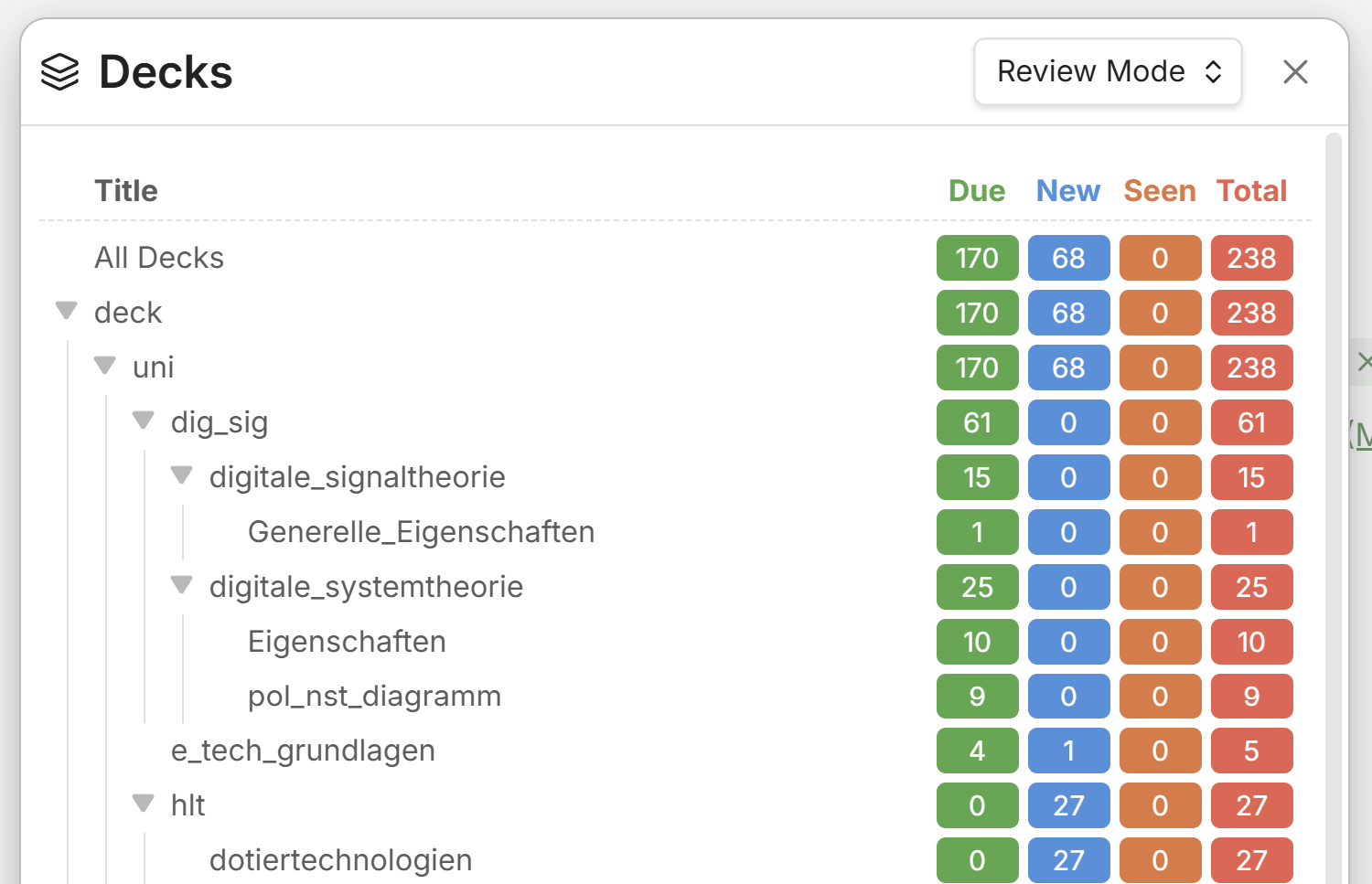
2. Select a deck via the list and click on the deck name
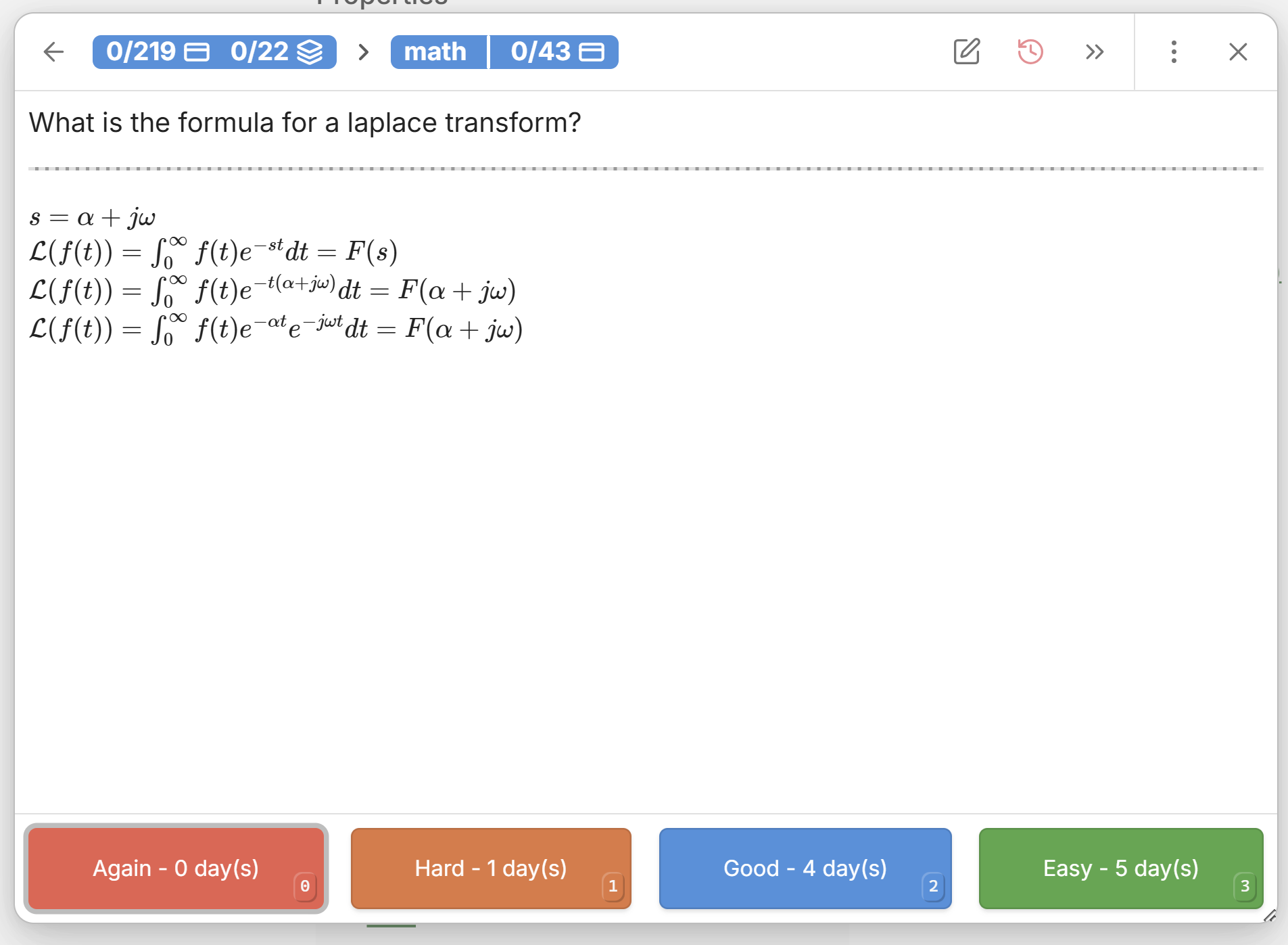
3. Rate your ability to remember the answer to the current question
- This tells the algorithm what you know well and what you don't
Creating & reviewing whole notes
Sometimes it makes more sense to recall a whole note, when it isn't just pure facts which you have to learn. This is where marking a note for review comes in handy.
- Just like with decks add the tag
#reviewto your note to mark them as reviewable - To see which notes are due for review open the note review queue via the command(ctrl+p): Open Notes Review Queue in sidebar
- There you can open up the notes for review, just as if you would open them up in your file explorer, only that they are sorted her by when they are due for review
- Once you have recalled/reviewed your note you can rate your recall ability by executing the command(ctrl+p, or just via the 3 dots next to the note): Review note as YOUR_RATING - The algorithm will take your rating into account to calculate a new due date, when you have to review it again
Block Review (fork addition)🧩
This fork adds block review: mark any passage of a note as a reviewable block and schedule it with the plugin's active algorithm (FSRS by default). Unlike flashcards, block content stays visible in your notes — the markers are self-contained Obsidian comments, so your prose is never hidden.
Marking a block
Wrap a block with two single-line comment markers, each on its own line:
%% review %%
The mitochondria is the powerhouse of the cell.
%% /review %%
Keeping the markers on separate lines (instead of one %% ... %% pair) means the content between
them renders normally in reading and editor views.
Optionally configure the opening marker:
%% review :type=flashcard :source="[[Biology#Cell]]" %%
What is the powerhouse of the cell?
---

The mitochondria.
%% /review %%
:type=recall(default) — the whole block is the prompt.:type=flashcard— text before the reveal separator is the front, the rest is the back.:source="[[Note#Heading]]"— target of the "open source" link in the review view.:id=r-my-block— a stable id; omit it and a deterministic id is derived from the content.
Split a prompt from extra detail with the reveal separator (--- by default, configurable):
%% review :type=recall %%
Explain osmosis.
---

Movement of water across a semi-permeable membrane, from low to high solute concentration.
%% /review %%
Recall blocks show their content immediately and reveal the extra detail with Show notes. Flashcard blocks show the front first and reveal the back with Show answer.
Reviewing
Open the panel from the command palette (Ctrl/Cmd+P): Block review: Open block review, then rate each due block Again / Hard / Good / Easy.
Where the data lives
- Scheduling data for each block is stored inline in the note as a hidden record:
%% sr-block {"version":1,"id":"r-1","schedule":{...}} %%— it travels with the note. - Settings live in
ReviewConfig.mdat the vault root (created with defaults on first load). - Everything is plain text, so syncing the vault (for example via Git) carries your review state and settings across desktop and mobile with no extra setup.
Links & Resources🔗
Support Development💻
| Stephen Mwangi (Owner) | Kyle Klus (Maintainer) |
|---|---|

|

|
For plugin developers
Search results and similarity scores are powered by semantic analysis of your plugin's README. If your plugin isn't appearing for searches you'd expect, try updating your README to clearly describe your plugin's purpose, features, and use cases.