Canvas Context
unlistedby ff6347
Use the canvas as a context machine
Obsidian Canvas Context Plugin
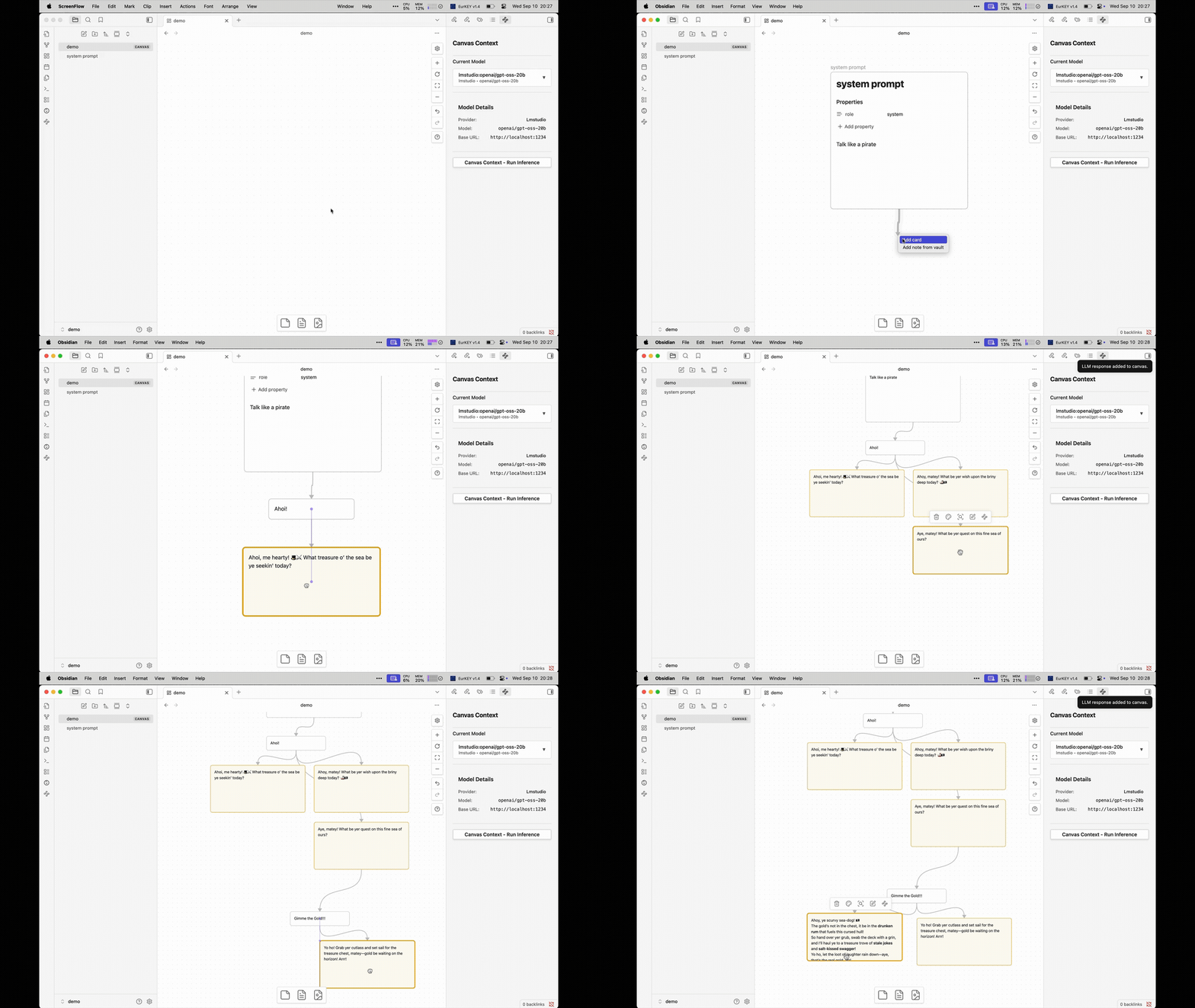
This plugin uses the Obsidian Canvas to control what context gets send to a LLM. With chat tools like ChatGPT.com we can not be sure which information is send to the LLM. Here we have full control over what gets send and what not. We (this is I) also use the spatial arrangment on the canvas for better navigation of our context. This is a pretty early stage of an idea and I am not sure if this might get useful or not.
Prerequisites
- Obsidian 1.9.12 or higher
- Ollama or LM Studio installed.
- The local server of one of the two enabled and a model downloaded.
- Alternative a OpenAI API key if you want to use OpenAI models.
Rules
- Notes and cards should have a frontmatter with at least the property
role. - The role must be one of
system,user,assistant. - If no frontmatter is provided the plugin assumes the role
user. - Connections from bottom to the top of a card are building the order of messages.
- Connections from the left or right side of a card are used as context and are added to the message after the card.
Setup
- Until the plugin is in the community plugins list you need to use the BRAT plugin to install it.
- Or you download the latest release from the releases and copy the files to your plugins folder.
# create the folder
mkdir -p <your vault>/.obsidian/plugins/obsidian-canvas-context
# copy the files
cp main.js <your vault>/.obsidian/plugins/obsidian-canvas-context/main.js
cp manifest.json <your vault>/.obsidian/plugins/obsidian-canvas-context/manifest.json
cp styles.css <your vault>/.obsidian/plugins/obsidian-canvas-context/styles.css
- Enable the plugin in the settings.
- Go to the settings and add a model by selecting one of the providers and adding a model from the dropdown.
- If you want to use non local models add a API key first. These will be selectable when you add a model.
- Set the model as default.
Usage
- Create a canvas in Obsidian
- Add a new note that describes your system prompt (this is optional but helps aligning the model).
- Add the property
role: systemto the frontmatter of the note.
- Add the property
- Add a card or note with instructions or questions and connect it to your system prompt.
[!TIP] You can drag from the bottom of one note a card out by just click dragging on the connector.
The connection should be from bottom of the system prompt to the top of the card.
- Add notes that you want to use as context and connect them to your system prompt at the right or left side.
- Use one of these ways to run the inference:
- Select the last card or note in your tree and use the CTRL click context menu to run the inference by selecting
Canvas Context: Run Inference. - Select the last card and use the little waypoint button to run the inference.
- Use the waypoint icon in the left ribbon toolbar to open the canvas context panel and run the inference from there using the button.
- Select the last card or note in your tree and use the CTRL click context menu to run the inference by selecting
- The result will be added as a new card to the canvas and will be connected to the last card/note.
Development
- Clone the repository into your plugins folder.
- Run
pnpm installto install dependencies. - Run
pnpm devto start the development server. - Open Obsidian and enable the plugin in the settings.
- Make changes to the code and see the changes in Obsidian.
- Run
pnpm buildto build the plugin for production.
For plugin developers
Search results and similarity scores are powered by semantic analysis of your plugin's README. If your plugin isn't appearing for searches you'd expect, try updating your README to clearly describe your plugin's purpose, features, and use cases.