Plugin Toggle
unlistedby hmnijp
Quickly enable and disable Obsidian plugins from the status bar
★ 1 starsUpdated 2mo agoMIT
Plugin Toggle
Quickly enable and disable Obsidian plugins from the status bar.
Features
- Puzzle icon in the status bar
- Floating popup with toggles for each managed plugin
- Settings tab to choose which plugins appear in the popup
- Optional keyboard shortcut (assignable in Settings → Hotkeys)
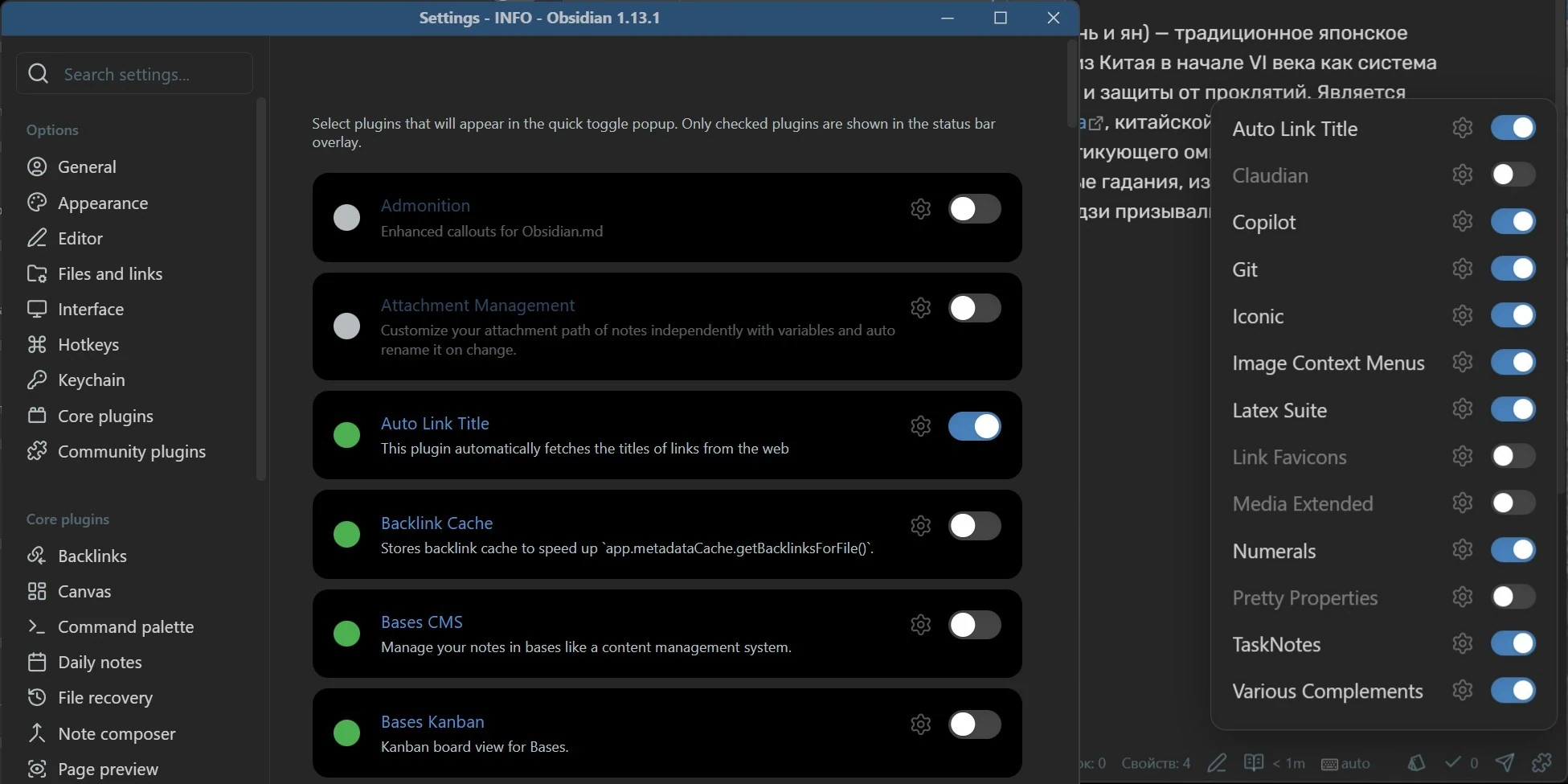
Usage
- Open Settings → Plugin Toggle.
- Enable the plugins you want to manage.
- Select the puzzle icon in the status bar to open the popup.
Select the toggle next to a plugin to enable or disable it.
Keyboard shortcut
- Open Settings → Hotkeys.
- Search for Open overlay.
- Assign your preferred shortcut, for example
Ctrl+Shift+T.
Installation
- Download
main.js,manifest.json, andstyles.cssfrom the latest release. - Copy them to
VaultFolder/.obsidian/plugins/obsidian-plugin-toggle/. - Enable the plugin in Settings → Community plugins.
BRAT
If you have the BRAT plugin installed, add https://github.com/hmnijp/obsidian-plugin-toggle to the list of beta plugins.
Created by hmnijp.
For plugin developers
Search results and similarity scores are powered by semantic analysis of your plugin's README. If your plugin isn't appearing for searches you'd expect, try updating your README to clearly describe your plugin's purpose, features, and use cases.