by ssjy1919
Manage enabled states, delayed startup, and device-type controls for installed plugins.
Control Center
Manage the enabled state, delayed startup, device-type rules, and notes for installed Obsidian plugins.
Features
- Plugin list management: display all installed plugins in a table, sortable by name, status, delay, modified time, and notes
- Enable/disable toggle: switch a plugin on or off and record the change time automatically
- Delayed startup: set an N-second delay for a plugin; it takes effect immediately in the current session and applies the delay on the next Obsidian startup
- Device-type control: disable plugins per device type (phone, tablet, desktop); rules apply automatically when switching devices
- Letter index: jump to plugins quickly by their first letter
- Search filter: search by plugin name or note content
- Notes: add Markdown notes to plugins, with support for internal links
- Backup/restore: save and restore enabled states, device rules, delays, and notes
- Bilingual UI: choose Chinese or English in the settings; the main UI and notifications switch immediately
- Console logs: disabled by default, can be enabled from the settings page
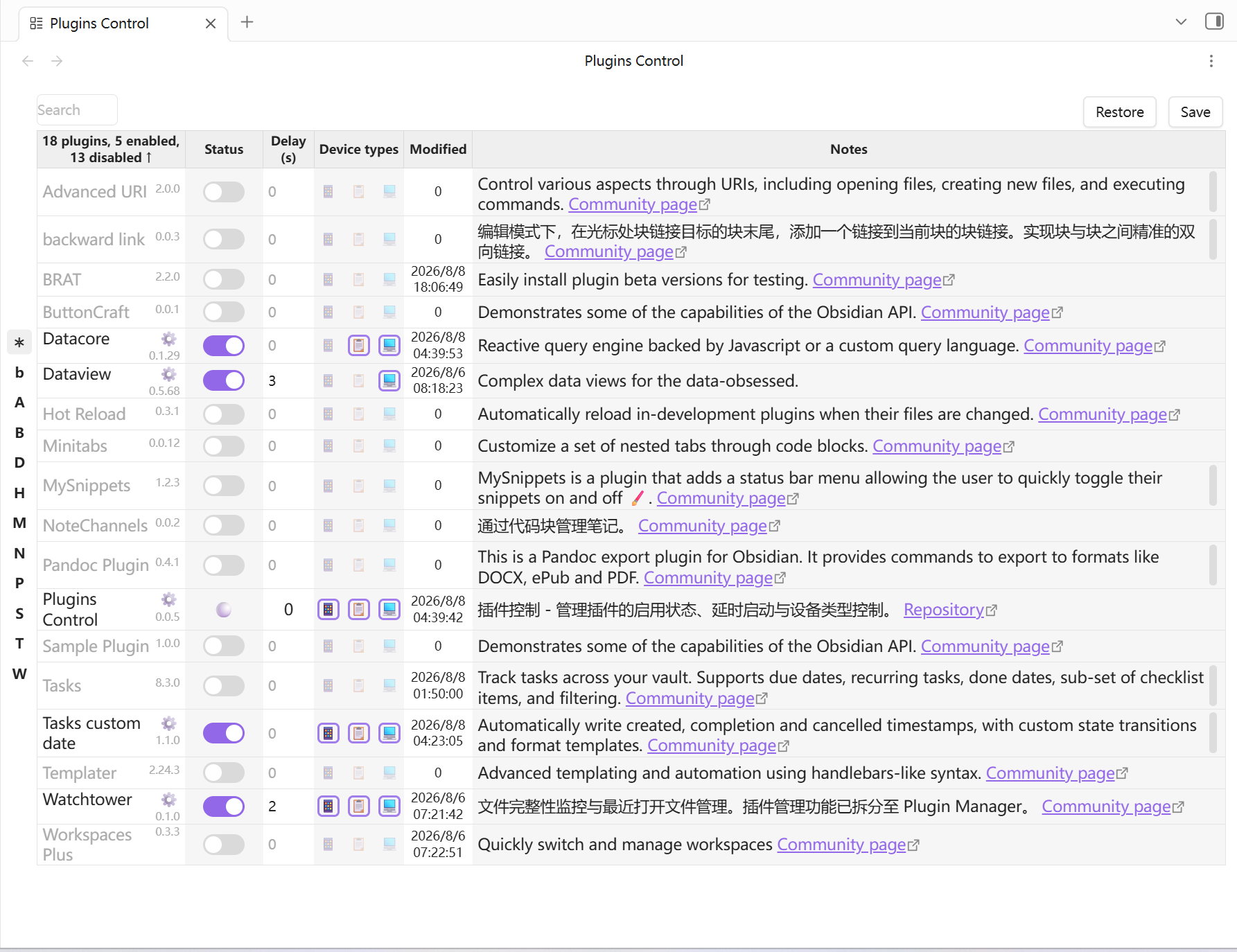
Device Type Control
Each plugin has three device-type icons (📱 phone, 📋 tablet, 💻 desktop). Click an icon to toggle whether that device type is disabled for the plugin.
Device types use a deny-list:
- Empty list: enabled on all device types
- Contains only the current device type: disabled on this device, enabled on others
- Contains all three device types: plugin is globally disabled
Save & Restore for Troubleshooting
With many Obsidian plugins installed, it can be hard to find which plugin is causing a bug or conflict. Save the current enabled/disabled configuration first, then freely disable many plugins while troubleshooting. When you are done, click Restore to bring every plugin back to its saved state in one click.
Installation
Manual Installation
- Clone or download this repository into your Obsidian plugins folder:
<your-vault>/.obsidian/plugins/plugins-control/ - Run the following commands inside the plugin folder:
npm install npm run build - Enable the plugin in Obsidian: Settings → Community plugins → Control Center
- Open the plugin settings and choose Chinese or English under Language
Development
# Install dependencies
npm install

# Development mode (watch and rebuild automatically)
npm run dev

# Production build
npm run build

# Release consistency check
npm test
Release
Update the version and sync manifest.json and versions.json:
npm version patch
Run npm test and npm run build before publishing.
Project Structure
src/
├── main.ts                  # Plugin entry point
├── types.ts                 # Types, defaults, legacy data migration
├── i18n.ts                  # Chinese and English translations
├── store.ts                 # Redux state management
├── logger.ts                # Console logging (disabled by default)
├── views/
│   ├── PluginManagerLeft.tsx   # ItemView registration
│   ├── PluginManagerView.tsx   # Main plugin table view
│   ├── GroupView.tsx           # Search box
│   ├── PluginCommentCell.tsx   # Notes cell
│   └── PMtools.ts              # Plugin refresh, enable/disable, device rules, delay timers
├── components/
│   └── Switch.tsx              # Toggle switch
└── setting/
    └── settingTab.tsx          # Plugin settings page
scripts/
└── check-release.mjs           # Release consistency check
version-bump.mjs                # Version bump script
License
MIT
For plugin developers
Search results and similarity scores are powered by semantic analysis of your plugin's README. If your plugin isn't appearing for searches you'd expect, try updating your README to clearly describe your plugin's purpose, features, and use cases.