Note Mate
approvedby ialex32x
This plugin has not been manually reviewed by Obsidian staff. Note Mate is a smart AI assistant for your vault. With Note Mate, you can easily create new notes, expand on ideas, and get insights from your vault.
Note Mate
A vault-connected sidebar assistant: persistent chat that searches and drafts with you, in-editor rewrite and explain shortcuts, plus checkpoints so you review or rewind AI edits cleanly.
It’s an Obsidian plugin. Plug in AI accounts you already use, chat beside your notes, pull in vault context, polish text where the cursor sits, and rewind changes when needed—still inside Obsidian.
What it does for you
Deep vault tooling
Notebook access
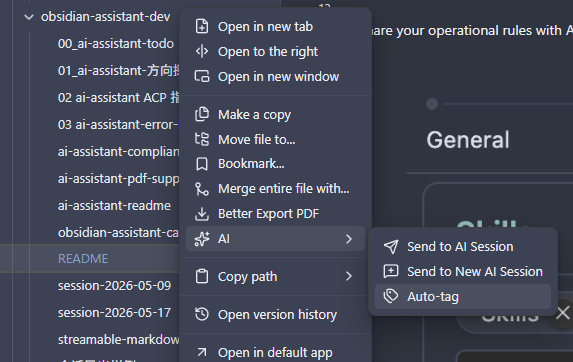
Under Settings → Note Mate, turn on the vault tools you want (tool permissions). From chat—or the file menu for shortcuts—the assistant can:
- Read notes — open by path or wiki link and quote what matters.
- Search the vault — find notes by text or tags and follow links between them.
- Create & edit — draft new notes or update existing ones; every change stays traceable.
- Auto-tag — send a note to chat so the assistant can add tags that match your vault’s conventions.
Bases & Canvas
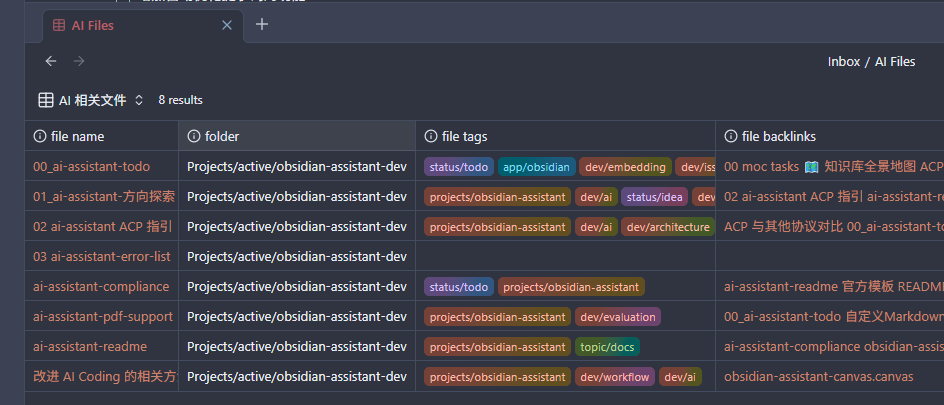
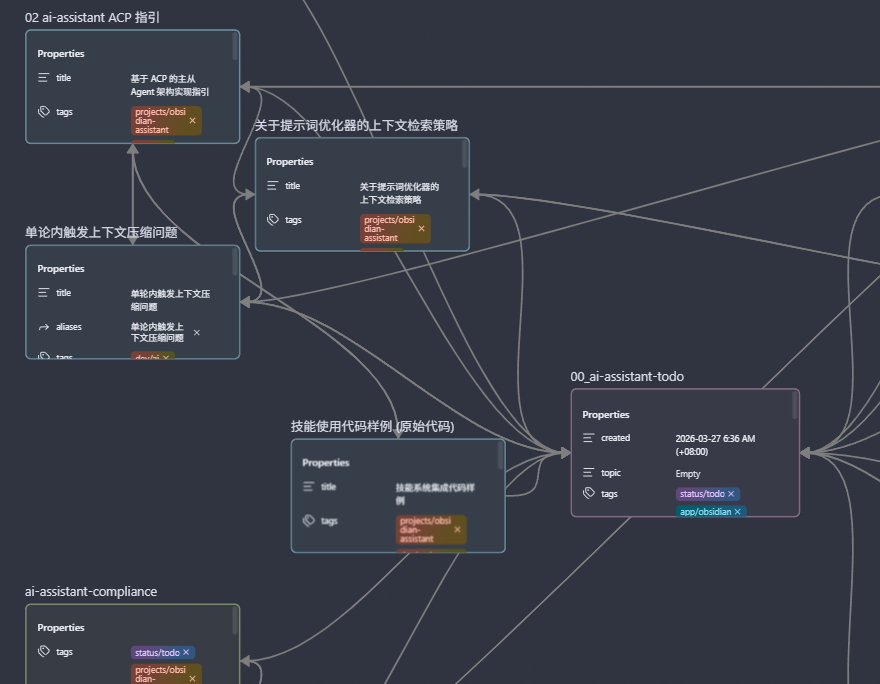
Beyond markdown, the assistant understands Obsidian Bases (.base) and Canvas (.canvas) files. Point it at an existing file or describe what you want in plain language—it can draft valid structure: table views and filters for Bases, card layouts and connections for Canvas, ready to open in Obsidian.
Insights
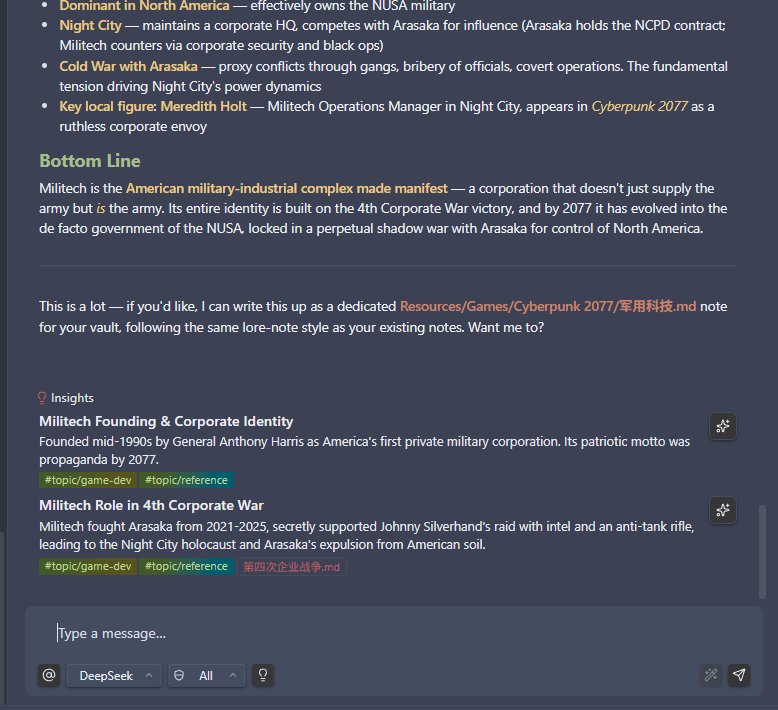
Controlled separately from vault tooling. After a reply, optional cards surface takeaway angles—new vantage points, sharper questions, hooks worth promoting into notes. The goal is fresher momentum, not circling what you already said.
Everyday editor shortcuts
Right from the editor:
- Rewrite selection — expand, shorten, or polish highlighted text.
- Explain selection — ask clearly about confusing passages.
- Send to AI session — push the open file—plus cursor or selection—into chat for deeper back-and-forth.
- AI Edit History — browse AI-driven edits across sessions.
Checkpoints
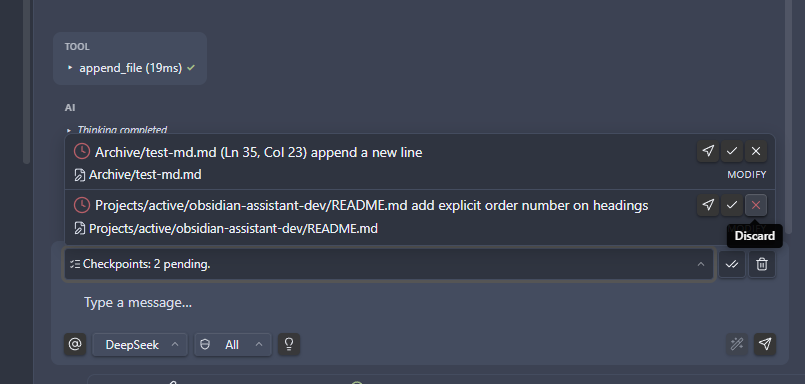
When the assistant edits vault files during chat, each round becomes a checkpoint. Review what changed, jump to the message that triggered it, then accept to keep the edits or discard to restore files from snapshots. Touched files stay locked until you decide—even across sessions—so unreviewed AI changes don't collide with new ones.
Todo
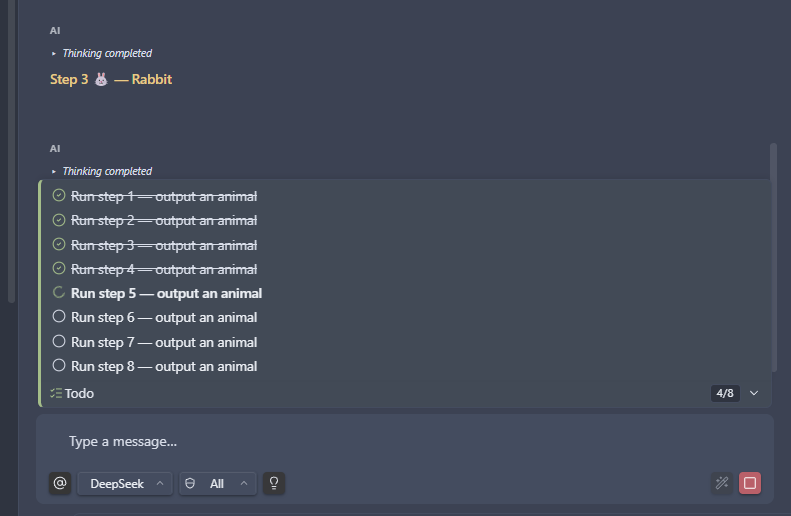
When a task will take several steps, the assistant decides on its own whether to build a todo plan—breaking the work into ordered steps, re-reading that list between tool calls, and marking progress as it goes. That keeps longer jobs on track instead of drifting or skipping substeps. The plan is pinned in chat so you can follow along too.
Memory
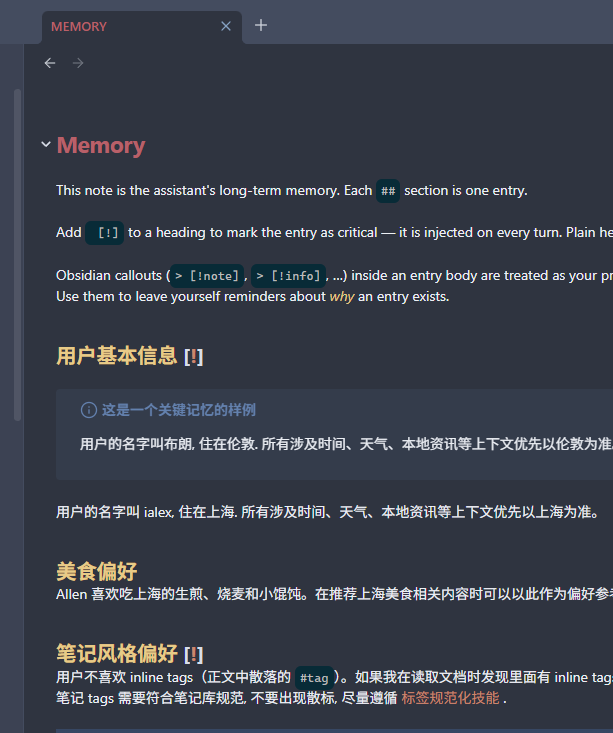
Turn on Memory under Settings → Note Mate when you want the assistant to remember facts across sessions. Everything lives in a memory note in your vault—plain markdown you can open, read, and edit like any other note. The assistant picks up your changes on the next turn.
Models and accounts
Add your own keys: OpenAI-compatible endpoints (including OpenAI, Azure OpenAI, and comparable hosts), Google Gemini, and saved profiles so switching models isn’t rewriting forms each time.
Optional extras (when you turn them on)
- Lookups — Web search, open a page from a URL, skim feeds—useful for research next to notes.
- Images — generate pictures and drop them straight into your vault (provider-dependent).
- Richer tooling — connect MCP servers for capabilities your admin or community provides.
- Skills — reusable instruction packs loaded from folders you choose—great for repeatable workflows.
- Embeddings (experimental) — connect an embedding provider so tools and skills can be relevance-ranked before entering the prompt, saving tokens. Vault-wide semantic search is not here yet; whole-library search “by meaning” is planned / TBD. Expect drift as this settles.
- JavaScript snippets (experimental) — run short scripts from chat for arithmetic or reshaping pasted text when enabled. Executes through the plugin, not a hardened sandbox; expect sizeable shifts between releases.
Platforms & languages: Runs on desktop and mobile (Windows, macOS, Linux, iOS, Android).
UI copy ships in English, 日本語, 한국어, 简体中文, and 繁體中文—defaults follow locale; overrides live in plugin settings.
Installation
Community plugins (recommended)
- In Obsidian, open Settings → Community plugins.
- Search Note Mate, then choose Install and Enable.
Manual install
- Download
main.js,styles.css, andmanifest.jsonfrom the latest release. - Inside your vault, create
.obsidian/plugins/ai-note-mate/if it doesn’t exist. - Copy those three files into that folder.
- Reload Obsidian and enable the plugin under Settings → Community plugins.
First-time setup
- Open Settings → Note Mate.
- Add at least one Provider profile: an OpenAI-compatible endpoint or Gemini, plus your model and key.
- Optionally wire integrations—you can skip these until something on the roadmap needs them:
- Image generation — saves generated visuals into your vault when enabled.
- Embeddings (experimental) — provider needed for embedding-based tool/skill filtering (saves tokens). Not for vault-wide semantic search yet; that mode is planned / TBD.
- MCP servers — connect external MCP servers for extra tooling.
- Skill folders — where optional instruction bundles live on disk.
- Tool permissions — fine-grained control over which vault moves the automation may attempt.
Building from source
For people who want to compile the plugin locally:
- Needs: Node.js 18+ and npm.
- Install:
npm install - Build:
npm run build(ornpm run devfor watch mode) - Checks:
npm run lintandnpm run test
License
Author
Support
If this plugin helps your daily notes, consider buying me a coffee.
For plugin developers
Search results and similarity scores are powered by semantic analysis of your plugin's README. If your plugin isn't appearing for searches you'd expect, try updating your README to clearly describe your plugin's purpose, features, and use cases.