Daynest
unlistedby Neomoorea
A modern calendar, nested entirely in your Daily Notes' Markdown.
Daynest



A modern calendar, nested entirely in your Daily Notes' Markdown.
Daynest adds Year, Month, Week, and Day calendar views to Obsidian. There's no database, no new file format, and no hidden metadata: every event and task it shows is read from and written back to plain Markdown inside your existing Daily Notes. Delete the plugin at any point and your notes stay exactly as readable as they always were.
Screenshots
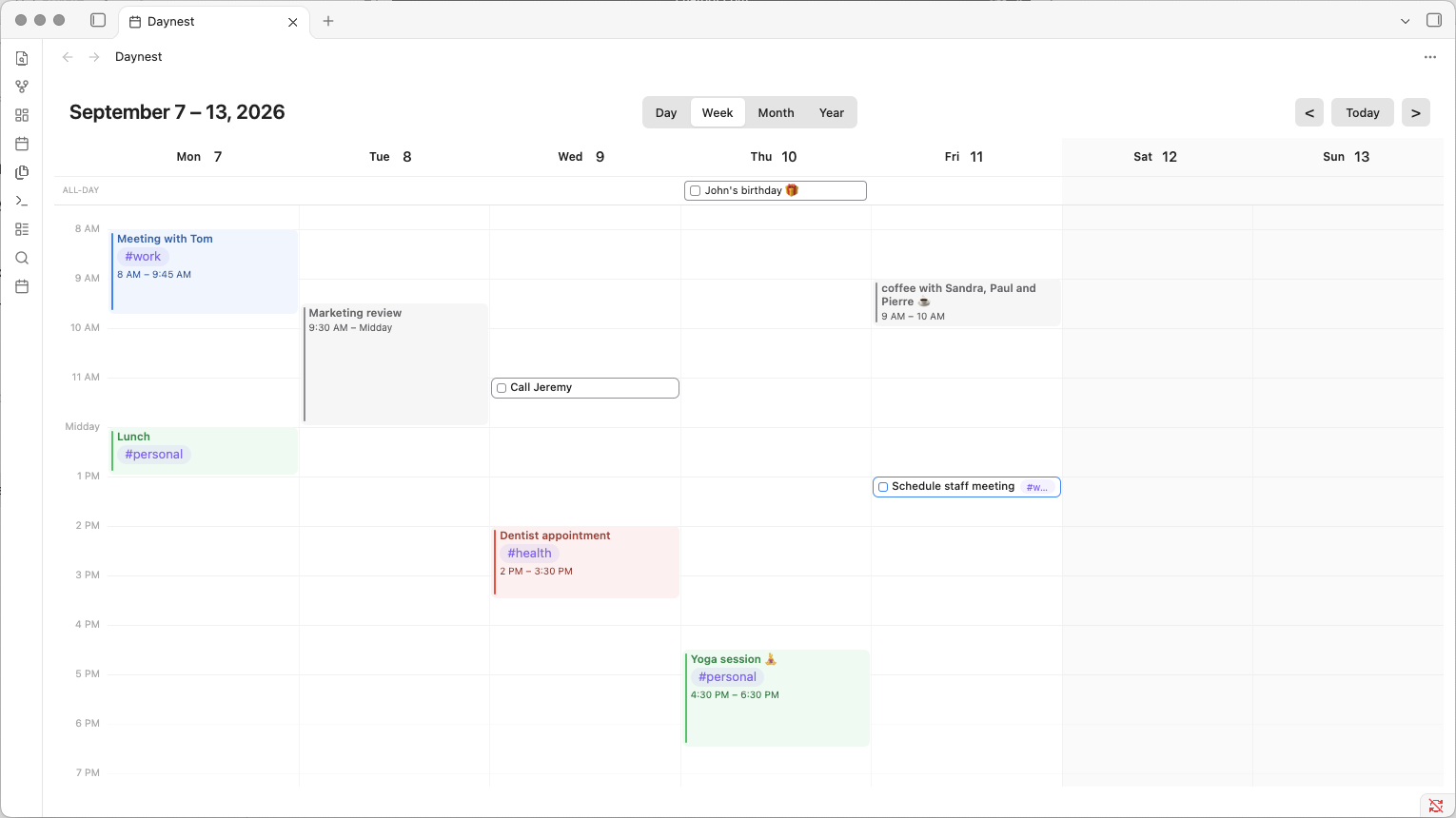
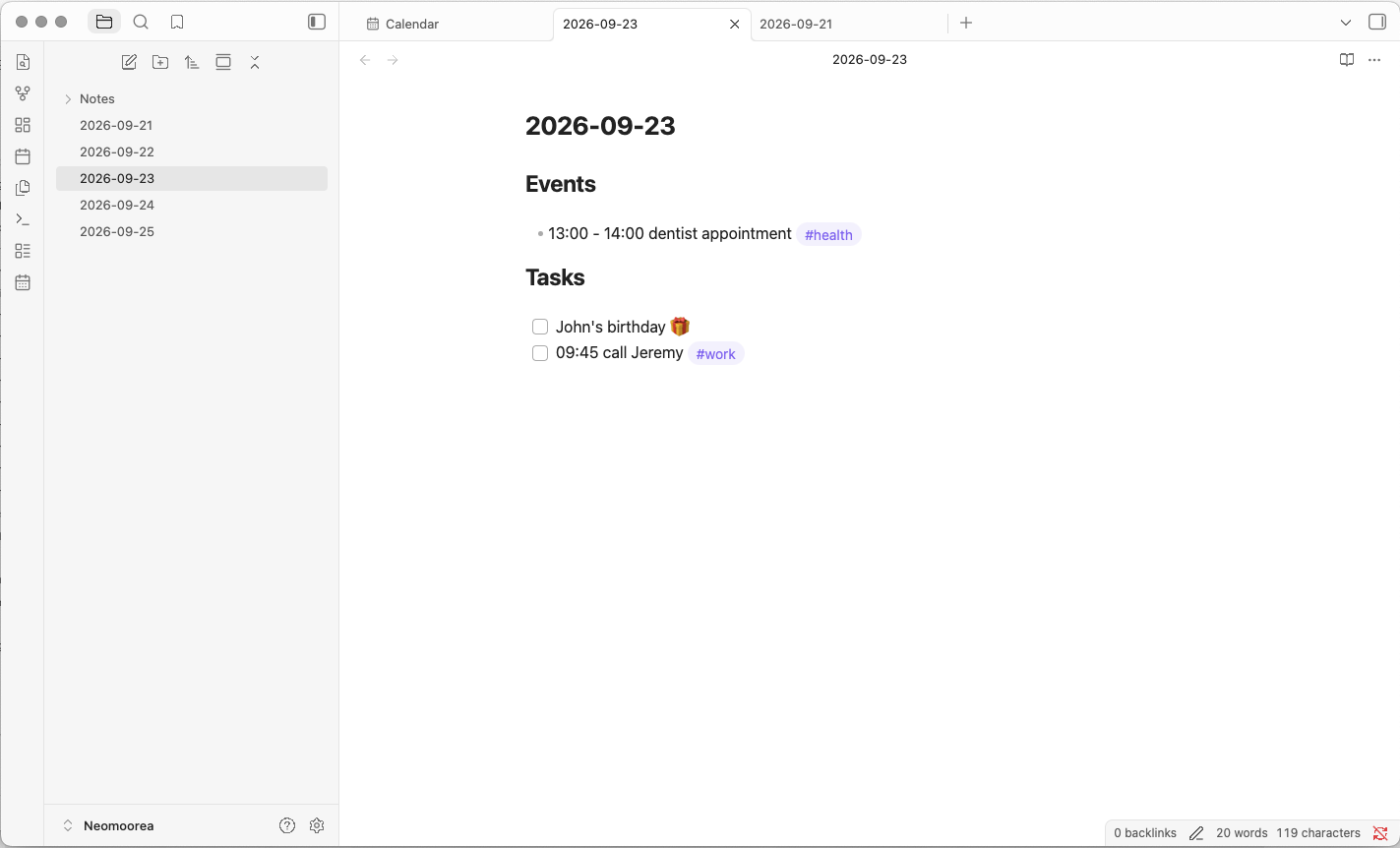
Why another calendar plugin?
Daynest offers a simple calendar experience that can be used out of the box. No extensive set up, no metadata, no documentation the size of an encyclopaedia.
Daynest exists because I wanted something narrow: a simple, intuitive calendar experience that reads and writes nothing but the Daily Notes I already keep, in plain Markdown, with no properties, IDs, or plugin-only files anywhere in my vault. No sync service to trust, no separate database to get out of sync with my notes, and no dozen configuration screens to get through before it does anything useful.
Features
- Four views — Year, Month, Week, and Day, navigable with the header's switcher, arrows, or Today button
- Nothing but Markdown — events and tasks are plain
- HH:MM - HH:MM Titleand- [ ] Titlebullets; nothing else is ever added to your notes - Create, move, and resize by dragging — draw a new event on the timeline, drag an existing one to a new time or day, or drag its edge to resize it
- Tag-based colours — colour rules match on
#tagsalready in your titles, with combination rules (work+meeting) taking priority over single-tag ones - Daily Notes-aware — reads your existing Daily Notes (or Periodic Notes) folder, filename format, and template, and creates a note automatically the moment you add something to a day that doesn't have one yet
- Linked notes — an event's title can double as a link to another note, with an optional alias so the note and the displayed title don't have to match
- Looks like it belongs — styled with Obsidian's own theme variables, so it follows your light/dark mode and accent colour automatically
The Markdown syntax
Daynest recognises a simple syntax. Everything else in a Daily Note — including other bullets, headings, and paragraphs — is left completely untouched.
| What | Syntax | Example |
|---|---|---|
| Timed event | - HH:MM - HH:MM Title #Tag | - 09:00 - 10:00 Team meeting #work |
| All-day event | (same shape, spanning your configured working hours) | - 08:00 - 18:00 Conference #work |
| All-day task | - [ ] Title | - [ ] Buy milk |
| Timed task | - [ ] HH:MM Title | - [ ] 15:30 Buy groceries #personal |
A completed task uses - [x] instead of - [ ].
- Tags are just ordinary inline
#tagsanywhere in the title — they double as the input to colour rules (see below). - Wikilinks work normally:
- 13:10 - 15:10 [[Project meeting]]is an event whose title is a link. Cmd/Ctrl-click it in any calendar view to open that note. - The parser is deliberately strict:
- 09:00 Meeting(one time, no range) and- This meeting starts at 09:00are both ordinary Markdown, not events. - An event is treated as all-day when its times exactly match your configured working hours. There's no hidden metadata marking this, so changing your working hours later can change how an old all-day event is interpreted.
By default, events and tasks live under ## Events and ## Tasks headings
(both configurable, and a "single section" mode is available in Settings if
you'd rather not split them). A section runs from its heading to whatever
heading comes next, so it's safe to have other headings and content
elsewhere in the same note.
Using it
- Ribbon icon or command palette → "Open calendar" opens the calendar in a new tab.
- Year/Month/Week/Day switcher, Today button, and ◀ ▶ arrows in the header. Set Default view to "Last used view" in Settings if you'd rather it reopen wherever you left it than always the same view.
- Click a date (Month/Year) or a day header (Week/Day) to open that day's Daily Note, creating it from your template if it doesn't exist yet.
- Click an event or task to edit it; Cmd/Ctrl-click a linked one to
open its note instead (linked items display their clean title, not the
[[brackets]]). A ✓ on a task toggles it complete directly. - The editor has a Task toggle that converts what you're creating
between a timed event and a checkbox task (it moves it into your
configured task section on save). Typing a title that starts with
- [ ]or[x]does the same thing automatically. - Right-click menu: Create, Edit, Duplicate, Copy, Paste and Delete events from the contextual menu.
- Month view: hover a day for a small + button (quick-add, all-day by default); drag an item onto another day to move it; "+N more" opens that day in Day view.
- Week/Day view: click-and-release on an empty slot creates a default-length event there and opens the editor; drag on an empty slot draws a custom time range; drag an existing event's body to move it, both across time and across days; drag its top/bottom edge to resize it.
- All of the above is also available as Obsidian commands (open the command palette and search "calendar"), so you can assign your own hotkeys via Settings → Hotkeys — "Go to today", "New event", "New task", and "Switch to Year/Month/Week/Day view" are all there.
- Colour rules: Colours come from tags, configured in Settings → Daynest →
Colours. A rule matches when an item has all of its listed tags; when
several rules match, the one requiring the most tags wins (so a
work + meetingrule beats a plainworkrule), and ties go to whichever rule is higher in your list. Reorder rules with the ↑/↓ buttons.
Daily Notes integration
Folder, filename format, and template come straight from Obsidian's core
Daily Notes plugin (falling back to Periodic Notes if that's what
you use instead). Creating an event or task on a date with no note yet
creates that note first, from your template, with {{date}}, {{date: FORMAT}}, {{time}}, and {{title}} substituted — then opens it according
to your "Open Daily Note in" setting.
Installing it
Requirements
- Obsidian 1.4.0 or later, desktop or mobile.
- Obsidian's core Daily Notes plugin enabled (or the community Periodic Notes plugin as a fallback) — see Daily Notes integration.
Option A — with BRAT
- Install BRAT (Beta Reviewer's Auto-update Tool) from Obsidian's Community Plugins browser, and enable it.
- Command palette → BRAT: Add a beta plugin for testing, then add
Neomoorea/obsidian-daynest. - Enable Daynest under Community plugins.
BRAT also keeps it updated automatically as new releases come out.
Option B — manual install
- Go to the latest release
and download
main.js,manifest.json, andstyles.css. - Create the folder
.obsidian/plugins/daynest/inside your vault, and place those three files in it. - In Obsidian, go to Settings → Community plugins, click Reload plugins (or restart Obsidian), then enable Daynest.
Option C — build from source
npm install
npm run build
This produces main.js next to manifest.json and styles.css at the
project root — copy those three files into .obsidian/plugins/daynest/
as above. npm run dev runs an incremental watch build if you want to
modify the plugin.
License
MIT — see LICENSE for details.
For plugin developers
Search results and similarity scores are powered by semantic analysis of your plugin's README. If your plugin isn't appearing for searches you'd expect, try updating your README to clearly describe your plugin's purpose, features, and use cases.